Guide · T01
Welcome: from payment to your dashboard
Before you start
- A firm that has just paid for its plan: you are signed in as the person who registered it (the Compliance Officer)
-
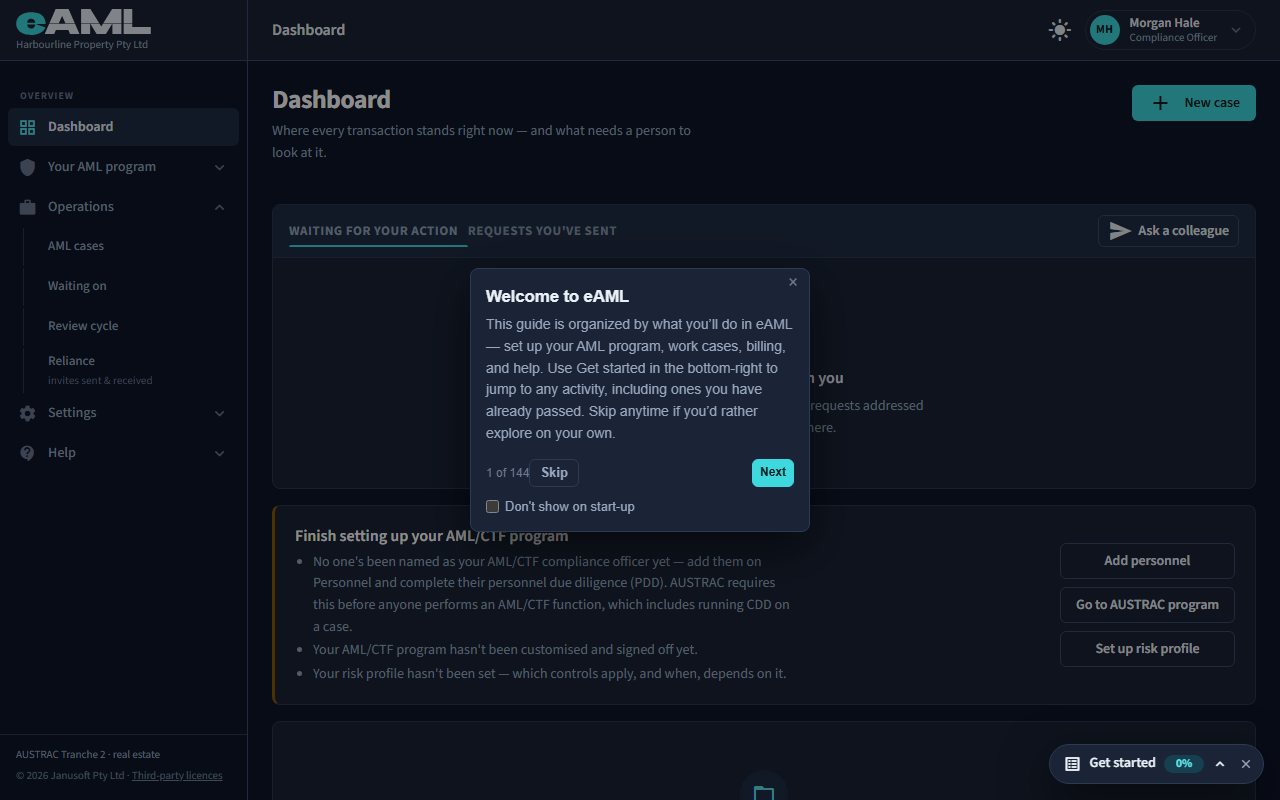
A short guided tour opens the first time you sign in
Select Next to move through the tour, or Skip to close it.
The first time an account signs in, eAML offers a guided tour of the application, organised by what you will do in it: set up your AML program, work cases, billing, and help. You can skip it at any time, and tick “Don’t show on start-up” so it does not open again. You can reopen it whenever you like from the account menu.
-
Your dashboard, and what it asks for first
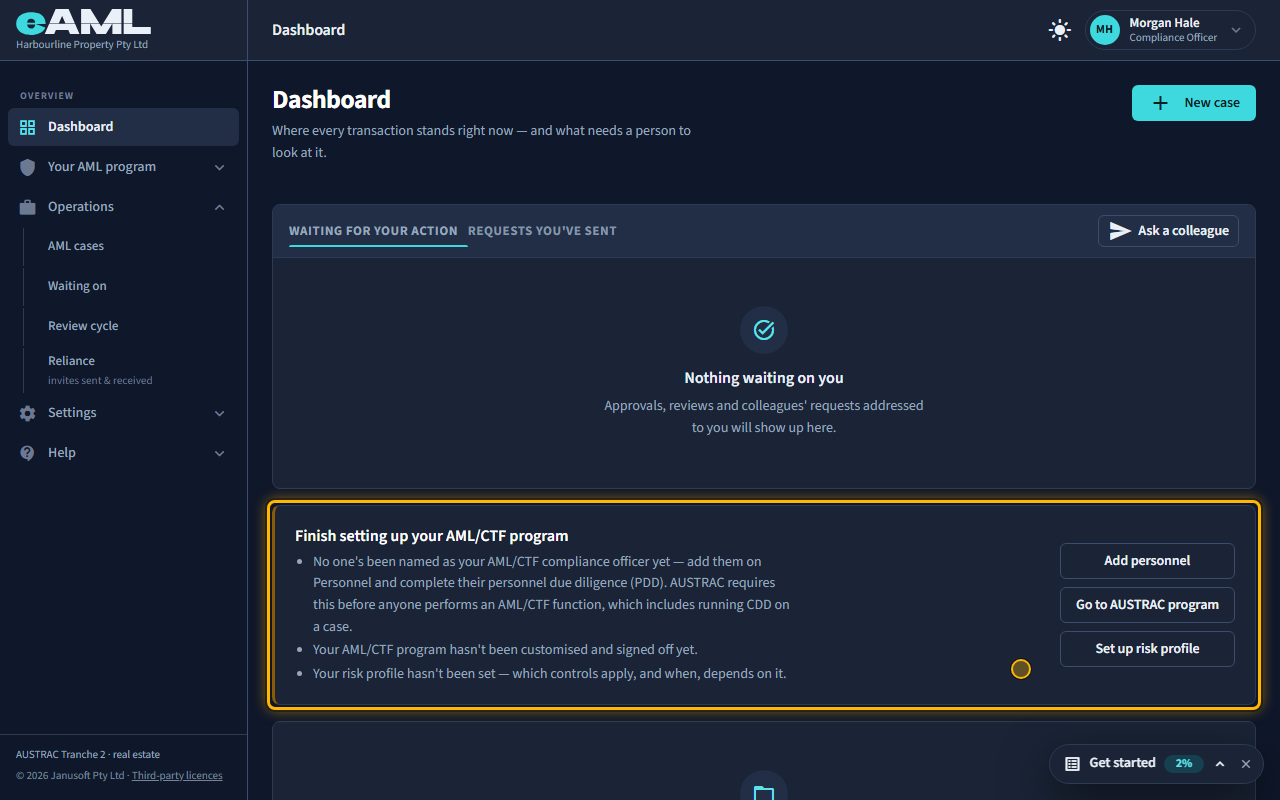
Read the notice under the page title. Each gap has a button that takes you to where it is fixed.
The dashboard is where every transaction stands, and what needs a person to look at it. At the top, Waiting for your action lists what is held up on you: approvals, forms sent back to you, and colleagues’ requests. Under it, a new firm sees an orange notice: what is left to set up before you can open your first case. Once you have cases, the dashboard also shows status tiles (transactions, open, CDD deadline, high risk), a chart by status, and a Needs attention list.
-
The three things to finish before your first case
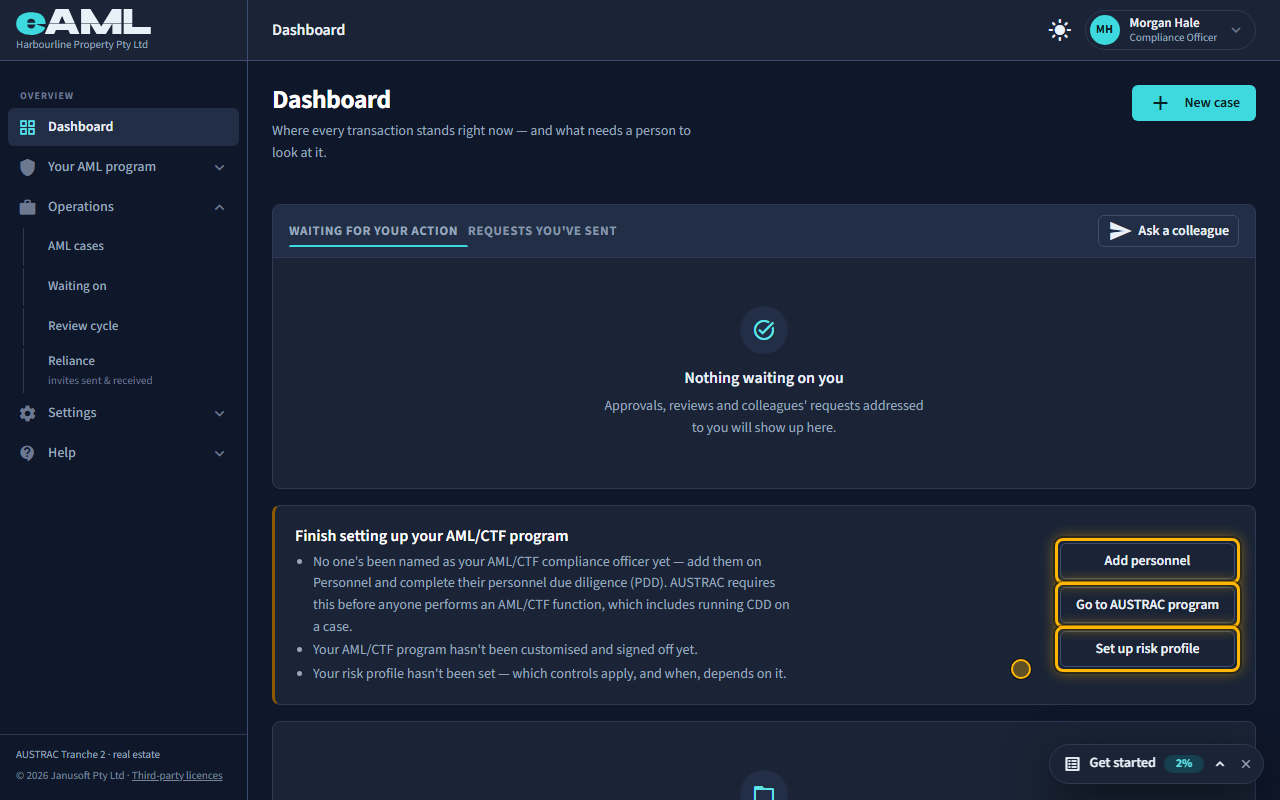
Work through the three buttons in the notice: Add personnel, Go to AUSTRAC program, and Set up risk profile.
Two of them are hard requirements: eAML will not open a case until your AML/CTF compliance officer is recorded with their personnel due diligence marked Suitable, and until your AML/CTF program has been customised and signed off. The third, your risk profile, is not enforced, but which controls apply, and when, depends on it. The next three trainings take you through them in order.
-
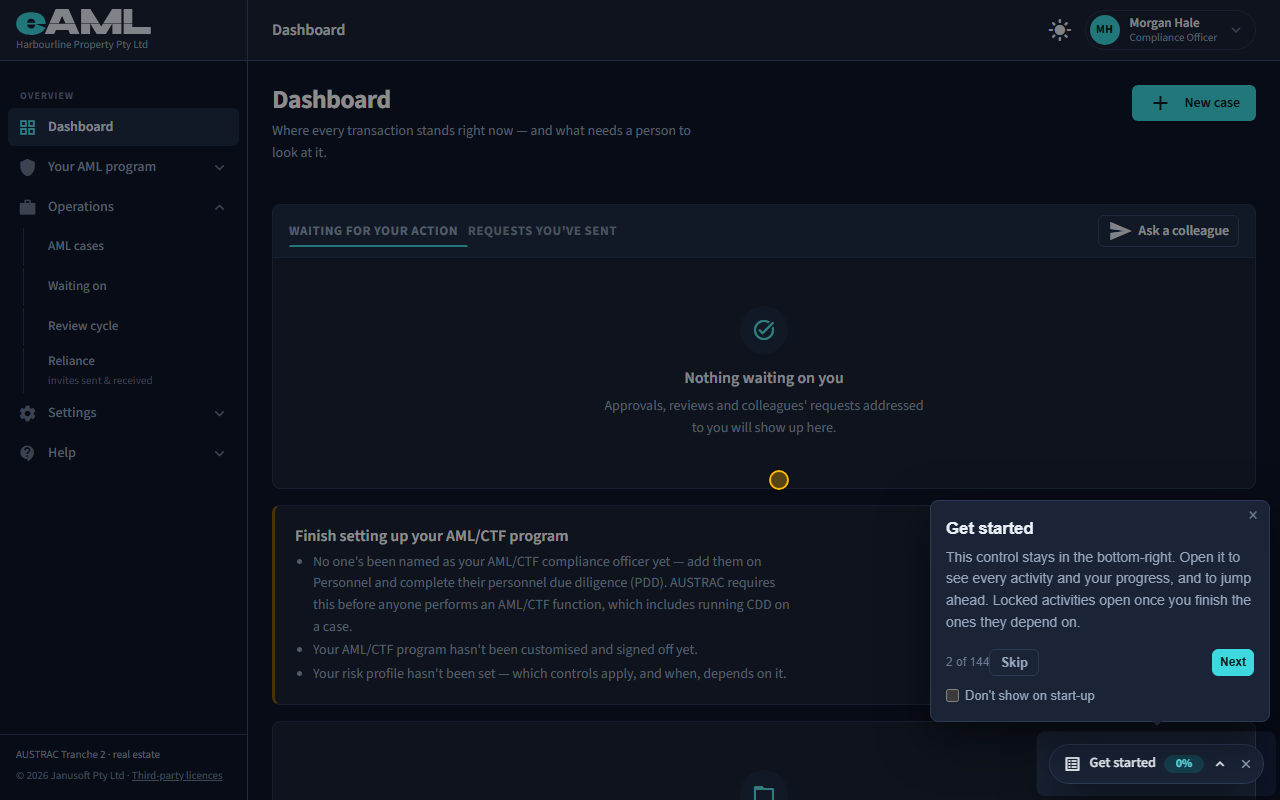
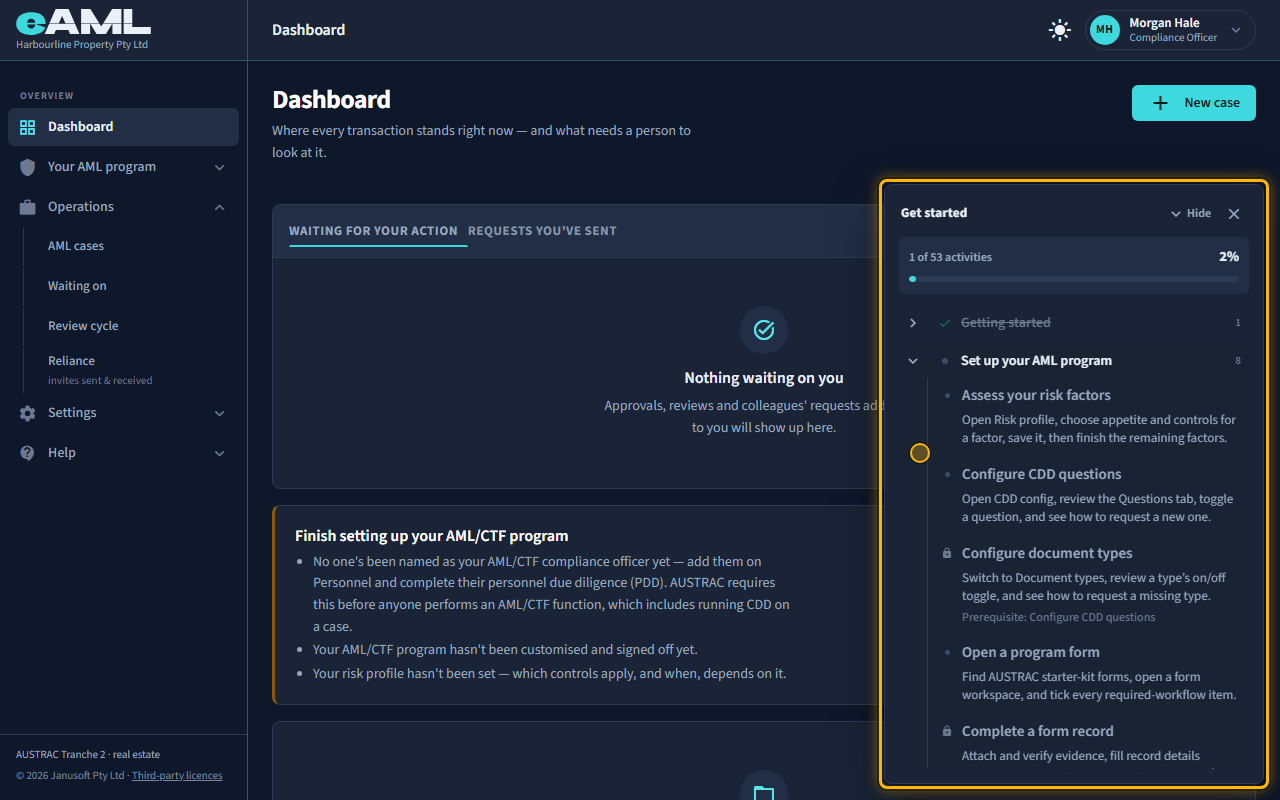
Get started: your checklist
Select Get started, then open a chapter to see its activities.
The Get started control stays in the bottom-right corner of every page. It lists everything you can do in eAML, grouped into chapters, with a tick against each activity you have done and a percentage for the whole list. You can jump to any activity from it, including ones you have already passed. Some activities stay locked until the ones they depend on are done.
-
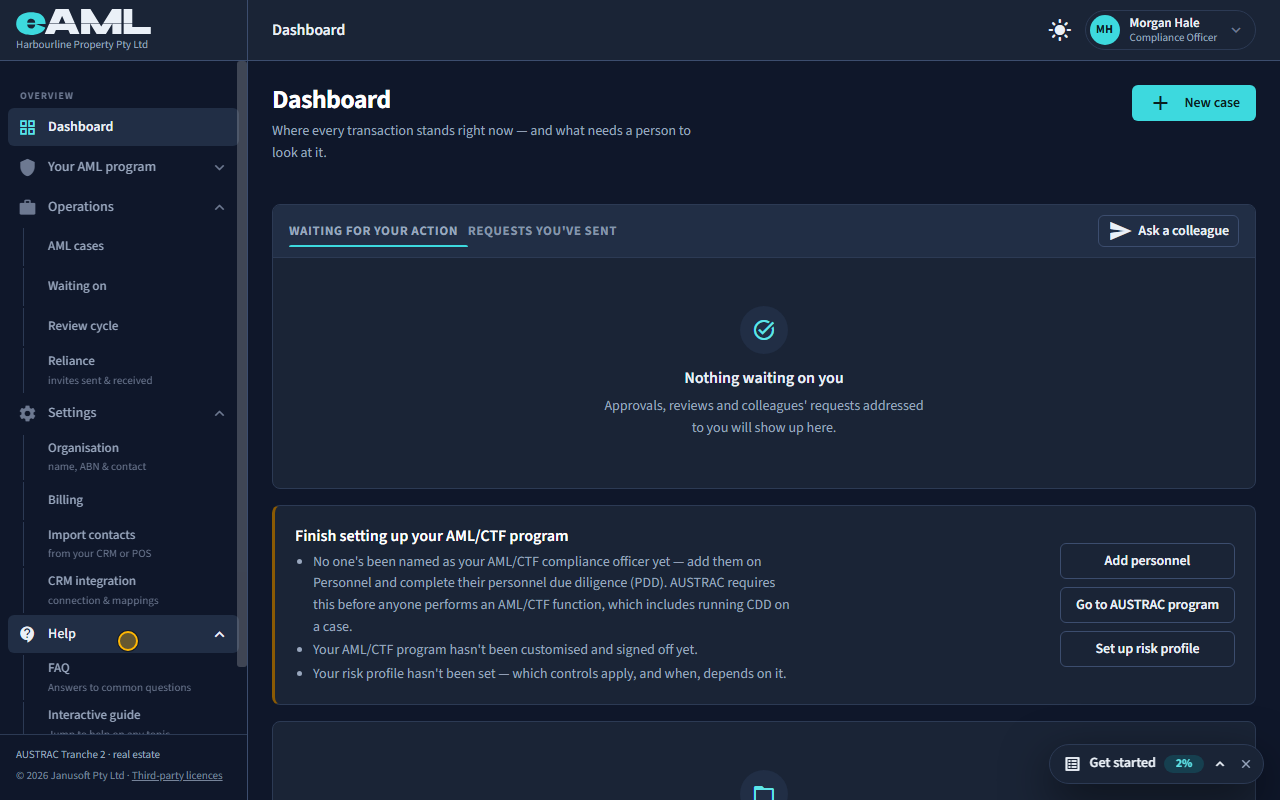
The menu
Open each group in the menu to see what is inside it.
Overview is the dashboard. Your AML program holds the pages that make up your AML/CTF program: risk profile, CDD questions and documents, the AUSTRAC program forms, and personnel. Operations is the daily work: your cases, what you are waiting on, the review cycle, and reliance on other firms. Settings holds your organisation’s details, billing and integrations. Help holds the FAQ, the interactive guide and these trainings.
-
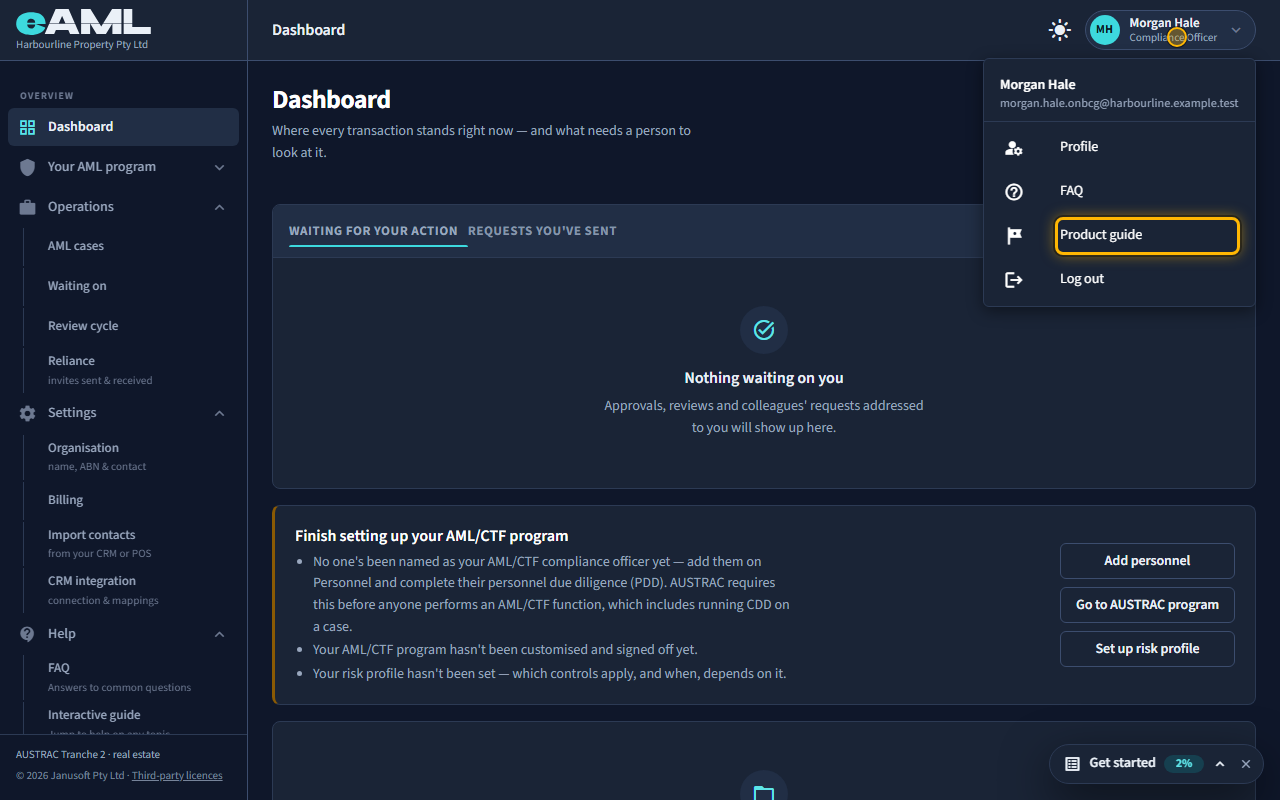
Your account menu: profile, product guide, log out
Select your name at the top right. Choose Product guide to replay the tour.
Your name in the top-right corner opens the account menu. Profile is where you change your own details and password. Product guide reopens the guided tour whenever you want it again. FAQ opens the questions and answers. This is also where you log out.
-
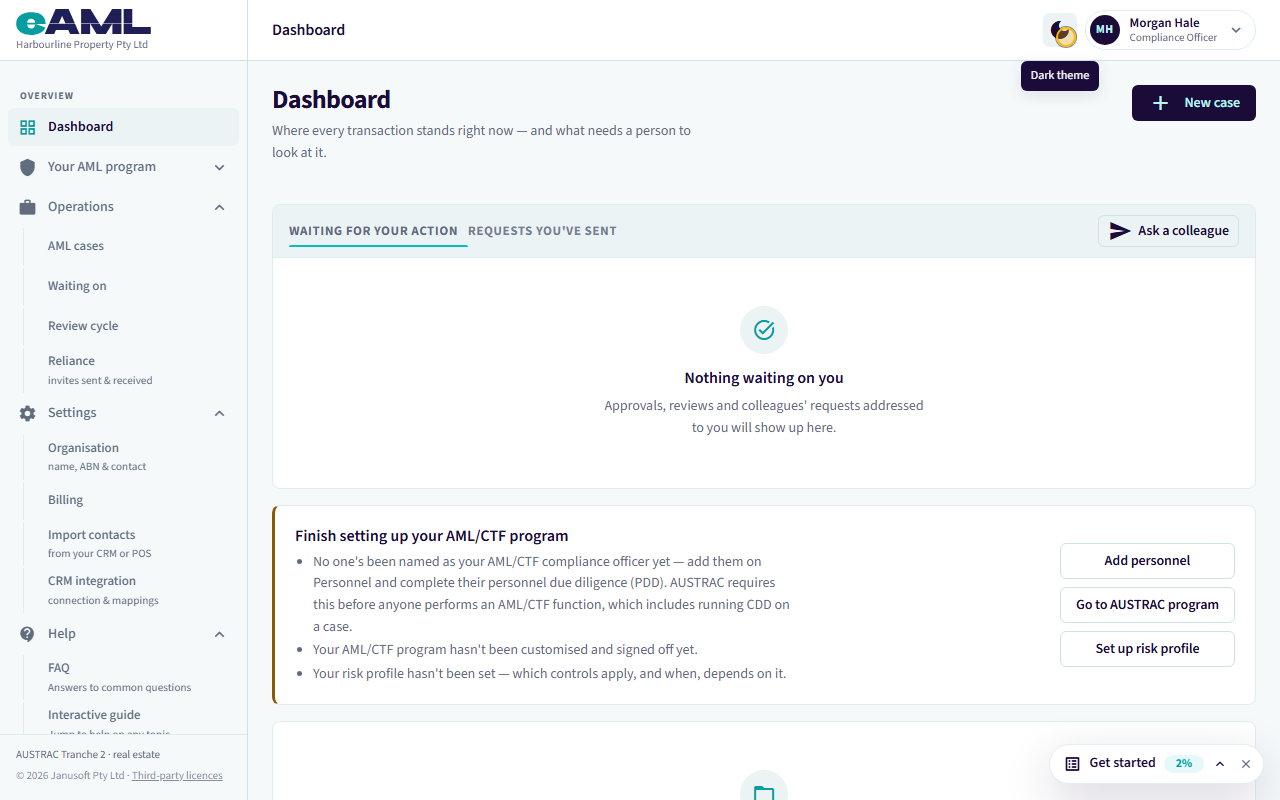
Light or dark
Select the theme icon at the top of the page.
The sun or moon icon in the top bar switches between the light and dark theme. eAML remembers your choice on this device. With no choice made, it follows your computer’s setting.
Every screen in this guide was captured from the live application in the same run as the video, so the two always match. If a screen here no longer matches what you see, tell us: the guide is regenerated after each release.