FAQ
Questions and answers
Getting started and your account
I have just paid. What should I do first?
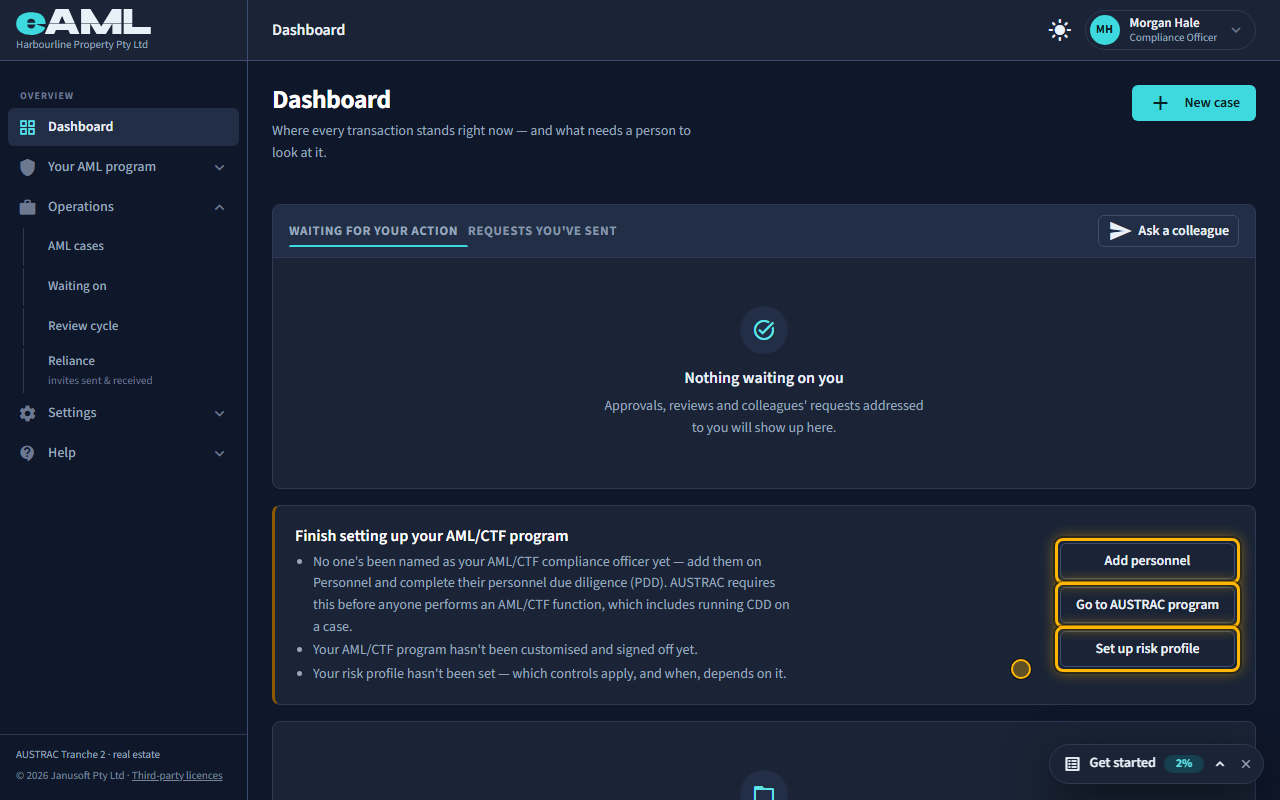
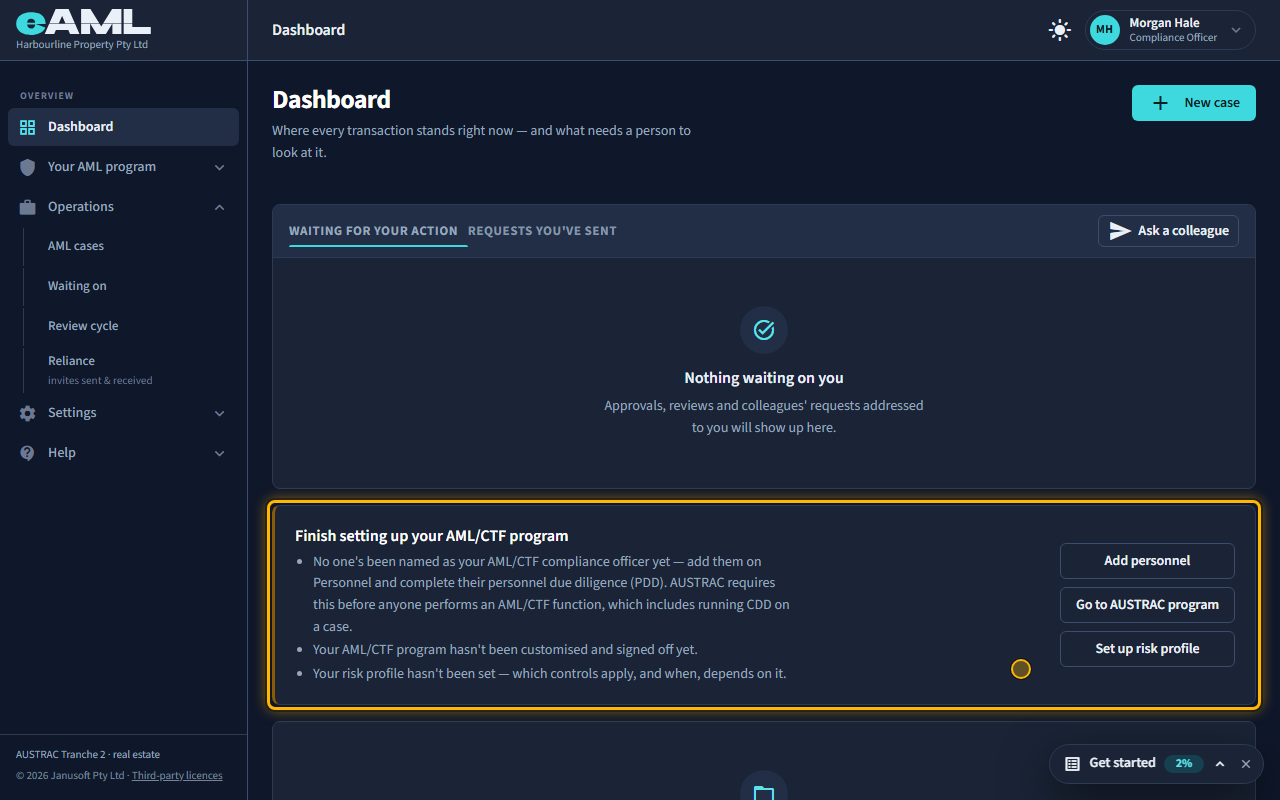
Look at the orange notice on your dashboard: it lists what is left before you can open your first case, with a button for each. In order: record your AML/CTF compliance officer on Personnel (and their personnel due diligence), customise and sign off your AML/CTF program on the AUSTRAC program page, and set your risk profile. Then invite your team.
- Open the Dashboard and read the notice “Finish setting up your AML/CTF program”.
- Personnel: add yourself (or whoever is your AML/CTF compliance officer), set the PDD outcome to Suitable, and save.
- AUSTRAC program: open the customise-guide form, complete it and sign it off.
- Risk profile: set your appetite for each risk factor.
- Personnel: invite your colleagues.
Watch: Welcome: from payment to your dashboardGuide step: Welcome: from payment to your dashboardWatch: Welcome: from payment to your dashboardGuide: Welcome: from payment to your dashboard
What has to be set up before I can run my first case?
Two things are required before eAML will open a case: one active AML/CTF compliance officer whose personnel due diligence is recorded as Suitable, and an AML/CTF program that has been customised and signed off. Setting your risk profile is not enforced, but which controls apply, and when, depends on it, so do it before you start.
- Personnel: record the compliance officer and mark the PDD outcome Suitable.
- AUSTRAC program: complete and sign off the customise-guide form for your business type.
- Risk profile: set an appetite for each factor (not enforced, but recommended first).
- Until both requirements are met, the dashboard shows a notice with what is missing and a button for each gap.
Watch: Welcome: from payment to your dashboardGuide step: Welcome: from payment to your dashboardWatch: Welcome: from payment to your dashboardGuide: Welcome: from payment to your dashboard
How do I add a colleague, and what can each role do?
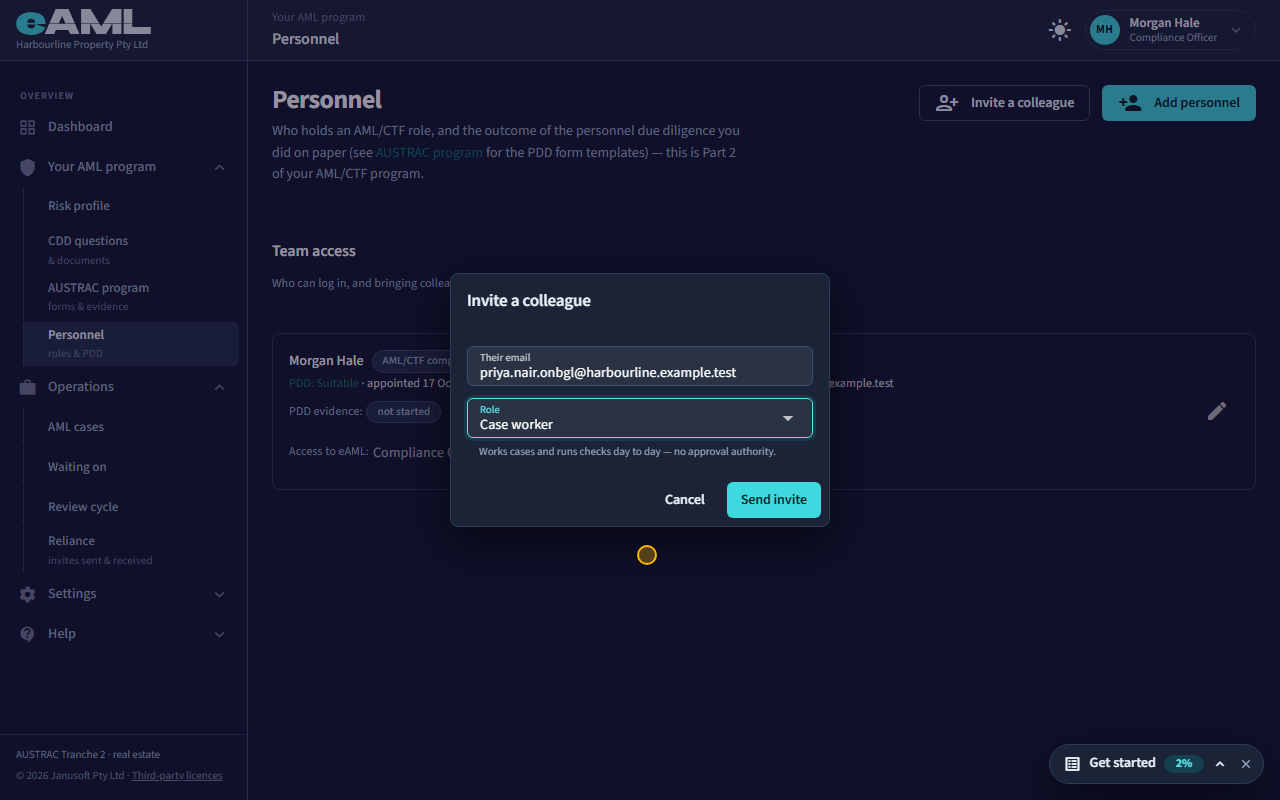
Invite them from the Personnel page. They are emailed a link, choose a password and join your firm. You decide how much they can do: Compliance Officer has full access and runs the program day to day; Senior Manager has everything a Compliance Officer has plus senior sign-off (case approvals and SMR review); Case worker works cases and runs checks day to day, with no approval authority.
- In the menu, under Your AML program, open Personnel.
- Select Invite a colleague.
- Enter their email and choose their access.
- Select Send invite. If you would rather send the link yourself, copy it from the confirmation.
- Only a Compliance Officer or Senior Manager can invite colleagues or change access.
- A person who registers with your firm’s ABN on their own waits for you to approve them instead; see the Personnel page’s orange banner.
Watch: Your team: personnel, invitations and rolesGuide step: Your team: personnel, invitations and rolesWatch: Your team: personnel, invitations and rolesGuide step: Your team: personnel, invitations and rolesWatch: Your team: personnel, invitations and rolesGuide: Your team: personnel, invitations and rolesReference: Roles and what each can do
What is the difference between Personnel and Team access?
They are two different lists on one page. Personnel records who holds an AML/CTF role in your program (compliance officer, senior manager, governing body, other) and the outcome of the due diligence you did on them. Team access is who can sign in to eAML and what they can do there (Compliance Officer, Senior Manager or Case worker). Someone can hold a role without a login, and someone can have a login without holding a role. Linking a login to a personnel record says they are the same person and puts an Access to eAML control on that row.
- Open Personnel. The top of the page, Team access, shows invitations and requests waiting for you.
- Below it is the list of role holders. Each row shows the AML/CTF role, the PDD outcome and, if linked, the login and its access.
Watch: Your team: personnel, invitations and rolesGuide step: Your team: personnel, invitations and rolesWatch: Your team: personnel, invitations and rolesGuide step: Your team: personnel, invitations and rolesWatch: Your team: personnel, invitations and rolesGuide: Your team: personnel, invitations and roles
How do I change someone’s role, or remove someone who has left?
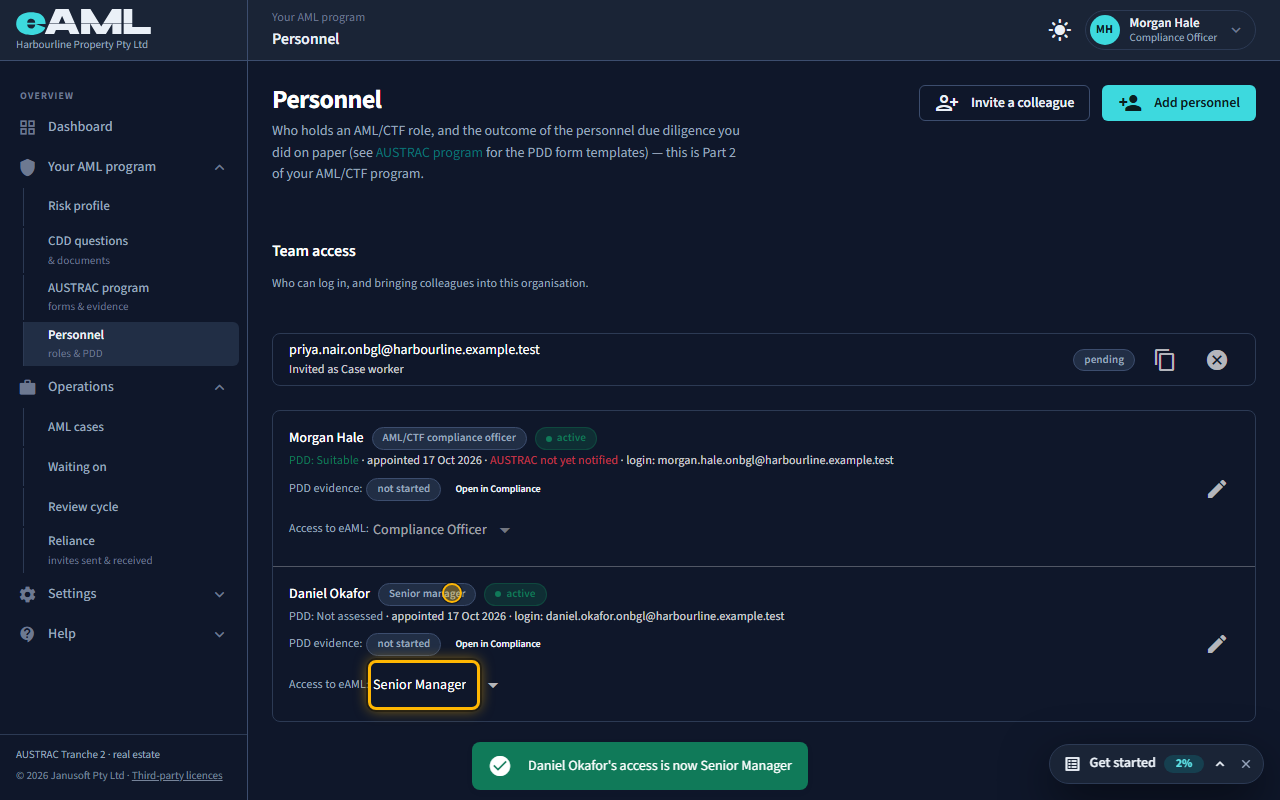
To change what someone can do in eAML, use the Access to eAML control on their row on the Personnel page. It takes effect straight away. You cannot change your own access, so ask another Compliance Officer or Senior Manager. The AML/CTF role they hold is a separate record, changed with the pencil on the same row. There is no button on the Personnel page to switch a login off.
- Open Personnel and find the person’s row (their login must be linked to their personnel record).
- Under Access to eAML, choose the new level.
- To change the AML/CTF role on paper instead, select the pencil, change AML/CTF role or Status, and Save.
- When someone leaves, set their personnel record to Inactive so they no longer count as a role holder, and lower their access to Case worker. If their login must be closed completely, tell eAML support: the Personnel page cannot do it.
Watch: Your team: personnel, invitations and rolesGuide step: Your team: personnel, invitations and rolesWatch: Your team: personnel, invitations and rolesGuide: Your team: personnel, invitations and roles
How does someone accept an invitation to my team, or to a case?
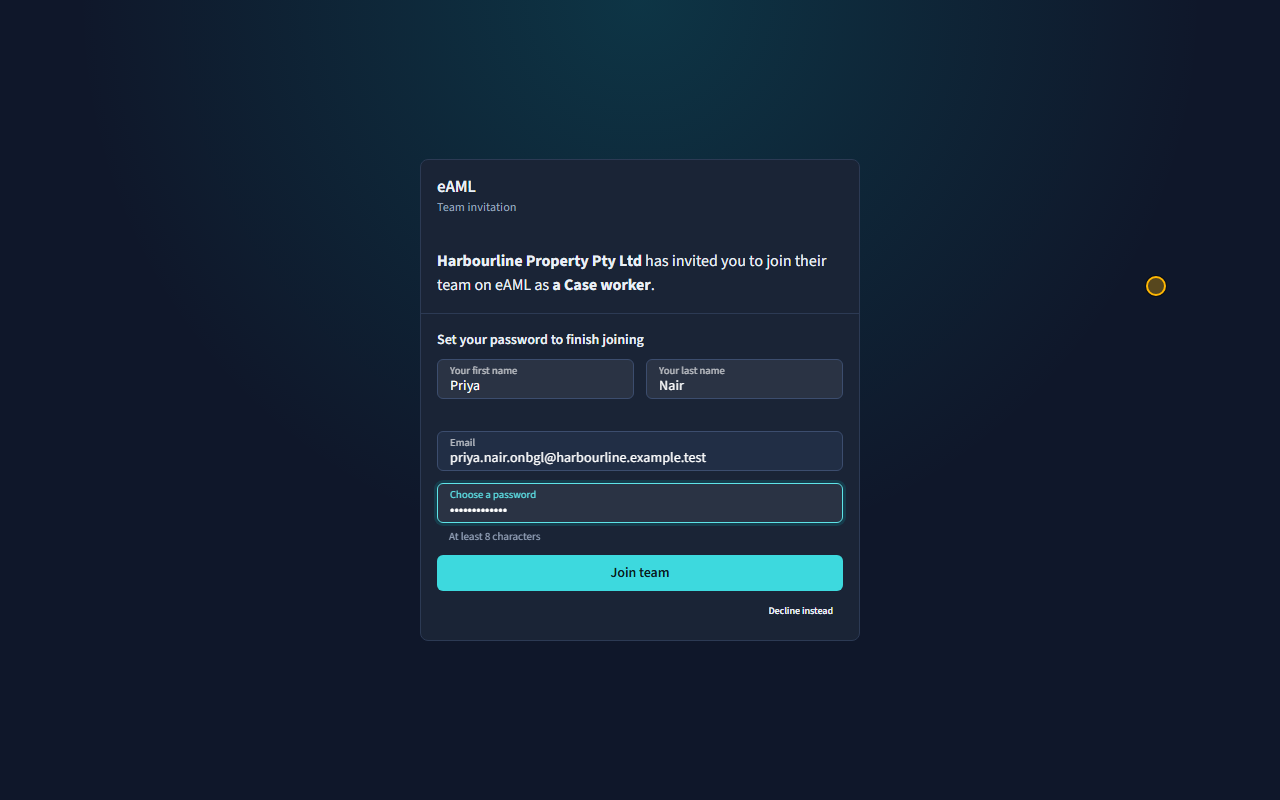
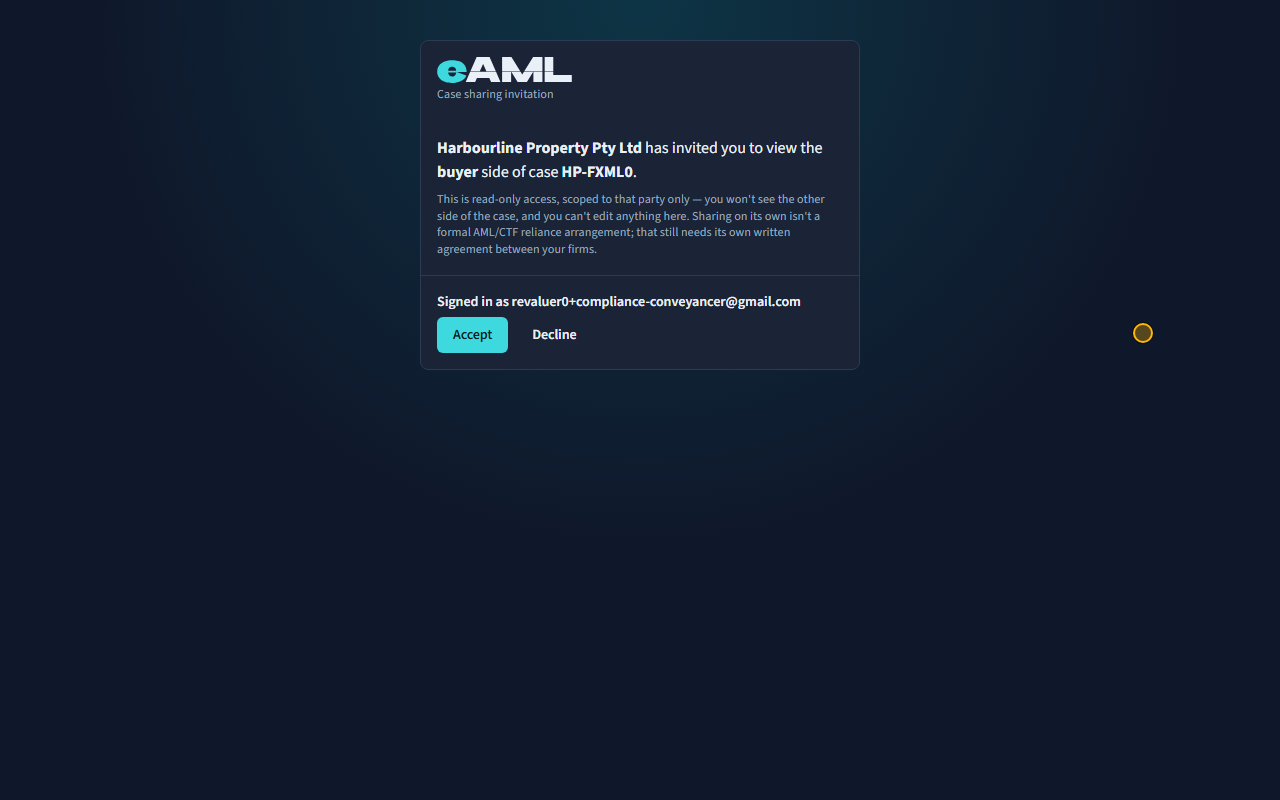
For your team: they open the link in the invitation email (or the one you copied), enter their name, choose a password of at least 8 characters, and select Join team. They are signed in at once. The link has no time limit; it works until the invitation is used, declined or revoked. A case another firm shares with you is a different kind of invitation: open the link in its email, or find it under Reliance → Received or on the dashboard (Shared case invite), and select Accept when you are signed in as the address it was sent to. If you are signed in as someone else, eAML first emails a six-digit code to the invited address, and a firm that is not on eAML yet can register from the same page. Only a compliance officer or a senior manager can accept for a firm, and accepting gives a read-only view of the one side that was shared.
- Open the link from the invitation email.
- Check the firm and access named at the top of the page.
- Enter your first and last name and choose a password.
- Select Join team.
Watch: Your team: personnel, invitations and rolesGuide step: Your team: personnel, invitations and rolesWatch: Sharing a case with another firm (reliance)Guide step: Sharing a case with another firm (reliance)Watch: Your team: personnel, invitations and rolesGuide: Your team: personnel, invitations and rolesWatch: Sharing a case with another firm (reliance)Guide: Sharing a case with another firm (reliance)
I am a one-person firm. How do I approve my own work?
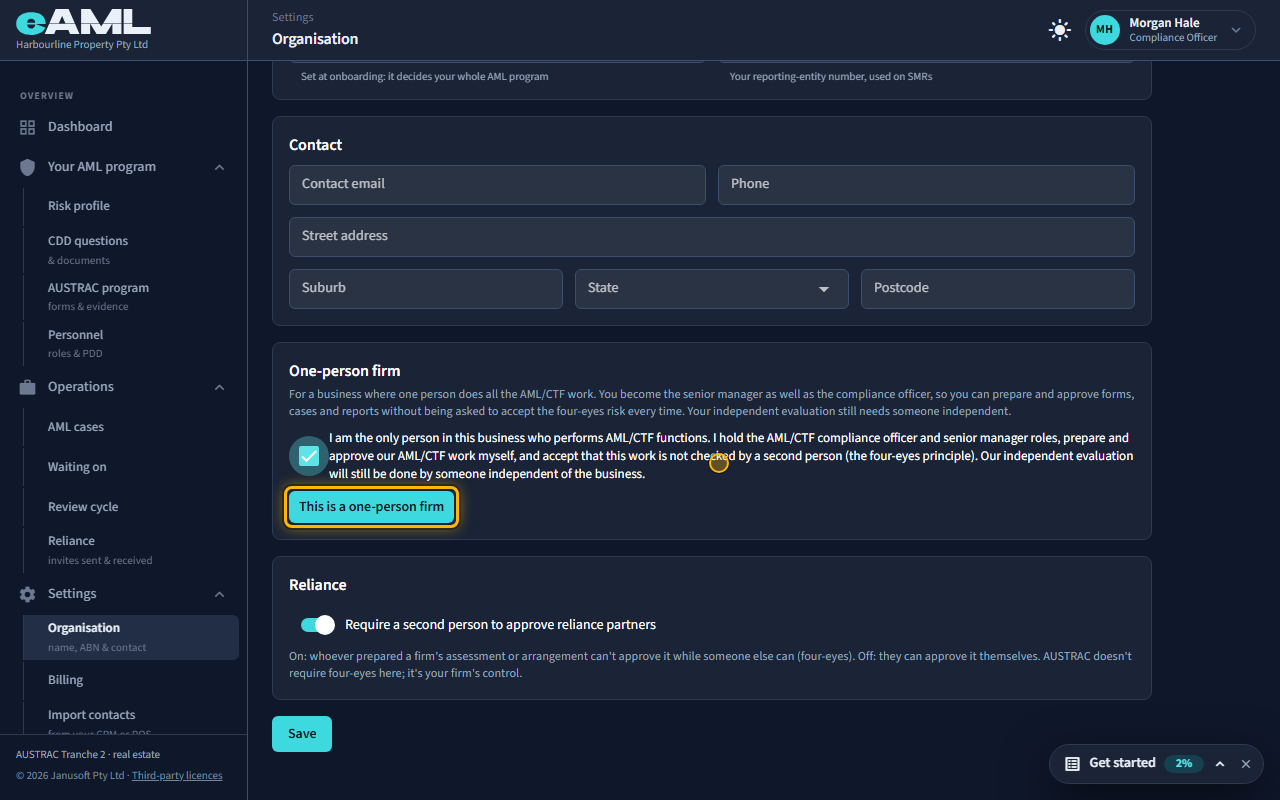
Tell eAML once that yours is a one-person firm, so it stops asking each time. Open Organisation under Settings, find One-person firm, tick the statement and select This is a one-person firm. A compliance officer or senior manager can do this, and only while nobody else in the firm could approve (a colleague who can is named on the page instead). You become a senior manager as well as the compliance officer, so you can prepare and approve your own work, and each self-approval is still written to the audit log. If a colleague who can approve joins, the setting stops applying by itself and the page suggests switching it off. Your independent evaluation still has to be done by someone independent of you.
- Open Organisation under Settings and find One-person firm.
- Read the statement, tick it, and select This is a one-person firm.
- Prepare and approve your work as usual: you are no longer asked the four-eyes question each time.
- If the firm grows, select Switch off in the same place.
Watch: Finishing a case: tiering and approvalGuide step: Finishing a case: tiering and approvalWatch: Finishing a case: tiering and approvalGuide step: Finishing a case: tiering and approvalWatch: Your team: personnel, invitations and rolesGuide: Your team: personnel, invitations and rolesWatch: Finishing a case: tiering and approvalGuide: Finishing a case: tiering and approval
How do I change my business details or the services I provide?
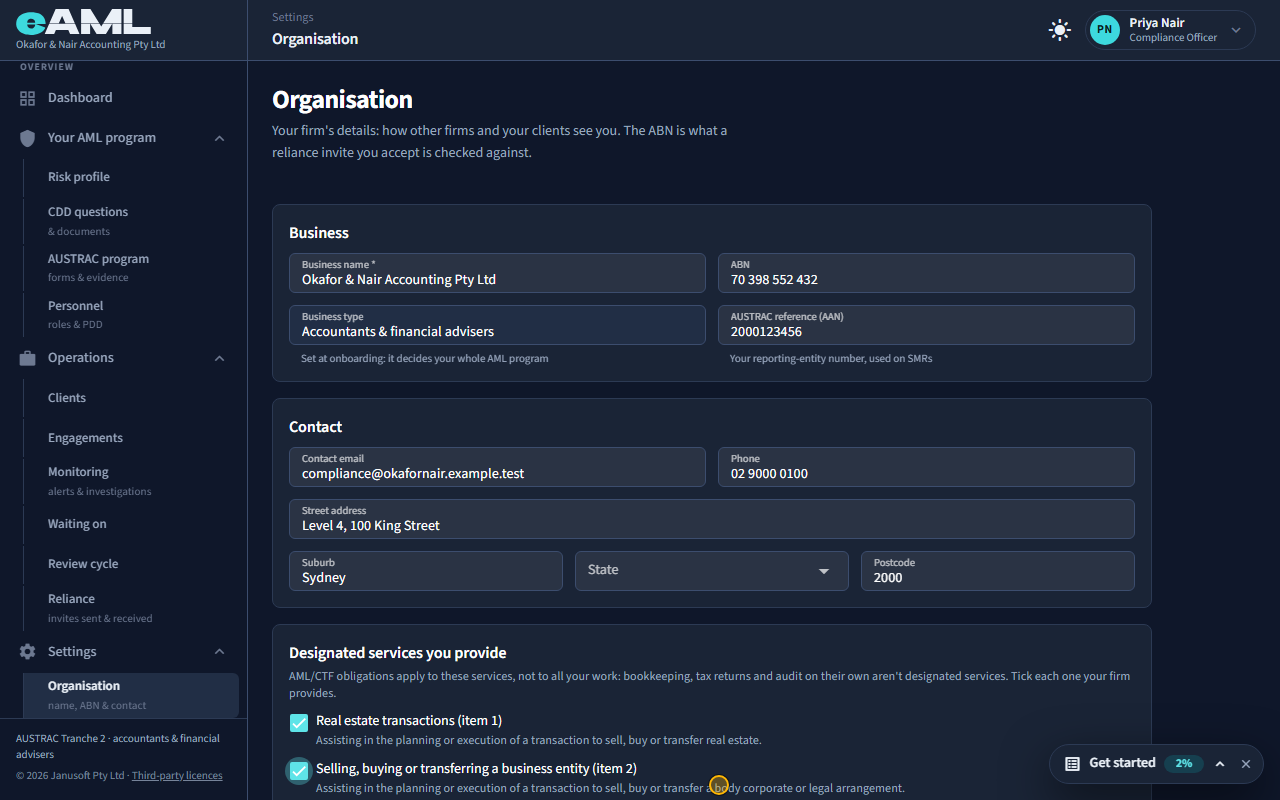
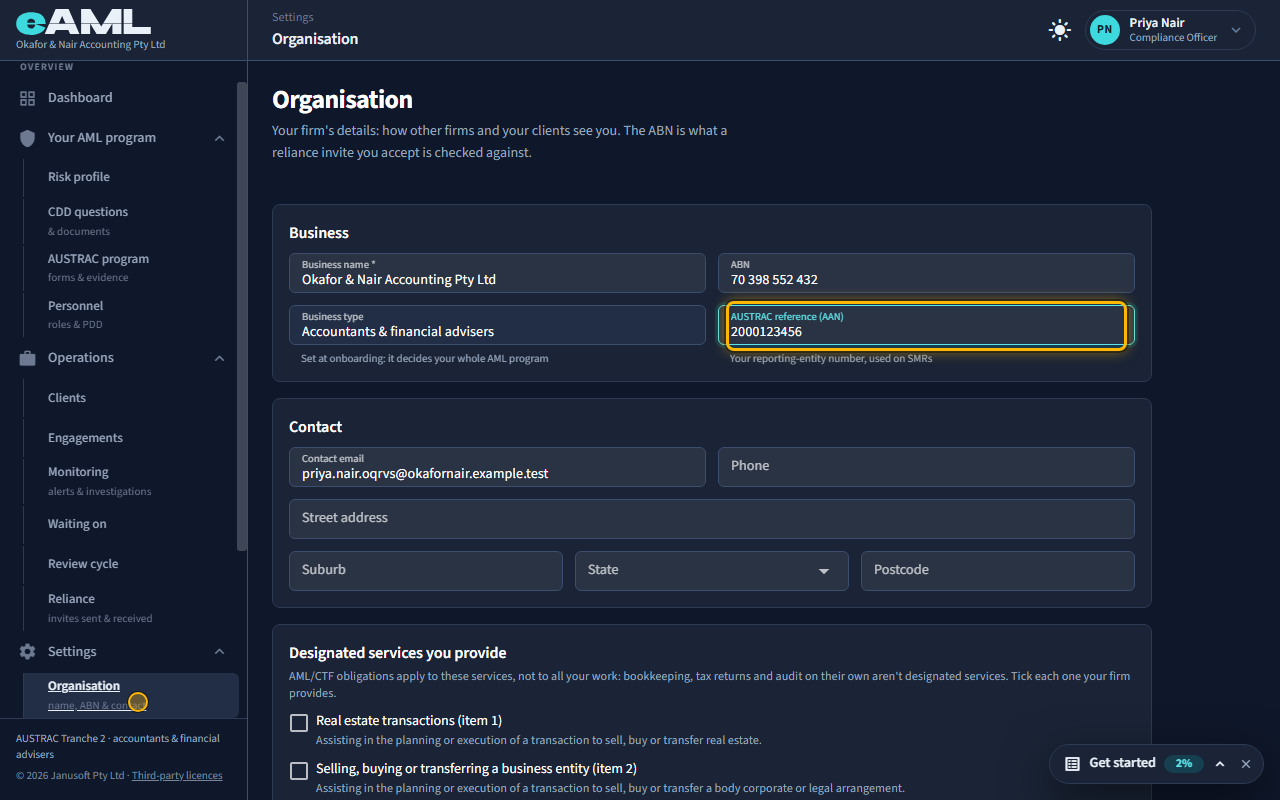
Open Settings, then Organisation. Change the business name, ABN, AUSTRAC reference and contact details and select Save. If your business type offers more than one designated service, the same page lists them: tick each one your firm provides. Only a Compliance Officer or Senior Manager can change these details. The business type itself is shown but cannot be changed there: it was set when you registered, and it decides your whole AML program.
- Open Settings, then Organisation.
- Edit the details, and tick or untick the designated services you provide.
- Select Save.
- A business type with only one designated service (real estate, for example) does not show the services list.
Watch: Your organisation’s detailsGuide step: Your organisation’s detailsWatch: Your organisation’s detailsGuide step: Your organisation’s detailsWatch: Your organisation’s detailsGuide: Your organisation’s details
What is the AUSTRAC reference (AAN), and where is it used?
The AUSTRAC reference, also called the AAN, is your reporting-entity number from AUSTRAC. eAML keeps it on the Organisation page and uses it on suspicious matter reports (SMRs), so the report identifies your firm as the reporter. Enter it once under Settings, Organisation.
- Open Settings, then Organisation.
- Enter the number in AUSTRAC reference (AAN).
- Select Save.
Watch: Your organisation’s detailsGuide step: Your organisation’s detailsWatch: Your organisation’s detailsGuide: Your organisation’s details
Who in my firm can see which cases?
Everyone in your firm can see all of the firm’s cases. The roles decide what a person can do on a case, not which cases they can open. The exceptions are small: an unusual activity or escalation record raised by someone is visible only to them (as a draft) and to the compliance officers and senior managers, and a guest from another firm, invited into one side of one case, sees only that side. Anyone outside your firm sees nothing unless you invite them.
- Open AML cases: every case of the firm is listed for everyone.
- To limit what a person can do, change their access on the Personnel page (a compliance officer or senior manager does this).
- To let another firm look at one side of a case, invite them from the case (Communication tab).
Reference: Roles and what each can doWatch: Your team: personnel, invitations and rolesGuide step: Your team: personnel, invitations and roles
How do I switch between light and dark theme?
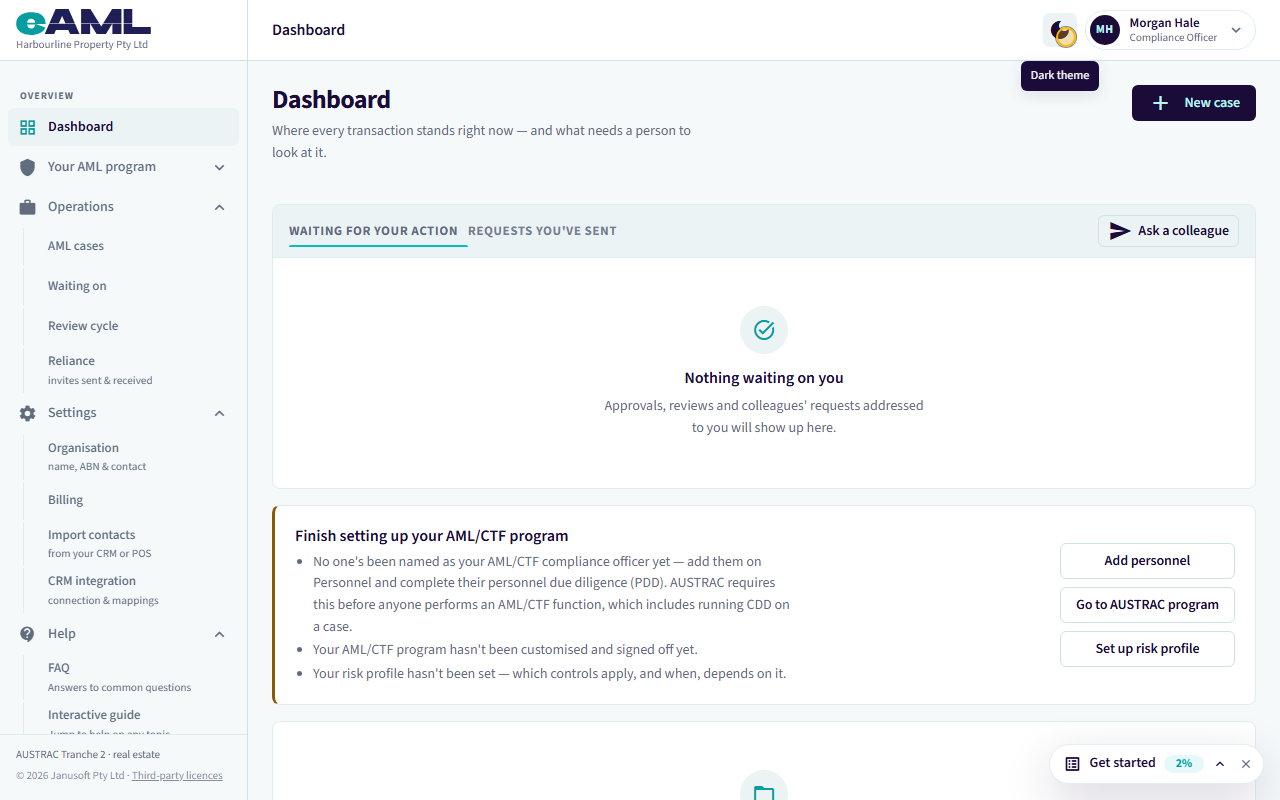
Select the sun or moon icon in the top bar. eAML remembers your choice on that device. If you have not chosen, it follows your computer’s own light or dark setting.
- Select the theme icon at the top of any page (next to your name).
Watch: Welcome: from payment to your dashboardGuide step: Welcome: from payment to your dashboardWatch: Welcome: from payment to your dashboardGuide: Welcome: from payment to your dashboard
Your AML program and risk profile
What is the AUSTRAC program page, and what do the status badges mean?
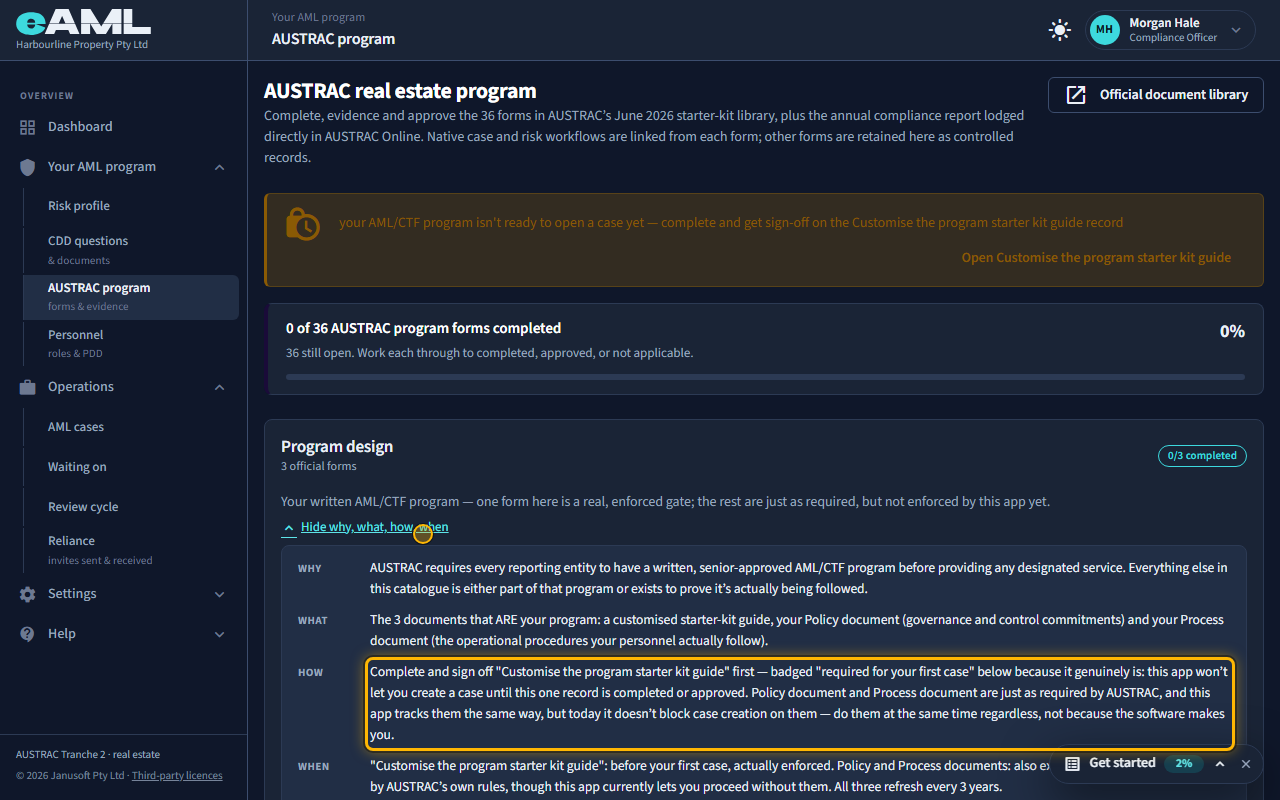
It is where you complete, evidence and approve the forms from AUSTRAC’s starter kit for your business type: your written program, risk assessment, personnel due diligence, customer due diligence, escalations, ongoing monitoring and assurance. Each form is a row with badges. The handling badge says whether it is a native workflow in eAML, a native workflow plus an official form, or a controlled record. “Review” and “senior approval” say what the form requires and turn green once a record has reached that stage. The status badge shows where the latest record is: draft, submitted, awaiting approval, complete or approved. “Required for your first case” marks the form eAML will not let you skip.
- Open Your AML program, then AUSTRAC program.
- Read the banner at the top: orange means something still blocks your first case, green means you are clear.
- Open a category’s “Why, what, how, when” if you are new to it.
- Select Start on a form, or Open record to continue one.
Watch: Your AUSTRAC AML/CTF programGuide step: Your AUSTRAC AML/CTF programWatch: Your AUSTRAC AML/CTF programGuide: Your AUSTRAC AML/CTF program
How do I start a form, attach evidence and complete it?
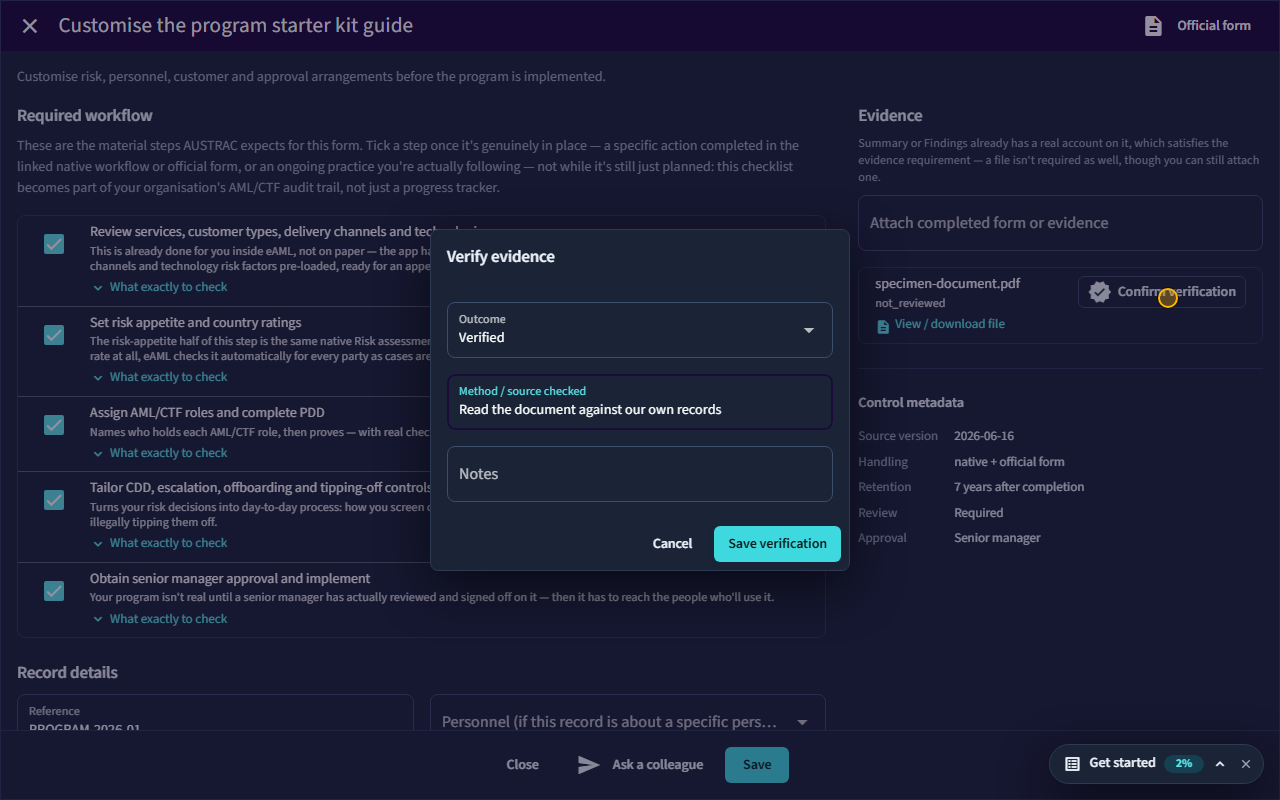
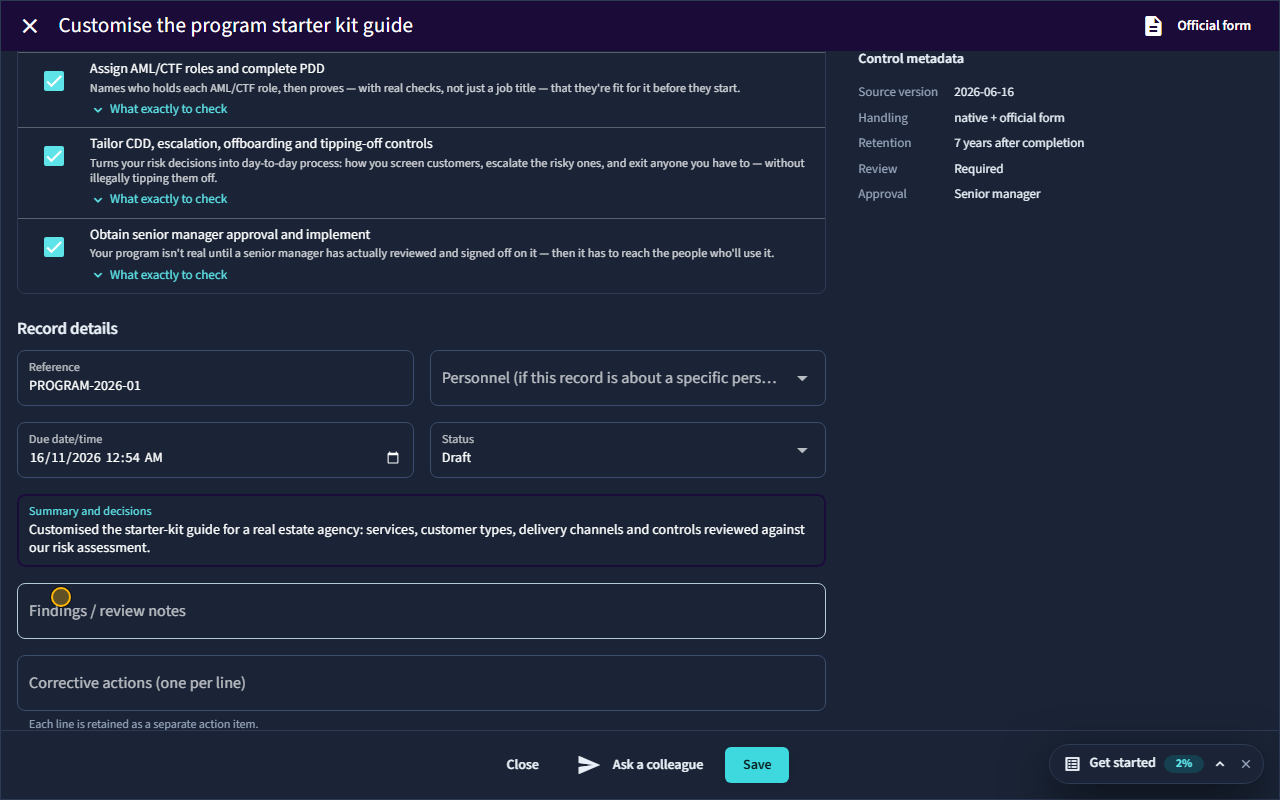
Select Start on the form, tick each required workflow step once it is genuinely done, record what was decided, attach the evidence and confirm it, then submit it for review (or, for a form that needs no review, set it to Complete) and save. For a form that needs review, a Compliance Officer or Senior Manager then selects Complete review, and for one that needs senior approval a Senior Manager selects Approve.
- Select Start (or Open record) on the form.
- Tick every required workflow step.
- Enter a reference, and a summary of what was decided.
- Under Attach completed form or evidence, choose the file, then select Confirm verification and save the verification.
- Set Status to Submit for review (or Complete, where the form allows it) and select Save.
- If the form needs review, select Complete review. If it needs senior approval, a Senior Manager then selects Approve.
Watch: Your AUSTRAC AML/CTF programGuide step: Your AUSTRAC AML/CTF programWatch: Your AUSTRAC AML/CTF programGuide step: Your AUSTRAC AML/CTF programWatch: Your AUSTRAC AML/CTF programGuide step: Your AUSTRAC AML/CTF programWatch: Your AUSTRAC AML/CTF programGuide: Your AUSTRAC AML/CTF program
What counts as evidence on a compliance form?
A form needs one of two things before it can be completed: at least one attachment that has been verified (not just uploaded), or a real written account of what was checked in Summary or Findings. On a case that is high risk, or has a finding that needs review, a verified document is always required, and typed notes alone are not enough. Native forms, which eAML completes from the work in the application, do not ask for a file.
- Attach the file under Attach completed form or evidence.
- Select Confirm verification, choose Verified, say how you checked it, and Save verification.
- Or write what was checked in Summary and decisions or Findings / review notes (not available for a high-risk case).
- If Complete review is greyed out, hover over it: the reason is shown.
Watch: Your AUSTRAC AML/CTF programGuide step: Your AUSTRAC AML/CTF programWatch: Your AUSTRAC AML/CTF programGuide: Your AUSTRAC AML/CTF program
Who has to approve a form, and what if I am the only person?
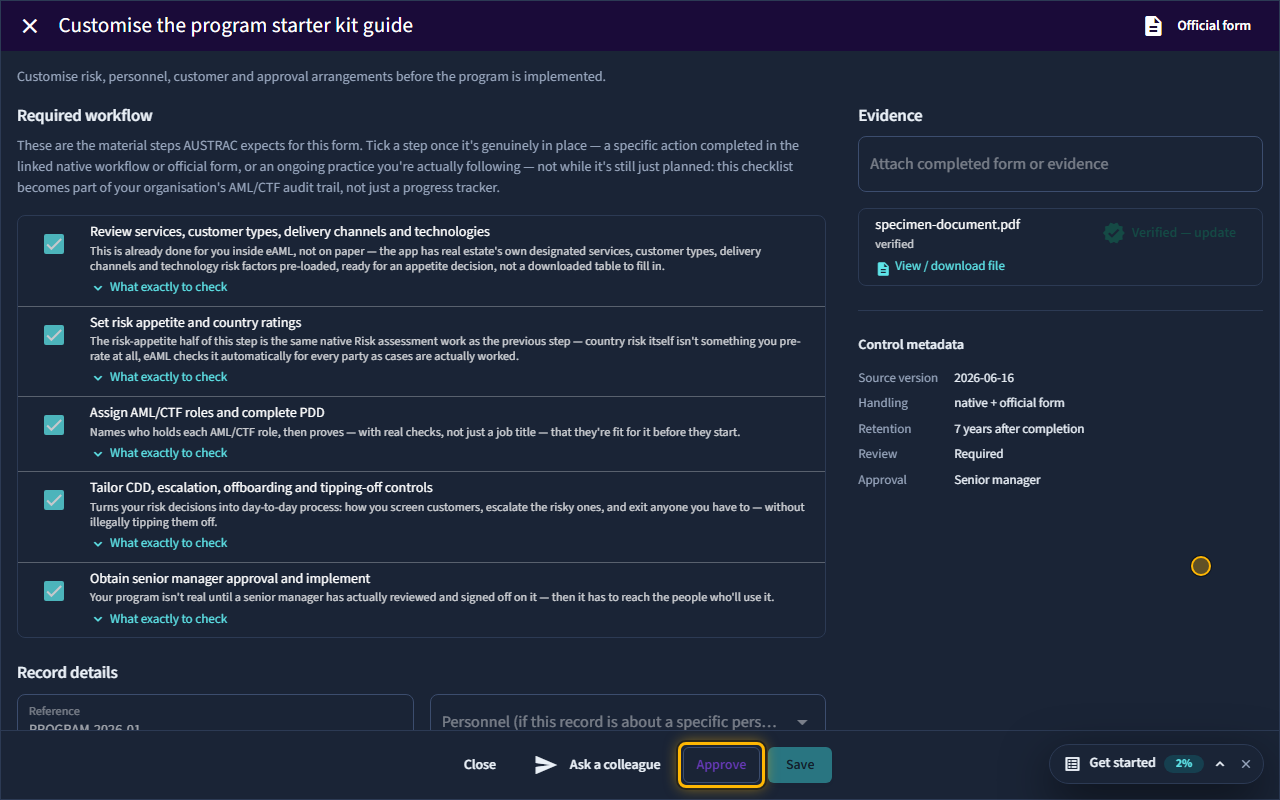
A form marked “senior approval” is approved by a Senior Manager, and the approver must be a different person from whoever prepared, completed or reviewed it: that second check is the point. If you are the only person who could approve, eAML asks you to accept the risk (the Four-eyes check) and records your reason, or, in a one-person firm, you accept it once on the Organisation page and your approvals then go through without asking each time. Either way it is recorded in the audit trail.
- A Compliance Officer or Senior Manager completes the review.
- A different Senior Manager opens the record and selects Approve.
- If you are the only approver, read the Four-eyes check, give a reason if you wish, and select Accept risk and continue.
- Or, once: Settings, Organisation, One-person firm, tick the statement and select This is a one-person firm.
Watch: Your AUSTRAC AML/CTF programGuide step: Your AUSTRAC AML/CTF programWatch: Your AUSTRAC AML/CTF programGuide step: Your AUSTRAC AML/CTF programWatch: Your AUSTRAC AML/CTF programGuide: Your AUSTRAC AML/CTF program
What is personnel due diligence (PDD), and how do I record it?
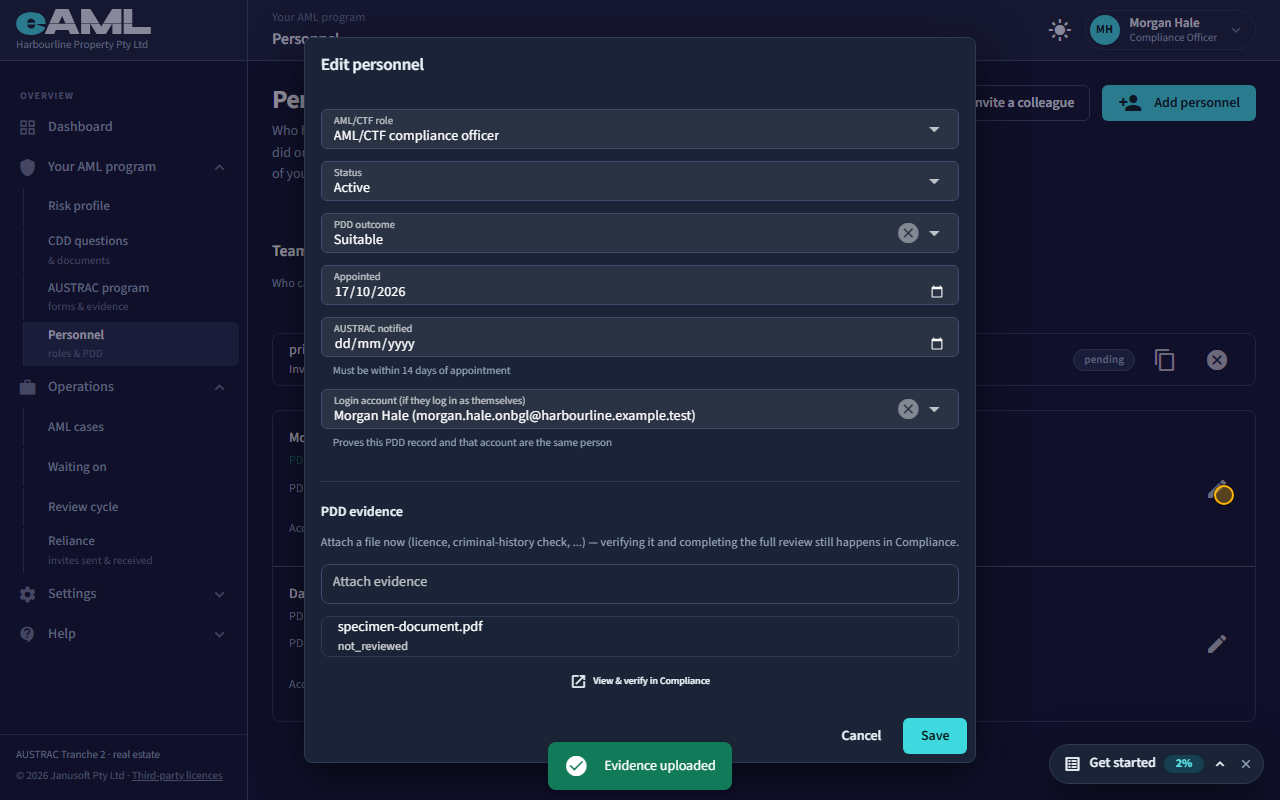
Personnel due diligence (PDD) is your assessment of whether a person is suitable to hold an AML/CTF role, made before they are appointed, with the evidence you kept. On the Personnel page you record the outcome (Pending, Suitable or Not suitable) when you add or edit the person, and attach the evidence behind it from the pencil on their row. Verifying the evidence and completing the review happens on the AUSTRAC program page, which the Open in Compliance link on the row takes you to.
- Open Personnel and add the person, or select the pencil on their row.
- Choose the PDD outcome and Save.
- Select the pencil again, and under PDD evidence select Attach evidence and choose the file (a licence, a criminal history check or similar).
- Select View & verify in Compliance, or Open in Compliance on the row, to verify it and complete the review.
Watch: Your team: personnel, invitations and rolesGuide step: Your team: personnel, invitations and rolesWatch: Your team: personnel, invitations and rolesGuide step: Your team: personnel, invitations and rolesWatch: Your team: personnel, invitations and rolesGuide: Your team: personnel, invitations and roles
What does my risk profile change on my cases?
Your risk profile is your documented risk assessment, and it changes what a case asks for where you chose a control that has a rule behind it. Choosing enhanced customer due diligence, or source of funds or wealth verification, for a factor makes a case in which that factor applies ask for the extra evidence (for a party that is a trust, for example, the trust deed). The other controls (accept, bank transfer only, senior manager approval, decline, offboard) are recorded as your decision and your AUSTRAC evidence of how you assessed the risk.
- Open Risk profile and find the factor.
- Answer No to “Within our risk appetite?” and choose the control.
- Select Save. Cases opened from then on apply it where the factor applies.
- Revisit the profile when your business changes: new services, customer types or jurisdictions.
Watch: Your risk profileGuide step: Your risk profileWatch: Your risk profileGuide step: Your risk profileWatch: Your risk profileGuide: Your risk profile
How do I set my appetite for a risk factor, and what are controls?
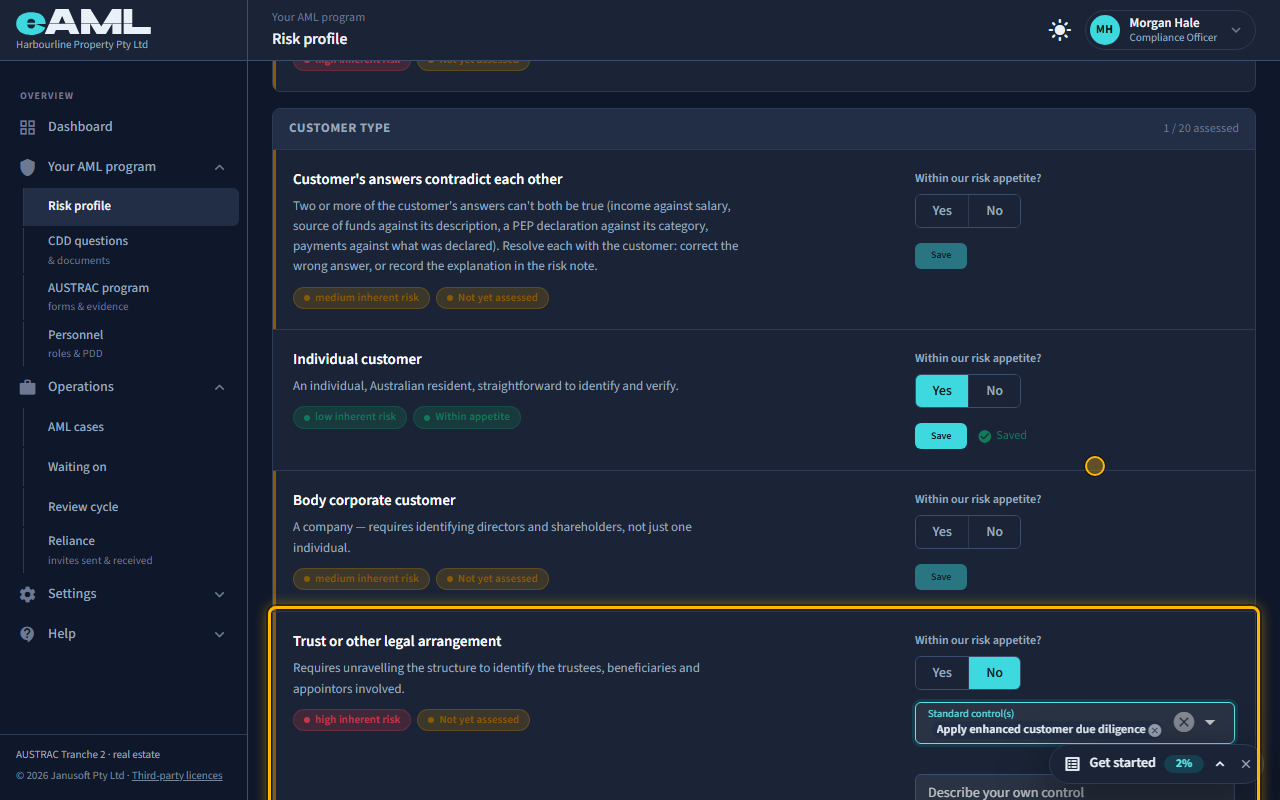
Open Risk profile. For each factor, answer “Within our risk appetite?”. Yes means you accept the risk as it is. No means you will do something about it, and you choose one or more standard controls, or describe your own, then Save. The standard controls are: accept without additional controls, apply enhanced customer due diligence, require source of funds or wealth verification, require payment by bank transfer, require senior manager approval, decline to provide the service, and offboard the customer if they do not comply. Apply all marks every factor you have not yet assessed as within appetite in one step.
- Open Your AML program, then Risk profile.
- Read the factor, its description and inherent rating.
- Select Yes, or No and choose a control (or describe your own).
- Select Save on that factor. Repeat, or select Apply all for the rest.
Watch: Your risk profileGuide step: Your risk profileWatch: Your risk profileGuide step: Your risk profileWatch: Your risk profileGuide step: Your risk profileWatch: Your risk profileGuide: Your risk profile
How do I turn a CDD question or document type off, and what happens to open cases?
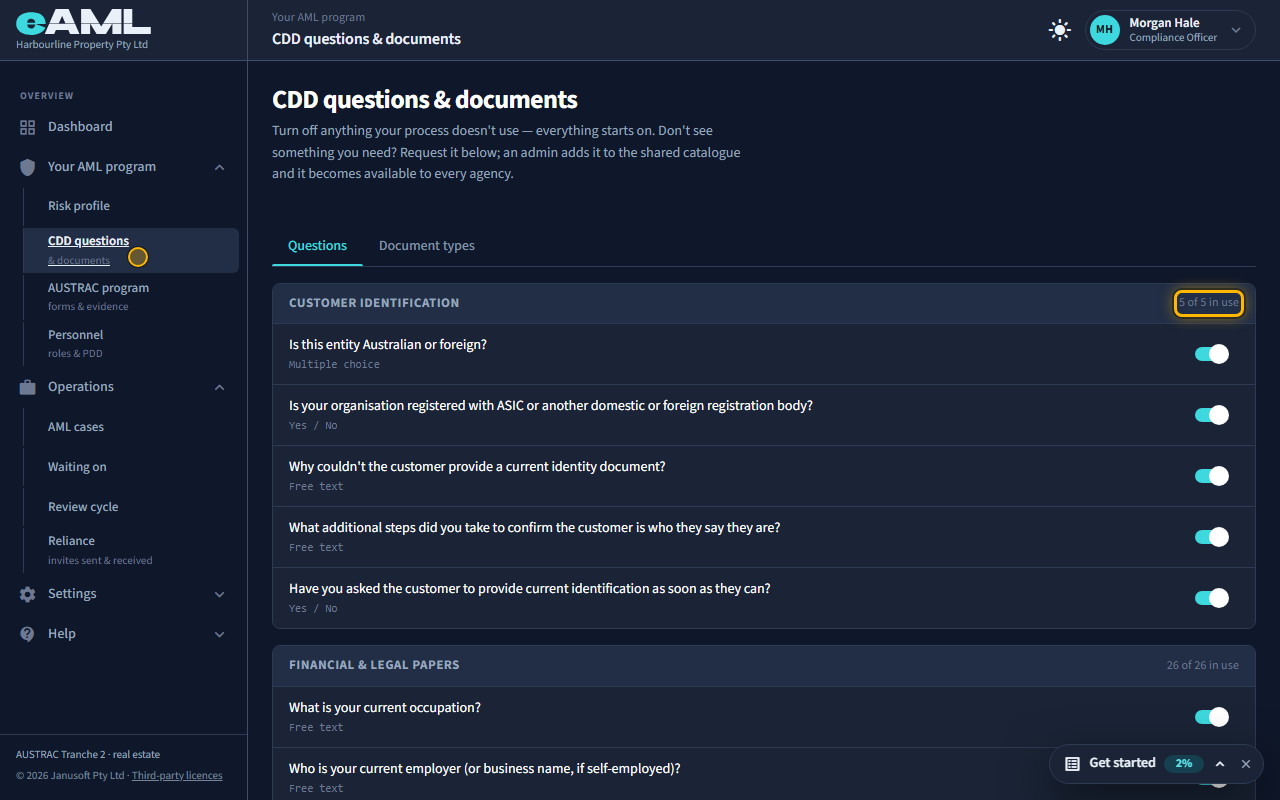
Open CDD questions & documents under Your AML program and use the switch beside the question or document type. Everything starts on. A switched-off document type is no longer offered as a choice when documents are added to a case, and documents already uploaded stay where they are. Nothing already recorded is removed or rewritten. Note that today a case still shows every catalogue question for its stage: the question switch records your own configuration.
- Open Your AML program, then CDD questions & documents.
- On the Questions tab, or the Document types tab, find the item.
- Select its switch to turn it off or on. The group count (for example “25 of 26 in use”) updates.
Watch: CDD questions and documentsGuide step: CDD questions and documentsWatch: CDD questions and documentsGuide step: CDD questions and documentsWatch: CDD questions and documentsGuide: CDD questions and documents
How do I ask for a question or document type that is not in the catalogue?
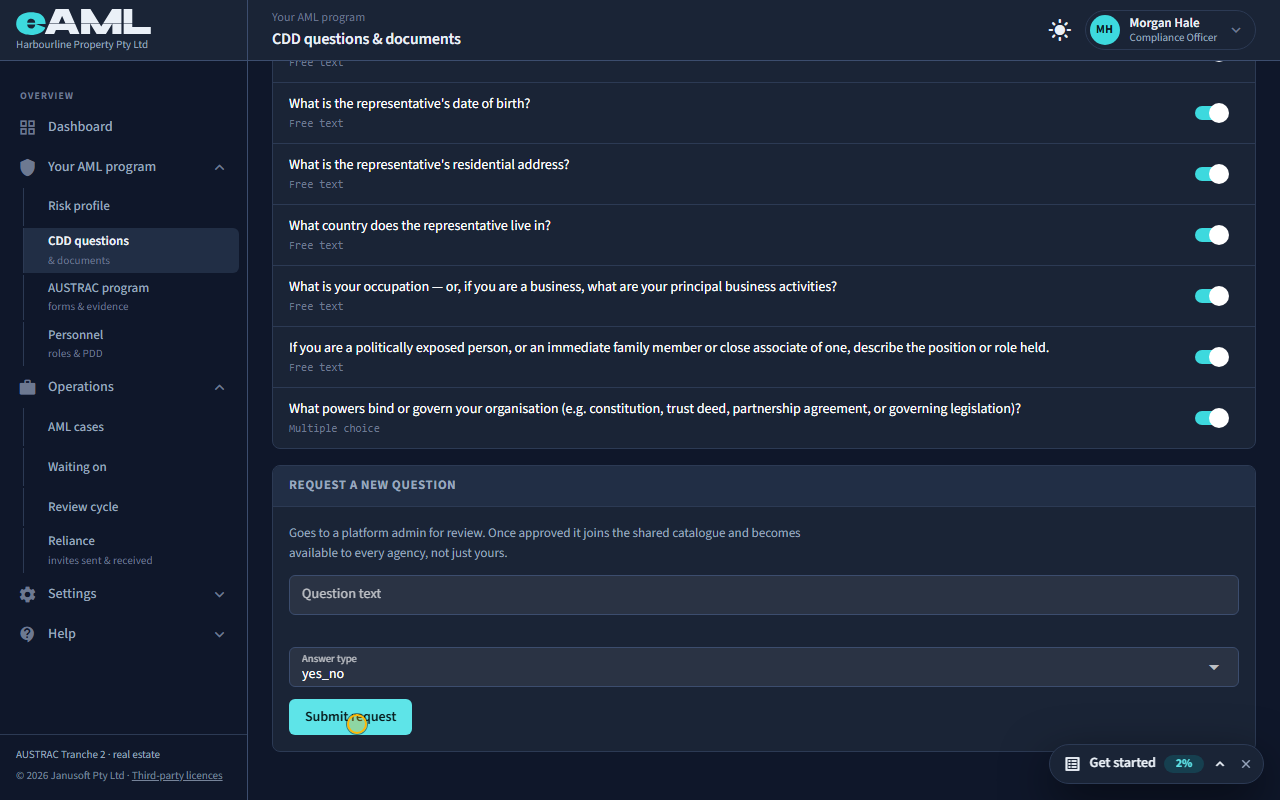
Request it on the same page. Under Request a new question (or the equivalent on the Document types tab), type the question, choose the answer type (text, number, yes or no, or a choice with its options) and select Submit request. The request goes to a platform administrator. Once approved it joins the shared catalogue and becomes available to every firm, not just yours.
- Open CDD questions & documents.
- Under Request a new question, enter the question text and choose the answer type.
- For a choice, add at least one option.
- Select Submit request. It shows “Submitted — pending admin review”.
Watch: CDD questions and documentsGuide step: CDD questions and documentsWatch: CDD questions and documentsGuide: CDD questions and documents
What is the independent evaluation, and who can do it?
An independent evaluation is a review of your AML/CTF program by someone who is independent of the business: not the person who designed or runs it. Even in a one-person firm, where one person may hold every role, the evaluation must still be done by someone independent. In eAML you record your response to it on the AUSTRAC program page, in the Assurance category, using the Independent evaluation response form: who evaluated, the scope and report date, whether you accept each finding (or why not), who will fix what and by when, and a Senior Manager’s approval. It is due on a three-year cycle.
- Open AUSTRAC program and find Assurance.
- Start the Independent evaluation response form.
- Record the evaluator, scope and report date, then each finding with your response.
- Set remediation owners and dates, and send it for review and senior approval.
Watch: Your AUSTRAC AML/CTF programGuide step: Your AUSTRAC AML/CTF programWatch: Your AUSTRAC AML/CTF programGuide: Your AUSTRAC AML/CTF program
What does "program ready" mean?
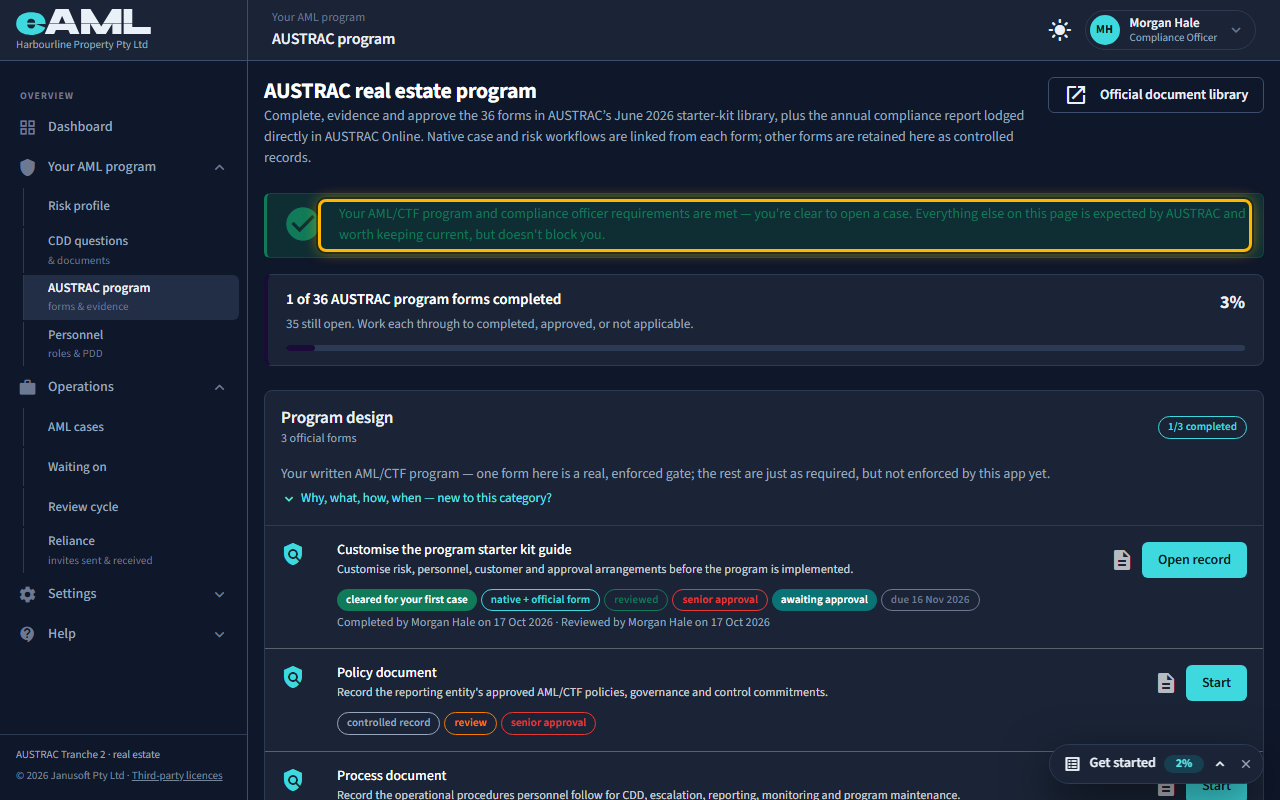
“Program ready” means the one required form on the AUSTRAC program page, Customise the program starter kit guide, has been completed (or approved). With it, and with an active compliance officer whose personnel due diligence is Suitable, eAML lets you open cases. The banner at the top of the program page turns green and says you are clear to open a case; New case on the dashboard then works.
- Open AUSTRAC program and start Customise the program starter kit guide.
- Work it through to Complete review (and approval, where it asks for it).
- Check that Personnel shows an active compliance officer with the PDD outcome Suitable.
Watch: Your AUSTRAC AML/CTF programGuide step: Your AUSTRAC AML/CTF programWatch: Your AUSTRAC AML/CTF programGuide: Your AUSTRAC AML/CTF program
Billing and credits
How does the prepaid wallet work?
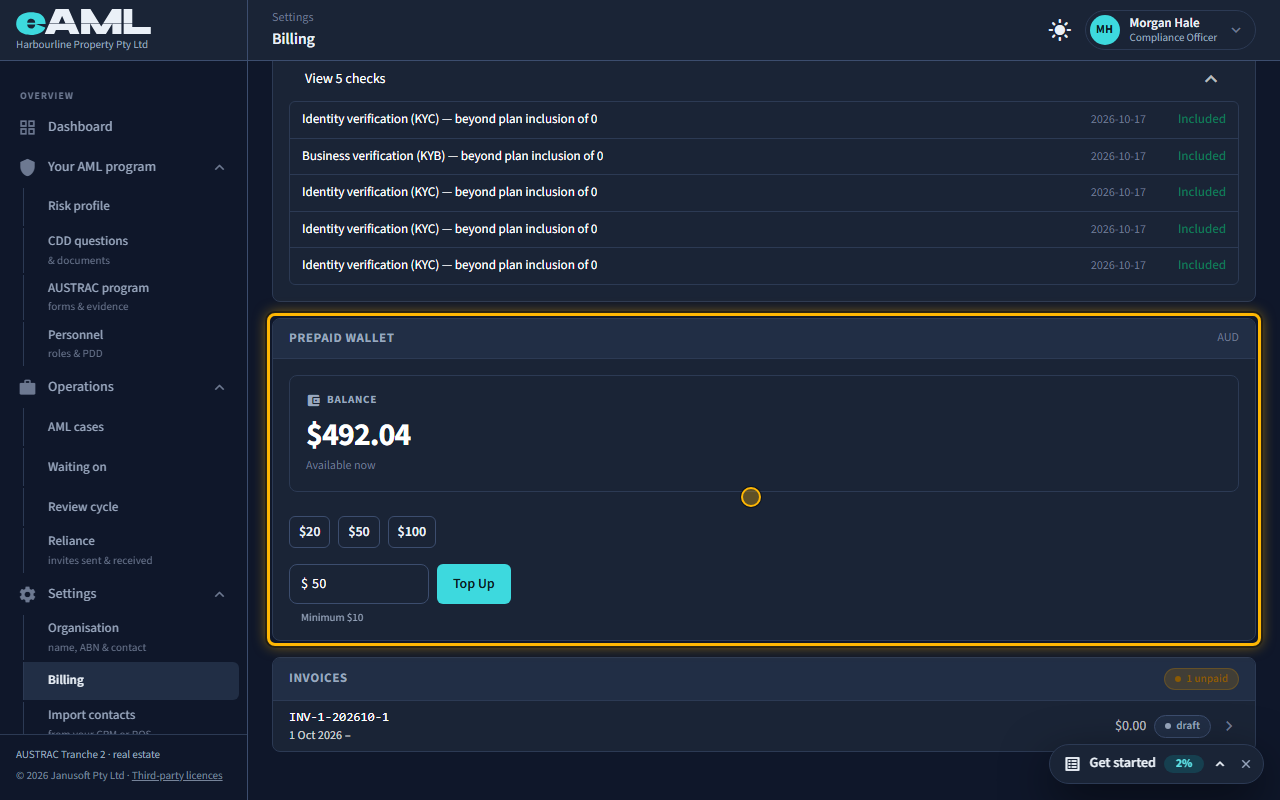
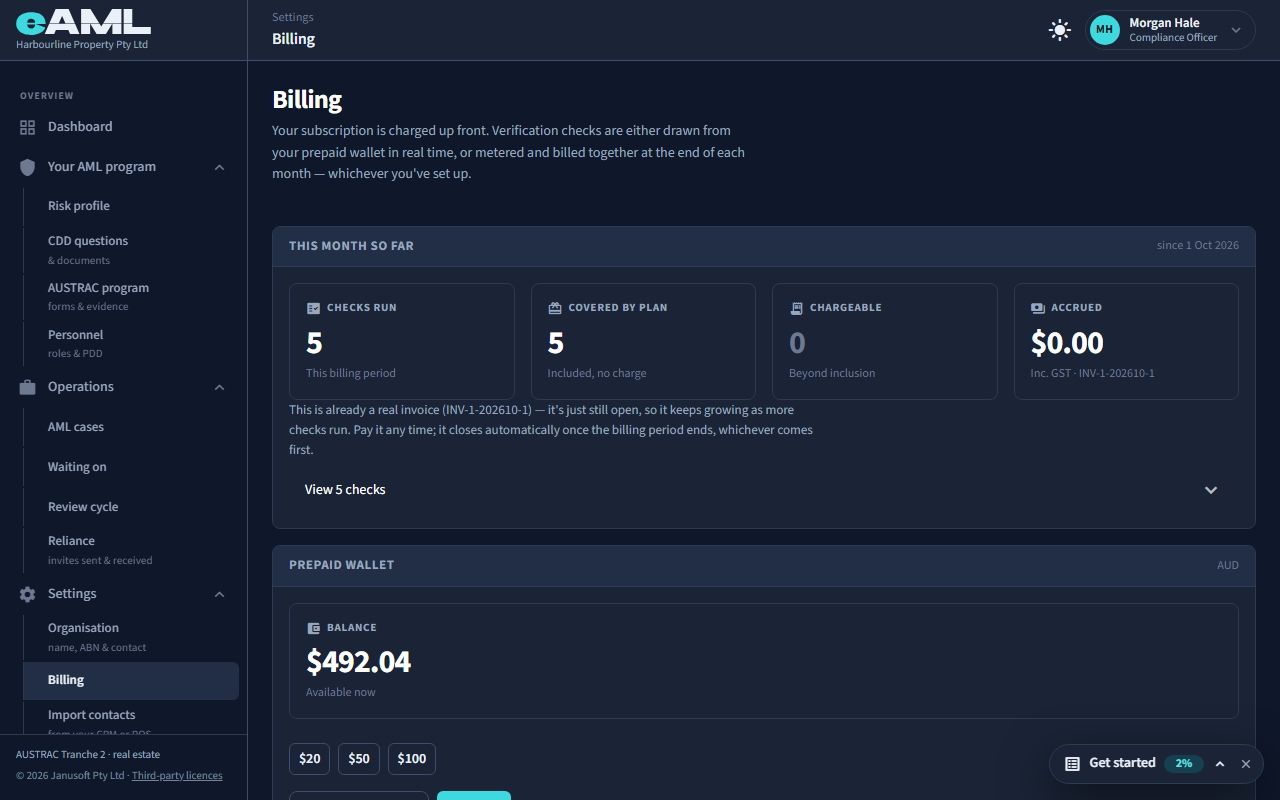
The prepaid wallet is a balance you top up by card. Screening (sanctions, politically exposed persons and adverse media) and the paid company register checks are paid from it at the moment they run, so there is no monthly invoice to wait for. The balance is on Billing under Prepaid wallet, as Available now. Every check shows its price in the confirmation dialog before it runs, and nothing is charged until you confirm. If the balance is less than a check costs, the check does not run and the dialog offers Top Up Wallet. A firm that has never set up a wallet is billed another way: the cost of its checks is added to the invoice at the end of the billing period. Identity and business verifications are metered with your plan instead, and listed under This month so far.
- Open Settings → Billing (compliance officers and senior managers).
- Read the balance under Prepaid wallet.
- To add to it, choose an amount and select Top Up (see How do I top up my wallet?).
Watch: Billing: plan, prepaid wallet and invoicesGuide step: Billing: plan, prepaid wallet and invoicesReference: What checks cost, and what is freeWatch: Billing: plan, prepaid wallet and invoicesGuide: Billing: plan, prepaid wallet and invoices
What does running a check actually cost?
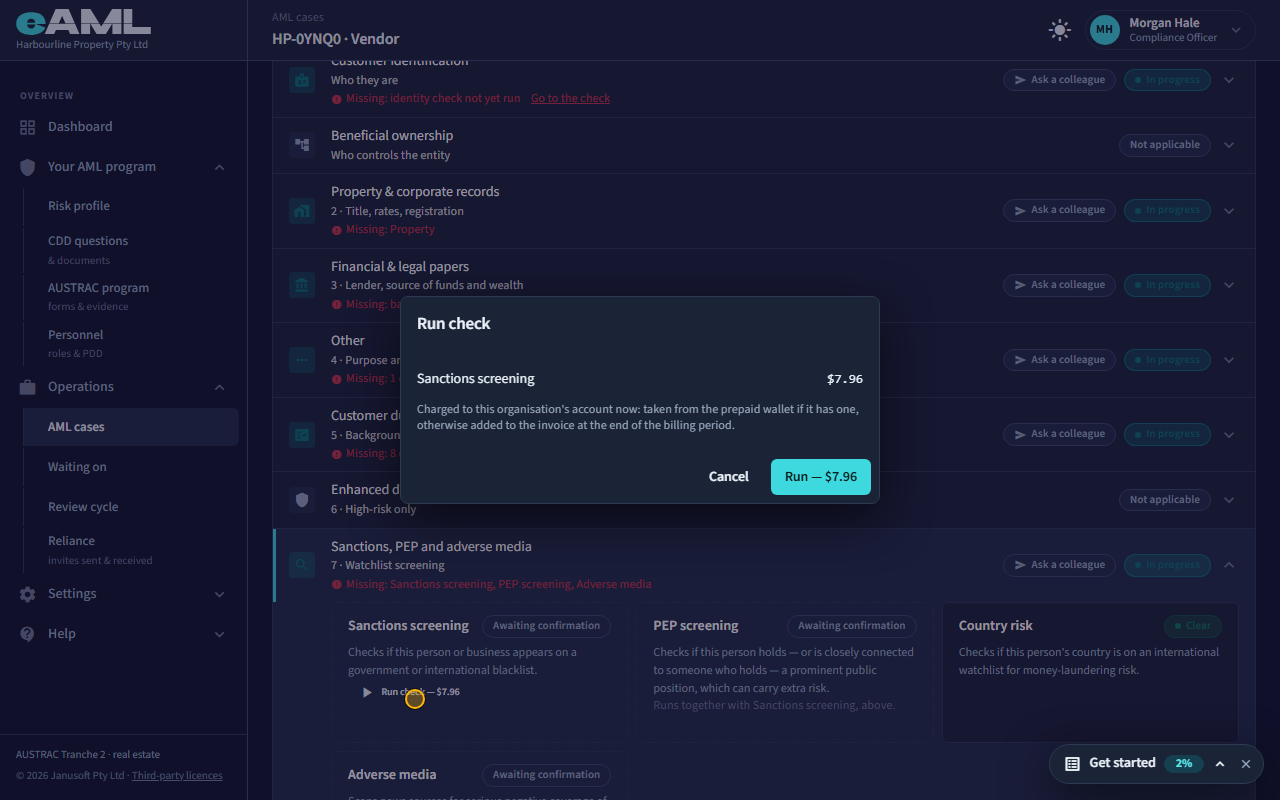
The price is on the button and in the confirmation dialog before anything runs, and nothing is charged until you confirm. As at 16 October 2026: screening was $7.96 for a person or a company (one run covers sanctions, PEP and adverse media), the company register checks were $8.85 (Basic), $39.65 (Advanced) and $153.61 (Ultimate owners), an ASIC Current Company Extract costs $10 paid to ASIC, and an identity verification by link is billed according to your plan, with each charge on the Billing page. Internal checks cost nothing. A charged check is taken from your prepaid wallet at once if it has funds, otherwise it goes on the invoice for the billing period.
- Select the check you want to run, or Run all on the Checks tab.
- Read the price in the dialog.
- Select Run to confirm, or Cancel: nothing is charged until you confirm.
Reference: What checks cost, and what is freeWatch: Screening hits: sanctions, PEP and adverse mediaGuide step: Screening hits: sanctions, PEP and adverse mediaWatch: Billing: plan, prepaid wallet and invoicesGuide: Billing: plan, prepaid wallet and invoices
Where do I see what I have been charged?
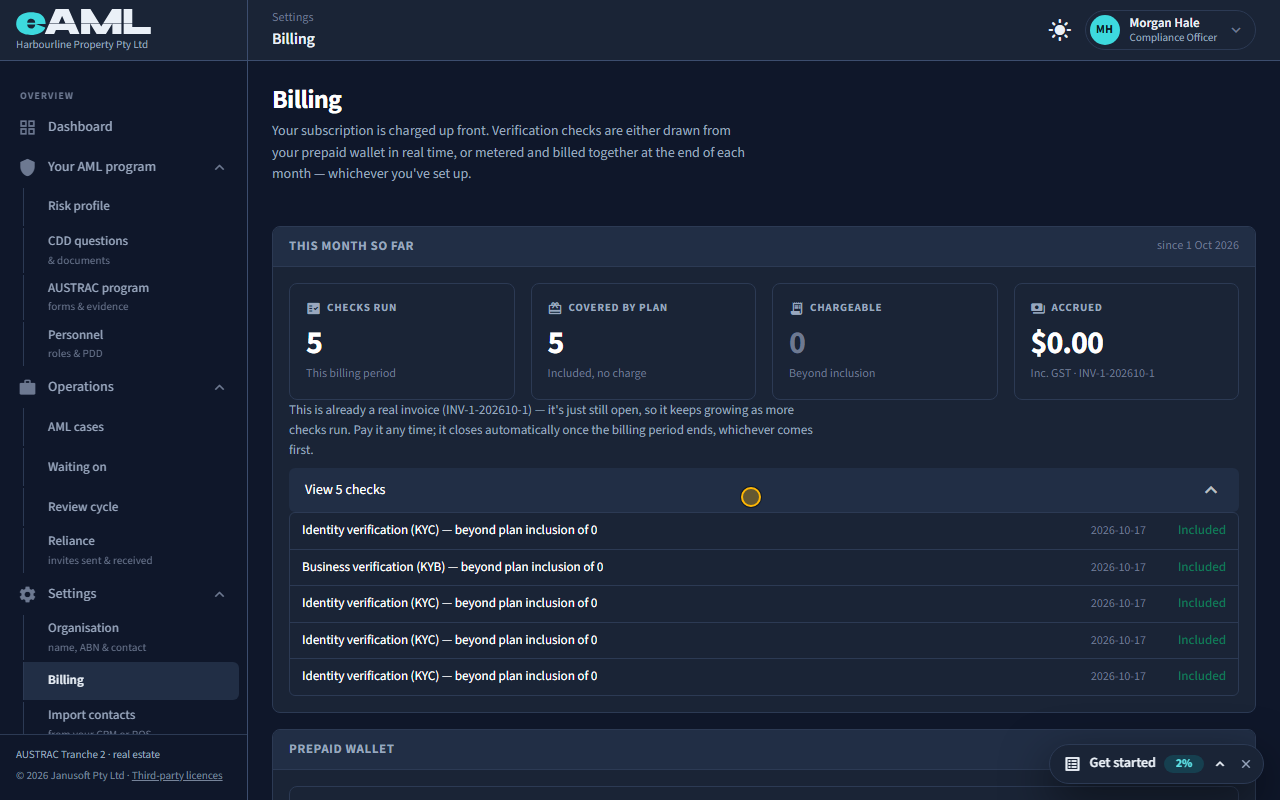
On Billing, which only compliance officers and senior managers see. This month so far lists the identity and business verifications your plan meters since the start of the billing period (how many, how many your plan covers, how many are chargeable), the amount accrued so far including GST, and each one with its date and amount (View). Invoices lists every invoice with its period, due date, total and status; select one to see the checks on it, the subtotal, the GST and the total. Screening and the register checks are paid from the wallet: the wallet shows its balance, not a list of what was drawn, so the price of each is the one shown in the dialog when you confirmed it.
- Open Settings → Billing.
- Under This month so far, select View to list the checks and their amounts.
- Under Invoices, select an invoice to see its lines and totals.
Watch: Billing: plan, prepaid wallet and invoicesGuide step: Billing: plan, prepaid wallet and invoicesWatch: Billing: plan, prepaid wallet and invoicesGuide step: Billing: plan, prepaid wallet and invoicesWatch: Billing: plan, prepaid wallet and invoicesGuide: Billing: plan, prepaid wallet and invoices
My wallet balance is too low to run a check. What happens?
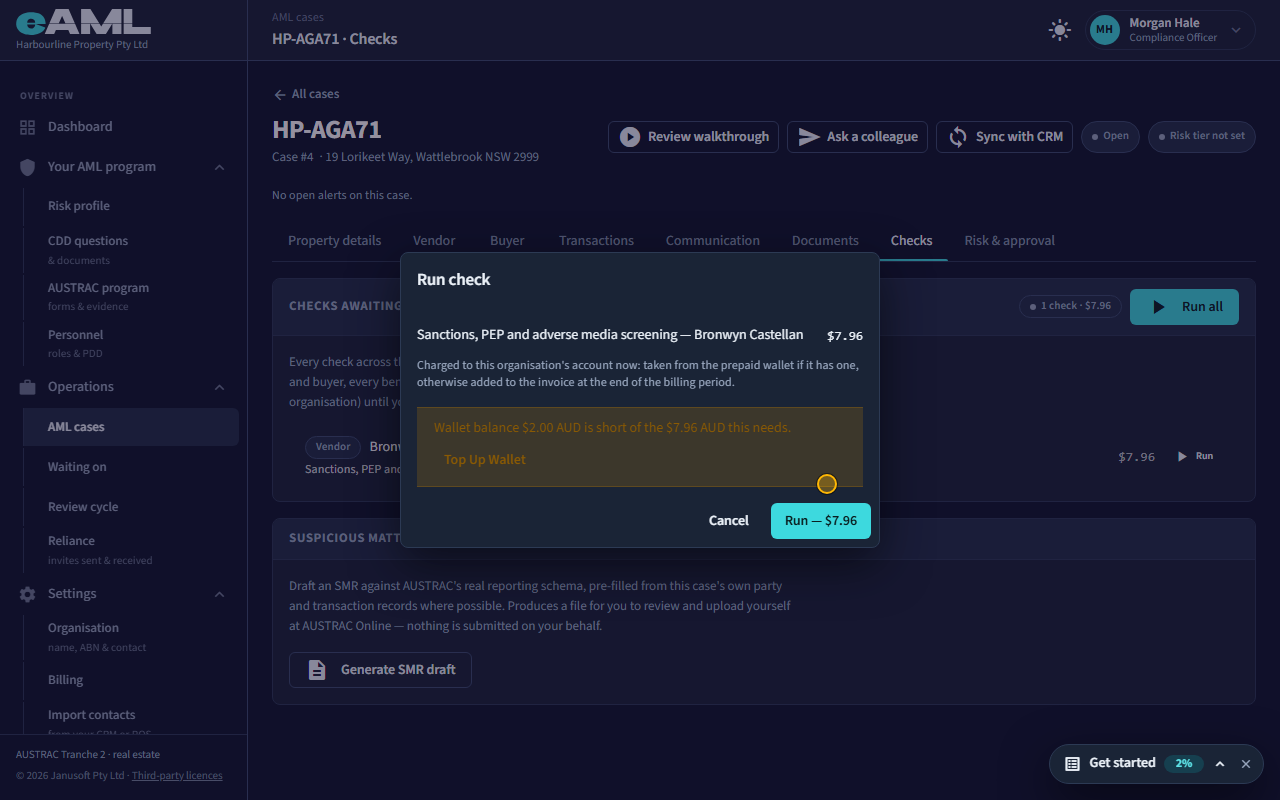
The check does not run and nothing is charged. When you confirm it, the dialog says the wallet balance is short of what the check needs and offers Top Up Wallet. Top up, then run the check again. A firm that has never set up a wallet has its checks added to the invoice instead, so it does not meet this message.
- Read the message: Wallet balance is short of the amount this needs.
- Select Top Up Wallet and pay by card for at least the amount short.
- Run the check again.
Watch: Billing: plan, prepaid wallet and invoicesGuide step: Billing: plan, prepaid wallet and invoicesWatch: Billing: plan, prepaid wallet and invoicesGuide: Billing: plan, prepaid wallet and invoices
How do I top up my wallet, and is there a minimum?
On Billing, under Prepaid wallet, choose $20, $50 or $100 or type an amount, then select Top Up and pay by card. The minimum is $10. The balance rises as soon as the payment succeeds. Only a compliance officer or a senior manager can top up. From a check’s own dialog, Top Up Wallet opens the same payment for at least the amount that was short.
- Open Settings → Billing.
- Under Prepaid wallet choose an amount (at least $10).
- Select Top Up and enter your card.
Watch: Billing: plan, prepaid wallet and invoicesGuide step: Billing: plan, prepaid wallet and invoicesWatch: Billing: plan, prepaid wallet and invoicesGuide: Billing: plan, prepaid wallet and invoices
What is included in my plan, and what is charged on top?
The self-service plans charge a monthly fee for the platform and a number of cases; the checks themselves are charged on top. As at 17 October 2026 (the plan catalogue is set by eAML and can change; the Pricing page is the reference).
- Open Settings → Billing to see this month’s checks and the wallet.
- Read the plan you chose at sign-up on the Pricing page.
- Open What checks cost, and what is free for the price of each check.
- Self-service plans: 10 Case Plan ($30 a month), 20 Case Plan ($50) and Unlimited Plan ($200). Each includes the platform, the cases a month in its name, case management, the due diligence and screening workflow and the seven-year audit trail, with no onboarding fee.
- On top, you pay for the checks themselves: screening and the paid company register checks from your prepaid wallet, and identity verifications as your plan meters them. What each costs is in What checks cost, and what is free.
- Managed plans are the opposite: a per-case fee ($89 for an individual, $119 for a trust or company) that covers the checks too.
- Accountants and financial advisers are priced by active AML clients a month: Starter $49 (up to 25), Practice $149 (up to 150), Firm $399 (up to 600), with checks charged the same way; live Xero and MYOB connections are an add-on of $25 a month (25 client files included, then $1 each).
- The Professional plan ($600 a month) is the white-label offer for franchise groups.
Watch: Billing: plan, prepaid wallet and invoicesGuide step: Billing: plan, prepaid wallet and invoicesReference: What checks cost, and what is freeWatch: Billing: plan, prepaid wallet and invoicesGuide: Billing: plan, prepaid wallet and invoices
Which checks are free and which cost money?
Charged: screening (sanctions, PEP and adverse media in one run), identity verification by link, a check recorded as done in another system, the company register checks (Basic, Advanced, Ultimate owners), and the ASIC extract (paid to ASIC). Free: the ASIC Company Summary, the ABN register lookup, every internal check eAML runs by itself (country risk, ownership complexity, income against property value, rapid resale, transaction patterns, the same person on other cases, and the like), a check you record as done in-house or rely on from another firm, messages and forms to clients and colleagues, and sharing a case with another firm. Reading and deciding on a result is never charged. The reference page lists each with its price.
- Open the reference page What checks cost, and what is free for the full list with prices.
- Read the price in the dialog before you confirm any check.
How do I pay or download an invoice?
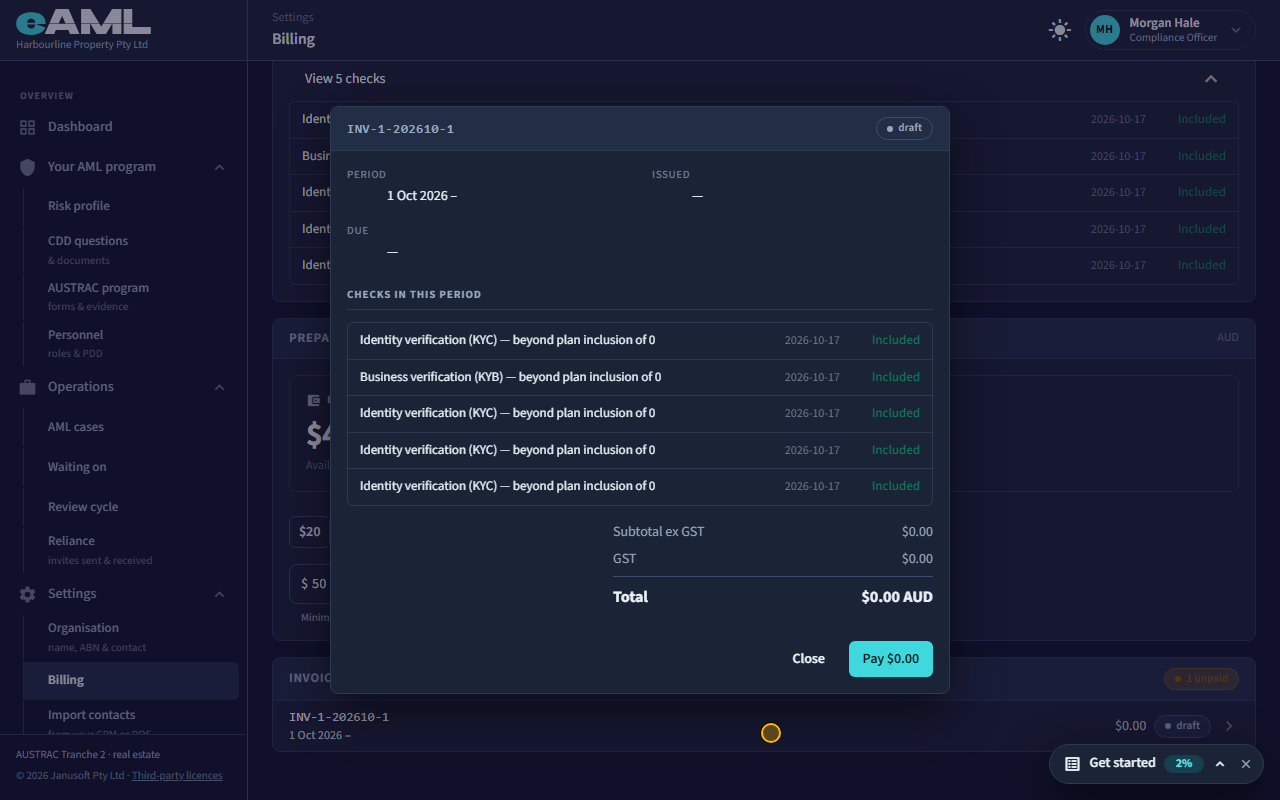
Open Billing and select the invoice under Invoices; the dialog shows its period, the checks on it and the totals, and an invoice that is not yet paid has a Pay button with the total on it, which takes a card. This month so far also has Pay this invoice for the current, still open invoice once it has chargeable checks. Only a compliance officer or a senior manager can pay. There is no download button on an invoice.
- Open Settings → Billing.
- Select the invoice under Invoices.
- Select Pay and enter your card.
Watch: Billing: plan, prepaid wallet and invoicesGuide step: Billing: plan, prepaid wallet and invoicesWatch: Billing: plan, prepaid wallet and invoicesGuide: Billing: plan, prepaid wallet and invoices
Why was I charged for a check that found nothing?
A check is charged when it runs, whatever it finds: the provider charges for the search, so a clear result costs the same as a hit. The price is shown in the confirmation dialog before anything runs, and nothing is charged until you confirm. Reading a result and deciding on a hit, a possible match or an explanation is never charged, and some checks are free altogether (the internal checks eAML runs by itself, the ABN lookup, the ASIC company summary). If a charge looks wrong, email [email protected] with the case and the date.
- Read the price in the dialog before you confirm a check.
- See What checks cost, and what is free for what is charged and what is not.
Reference: What checks cost, and what is freeWatch: Billing: plan, prepaid wallet and invoicesGuide step: Billing: plan, prepaid wallet and invoicesWatch: Billing: plan, prepaid wallet and invoicesGuide: Billing: plan, prepaid wallet and invoices
What do the company register checks (Basic, Advanced, Ultimate owners) cost?
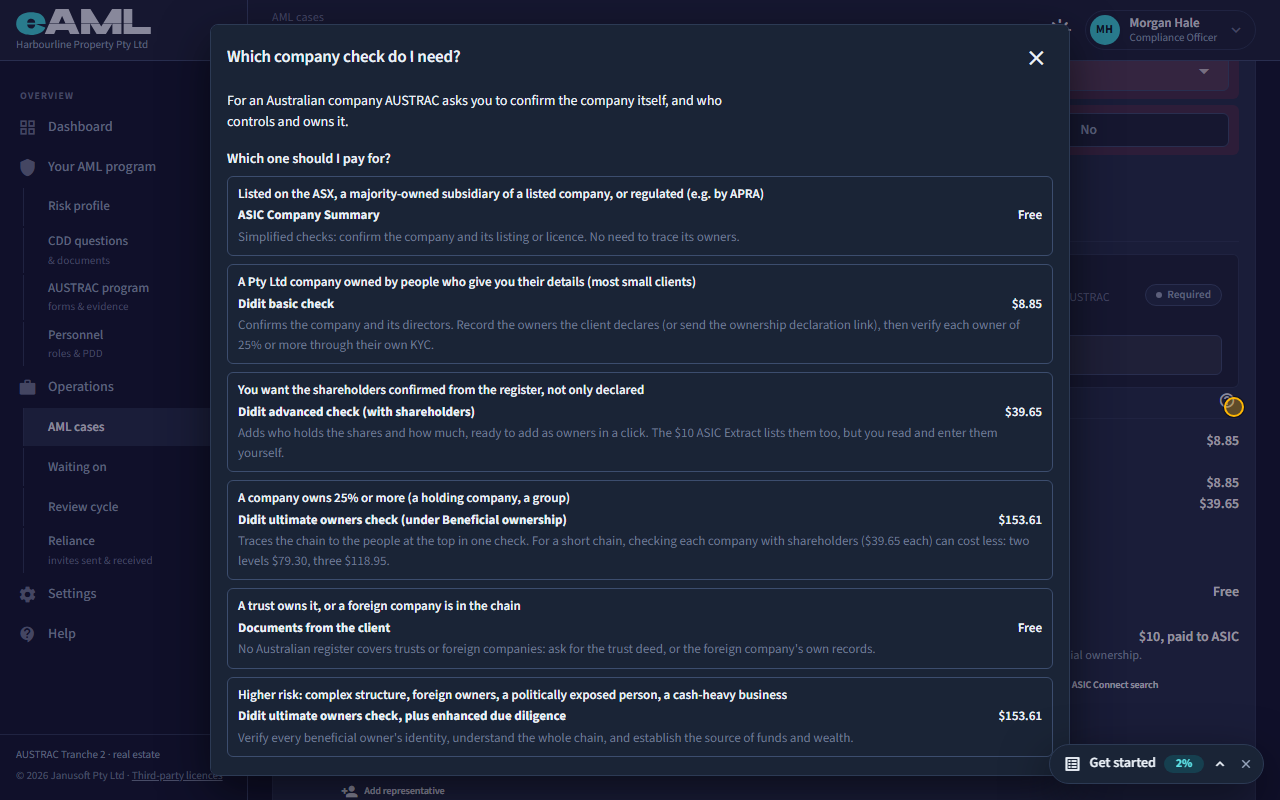
Each company check shows its price on the button and in the confirmation dialog before anything is charged, and charges your prepaid balance or invoice. As at 16 October 2026: the Basic check was $8.85, the Advanced check (adds shareholders) $39.65, and the Ultimate owners check $153.61. For a short chain, checking each company with the Advanced check can cost less than one Ultimate owners check (two levels $79.30, three $118.95), and the help button beside Company register check says so. The ASIC Company Summary is free, and the ASIC Current Company Extract costs $10, paid to ASIC rather than eAML.
- Open the company’s register check (Company register check, or Beneficial ownership for the ultimate owners).
- Read the price on the button and in the dialog.
- Select Run the check to confirm, or Cancel.
Watch: Companies and trusts: who owns themGuide step: Companies and trusts: who owns themWatch: Company checks: the ASIC extract and the registerGuide step: Company checks: the ASIC extract and the registerReference: What checks cost, and what is freeWatch: Companies and trusts: who owns themGuide: Companies and trusts: who owns them
What is an "active AML client" for billing?
Accounting
On a plan priced by active AML clients (accountants and financial advisers), a client is active in a month if it is on your client register with an engagement, until you offboard it; a client offboarded during the month still counts for that month. Billing shows the count against your plan’s limit under Plan usage (for example 12 of 25). Going over the limit blocks nothing: you will be asked to move up a plan at renewal.
- Open Settings → Billing.
- Read Plan usage: the count of active AML clients against the limit.
- For a client you no longer act for, open their page and choose Offboard client from the menu.
Watch: Billing: plan, prepaid wallet and invoicesGuide step: Billing: plan, prepaid wallet and invoicesWatch: Accounting practice: a client and an engagementGuide step: Accounting practice: a client and an engagementWatch: Billing: plan, prepaid wallet and invoicesGuide: Billing: plan, prepaid wallet and invoices
How do I change or cancel my plan?
You choose a plan when you sign up, and there is no change or cancel button in the app today: Billing shows what you are charged, not the plan. To change or cancel, email [email protected]. Nothing stops working if you outgrow a plan: an accountant over the limit on active AML clients is asked to move up a plan at renewal, and checks are paid from the wallet whatever the plan.
- Note the plan you want and the date you want it from.
- Email [email protected].
Watch: Billing: plan, prepaid wallet and invoicesGuide step: Billing: plan, prepaid wallet and invoicesWatch: Billing: plan, prepaid wallet and invoicesGuide: Billing: plan, prepaid wallet and invoices
Cases: the basics
How do I start a new case?
Select New case on the Dashboard or on the AML cases list, give the case a reference (a name your firm will recognise, such as the property or the client), and choose the service if your business type offers more than one. eAML then builds the due diligence for the parties you add. eAML will not open a case until your AML/CTF compliance officer is recorded with their personnel due diligence Suitable and your program is customised and signed off: the dashboard says what is missing.
- Open the Dashboard or Operations, then AML cases.
- Select New case.
- Enter the reference, and choose the service if asked.
- Add the property details, then the vendor and the buyer (or the client for your business type).
Watch: The case page: a guided tourGuide step: The case page: a guided tourWatch: Welcome: from payment to your dashboardGuide step: Welcome: from payment to your dashboardWatch: The case page: a guided tourGuide: The case page: a guided tour
What is the difference between withdrawing a case and it being declined?
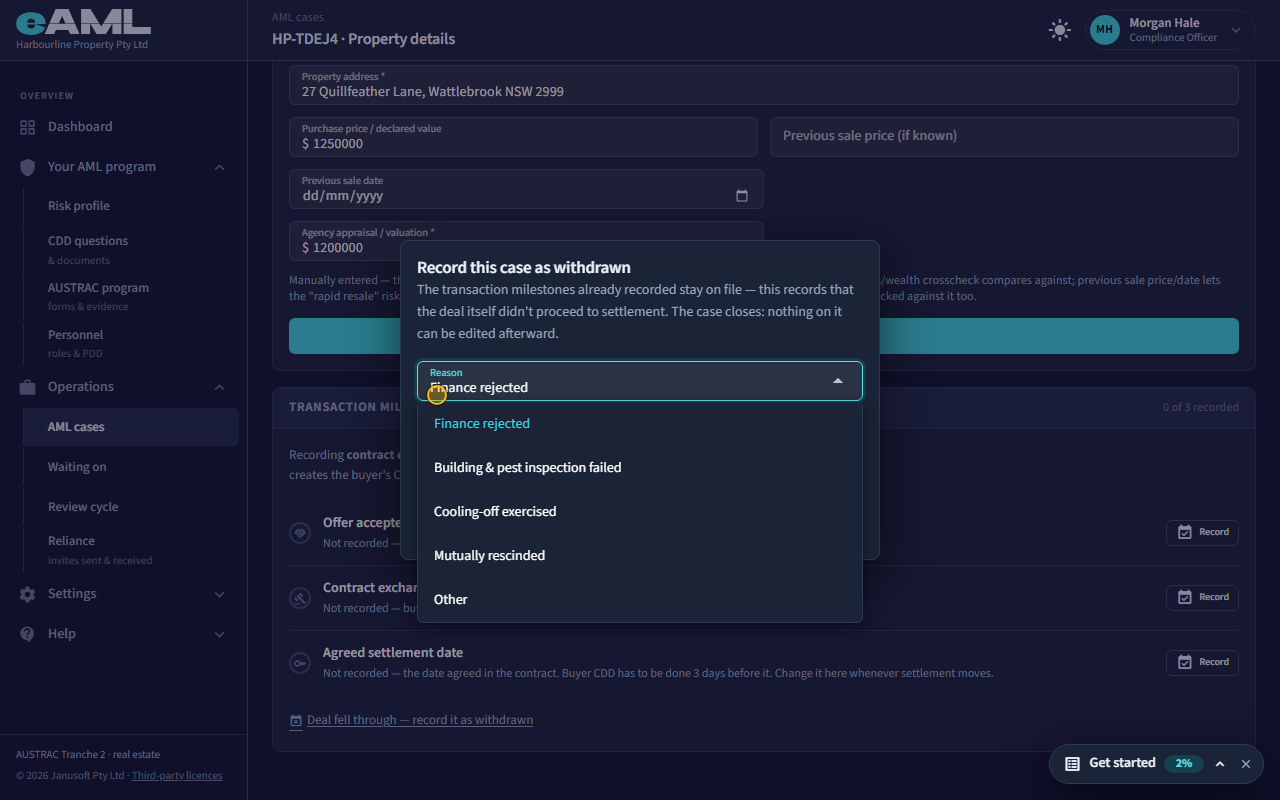
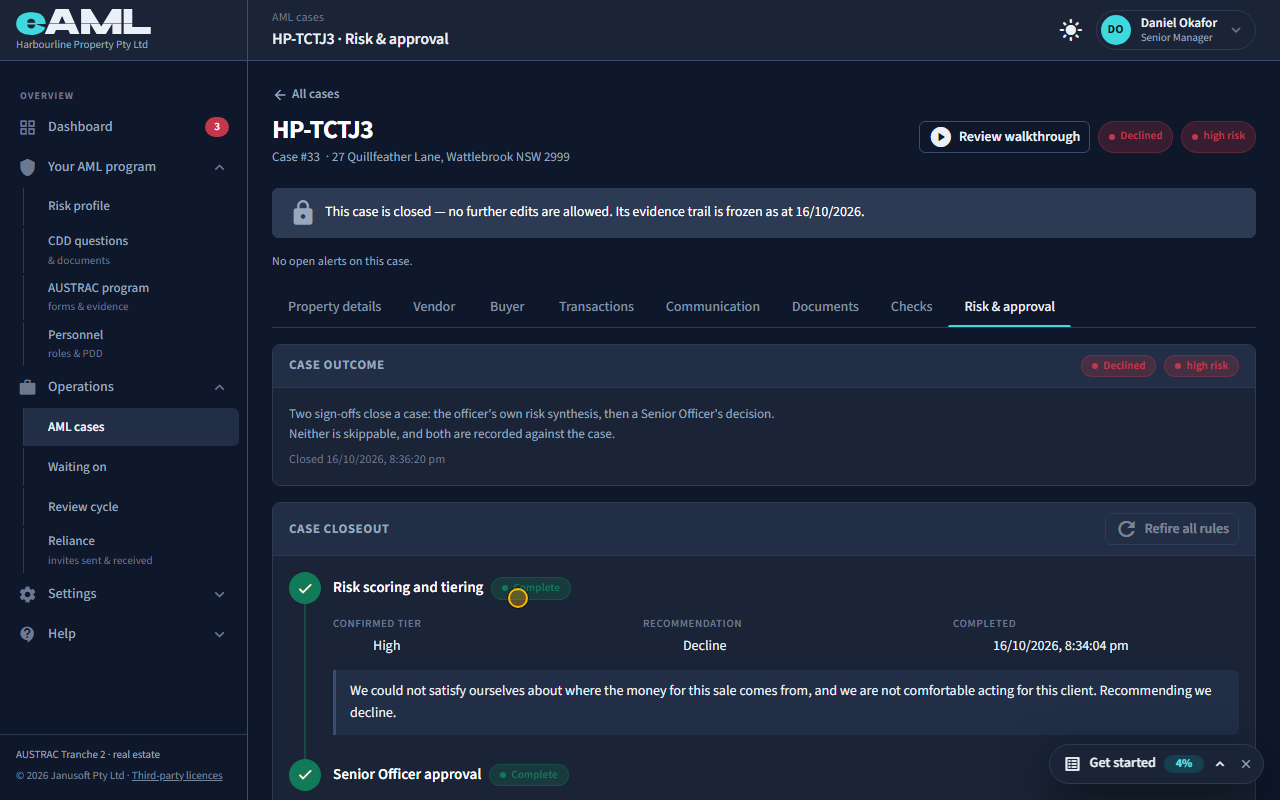
Withdrawn means the deal fell through. It is a fact about the sale, not an AML judgement, so anyone who works cases can record it, at any stage, with a reason (finance rejected, building and pest inspection failed, cooling-off exercised, mutually rescinded, or another reason with a note), and it needs no rating or approval. Declined means we refused: a senior manager selected Reject after risk tiering, with their reasons. Both close the case and nothing on it can be edited afterwards. A declined case is never treated as an ongoing relationship, so no periodic review is scheduled for it.
- To withdraw: open the case’s Property details tab and select Deal fell through.
- Choose the reason, add a note (needed for Other), and select Withdraw case.
- To decline: complete risk tiering, then a senior manager selects Reject on Risk & approval, with a comment.
Watch: Finishing a case: tiering and approvalGuide step: Finishing a case: tiering and approvalWatch: Finishing a case: tiering and approvalGuide step: Finishing a case: tiering and approvalWatch: Finishing a case: tiering and approvalGuide: Finishing a case: tiering and approval
Can I edit a case after it is closed?
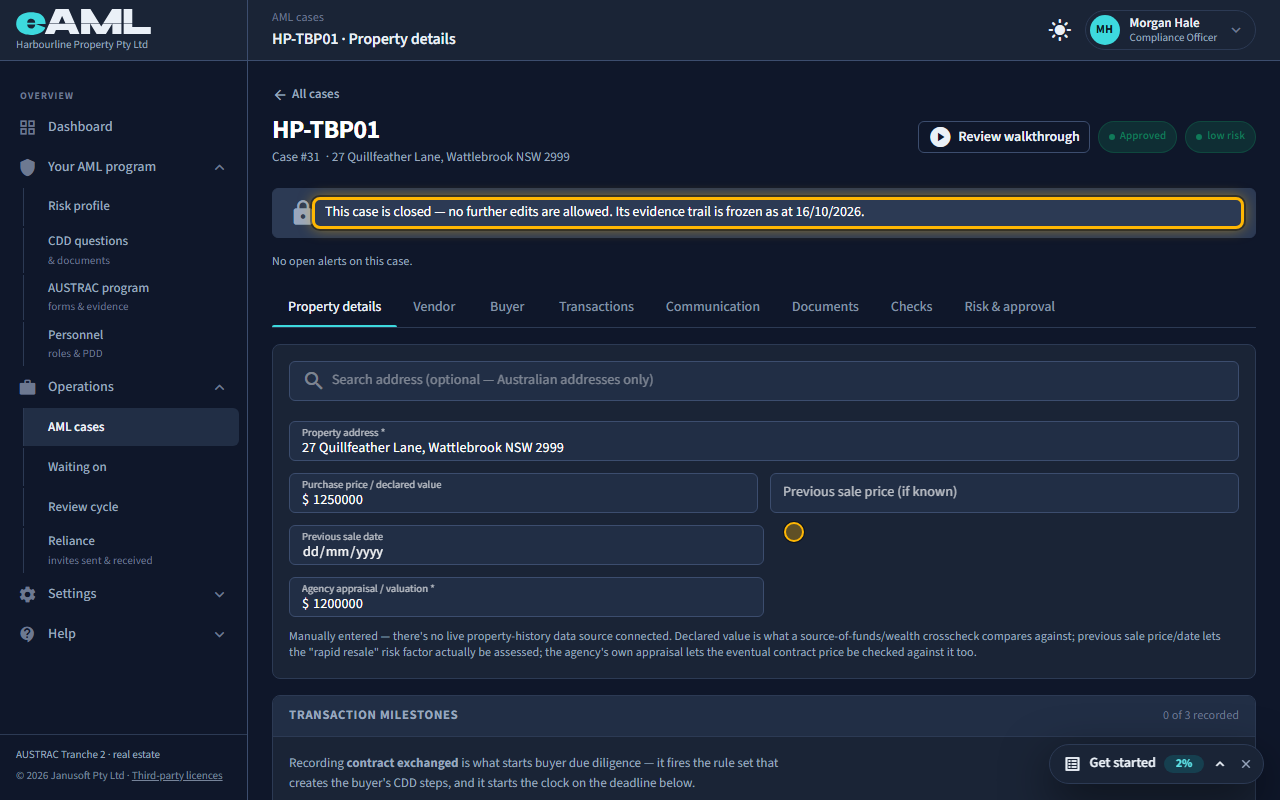
No. A case is closed once it is Approved, Declined or Withdrawn, and eAML refuses every change to it from then on: people, answers, checks, transactions, bank accounts, documents and the risk rating. A banner says so, and its evidence trail is frozen as at the closing date. Everything stays readable and downloadable. The one exception is the monitoring forms linked to an approved case, such as periodic reviews, which stay open for as long as the relationship runs. A closed case cannot be reopened, so a new piece of work for the same client starts as a new case.
- Open the case: the grey banner says it is closed and shows the date it was frozen.
- Read or download whatever you need; the controls that change things are gone or disabled.
- For new work for the same client, start a new case.
Watch: Finishing a case: tiering and approvalGuide step: Finishing a case: tiering and approvalWatch: Finishing a case: tiering and approvalGuide: Finishing a case: tiering and approval
Why is "Add vendor" or "Add client" greyed out?
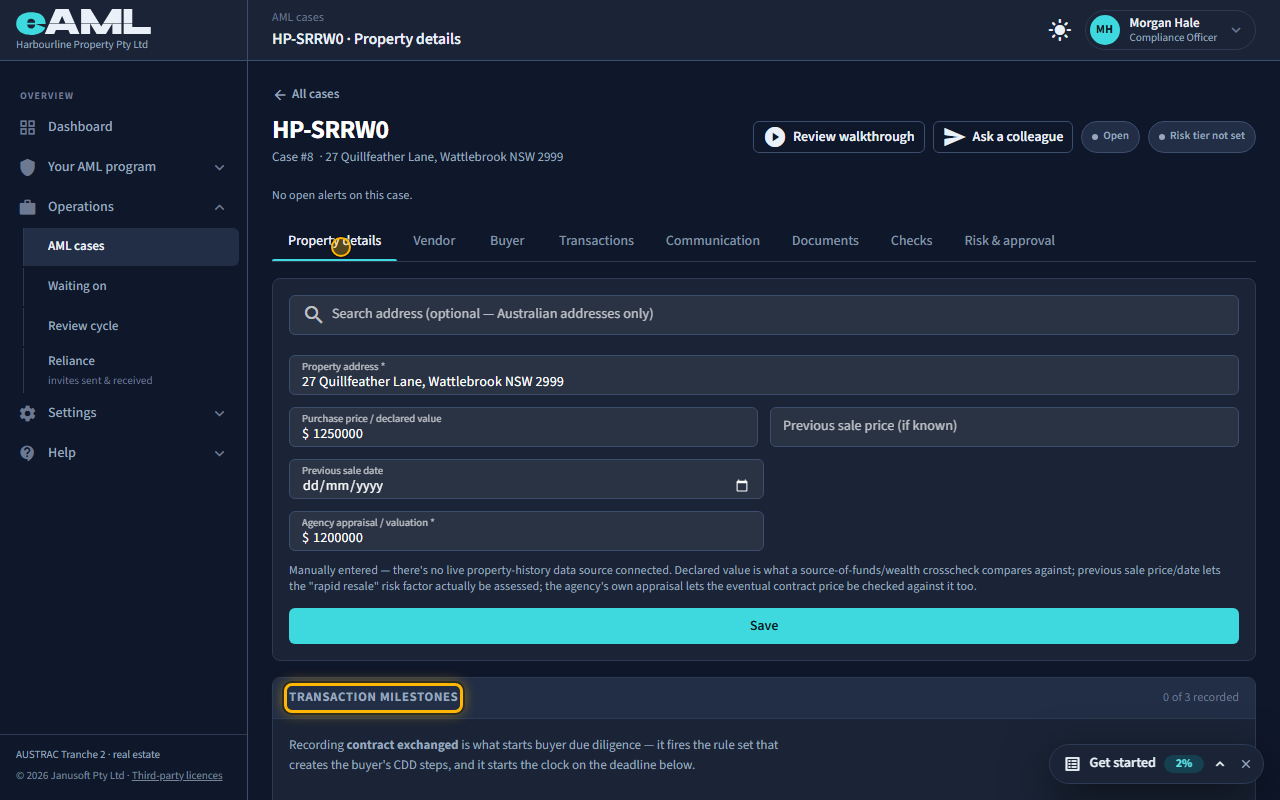
eAML asks for the property before it lets you add a party, because the checks compare what people say with the property. For a vendor, the property address and the agency’s appraisal or valuation must be recorded on the Property details tab; for a buyer, the address and the purchase price (the contract price). A conveyancing case needs only the address. When the button is greyed out, the message beside it names what is missing.
- Open the case and its Property details tab.
- Enter the property address and the agency appraisal (for a vendor), or the purchase price (for a buyer).
- Select Save, then return to the Vendor or Buyer tab.
Watch: The case page: a guided tourGuide step: The case page: a guided tourWatch: The case page: a guided tourGuide: The case page: a guided tour
How do I add a second vendor or buyer, or a representative?
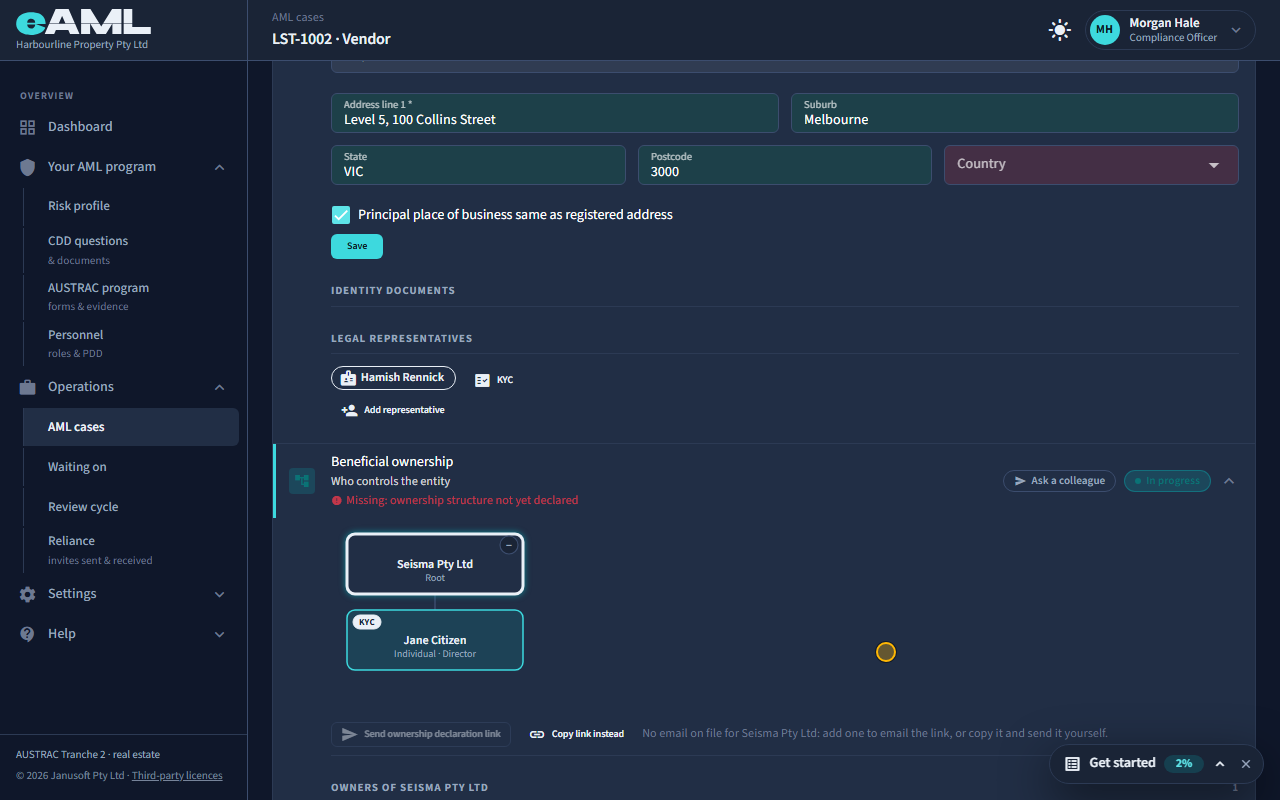
Another vendor or buyer: on the Vendor or Buyer tab, once one is recorded, select Add another above the card and fill in the same details; each person or company gets its own card and its own checks. A representative, someone acting for a vendor or buyer such as an attorney or an agent, is added on the Customer identification stage of that person’s card: select Add representative, and they are checked too. The directors and owners of a company are added under Beneficial ownership instead (T24).
- Open the Vendor or Buyer tab.
- To add another vendor or buyer, select Add another above the cards and fill in their details.
- To add someone acting for a person or company, open Customer identification on their card and select Add representative.
- For the people behind a company, open Beneficial ownership and add them there.
Watch: Real estate agency: a sale from start to finishGuide step: Real estate agency: a sale from start to finishWatch: Companies and trusts: who owns themGuide: Companies and trusts: who owns themWatch: Real estate agency: a sale from start to finishGuide: Real estate agency: a sale from start to finish
What is the difference between a case and a compliance form?
A case is one customer relationship or transaction: its parties, checks, risk rating and approval. A compliance form is one of the wider records AUSTRAC expects from your business as a whole: your written program, personnel due diligence, periodic reviews, effectiveness testing and so on. Some forms are linked to a case (a periodic review, a trigger-event review); most are standalone, organisation-level records on the AUSTRAC program page.
Watch: Your AUSTRAC AML/CTF programGuide step: Your AUSTRAC AML/CTF programWatch: Your AUSTRAC AML/CTF programGuide: Your AUSTRAC AML/CTF program
How do I find a case?
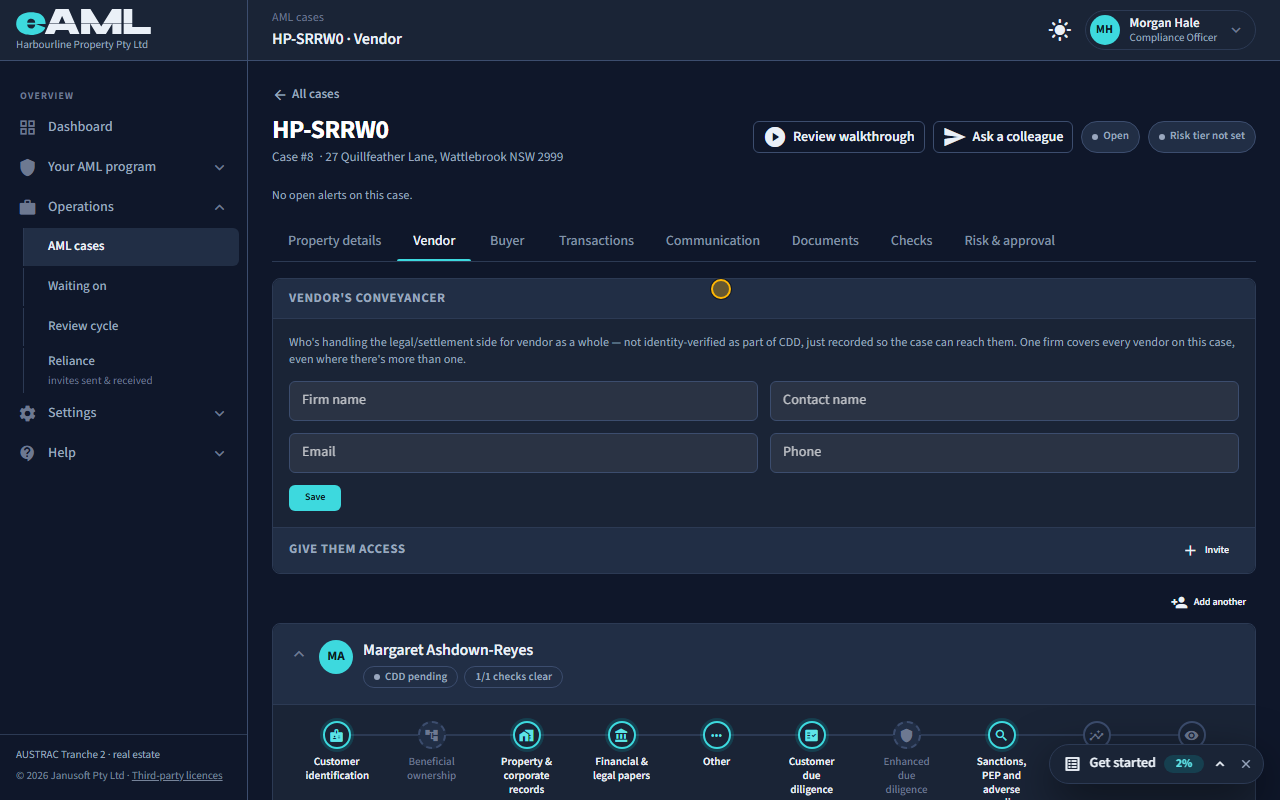
Open Operations, then AML cases. The list shows every case your firm has opened with its reference, status and risk tier; select a case to open it. Open cases that need attention also appear on the Dashboard under Needs attention, and anything held up on you is under Waiting for your action.
- Open Operations, then AML cases.
- Find the case by its reference and select it.
- Or open it from the Dashboard’s Needs attention list.
Watch: The case page: a guided tourGuide step: The case page: a guided tourWatch: The case page: a guided tourGuide: The case page: a guided tour
What do the case statuses and stage badges mean?
A case is Open while it is being worked, Approved once a senior manager has approved it (or the compliance officer, for a jeweller’s sale that is not high risk), Declined if it was rejected, and Withdrawn if the deal fell through. A person’s card shows each stage as Complete (green), In progress (teal, with what is missing underneath), Not started (grey), Not applicable (grey), or Starts at approval for ongoing monitoring. Ratings are Low (green), Medium (amber) and High (red). A check says Clear, Needs review or Confirmed match, and a hit someone has read says Reviewed, with what they decided. The reference page lists every one with its colour.
- Open the case: its status and rating are the pills at the top.
- Open a person’s card: each stage has its own status, and the line under it says what is missing.
- Open the reference page for every status and colour.
What can an agent do that a compliance officer cannot, and the reverse?
A case worker (agent) can do nothing that a compliance officer cannot: a compliance officer can do everything a case worker can, and more. The case worker works cases day to day: create a case, add people, answer questions, run checks, send forms, record decisions and complete risk tiering. They cannot set the firm up, see billing, add or edit owners, resolve alerts, submit a suspicious matter report for review, review compliance records, or approve anything. The compliance officer can do all of those except the approvals, which belong to the senior manager (a case, a suspicious matter report, a compliance record). The senior manager can do everything a compliance officer can and the approvals as well.
- Open Roles and what each can do for the full table.
- If a button is missing for a person, check their role against it.
- Ask a compliance officer or senior manager to change their access if they need more (Personnel).
How do I record the property details and the milestones?
Real estateConveyancing
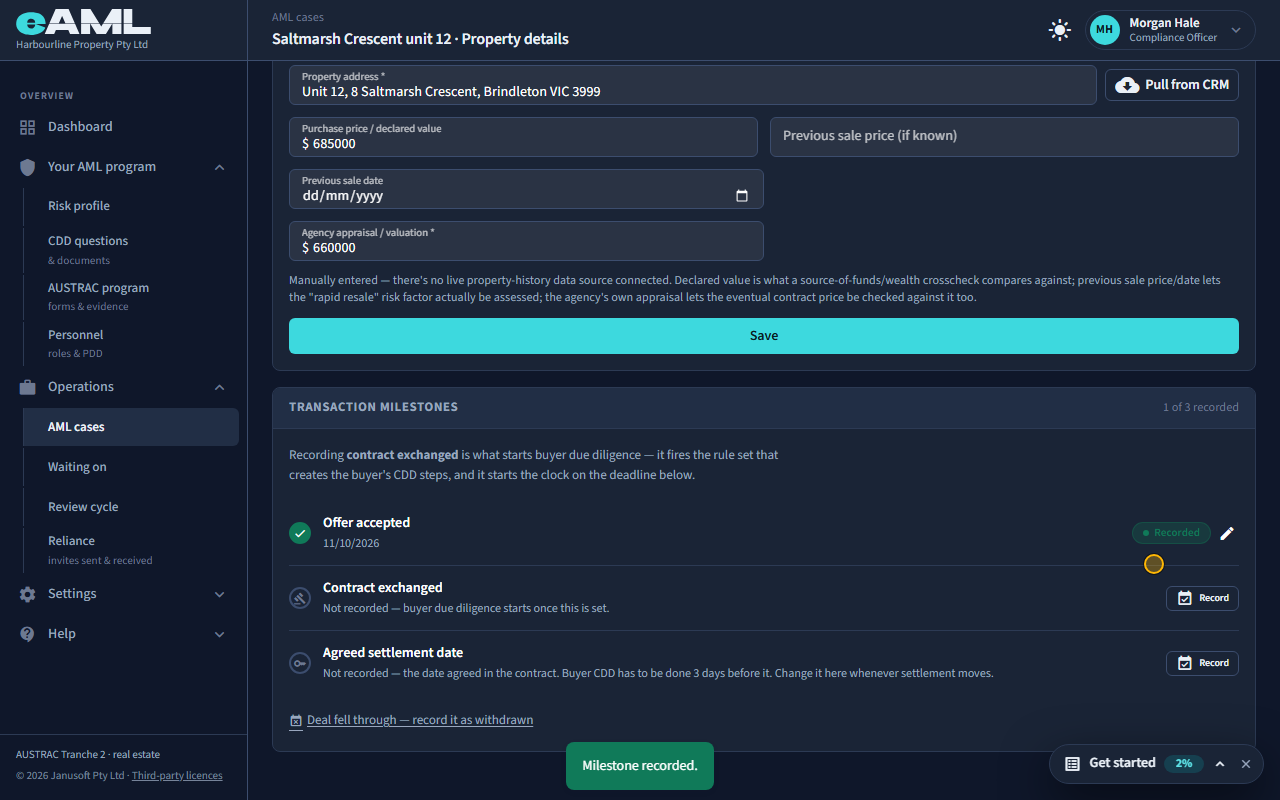
On the Property details tab enter the address, the price agreed (or declared value) and the agency’s appraisal or valuation, then Save: a vendor cannot be added until the appraisal is recorded, and a buyer needs the price. A previous sale price and date, when you know them, let eAML check for a rapid resale. Below, Transaction milestones: Offer accepted is recorded for information; Contract exchanged is what starts the buyer’s due diligence and its deadline; Agreed settlement date is the date in the contract. Select Record beside each, enter the date and save, and change the settlement date whenever settlement moves. If the deal falls through, Deal fell through records it as withdrawn from the same card.
- Open the Property details tab and enter the address, the price and the appraisal, then select Save.
- Under Transaction milestones, select Record beside Offer accepted and enter its date.
- When contracts exchange, select Record beside Contract exchanged; when the settlement date is agreed, select Record beside Agreed settlement date.
- If settlement moves, change the date on the same card.
Watch: Real estate agency: a sale from start to finishGuide step: Real estate agency: a sale from start to finishWatch: Real estate agency: a sale from start to finishGuide step: Real estate agency: a sale from start to finishWatch: Real estate agency: a sale from start to finishGuide: Real estate agency: a sale from start to finish
How do I record deposits and settlement payments?
Real estateConveyancing
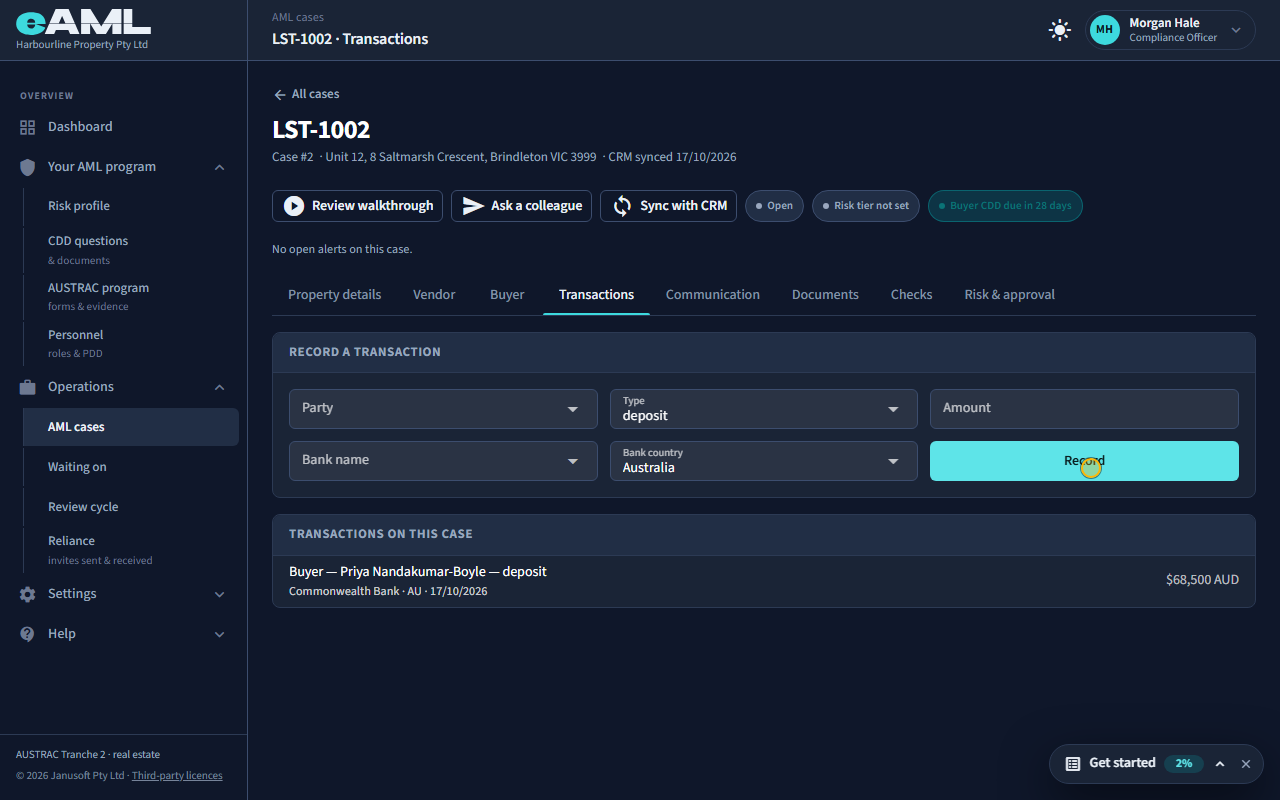
On the Transactions tab choose who paid (the vendor or the buyer), the type (deposit, settlement, cash payment, virtual asset or other), enter the amount, the bank and its country, and select Record. A bank in a high-risk country is flagged on the payment. Recording a payment also runs the rules that watch money: a buyer’s payment of $50,000 or more asks for a source-of-funds declaration if there is not one yet, and a cash payment of $50,000 or more raises the person’s rating to high. Record the deposit as it is paid and the settlement later.
- Open the Transactions tab.
- Choose the party, the type and the amount, and the bank and its country.
- Select Record, and read the payment in the list below.
Watch: Real estate agency: a sale from start to finishGuide step: Real estate agency: a sale from start to finishWatch: Real estate agency: a sale from start to finishGuide: Real estate agency: a sale from start to finish
How do I correct something I entered by mistake?
Go back to where you entered it, correct it and save again. A party’s own details can be edited from the party’s card on the Vendor or Buyer tab, and a case’s property and milestones on Property details. Answers are never overwritten: saving a changed answer records a new one and the latest counts, so the earlier entry stays on file. A wrong document can be rejected or deleted from where it was uploaded. Once a case is closed, nothing on it can be edited.
- Open the case and the tab where the mistake is.
- Edit the field (for a party, select Edit on their card) and save.
- For a document, remove or reject it where it was uploaded and upload the right one.
- If the case has already been approved or declined, it is locked: raise any correction through your compliance officer.
Watch: The case page: a guided tourGuide step: The case page: a guided tourWatch: The case page: a guided tourGuide: The case page: a guided tour
Can two people work on the same case?
Yes. A case belongs to your firm, not to one person: any colleague with access can open it, and the work is divided by stage. To hand a piece to someone, use Ask a colleague on the case or on a stage: it appears under their Waiting for your action. What two people cannot do is approve their own work: an approval must be given by someone other than whoever prepared, completed or reviewed it.
Watch: The case page: a guided tourGuide step: The case page: a guided tourWatch: The case page: a guided tourGuide: The case page: a guided tour
How do I see who did what on a case?
Where it matters, the case shows who did what: a compliance record states who completed, reviewed and approved it and when, a screening decision shows who made it and their note, messages are kept in the message log, and risk notes record who wrote them. There is not a single activity-log screen. If your evaluator or AUSTRAC asks for the complete history of a case, ask eAML support: every change is recorded in the audit log behind the application.
Watch: The case page: a guided tourGuide step: The case page: a guided tourWatch: The case page: a guided tourGuide step: The case page: a guided tourWatch: The case page: a guided tourGuide: The case page: a guided tour
How do I show a case to my evaluator or to AUSTRAC?
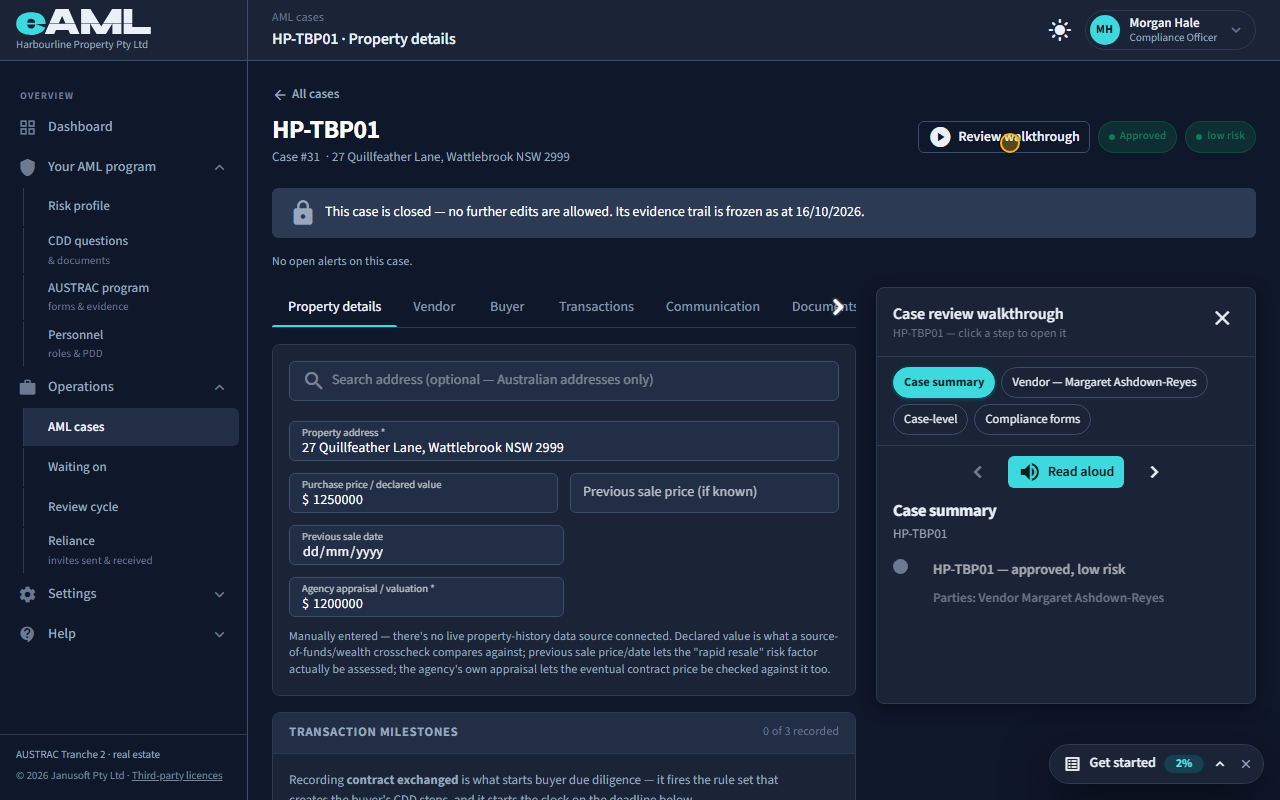
eAML has no separate login or export for an evaluator or for AUSTRAC, so you show the case from inside eAML. Open the case and select Review walkthrough at the top: it narrates every step on the case in order, whether done or not, with who did it, when, and what was found, and you can jump from a step to where it was done. Open the Documents tab for the evidence behind it. A closed case is frozen as at its closing date, so what you show is what was decided on.
- Open the case and select Review walkthrough at the top.
- Move through the sections with the arrows, or pick one from the list.
- Select a step to jump to where it was done, for example the document or the check result.
Watch: Finishing a case: tiering and approvalGuide step: Finishing a case: tiering and approvalWatch: Finishing a case: tiering and approvalGuide: Finishing a case: tiering and approval
What is the Review walkthrough, and who uses it?
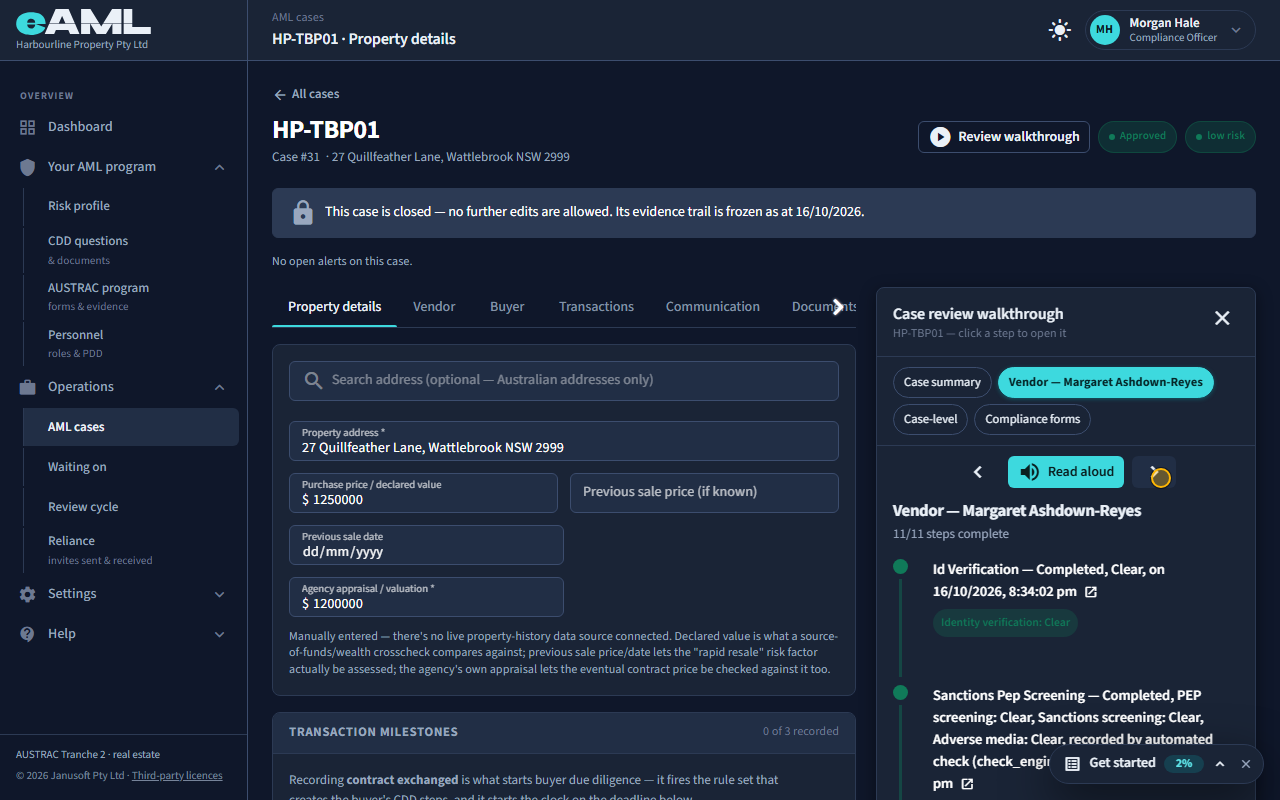
Review walkthrough is a panel on every case that narrates the whole case in plain sentences, section by section: each person’s stages, the case-level steps, the compliance forms. It shows every step whether it is done or not, with who did it, when and what was found, so it works as a pre-sign-off summary and as a what is still missing check at any time. A senior manager reading before approving, an officer checking their own work, and an evaluator being walked through a case all use it. Select a step to jump to where it was done, or Read aloud to have your browser read it to you; it moves on to the next section by itself. It is not shown to a guest invited into a case.
- Select Review walkthrough at the top of any case.
- Pick a section, or use the arrows to move through them.
- Select a step to open it, or select Read aloud to listen.
Watch: Finishing a case: tiering and approvalGuide step: Finishing a case: tiering and approvalWatch: Finishing a case: tiering and approvalGuide: Finishing a case: tiering and approval
Sending forms and verifying identity
How do I send my client a form?
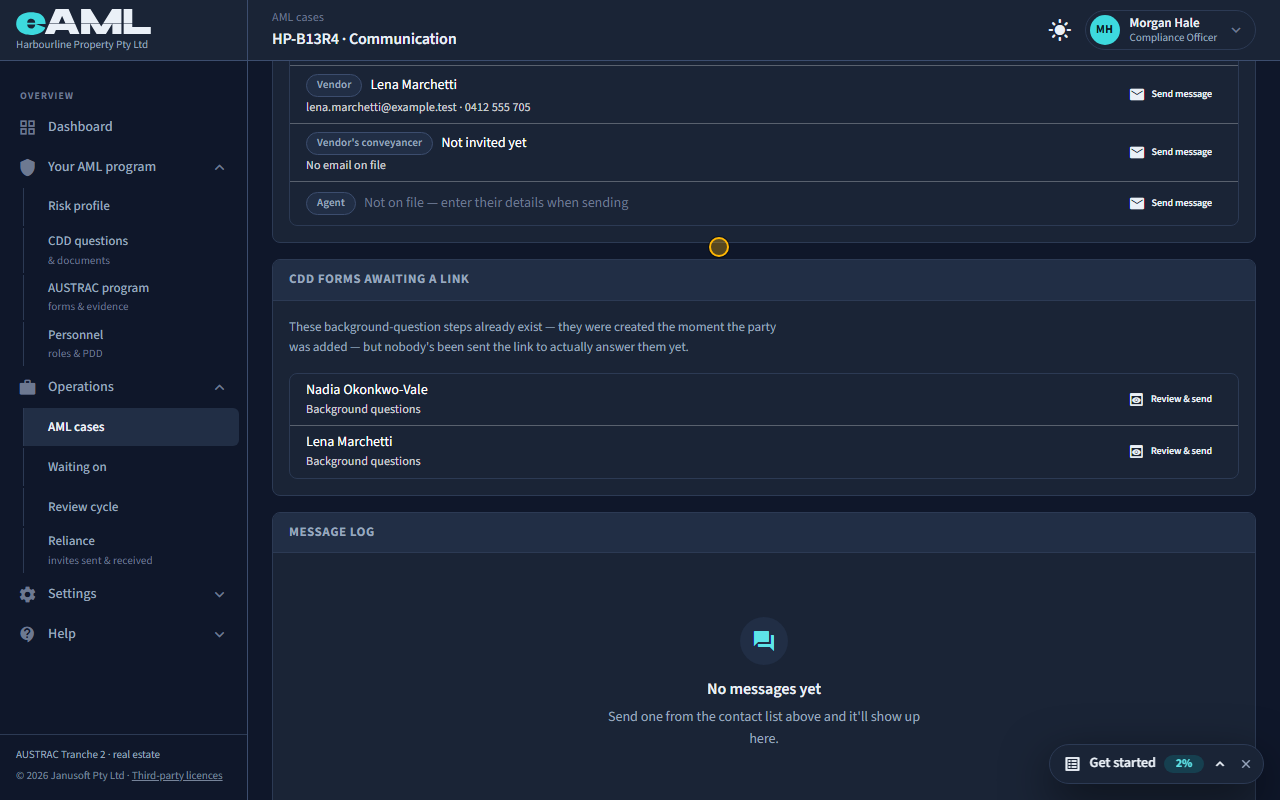
Open the case’s Communication tab. Under CDD forms awaiting a link, select Review & send beside the person, check the questions they will be asked, and select Send. They receive an email with a link to a short form in eAML; nothing is recorded until they submit it. To ask just one thing, use Send message beside their name instead. Identity verification and the ownership declaration have their own links, sent from the person’s own stages.
- Open the case and select the Communication tab.
- Under CDD forms awaiting a link, select Review & send beside the person.
- Read what they will be asked, and select Send.
- For a single question, select Send message beside their name, type it and select Send.
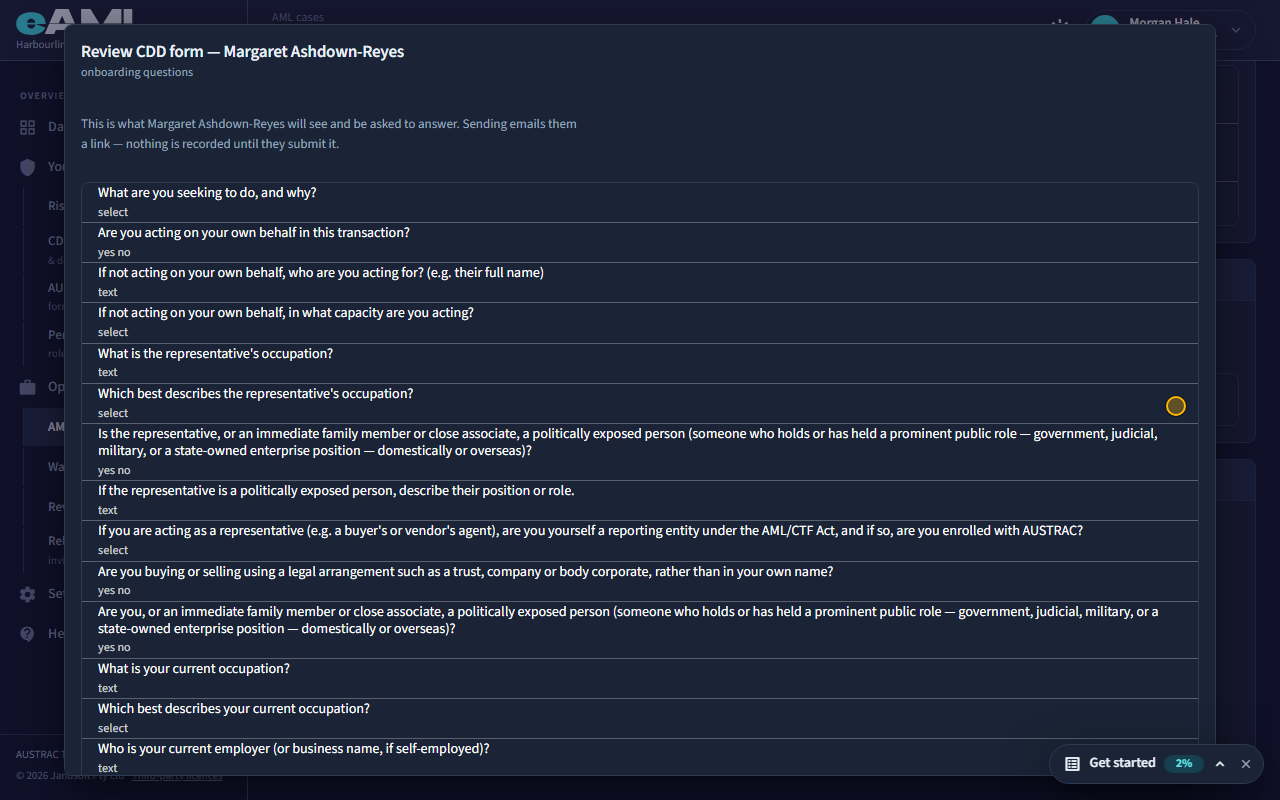
Watch: Sending forms and links to a clientGuide step: Sending forms and links to a clientWatch: Sending forms and links to a clientGuide step: Sending forms and links to a clientWatch: Sending forms and links to a clientGuide: Sending forms and links to a client
My client has no email address.
A form can only be emailed to an address on file, so Review & send is disabled and the row says there is no email on file yet. Add the person’s email on their card on the Vendor or Buyer tab and it becomes available. Or give them the link yourself: on the person’s stage, the hint above the questions has a Copy link button (and the identity check and the ownership declaration each have Copy link as well). It is the same link the email would have carried.
- Open the person’s card and add their email; or
- Open the stage that holds the questions and select Copy link in the blue hint;
- Send the link by text message, chat or in person.
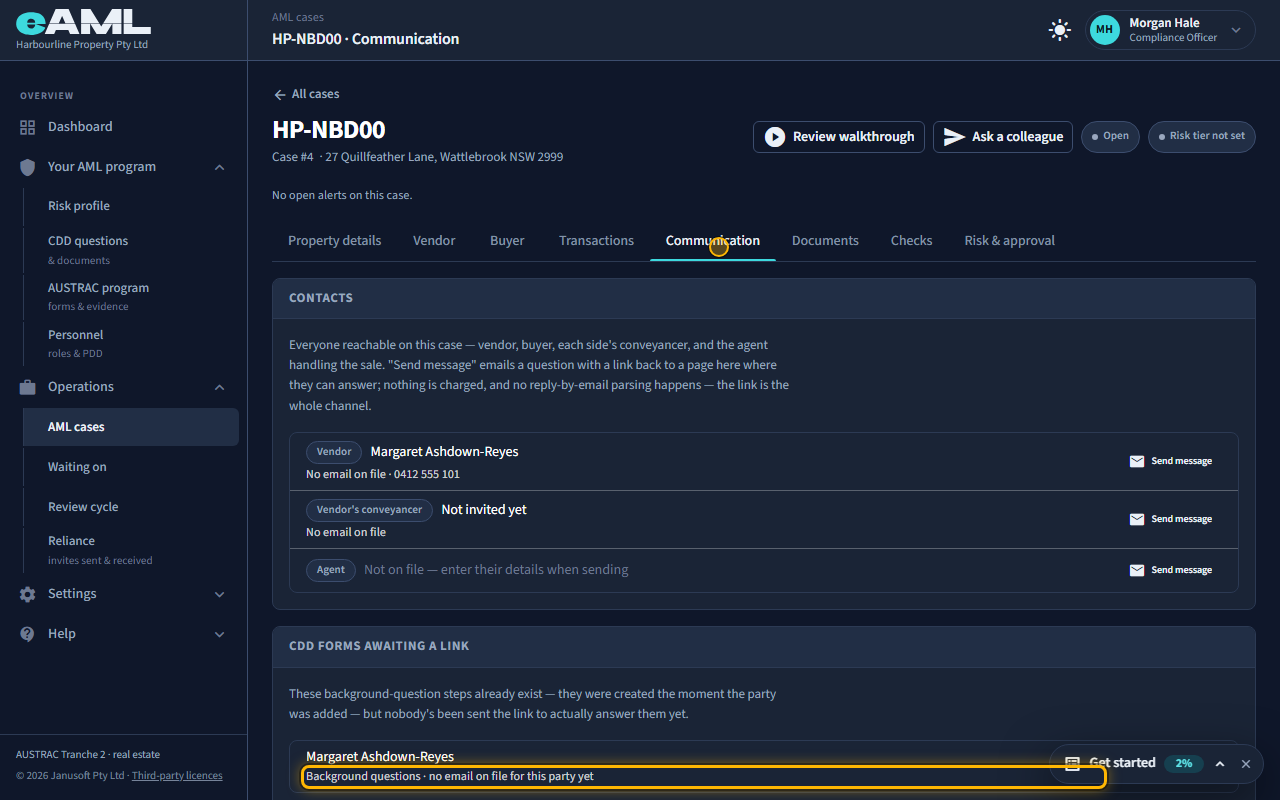
Watch: Sending forms and links to a clientGuide step: Sending forms and links to a clientWatch: Sending forms and links to a clientGuide: Sending forms and links to a client
What does the client see when they open the link, and how long does it work?
They see a short form with only the questions you reviewed before sending, on any device, with no account or password. They answer and submit. What they type comes back to you for confirmation: each question shows what the client answered with a Copy button, and stays marked as needing your answer until a member of staff copies it across and saves it. Some answers also count toward the risk rating as soon as they arrive. The link normally works for 14 days; after that the page says it has expired and to ask your agency to resend it.
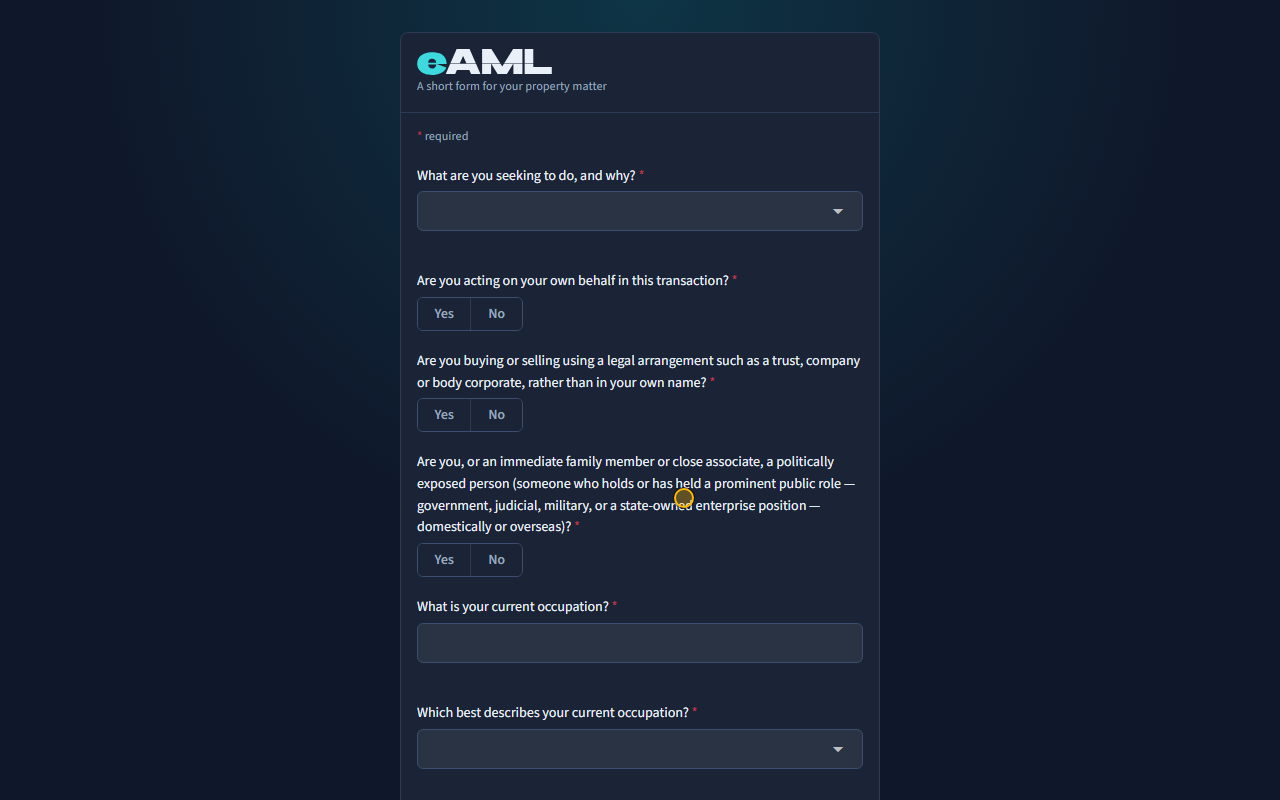
Watch: Sending forms and links to a clientGuide step: Sending forms and links to a clientWatch: Sending forms and links to a clientGuide: Sending forms and links to a client
A client says their link does not work, or has expired.
Two things make a link stop working. It normally expires after 14 days, and the page then says so and to ask your agency to resend it. And every resend replaces the previous link, so an older email’s link no longer works once a newer one has been sent: ask the client to use the newest email. To resend, return to the Communication tab and send the form again (or copy the new link and give it to them).
- Open the case and select the Communication tab.
- Send the form again with Review & send, or copy the link from the person’s stage.
- Ask the client to use the newest link only.
Watch: Sending forms and links to a clientGuide step: Sending forms and links to a clientWatch: Sending forms and links to a clientGuide: Sending forms and links to a client
What is "Waiting on", and how do I resend something?
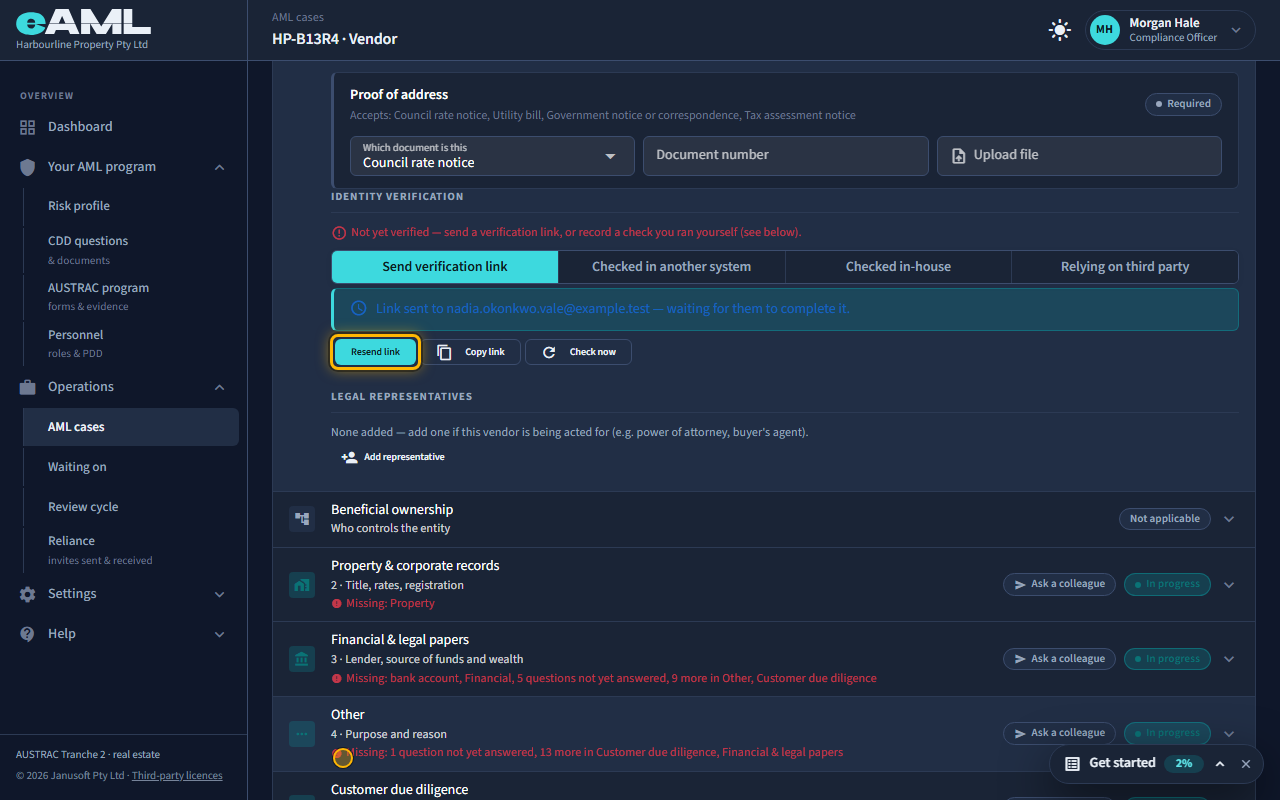
Waiting on lists the client forms and identity verification links that exist for people outside your firm and have not come back, and the reliance (case-share) invites you have sent. It shows one kind at a time, the one waiting longest first, with how long it has been waiting: grey for a day or two, amber from three days, red from seven. The clock starts when the form or link was created for the person (when they were added to the case), not when you last emailed it, and resending does not restart it. An identity link also shows its expiry date, 14 days after it was created, and turns red and says Expired once it has. Waiting on is an index, not a place to act: select a row to open the case and resend from there. For a client form, open the case’s Communication tab: a form still unanswered is listed under CDD forms awaiting a link, and Review & send emails the same link again. For an identity check, open the person’s Customer identification stage and select Resend link. Nobody is chased automatically, and resending does not extend an expiry date: if a link has expired, finish the check another way, or take the person through the questions yourself.
- Open Waiting on in the menu and pick the kind: Client forms, Identity verification links, or Reliance / case-share invites.
- Select the row to open the case.
- For a form: Communication tab, find the person under CDD forms awaiting a link, select Review & send, then Send.
- For an identity check: the person’s Customer identification stage, then Resend link.
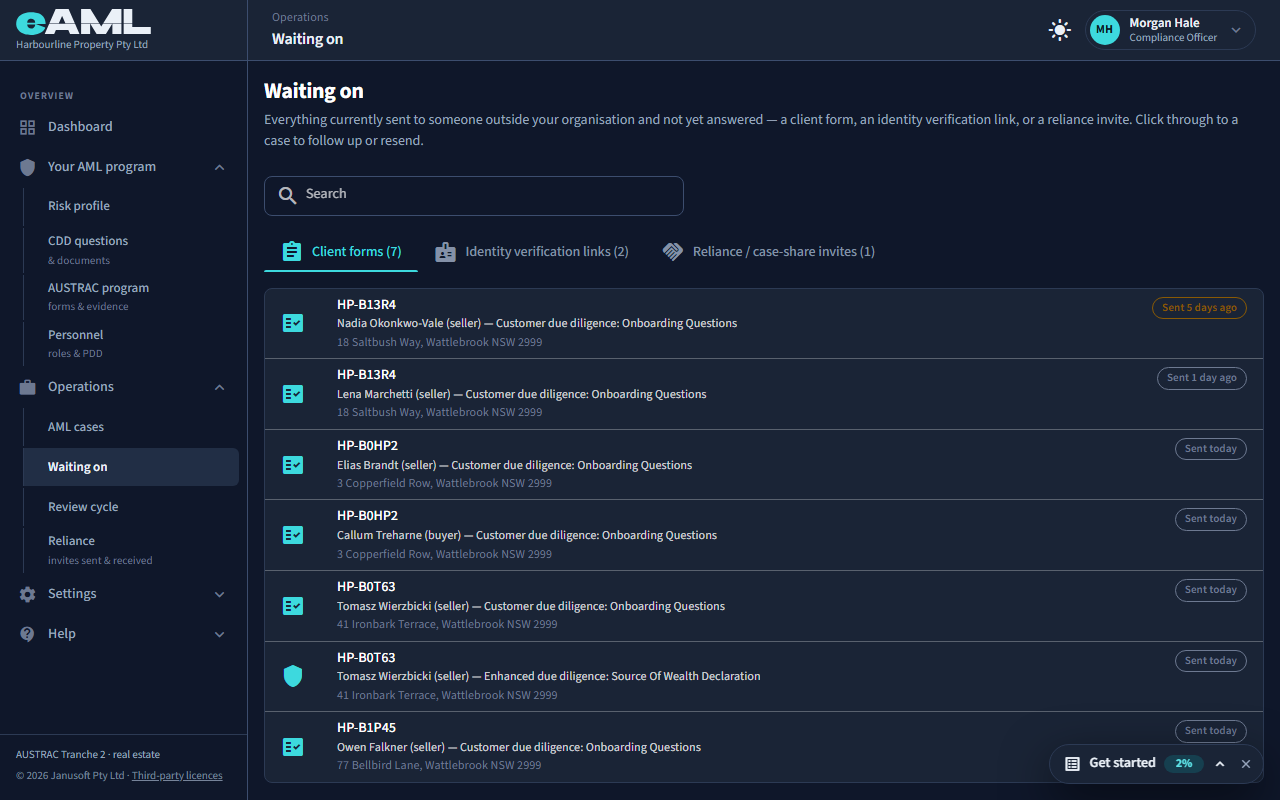
Watch: What is waiting on you: dashboard, Waiting on, colleaguesGuide step: What is waiting on you: dashboard, Waiting on, colleaguesWatch: What is waiting on you: dashboard, Waiting on, colleaguesGuide step: What is waiting on you: dashboard, Waiting on, colleaguesWatch: What is waiting on you: dashboard, Waiting on, colleaguesGuide: What is waiting on you: dashboard, Waiting on, colleagues
How do I verify someone’s identity? What are the options?
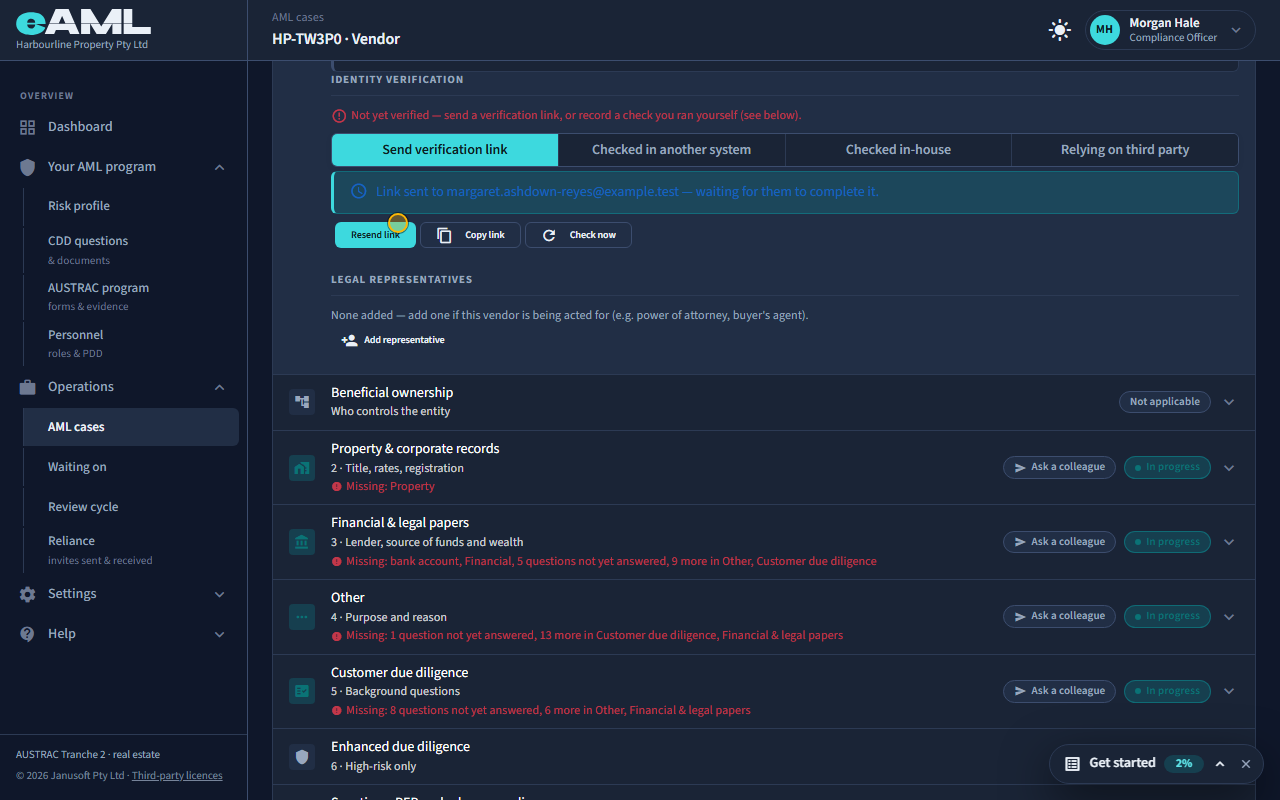
On the person’s card, open the Customer identification stage. Identity verification offers four ways, and AUSTRAC accepts each as a legitimate method rather than as a ranking: Send verification link (the person scans their document and takes a selfie on their own phone, about two minutes); Checked in another system (you record a check you ran elsewhere, with the report as evidence); Checked in-house (you sighted the document yourself: you record the type, number and expiry and the points); and Relying on third party (you rely on another firm’s check, with the written agreement on file). Use whichever fits the person: someone with no smartphone can still be checked in person.
- Open the case and the Vendor, Buyer or Client tab, and select Customer identification on the party’s card.
- Choose one of the four buttons under Identity verification.
- Complete what it asks for and record it, or send the link.
- The card then shows the result, with the name, document type, number and expiry.
Watch: Verifying someone’s identityGuide step: Verifying someone’s identityWatch: Verifying someone’s identityGuide step: Verifying someone’s identityWatch: Verifying someone’s identityGuide step: Verifying someone’s identityWatch: Verifying someone’s identityGuide: Verifying someone’s identity
The client opened the verification link on a computer and sees a QR code. Is that right?
Yes. The link works best on a phone, because the check needs the phone’s camera. When it is opened on a computer, the verification provider shows a QR code to scan with a phone, which carries on the same check there. Nothing is wrong, and the person does not need to start again. If they cannot, use Copy link on the card to give them the link another way, or record the check in person.
- Ask the person to scan the QR code with their phone’s camera.
- They complete the document scan and selfie on the phone.
- The result appears on the card by itself; select Check now if it does not.
Watch: Verifying someone’s identityGuide step: Verifying someone’s identityWatch: Verifying someone’s identityGuide: Verifying someone’s identity
The identity check failed or says "Needs review". What now?
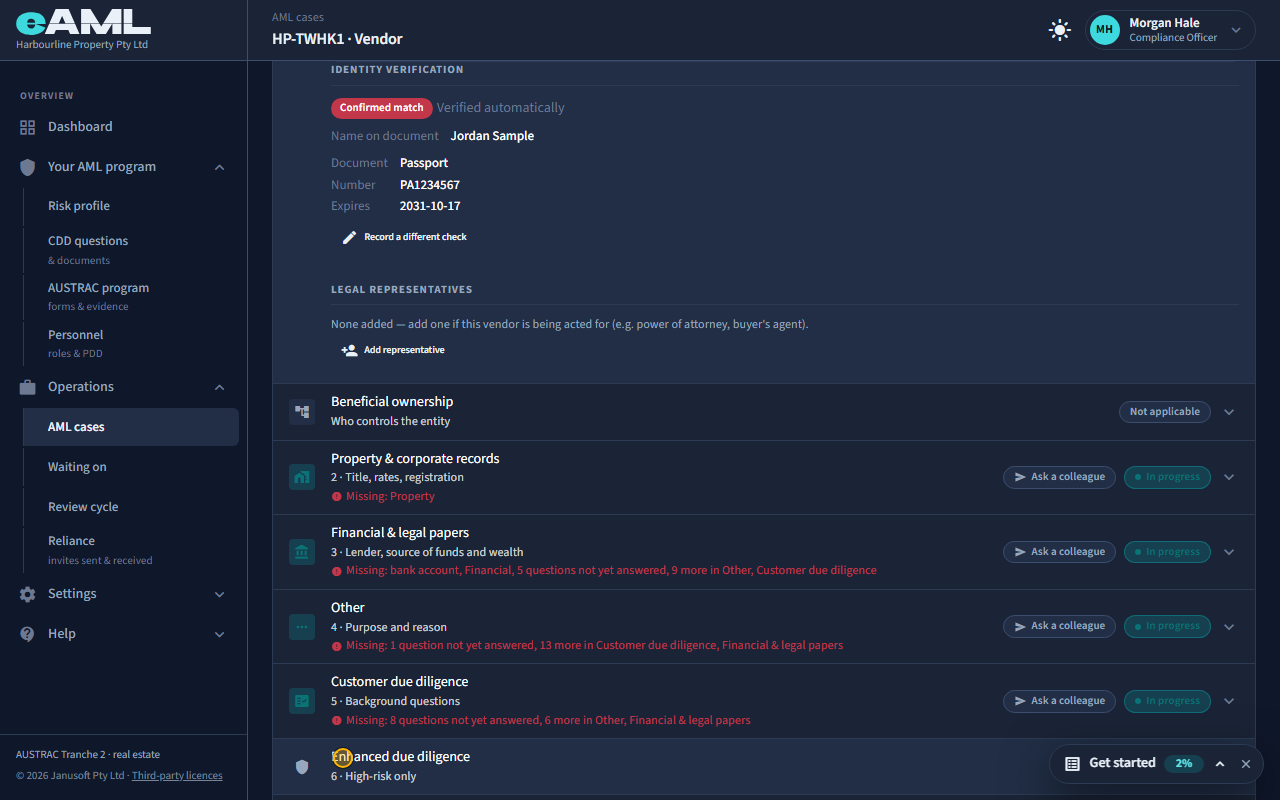
Read the result on the person’s Customer identification stage. A declined check shows in red as Confirmed match, which is eAML’s outcome word for “this check did not pass”. It is recorded against the person but does not close the case and changes nothing automatically: decide what to do (ask for a clearer or different document and resend the link, check them in person, or escalate it to your compliance officer) and record that. A check in review is waiting for a person at the provider; there is no result yet, and it arrives by itself when the provider decides, or you can select Check now. Do not treat it as passed or failed until it comes back.
- Open the person’s Customer identification stage and read the result.
- Declined: ask for another document and resend the link, or select Record a different check and record an in-person check.
- In review: wait, or select Check now to ask the provider.
- Record what you decided in a risk note on the case.
Watch: Verifying someone’s identityGuide step: Verifying someone’s identityWatch: Verifying someone’s identityGuide step: Verifying someone’s identityWatch: Verifying someone’s identityGuide: Verifying someone’s identity
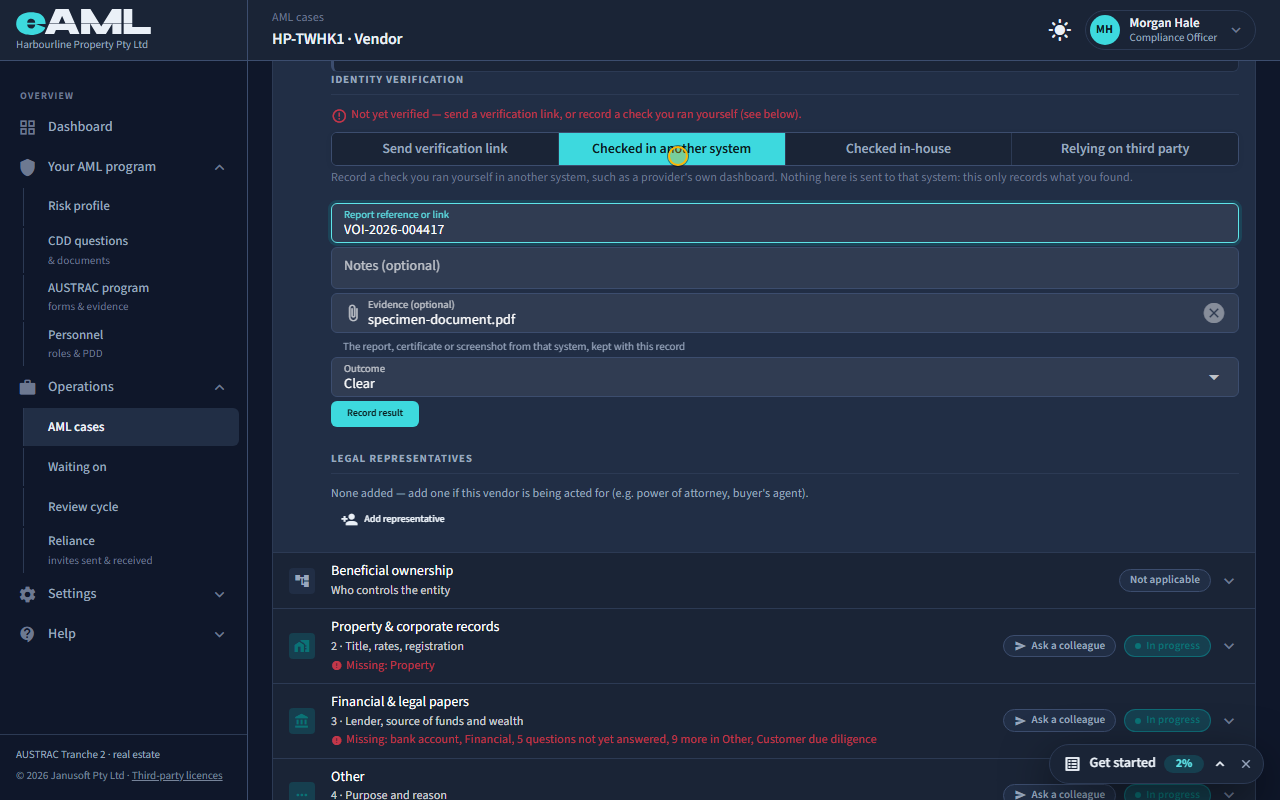
What is "Checked in another system", and does it cost anything?
Checked in another system is for a check you ran yourself outside eAML, such as in a provider’s own dashboard. Nothing is sent to that system: eAML only records what you found (a report reference or link, notes, the outcome) and keeps the report you attach as evidence. Because it stands in for an identity check, eAML bills it the same way as a check run through the link, as one identity verification; what that costs depends on your plan, and Billing shows each charge. A check recorded as in-house, or relied on from another firm, is not billed.
- Open the person’s Customer identification stage and select Checked in another system.
- Enter the report reference or link, and notes if useful.
- Choose the outcome, attach the report as evidence, and select Record result.
Watch: Verifying someone’s identityGuide step: Verifying someone’s identityWatch: Verifying someone’s identityGuide: Verifying someone’s identity
How do I attach the report from an identity check done in another system?
When you record a check done in another system, use the Evidence field on the same form to attach the report, certificate or screenshot from that system (PDF, JPG or PNG). It is kept with the record, and a button on the result opens it later. Attach it before you select Record result.
- Open the person’s Customer identification stage and select Checked in another system.
- Under Evidence (optional), choose the report file.
- Choose the outcome and select Record result.
Watch: Verifying someone’s identityGuide step: Verifying someone’s identityWatch: Verifying someone’s identityGuide: Verifying someone’s identity
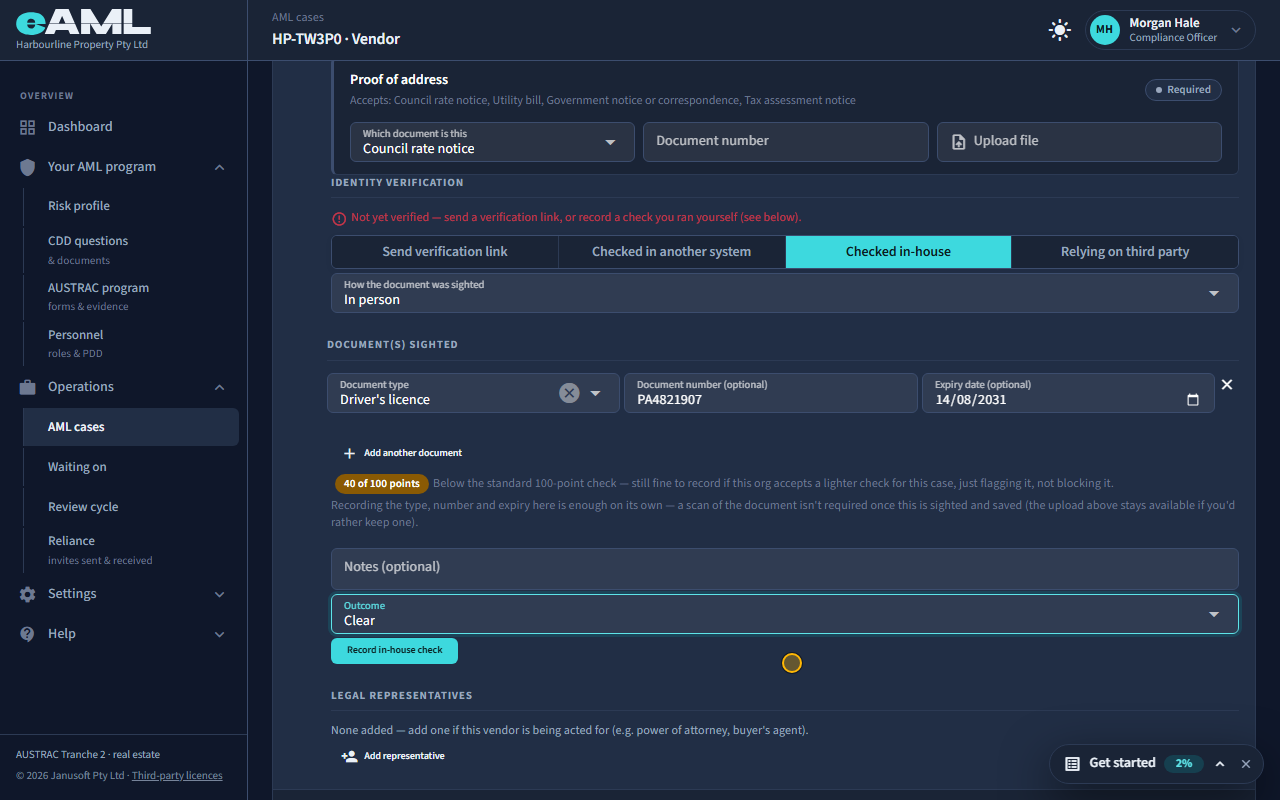
How do I record an in-person identity check?
Select Checked in-house on the person’s Customer identification stage. Say how the document was sighted (in person, or by video call), then for each document you saw choose its type and enter its number and expiry date; add another document if you saw more than one. eAML adds the points on the 100-point scale and tells you if it is under 100 (it flags it; it does not stop you). Add notes if useful, choose the outcome, and select Record in-house check. Recording the type, number and expiry is enough: a scan of the document is not required once it has been sighted and saved.
- Open the Customer identification stage and select Checked in-house.
- Choose how the document was sighted.
- Choose the document type and enter the number and expiry date (Add another document if needed).
- Choose the outcome and select Record in-house check.
Watch: Verifying someone’s identityGuide step: Verifying someone’s identityWatch: Verifying someone’s identityGuide: Verifying someone’s identity
When can I rely on another firm’s identity check?
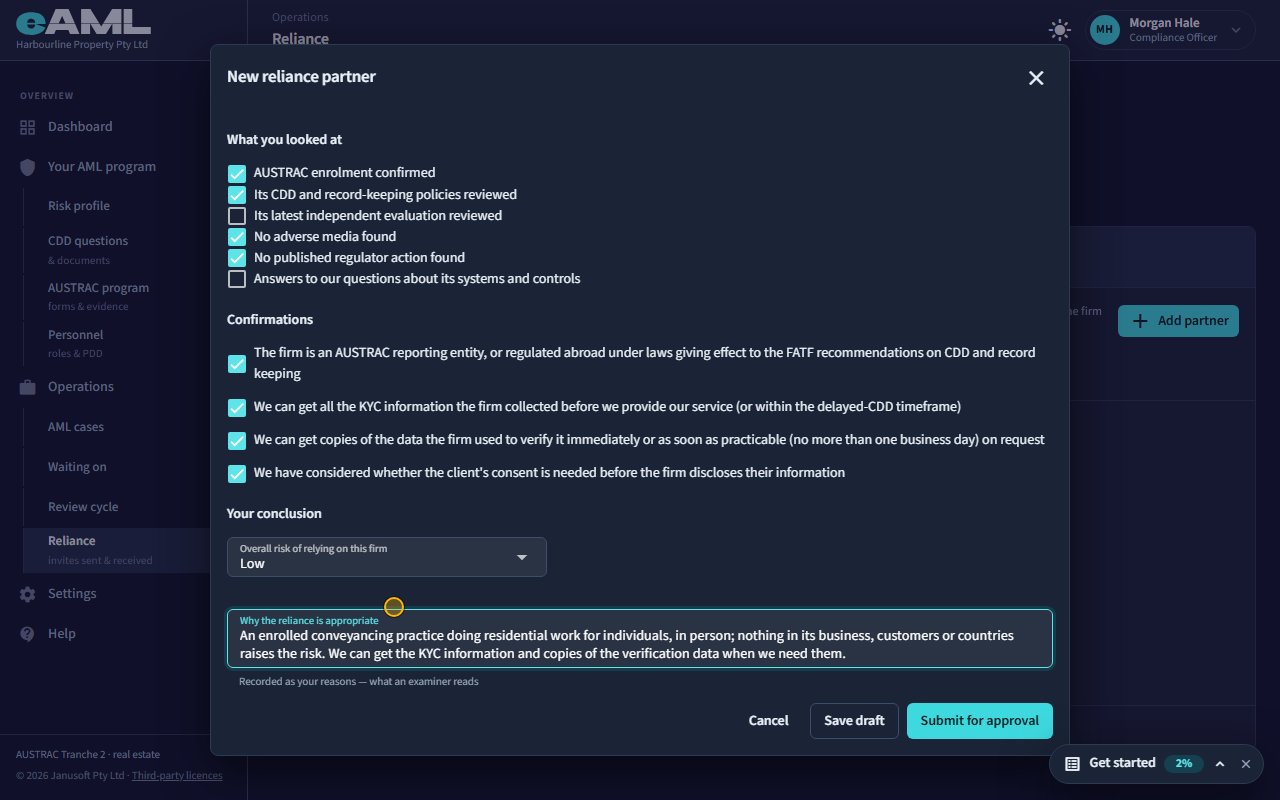
When you have assessed the other firm as a reliance partner, and it has sent you the results of its own checks on that person for the same property; you then confirm that nothing about the person changes your view of the firm, and accept the results. They count as relied on, and you stay responsible for the rest.
- Open Reliance → Partners and select Add partner (or Add as reliance partner on a shared case).
- Complete the assessment and select Submit for approval; a second person approves it.
- Ask the firm for its results (Request results) or wait for it to send them.
- Under Reliance → Results, select Review & accept, confirm that nothing changes your view of the firm, and select Accept.
- Assess the firm first: under Reliance → Partners, a case-by-case assessment (relied on for 12 months, approved by a compliance officer or senior manager) or an ongoing arrangement (written terms the firm agrees to, approved by a senior manager, reviewed at least every two years).
- The assessment confirms that the firm is an AUSTRAC reporting entity (or regulated abroad on equivalent terms), that you can get all the KYC information it collected before you provide your service and copies of the verification data within one business day on request, and that you have considered the client’s consent.
- The firm’s compliance officer or senior manager confirms the client’s consent when it sends the results; on each matter you confirm that nothing about those clients changes your view of the firm.
- Relied-on outcomes never replace a check you ran yourself. You remain responsible for the risk rating, ongoing monitoring, the decision whether to provide the service and any suspicious matter report, and if the firm’s identification turns out to be inadequate the failure is treated as yours.
- Rely only when the other firm has genuinely done equivalent due diligence on the same person for the same transaction. Do it yourself when the person is higher risk, the firm’s work is older or narrower than this matter needs, or you cannot get a clear answer on how they verified.
- For a single person you can also record the reliance by hand: on their Customer identification stage choose Relying on third party, name the firm, give the date they verified the person and the outcome, and attach the written reliance agreement, because a verification receipt on its own is not enough (T22).
Watch: Sharing a case with another firm (reliance)Guide step: Sharing a case with another firm (reliance)Watch: Sharing a case with another firm (reliance)Guide step: Sharing a case with another firm (reliance)Watch: Verifying someone’s identityGuide step: Verifying someone’s identityWatch: Sharing a case with another firm (reliance)Guide: Sharing a case with another firm (reliance)
My client answered a question but the risk rating did not change. Why?
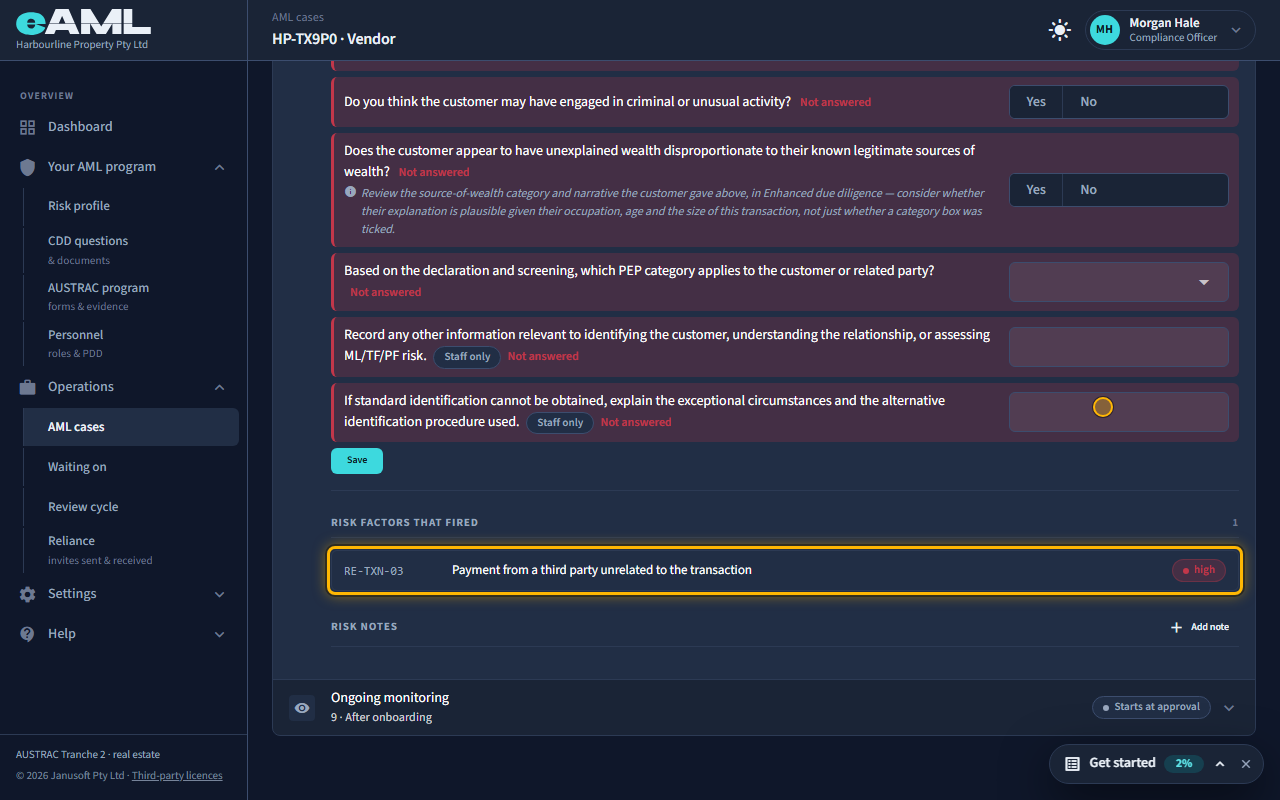
A rating moves only when a rule that reads that answer fires, and most questions on a form are not tied to a risk factor: their answers are recorded for the file and nothing more. Only the risky answers to the questions that carry a factor raise a rating (for example a payment from a third party, a PEP category, a large cash payment, virtual assets, an unexplained-wealth concern). Check Risk factors that fired under Risk scoring and tiering: if the factor is not listed, the answer was not the risky one, or the question does not feed a factor. The rule always reads the newest answer, from whoever gave it, so a later answer can take a factor back. And if you expected a rating to fall rather than rise, a rating never comes down by itself.
- Open the person’s Risk scoring and tiering stage and read Risk factors that fired.
- Check the question: only some answers feed a factor, and usually only one of the choices.
- Check the newest answer: a later answer replaces an earlier one, from either side.
- If the rating should be lower, see Why a rating never comes down by itself.
Watch: How a risk rating is decidedGuide step: How a risk rating is decidedWatch: How a risk rating is decidedGuide step: How a risk rating is decidedWatch: How a risk rating is decidedGuide step: How a risk rating is decidedWatch: How a risk rating is decidedGuide: How a risk rating is decided
How do I use my client’s answer (Copy and Save)?
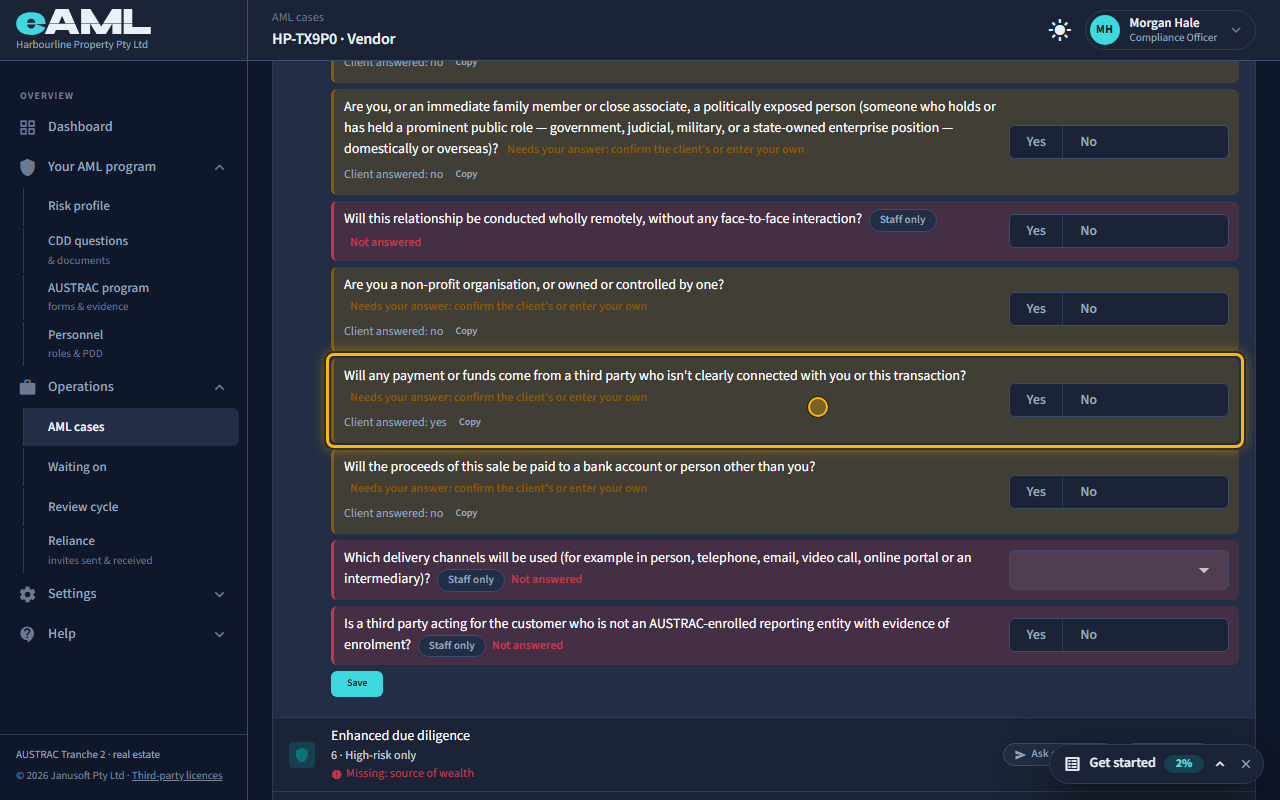
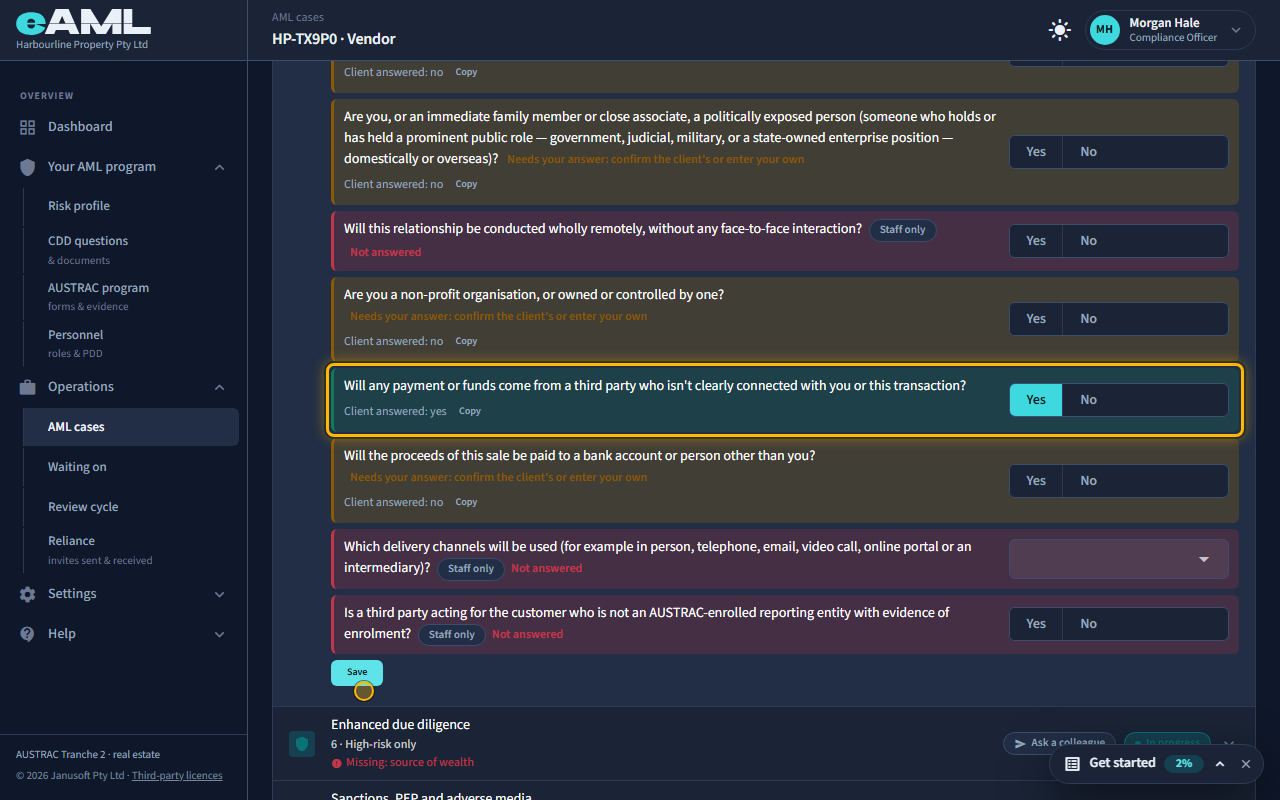
A client’s answers come back marked Client answered, with a Copy button and a note that the question needs your answer. Select Copy beside the answer: it fills your own answer with the client’s, and you can change it. Then select Save under the questions. It becomes your firm’s answer, the question turns green, and the step can finish: a step is complete only when every question has an answer a member of staff saved, so nothing a client types can complete your due diligence by itself. Some of the client’s answers also count toward the rating as soon as they arrive, before you have adopted them.
- Open the stage that holds the question (for example Customer due diligence).
- Find the question that says Client answered, and select Copy beside the answer.
- Check the answer, or change it to what you believe is true.
- Select Save under the questions: the question turns green.
Watch: How a risk rating is decidedGuide step: How a risk rating is decidedWatch: How a risk rating is decidedGuide: How a risk rating is decided
Screening
A sanctions, PEP or adverse media check came back "Needs review". What now?
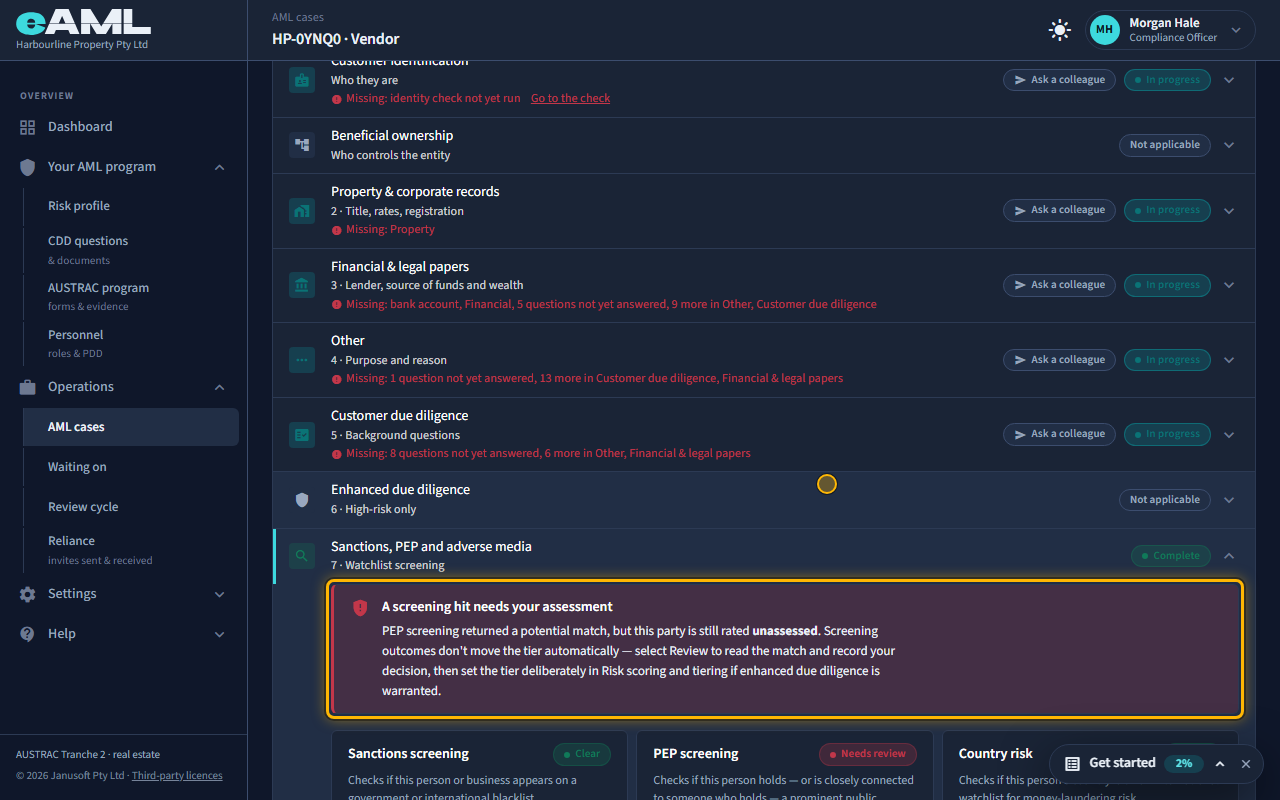
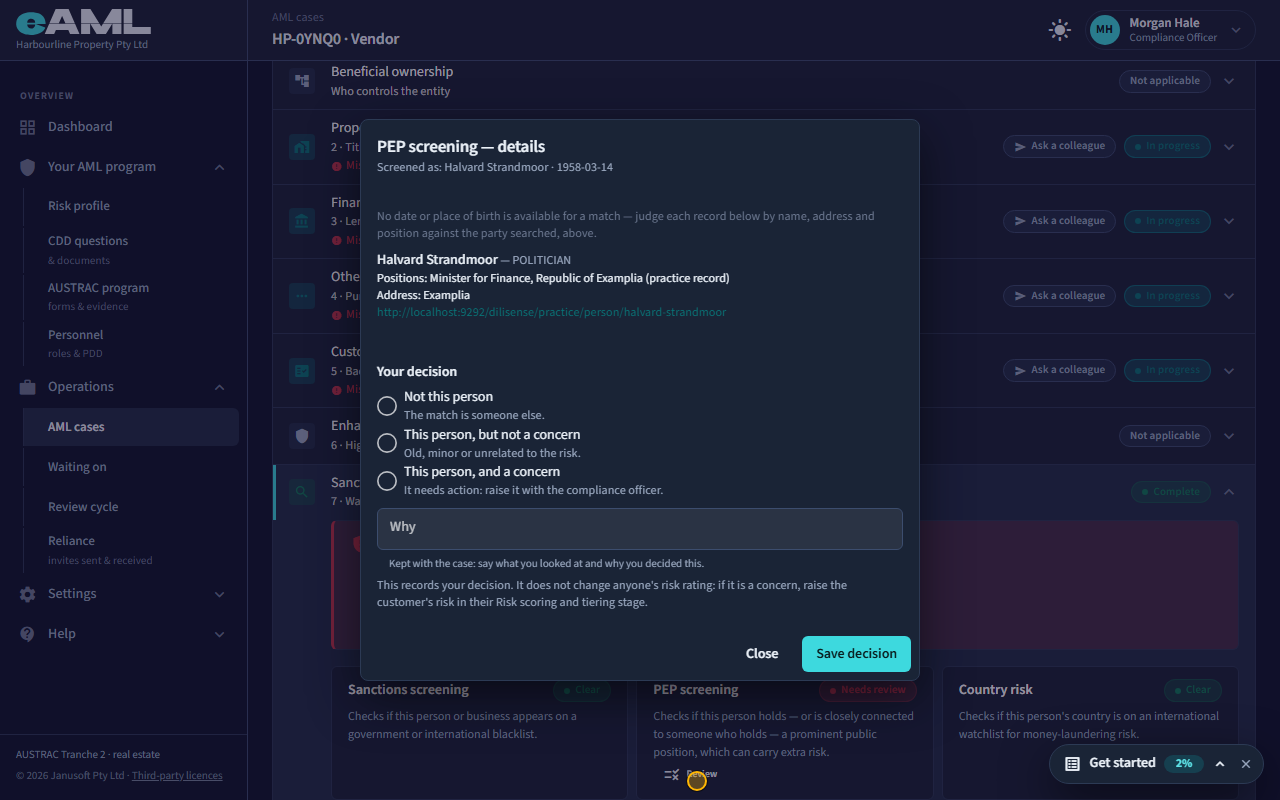
Needs review means the provider found a possible match. It is not a finding, and eAML will not decide it for you. Select Review on the check, read each record or article, judge it against the person you screened (by name, address and position: the provider gives no date or place of birth), and record one of three decisions with your reason. If it is the person and it matters, carry it into their risk rating yourself: a decision is a record and changes no rating. A possible sanctions match goes to your compliance officer straight away.
- Open the person’s Sanctions, PEP and adverse media stage. A red banner says a screening hit needs your assessment.
- Select Review on the check that says Needs review.
- Read each record or article, and judge it against the person you screened.
- Choose Not this person, This person but not a concern, or This person and a concern, write why, and select Save decision.
- If it is a concern, raise it with your compliance officer, and carry it into the rating (Risk scoring and tiering).
Watch: Screening hits: sanctions, PEP and adverse mediaGuide step: Screening hits: sanctions, PEP and adverse mediaWatch: Screening hits: sanctions, PEP and adverse mediaGuide step: Screening hits: sanctions, PEP and adverse mediaWatch: Screening hits: sanctions, PEP and adverse mediaGuide step: Screening hits: sanctions, PEP and adverse mediaWatch: Screening hits: sanctions, PEP and adverse mediaGuide step: Screening hits: sanctions, PEP and adverse mediaWatch: Screening hits: sanctions, PEP and adverse mediaGuide: Screening hits: sanctions, PEP and adverse media
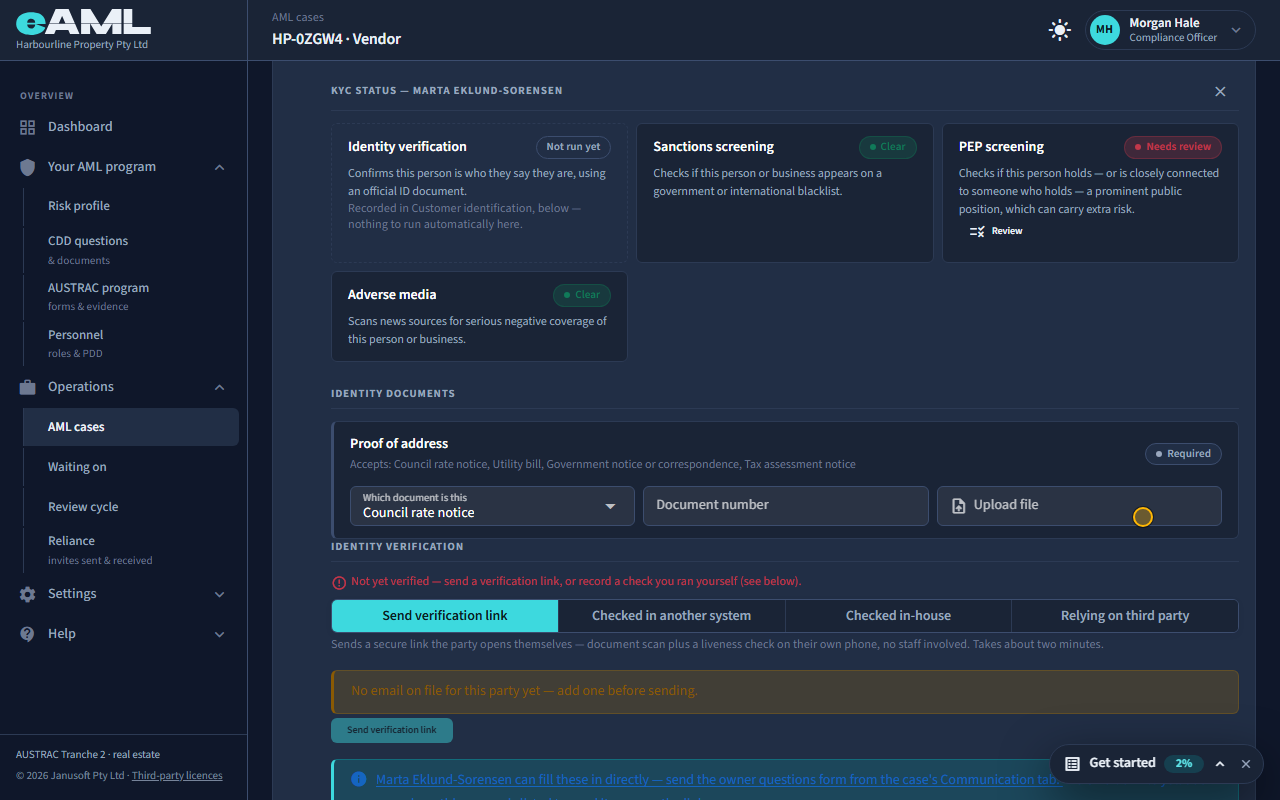
How do I review a hit on an owner or representative and record my decision?
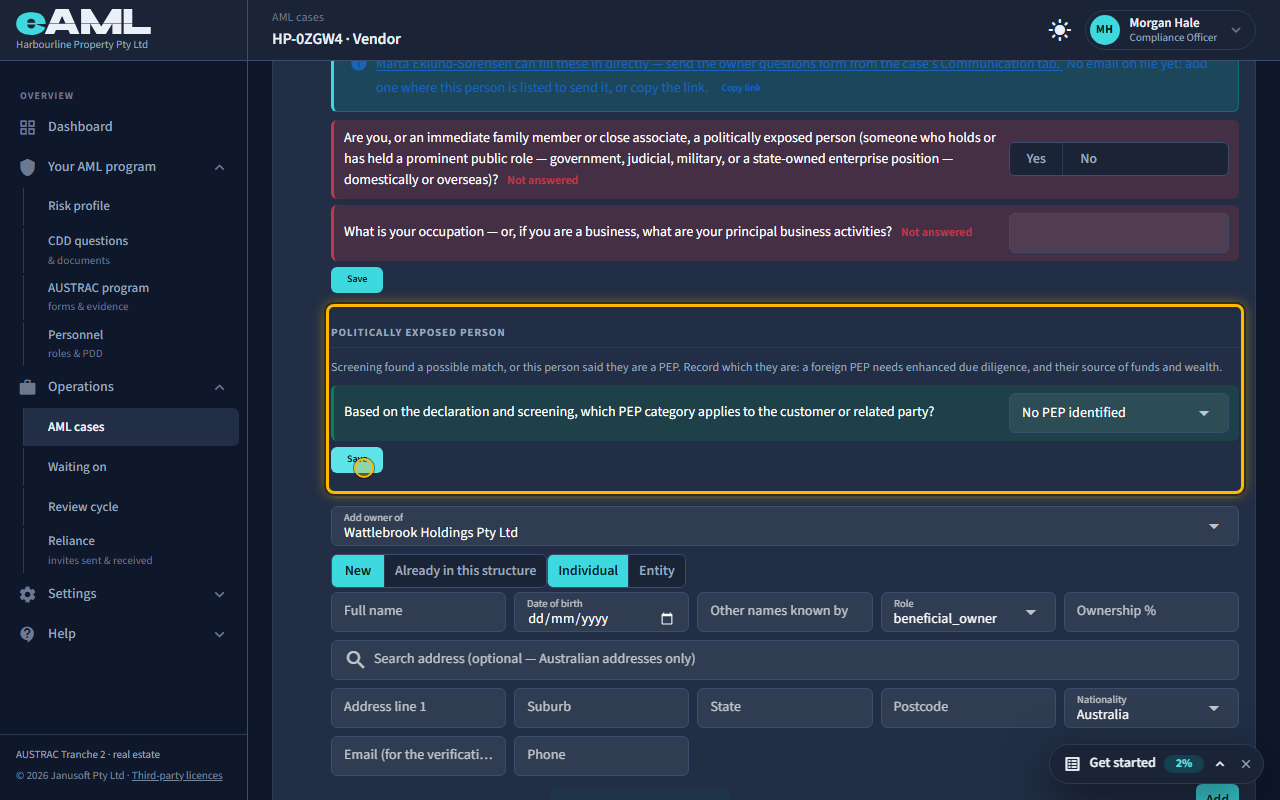
An owner’s or officer’s hit is reviewed from their own panel, in the same way as the customer’s. On the company’s Beneficial ownership stage, select KYC beside the owner (an owner appears there once they hold 25% or more, or hold a control role such as director or trustee). For a representative, open the Customer identification stage and select KYC beside their name under Legal representatives. Their sanctions, PEP and adverse media cards work like the customer’s: select Review, read, choose a decision, say why, and save. The decision is kept against that person.
- Owner: open the company’s Beneficial ownership stage and select KYC beside the owner. Representative: open Customer identification and select KYC beside the representative.
- On the check that says Needs review, select Review.
- Read the records, choose your decision, write why, and select Save decision.
- If screening found a possible PEP, answer the Politically exposed person question that appears in the panel.
Watch: Screening hits: sanctions, PEP and adverse mediaGuide step: Screening hits: sanctions, PEP and adverse mediaWatch: Screening hits: sanctions, PEP and adverse mediaGuide: Screening hits: sanctions, PEP and adverse media
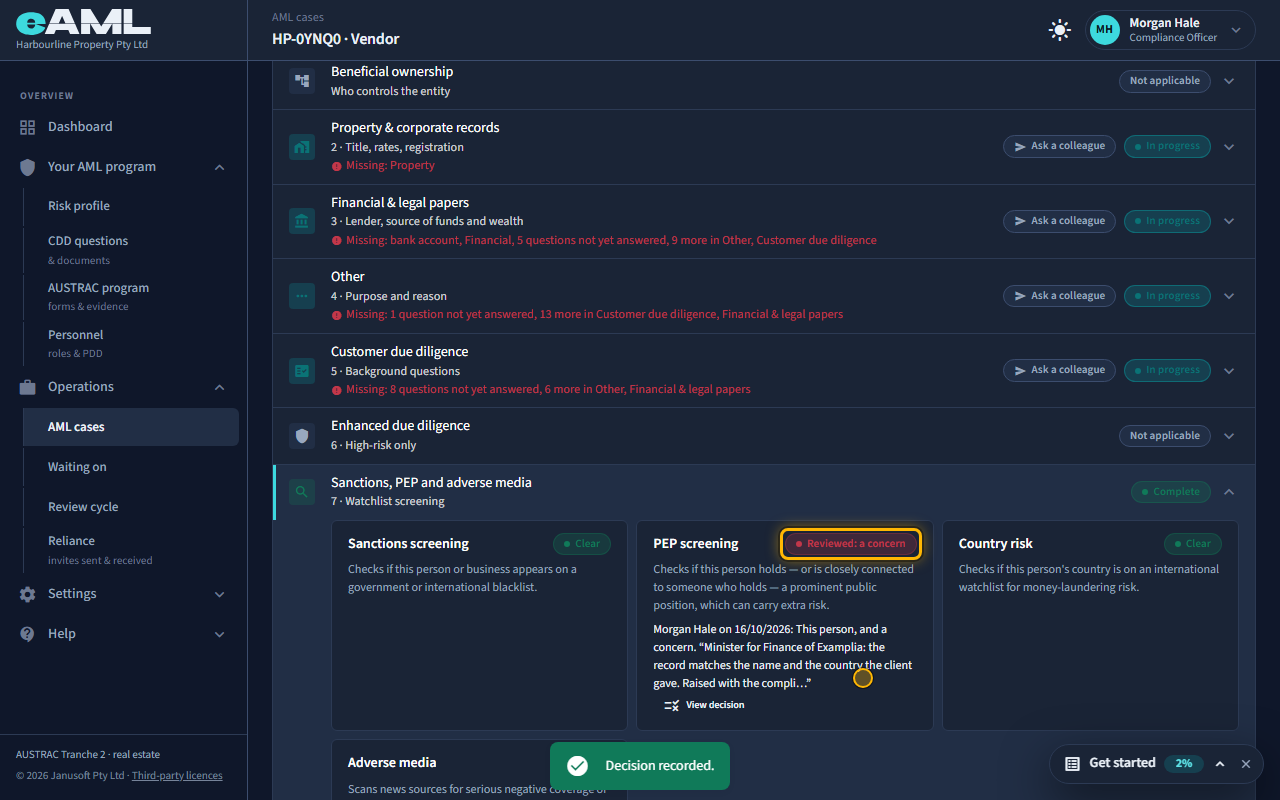
What do the three review decisions mean ("Not this person", "This person, but not a concern", "This person, and a concern")?
Not this person: the match is someone else. This person, but not a concern: it is them, but it is old, minor or unrelated to the risk. This person, and a concern: it needs action, so raise it with the compliance officer. You can only decide on a match (a clear result has nothing to decide), and you must give a reason: it is kept with your name and the date, up to 2,000 characters. Decide again and the new decision replaces the old one on that result; every change is written to the audit log.
- Select Review on a check that needs review.
- Choose one of the three decisions.
- Write why: what you looked at and why you decided this.
- Select Save decision. The card shows Reviewed, with your name, the date and the start of your reason.
Watch: Screening hits: sanctions, PEP and adverse mediaGuide step: Screening hits: sanctions, PEP and adverse mediaWatch: Screening hits: sanctions, PEP and adverse mediaGuide: Screening hits: sanctions, PEP and adverse media
Does my decision change the risk rating?
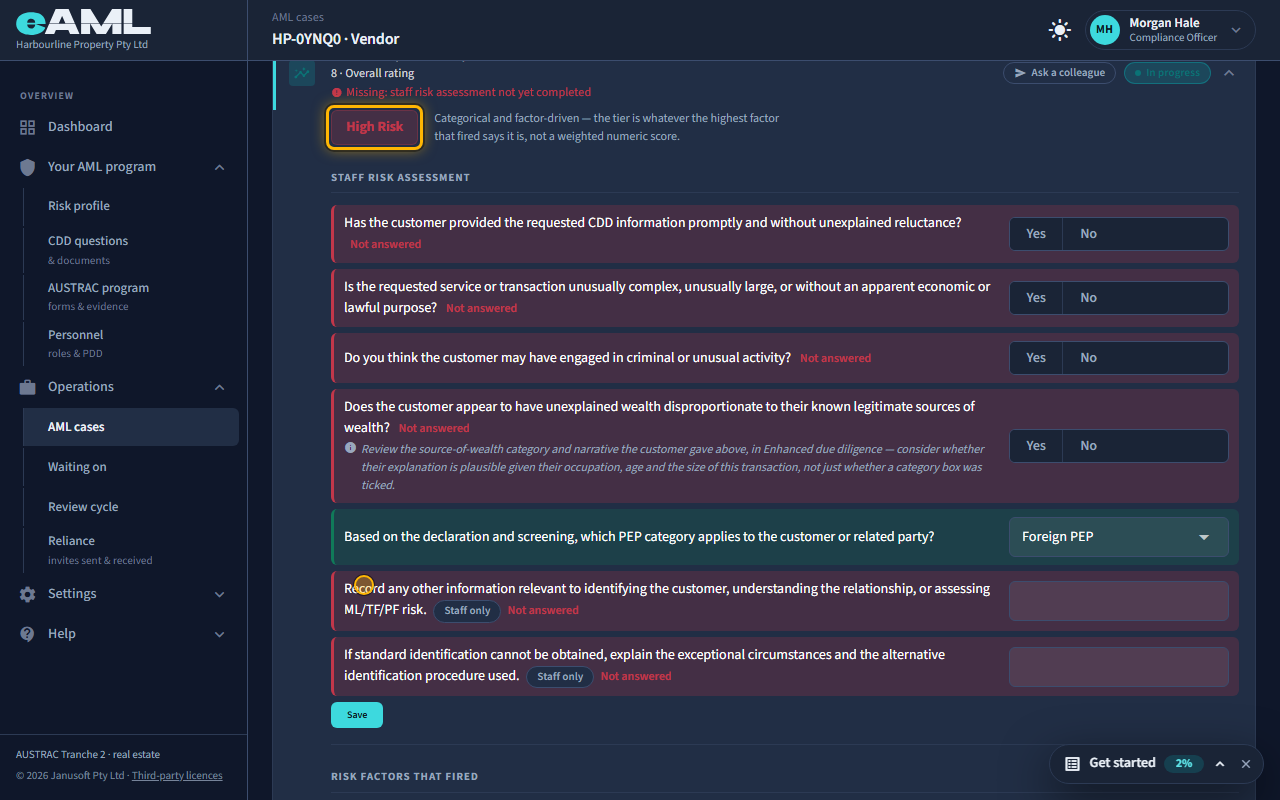
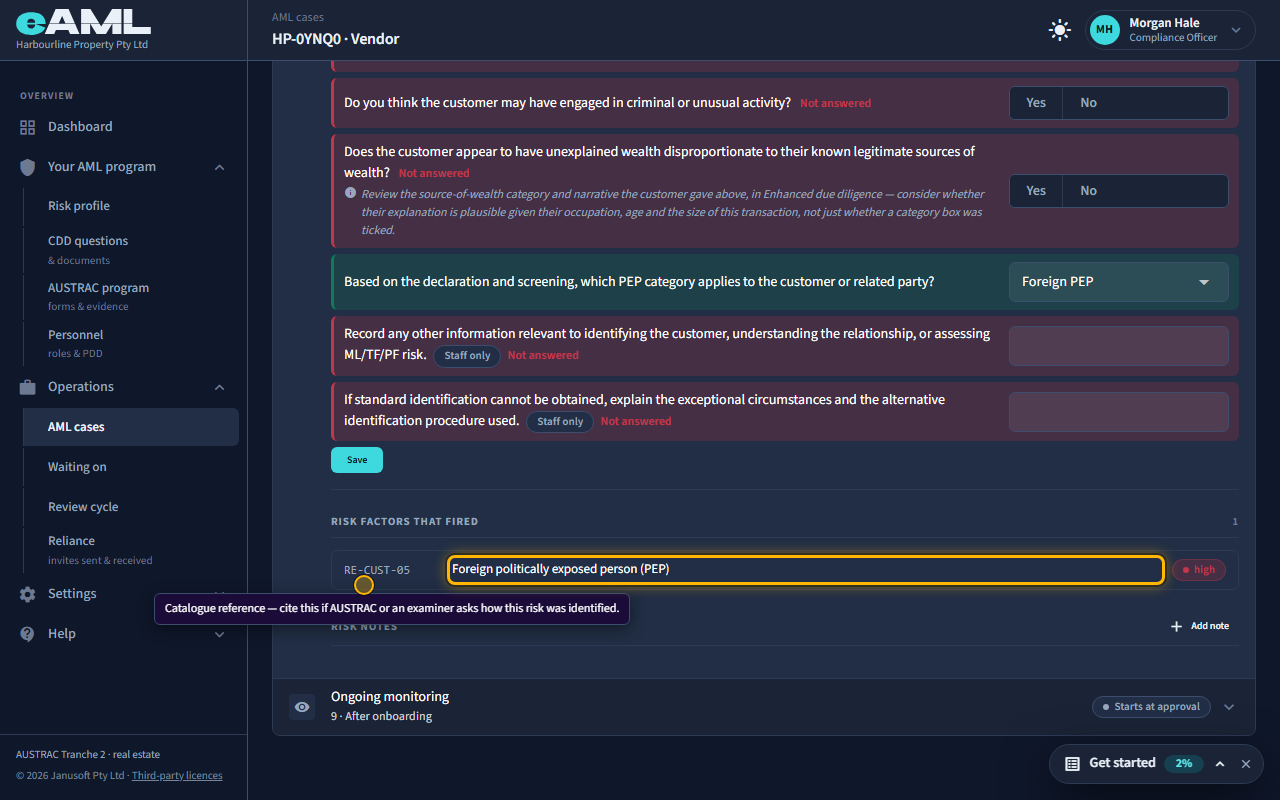
No. A decision is a record: it does not change anyone’s risk rating or run any rule, and eAML says so in the dialog. If the hit matters, carry it into the rating yourself. For a PEP, answer the PEP category question in Risk scoring and tiering: a foreign PEP makes the customer high risk straight away, and a domestic or international-organisation PEP makes them medium. For anything else, set the rating when you complete risk tiering on the case’s Risk & approval tab.
- Record your decision on the check.
- Open Risk scoring and tiering and answer the PEP category question (for a PEP).
- Select Save, and read the rating and the risk factors that fired.
- For other concerns, set the rating when you complete risk tiering on the Risk & approval tab.
Watch: Screening hits: sanctions, PEP and adverse mediaGuide step: Screening hits: sanctions, PEP and adverse mediaWatch: How a risk rating is decidedGuide step: How a risk rating is decidedWatch: Screening hits: sanctions, PEP and adverse mediaGuide: Screening hits: sanctions, PEP and adverse media
Why does the adverse media list say it is a sample and not a clearance?
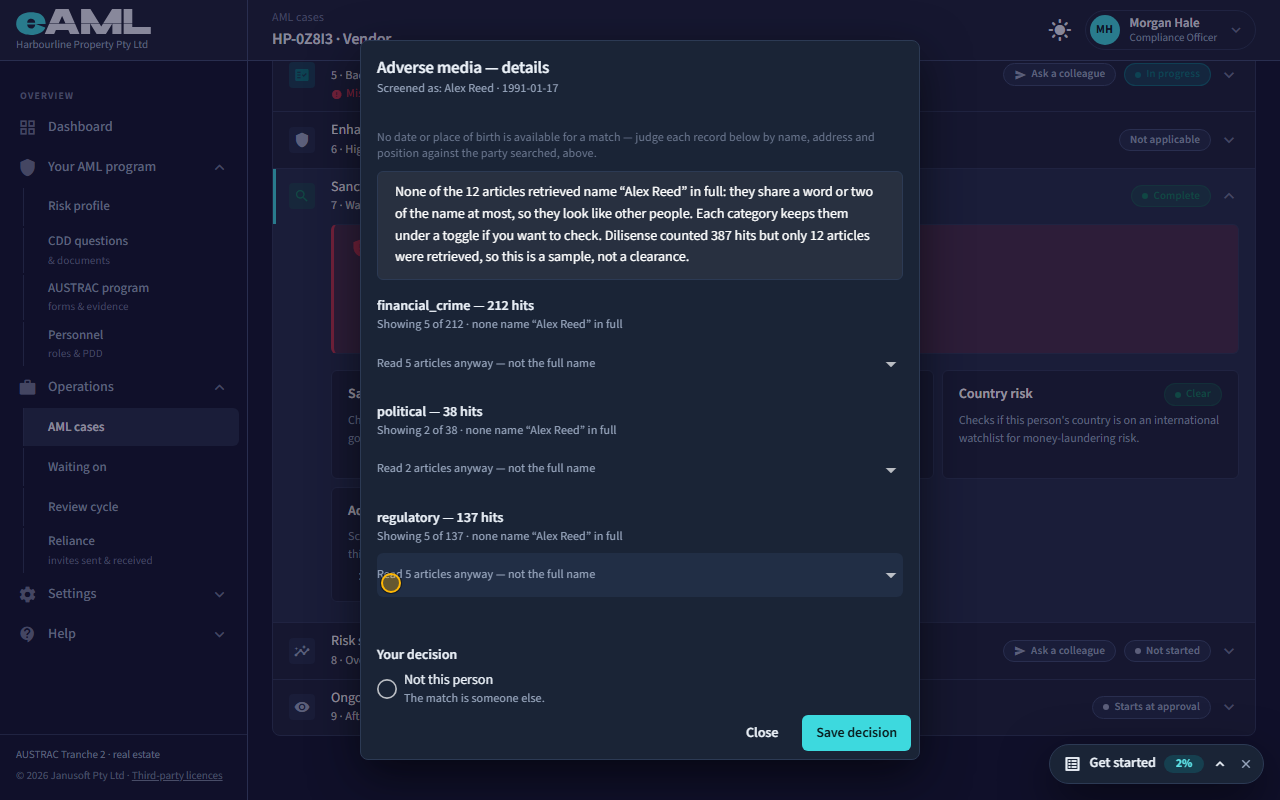
Adverse media matches loosely, so the provider counts every hit that shares words with the name, but only part of those articles come back to eAML. The dialog puts the articles that name the person in full first, with the name highlighted, and the rest behind a toggle. When none name the person, the banner says so, and adds that the provider counted more hits than were retrieved: it is a sample, not a clearance. It does not prove there is nothing about this person, so check further (a search of your own with their suburb and occupation, or asking the client) and say what you did in your reason.
- Select Review on Adverse media.
- Read the banner at the top: it counts how many articles name the person in full.
- Open Read articles anyway to check the others if you want to.
- Record your decision, and say in the reason what else you did.
Watch: Screening hits: sanctions, PEP and adverse mediaGuide step: Screening hits: sanctions, PEP and adverse mediaWatch: Screening hits: sanctions, PEP and adverse mediaGuide step: Screening hits: sanctions, PEP and adverse mediaWatch: Screening hits: sanctions, PEP and adverse mediaGuide: Screening hits: sanctions, PEP and adverse media
What happens to my decision when the person is screened again?
A decision belongs to the result it was made about. If the person is screened again, the new result starts with no decision: read it and decide again. The earlier decision is not lost: it stays with the earlier result, and every review is written to the audit log with what it replaced. That is deliberate: an old decision should never cover matches nobody has read.
- Open the check on the person’s Sanctions, PEP and adverse media stage.
- If it says Needs review with no decision, select Review and read the new result.
- Record your decision again, with your reason.
Watch: Screening hits: sanctions, PEP and adverse mediaGuide step: Screening hits: sanctions, PEP and adverse mediaWatch: Screening hits: sanctions, PEP and adverse mediaGuide: Screening hits: sanctions, PEP and adverse media
What is the PEP category, and when does it lead to enhanced due diligence?
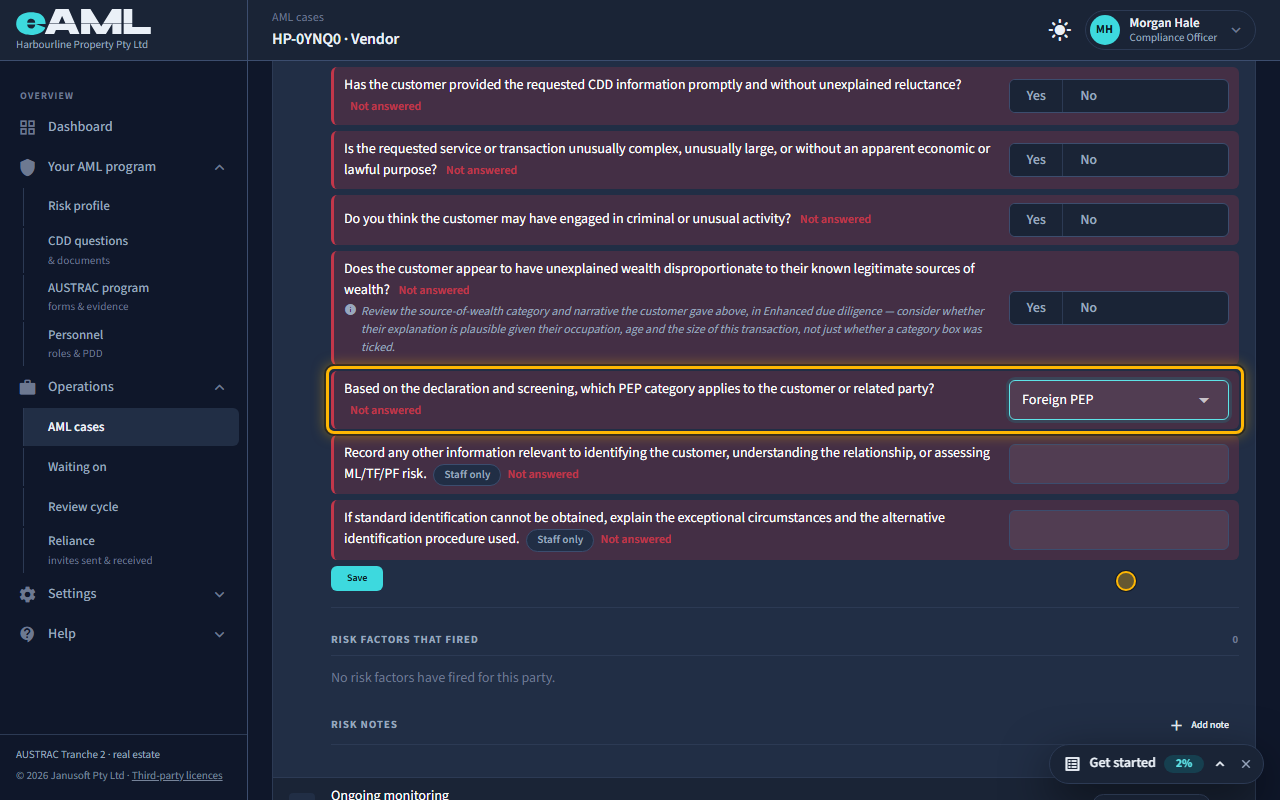
The PEP category is your answer to “Based on the declaration and screening, which PEP category applies to the customer or related party?”: No PEP identified, Domestic PEP, International organisation PEP, or Foreign PEP. For the customer it is in Risk scoring and tiering, under Staff risk assessment. For an owner or officer it is under Politically exposed person in their KYC panel, which appears once screening finds a possible PEP or they say they are one. A foreign PEP makes the customer high risk straight away; a domestic or international-organisation PEP makes them medium, unless something else raises them. A high rating brings in enhanced due diligence, including source of funds and source of wealth. An owner’s category is handled as the customer’s is.
- Screen the person and read any PEP hit (Review).
- Open Risk scoring and tiering, and choose the PEP category in the Staff risk assessment. For an owner, use their KYC panel.
- Select Save.
- Read the rating and the risk factor that fired; for a high rating, complete enhanced due diligence.
Watch: Screening hits: sanctions, PEP and adverse mediaGuide step: Screening hits: sanctions, PEP and adverse mediaWatch: Screening hits: sanctions, PEP and adverse mediaGuide step: Screening hits: sanctions, PEP and adverse mediaWatch: Screening hits: sanctions, PEP and adverse mediaGuide: Screening hits: sanctions, PEP and adverse media
Companies, trusts and owners
How do I record who owns a company or trust?
Open the company’s or trust’s card, select Beneficial ownership in the stage tracker, and use the Add owner form under the diagram: a name, a date of birth if you have it, the role, and the percentage. Each owner or officer becomes a box under the entity they belong to. For a company you can also ask the register (Find the ultimate owners), or send the company an ownership declaration link so it declares its own structure: send it to the company’s email, or copy the link and send it yourself. A link works for a limited time, and the card tells you until when.
- Open the company’s or trust’s card and select Beneficial ownership.
- Under the diagram, fill in the Add owner form: name, date of birth, role and percentage.
- Select Add. The owner appears as a box in the diagram and in the list below it.
- Repeat for each owner, officer or trustee, choosing which company or trust each sits under (Add owner of).
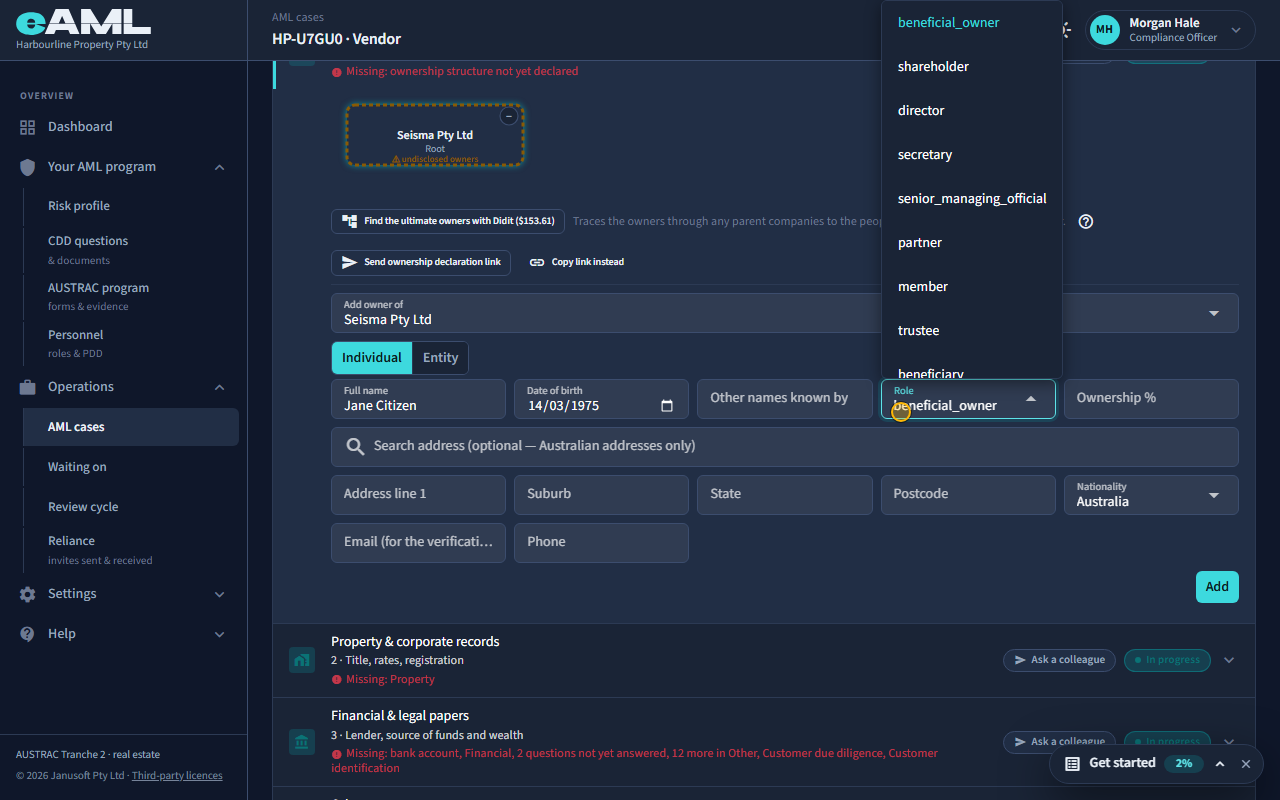
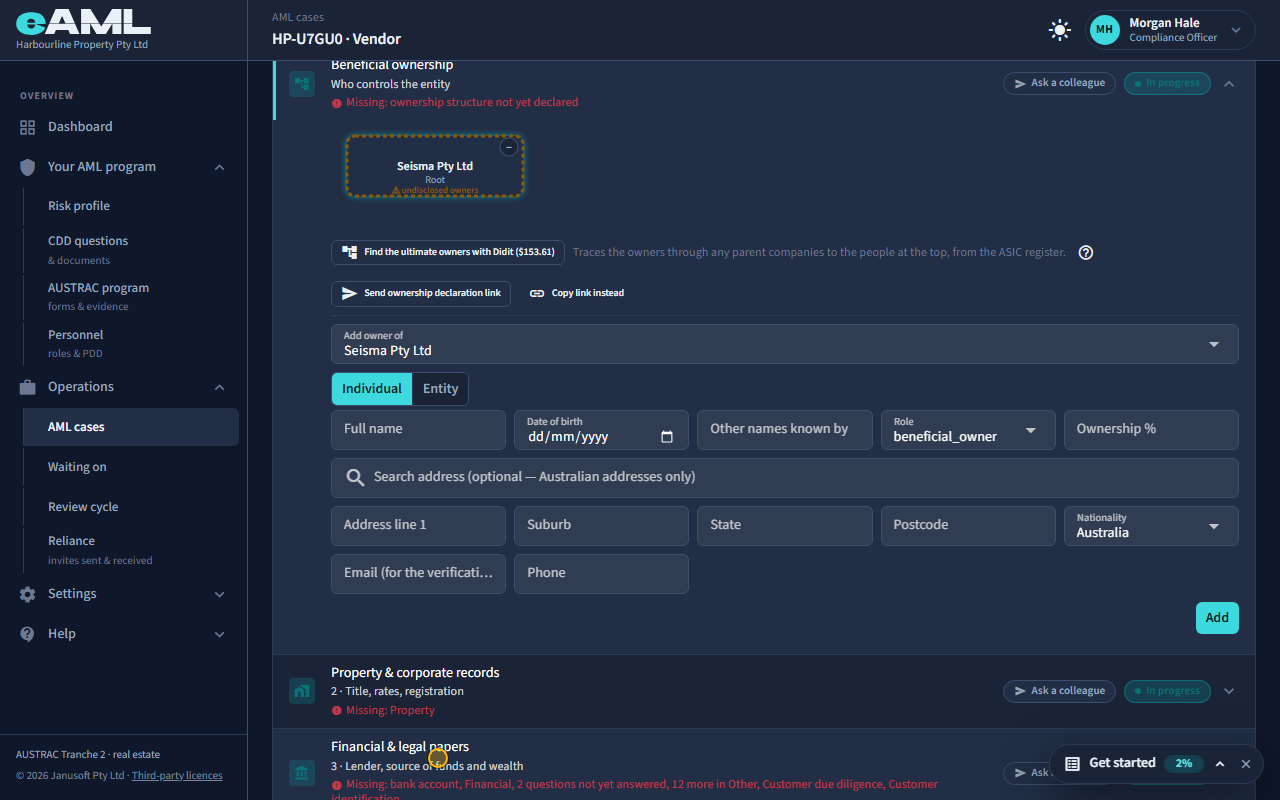
Watch: Companies and trusts: who owns themGuide step: Companies and trusts: who owns themWatch: Companies and trusts: who owns themGuide step: Companies and trusts: who owns themWatch: Companies and trusts: who owns themGuide step: Companies and trusts: who owns themWatch: Companies and trusts: who owns themGuide: Companies and trusts: who owns them
What is the difference between a shareholder, a director, a trustee and a beneficial owner?
Role says what the person is to the company or trust. A shareholder holds shares, so a percentage matters. A director, secretary or senior managing official controls the company through their position. A trustee controls a trust, and a settlor, appointor, protector, guardian or beneficiary are the other positions around one. A partner or member is the equivalent for a partnership or an association. Beneficial owner is the label for someone who meets the ownership or control test, whatever their exact position. Control roles do not carry a percentage in the calculation; a shareholding does.
- In the Add owner form, open the Role list.
- Choose the position the person holds (for someone who is both, add each role: they are drawn once).
- Enter the percentage for a shareholder; leave it blank for a control role.
Watch: Companies and trusts: who owns themGuide step: Companies and trusts: who owns themWatch: Companies and trusts: who owns themGuide: Companies and trusts: who owns them
How far up the chain do I have to go?
Keep going until every branch ends in a person, a company listed on a stock exchange, or a government body. A company owner with nobody recorded behind it is flagged as undisclosed owners. The people you are looking for are those who own 25% or more of the customer, counting through the companies in between, and anyone who controls it. The register’s Ultimate owners check can do the tracing for a company. eAML follows up to five company or trust layers when it works out percentages and checks for complexity.
- Add the customer’s direct owners and officers.
- For each company or trust among them, select its box and add who is behind it.
- Stop at a person, a listed company or a government body.
- Check the diagram for any company that still says undisclosed owners.
Watch: Companies and trusts: who owns themGuide step: Companies and trusts: who owns themWatch: Companies and trusts: who owns themGuide step: Companies and trusts: who owns themWatch: Companies and trusts: who owns themGuide step: Companies and trusts: who owns themWatch: Companies and trusts: who owns themGuide: Companies and trusts: who owns them
How do I put an owner under another company in the structure?
Select the company’s box in the diagram, or choose it in Add owner of just above the form, and the owner you add goes under that company instead of the customer. The form’s heading names the company it is adding to.
- Select the company’s box in the diagram (or open Add owner of).
- Check that Add owner of names the company you mean.
- Fill in the owner’s details and select Add.
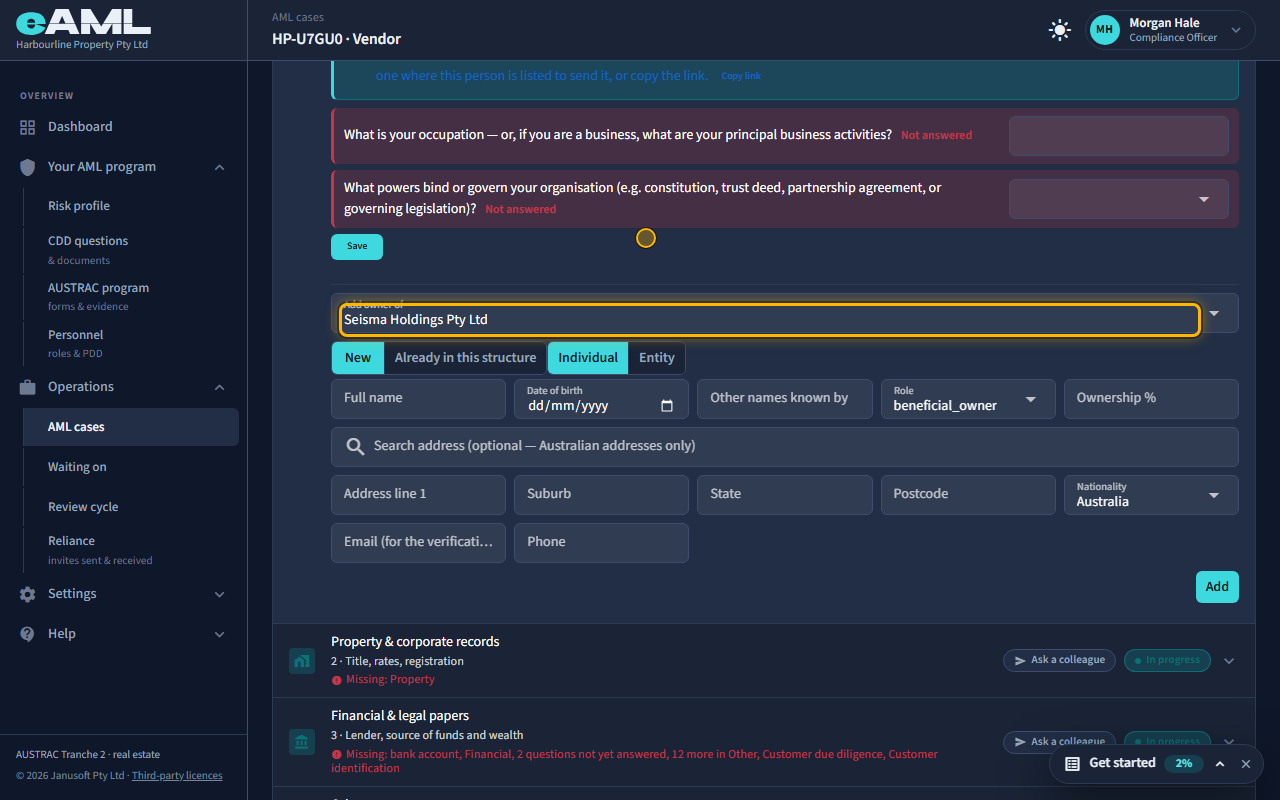
Watch: Companies and trusts: who owns themGuide step: Companies and trusts: who owns themWatch: Companies and trusts: who owns themGuide: Companies and trusts: who owns them
A person owns through two companies. How do I show both without creating them twice?
Do not add the person twice. Select the second company’s box, choose Already in this structure, pick the person and give their share of that company, then select Link. It is one record, so one set of checks. The diagram draws them in both places with a small arrow, and their effective percentage adds the two routes.
- Select the second company’s box in the diagram.
- Choose Already in this structure in the Add owner form.
- Pick the person, choose the role and enter their share, then select Link.
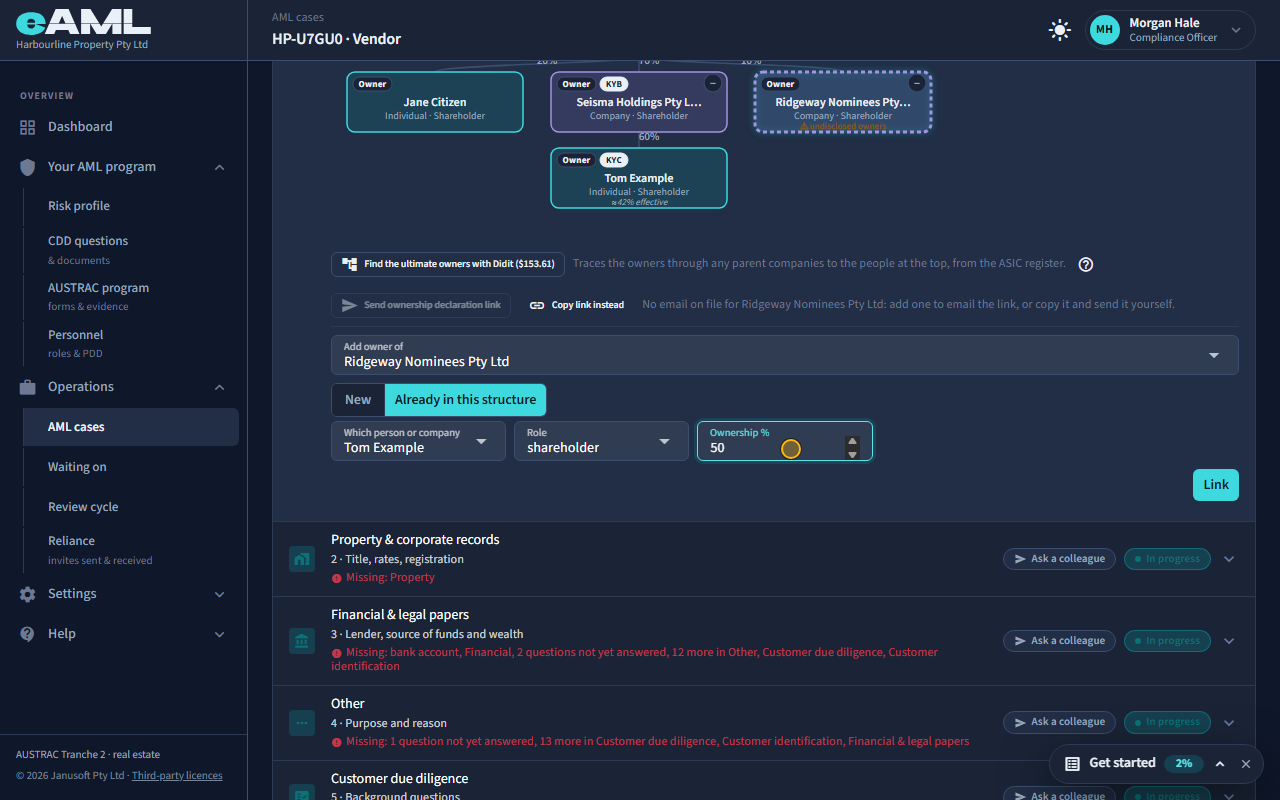
Watch: Companies and trusts: who owns themGuide step: Companies and trusts: who owns themWatch: Companies and trusts: who owns themGuide: Companies and trusts: who owns them
How do I move an owner to a different company?
In the list of owners under the diagram, select the pencil beside the owner, choose the new company in Owner of, change the percentage if it is different, and select the tick. Whoever owns the person you move goes with them. The diagram redraws and the effective percentages are worked out again.
- Select the company the owner is under, so the Owners of list shows them.
- Select the pencil beside the owner.
- Choose the new company in Owner of, and set their share of it.
- Select the tick (Save owner).
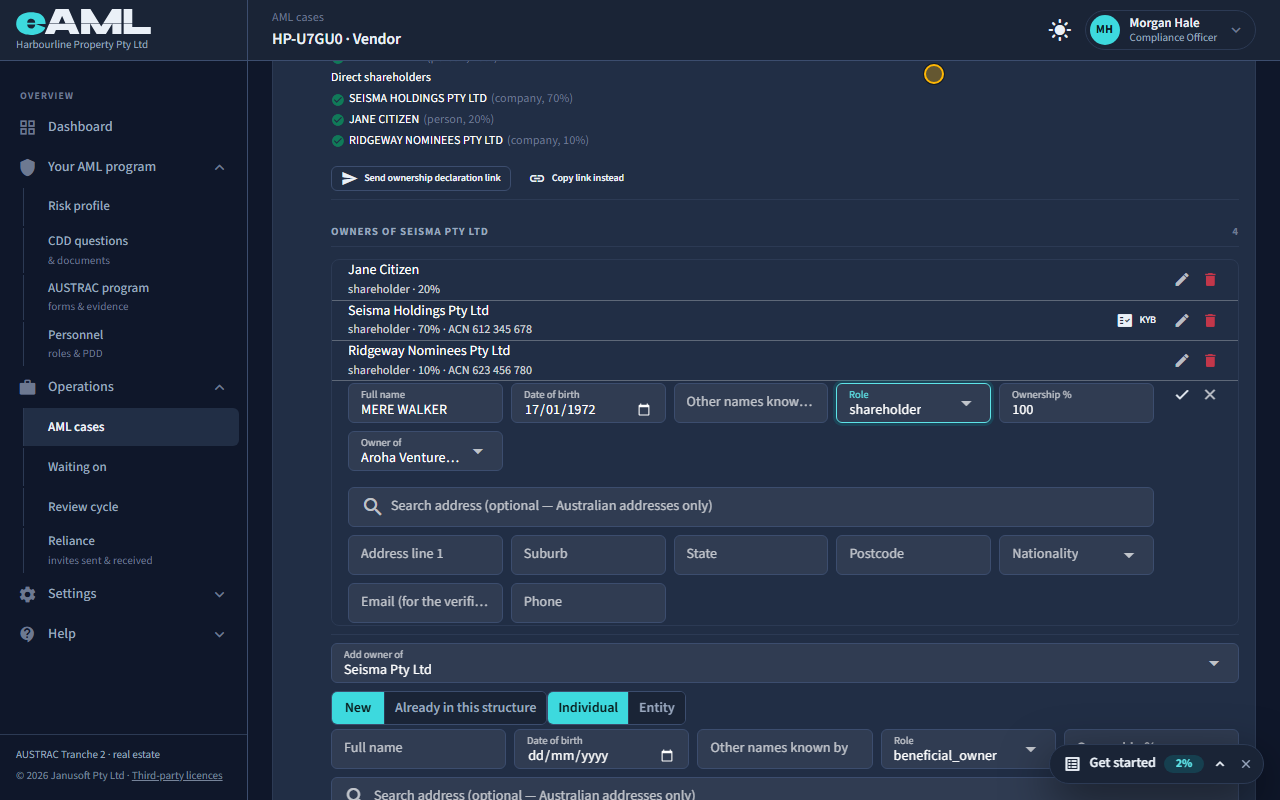
Watch: Companies and trusts: who owns themGuide step: Companies and trusts: who owns themWatch: Companies and trusts: who owns themGuide: Companies and trusts: who owns them
What does the company register check return, and what does each level cost?
There are three automatic checks, each answered from the ASIC register. The Basic check confirms the company (its name, ACN, status and registered address) and lists its directors and secretaries, flagging any you have not recorded. The Advanced check does that and adds the company’s direct shareholders and how much each holds, ready to add as owners. The Ultimate owners check, run from Beneficial ownership, also traces the owners through any parent companies to the people at the top. Each shows its price on the button and in the dialog before anything is charged; as at 16 October 2026 they were $8.85, $39.65 and $153.61, charged to your prepaid balance or invoice. If the register has no shareholders on record, only the Basic price is charged; if the Ultimate owners check finds nobody at the top, only the Advanced price.
- Open the company’s card and its Company register check (Customer identification), or Beneficial ownership for the Ultimate owners check.
- Select the check you want and read the price in the dialog.
- Select Run the check, and read the result on the card.
- Select Add as owner (or Create KYC record) beside anyone not yet on file.
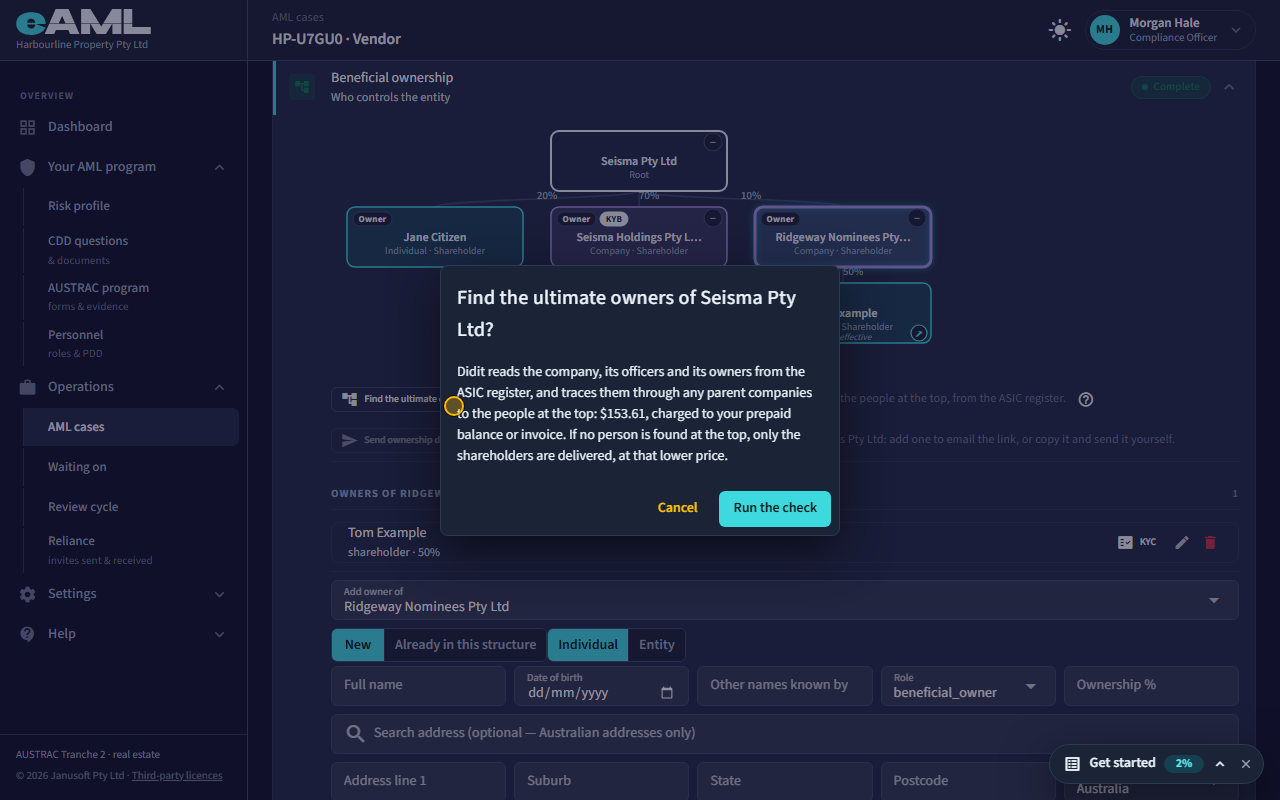
Watch: Companies and trusts: who owns themGuide step: Companies and trusts: who owns themWatch: Company checks: the ASIC extract and the registerGuide step: Company checks: the ASIC extract and the registerWatch: Company checks: the ASIC extract and the registerGuide step: Company checks: the ASIC extract and the registerWatch: Companies and trusts: who owns themGuide: Companies and trusts: who owns themWatch: Company checks: the ASIC extract and the registerGuide: Company checks: the ASIC extract and the register
Why are the register’s ultimate owners added directly under the company?
Because the register’s list is flat: it gives each person’s share of the whole company, not the route they hold it through. So by default Add as owner places the person directly under the company, as a beneficial owner, with the register’s figure as their percentage. If you know the route, or the company between is already in the structure, choose it in the list that opens and eAML suggests their share of that company. You can also move them later with the pencil.
- Run the company check and select Add as owner beside the person.
- Check where they sit (the default is the company) and their share.
- Choose the company or trust they hold through, if you know it, and select Add.
- Move them later with the pencil beside their name if you learn more.
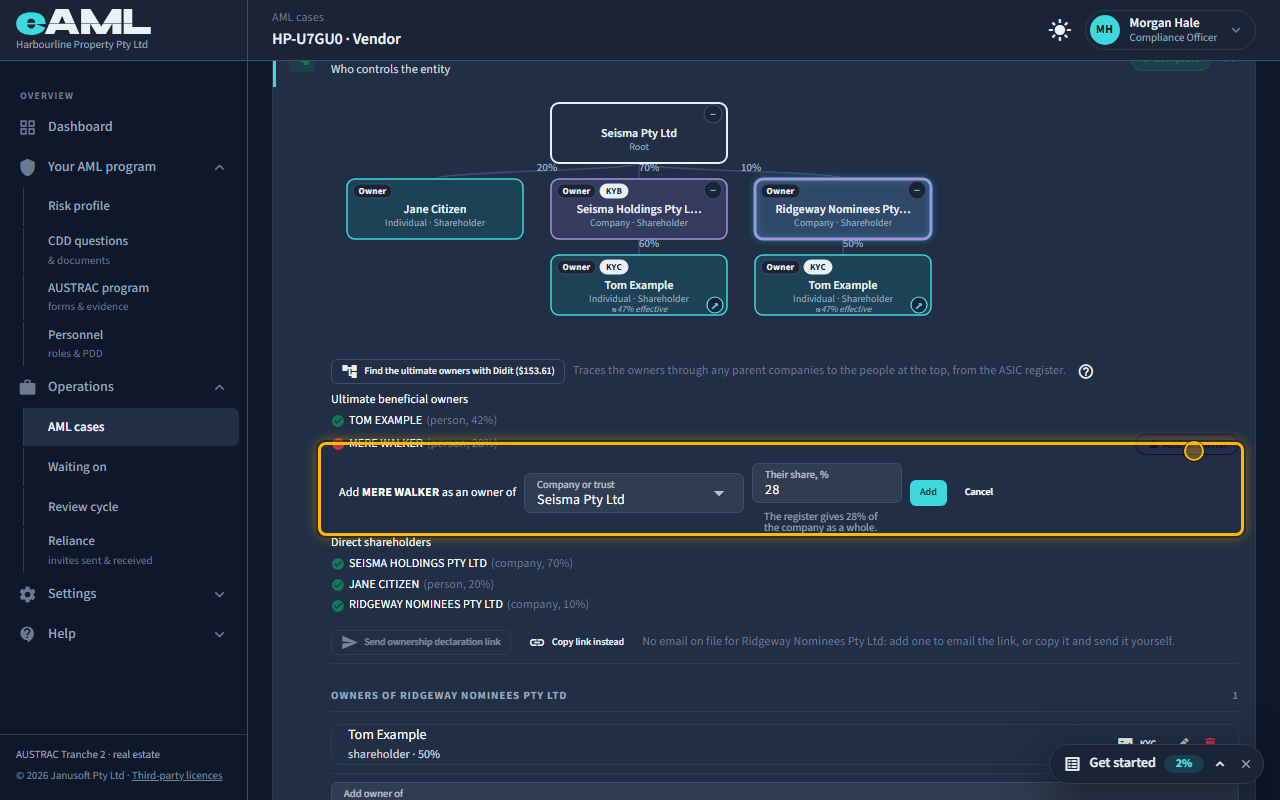
Watch: Companies and trusts: who owns themGuide step: Companies and trusts: who owns themWatch: Companies and trusts: who owns themGuide step: Companies and trusts: who owns themWatch: Companies and trusts: who owns themGuide: Companies and trusts: who owns them
What does "undisclosed owners" mean on a company, and how do I fix it?
Undisclosed owners is the warning on a company box that has been opened and has nobody recorded behind it. A company named as an owner with nobody behind it is opaque, so eAML flags it, and its structure check counts that as a complex structure. To clear it, record who is behind the company; or link a person already in the structure; or, if it is a listed company or a government body, tick Listed on a stock exchange or choose the government type, because those need nobody behind them.
- Select the company’s box (or its plus sign) to open it.
- Add the people who own it, or link someone already in the structure.
- For a listed company or government body, edit the owner and tick Listed, or choose the government type.
- Check that the warning is gone.
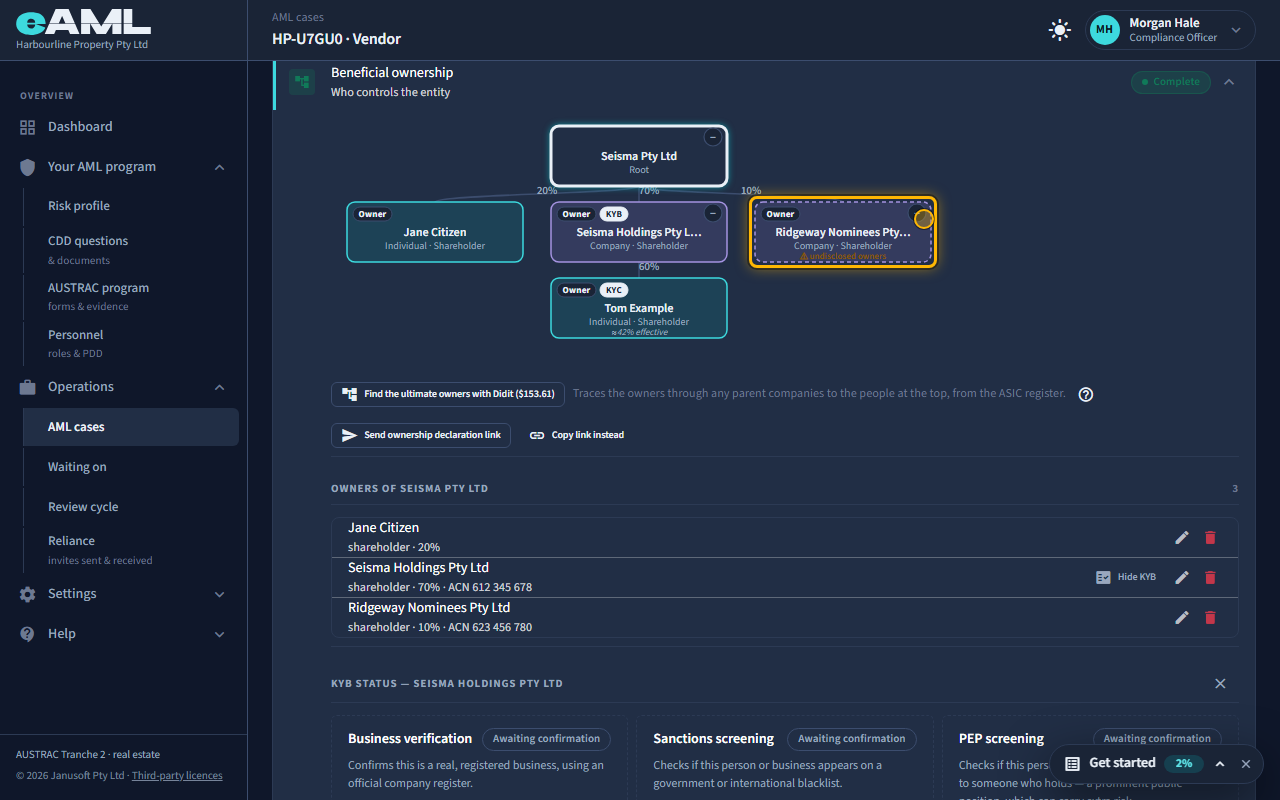
Watch: Companies and trusts: who owns themGuide step: Companies and trusts: who owns themWatch: Companies and trusts: who owns themGuide step: Companies and trusts: who owns themWatch: Companies and trusts: who owns themGuide: Companies and trusts: who owns them
Why is my ownership structure flagged as complex?
eAML flags a structure as complex when a company or trust has nobody recorded behind it, when it is more than two company or trust layers deep, or when more than five different owners are recorded (a person who holds several roles, or holds through two companies, counts once). The factor is called Complex or opaque beneficial ownership structure and is rated high, so the customer’s rating rises. Open Risk scoring and tiering and read Risk factors that fired to see it. Once a factor has fired it stays on the list, and a rating never comes down by itself, even after you fix the structure. If the structure is now understood and acceptable, add a risk note saying so, and confirm the rating you want when you complete risk tiering.
- Open the customer’s Risk scoring and tiering stage.
- Read Risk factors that fired for Complex or opaque beneficial ownership structure.
- Check the diagram for a company with nobody behind it, or a structure that is deep or wide, and record the missing owners.
- Add a risk note for what is understood and acceptable, and confirm the rating when you complete risk tiering.
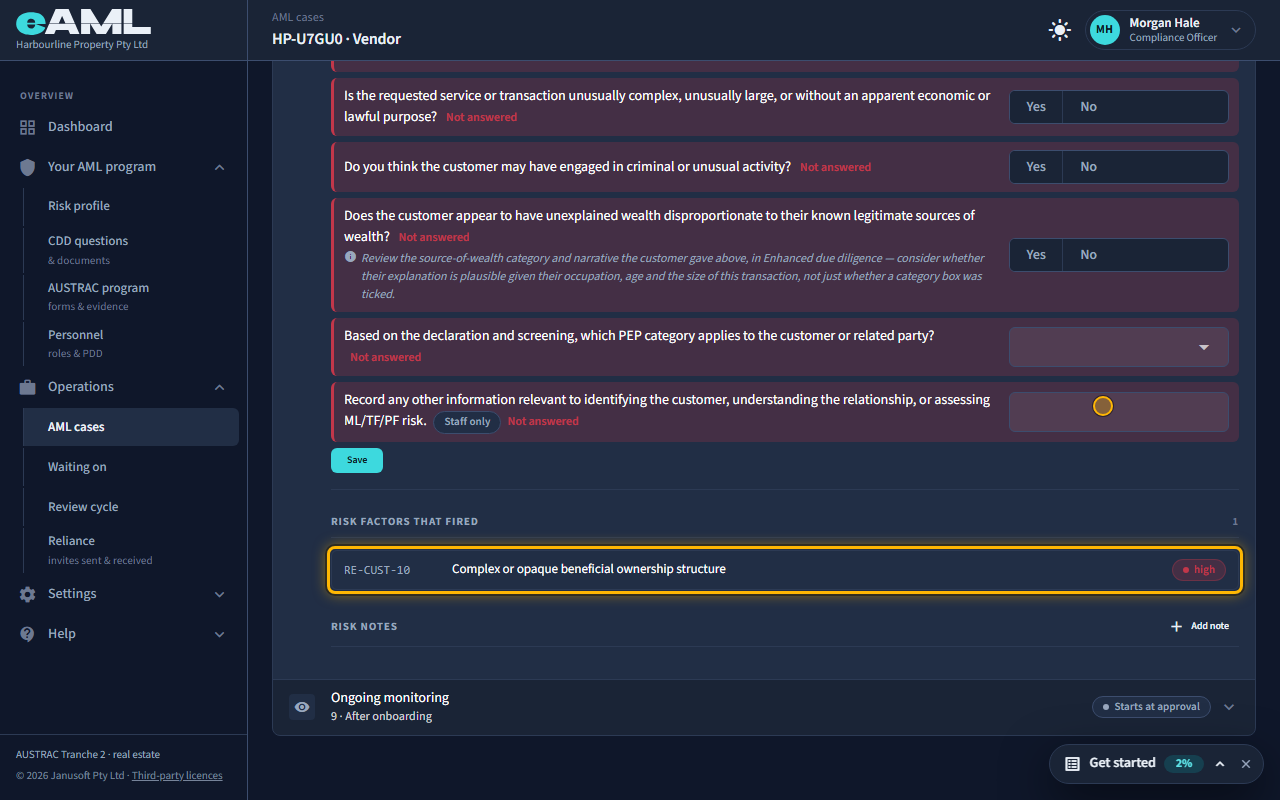
Watch: Companies and trusts: who owns themGuide step: Companies and trusts: who owns themWatch: How a risk rating is decidedGuide step: How a risk rating is decidedWatch: Companies and trusts: who owns themGuide: Companies and trusts: who owns themWatch: How a risk rating is decidedGuide: How a risk rating is decided
Do I need the owners of a listed company or a government body?
No. A company listed on a stock exchange publishes its owners, and a government body is exempt, so nothing is looked through behind either. Tick Listed on a stock exchange on a company owner, or choose the government type, and the diagram says listed company or government body: no owners needed instead of undisclosed owners. If the customer itself is a government body, or is declared a publicly listed company, the whole Beneficial ownership stage says Not applicable.
- Add the company as an owner (Entity) and tick Listed on a stock exchange, or choose the government type.
- Open its box and check it says no owners needed.
- For a customer that is itself listed or government, answer the question or choose the type on the customer’s details.
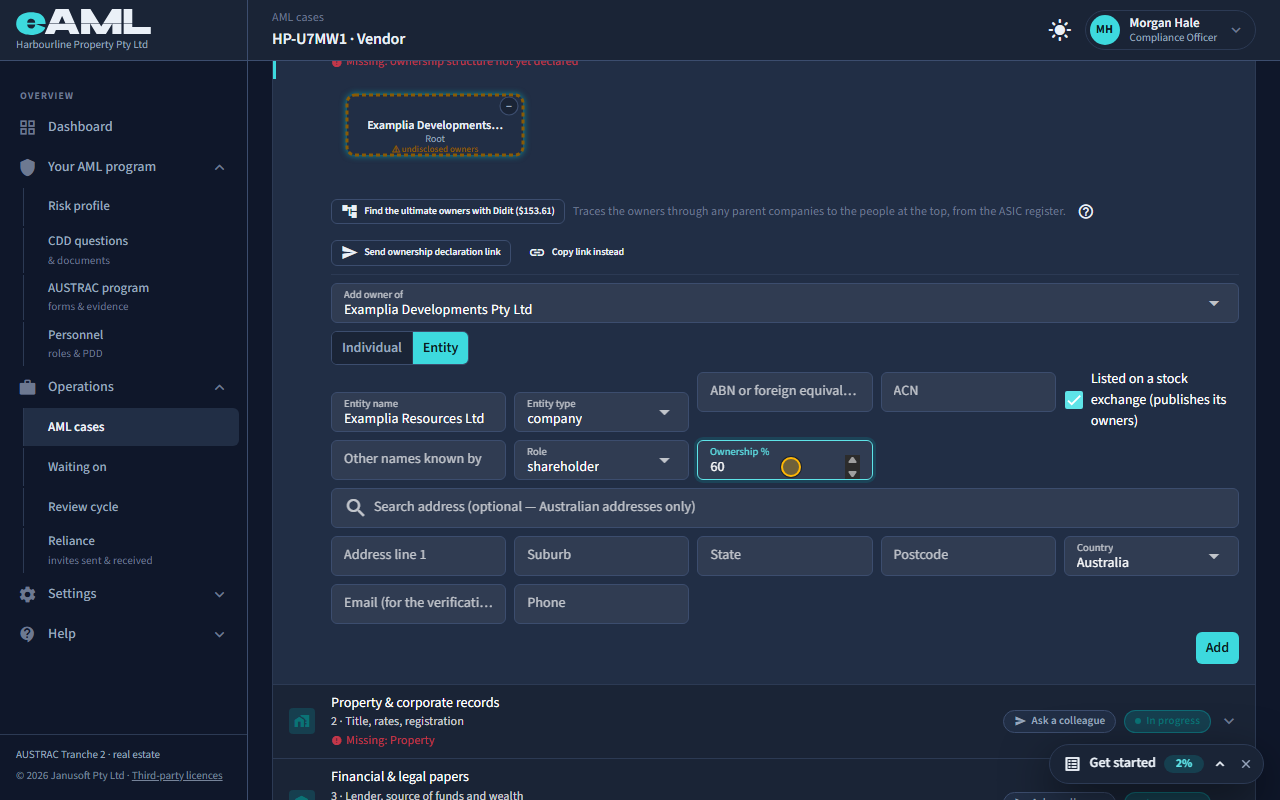
Watch: Companies and trusts: who owns themGuide step: Companies and trusts: who owns themWatch: Companies and trusts: who owns themGuide: Companies and trusts: who owns them
How is the effective percentage worked out?
The effective percentage is a person’s real share of the customer. eAML multiplies the percentages down each chain and adds the chains: a person with 60% of a company that holds 70% of the customer has about 42%, and if they also hold 50% of another company that holds 10%, they have about 5% more, about 47% in all. It is shown on their box when it differs from the figure on the line above. Control roles such as director or trustee are not multiplied into a percentage. A person at 25% or more once everything is counted is a beneficial owner.
- Add each owner with the percentage they hold of the company they sit under.
- Read the effective percentage on each person’s box.
- Check anyone close to 25%: a person under it directly can be over it once their other routes are added.
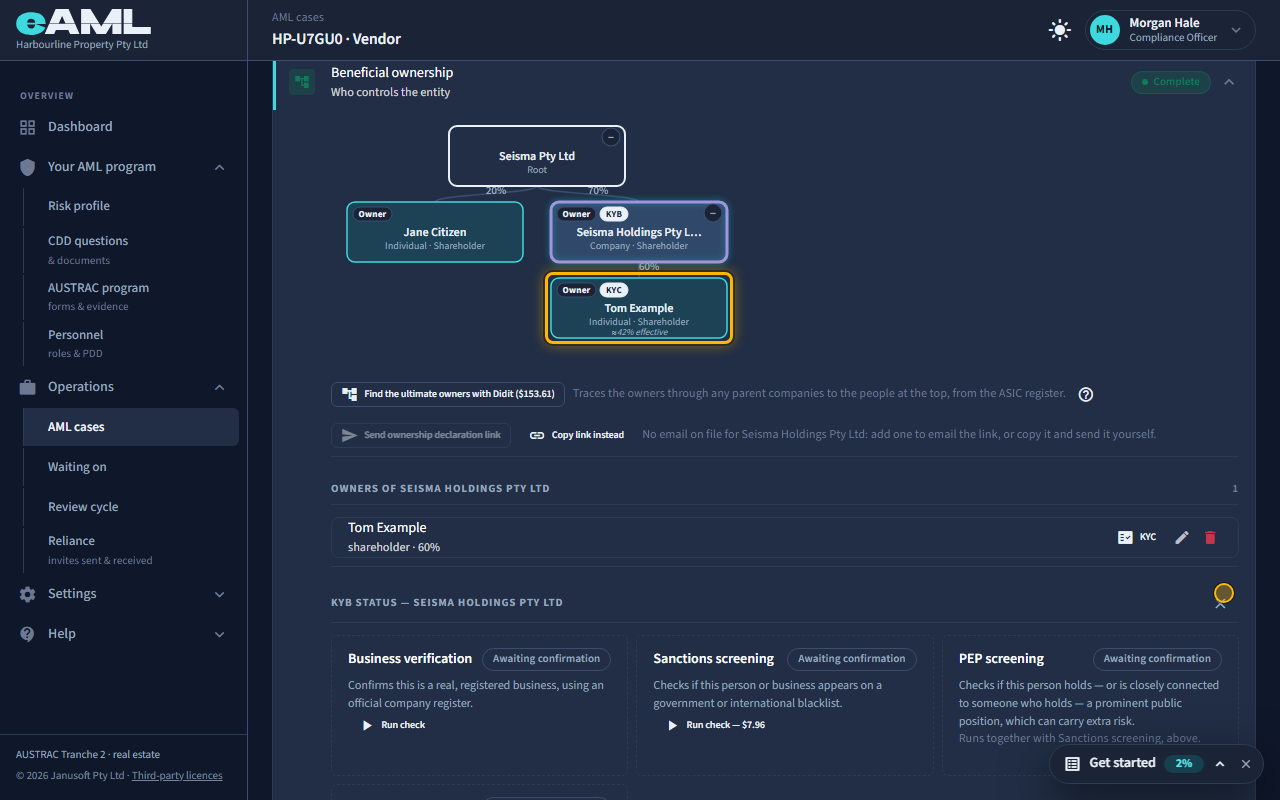
Watch: Companies and trusts: who owns themGuide step: Companies and trusts: who owns themWatch: Companies and trusts: who owns themGuide step: Companies and trusts: who owns themWatch: Companies and trusts: who owns themGuide: Companies and trusts: who owns them
When does an owner get their own checks?
An owner or officer is enrolled for their own checks (an identity check, screening and a short questions form) when they hold 25% or more of the customer, or when they hold a control role: a director, secretary, senior managing official, partner, trustee, appointor, settlor, protector, guardian or beneficiary, or are recorded as a beneficial owner. A shareholder or member under 25% with no control role is recorded, but nothing is checked for them. The diagram marks an enrolled person KYC (or KYB for a company), and the Owners list has a KYC button beside them. A person who only reaches 25% once the percentages down a chain are multiplied shows a ≥25%? badge instead: eAML does not enrol them for you, so decide whether to add them as an owner.
- Open the company’s Beneficial ownership stage.
- Look for the KYC (person) or KYB (company) badge on each box, or the KYC button in the Owners list.
- Select KYC beside an owner to open their checks, documents and questions.
- For someone who shows ≥25%? but no badge, add them as an owner so they are enrolled.
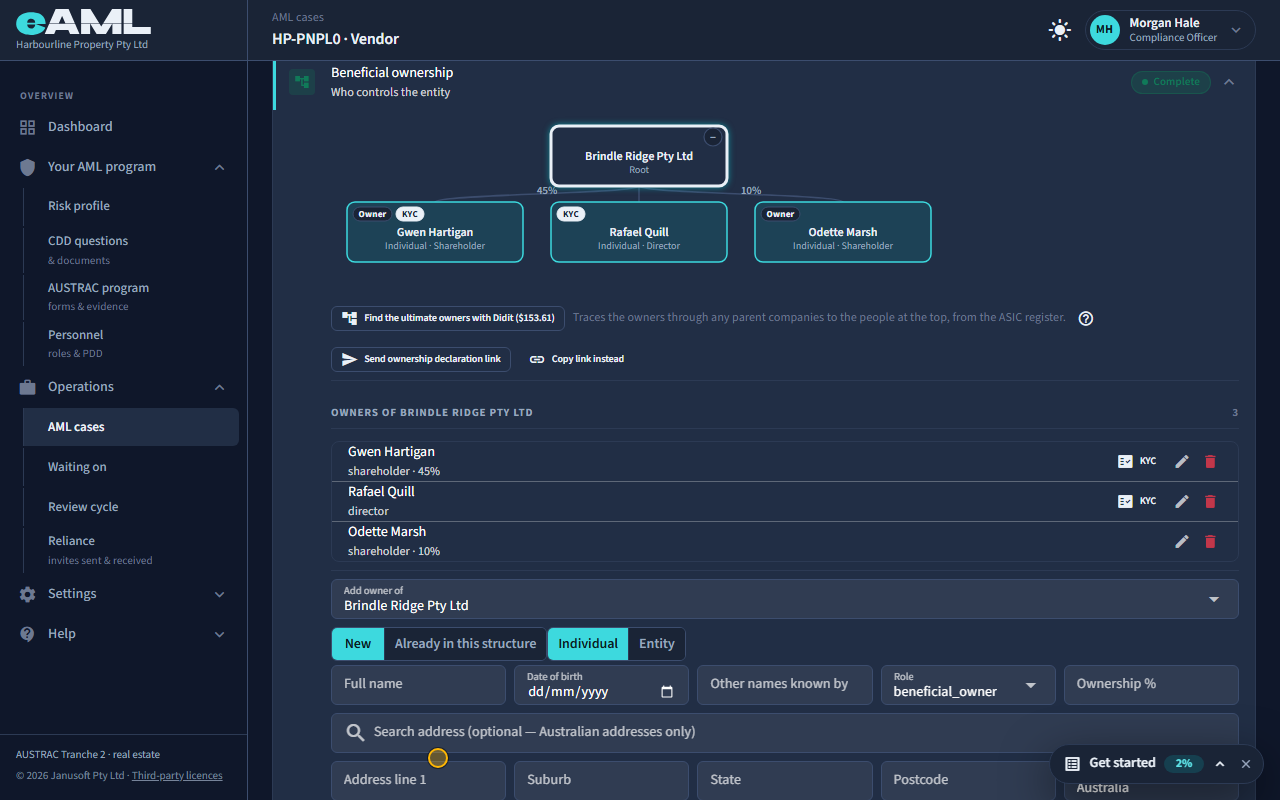
Watch: Owners and officers: their own checks and formsGuide step: Owners and officers: their own checks and formsWatch: Companies and trusts: who owns themGuide step: Companies and trusts: who owns themWatch: Owners and officers: their own checks and formsGuide: Owners and officers: their own checks and forms
"No email on file" for an owner or director. How do I send them the form?
A form can only be emailed to an address on file, and the register lists officers by name and role only, so an officer you added from a company check or by name has none. Add it where the person is listed: under Beneficial ownership, select the pencil beside them, fill in Email and Phone, and select the tick; then Review & send is available on the Communication tab. Or copy the link from the person’s own panel (Copy link) and send it yourself: it is the same link the email would carry.
- Open the company’s Beneficial ownership stage and find the person in the Owners list.
- Select the pencil beside them, fill in Email and Phone, and select the tick.
- Open the Communication tab, and select Review & send beside their form, then Send.
- Or open their KYC panel and select Copy link, and send the link yourself.
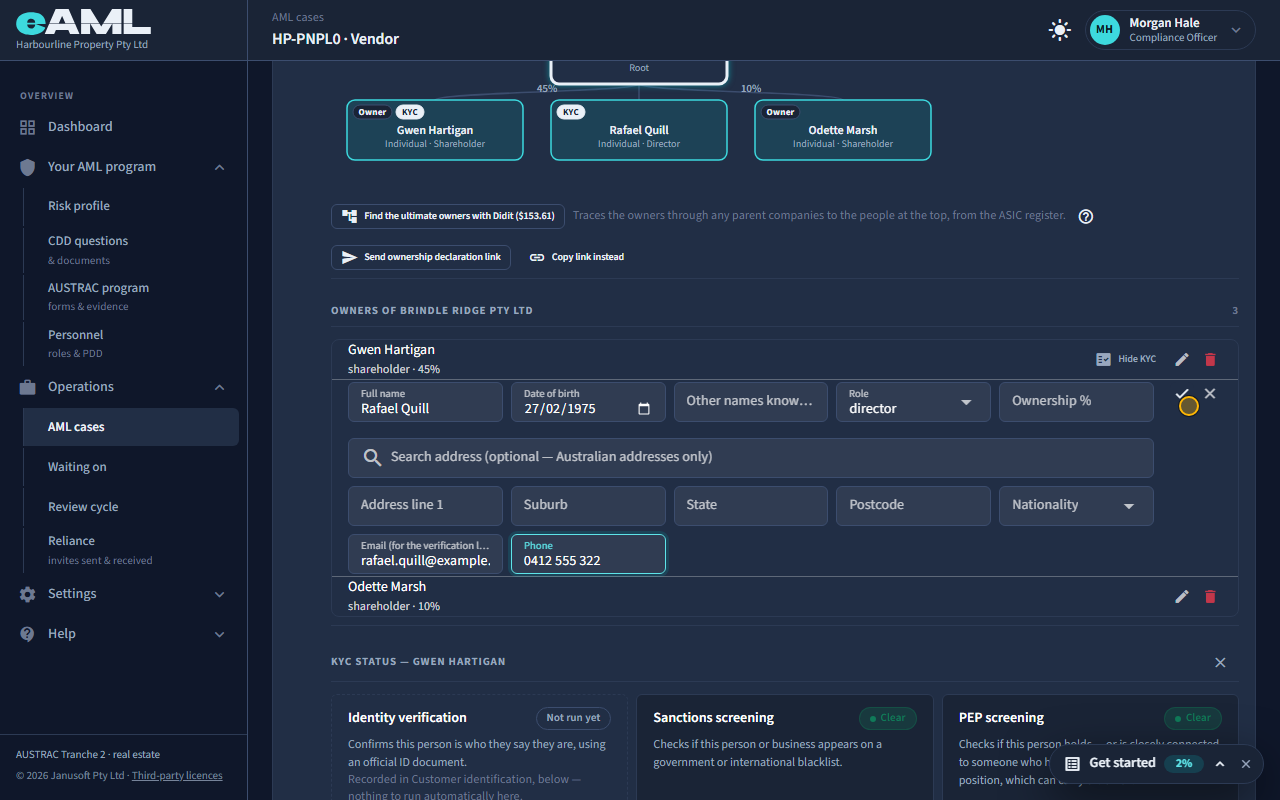
Watch: Owners and officers: their own checks and formsGuide step: Owners and officers: their own checks and formsWatch: Owners and officers: their own checks and formsGuide: Owners and officers: their own checks and forms
How do I upload the ASIC extract, and what does comparing do?
Open the company’s card, select Customer identification, and under Identity documents, in the Corporate / entity slot, choose the document type (ASIC company extract, or ASIC company summary for the free one) and upload the PDF. Then, under Company register check, select Compare against ASIC. eAML reads the PDF itself and checks the company’s name, ACN, ABN and company type against what is on file: a green tick is a match, a red cross is not. It also lists the directors and secretaries the extract names, and flags any you have not recorded, with a Create KYC record button. If ASIC’s spelling is the right one, select Import into Customer identification and then Save, and the comparison runs again by itself. The extract’s shareholders are not read: add them under Beneficial ownership, or use the Advanced check. The extract costs $10, paid to ASIC; the Summary is free but has no directors.
- Open the company’s Customer identification stage.
- In Identity documents, in Corporate / entity, choose ASIC company extract and upload the PDF.
- Under Company register check, select Compare against ASIC and read each row.
- Select Import into Customer identification, check the fields and Save, to take ASIC’s spelling.
- Select Create KYC record beside each officer who is not on file.
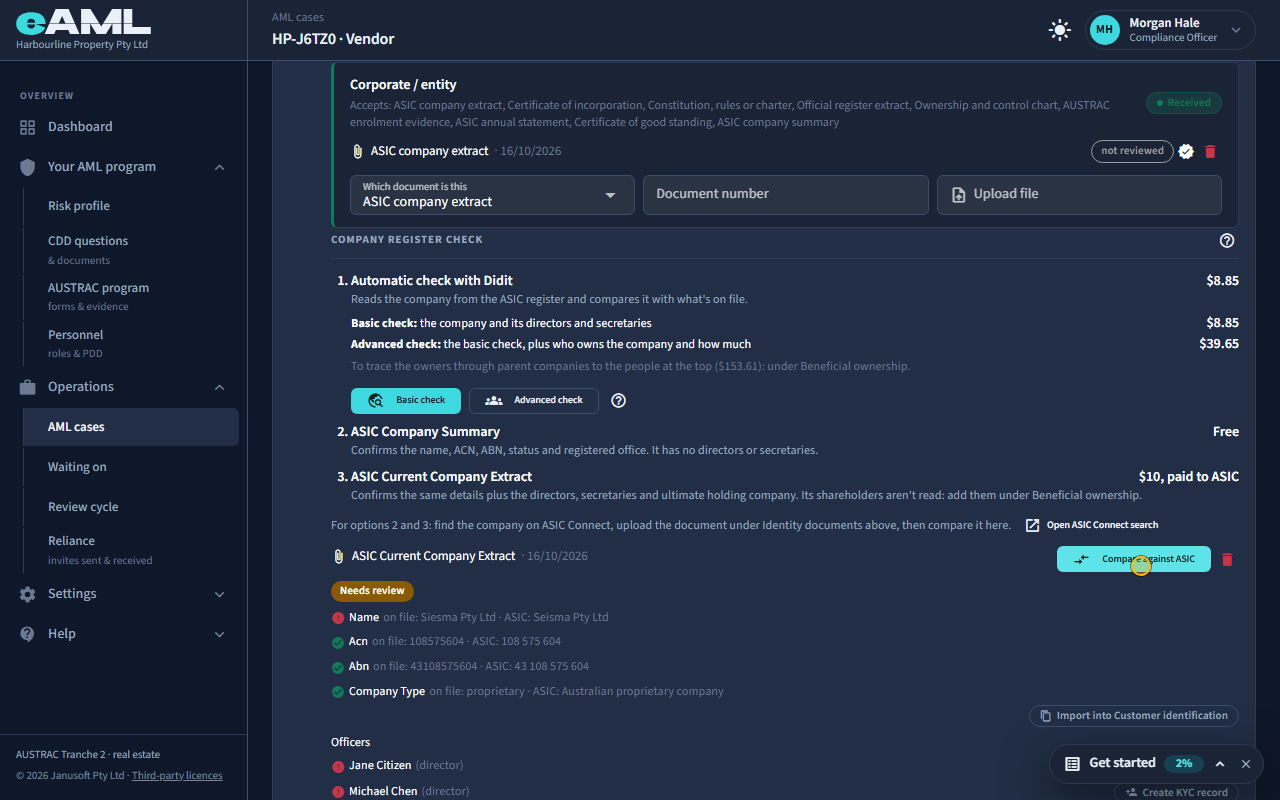
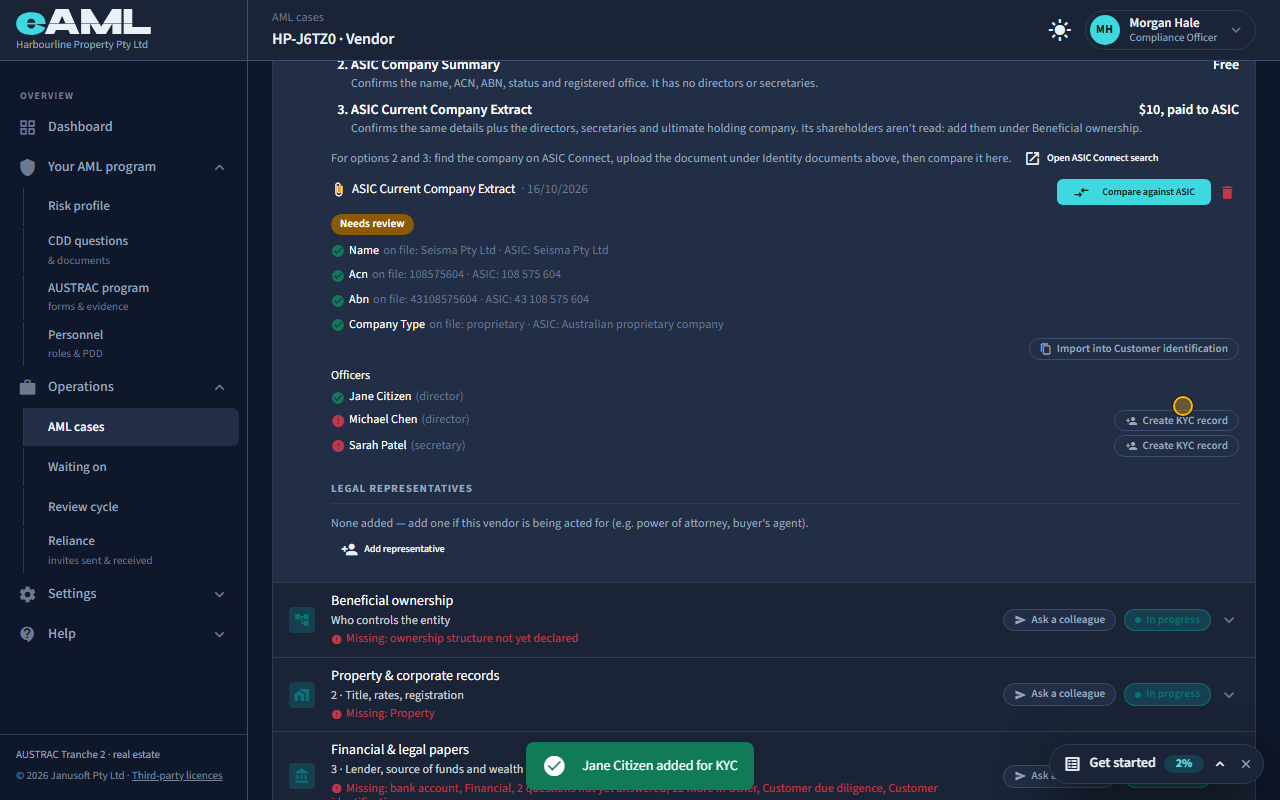
Watch: Company checks: the ASIC extract and the registerGuide step: Company checks: the ASIC extract and the registerWatch: Company checks: the ASIC extract and the registerGuide step: Company checks: the ASIC extract and the registerWatch: Company checks: the ASIC extract and the registerGuide step: Company checks: the ASIC extract and the registerWatch: Company checks: the ASIC extract and the registerGuide step: Company checks: the ASIC extract and the registerWatch: Company checks: the ASIC extract and the registerGuide: Company checks: the ASIC extract and the register
Who do I record for a trust (trustee, settlor, appointor, beneficiaries)?
LegalReal estateAccounting
No register covers trusts, so the trust deed is your source. Record the trustee or trustees (a control role: if the trustee is a company, add it as an entity and record who is behind it), the settlor who established the trust, the appointor and any protector or guardian, and the beneficiaries the deed names. Choose each role in Add owner. The app records people and companies, so for a class of beneficiaries add whoever you can identify and explain the rest in a risk note. Each of these roles is enrolled for its own identity and screening checks whatever percentage it has, because they control or benefit from the trust rather than own shares in it.
- Open the trust’s Beneficial ownership stage.
- Add the trustee or trustees (an entity, if the trustee is a company, and then who is behind it).
- Add the settlor, the appointor and any protector or guardian.
- Add the beneficiaries the deed names, and note any class in a risk note.
Watch: Companies and trusts: who owns themGuide step: Companies and trusts: who owns themWatch: Companies and trusts: who owns themGuide: Companies and trusts: who owns them
What do I tell a client who asks why they must list their owners?
Because the law requires us to know who ultimately owns or controls a company, trust or other business before we act for it. We have to identify the people who own 25% or more, or who control it, and its directors and officers, then check each of them. It is the same for every business customer, and they can give us the details themselves: we can send a link where they fill in who owns and controls the business, and the owners and officers each get a short form and, if we need it, an identity check on their own phone. The details are used for these checks and our records of them.
- Tell the client it is a legal requirement that applies to every company, trust and business customer.
- Send the ownership declaration link (Beneficial ownership > Send ownership declaration link), or enter what they tell you.
- Send each owner and officer their own form, and an identity link if you need it.
Watch: Companies and trusts: who owns themGuide step: Companies and trusts: who owns themWatch: Owners and officers: their own checks and formsGuide step: Owners and officers: their own checks and formsWatch: Owners and officers: their own checks and formsGuide: Owners and officers: their own checks and forms
Risk, enhanced due diligence and approval
How is the risk tier decided, and what raised it?
A customer’s rating is low, medium or high, and it is whatever the highest risk factor that has fired says it is: a category, not a weighted score. Factors come from rules that read what is on the case: a question answered, a check result, a document, or the shape of an ownership structure. Open Risk scoring and tiering on the person’s card: the badge is the rating, and Risk factors that fired lists each factor with its catalogue code, name and rating, which is what raised it. A case’s rating is the highest rating of anyone on it. The rating only rises by itself; it comes down only when someone completes risk tiering on the case’s Risk & approval tab.
- Open the person’s Risk scoring and tiering stage.
- Read the badge, then Risk factors that fired: each row is something that raised the rating.
- Open the question, check or document a factor came from, and read it in context.
- To change the rating, complete risk tiering on the Risk & approval tab with your reasoning.
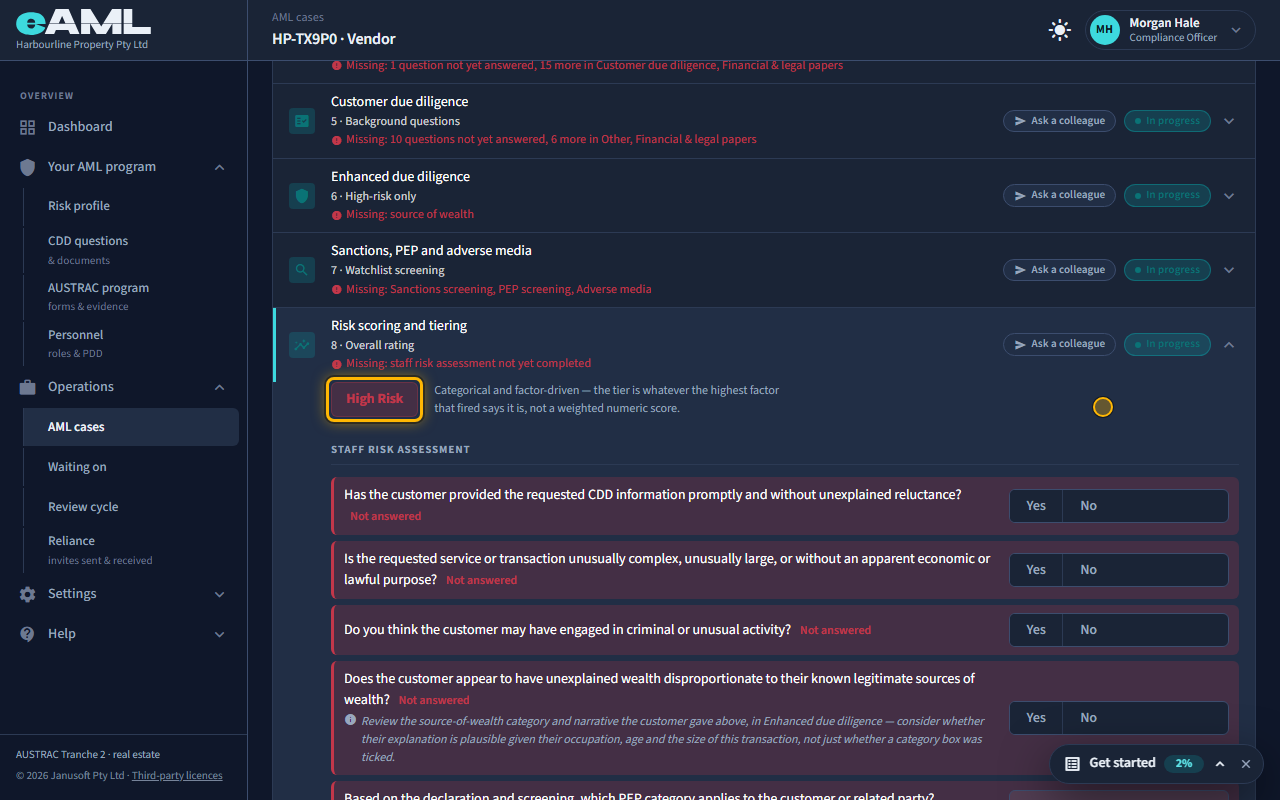
Watch: How a risk rating is decidedGuide step: How a risk rating is decidedWatch: How a risk rating is decidedGuide step: How a risk rating is decidedWatch: How a risk rating is decidedGuide: How a risk rating is decided
The customer is still high risk after I fixed the cause. Why?
Because a rating never comes down by itself. Fixing the cause takes the factor off the list when it came from an answer (correct the answer and save it), but the rating stays where it was. A factor that came from a check result, such as a complex ownership structure, also stays on the list once it has fired. Lowering a rating is a judgement for a person to make and record: complete risk tiering on the case’s Risk & approval tab, choose the rating you now believe is right, and write your reasoning. Add a risk note to explain what you fixed.
- Fix the cause (correct the answer, record the missing owners) and save.
- Open the case’s Risk & approval tab.
- In Risk scoring and tiering, choose the confirmed tier and recommendation, and write your reasoning.
- Select Complete risk tiering.
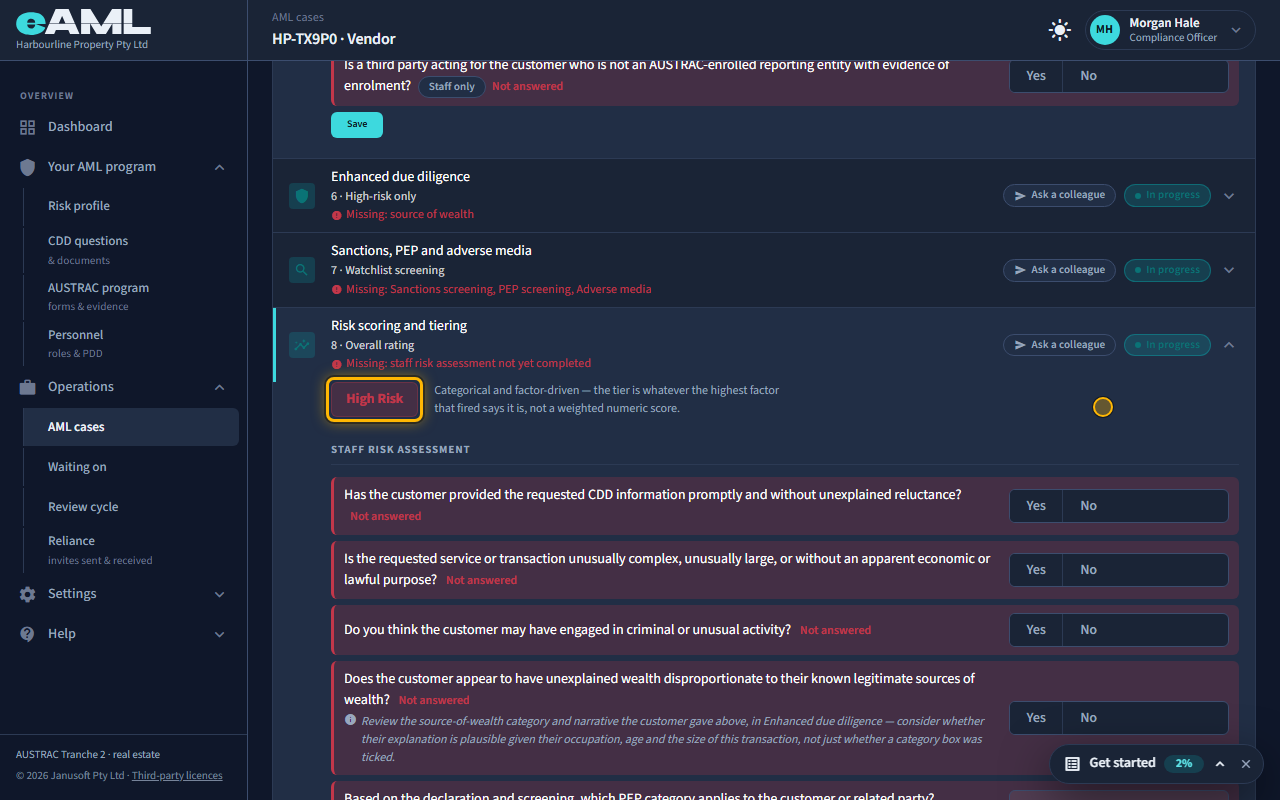
Watch: How a risk rating is decidedGuide step: How a risk rating is decidedWatch: Finishing a case: tiering and approvalGuide step: Finishing a case: tiering and approvalWatch: How a risk rating is decidedGuide: How a risk rating is decided
How do I lower a risk tier?
A rating goes up by itself when a risk factor is found, and never comes down by itself. The only way to lower it is to complete risk tiering: on the case’s Risk & approval tab choose a lower Confirmed risk tier, pick the recommendation, and write your reasoning, then select Complete risk tiering. That sets the case’s rating to the tier you confirmed and records your reasoning against the case, which is what an examiner reads. It can be done once per case, before the decision, and not once the case is closed.
- Open the case’s Risk & approval tab.
- Choose the Confirmed risk tier (the automated rating is pre-filled) and the Recommendation.
- Write your reasoning and select Complete risk tiering.
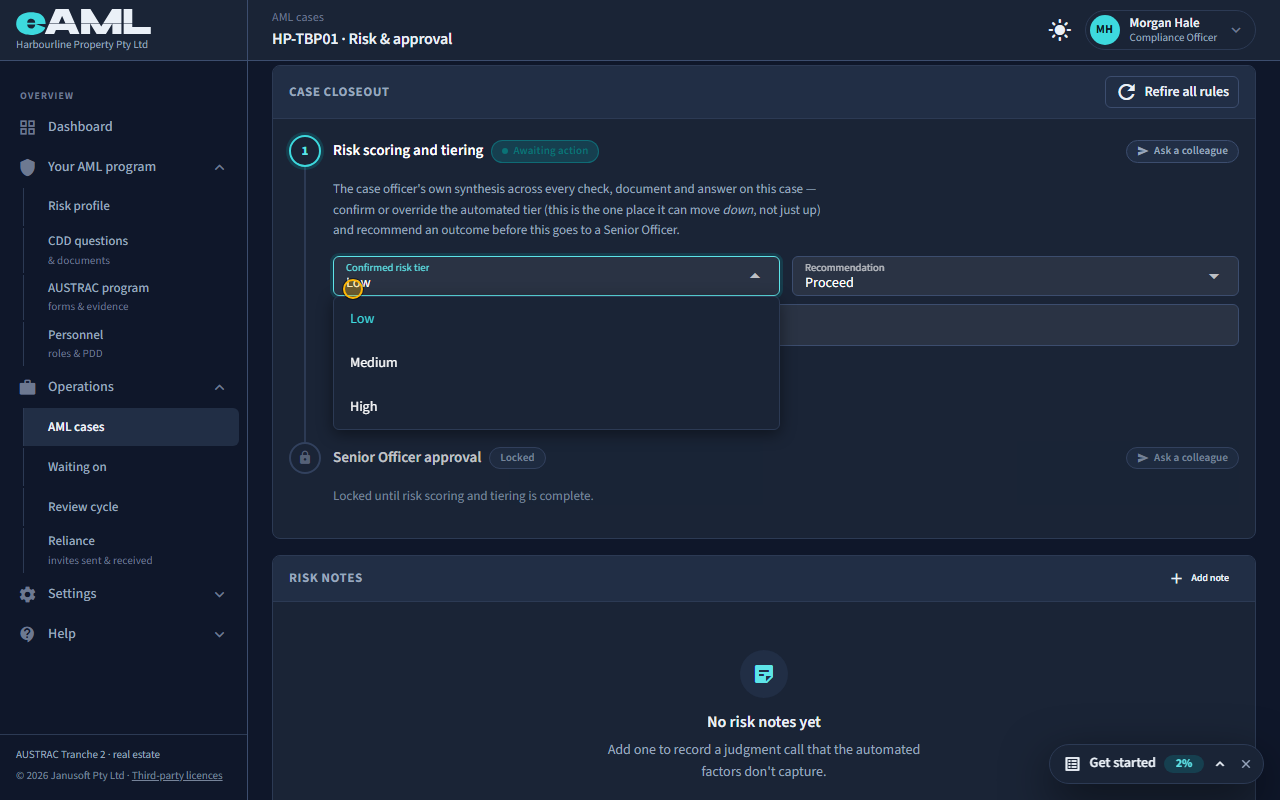
Watch: Finishing a case: tiering and approvalGuide step: Finishing a case: tiering and approvalWatch: How a risk rating is decidedGuide step: How a risk rating is decidedWatch: Finishing a case: tiering and approvalGuide: Finishing a case: tiering and approval
What is a risk note, and when should I add one?
A risk note is a judgement call recorded against the person, in your words: a rating, a risk factor if one applies, and a comment. It is for what the automated factors do not capture, such as why a flag that has since been corrected was not a concern, or why you are comfortable with a structure. Under Risk notes on the person’s Risk scoring and tiering stage, select Add note, choose the rating, optionally a risk factor, write a comment and select Save note. It is kept with the case, dated, and shown in the list. A note does not move the rating: only completing risk tiering does that.
- Open the person’s Risk scoring and tiering stage and find Risk notes.
- Select Add note, and choose a rating (and a risk factor if one applies).
- Write what you decided and why, and select Save note.
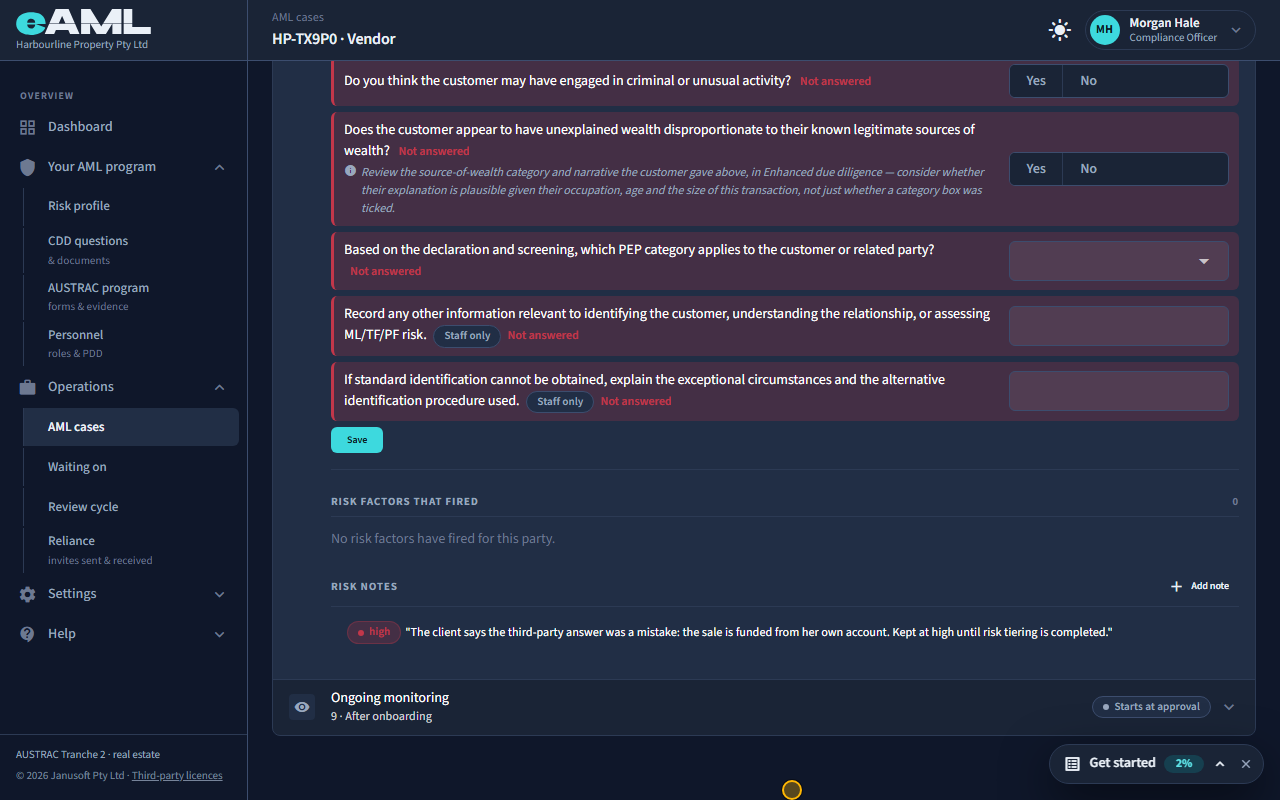
Watch: How a risk rating is decidedGuide step: How a risk rating is decidedWatch: How a risk rating is decidedGuide: How a risk rating is decided
Who approves a case, and what if I am also the senior manager?
A senior manager approves a case, as the second sign-off after risk tiering; a compliance officer cannot (a jeweller’s sale that is not high risk is the exception: the compliance officer decides it). It has to be a second pair of eyes: if you completed the tiering yourself, another active senior manager must approve it. If you are the firm’s only senior manager, eAML opens a Four-eyes check instead: it names the colleague who could have prepared the work, asks why you are approving your own, and records your reason and approval in the audit log. In a firm of one you can accept that risk once, in Organisation, and stop being asked.
- Open the case’s Risk & approval tab as a senior manager and select Approve.
- If you completed the tiering yourself and are the only senior manager, the Four-eyes check opens: write why you are approving your own work.
- Select Accept risk and continue; the case is approved and the reason is in the audit log.
- If another senior manager is active, ask them to approve it instead.
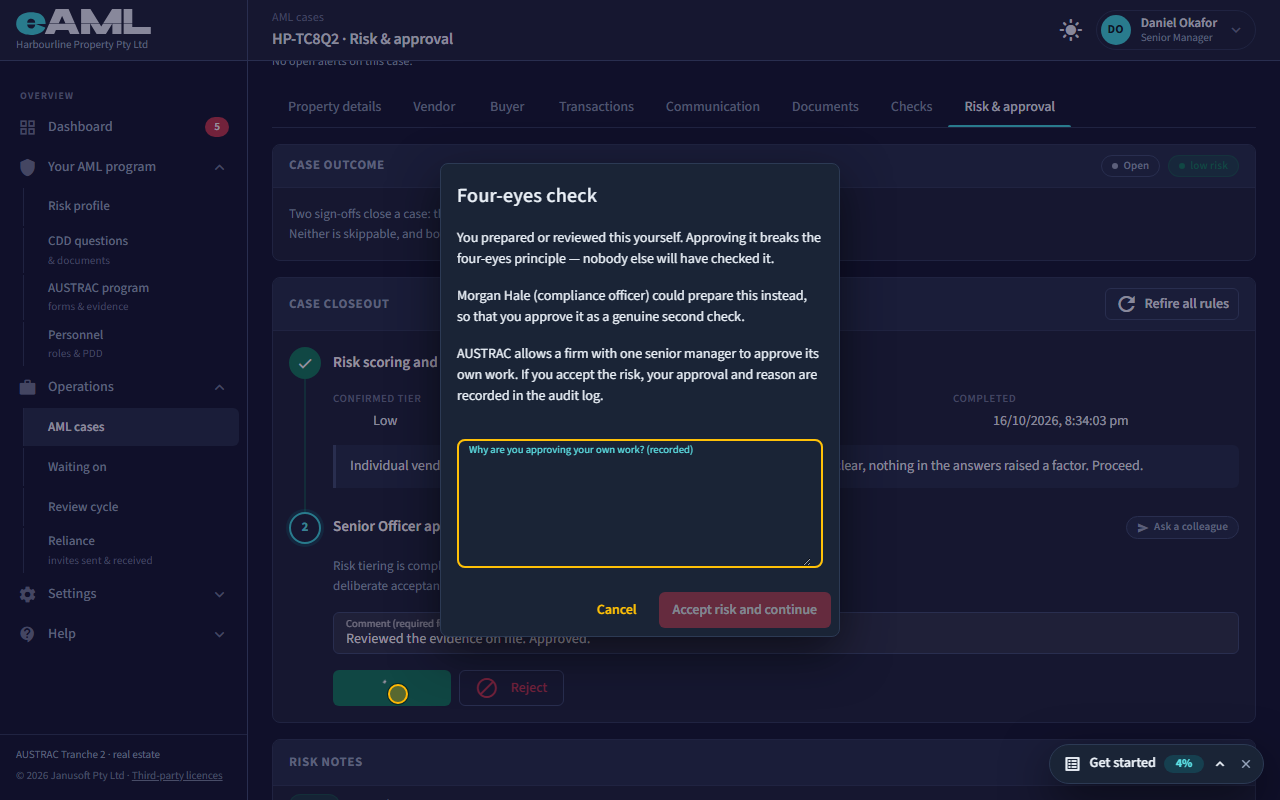
Watch: Finishing a case: tiering and approvalGuide step: Finishing a case: tiering and approvalWatch: Finishing a case: tiering and approvalGuide step: Finishing a case: tiering and approvalWatch: Finishing a case: tiering and approvalGuide: Finishing a case: tiering and approval
How do I decline a case, and what happens next?
A senior manager selects Reject on the case’s Risk & approval tab, after risk tiering is complete, and writes a comment: the box asks for one on a rejection, and it is the record of why. The case becomes Declined and is closed, with no further edits allowed. Rejecting is not held up by missing fields or unapproved forms the way approving is, and a declined case is never treated as an ongoing relationship, so no periodic review is scheduled. eAML does not message the client and does not report anything to AUSTRAC when you decline: how you tell the client is up to you, and if you suspect something, consider a suspicious matter report.
- Complete risk tiering with the recommendation Decline.
- As a senior manager, open Risk & approval and write your reason in the comment box.
- Select Reject. The case becomes Declined and is closed.
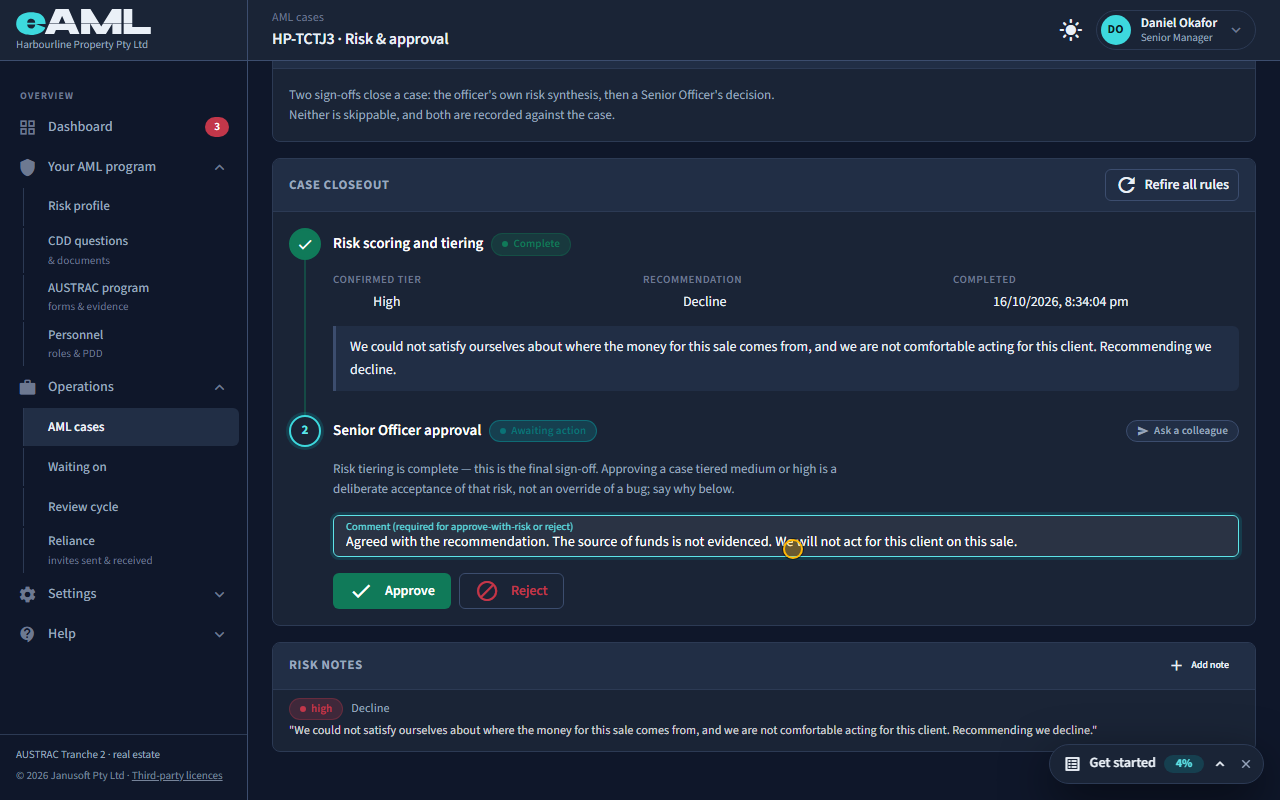
Watch: Finishing a case: tiering and approvalGuide step: Finishing a case: tiering and approvalWatch: Suspicious matters and threshold reportsGuide: Suspicious matters and threshold reportsWatch: Finishing a case: tiering and approvalGuide: Finishing a case: tiering and approval
What does the senior officer see and decide?
The senior manager sees the second step of Case closeout, Senior Officer approval. Above it is the risk tiering that was completed: the confirmed rating, the recommendation, when it was completed, and the reasoning. They decide with Approve or Reject and a comment. A comment is asked for when approving a case that is medium or high risk (a deliberate acceptance of that risk) and when rejecting. Approving is refused, with a list of what is outstanding, if a person on the case still has a mandatory fact missing or a compliance form still needs its own senior approval. Approval closes the case and schedules the first periodic review of each seller and buyer.
- Open the case’s Risk & approval tab.
- Read the confirmed tier, the recommendation and the reasoning.
- Write a comment, then select Approve or Reject.
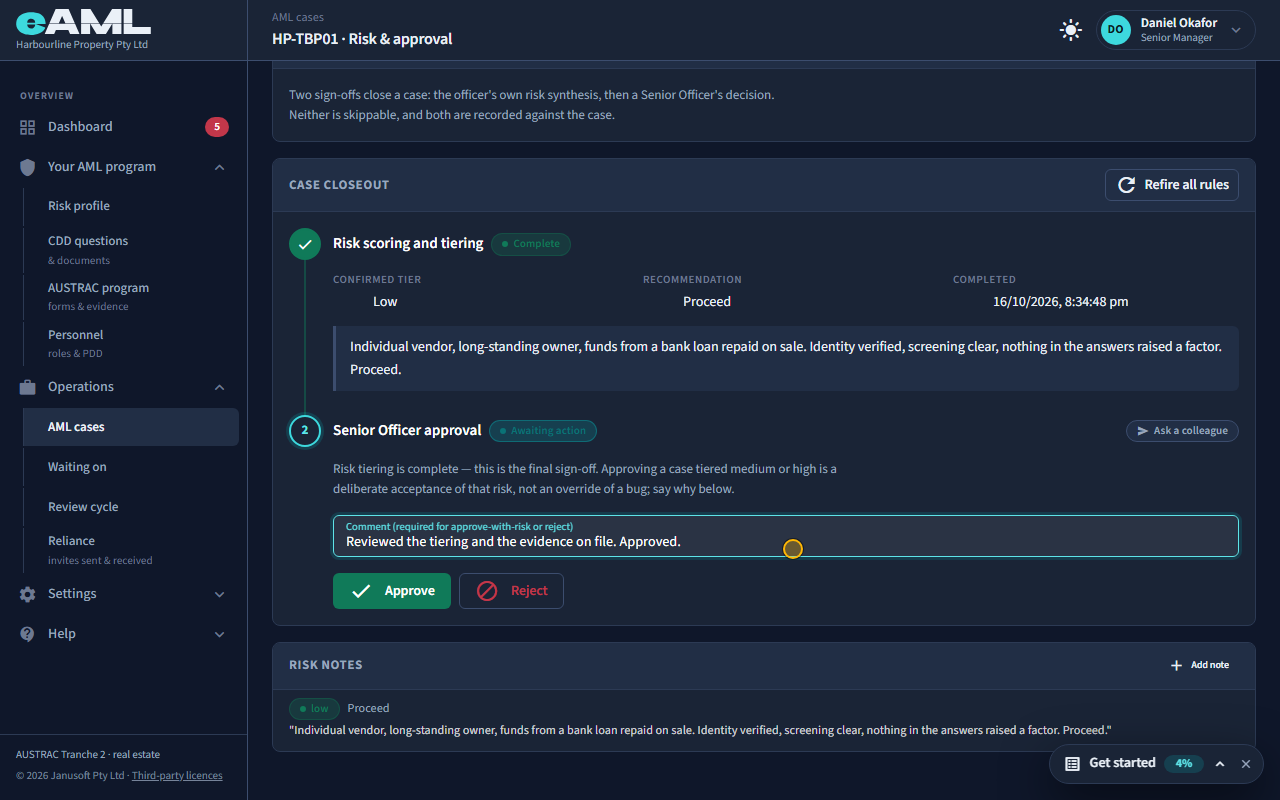
Watch: Finishing a case: tiering and approvalGuide step: Finishing a case: tiering and approvalWatch: Finishing a case: tiering and approvalGuide: Finishing a case: tiering and approval
What are "risk factors that fired", and what do the codes mean?
Risk factors that fired is the list, under a person’s Risk scoring and tiering, of every factor that has raised their rating, with the factor’s code, its name and its rating. The code is the factor’s catalogue reference: it is what you cite if AUSTRAC or an examiner asks how a risk was identified. It reads like RE-CUST-05: the first part is your business type’s catalogue (RE real estate, LGL legal, CV conveyancing, ACC accounting, JWL jeweller), the second the kind of risk (CUST customer, TXN transaction, CHAN delivery channel, CTRY country, DS designated service, TECH technology), and the number is its place in that catalogue. Hover the code to see what it is for. A factor whose cause was corrected leaves the list; one that came from a check result stays.
- Open the person’s Risk scoring and tiering stage.
- Read each row of Risk factors that fired: code, name and rating.
- Hover the code to see what it is for, and quote it when you explain the rating.
Watch: How a risk rating is decidedGuide step: How a risk rating is decidedWatch: How a risk rating is decidedGuide: How a risk rating is decided
Reports and suspicious matters
How do I report a suspicious matter (SMR), and when is it due?
When your compliance officer has reasonable grounds to suspect, a suspicious matter report (SMR) has to reach AUSTRAC: within 24 hours if the suspicion relates to terrorism financing, and within 3 business days of forming the suspicion otherwise (5 business days if some information in it is protected by legal professional privilege). In eAML anyone can raise unusual activity from the person’s Ongoing monitoring stage. The compliance officer then opens the case’s Checks tab, selects Generate SMR draft, completes the dialog and downloads the file. A senior manager can approve it (required on a managed plan). You upload the file yourself at AUSTRAC Online (Reporting, Make a Report, Report SMR, File upload), then select Mark as lodged. eAML shows the filing deadline in the dialog and on the draft; it counts weekends but not public holidays, so check it yourself if one falls inside it.
- Raise unusual activity from the person’s Ongoing monitoring stage (any role).
- As the compliance officer, open the case’s Checks tab and select Generate SMR draft.
- Complete who is involved, the transactions, the offence, the date the suspicion was formed and the grounds, then Generate SMR XML.
- Send it for approval if your plan requires it, upload the file at AUSTRAC Online, then select Mark as lodged.
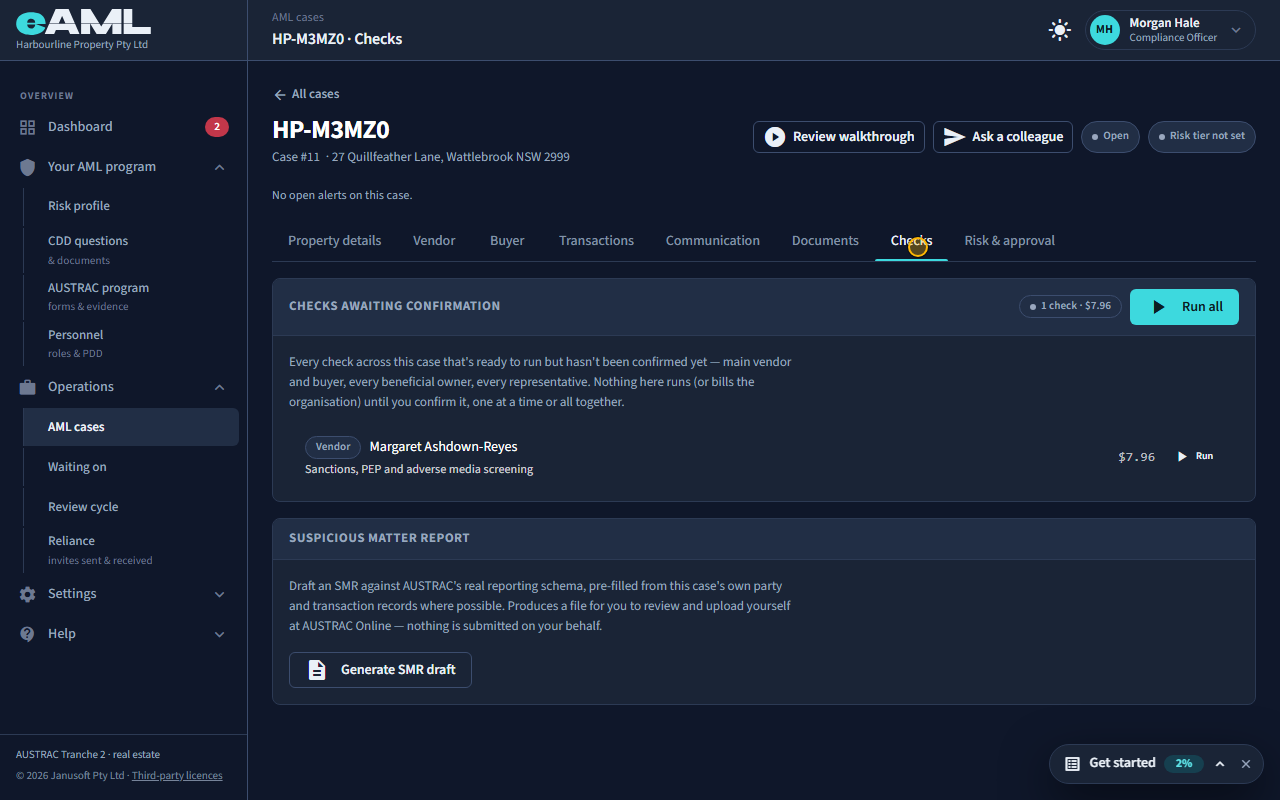
Watch: Suspicious matters and threshold reportsGuide step: Suspicious matters and threshold reportsWatch: Suspicious matters and threshold reportsGuide step: Suspicious matters and threshold reportsWatch: Suspicious matters and threshold reportsGuide: Suspicious matters and threshold reports
What does the SMR draft contain, and what must I add before lodging?
The draft is an XML file in AUSTRAC’s SMR format, built from the case. eAML fills in the people you choose from the case (names, dates of birth, addresses, and for a company its directors and beneficial owners from the case’s ownership records), the transactions you tick, the designated service, and you as the reporting officer. What you add: each person’s role in the suspicion (suspect, victim or other), what each transaction was and who paid whom, the type of crime or threat, the offence, the date the suspicion was formed, where it took place, and the grounds for suspicion in your own plain words (who, what, where, when, why, how). Both AUSTRAC Online account numbers are required, nine digits each; the reporting entity’s can be remembered for next time. If some information is protected by legal professional privilege, tick the box and attach the claim form: eAML can fill it in for you. Read the file before you upload it.
- Open Generate SMR draft on the case’s Checks tab.
- Choose each person and their role, tick the transactions and say who paid whom.
- Choose the crime or threat type and the offence, enter the suspicion formed date, and write the grounds for suspicion.
- Open AUSTRAC Online account numbers and enter yours, then select Generate SMR XML.
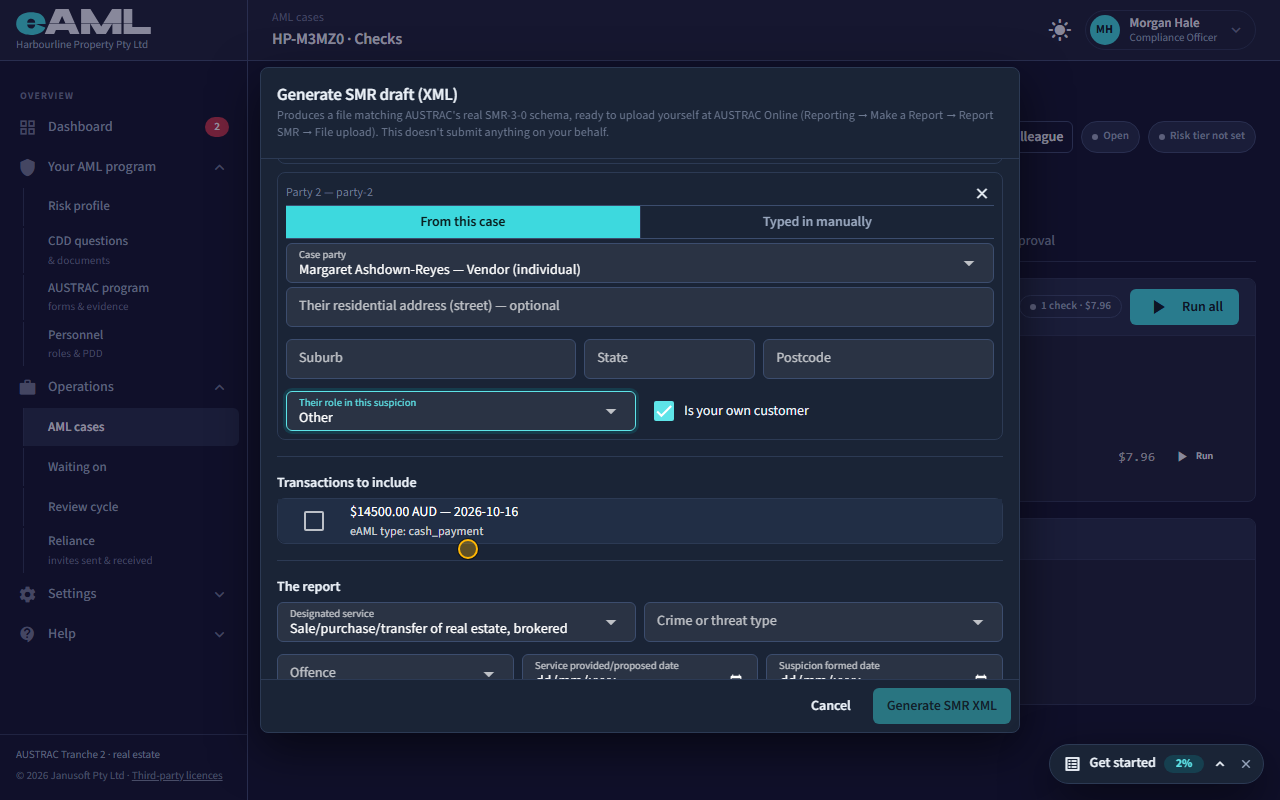
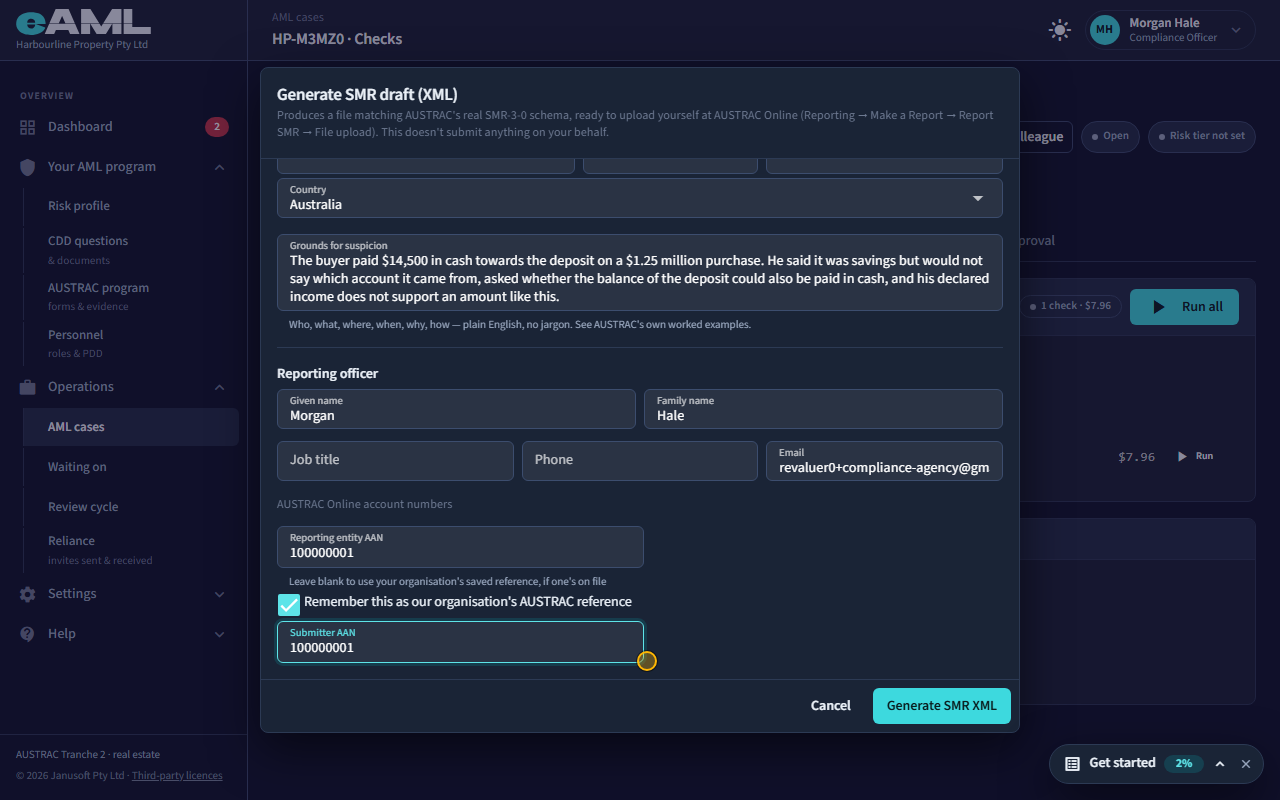
Watch: Suspicious matters and threshold reportsGuide step: Suspicious matters and threshold reportsWatch: Suspicious matters and threshold reportsGuide: Suspicious matters and threshold reports
How do I mark an SMR as lodged?
After you have uploaded the file at AUSTRAC Online, open the case’s Checks tab, find the draft under Past drafts on this case and select Mark as lodged. Type AUSTRAC’s reference if you have it (it is optional: you can note it later), and confirm. The draft then reads Lodged with the reference. Marking it lodged sends nothing to AUSTRAC: it records that you did. On a managed plan the draft has to be approved by a senior manager first; for other plans approval is optional.
- Upload the SMR file at AUSTRAC Online.
- On the case’s Checks tab, under Past drafts on this case, select Mark as lodged.
- Enter AUSTRAC’s reference (optional) and confirm.
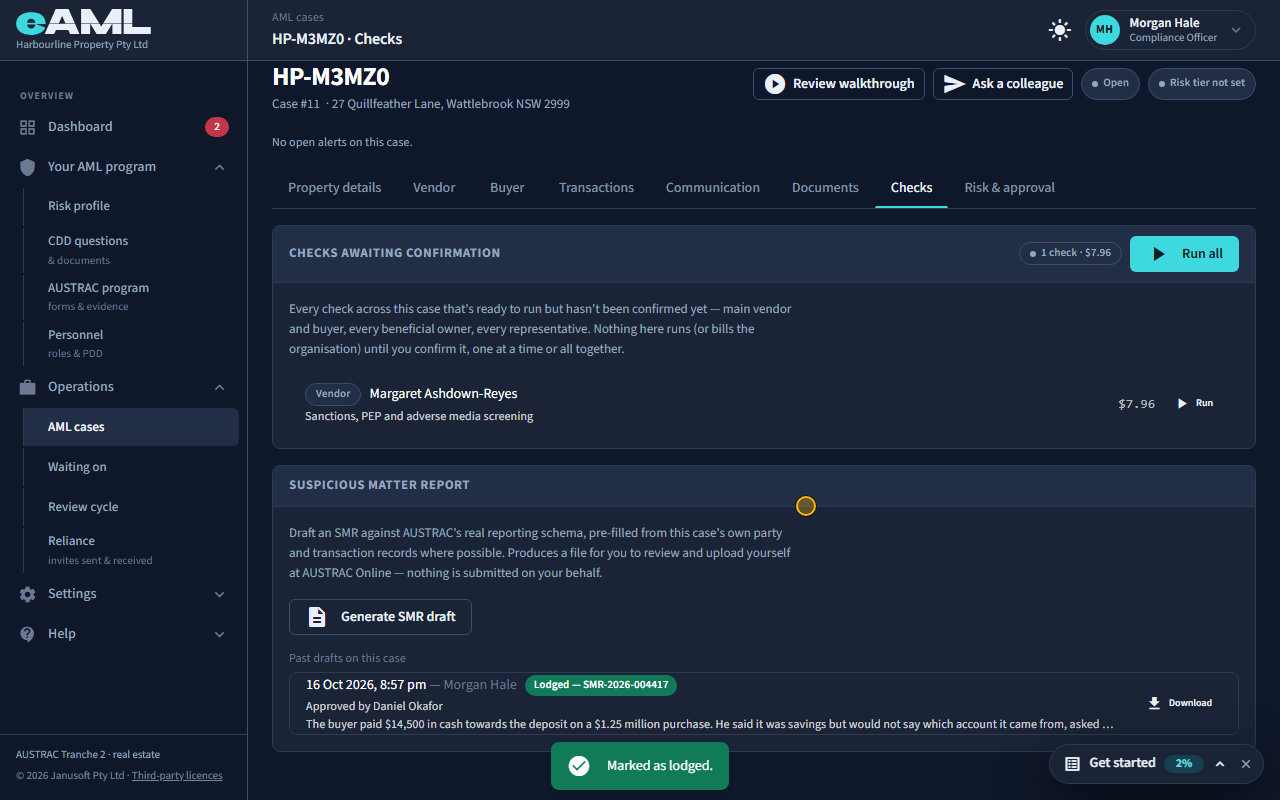
Watch: Suspicious matters and threshold reportsGuide step: Suspicious matters and threshold reportsWatch: Suspicious matters and threshold reportsGuide: Suspicious matters and threshold reports
What is a threshold transaction report (TTR), and when is one needed?
JewellerAccounting
A threshold transaction report (TTR) is a report of physical cash of A$10,000 or more, due 10 business days after the payment. Bank transfers and cards do not count. Where your business type has them (jewellers and accountants today), recording a cash payment of that size on a case drafts the TTR for you: the payment shows TTR due with the date. Lodge it in AUSTRAC Online, then select Mark lodged beside the payment and enter AUSTRAC’s reference. If the date passes it shows TTR overdue, and the compliance officer’s dashboard lists a Threshold report due. It needs no suspicion and no approval.
- Record the cash payment on the case’s Transactions tab.
- Lodge the TTR in AUSTRAC Online before the date shown.
- Select Mark lodged beside the payment and enter AUSTRAC’s reference.
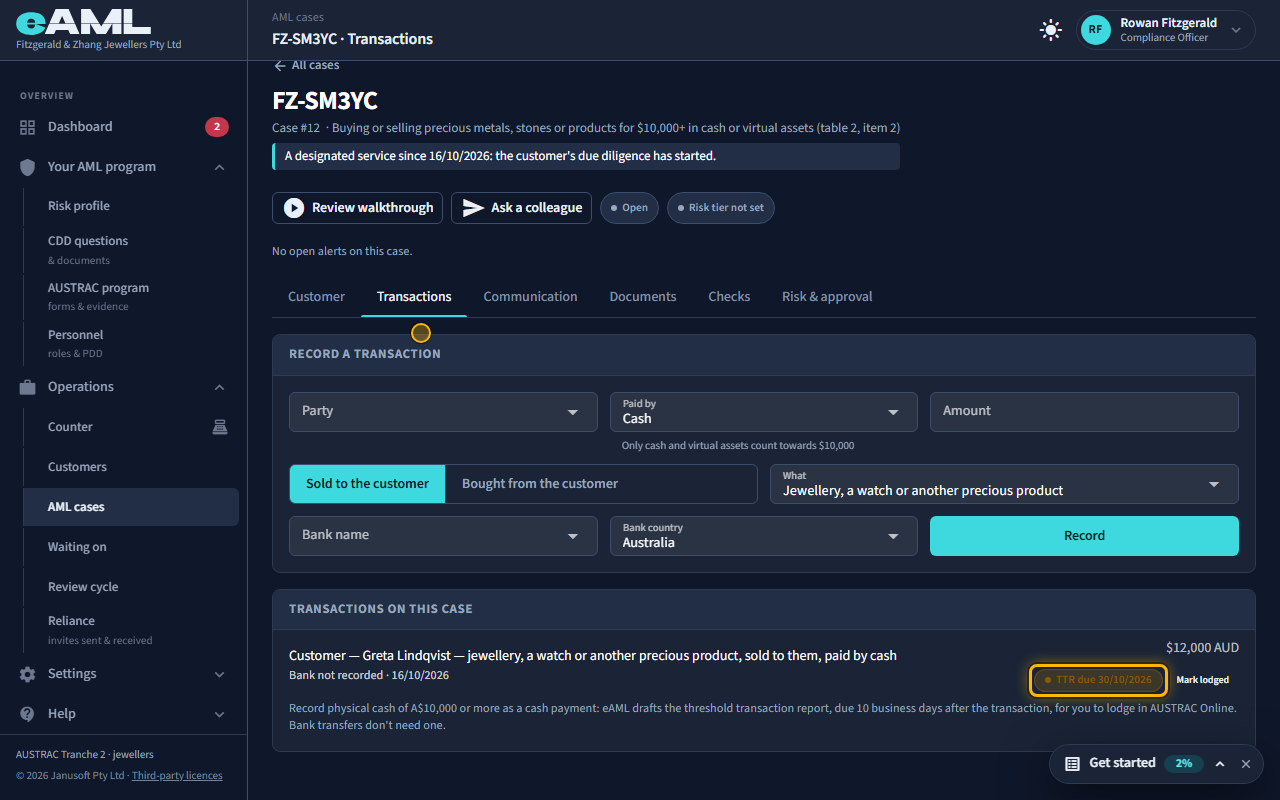
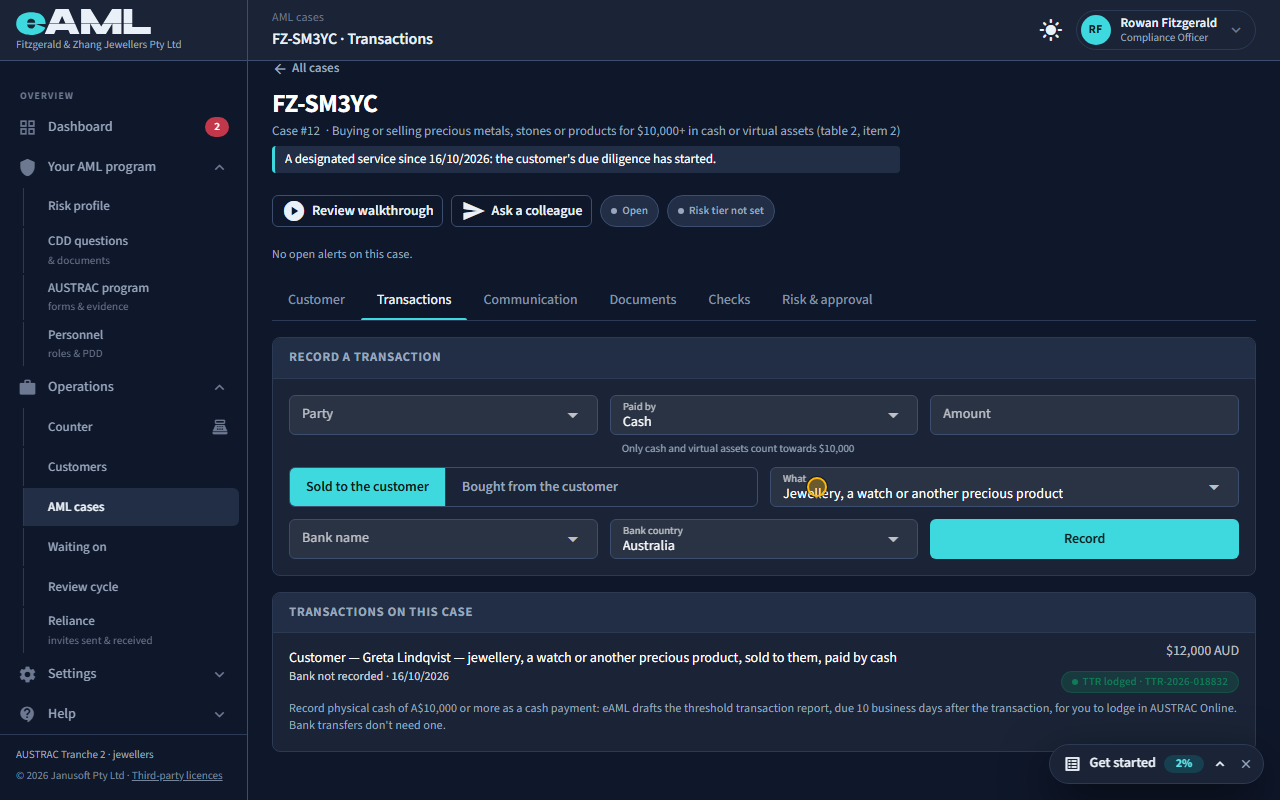
Watch: Suspicious matters and threshold reportsGuide step: Suspicious matters and threshold reportsWatch: Suspicious matters and threshold reportsGuide: Suspicious matters and threshold reports
What can I say to the client about a suspicious matter?
Nothing about the suspicion. Telling a customer, their representative or anyone else that a report is being considered or has been made is tipping off, and it is a criminal offence. Do not say that their activity has been flagged, that a form has been filled in, or that a report exists. Carry on dealing with them as usual, in ordinary business language. If their service is to change, that comes from the compliance officer’s direction, not from you. Collect any extra information as routine due diligence, never mentioning a review or a suspicion. If you are not sure what you can say, ask the compliance officer before you say anything. eAML never writes to the client about any of this.
- Do not mention the form, the review or any report to the customer.
- Keep dealing with them as normal.
- If unsure, ask the compliance officer before you say anything.
Watch: Suspicious matters and threshold reportsGuide step: Suspicious matters and threshold reportsWatch: Suspicious matters and threshold reportsGuide: Suspicious matters and threshold reports
Where do I find unusual activity records?
An unusual activity record is a compliance record linked to the case and the person. It is listed under the person’s Ongoing monitoring stage on the case, shown in the case’s Review walkthrough under Compliance forms, and kept with the other program forms on the AUSTRAC program page (Unusual activity report information form). These forms are restricted: a compliance officer or senior manager sees all of them, and a case worker sees only the ones they raised themselves. The compliance officer’s own review of one, and the decision whether to report, is recorded on the unusual activity report review form.
- Open the person on the case and select the Ongoing monitoring stage.
- Select the record in the list, or open AUSTRAC program and find the Unusual activity report information form.
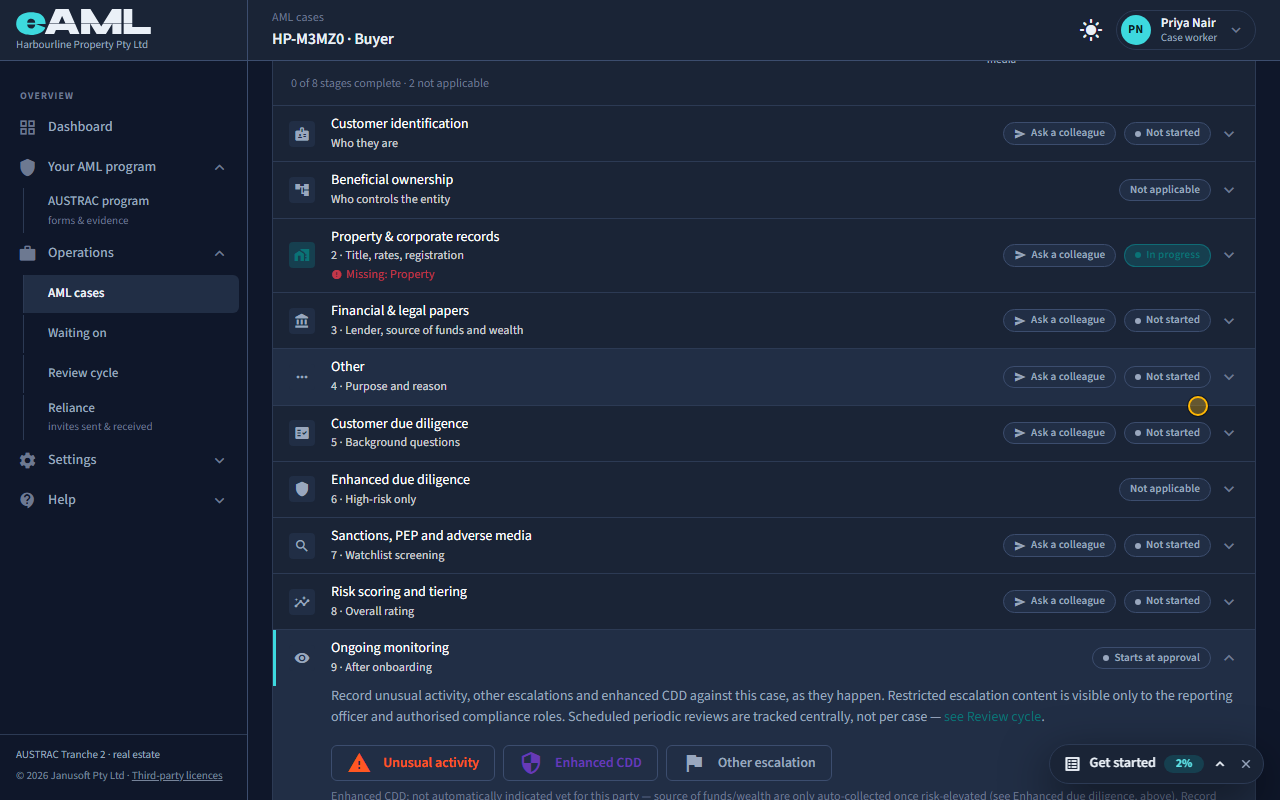
Watch: Suspicious matters and threshold reportsGuide step: Suspicious matters and threshold reportsWatch: Suspicious matters and threshold reportsGuide: Suspicious matters and threshold reports
What does eAML send to AUSTRAC automatically?
Nothing. eAML never sends a report to AUSTRAC for you. It prepares the file for a suspicious matter report, which you upload yourself at AUSTRAC Online (File upload), and it drafts a threshold transaction report’s deadline for you to lodge in AUSTRAC Online; in both cases you then record AUSTRAC’s reference in eAML. The firm’s annual compliance report is lodged directly in AUSTRAC Online too. What eAML keeps is the evidence: who drafted, approved and lodged each report and when.
- Generate the file in eAML.
- Lodge it yourself in AUSTRAC Online.
- Mark it lodged in eAML and add AUSTRAC’s reference.
Watch: Suspicious matters and threshold reportsGuide step: Suspicious matters and threshold reportsWatch: Suspicious matters and threshold reportsGuide step: Suspicious matters and threshold reportsWatch: Suspicious matters and threshold reportsGuide: Suspicious matters and threshold reports
Integrations and importing
How do I connect my CRM, and what do I need from my CRM vendor?
Real estate
Open Settings, then CRM integration, and enter how your CRM is called: its base URL, the endpoint that returns one listing or deal by id (with {recordId} where the id goes), how it authenticates (none, bearer token, API key, basic, OAuth, or custom headers), a real sample record id, and the paths of the facts in its answer (vendor, buyer, property). From your CRM vendor you need: that it has an API (REST, GraphQL or SOAP-style), how API credentials are issued, which endpoint returns one record, and, if you want Pull from CRM by address, an endpoint that searches by a text query. Saving sends the connection to an eAML administrator, who tests and approves it.
- Open Settings, then CRM integration.
- Enter the CRM name, base URL, record endpoint and a sample record id.
- Choose the authentication and enter the credentials.
- Select Load example under Request and response mapping, and adjust the paths to match your CRM’s answer.
- Optionally open Search by address and fill in the search endpoint and result paths.
- Select Save connection. An administrator then tests and approves it.
- It never writes to your CRM and never copies it: it fetches one record, when someone on a case asks.
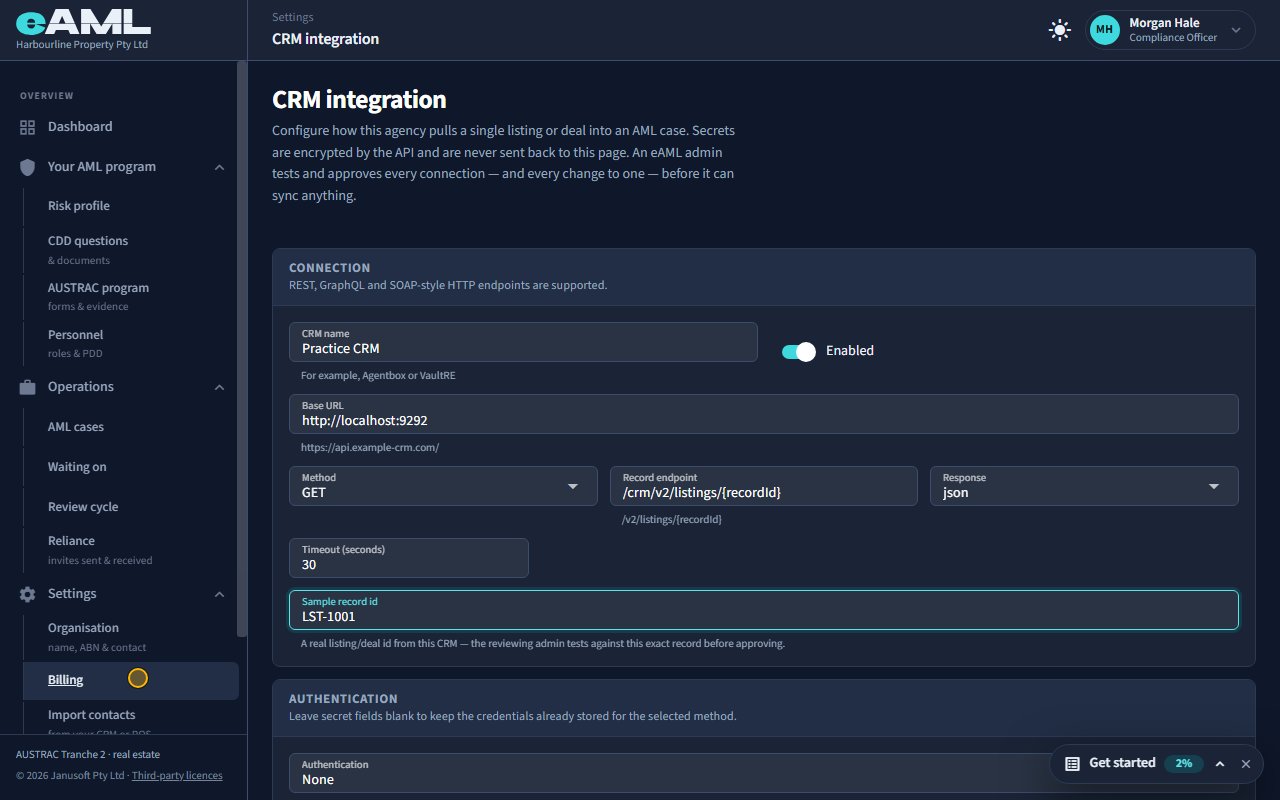
Watch: Connect your CRMGuide step: Connect your CRMWatch: Connect your CRMGuide step: Connect your CRMWatch: Connect your CRMGuide step: Connect your CRMWatch: Connect your CRMGuide: Connect your CRM
Why is my CRM connection waiting for approval?
Real estate
Every CRM connection, and every later change to one, is tested and approved by an eAML administrator before anything can sync from it: that is a deliberate check, not a fault. The banner at the top of CRM integration says where it is (awaiting review, approved, or rejected with the reason). The administrator tests with the sample record id you entered, so make sure that id is real and that the connection answers for it. If it is rejected, fix what the reason names and save again.
- Open Settings, then CRM integration and read the banner.
- If it is awaiting review, no action is needed on your side.
- If it was rejected, correct the setting named in the reason and select Save connection.
Watch: Connect your CRMGuide step: Connect your CRMWatch: Connect your CRMGuide step: Connect your CRMWatch: Connect your CRMGuide: Connect your CRM
How do I pull a listing by address into a case?
Real estate
On the case’s Property details tab, make sure the property address is filled in, then select Pull from CRM. eAML searches your CRM for that address; if more than one listing matches you choose which. A review then shows every field that would change, from what is on the case to what the CRM says, and nothing is written until you select Apply. The button appears only when the connection is approved, enabled, and has a search endpoint set up; with only a record endpoint, use Sync with CRM and enter the record id.
- Open the case and its Property details tab, and check the property address.
- Select Pull from CRM.
- If asked Which listing?, choose the right one.
- Review before pulling in: read what will change.
- Select Apply. The case then shows CRM synced, with the date.
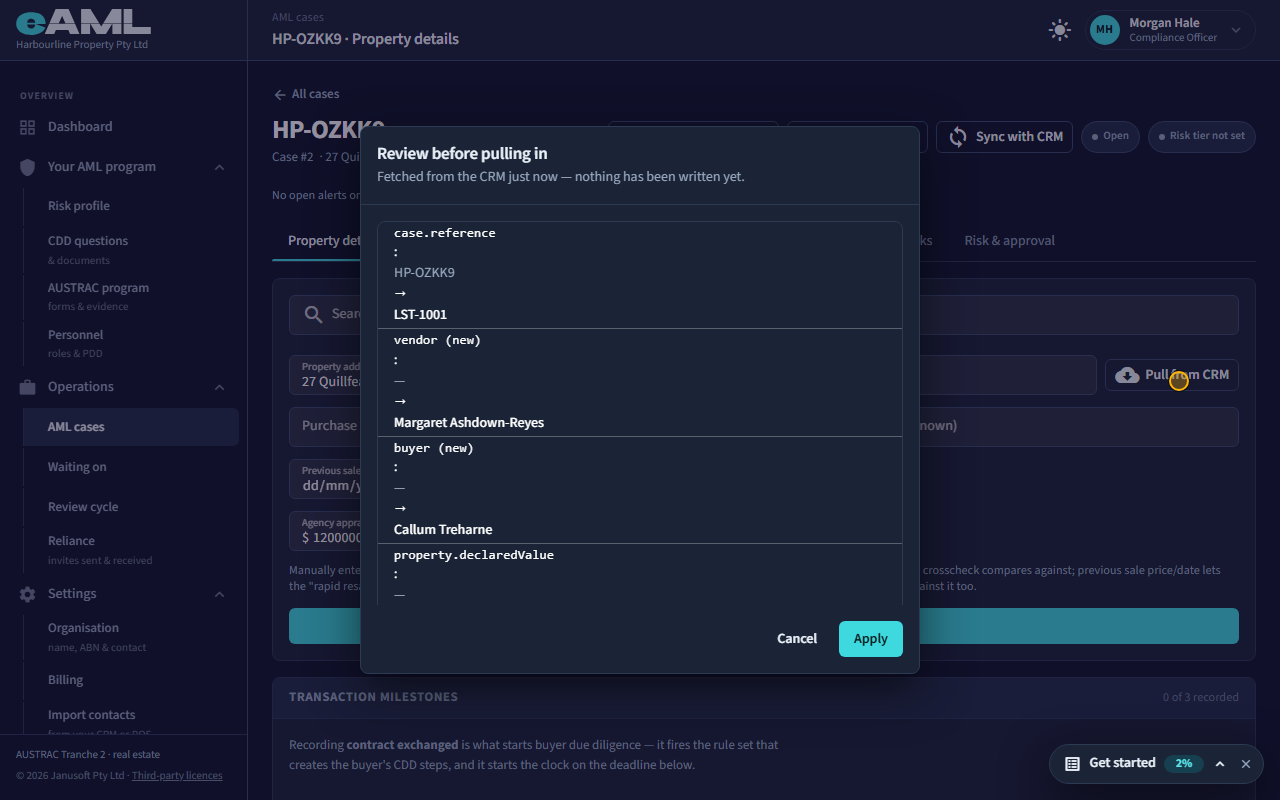
Watch: Connect your CRMGuide step: Connect your CRMWatch: Connect your CRMGuide: Connect your CRM
What does eAML read from Xero or MYOB, and does it change my books?
Accounting
eAML reads a client’s bank transactions, and their invoices and bills, so it can flag the patterns AML/CTF cares about: large cash deposits, cash just under $10,000, and money passed straight through. It also reads the organisation’s name and registration numbers so it can check that the file is the client’s. It only reads: eAML never changes anything in your client’s books. It never sees the sign-in password, only the access Xero or MYOB hands back, which the client can withdraw at any time.
- Open Settings, then Accounting software.
- Select Connect Xero (or Connect MYOB) and sign in on the software’s own page.
- Choose the organisation or company file to share and allow access.
- Link the file to the client, then select Read transactions.
- Each connected file is billed for every month it was connected, as an add-on to your plan. MYOB connects one company file at a time and needs an administrator of that file.
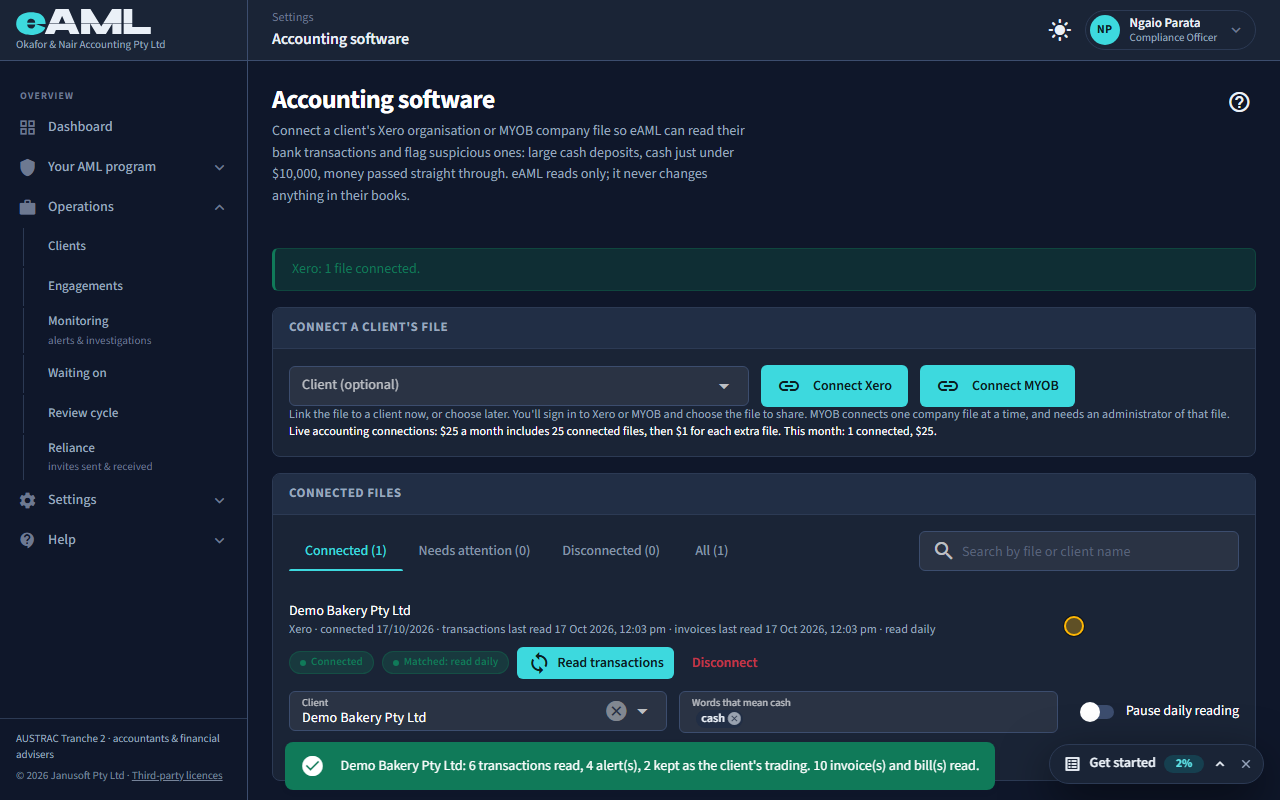
Watch: Connect Xero or MYOBGuide step: Connect Xero or MYOBWatch: Connect Xero or MYOBGuide step: Connect Xero or MYOBWatch: Connect Xero or MYOBGuide: Connect Xero or MYOB
It says invoices are not read from this file.
Accounting
The file was connected before eAML asked Xero or MYOB for permission to read invoices and bills, so it only has permission for bank transactions. Connect the file again to include them: on the file’s row select Connect again and approve the extra access. Bank transactions keep being read, and nothing already read is lost.
- Open Settings, then Accounting software and find the file.
- Select Connect again.
- Sign in on Xero’s (or MYOB’s) page and approve the access, including invoices.
- Select Read transactions to read invoices and bills.
Watch: Connect Xero or MYOBGuide step: Connect Xero or MYOBWatch: Connect Xero or MYOBGuide: Connect Xero or MYOB
What are "cash words", and how do I pause reading?
Accounting
Cash words are the words eAML looks for to decide a transaction was physical cash. Xero has no payment method, so a transaction counts as cash when one of the words is in its reference, description or bank account name: “cash” by default, and you can add the way your client writes it (for example “till”). MYOB’s own Cash payment method counts as cash too. Pause daily reading stops eAML’s daily automatic read of that file without disconnecting it; the Read transactions button still works.
- Open Settings, then Accounting software and find the file.
- Under Words that mean cash, type a word and press Enter to add it.
- To stop the daily read, switch on Pause daily reading. Switch it off to resume.
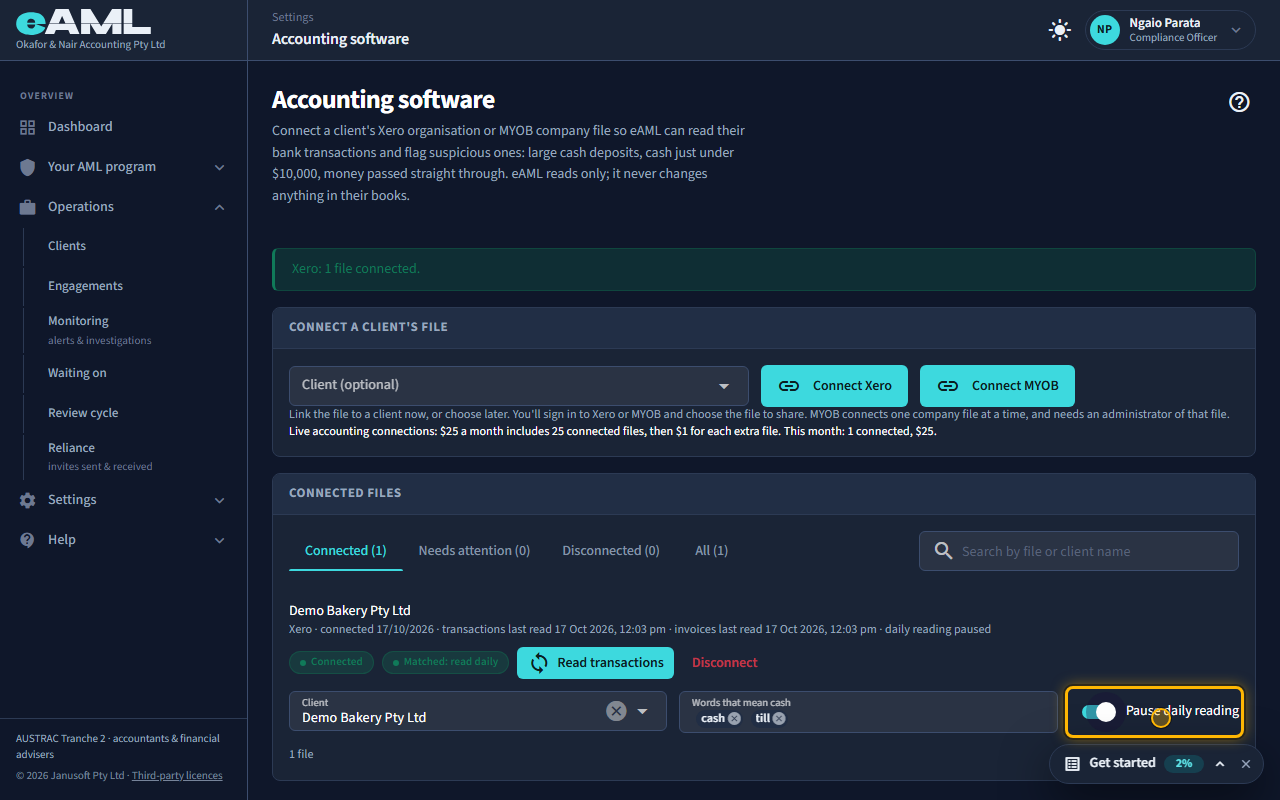
Watch: Connect Xero or MYOBGuide step: Connect Xero or MYOBWatch: Connect Xero or MYOBGuide: Connect Xero or MYOB
How do I import my client list? Which columns do I need?
Export your client list from your practice software, CRM or point of sale as a CSV (up to 10 MB or 50,000 rows), then use Settings, Import clients (Import customers for a jeweller). The only thing every row needs is a name: first and last name, one full-name column, or a business name. A row with no name is skipped. Also match a customer number (so a later export updates people instead of adding them again) and a date of birth (you will need it before their ID check). Email, mobile, ABN, ACN and address are optional.
- Open Settings, then Import clients.
- Select Choose your client file and pick the CSV.
- Check the matched columns, and match any that are not (set the date order if needed).
- Select Next: review, read the summary, and name the layout so it is remembered.
- Select the Import button.
- Xero, MYOB and QuickBooks exports are recognised automatically.
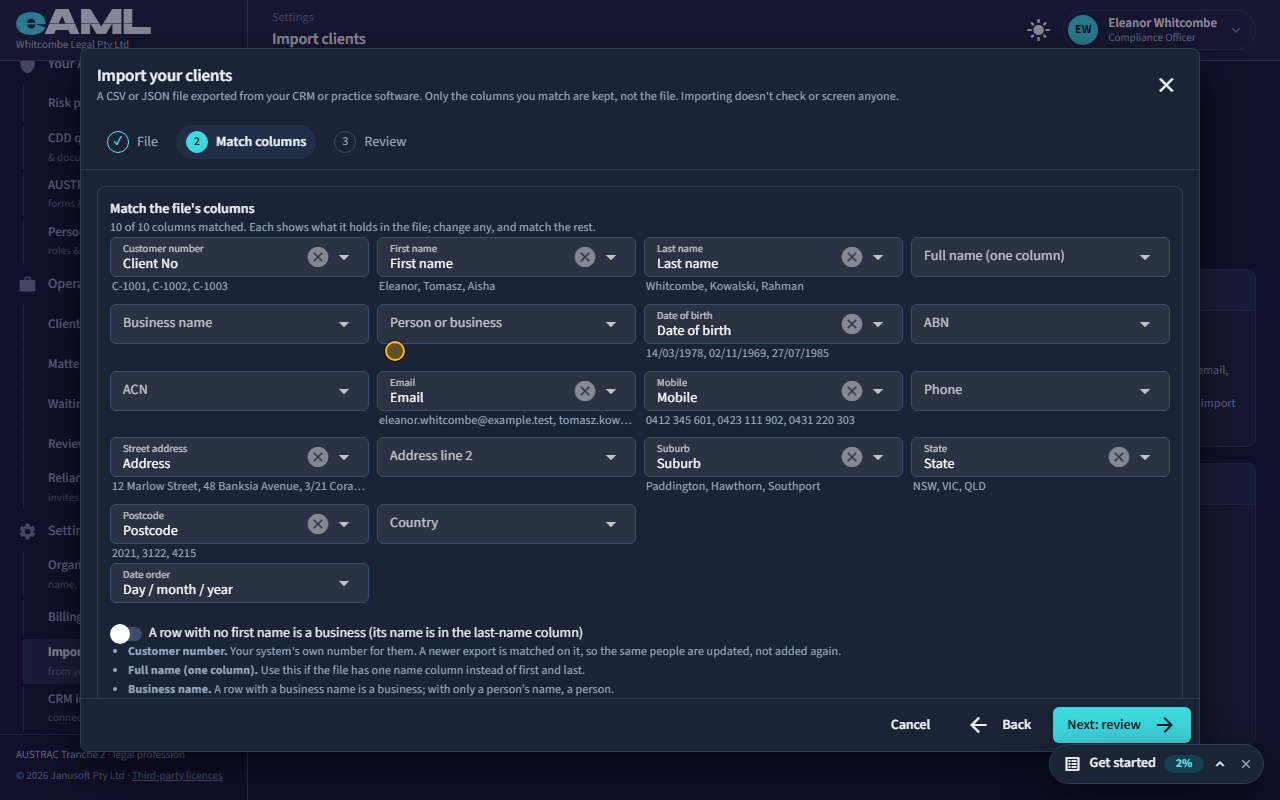
Watch: Import your client listGuide step: Import your client listWatch: Import your client listGuide step: Import your client listWatch: Import your client listGuide: Import your client list
I imported again and there are duplicates.
People are recognised by their customer number first, then by name and date of birth. If the file you imported had no customer number matched (or your system gave people new numbers), and a row has no date of birth, eAML cannot tell it is the same person and adds them again. Undo the import (Settings, Import clients, Undo this import), then import again with the customer number column matched.
- Open Settings, then Import clients.
- Under Your imports, select Undo this import on the file that added the duplicates.
- Choose the file again, and in Match columns set Customer number to your system’s client number column.
- Save the layout and import.
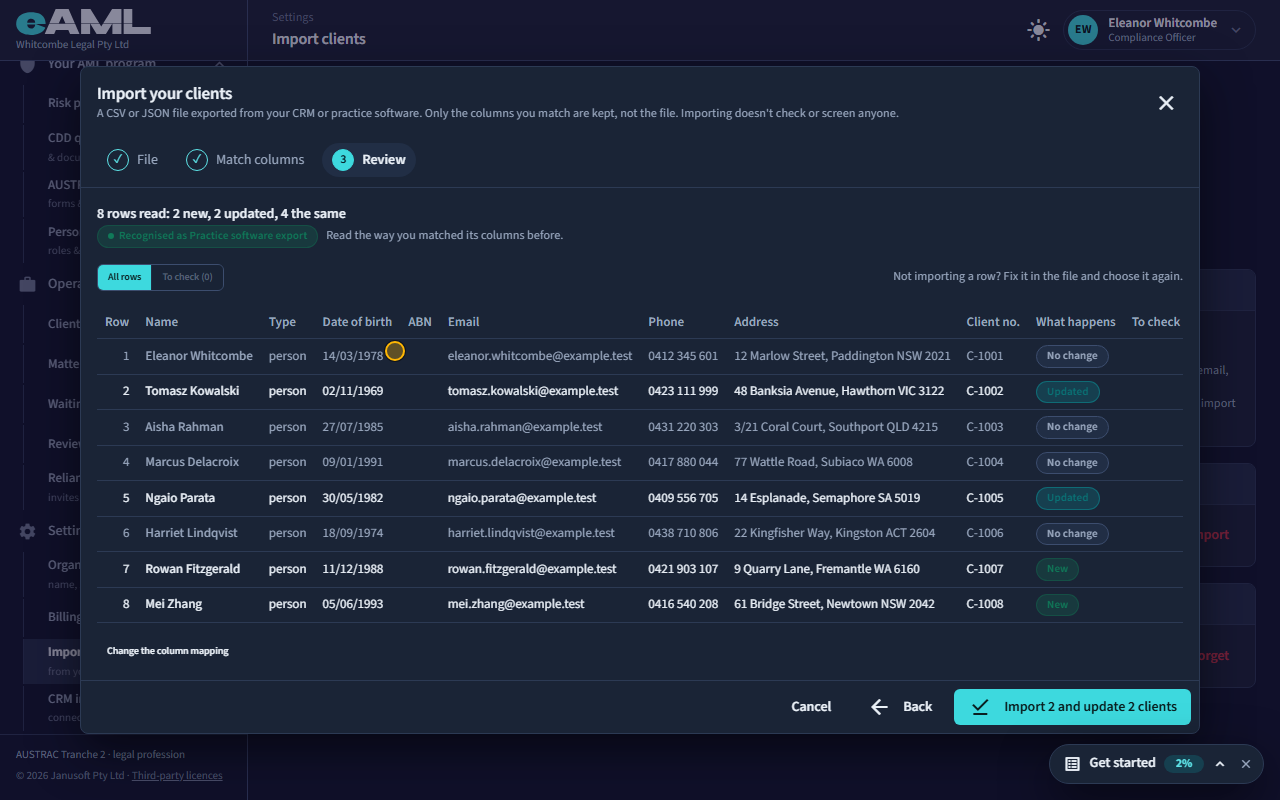
Watch: Import your client listGuide step: Import your client listWatch: Import your client listGuide step: Import your client listWatch: Import your client listGuide: Import your client list
Are imported people screened?
No. Importing does not check or screen anyone: it only fills your list so you can pick people instead of typing them again. A check starts when you add the person to a matter (or, for a jeweller, to a sale).
Watch: Import your client listGuide step: Import your client listWatch: Import your client listGuide: Import your client list
By business type
Who is the vendor and who is the buyer, and do I need both on every case?
Real estate
The vendor is the seller of the property and the buyer is the purchaser. On an agency’s case each has its own tab, card and checks: the vendor’s start as soon as the vendor is added (once the agency’s appraisal is recorded), the buyer’s when contracts exchange. eAML does not force a case to have both: it works on the people you record, and the case can be rated and approved once every step for those people is finished. Which people your business has to identify for a sale is a matter for your AML/CTF program, so record every person it says you must; the buyer can be filled in before exchange, but nothing starts until the Contract exchanged date is recorded.
- Add the vendor on the Vendor tab and the buyer on the Buyer tab (Add vendor, Add buyer).
- Record Contract exchanged on Property details when it happens: that starts the buyer’s checks.
- Check your AML/CTF program (Your AML program) for who it says must be identified on a sale.
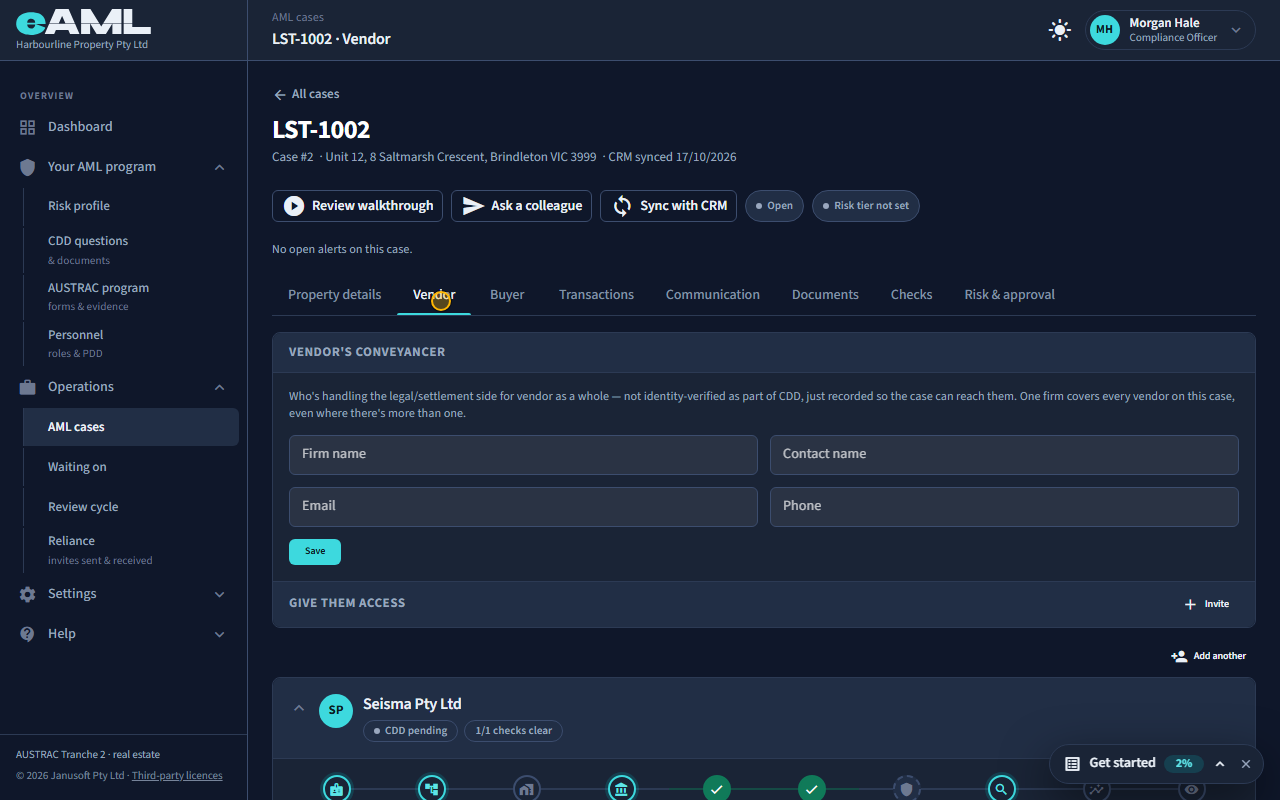
Watch: Real estate agency: a sale from start to finishGuide step: Real estate agency: a sale from start to finishWatch: Real estate agency: a sale from start to finishGuide step: Real estate agency: a sale from start to finishWatch: Real estate agency: a sale from start to finishGuide: Real estate agency: a sale from start to finish
When do I have to check the buyer?
Real estate
The buyer’s checks start when you record Contract exchanged on the Property details tab. AUSTRAC’s rules let the checks on the side you are not acting for be delayed until then, with a deadline: 28 days after exchange, or three days before the initially agreed settlement date if that is sooner. The case shows the countdown (Buyer CDD due in 28 days, and so on) and the Dashboard lists it under Needs attention as it nears; it stops once every step for the buyer is finished. The same deadline applies to a buyer who is a conveyancer’s or a lawyer’s client.
- Open Property details and select Record beside Contract exchanged; enter the date.
- Record the agreed settlement date as well, so the deadline is exact.
- Open the Buyer tab and finish the buyer’s steps before the date the case shows.
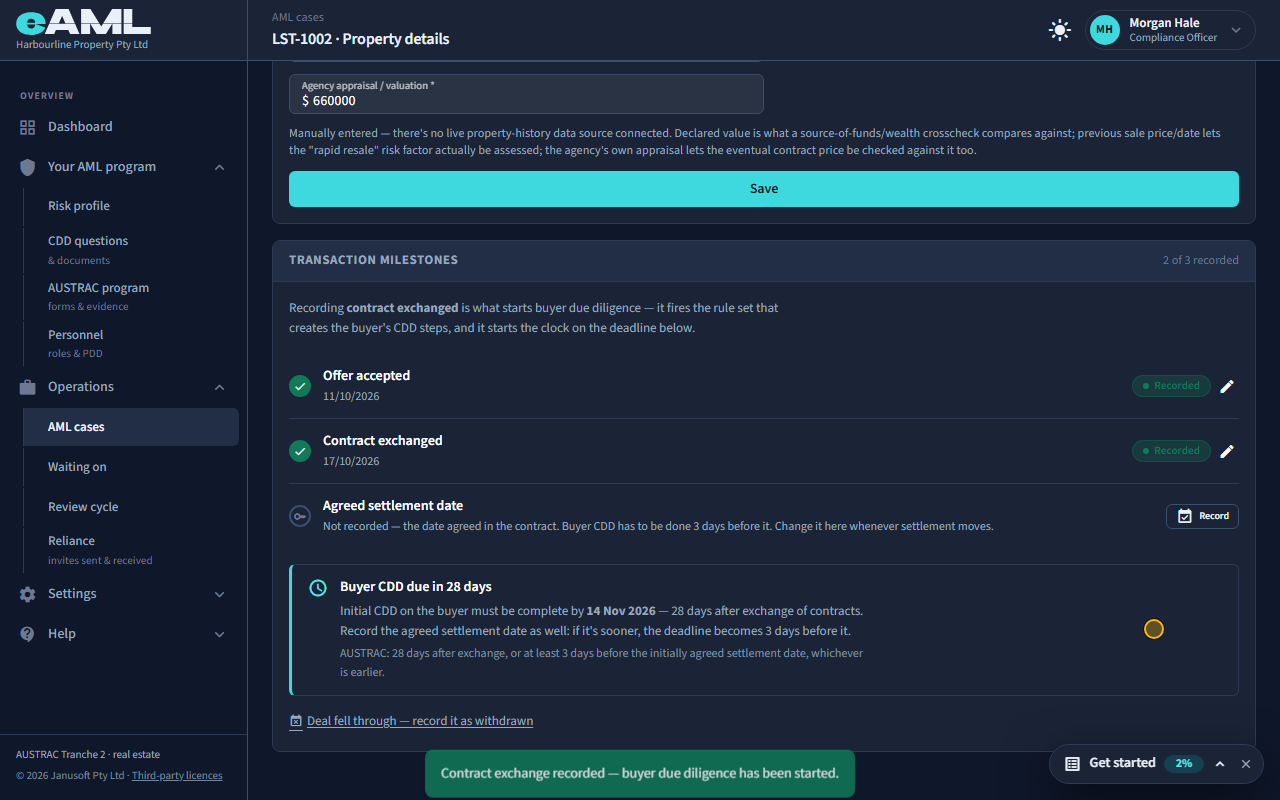
Watch: Real estate agency: a sale from start to finishGuide step: Real estate agency: a sale from start to finishWatch: Real estate agency: a sale from start to finishGuide step: Real estate agency: a sale from start to finishWatch: Real estate agency: a sale from start to finishGuide: Real estate agency: a sale from start to finish
What is the difference between the agency’s and the conveyancer’s side of a case?
Real estateConveyancing
In a sale the agency and the conveyancer are separate reporting entities, each with its own case and its own due diligence. On the agency’s case both sides are recorded, the vendor (its client) and the buyer, each with the contact for the firm handling that side. On a conveyancer’s matter the client is the side the firm acts for (the Acting for badge says which), the other side is recorded but never checked, and the selling agency is recorded as well, before the client can be added. They can share: the agency invites a side’s conveyancer from the Buyer or Vendor tab (Give them access), or the conveyancer invites the selling agency from Property details (Reliance with the agency). The invited firm gets a read-only view of that one side only, with no property tab, no other side and nothing to edit, and each firm’s risk rating, approvals and notes stay its own.
- On an agency’s case, record each side’s conveyancer on the Vendor or Buyer tab.
- To share a side, select Invite under Give them access and send the invitation.
- On a conveyancer’s matter, choose Acting for at the top, record the selling agency on Property details, and add your client.
- To share with the agency, select Invite under Reliance with the agency.
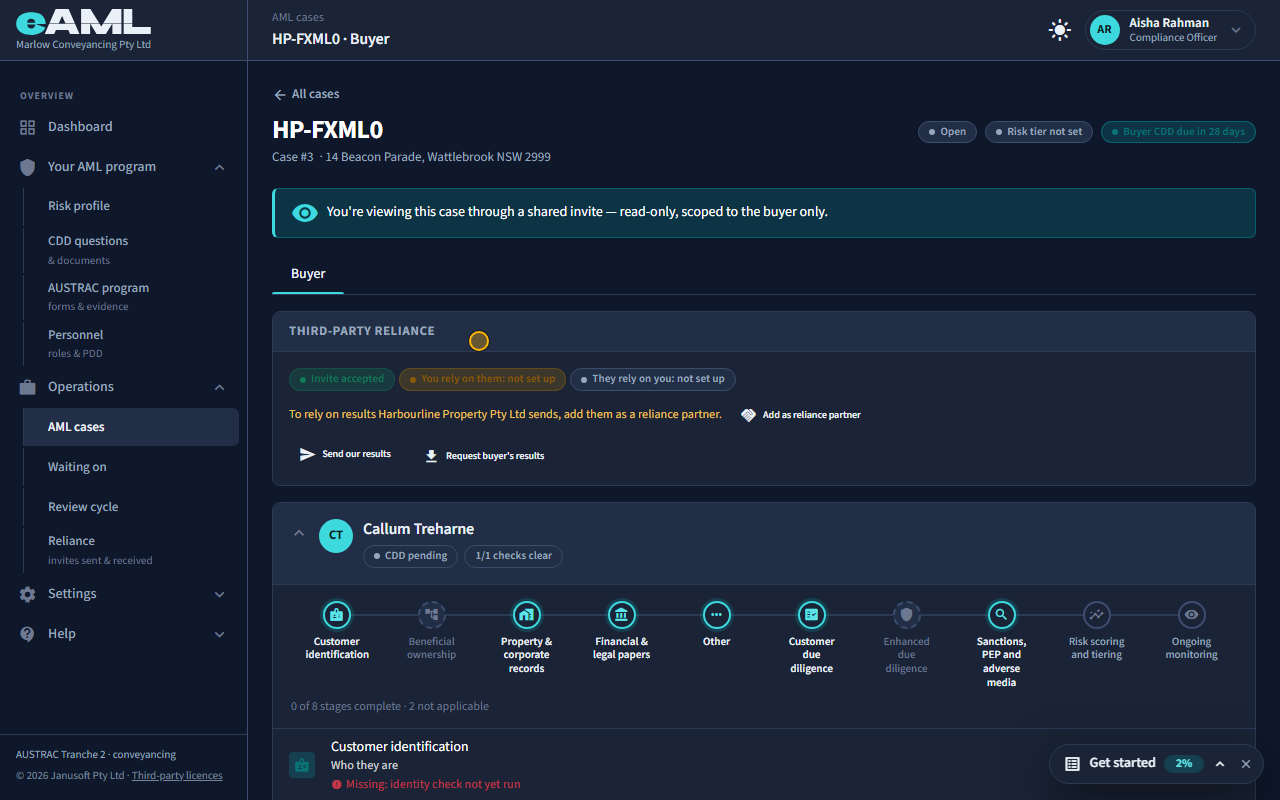
Watch: Sharing a case with another firm (reliance)Guide step: Sharing a case with another firm (reliance)Watch: Sharing a case with another firm (reliance)Guide step: Sharing a case with another firm (reliance)Watch: Conveyancer: acting for the seller or the buyerGuide step: Conveyancer: acting for the seller or the buyerWatch: Conveyancer: acting for the seller or the buyerGuide step: Conveyancer: acting for the seller or the buyerWatch: Sharing a case with another firm (reliance)Guide: Sharing a case with another firm (reliance)
What is "acting for", and why do I have to choose a side?
Conveyancing
In a conveyancing matter your client is one person, the vendor or the buyer, and Acting for says which. It decides who is checked: your client is checked like any customer, and the other side is recorded as the other side of the matter and is never checked, because they are not your customer. You choose it when you open the matter, by selecting The vendor or The buyer in the New matter dialog. It then shows as Acting for: Vendor (or Buyer) at the top of the matter, and the other side’s tab is headed Buyer · other side (or Vendor · other side). You can change it from that badge while the matter is open; once it is closed it cannot be changed.
- Open Matters and select New matter, then enter a reference.
- Under Who are you acting for?, select The vendor or The buyer.
- Select Create case. To change the side later, use the Acting for badge at the top of the matter.
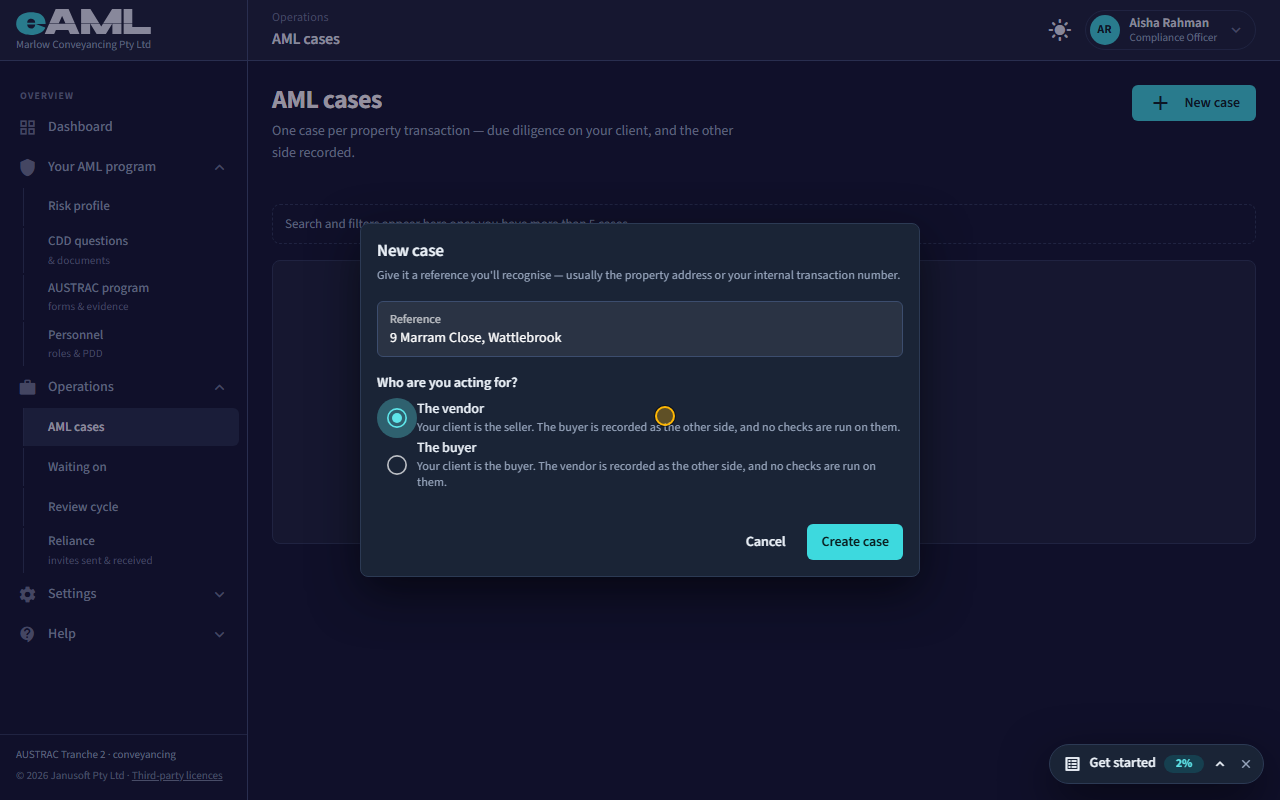
Watch: Conveyancer: acting for the seller or the buyerGuide step: Conveyancer: acting for the seller or the buyerWatch: Conveyancer: acting for the seller or the buyerGuide: Conveyancer: acting for the seller or the buyer
What happens to the other side of the transaction?
Conveyancing
The other side is recorded, not checked. Select Add buyer (or Add vendor, if you act for the buyer) on the tab headed Buyer · other side, and record who they are and where; eAML asks for nothing more and runs no identity checks, screening or due diligence on them. The firm acting for them can be recorded in the Buyer’s conveyancer card on the same tab. Recording contract exchanged starts no due diligence on them: it only marks the milestone. If anything about them looks unusual, reflect it in the matter’s risk tier on the Risk & approval tab. If you actually act for them, change the Acting for badge and the sides swap.
- Open the Buyer · other side tab (or Vendor · other side).
- Select Add buyer, and record their name and country.
- Record the firm acting for them in the Buyer’s conveyancer card, if you deal with one.
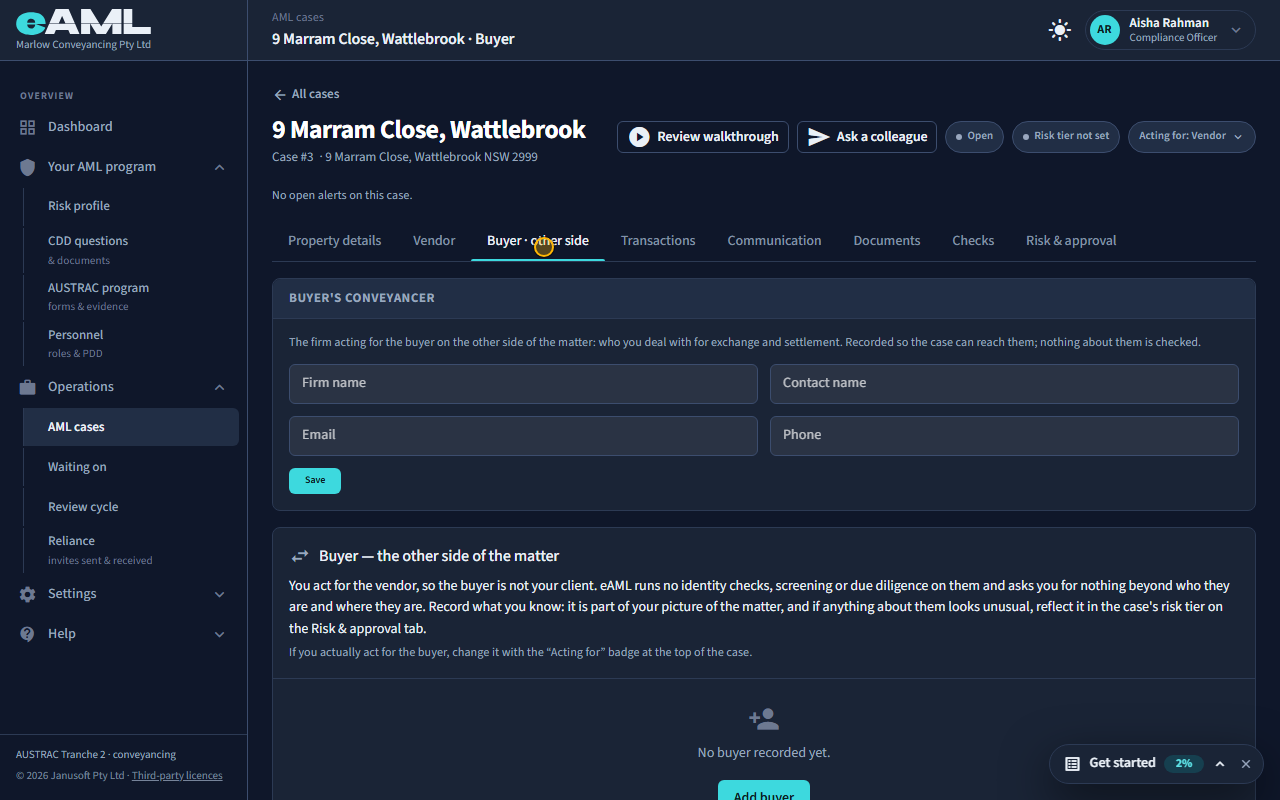
Watch: Conveyancer: acting for the seller or the buyerGuide step: Conveyancer: acting for the seller or the buyerWatch: Conveyancer: acting for the seller or the buyerGuide: Conveyancer: acting for the seller or the buyer
What is an engagement, and how is it different from a case?
Accounting
An engagement is the work you do for a client under one designated service. In a practice that keeps a client register (accountants and financial advisers) the client is the record that lasts and each engagement hangs off it: the client’s identity and ownership are checked once and reused by later engagements, and the client’s risk is assessed across all of them. In a case-based business (a real estate agency, a conveyancer, a jeweller) the case is the sale or matter and its people, and they are checked on each case. Start an engagement with New engagement on the client’s page: choose the designated service, give it a reference, and select Start engagement. The client is added to it already, with what has been checked.
- Open Clients and select the client, or add them with New client first.
- Select New engagement.
- Choose the designated service and enter a reference, then select Start engagement.
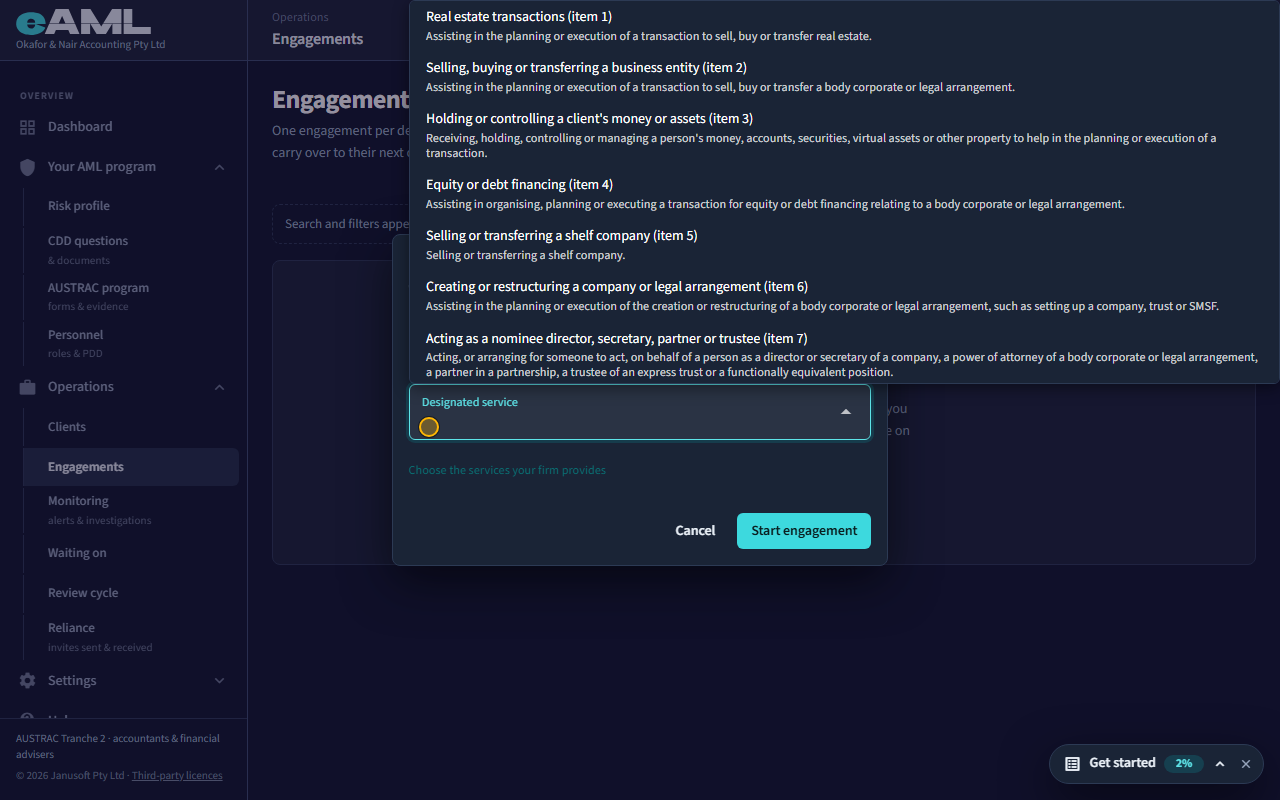
Watch: Accounting practice: a client and an engagementGuide step: Accounting practice: a client and an engagementWatch: Accounting practice: a client and an engagementGuide: Accounting practice: a client and an engagement
What is the client register, and how is a client’s risk rating worked out?
Accounting
The client register is the practice’s list of everyone it provides a designated service to, one record per client (Clients in the menu): tax returns, bookkeeping and audit alone are not designated services, and those clients are not on it. A client’s risk is one tier across all its engagements, closed ones included, and what monitoring has seen since: eAML carries forward what each engagement found and adds what only the client shows, such as its investigations and alerts, its ownership structure, its trading, how new it is, and its industry and countries. The Risk card on the client’s page shows the tier and each reason with its own tier. An officer can set it by hand with a reason: raising it applies at once, lowering it below the assessment waits for a second compliance officer or senior manager to approve (not in a one-person firm), and a new finding that raises the assessment cancels a pending lowering. The tier sets the next periodic review: high every 12 months, medium every 24, low every 36.
- Open Clients and select the client.
- Read the Risk card: the tier, and the reasons behind it.
- Select Change to set a tier by hand, with the reason.
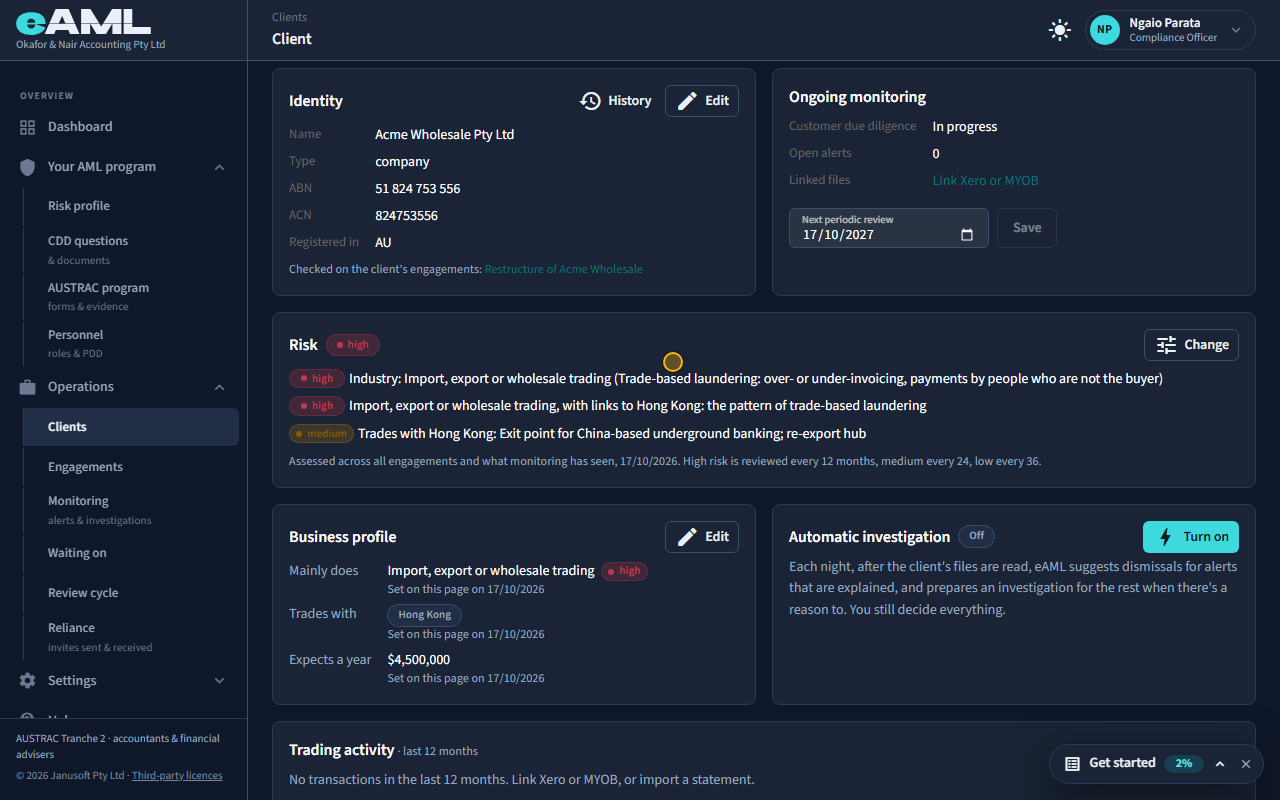
Watch: Accounting practice: a client and an engagementGuide step: Accounting practice: a client and an engagementWatch: Accounting practice: a client and an engagementGuide step: Accounting practice: a client and an engagementWatch: Accounting practice: a client and an engagementGuide: Accounting practice: a client and an engagement
What are industry and trade countries used for?
Accounting
They are two of the facts a client is rated on. What the business mainly does is matched against a list of industries with a risk rating each: trades AUSTRAC names as high risk for trade-based laundering (import, export or wholesale, freight and customs, certain goods), cash-heavy and high-value businesses and the like, and the reason is shown on the Risk card. The countries it buys from, sells to or gets paid from are matched against country lists: Australian sanctions regimes rate high, and places of concern (underground banking, offshore company centres and similar) rate medium. An industry of concern together with links to a country of concern is rated higher still. Set them in the client’s Business profile: select Edit, choose them and save; the client’s risk is reassessed. An answer recorded later on an engagement takes over from what you set.
- Open the client’s page and find Business profile.
- Select Edit and choose what the business mainly does, the countries, and the turnover it expects a year.
- Select Save and read the Risk card: it shows what changed and why.
Watch: Accounting practice: a client and an engagementGuide step: Accounting practice: a client and an engagementWatch: Accounting practice: a client and an engagementGuide: Accounting practice: a client and an engagement
Which legal services are designated services?
Legal
A legal practice’s designated services are the table 6 services: (1) real estate transactions, including conveyancing (the first in the list), (2) selling, buying or transferring a business entity, (3) holding or controlling a client’s money or assets, (4) equity or debt financing, (5) selling or transferring a shelf company, (6) creating or restructuring a company or legal arrangement, (7) acting as a nominee director, secretary, partner, trustee or corporate attorney, (8) acting as a nominee shareholder, and (9) providing a registered office address. Other legal work, such as general advice that does not advance a transaction, is not a designated service. Choose which one a matter is for when you start it (New matter, then Designated service), and tick the services your firm provides under Choose the services your firm provides.
- Open Matters and select New matter, then enter a reference.
- Open Designated service and choose the one this matter is for.
- Select Start matter. To change which services your firm offers, select Choose the services your firm provides.
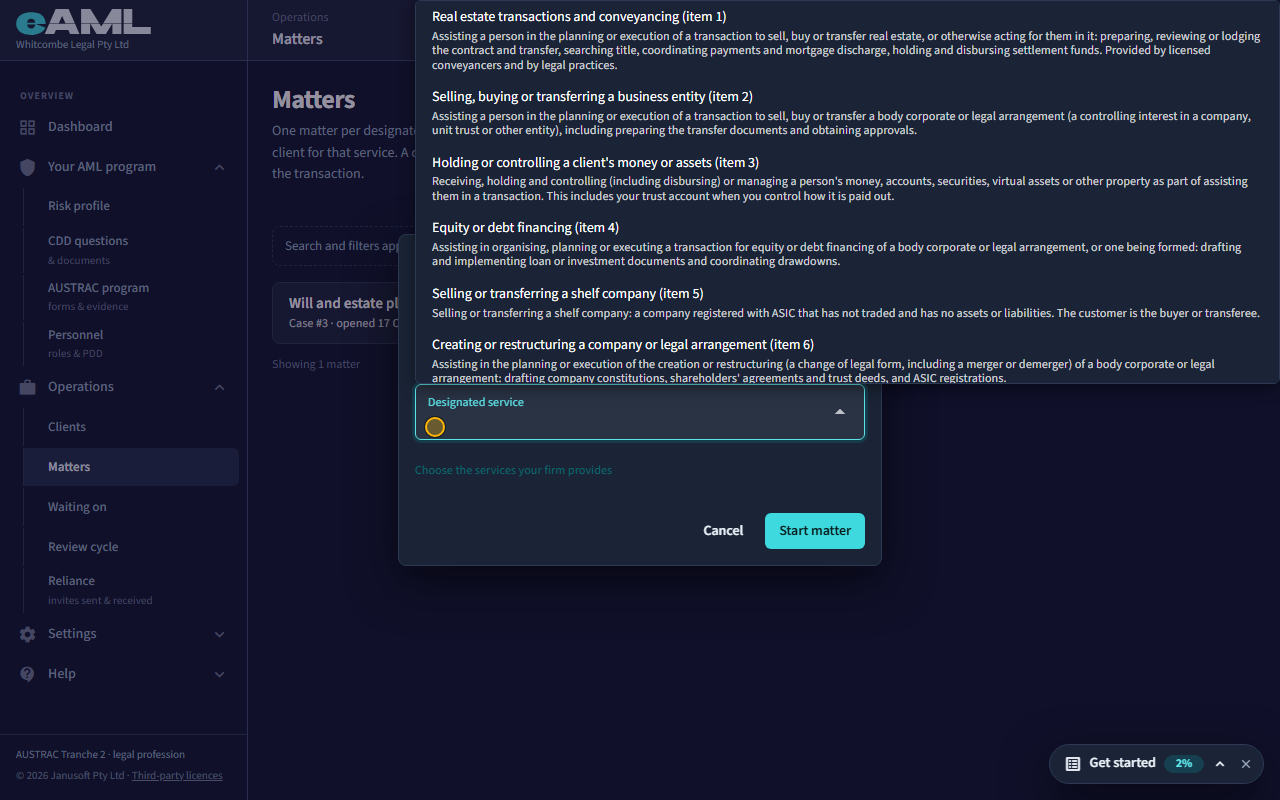
Watch: Legal practice: a matter and its clientGuide step: Legal practice: a matter and its clientWatch: Legal practice: a matter and its clientGuide: Legal practice: a matter and its client
How do I reuse an earlier client’s details and checks?
LegalJeweller
Start the new matter as usual and, on the Client tab, select Add client. The first choice is From an earlier client: search by name, email, phone or ABN, pick them, and their details are copied into the form so nobody types them again; select Add. The client’s card then says when they were last checked and offers to use those results here instead of checking again: select Use these results. A client is found as the same person by name and date of birth, or the same business by ABN, across your matters. If your firm keeps its clients in another system, Import your client list brings them in so they can be picked here too.
- Start the new matter and open its Client tab.
- Select Add client and choose From an earlier client; search and pick them.
- Select Add, then Use these results on the banner that offers their earlier checks.
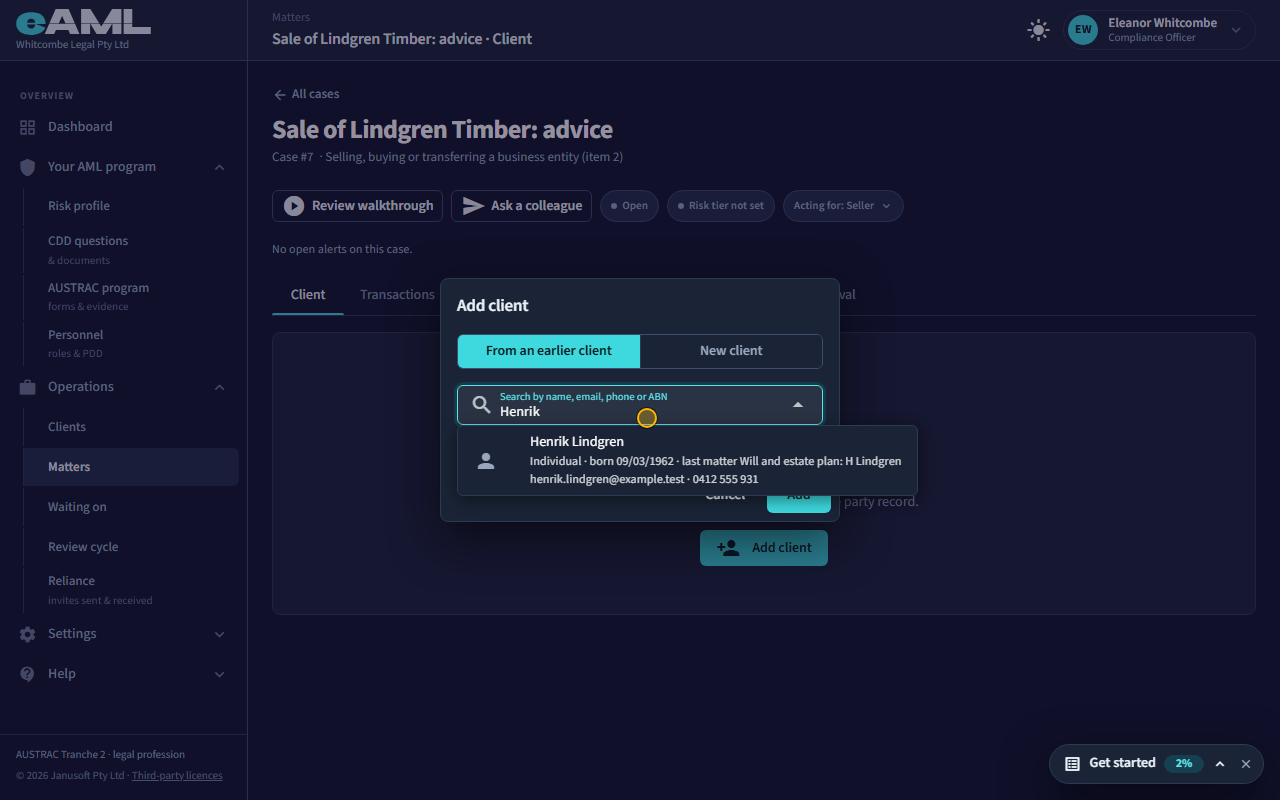
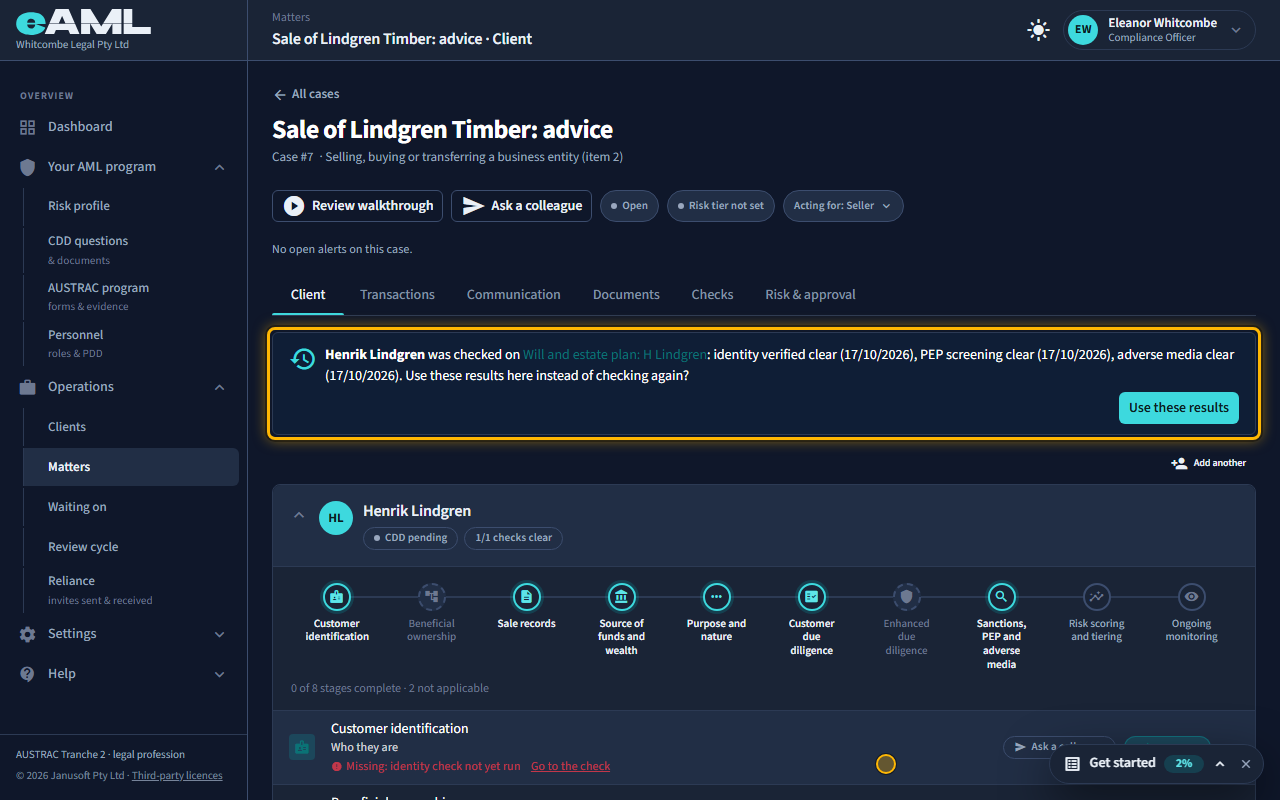
Watch: Legal practice: a matter and its clientGuide step: Legal practice: a matter and its clientWatch: Legal practice: a matter and its clientGuide: Legal practice: a matter and its client
Do I have to check a client again for a second matter?
LegalJeweller
Not if the earlier checks are recent enough. An identity check is good for 12 months and a screening for 30 days. When the client is added to a new matter, their card shows when they were last checked and offers to use those results here; select Use these results and the new matter has them. Anything older says so (older than 12 months: verify again; older than 30 days: screen again) and you do it again. You are still the one who decides the checks are enough for the matter in hand. A client who was never checked, or is a different person or business, is checked as new.
- Add the client to the new matter, From an earlier client.
- Read the banner on their card: what was checked, and when.
- Select Use these results, and repeat any check it says is out of date.
Watch: Legal practice: a matter and its clientGuide step: Legal practice: a matter and its clientWatch: Legal practice: a matter and its clientGuide: Legal practice: a matter and its client
When does customer due diligence start on a sale?
Jeweller
A jeweller’s customer due diligence starts when a sale becomes a designated service: when a customer’s physical cash and virtual-asset payments reach $10,000 (in one payment or several linked ones, counted together across all your cases), or when bullion of $5,000 or more is bought or sold, however it is paid. Until then the case says Not a designated service yet, and nobody has to be checked. At that moment every case the payments touch says A designated service since the date, with the note that the customer’s due diligence has started, and the customer’s identity, screening and questions appear as steps on those cases.
- Record each payment as it happens on the case’s Transactions tab.
- Watch the line at the top of the case: Not a designated service yet changes to A designated service since the date.
- From then on, check the customer’s identity and screening (T22, T23).
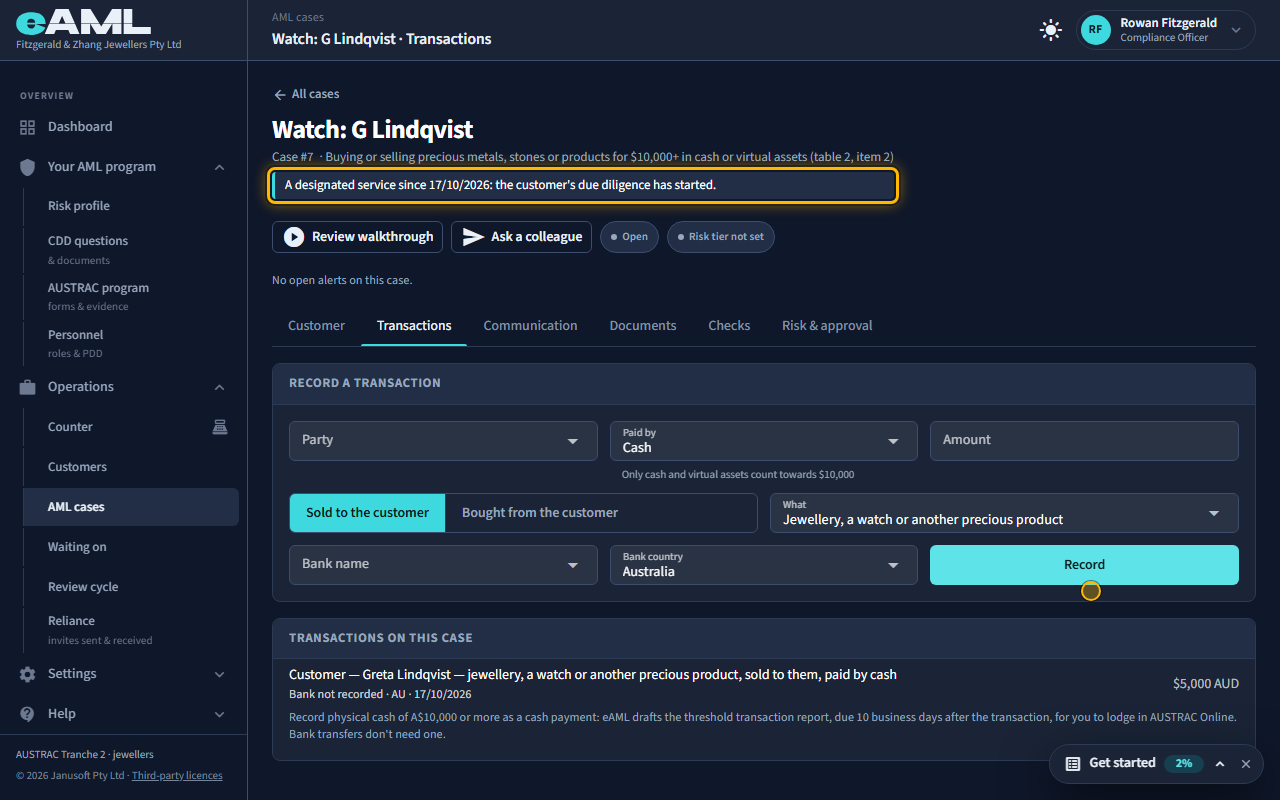
Watch: Jewellery dealer: a sale and the $10,000 thresholdGuide step: Jewellery dealer: a sale and the $10,000 thresholdWatch: Jewellery dealer: a sale and the $10,000 thresholdGuide step: Jewellery dealer: a sale and the $10,000 thresholdWatch: Jewellery dealer: a sale and the $10,000 thresholdGuide: Jewellery dealer: a sale and the $10,000 threshold
Do card and bank-transfer payments count towards the threshold?
Jeweller
No. For precious metals, stones and products only physical cash and virtual assets (crypto) count towards the $10,000: card, bank transfer, BPAY and PayPal do not, however large they are. Record them anyway, with Paid by set to Card, bank transfer, BPAY or PayPal, so the sale is complete. The one exception is bullion: bullion bought or sold for $5,000 or more is a designated service however it is paid.
- On the Transactions tab, choose the customer and set Paid by to the way they paid.
- Enter the amount and select Record: only Cash and Virtual asset count towards the threshold.
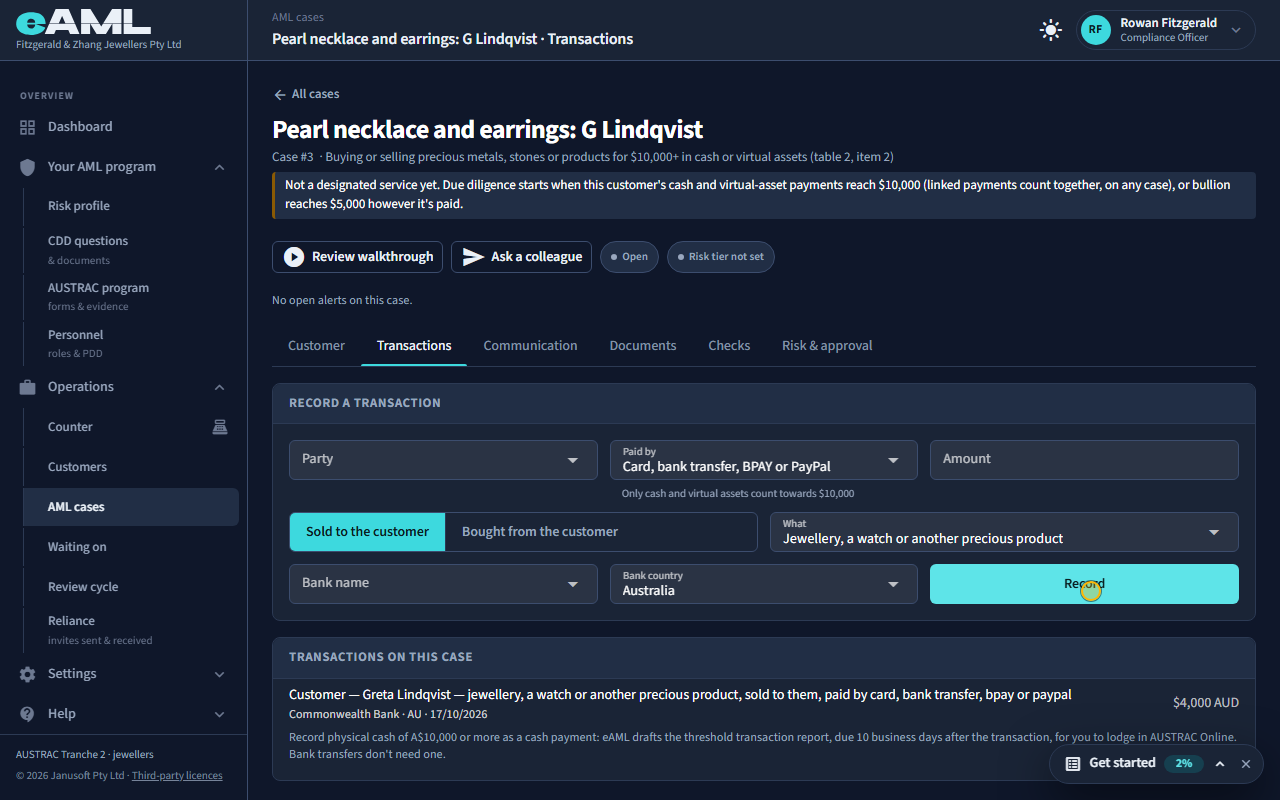
Watch: Jewellery dealer: a sale and the $10,000 thresholdGuide step: Jewellery dealer: a sale and the $10,000 thresholdWatch: Jewellery dealer: a sale and the $10,000 thresholdGuide step: Jewellery dealer: a sale and the $10,000 thresholdWatch: Jewellery dealer: a sale and the $10,000 thresholdGuide: Jewellery dealer: a sale and the $10,000 threshold
How are linked sales added together?
Jeweller
eAML adds up a customer’s cash and virtual-asset payments across all your cases, not one case at a time. The same customer is the same person (name and date of birth) or the same business (ABN or ACN) on any of your cases, and payments by one customer that are close together, within a week by default, are linked. So $6,000 in cash on one sale and $5,000 on another a few days later is a linked $11,000: the sale is a designated service, and every case the payments touch says so. To make sure the second sale is recognised as the same customer, add them with From an earlier customer rather than typing them again. Payments just under the threshold ($8,500 or more in cash or virtual assets) are flagged, and two within 30 days are flagged as possible structuring.
- Start the second sale and add the customer with From an earlier customer.
- Record the payment on the second case.
- Read the line at the top of each case: it says when the customer’s payments reached the threshold.
Watch: Jewellery dealer: a sale and the $10,000 thresholdGuide step: Jewellery dealer: a sale and the $10,000 thresholdWatch: Jewellery dealer: a sale and the $10,000 thresholdGuide: Jewellery dealer: a sale and the $10,000 threshold
When something goes wrong
Emails to clients are not arriving.
Check the address first: a mistyped email is the usual cause, and the address is on the person’s card. Ask the person to look in their junk folder for an email from eAML. Then send the form again with Review & send, which creates a fresh link, or copy the link and send it yourself by text or chat: the link is the whole channel, so a form works the same way however it reaches them.
- Correct the email on the person’s card if it is wrong.
- Ask them to check their junk or spam folder.
- Send again with Review & send, or copy the link and send it yourself.
Watch: Sending forms and links to a clientGuide step: Sending forms and links to a clientWatch: Sending forms and links to a clientGuide: Sending forms and links to a client
A check failed with an error. What now?
Read the message shown: it names what went wrong. Common causes are that the person has no email on file (add one before sending the link), that the link was already completed or has expired (resend it with Resend link, which replaces the old one), or that your account cannot pay for the check (see Billing). If the result simply has not appeared, select Check now. If a check still fails with an error you cannot explain, email [email protected] with the case reference and what the message said.
- Read the message on the card or in the notification.
- Fix what it names (an email, a resend, your balance), then try again.
- Select Check now if the result has not appeared.
- If it still fails, email [email protected] with the case reference and the message.
Watch: Verifying someone’s identityGuide step: Verifying someone’s identityWatch: Verifying someone’s identityGuide: Verifying someone’s identity
I get "insufficient wallet balance" when I run a check.
Your prepaid wallet holds less than the check costs, so the check did not run and nothing was charged. The dialog reads Wallet balance is short of the amount this needs, with Top Up Wallet. Select it (or open Billing → Prepaid wallet), choose an amount of at least what is short, and pay by card; then run the check again. Only a compliance officer or a senior manager can top up, so a case worker should ask one of them.
- Select Top Up Wallet in the message, or open Settings → Billing.
- Pay by card for at least the amount short (the minimum is $10).
- Select Run again on the check.
Watch: Billing: plan, prepaid wallet and invoicesGuide step: Billing: plan, prepaid wallet and invoicesWatch: Billing: plan, prepaid wallet and invoicesGuide: Billing: plan, prepaid wallet and invoices
My invitation link has expired.
Invitation links do not expire with time. If the page says the invitation has already been accepted, the person already has an account: they should sign in (and use Forgot password if they need to). If it says declined or revoked, a Compliance Officer or Senior Manager needs to send a new invitation from Personnel, Invite a colleague.
- Open the invitation link and read what the page says.
- Accepted: sign in with the email and password they chose.
- Declined or revoked: on Personnel, select Invite a colleague and send a new invitation.
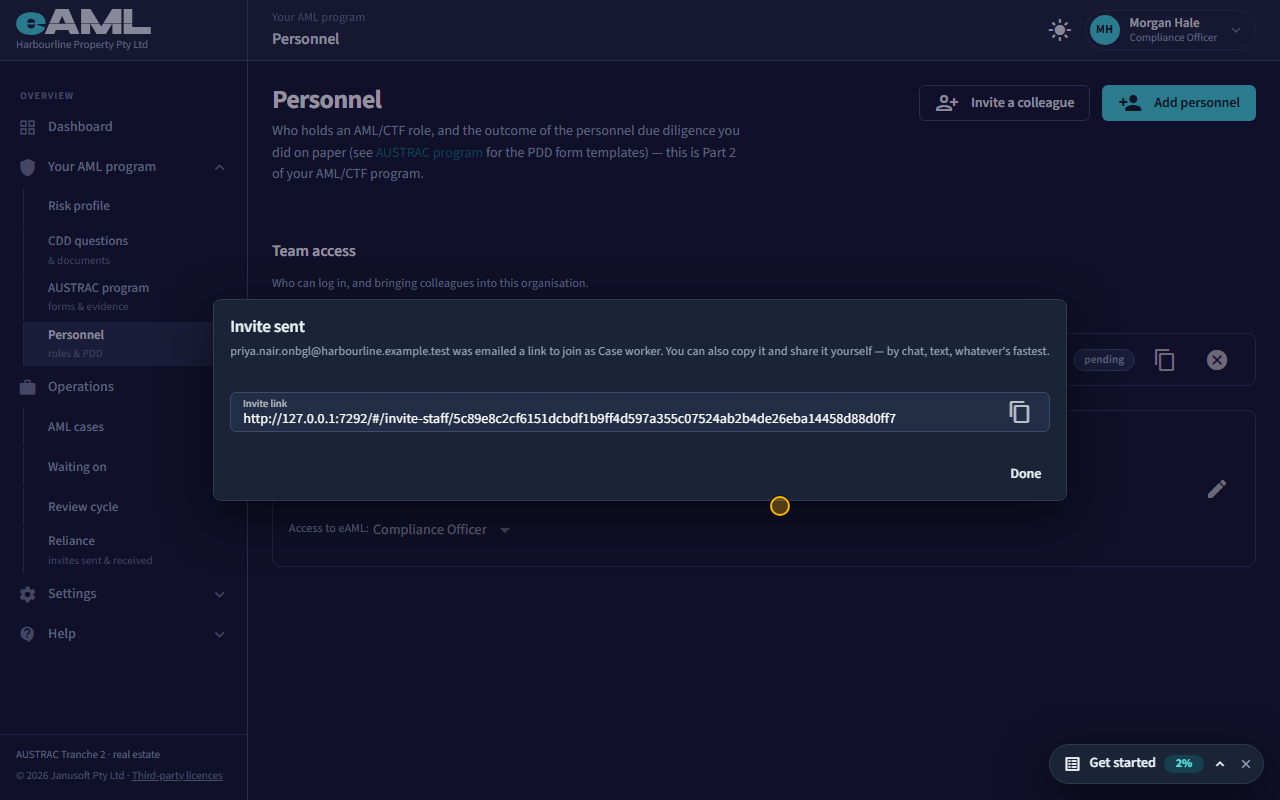
Watch: Your team: personnel, invitations and rolesGuide step: Your team: personnel, invitations and rolesWatch: Your team: personnel, invitations and rolesGuide: Your team: personnel, invitations and roles
I cannot change my own access.
That is by design: nobody can change their own access, which stops someone promoting themselves or locking themselves out. Ask another Compliance Officer or Senior Manager in your firm to change it on the Personnel page. If you are the only person with access, invite a second person with the access you need first.
- Ask a colleague who is a Compliance Officer or Senior Manager.
- They open Personnel, find your row, and choose your new level under Access to eAML.
Watch: Your team: personnel, invitations and rolesGuide step: Your team: personnel, invitations and rolesWatch: Your team: personnel, invitations and rolesGuide: Your team: personnel, invitations and roles
The page looks out of date after an update.
Reload the page (Ctrl+R, or Cmd+R on a Mac). Each time the app loads it checks what your business type includes, so a reload brings the menu and pages up to date after a release. If something still looks wrong after a reload, sign out and in again, and tell us what you saw.
- Reload the page.
- If it still looks out of date, open the account menu, choose Log out, and sign in again.
Watch: Welcome: from payment to your dashboardGuide step: Welcome: from payment to your dashboardWatch: Welcome: from payment to your dashboardGuide: Welcome: from payment to your dashboard
Which browsers and devices are supported?
eAML is a web application: use a current version of Chrome, Edge or Safari on a computer. The jeweller’s counter is built for an iPad in Safari, and can be added to the iPad’s Home Screen. Older browsers are not supported.
- eAML’s own tests run in Chrome, and for the counter in Safari on an iPad.
Watch: Welcome: from payment to your dashboardGuide: Welcome: from payment to your dashboard
How do I contact support, and what should I include?
Email [email protected]. Say which firm you are with, which page you were on and what you were doing, and what you expected to see. Quote the case reference rather than client details, and attach a screenshot if you can.
- Note your firm name and the page you were on.
- Copy the case reference if the problem is on a case (do not send clients’ personal details by email).
- Take a screenshot of the page or the message.
- Email [email protected].
Watch: Welcome: from payment to your dashboardGuide: Welcome: from payment to your dashboard