Guide · T11
Billing: plan, prepaid wallet and invoices
Before you start
- A compliance officer or senior manager (only they see Billing)
- A firm that has run some checks
-
What the Billing page shows Compliance officer
Open Settings → Billing and read the three sections.
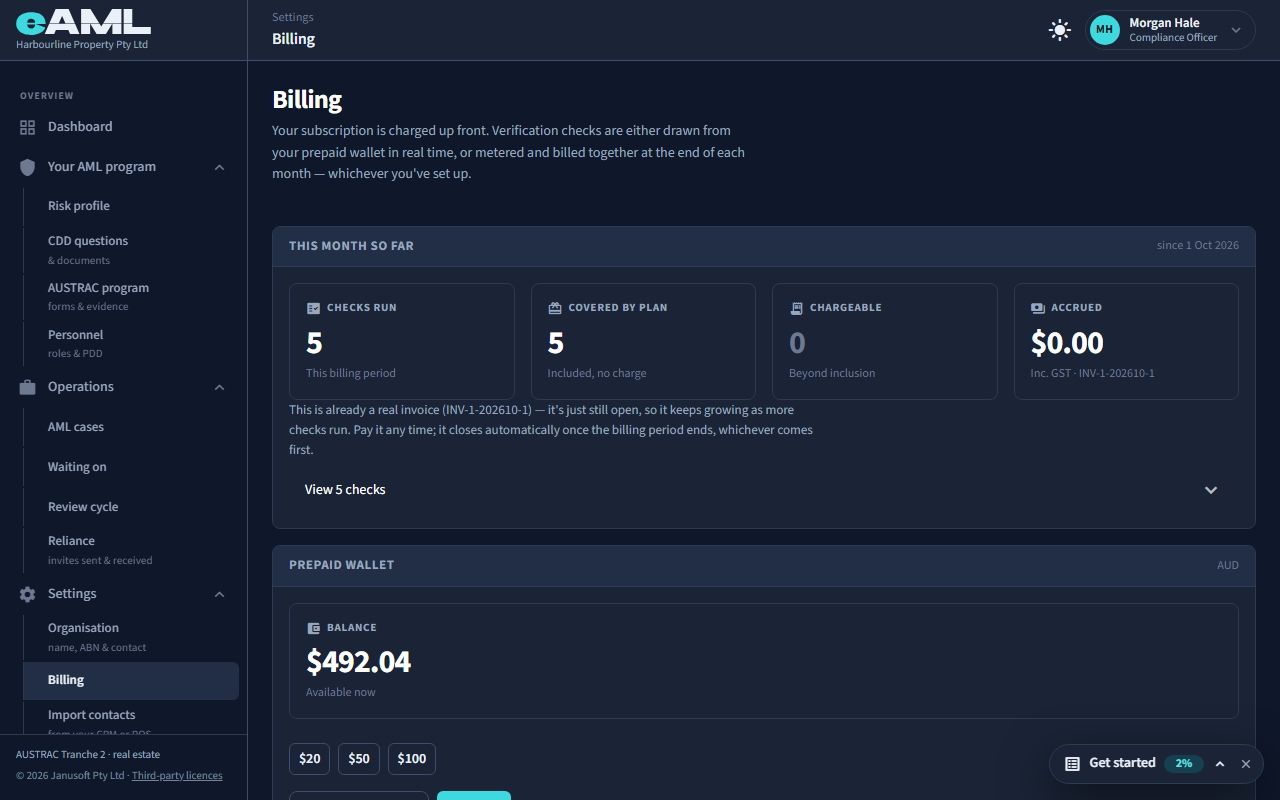
Billing is for compliance officers and senior managers: only they see it in the menu, under Settings, and both can pay. The page opens with how you are charged. Your subscription is charged up front. Verification checks are either drawn from your prepaid wallet in real time, or metered and billed together at the end of each month, whichever you have set up. Below it, three sections answer three questions: This month so far says what you are about to be charged, Prepaid wallet holds the balance checks are paid from, and Invoices lists what you have been charged.
-
This month so far
Read the four figures, then select View to list the checks.
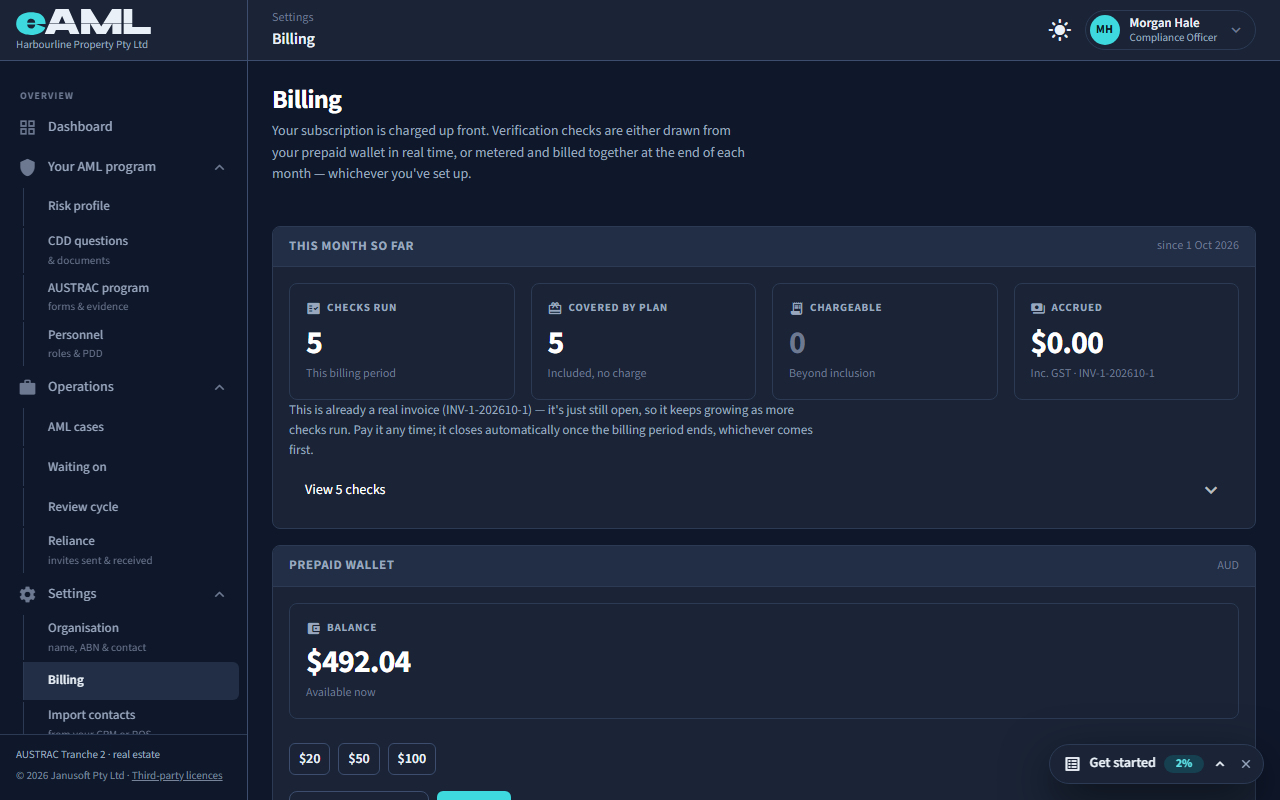
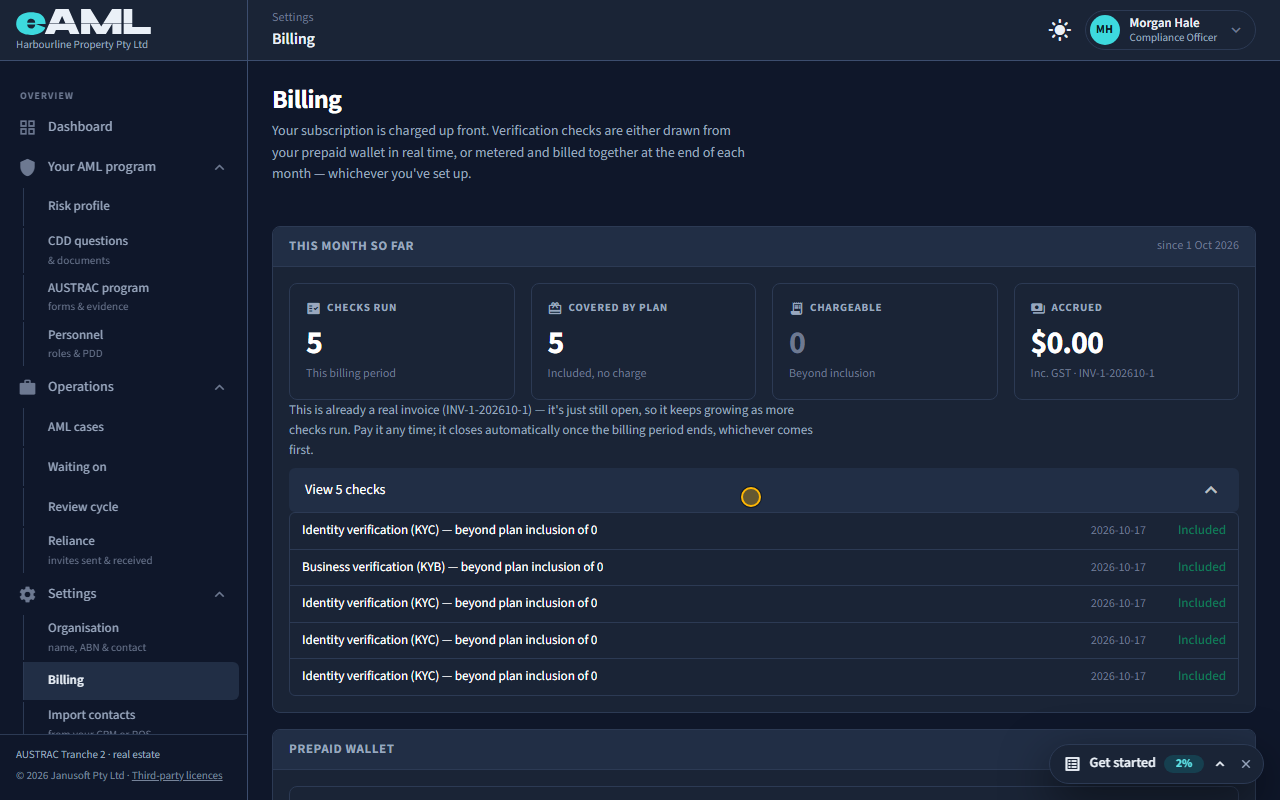
This month so far counts the identity and business verifications run since the start of the billing period, the checks your plan meters: Checks run, Covered by plan (included, no charge), Chargeable (beyond what your plan includes) and Accrued, the amount so far including GST, with the number of the invoice it belongs to. It is already a real invoice, still open, so it keeps growing as more of them run; it closes when the billing period ends, and you can pay it any time. Select View to see each one with its date and its amount, or Included. Screening is not listed here: it is paid from the wallet, below.
-
The prepaid wallet
Read the balance, choose an amount, and select Top Up to pay by card.
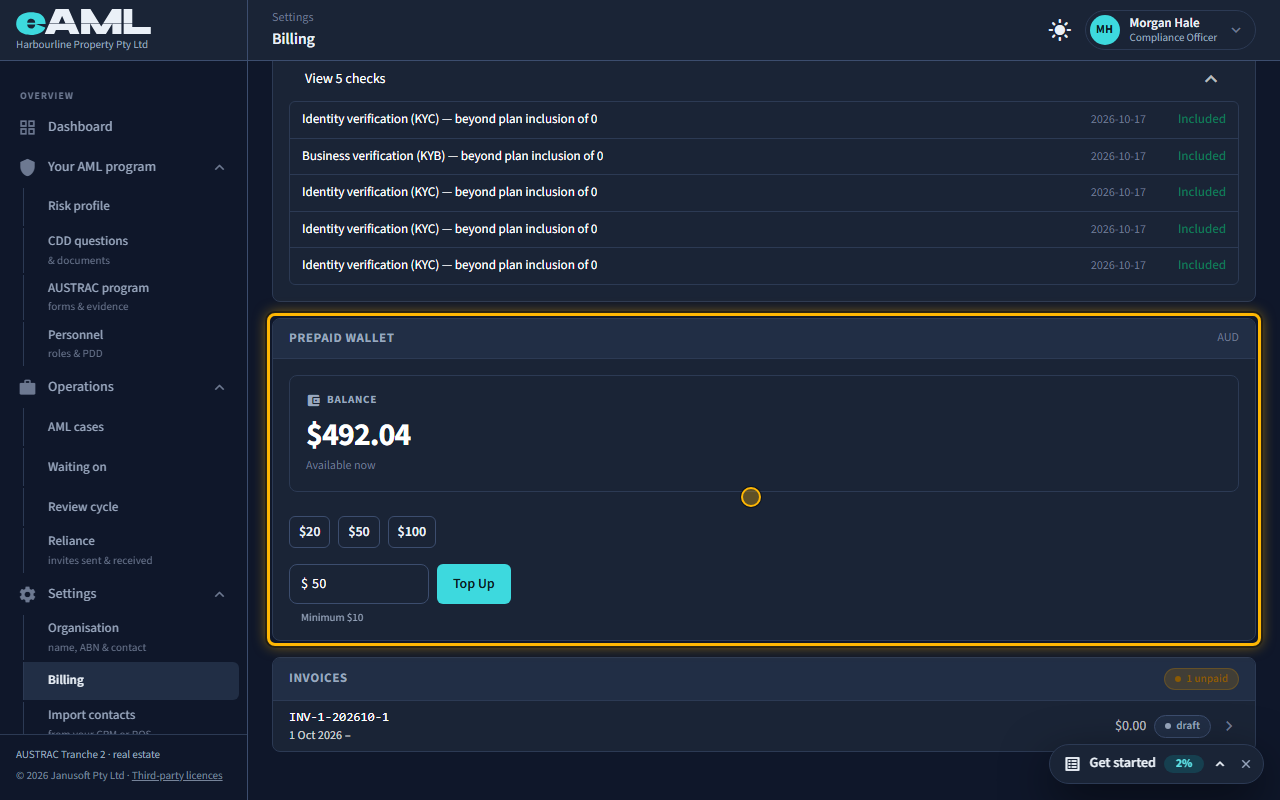
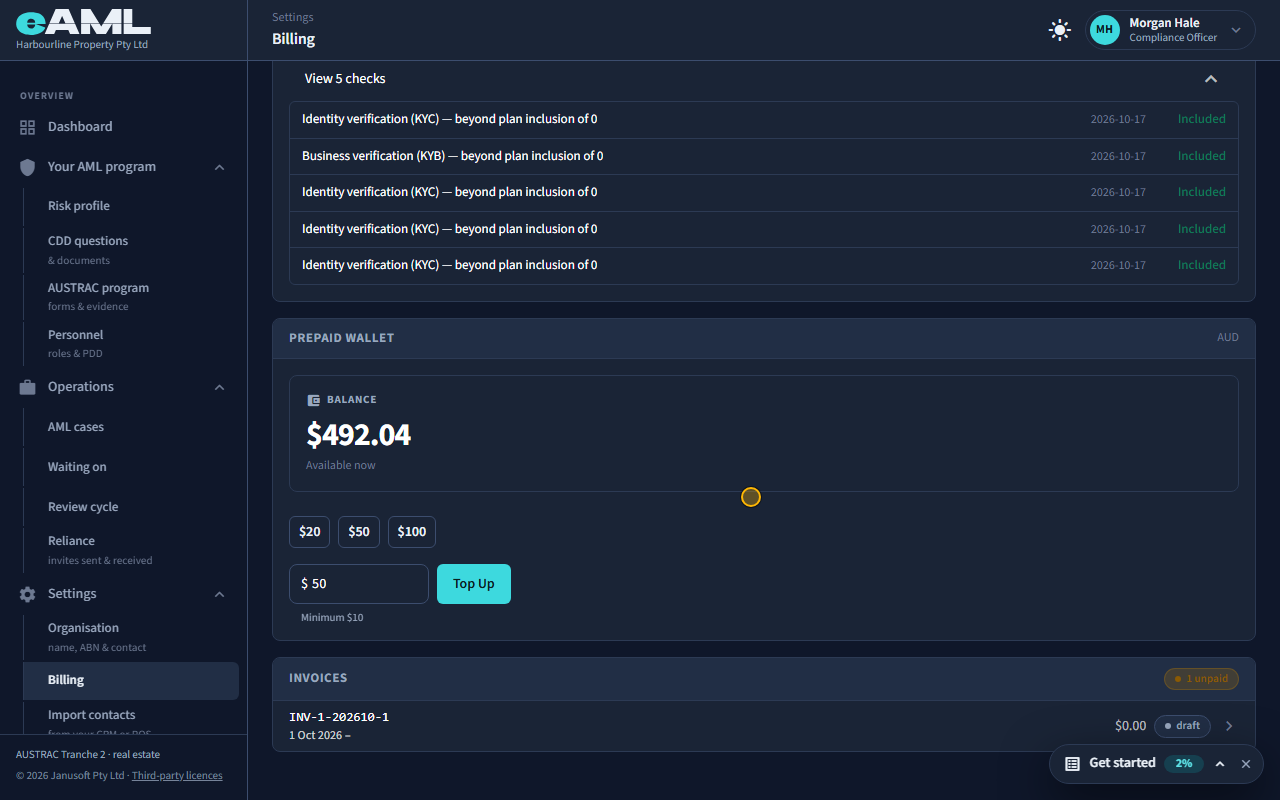
Screening (sanctions, politically exposed persons and adverse media) and the paid company register checks are paid for from the prepaid wallet. Top up once and each check draws down in real time, with no monthly invoice to wait for. The balance is shown as Available now. To add to it choose $20, $50 or $100, or type an amount (the minimum is $10), and select Top Up: you pay by card, and the balance rises as soon as the payment succeeds. Every check shows its price in the dialog before it runs, and nothing is charged until you confirm.
-
Invoices
Select an invoice to open it and read the lines and the totals.
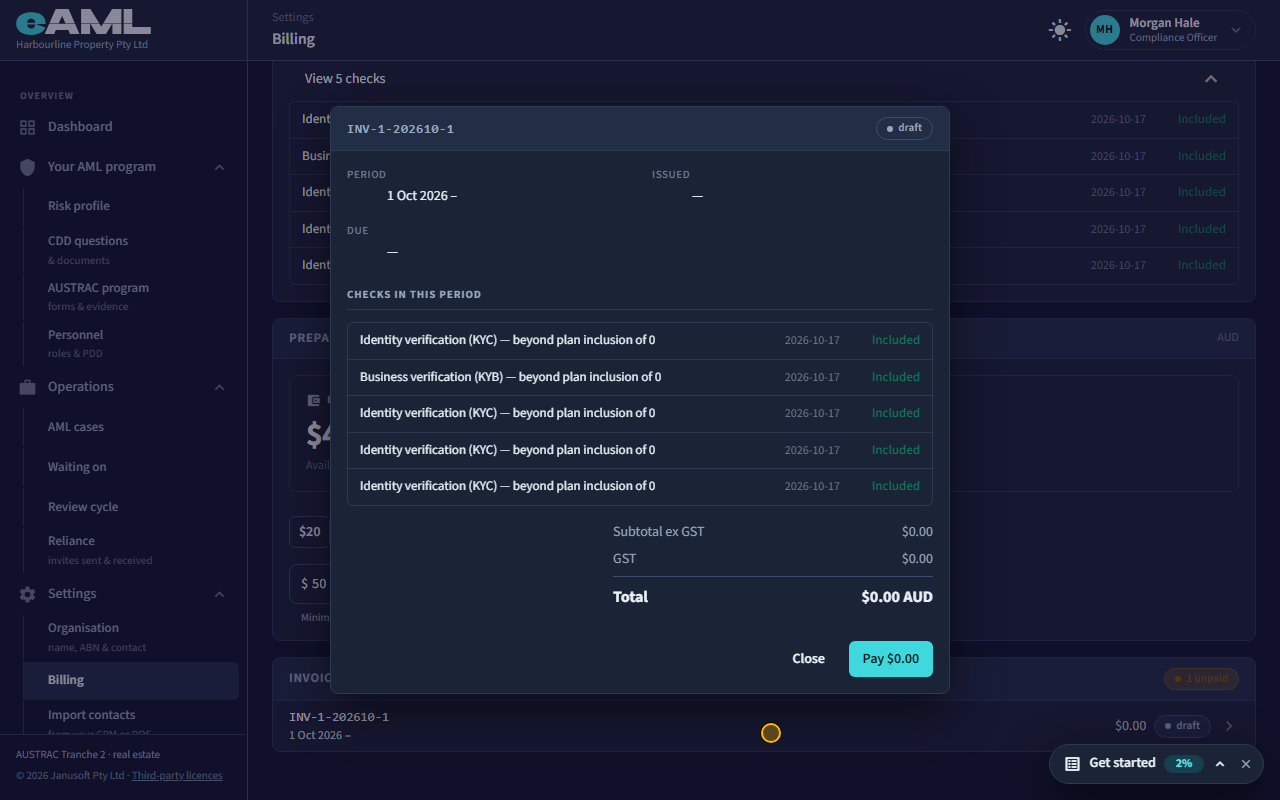
Invoices lists every invoice with its number, its period, when it is due, its total and its status (draft while the period is open, then issued, paid or void), and counts the unpaid ones at the top. Select one to open it: the period, when it was issued and is due, the checks in that period with their amounts (or Included), and the subtotal excluding GST, the GST and the total. An invoice that is not yet paid has a Pay button, which takes a card. There is no download button on an invoice.
-
When the wallet is short
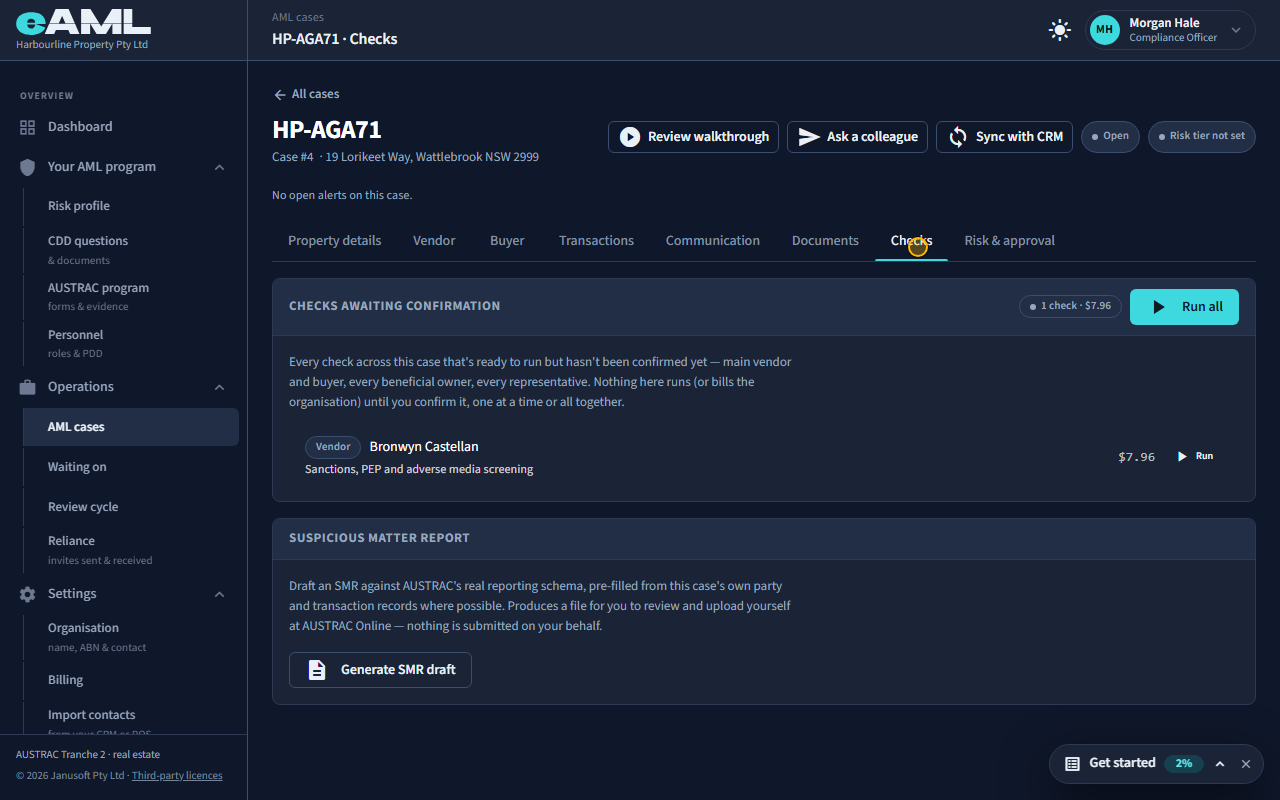
Open the Checks tab, select Run all, confirm, and read the message about the wallet.
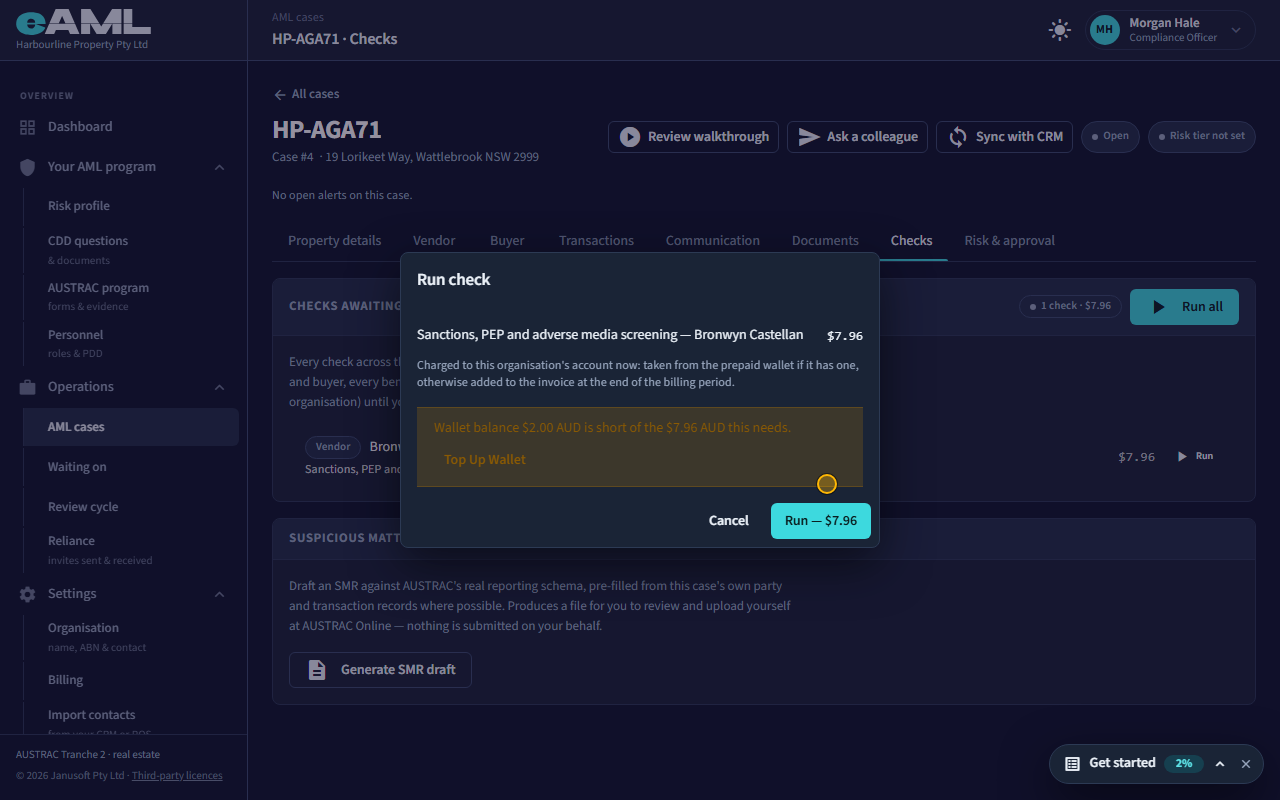
If a check costs more than the wallet holds, it does not run. The confirmation dialog says the wallet balance is short of what is required and offers Top Up Wallet; top up, then run the check again. Nothing has been charged and nothing has been checked in the meantime. A firm that has never set up a wallet is different: the cost of its checks is added to the invoice at the end of the billing period instead.
Every screen in this guide was captured from the live application in the same run as the video, so the two always match. If a screen here no longer matches what you see, tell us: the guide is regenerated after each release.