Guide · T14
Import your client list
Before you start
- A legal practice or a jeweller (the business types that keep a list of clients or customers)
- A CSV exported from your practice software, CRM or point of sale
-
Open Import clients
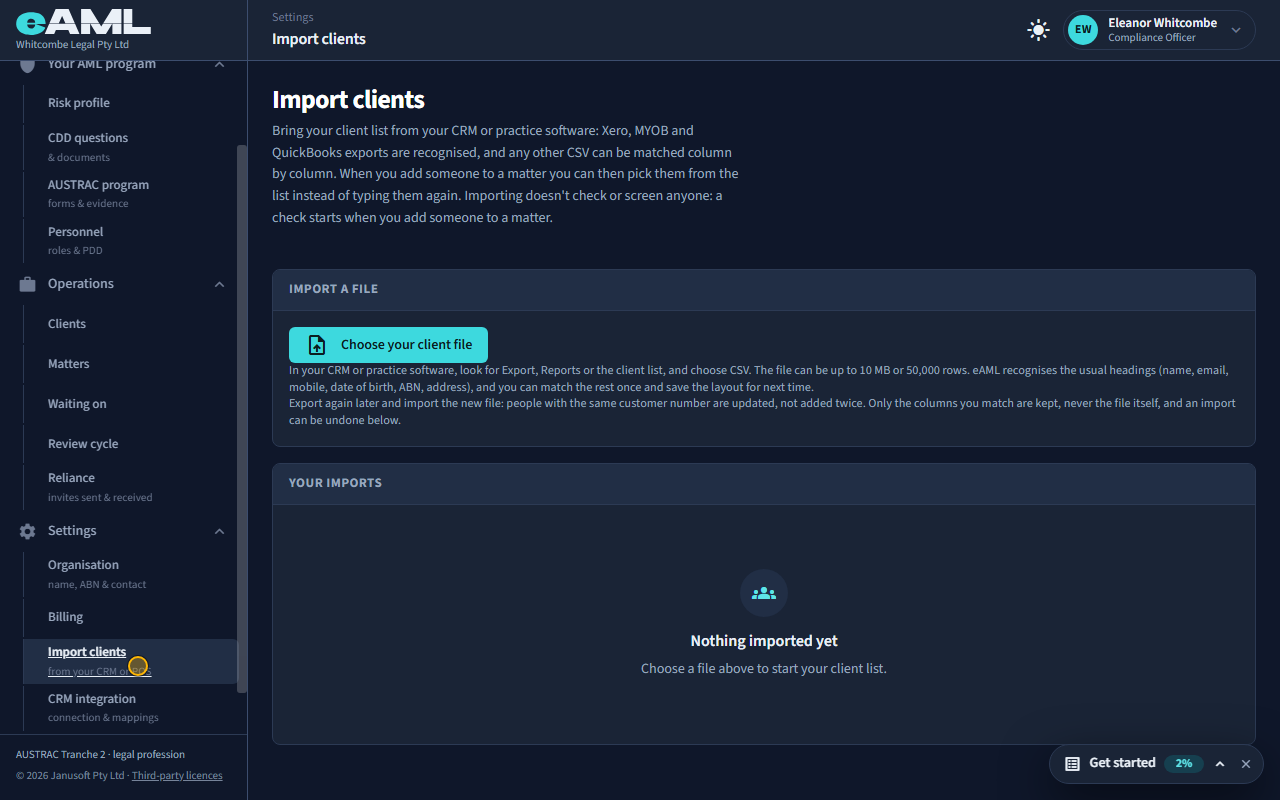
In the menu, under Settings, select Import clients.
Importing your client list saves typing the same people again for every matter: when you add a client to a matter you can pick them from the list. Importing does not check or screen anyone; a check starts when you add the person to a matter. For a jeweller the page is called Import customers.
-
Prepare the file
Export your client list as a CSV file.
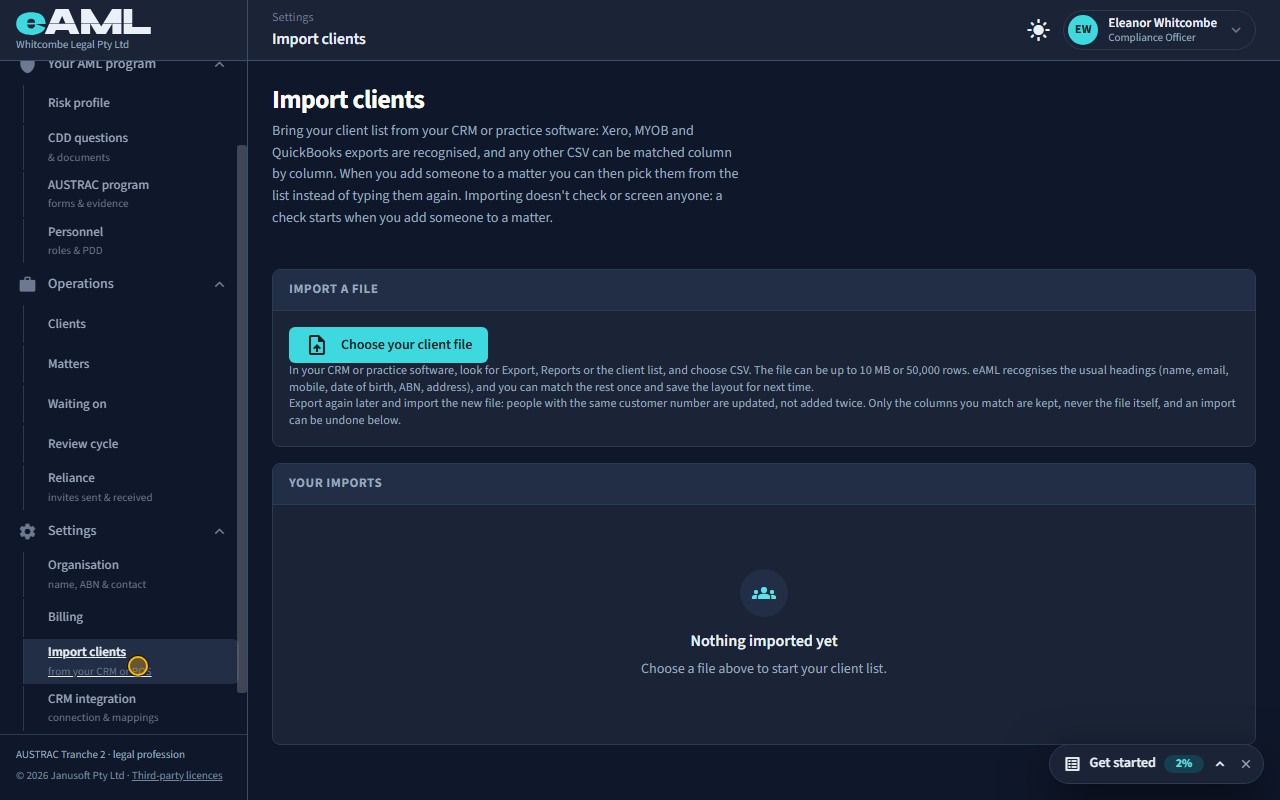
In your practice software or CRM, look for Export, Reports or the client list, and choose CSV. The file can be up to 10 MB or 50,000 rows. eAML recognises the usual headings (name, email, mobile, date of birth, ABN, address), and Xero, MYOB and QuickBooks exports are recognised. Only the columns you match are kept, never the file itself.
-
Choose the file
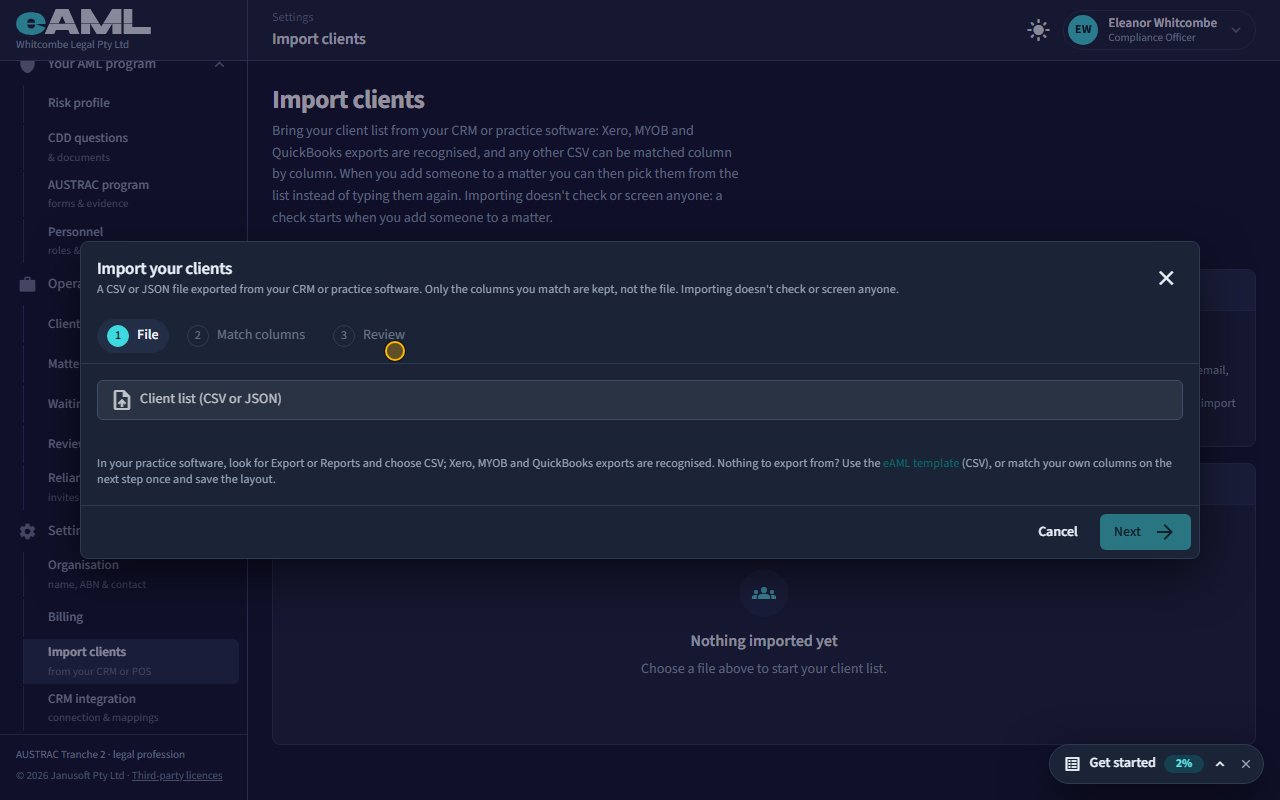
Select Choose your client file, then choose the CSV file.
Select Choose your client file and pick the CSV. eAML reads it and moves on to matching its columns. Nothing is imported yet.
-
Match the columns
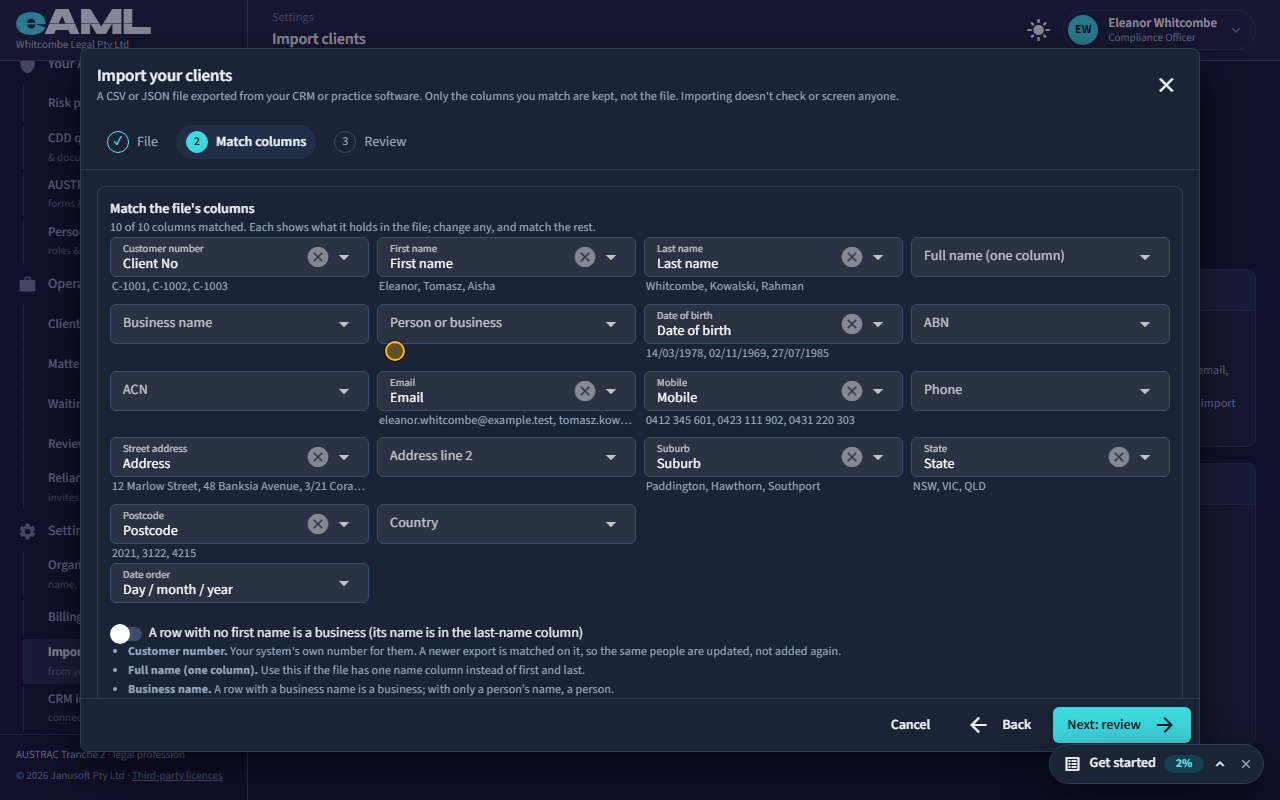
Check each matched column and fix any that are not right.
The columns are matched from the usual headings, and each shows what it holds in the file so you can check it. Change any that are wrong and match the rest. Set the date order if the dates are day-month-year. The first rows are shown the way eAML will read them, before anything is saved.
-
Review before importing
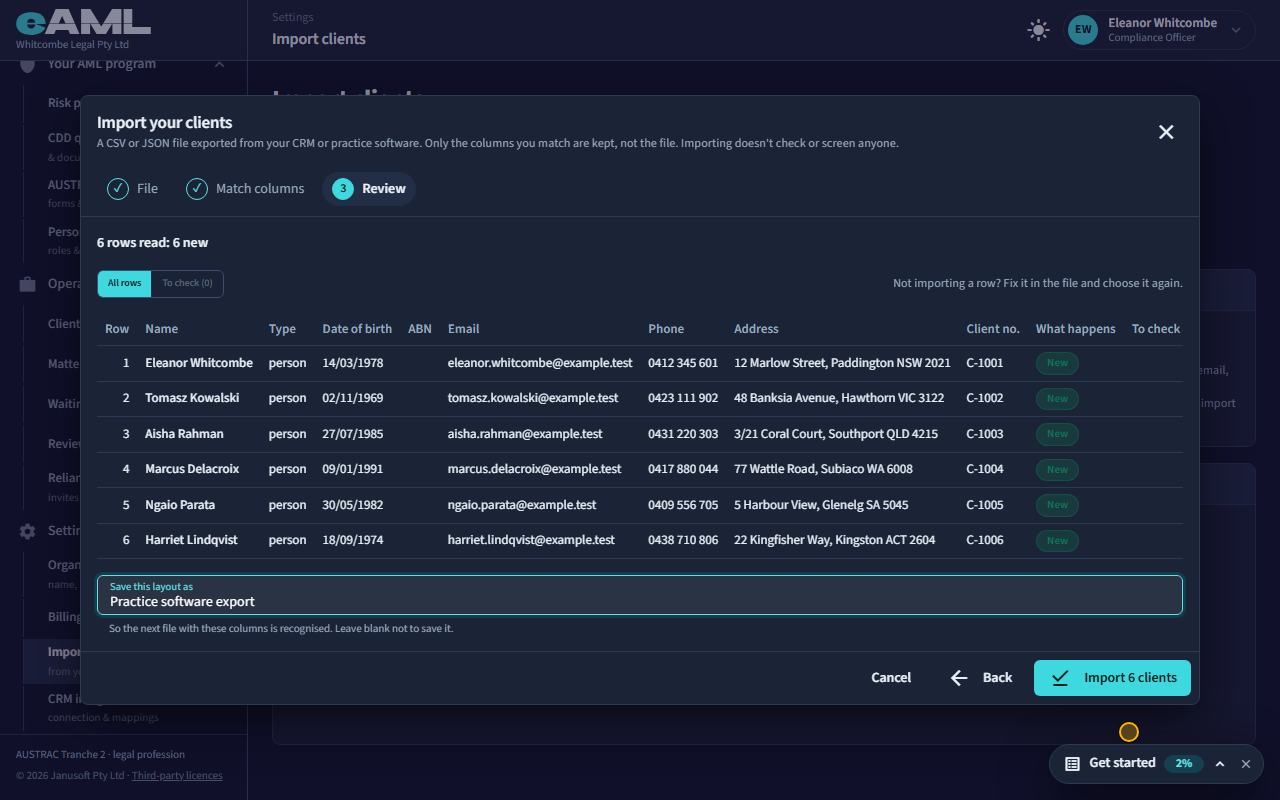
Select Next: review, read the summary, and name the layout.
The summary says how many rows were read and how many are new, updated or the same, and which have something to check, shown first. Each row says what will happen to it. Type a name under Save this layout as, so the next file with these columns is recognised without matching it again.
-
Import
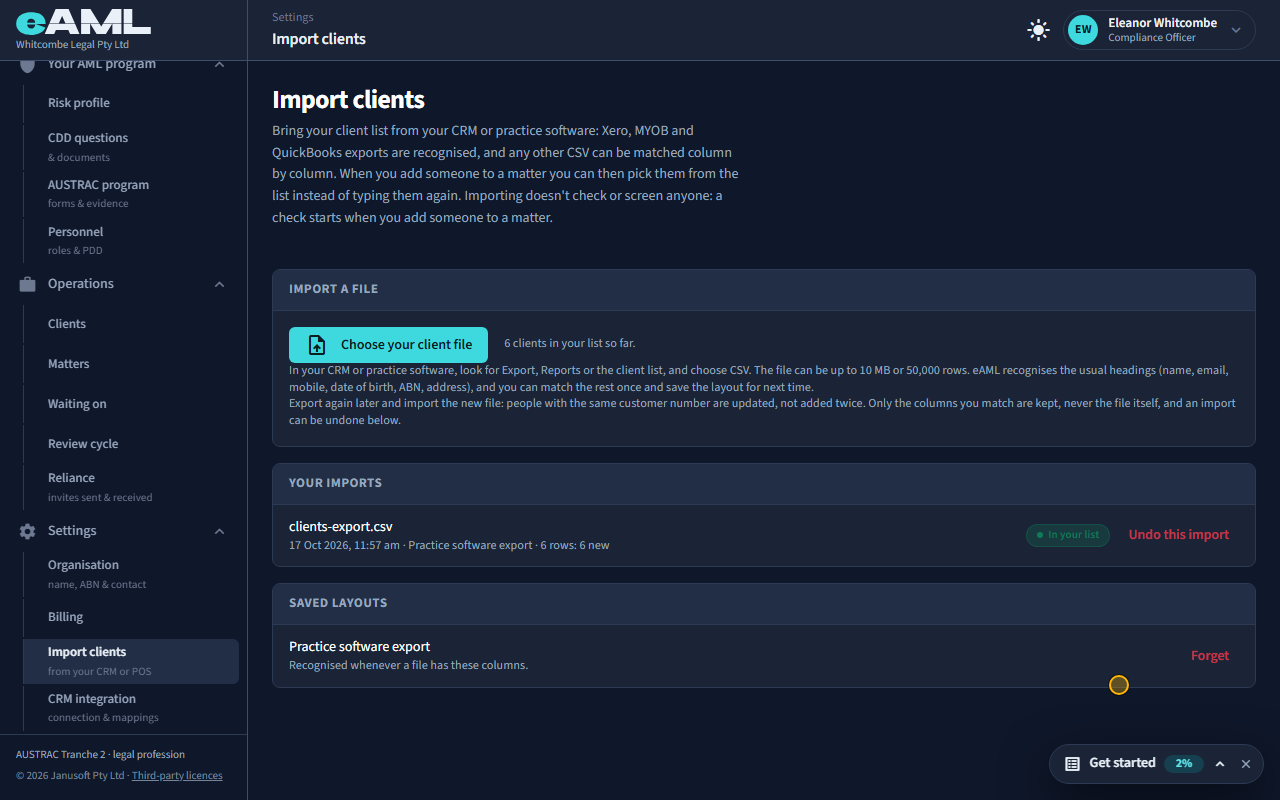
Select the Import button.
The import button names how many people it will add. When it finishes, the file appears under Your imports with the date, the layout and what it did.
-
Importing a newer export updates people, it does not add them twice
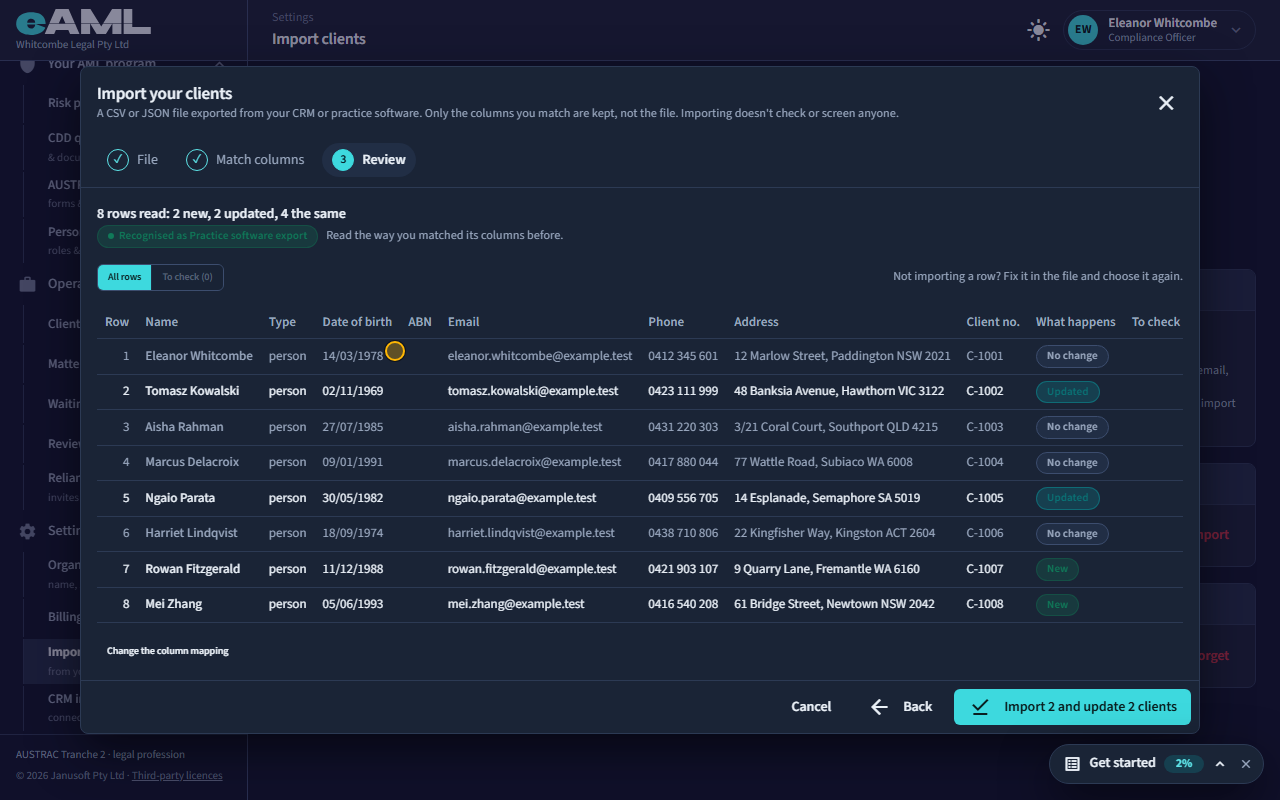
Select Choose your client file again and choose the newer export.
Export again later and import the new file. People with the same client number are updated in place, and the layout you saved is recognised, so there is no matching to do. The summary tells you how many will be updated and how many are new.
-
Undo an import
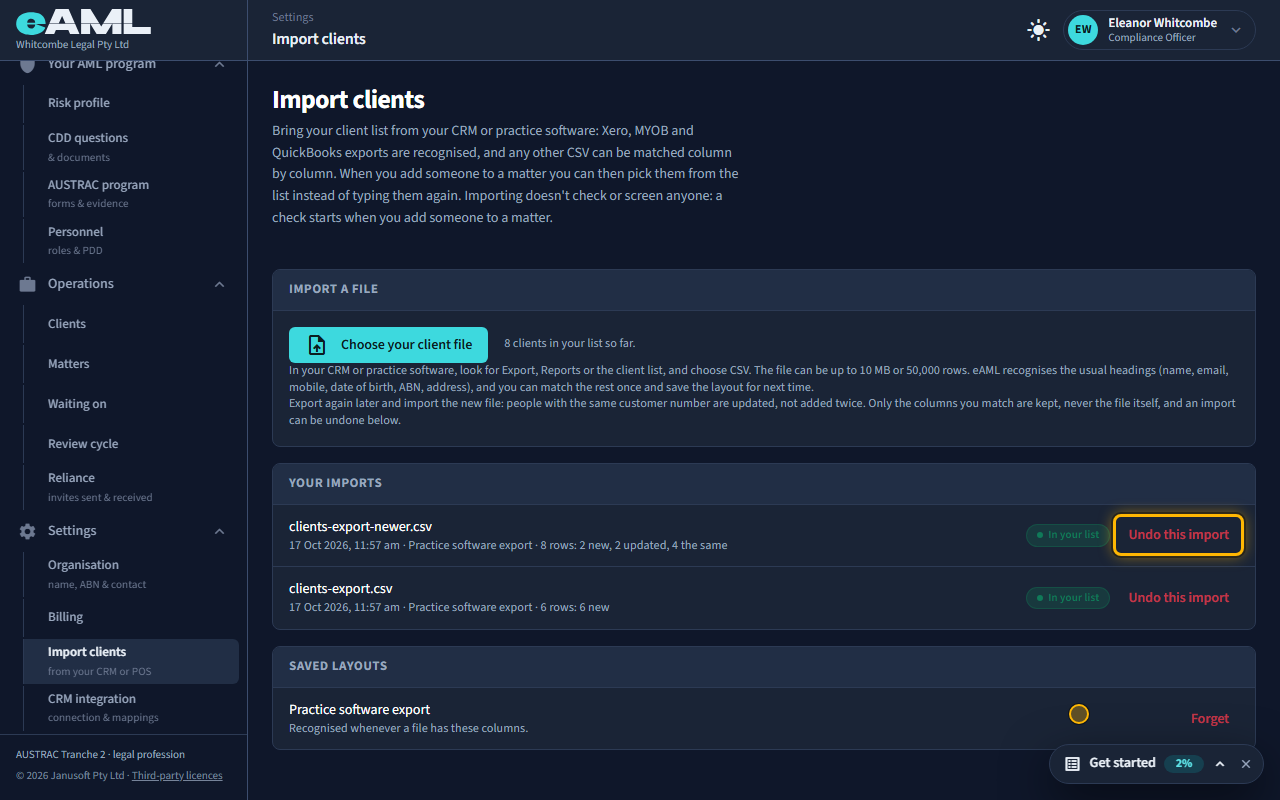
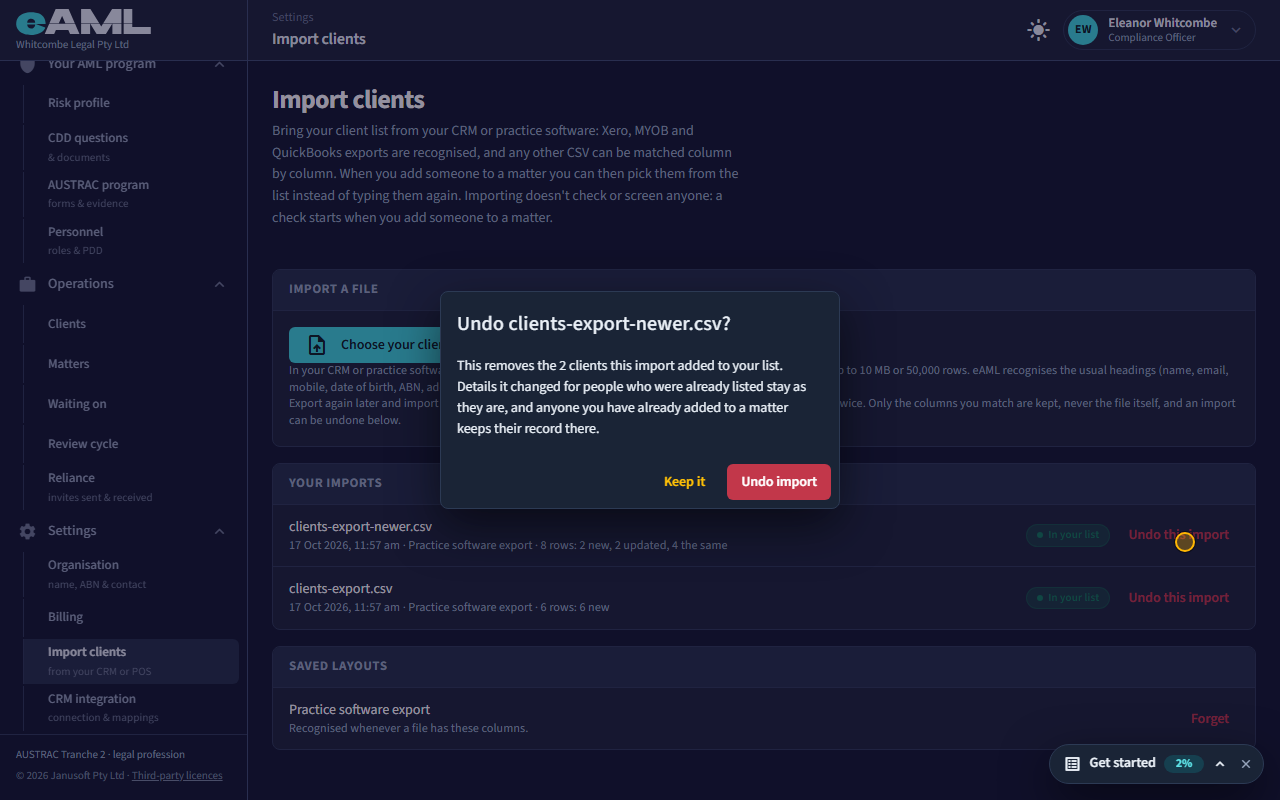
Under Your imports, select Undo this import on the file, and confirm.
An import can be undone. Undoing it removes the people that import added to your list. Details it changed for people who were already listed stay as they are, and anyone you have already added to a matter keeps their record there. You are asked to confirm first.
-
Where imported people appear
When you add a client to a matter, the Add client window offers your list first: pick a person to copy their details in, or choose New client to type one. The Clients page lists everyone you have dealt with, imported or not.
Every screen in this guide was captured from the live application in the same run as the video, so the two always match. If a screen here no longer matches what you see, tell us: the guide is regenerated after each release.