Guide · T22
Verifying someone’s identity
Before you start
- A case with the person added and an email address for them (to send the link)
-
Open the person’s identification stage
On the party’s card, select Customer identification in the stage tracker.
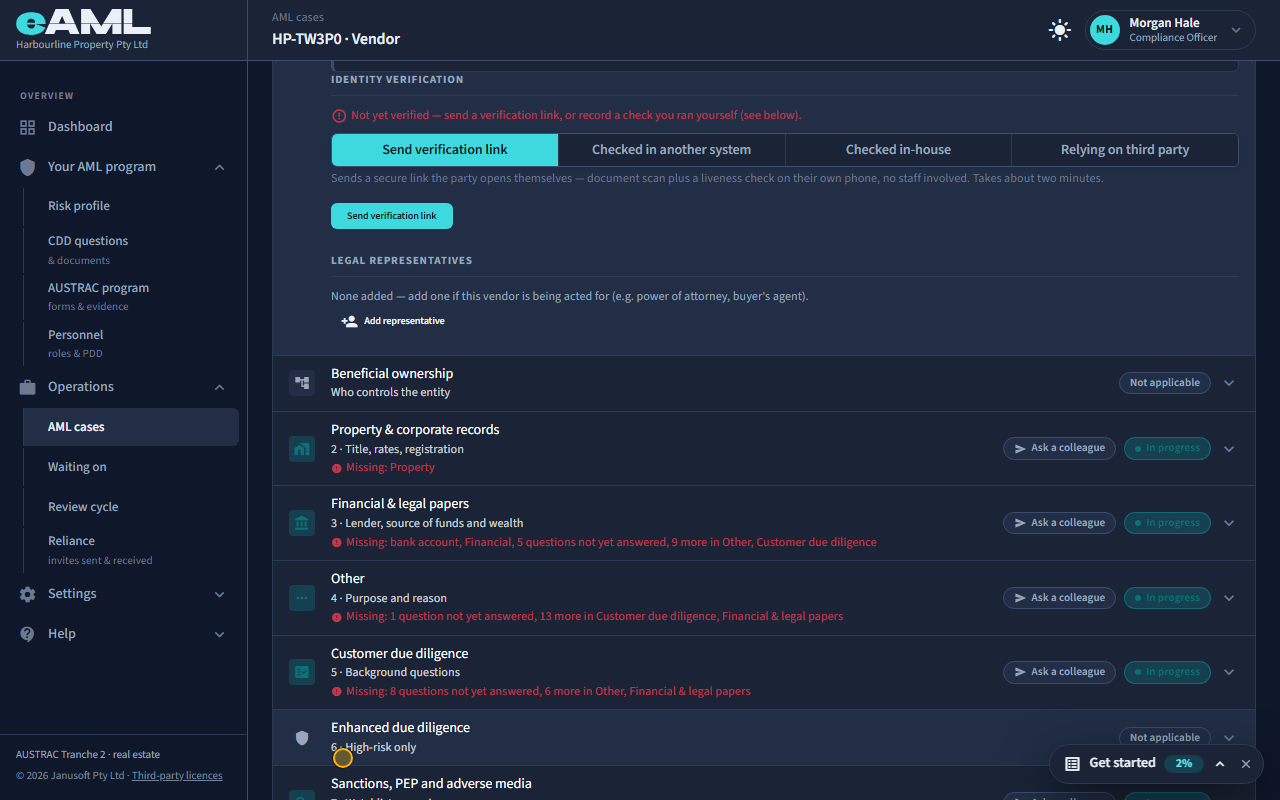
Every individual on a case has a Customer identification stage, and identity verification is its first job. The four buttons are the four ways eAML accepts an identity check: send the person a verification link, record a check you ran in another system, record a check you did in person, or rely on another firm’s check. AUSTRAC treats these as equally legitimate methods, not a ranking.
-
Send a verification link
Select Send verification link.
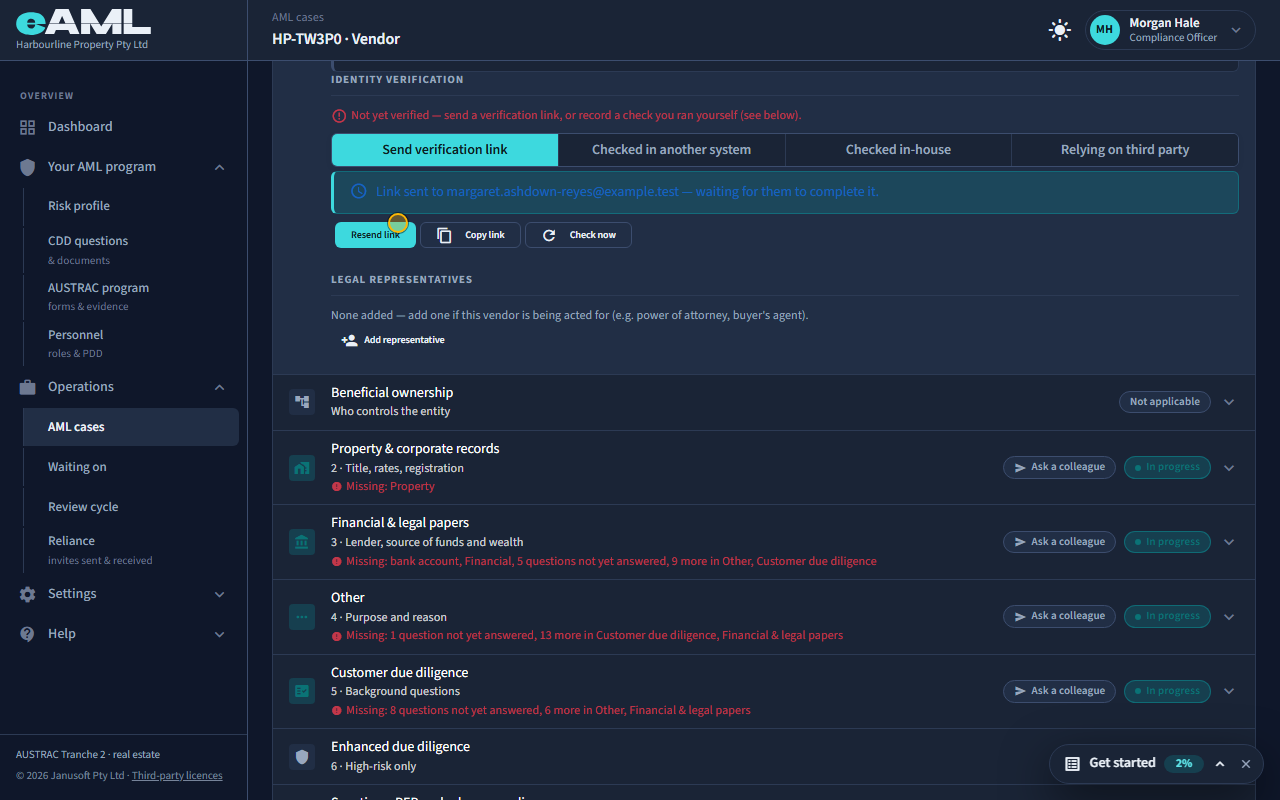
Send verification link starts a check the person does themselves, on their own phone: a scan of their document and a liveness check, with no staff involved, in about two minutes. The person must have an email on file. Once sent, the card says the link is out and waiting, with Resend link, Copy link (for when the email does not land), and Check now to ask the provider straight away.
-
What your client sees Your client
Open the link on a phone, scan your document and take the selfie.
The person opens the link on their phone. They are taken to the verification provider’s own pages: they choose their document, photograph it, and take a short selfie so the provider can check it is the same person and that they are live. Nothing from the document or selfie passes through your firm. When they finish, the page tells them so, and the result comes back to the case by itself. If they open the link on a computer, the provider offers a code to scan with a phone instead.
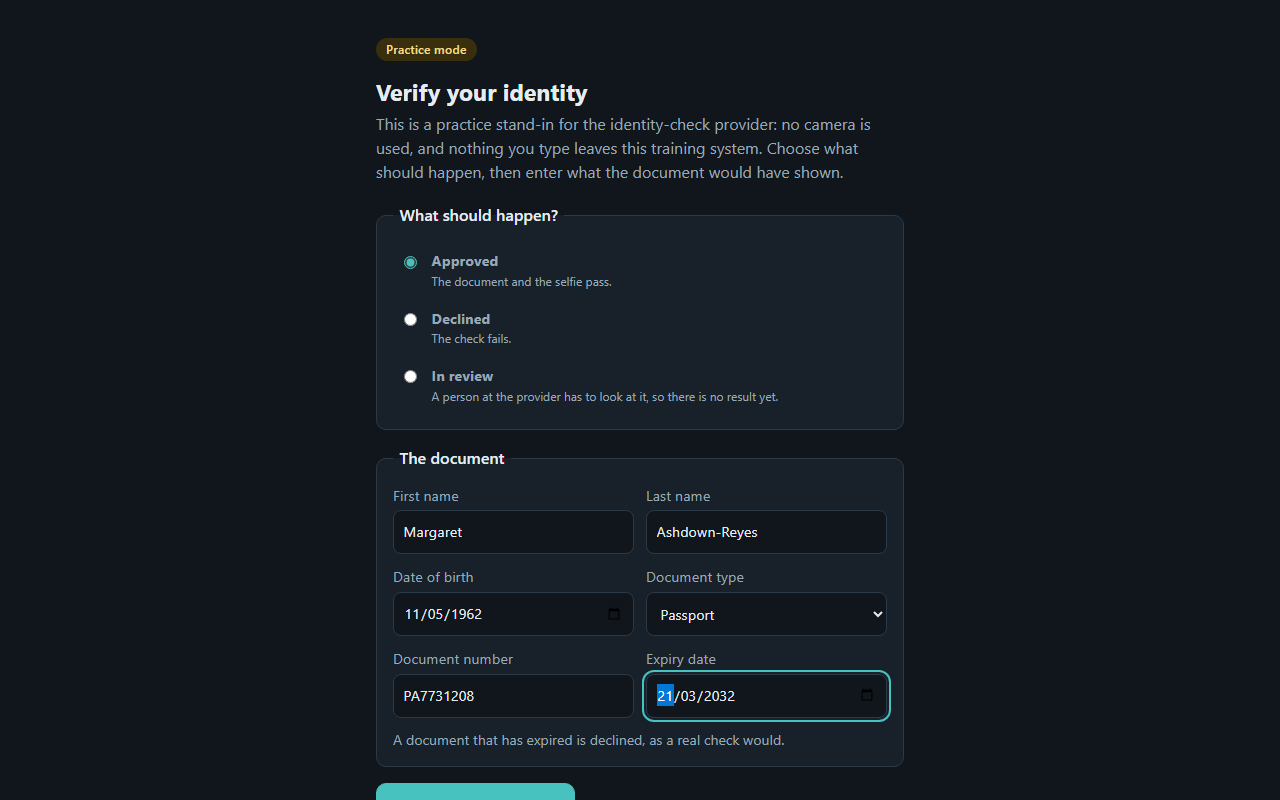
Good to know. In this recording the provider’s pages are a practice stand-in, so a client can be walked through every outcome. Yours are the real provider’s pages.
-
Reading the result
Return to the case. If the result is not there yet, select Check now.
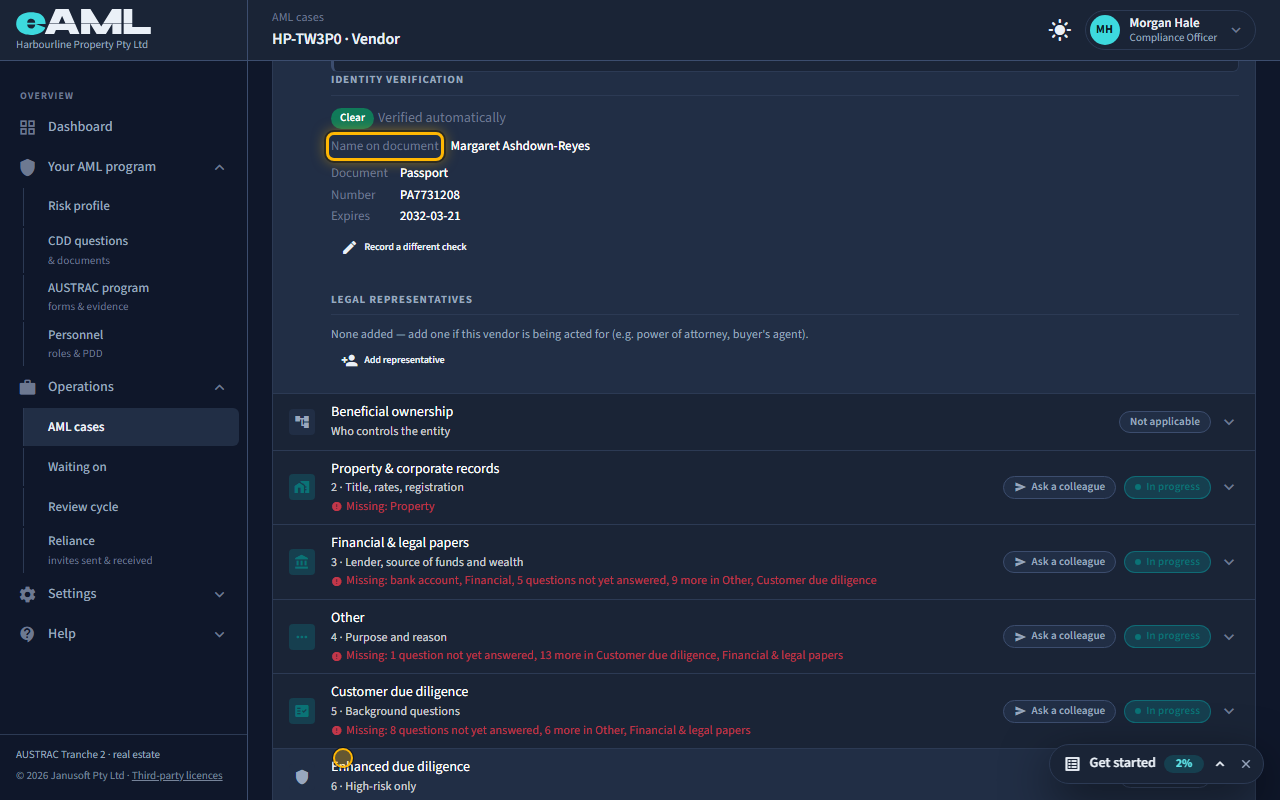
Back on the case, the result is on the card. A clear result shows the name on the document, the type of document, its number and expiry: the facts a scan would otherwise be the only record of, so eAML does not need to keep a copy of the document. The caption says it was verified automatically. If the result has not appeared yet, Check now asks the provider. A completed verification is a billed check: what it costs depends on your plan, and Billing shows every charge.
-
Checked in person
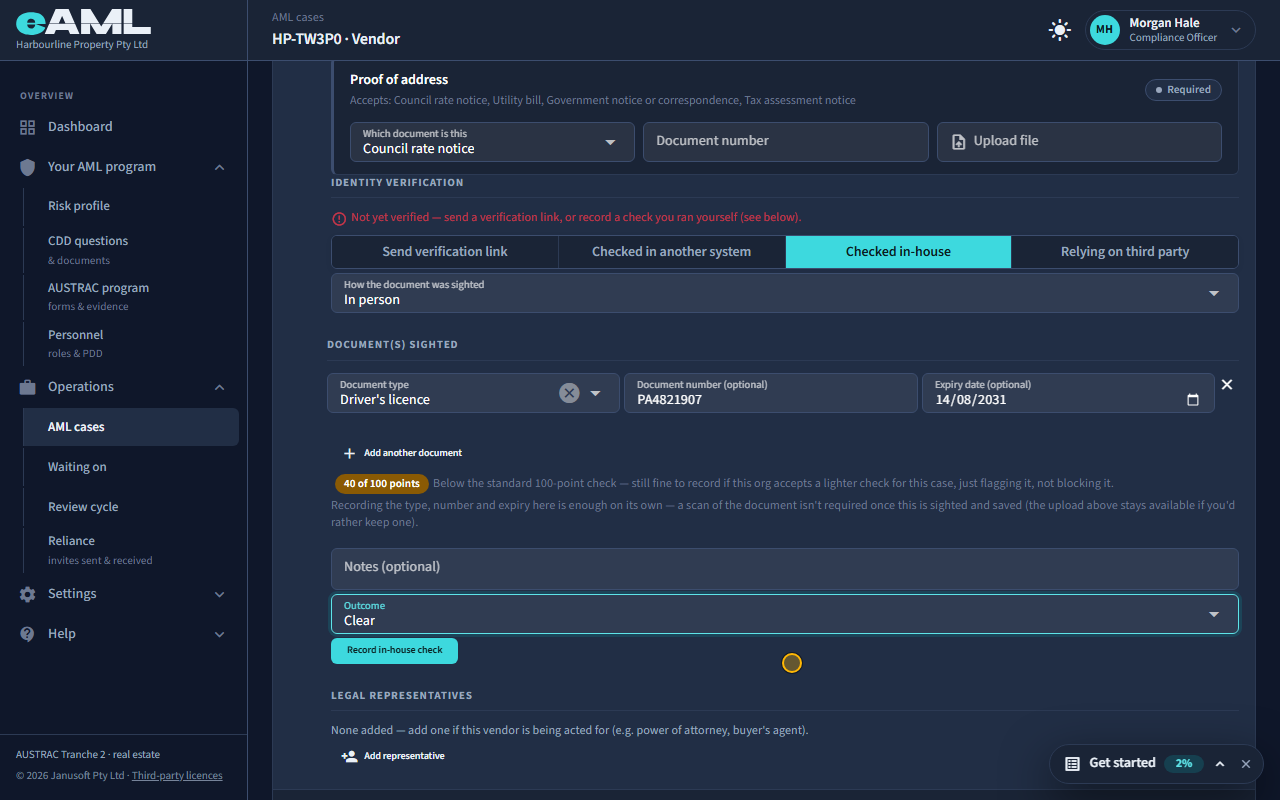
Select Checked in-house, record the document sighted, choose the outcome, and select Record in-house check.
If you meet the person, you can check their identity yourself and record it. Choose how the document was sighted, the document type, and its number and expiry; eAML adds up the points on the usual 100-point scale, and tells you if it falls short (it flags it; it does not block you). Recording the type, number and expiry is enough on its own: a scan of the document is not required once it is sighted and saved. Then choose the outcome and record it.
-
When the check is declined
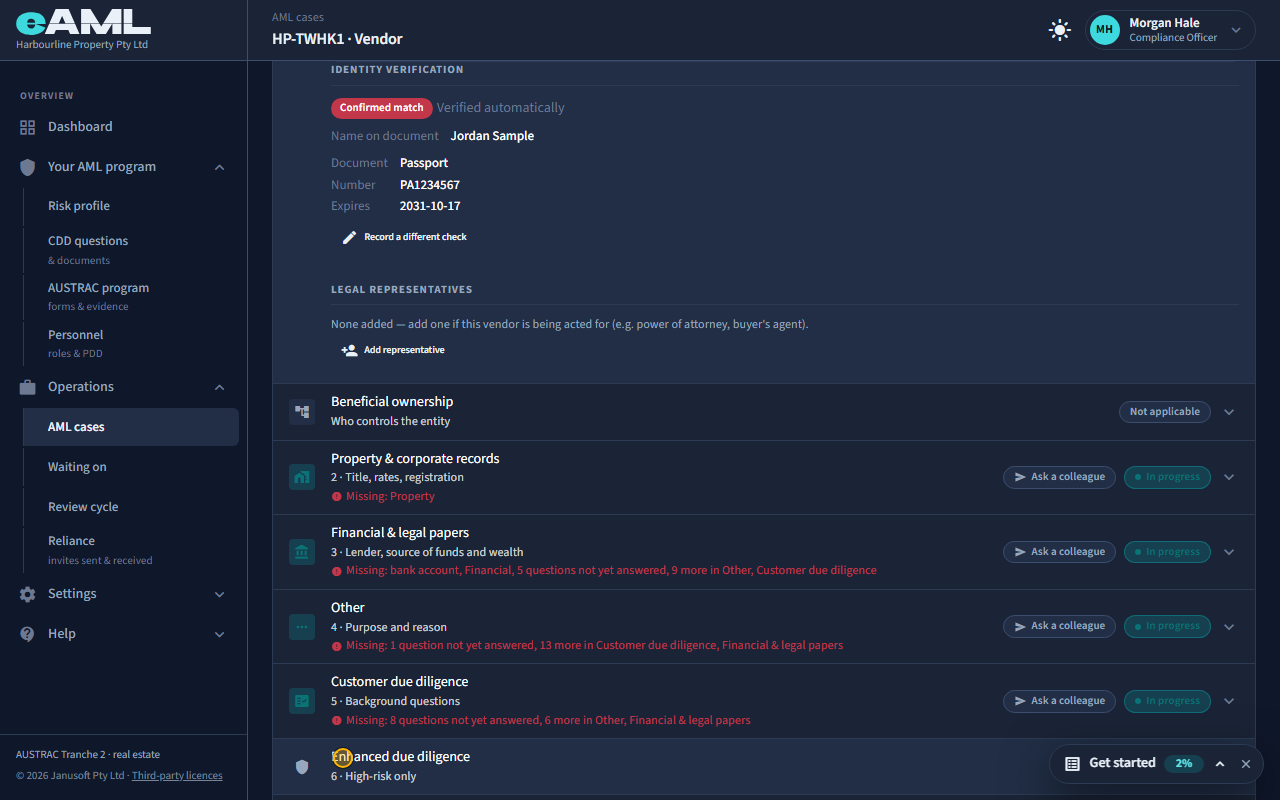
Open the person’s Customer identification stage and read the result.
When the provider declines the check, the card shows the result in red as Confirmed match: eAML uses the same three outcome words for every check (Clear, Needs review, Confirmed match), and here it means the check did not pass. It is recorded against the person and does not close the case, and nothing happens to the person automatically: you look at the result, decide what to do (ask for another document, check in person, or escalate it), and record that. Approved and Declined are the provider’s final answers.
-
When the check goes to review
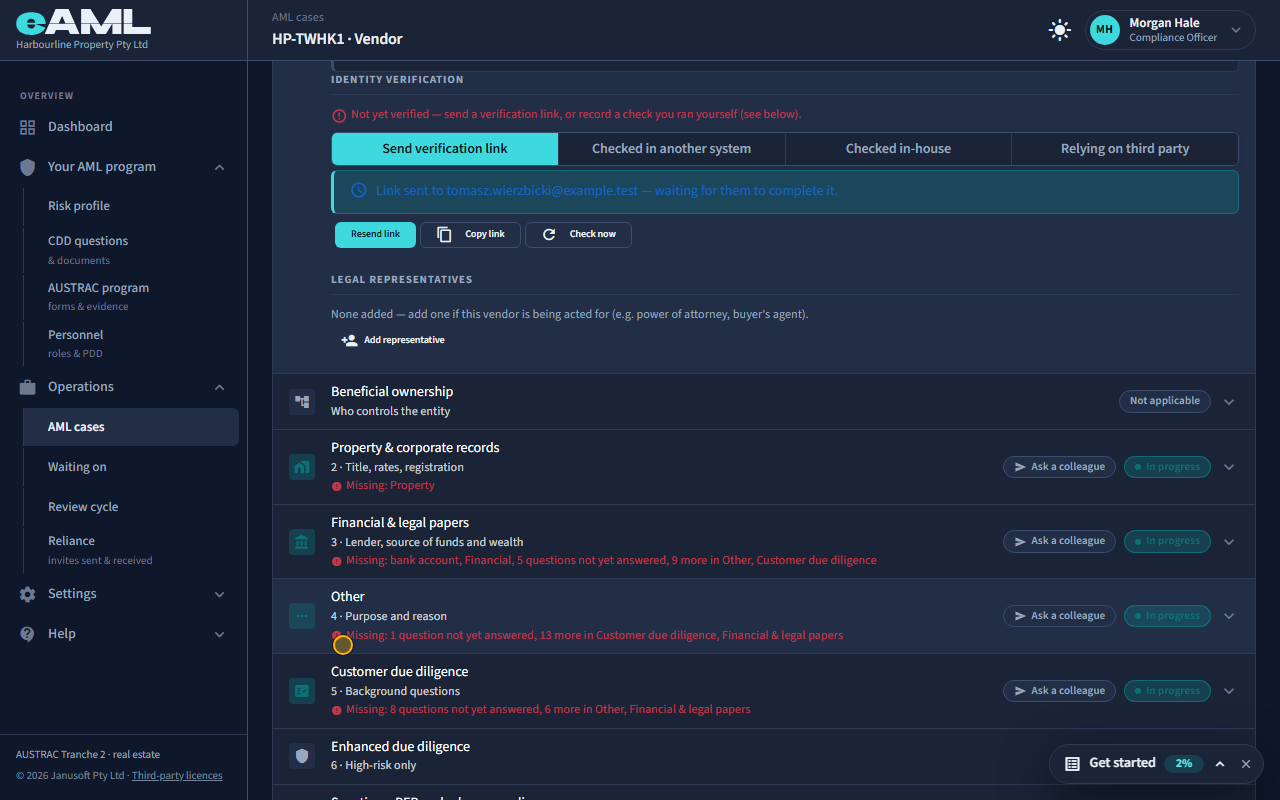
Open the person’s Customer identification stage: the card is still waiting.
A check that goes to review is waiting for a person at the provider to look at it, so there is no result yet. The card keeps saying the link is out and waiting. The provider tells eAML when it decides, and the result then appears by itself; you can also select Check now to ask. Do not treat it as passed or failed until it comes back.
-
Checked in another system, with the report attached
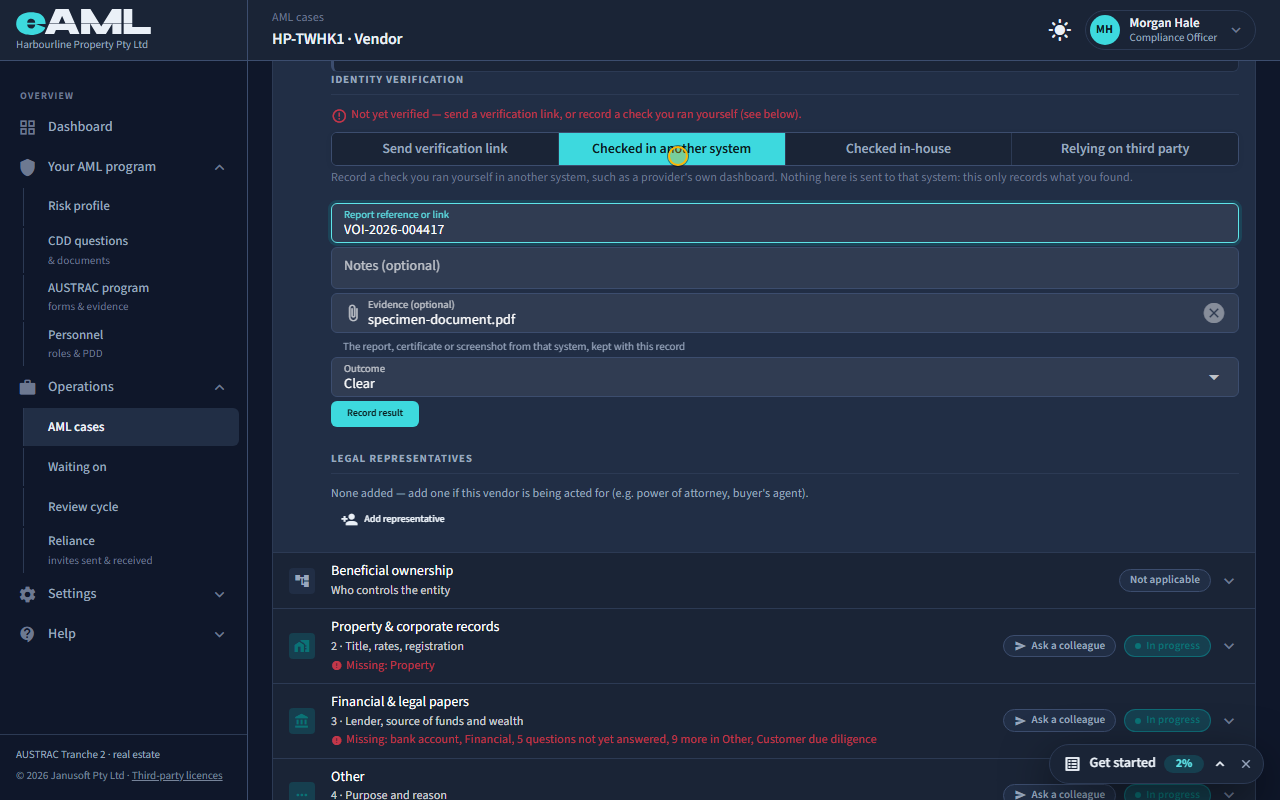
Select Checked in another system, fill in the reference and outcome, attach the report, and select Record result.
If you ran the check in another system, such as a provider’s own dashboard, record what you found: the report’s reference or link, any notes, the outcome, and the report itself as evidence, kept with the record. Nothing is sent to that other system: this only records what you found.
-
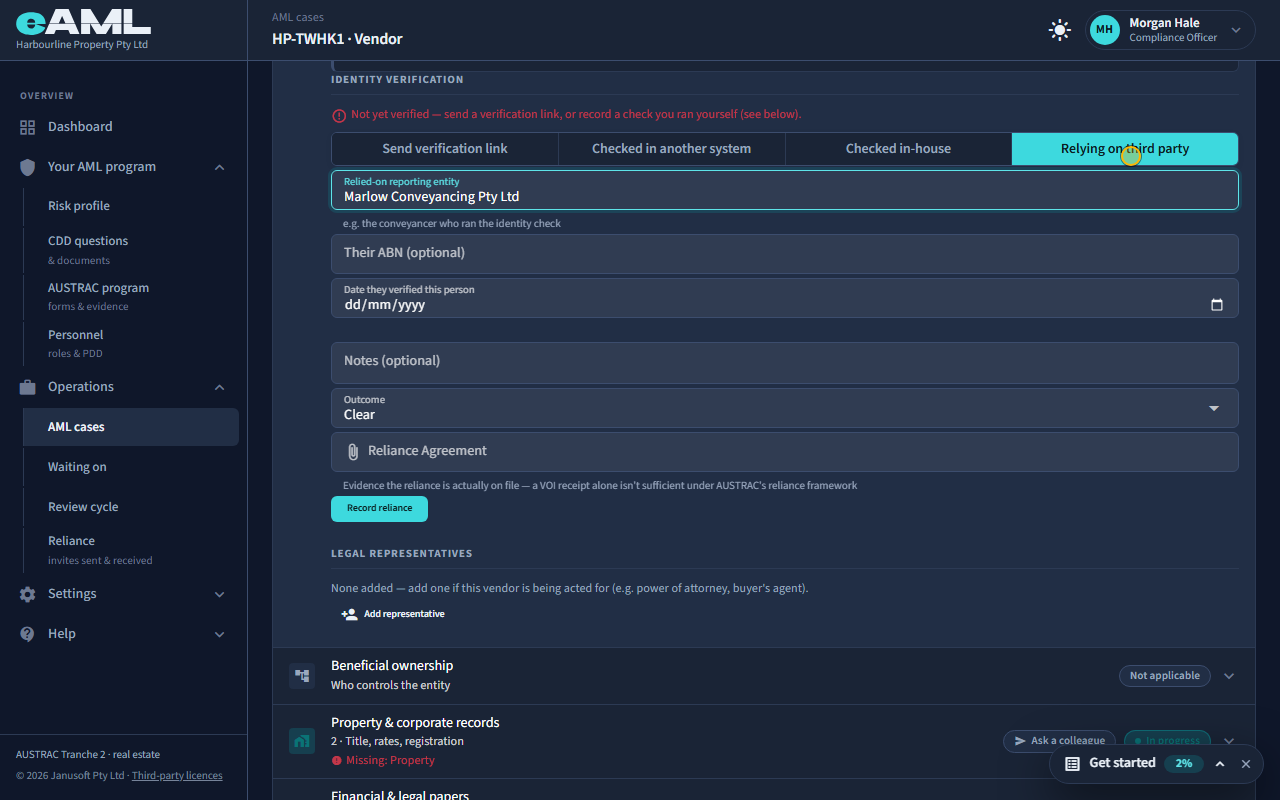
Relying on another firm’s check
Select Relying on third party, fill in the firm and date, attach the agreement, and select Record reliance.
You can rely on an identity check another reporting entity has already done, such as the conveyancer who met the person. Name the firm (and its ABN), the date they verified the person, the outcome, and attach the written reliance agreement: a verification receipt on its own is not enough under AUSTRAC’s reliance framework. You remain responsible for the check you rely on. T33 covers sharing a case with another firm.
Every screen in this guide was captured from the live application in the same run as the video, so the two always match. If a screen here no longer matches what you see, tell us: the guide is regenerated after each release.