Guide · T24
Companies and trusts: who owns them
Before you start
- A company added to a case as the customer, with its ACN or ABN
-
Open the company’s ownership diagram
On the company’s card, select Beneficial ownership in the stage tracker.
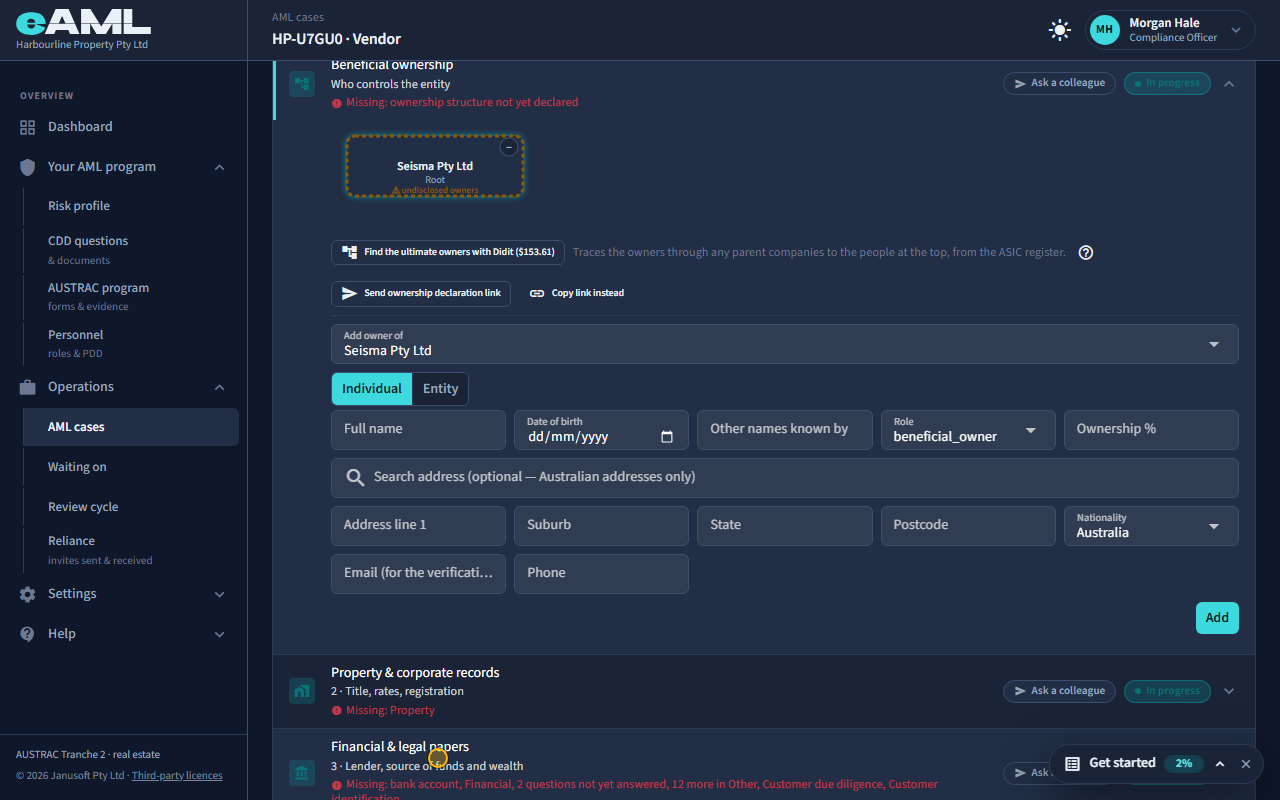
A company’s Beneficial ownership stage is where you record who owns and controls it. The diagram starts with the company at the top. Every owner or officer you add becomes a box under the company they belong to, with their percentage on the line. For a company, a trust, a partnership or an association, what matters is the people behind it: those who own 25% or more, or who control it, not only the entity in front of you. An individual customer has nothing to record here, and the stage says so.
-
Add an owner
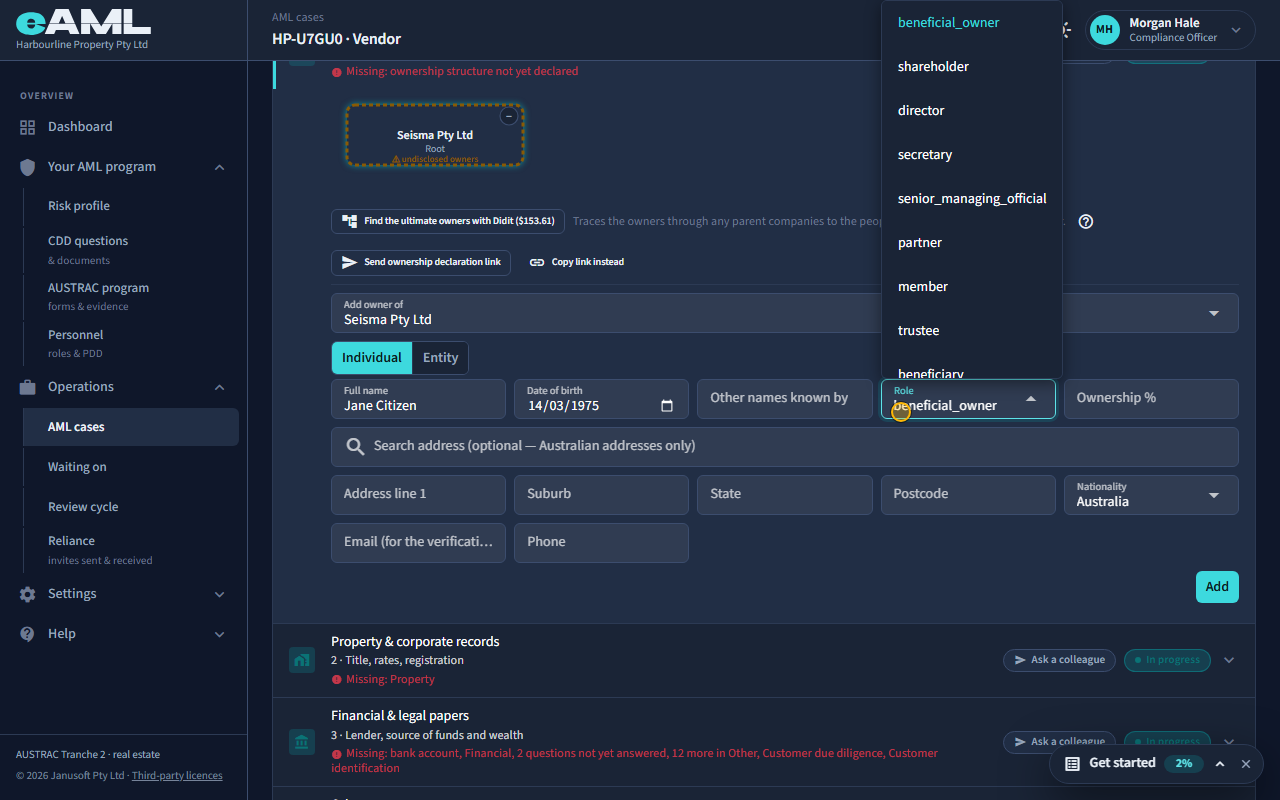
Type the owner’s name and date of birth, choose the role, enter the percentage and select Add.
Under the diagram, the Add owner form takes a name, a date of birth if you have it, the role and the percentage. Role says what they are to the company: shareholder, director, secretary, senior managing official, partner or member, or for a trust the trustee, settlor, appointor, protector, guardian or beneficiary. Beneficial owner is the one label that means they meet the ownership or control test. An owner of 25% or more, or anyone in a control role such as director, trustee or beneficial owner, is enrolled for their own checks and gets a KYC badge on the diagram. A shareholder under 25%, like Jane here at 20%, is recorded but not enrolled.
-
Add a company as an owner
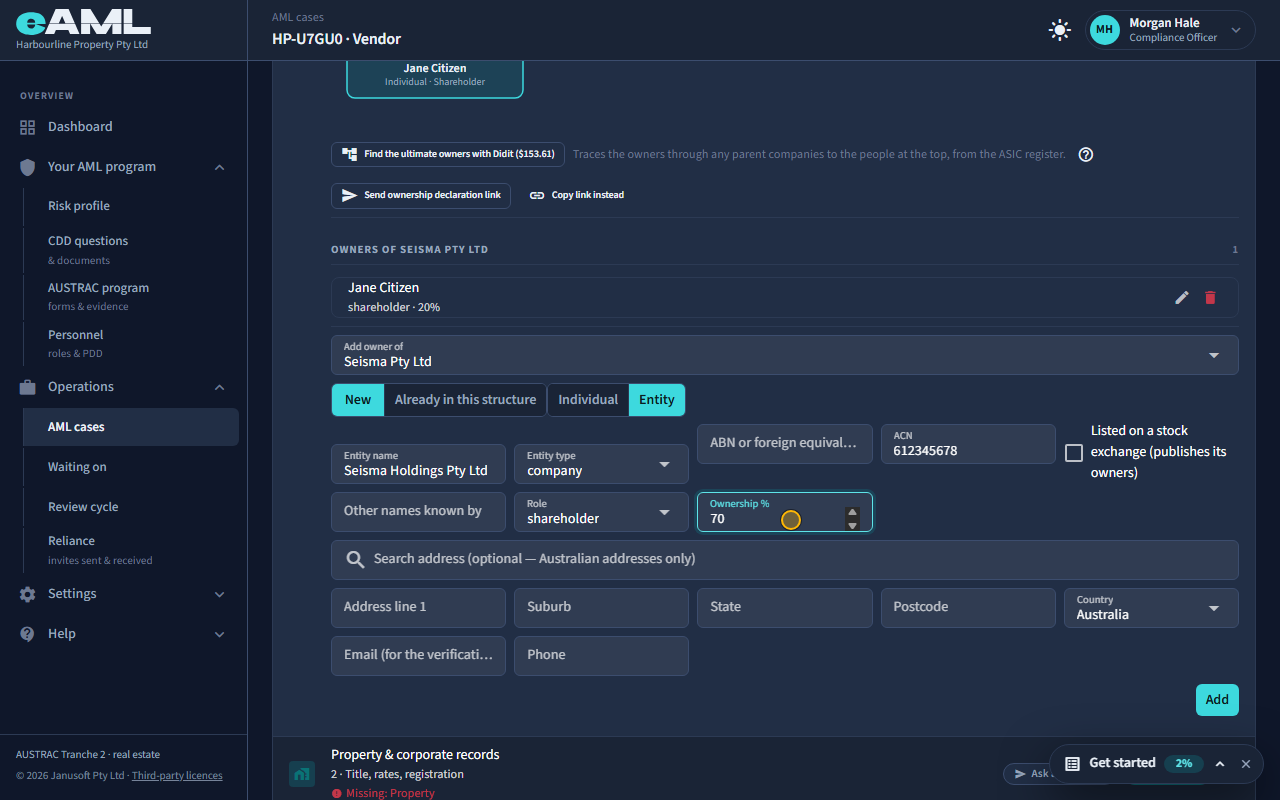
Select Entity, enter the company’s name and ACN, choose the role, enter the percentage and select Add.
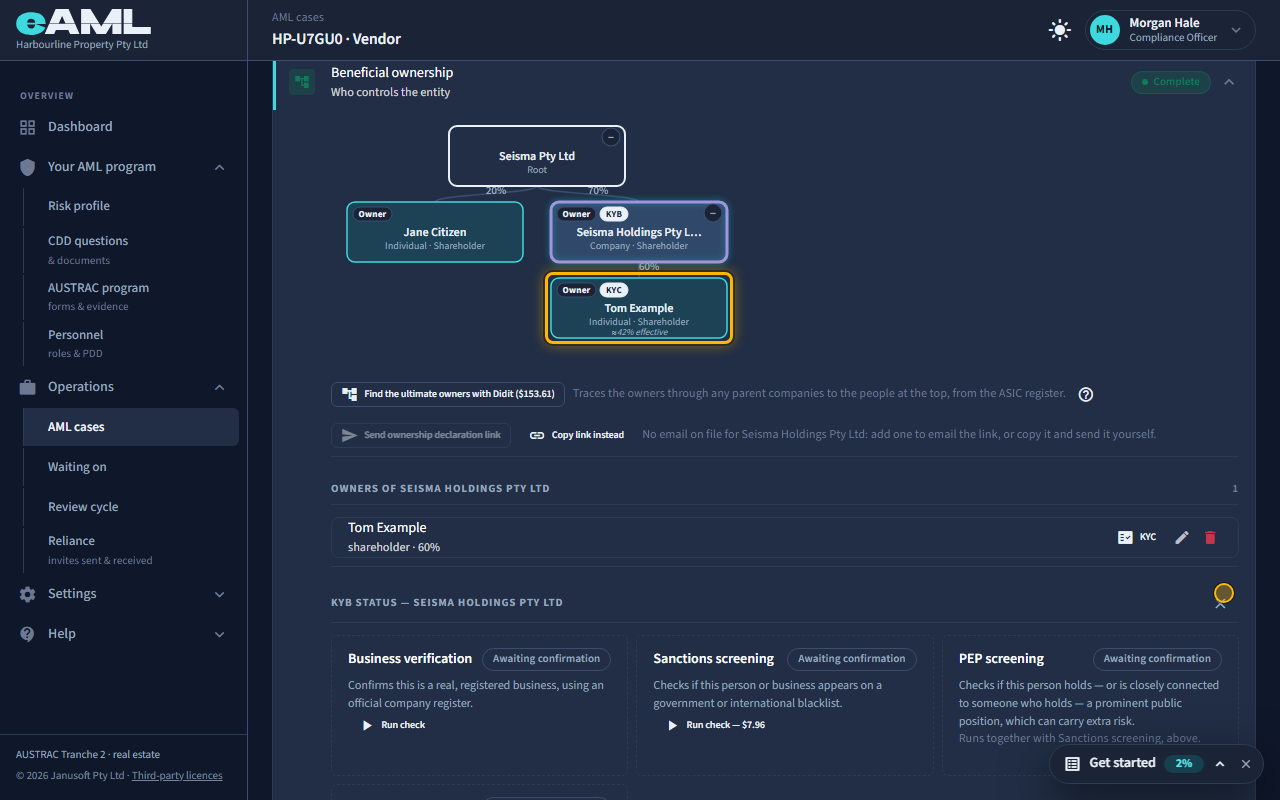
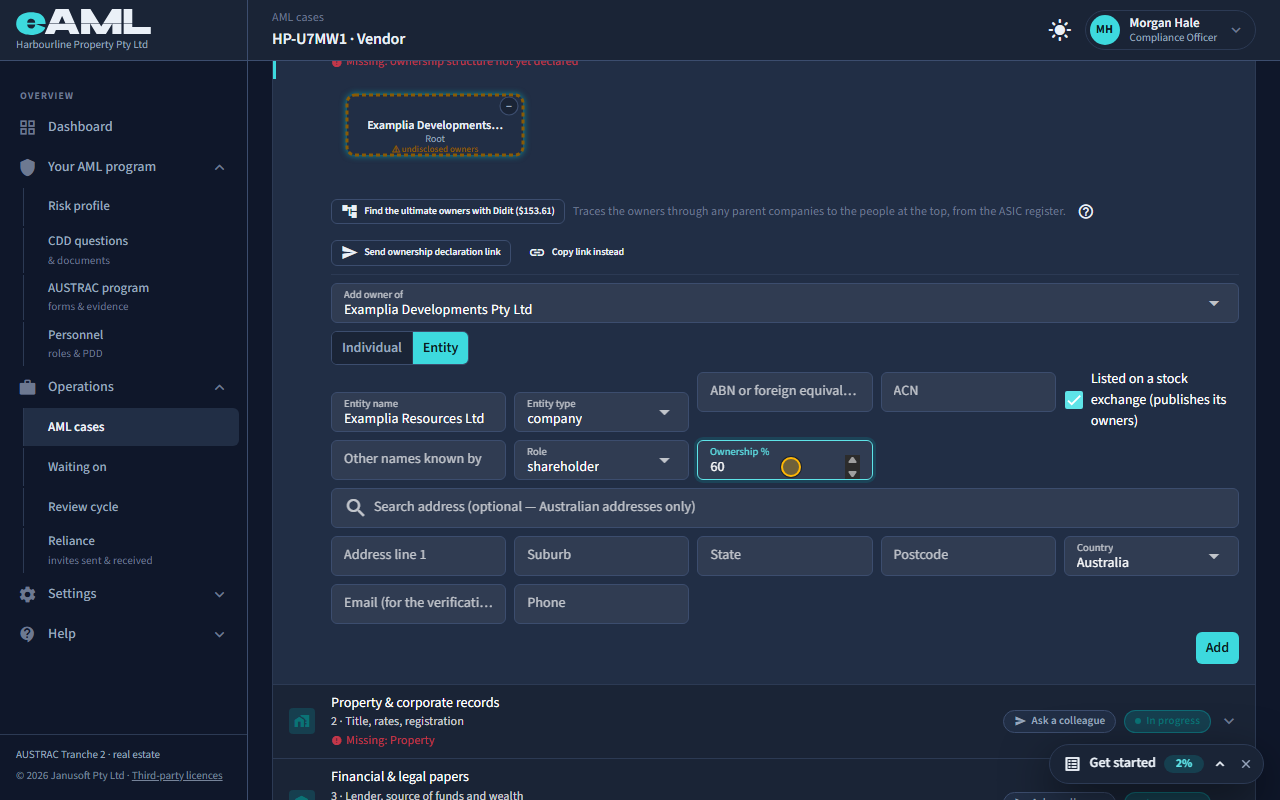
An owner can be a company. Switch the form to Entity, then give its name, its ACN or ABN, the role and the percentage. Seisma Holdings holds 70%, so it is a box under the customer with a KYB badge: it needs its own business verification, and the people behind it have to be found. Leave the Listed box unticked unless the company is listed on a stock exchange.
-
Put an owner under the company they hold through
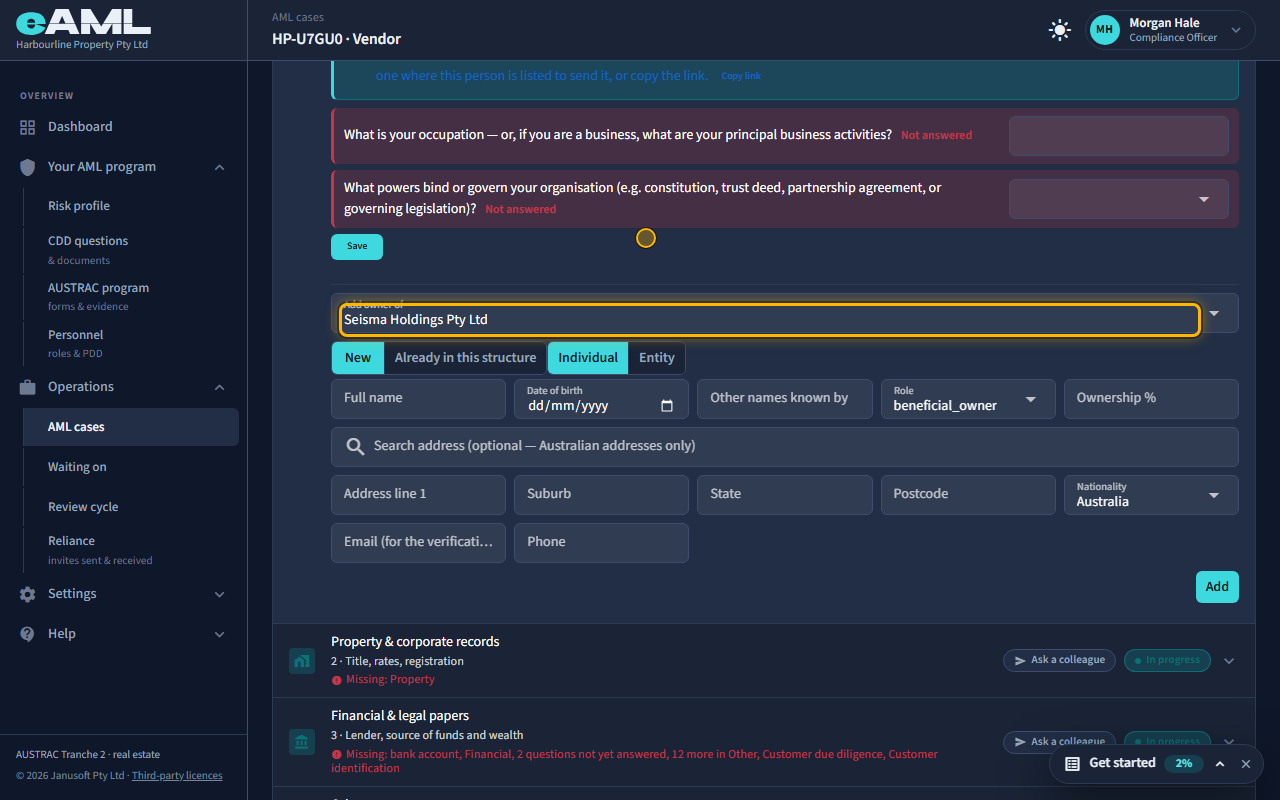
Select the company’s box (Add owner of changes to it), then add the owner as before.
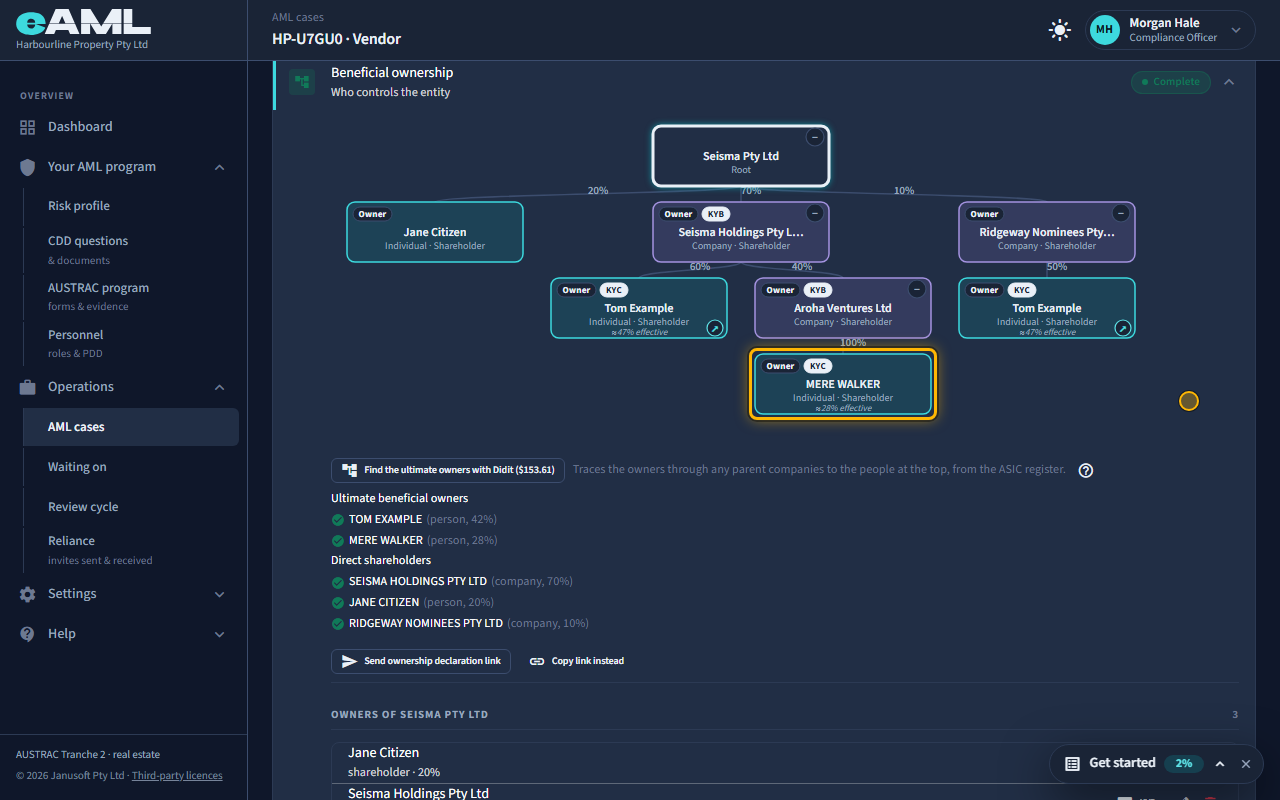
Select a company’s box in the diagram, or choose it in Add owner of, and the form adds to that company instead of the customer. Tom Example holds 60% of Seisma Holdings, so he goes under it. The diagram shows his effective percentage in the whole structure: eAML multiplies down the chain, so 60% of 70% is about 42%, which is over the 25% line, so he is enrolled for KYC.
-
A company with nobody behind it
Choose the customer in Add owner of, add Ridgeway as an entity at 10%, then open its box with the plus sign.
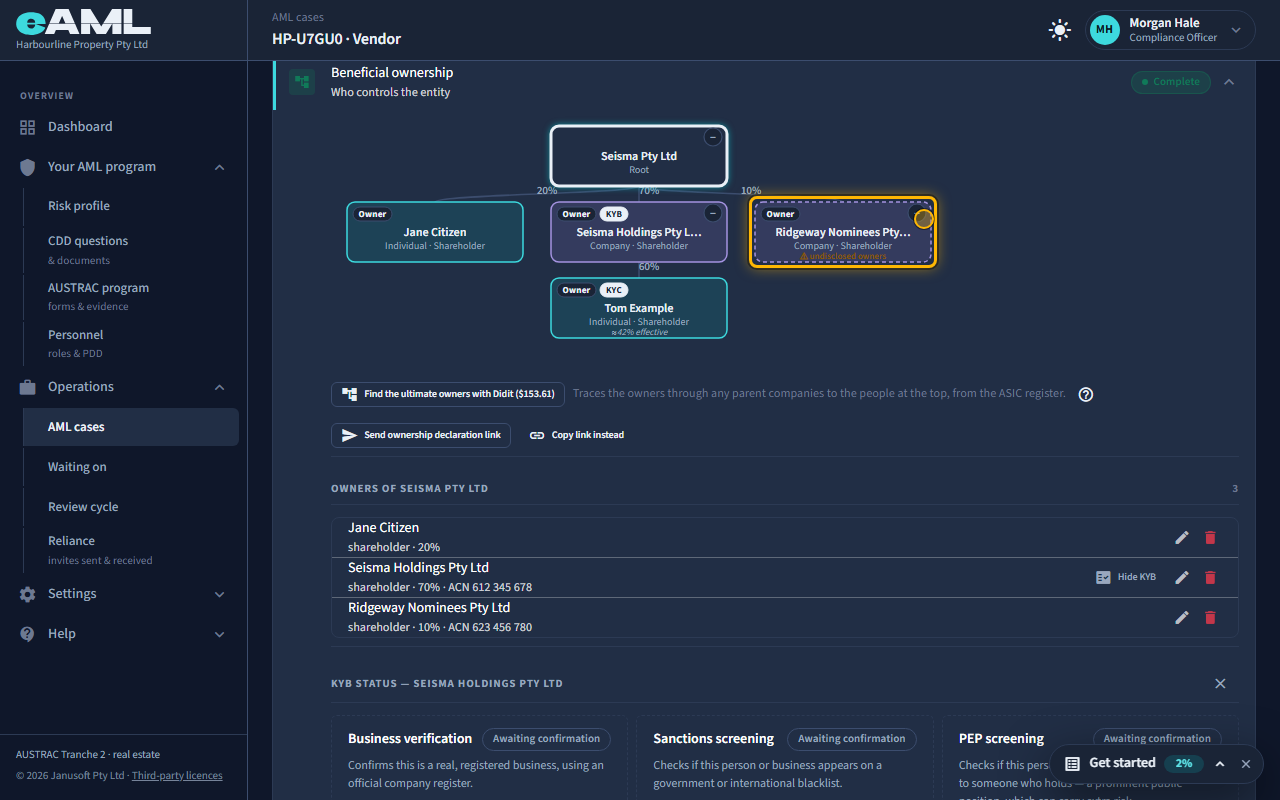
Seisma Pty Ltd also lists Ridgeway Nominees Pty Ltd at 10%. Open its box with the plus sign, and the diagram warns: undisclosed owners. A company named as an owner with nobody recorded behind it is opaque, so eAML flags it, and its structure check counts that as a complex structure, which raises the customer’s risk rating. Either record who is behind it, or, if it is listed or a government body, say so: those need nobody behind them.
-
A person who owns through two companies
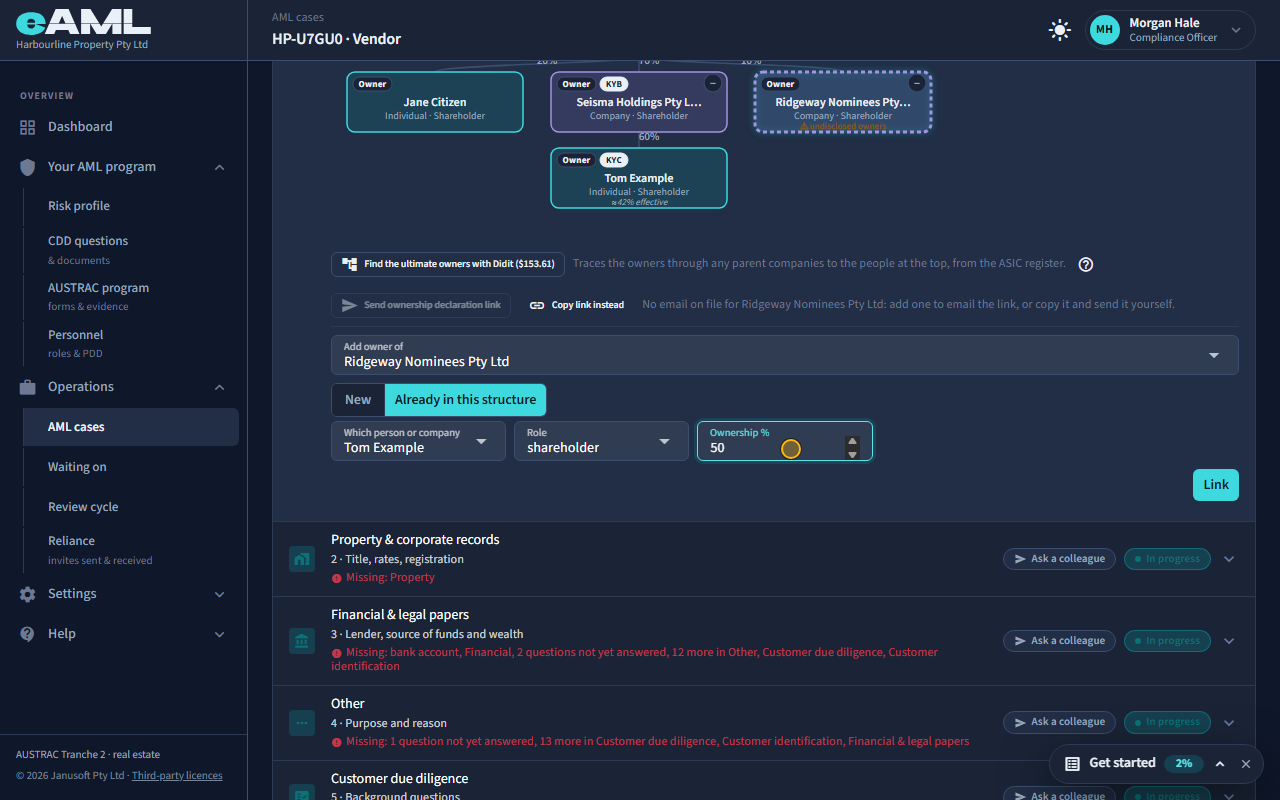
Select Ridgeway’s box, choose Already in this structure, pick the person, enter their share and select Link.
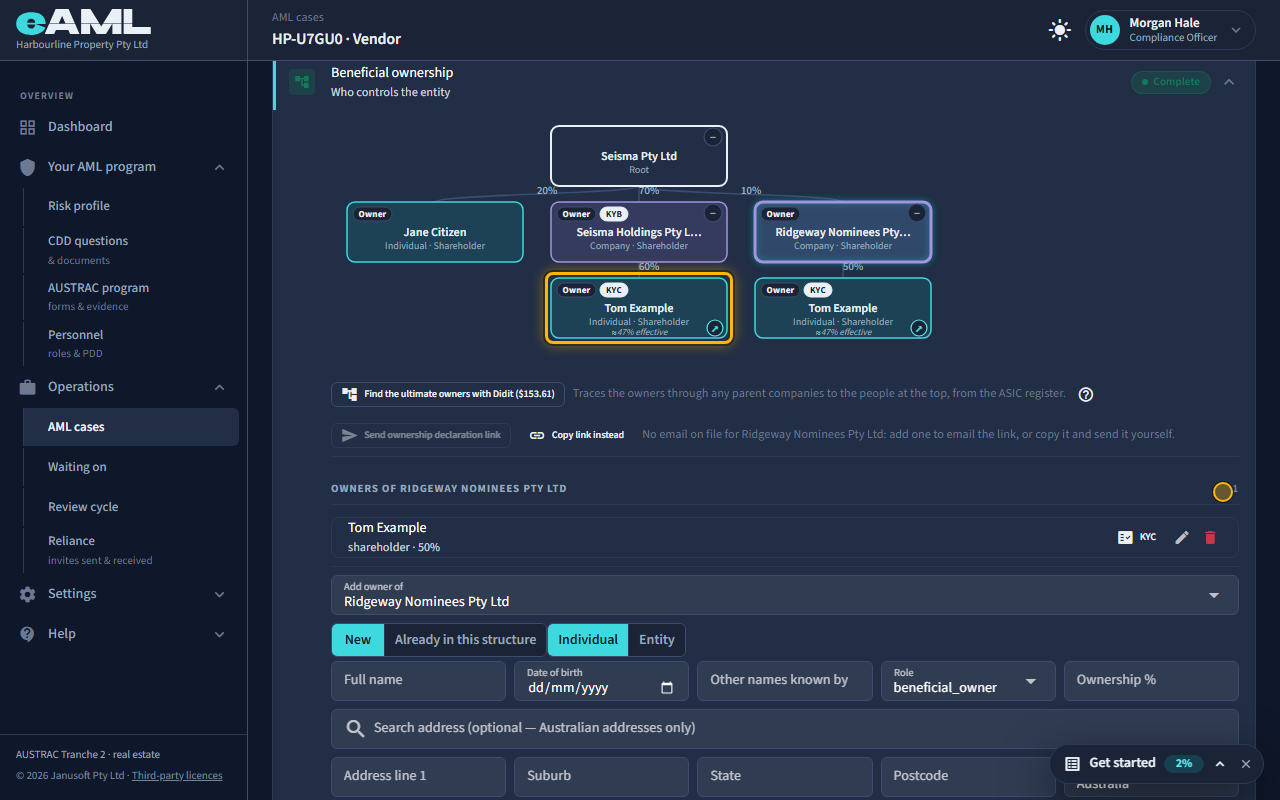
Tom also holds 50% of Ridgeway. Do not add him a second time: select Ridgeway’s box, choose Already in this structure, pick Tom and give his share. It is the same person, so there is one record and one set of checks. The diagram draws him in both places with a small arrow, the warning on Ridgeway goes, and his effective percentage adds the two routes: 42% plus 5%, about 47%.
-
Ask the company register who is behind it
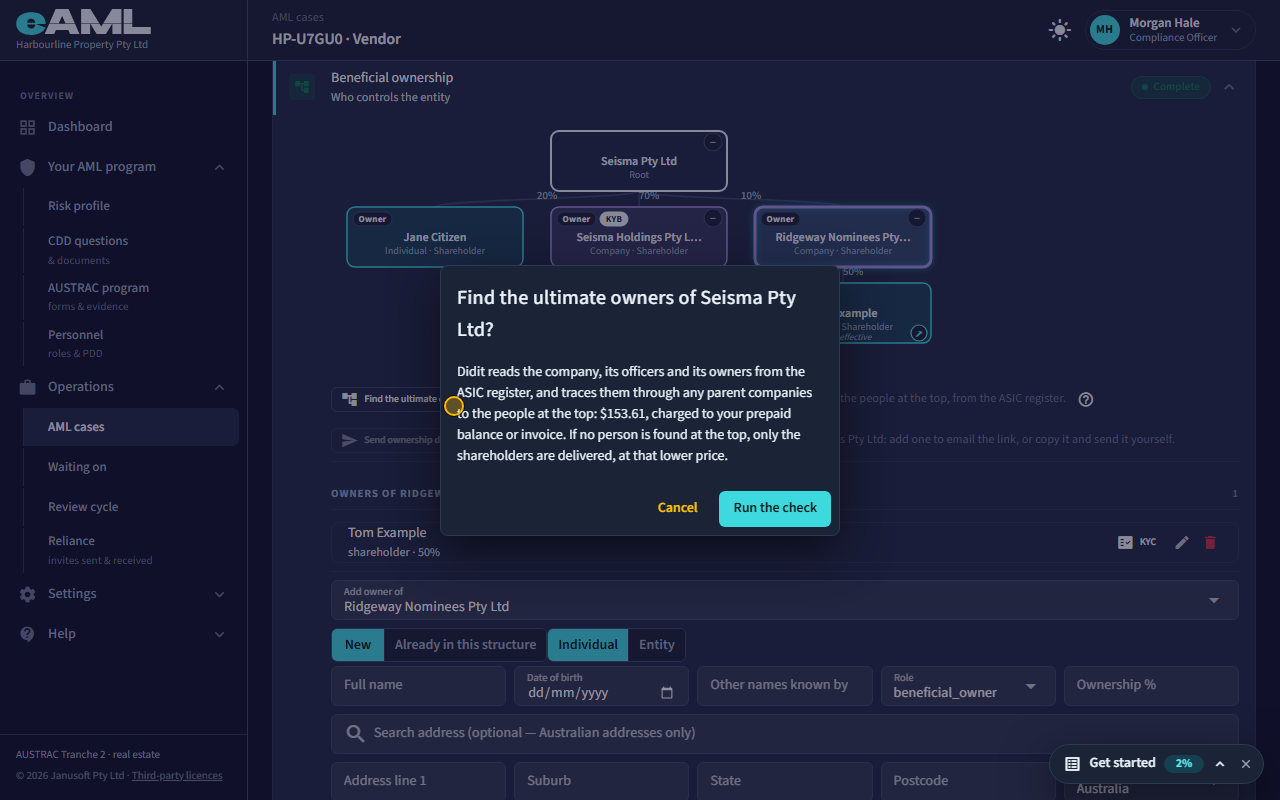
Select Find the ultimate owners, then Run the check.
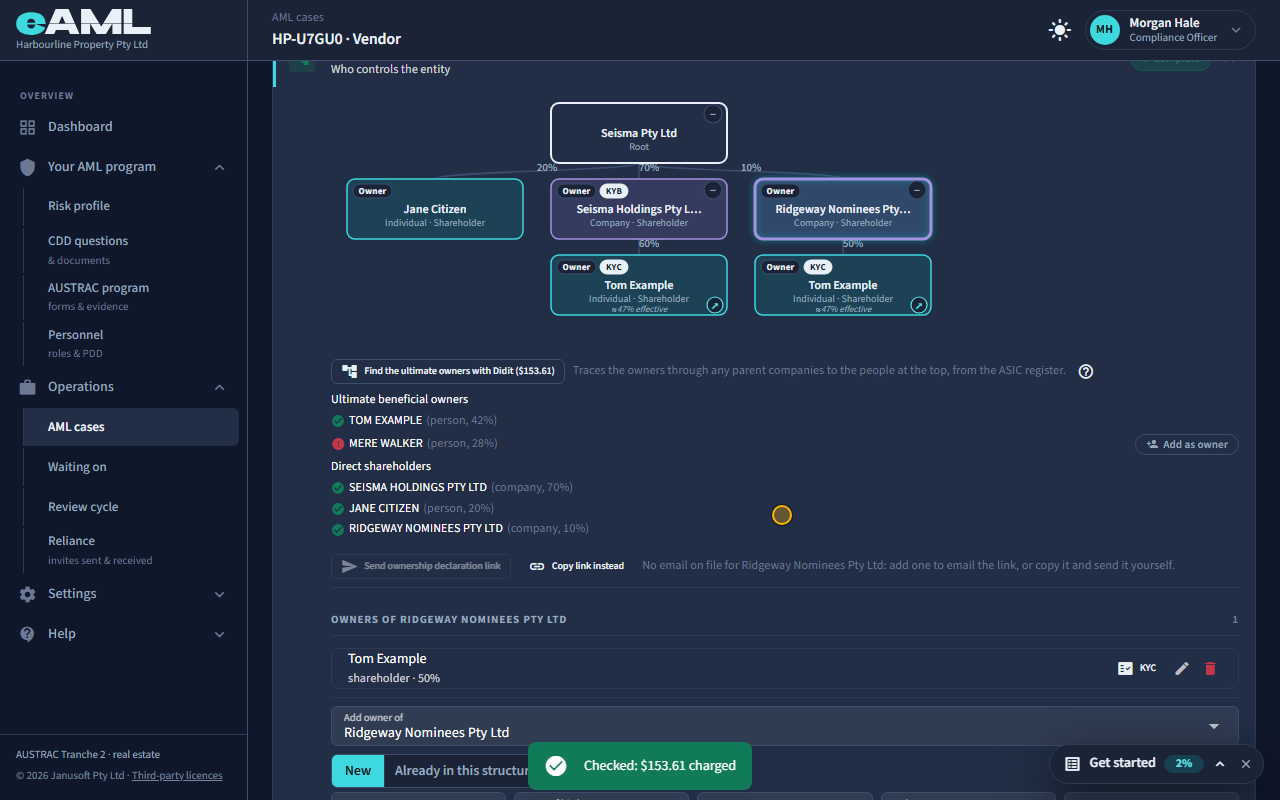
For a company, the register can tell you. Select Find the ultimate owners, confirm the price (it is on the button and in the dialog, and is charged to your prepaid balance or invoice), and the check reads the company, its officers and its owners from the ASIC register and traces them through any parent companies to the people at the top. Each person is listed with their holding. A tick means they are already on file; anyone you have not recorded has an Add as owner button. If no person is found at the top, only the direct shareholders are delivered, and charged at the lower price.
-
Add an ultimate owner where they sit
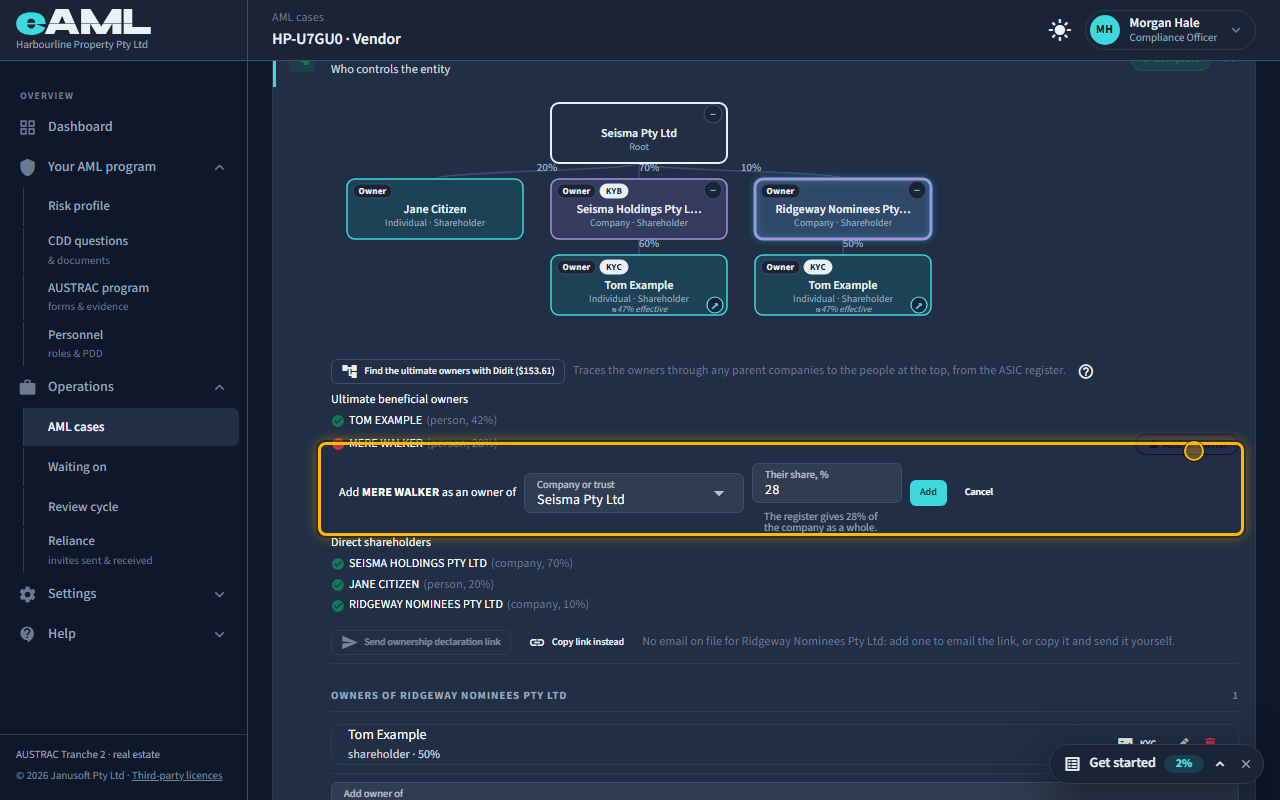
Select Add as owner beside the person, check where she belongs and her share, and select Add.
The register’s list is flat: it gives each person’s share of the whole company, not the route they hold it through. Mere Walker is not on file yet, with 28%. Select Add as owner and eAML asks where she belongs. The default is directly under the company, as a beneficial owner, with the register’s figure as her share. If she holds through a company or trust that is already in the structure, choose it here and eAML suggests her share of that one. We do not know her route yet, so we start with the company.
-
Move an owner to a different company
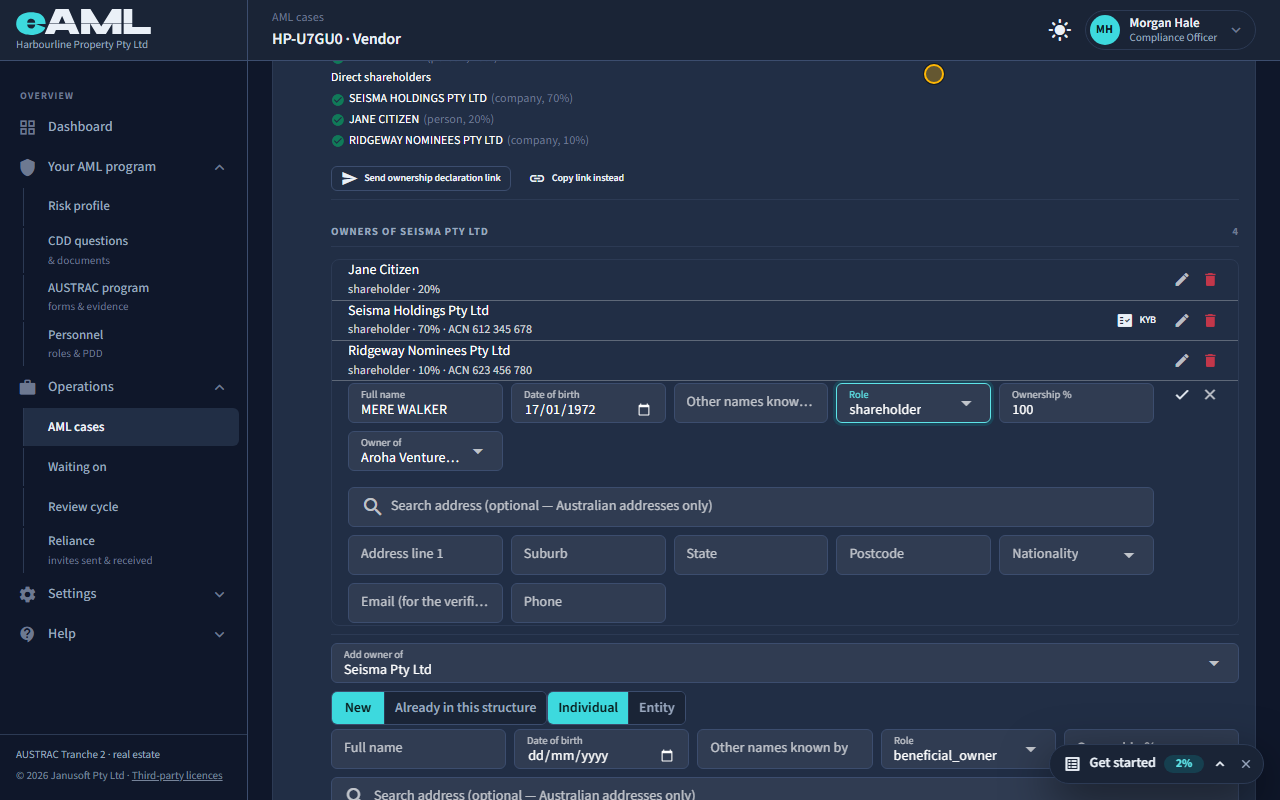
Add the missing company, then select the pencil beside the owner, choose the new company in Owner of, and select the tick.
The register shows more: Mere holds through Aroha Ventures, a New Zealand company that owns 40% of Seisma Holdings. Add Aroha under Seisma Holdings, then move Mere under it: select the pencil beside her, choose Aroha Ventures in Owner of, change her role to shareholder and her share to 100%, and save. Whoever owns the person you move goes with them. Her effective percentage is still about 28%, now through the right company.
-
When the structure is flagged as complex
Select Risk scoring and tiering and read Risk factors that fired.
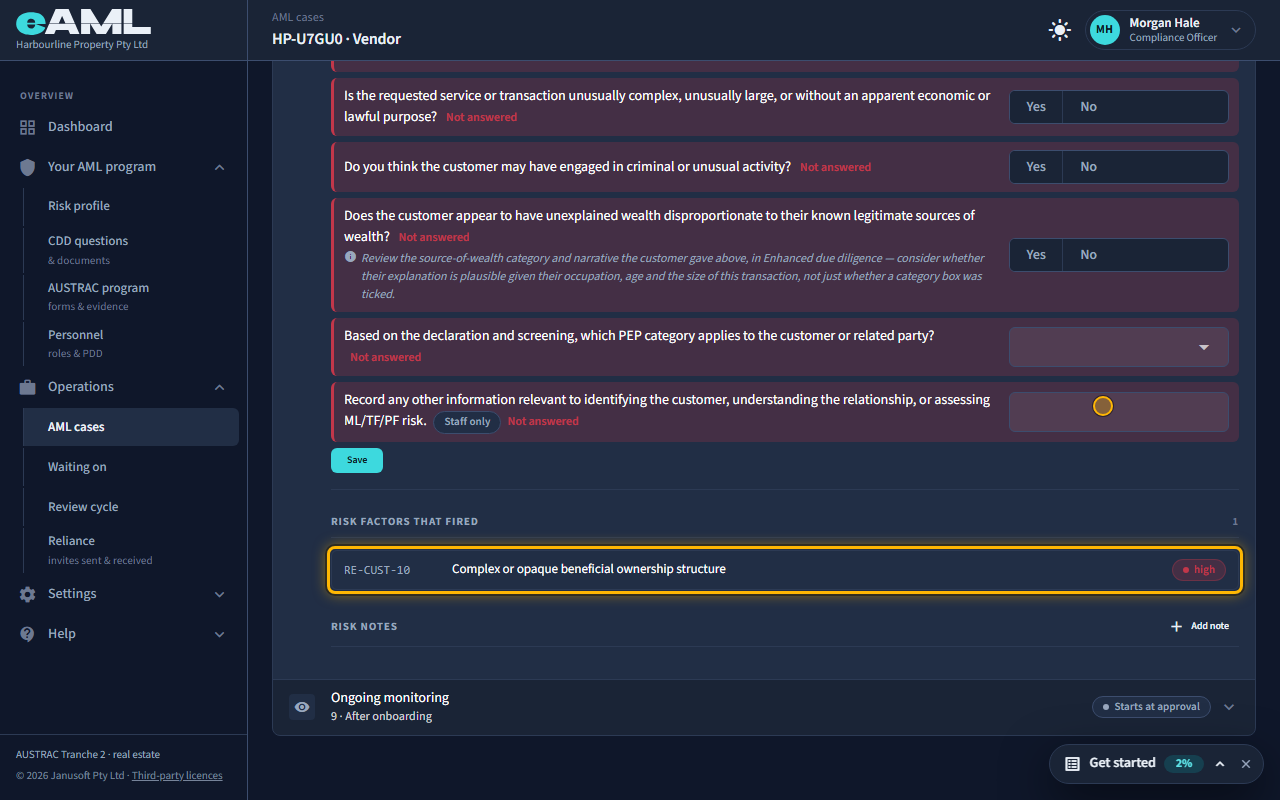
eAML checks every structure for complexity as you build it. It flags the structure when a company or trust has nobody recorded behind it, when it is more than two company or trust layers deep, or when more than five different owners are recorded. A person who holds several roles, or holds through two companies, counts once. A complex structure adds the risk factor Complex or opaque beneficial ownership structure, rated high, and the customer’s rating rises. Here it fired as soon as Ridgeway appeared with nobody behind it, and the six different owners now recorded would flag it on their own. Once a factor has fired it stays on the list, and the rating does not come down by itself, even after you fix the structure. If the structure is understood, say so in a risk note, and confirm the rating when you complete risk tiering.
-
Listed companies and government bodies
Add the owner as an entity, tick Listed on a stock exchange (or choose the government type), then open its box.
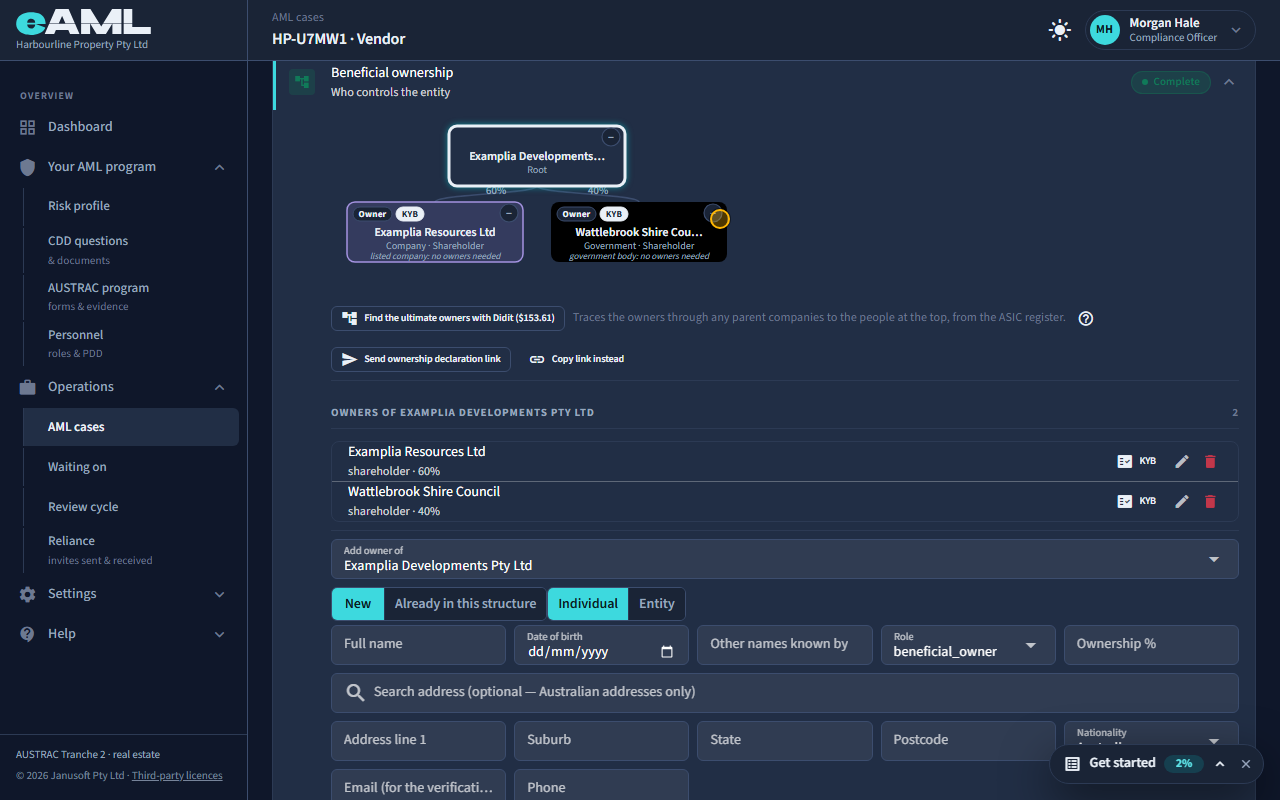
Some owners need nobody behind them. A company listed on a stock exchange publishes its owners, and a government body is exempt. Tick Listed on a stock exchange on a company owner, or choose the government entity type, and the diagram says listed company or government body: no owners needed, instead of undisclosed owners. If the customer itself is a government body, or is declared a publicly listed company, the whole stage says Not applicable.
Every screen in this guide was captured from the live application in the same run as the video, so the two always match. If a screen here no longer matches what you see, tell us: the guide is regenerated after each release.