Guide · T26
Company checks: the ASIC extract and the register
Before you start
- A company added to a case as the customer, with its ABN and ACN
- For the extract: ASIC’s Current Company Extract for the company, as a PDF
-
Choose a company check
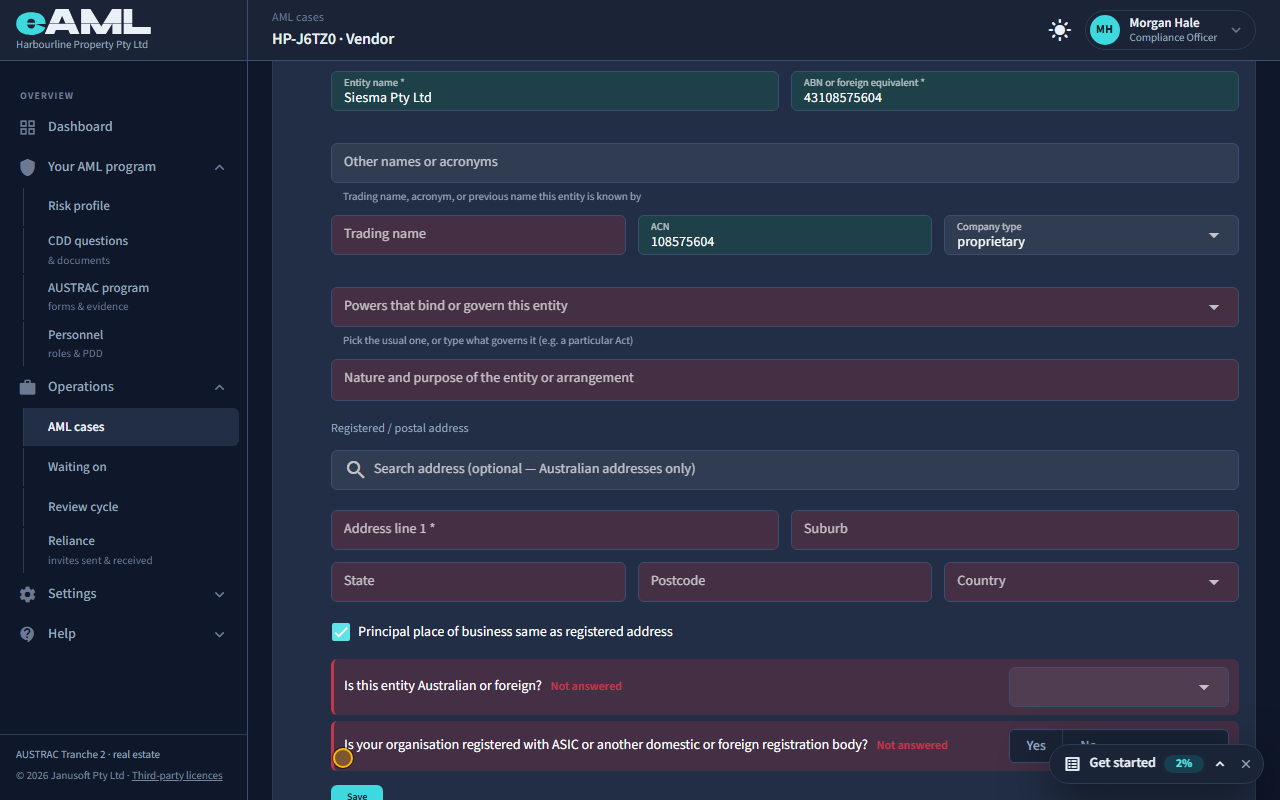
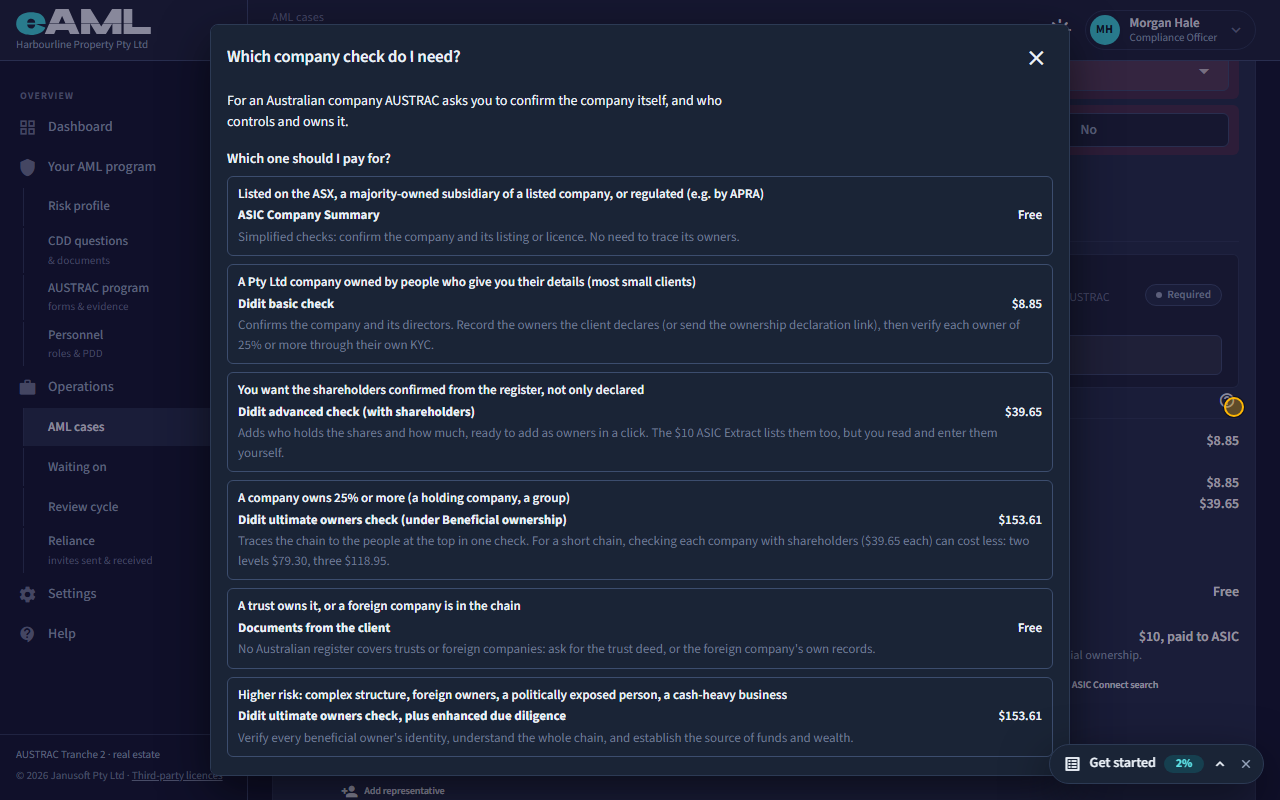
Open the company’s Customer identification stage and read Company register check. Select the help button beside it to see which check fits.
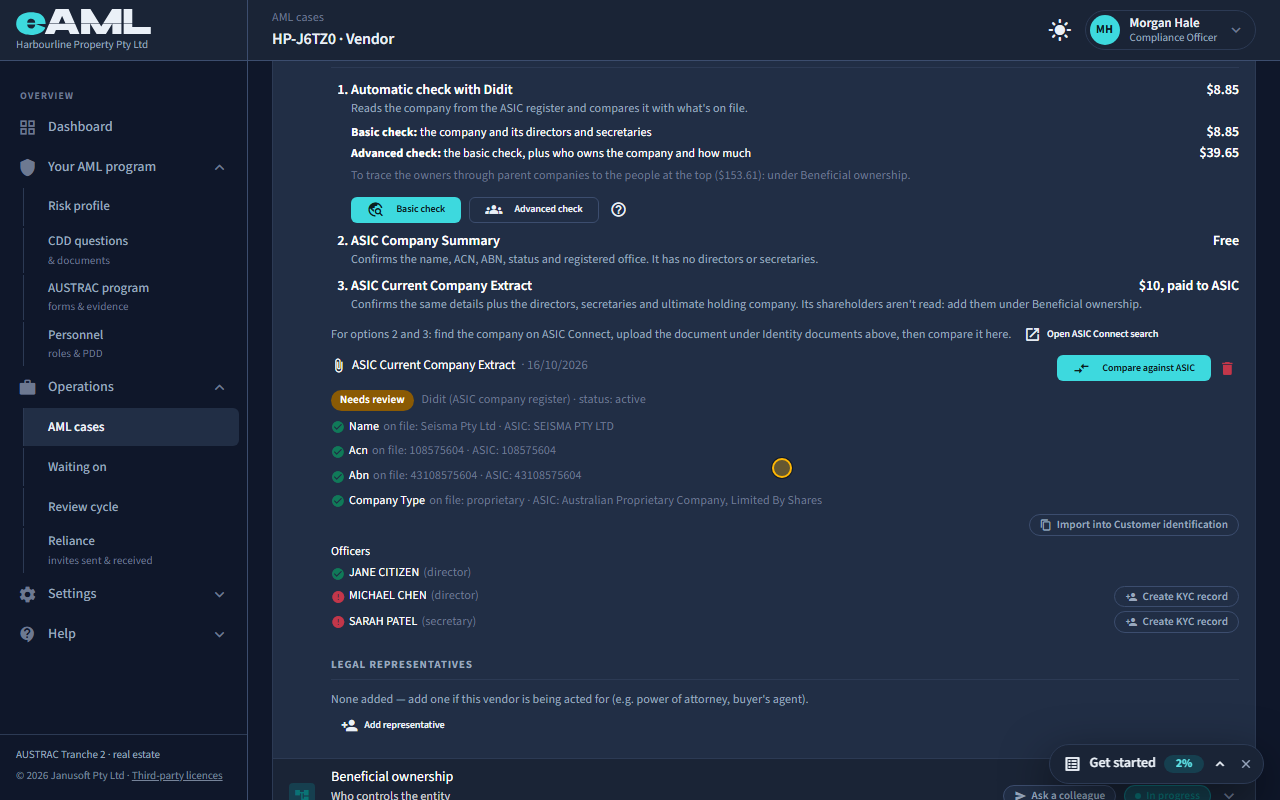
A company is confirmed against the ASIC register on its card, in the Customer identification stage, under Company register check. It lists every way to do it, with what each costs. An automatic check with Didit reads the company from the register for you: Basic confirms the company and its directors and secretaries, and Advanced adds who owns it. The ASIC Company Summary is free but has no directors or owners. The ASIC Current Company Extract costs $10, paid to ASIC, and you upload it. The help button beside the heading says which to choose: a Pty Ltd company is never covered by the free Summary alone.
-
Upload ASIC’s Current Company Extract
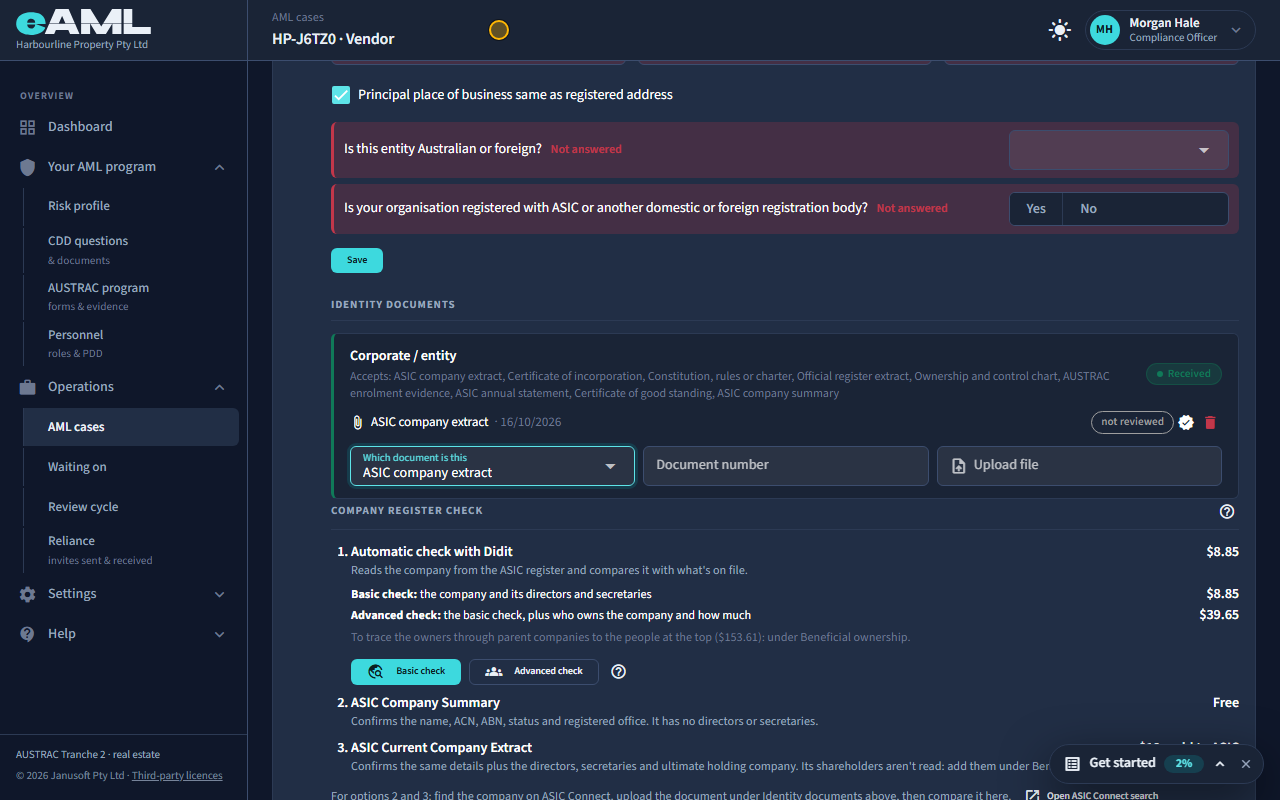
In Identity documents, in Corporate / entity, choose ASIC company extract and upload the PDF.
Find the company on ASIC Connect (the card has a button that opens the search), buy its Current Company Extract, and upload the PDF in the Corporate / entity slot under Identity documents. Choose ASIC company extract as the document type. The extract is a document from an independent, reliable source, which is what AUSTRAC asks for to show who a company’s directors are.
Good to know. The extract used in this recording is a specimen made for training, laid out like ASIC’s own. Yours comes from ASIC.
-
Compare it with what you entered
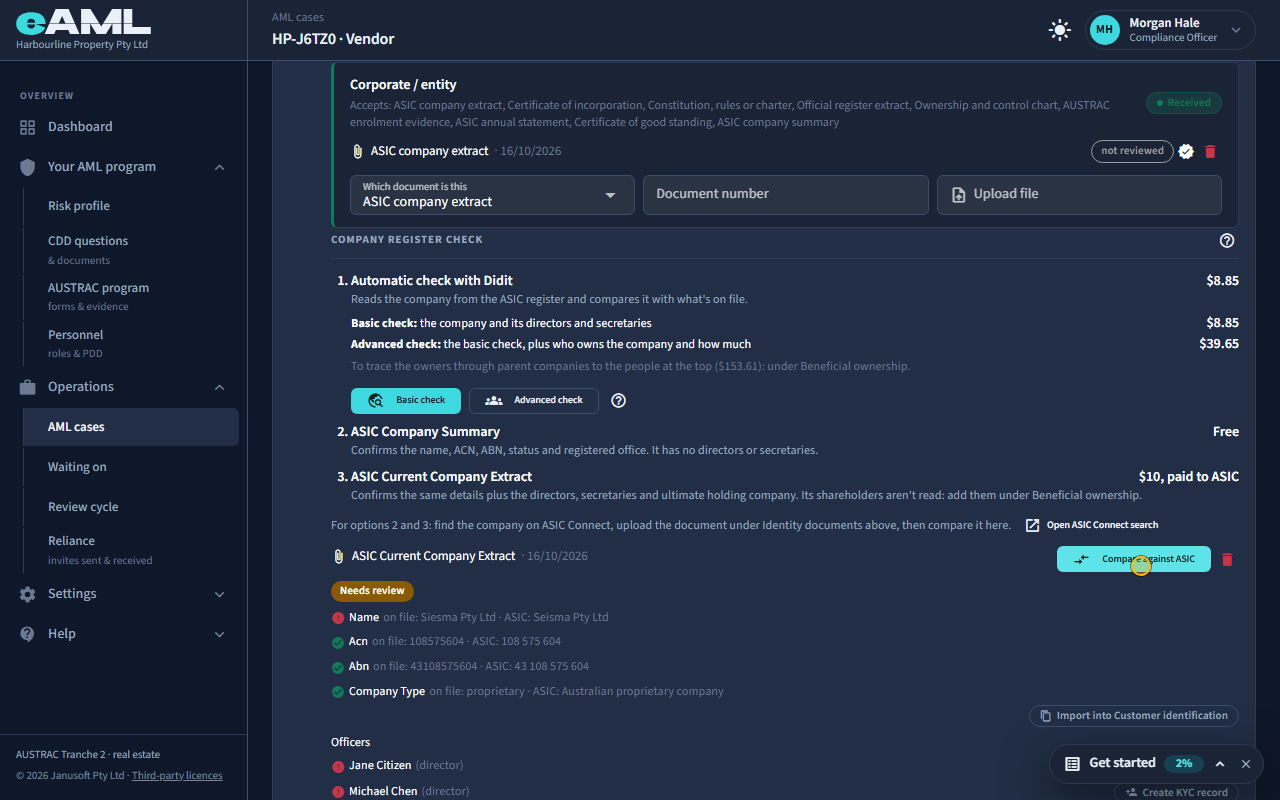
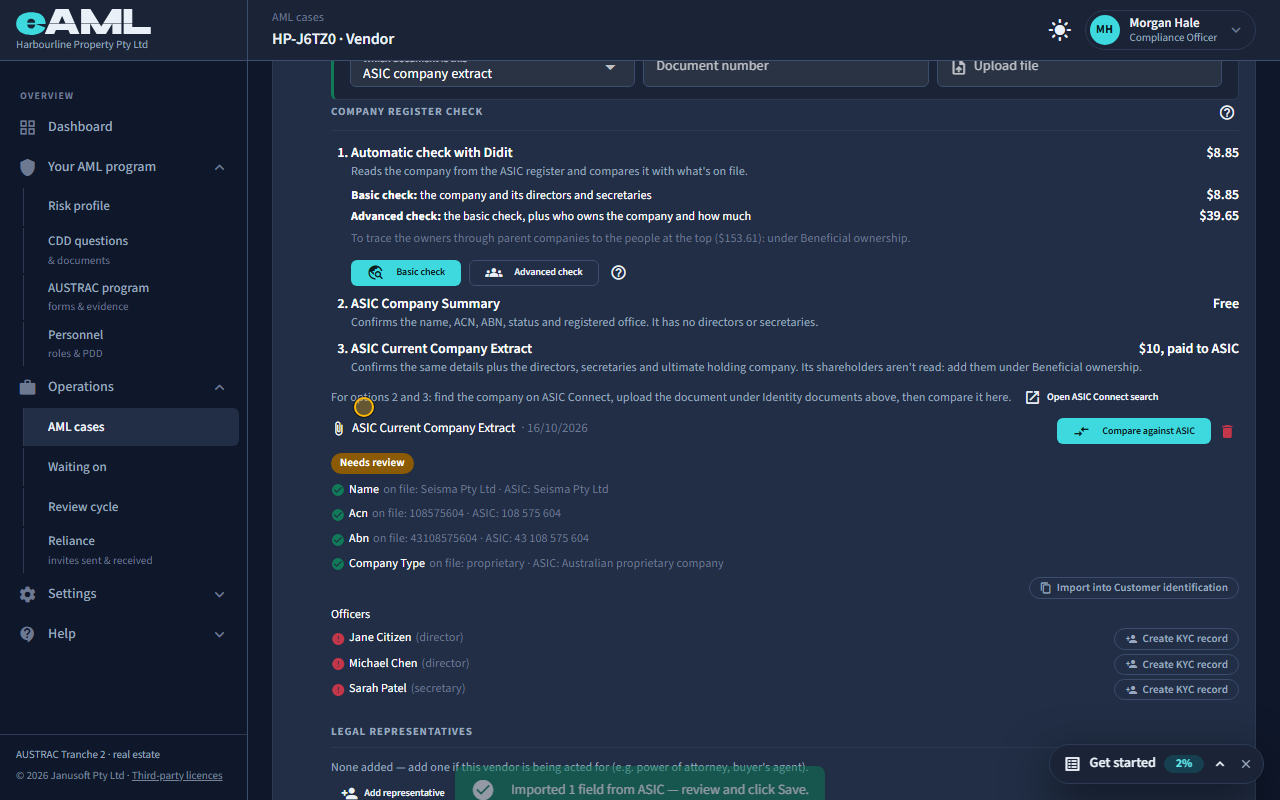
Select Compare against ASIC and read each row.
Under the card, select Compare against ASIC. eAML reads the PDF itself and checks the company field by field against what is on file. A green tick is a match. Here the name was typed “Siesma Pty Ltd” and the extract says “Seisma Pty Ltd”, so that row is red and the badge says Needs review, while the ABN and ACN match. Each row shows what is on file and what ASIC says.
-
Take ASIC’s spelling
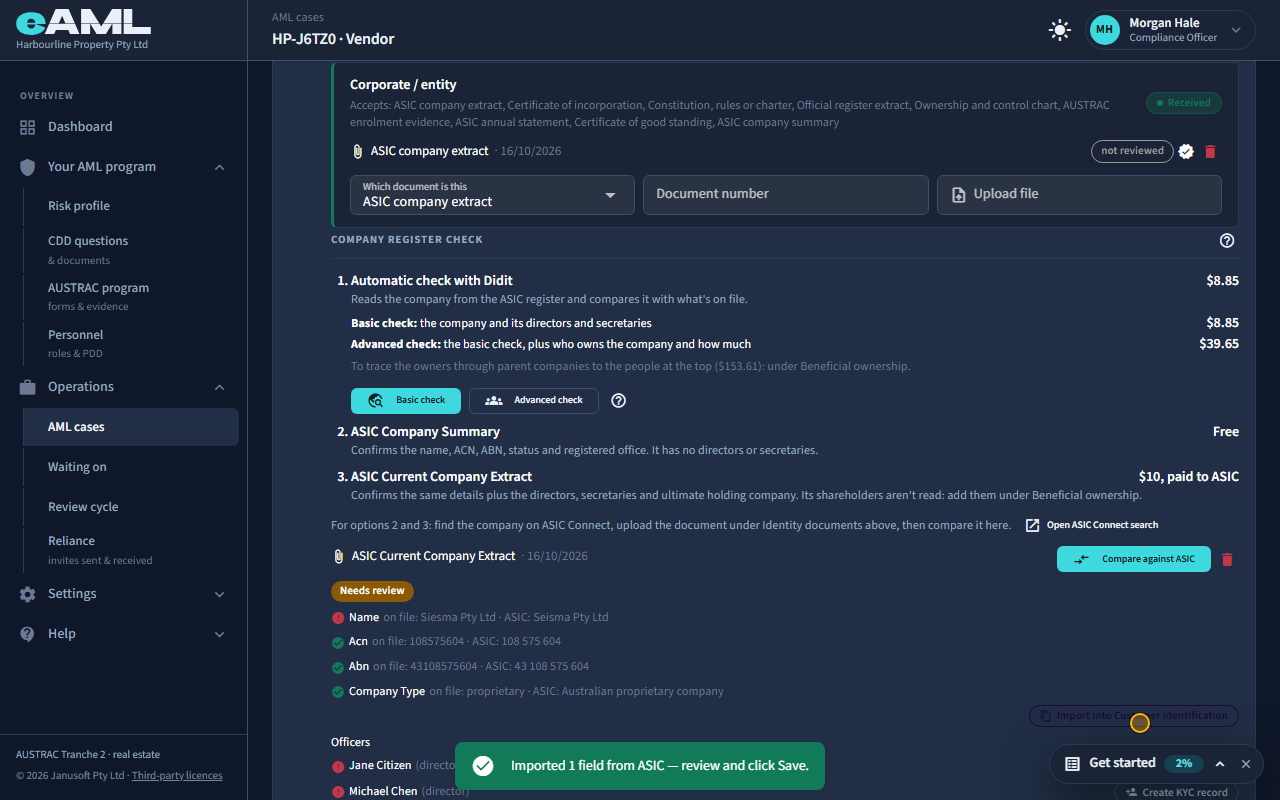
Select Import into Customer identification, check the fields, and select Save.
Select Import into Customer identification and eAML copies ASIC’s name, ACN and ABN over the ones that do not match, into the form above. Nothing is saved until you review them and select Save. When you do, the comparison runs again by itself and the red row turns green: you do not upload or compare a second time.
-
Create KYC records for the officers
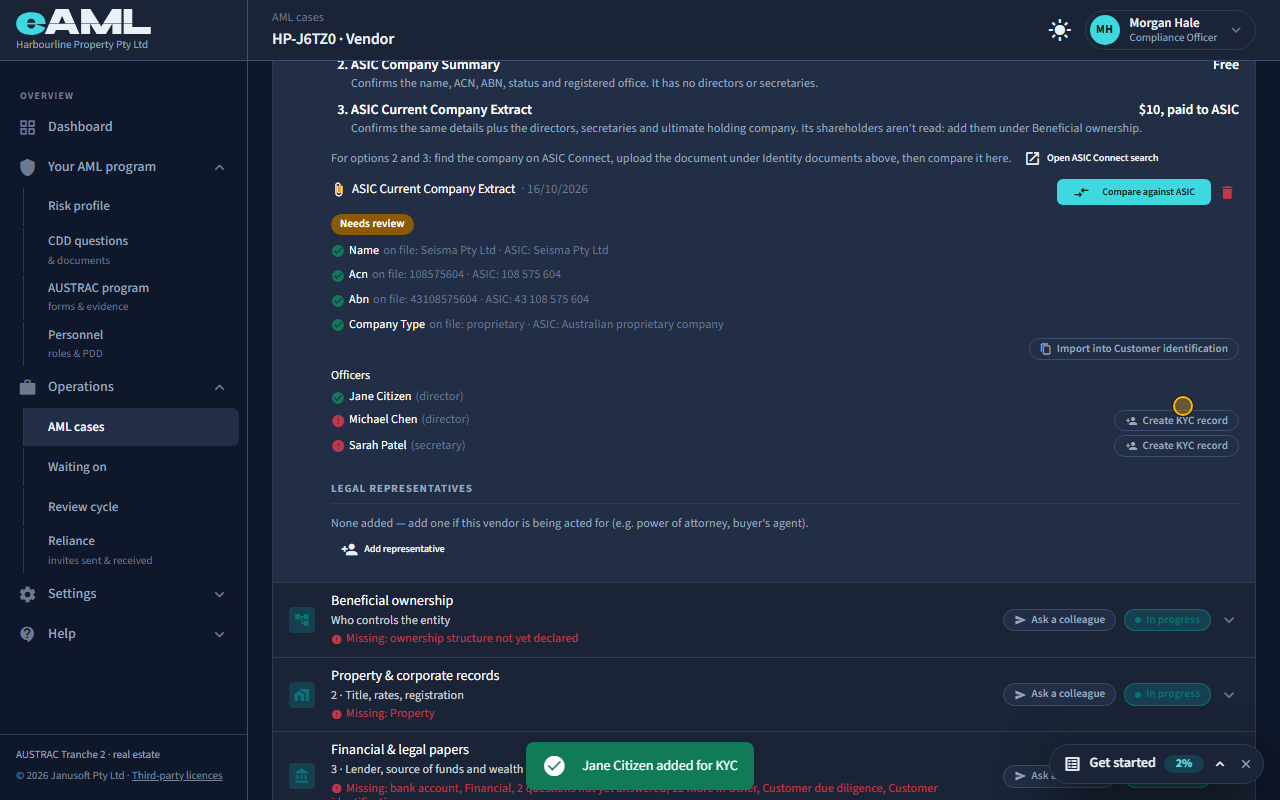
Select Create KYC record beside each officer who is not on file.
The extract also lists the company’s officers. Anyone it lists who is not on file yet has a Create KYC record button. Selecting it records the person as the director or secretary and enrols them for their own identity check and screening, as if you had added them by hand. The badge keeps saying Needs review until every officer the extract lists is on file, because who controls the company is part of what AUSTRAC asks for.
-
The automatic check: Basic
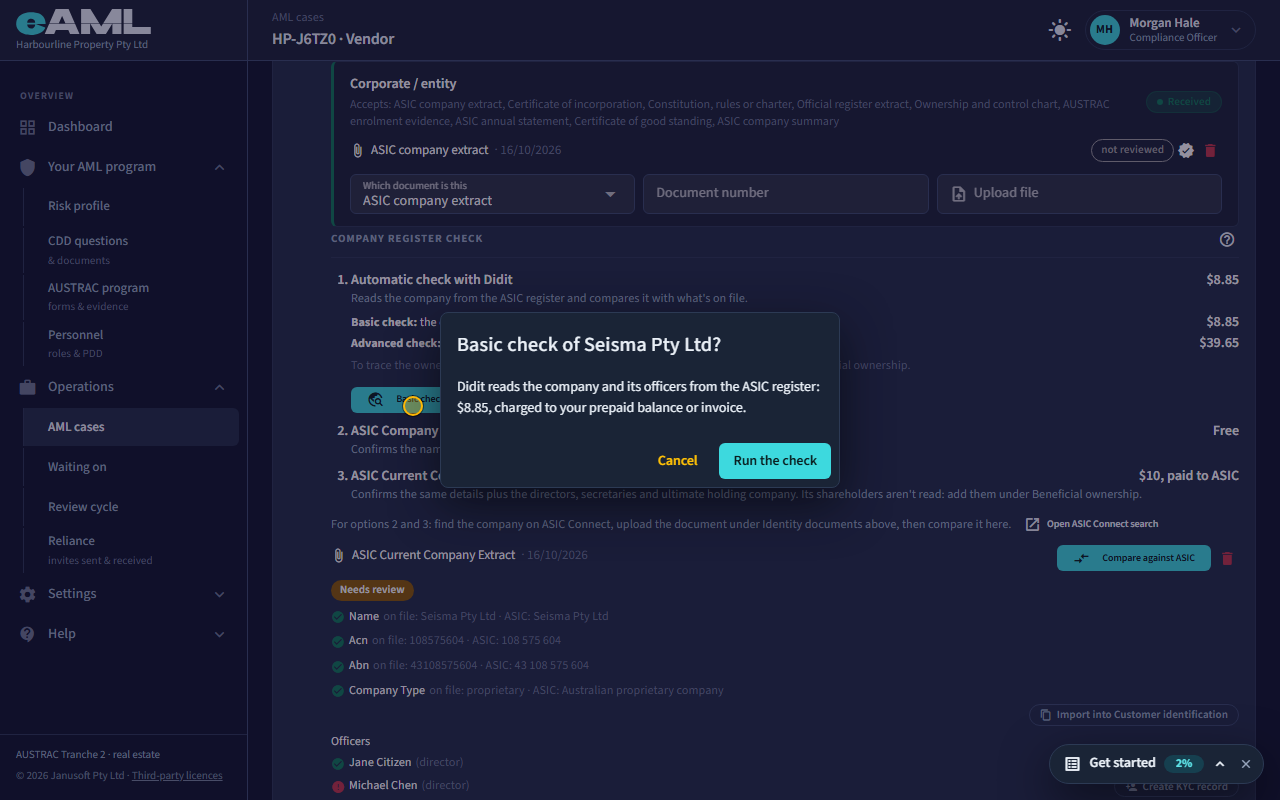
Select Basic check, read the price, and select Run the check.
Instead of a PDF, the automatic check reads the register for you. Select Basic check and the dialog gives the price and says what it reads: the company and its officers. Confirm it and the result lands on the card in seconds. It shows the company’s status and compares its name, ACN and ABN with what is on file, and lists the directors and secretaries the register has, flagging any you have not recorded. The price is charged to your prepaid balance or invoice.
-
The automatic check: Advanced
Select Advanced check, read the price, and select Run the check.
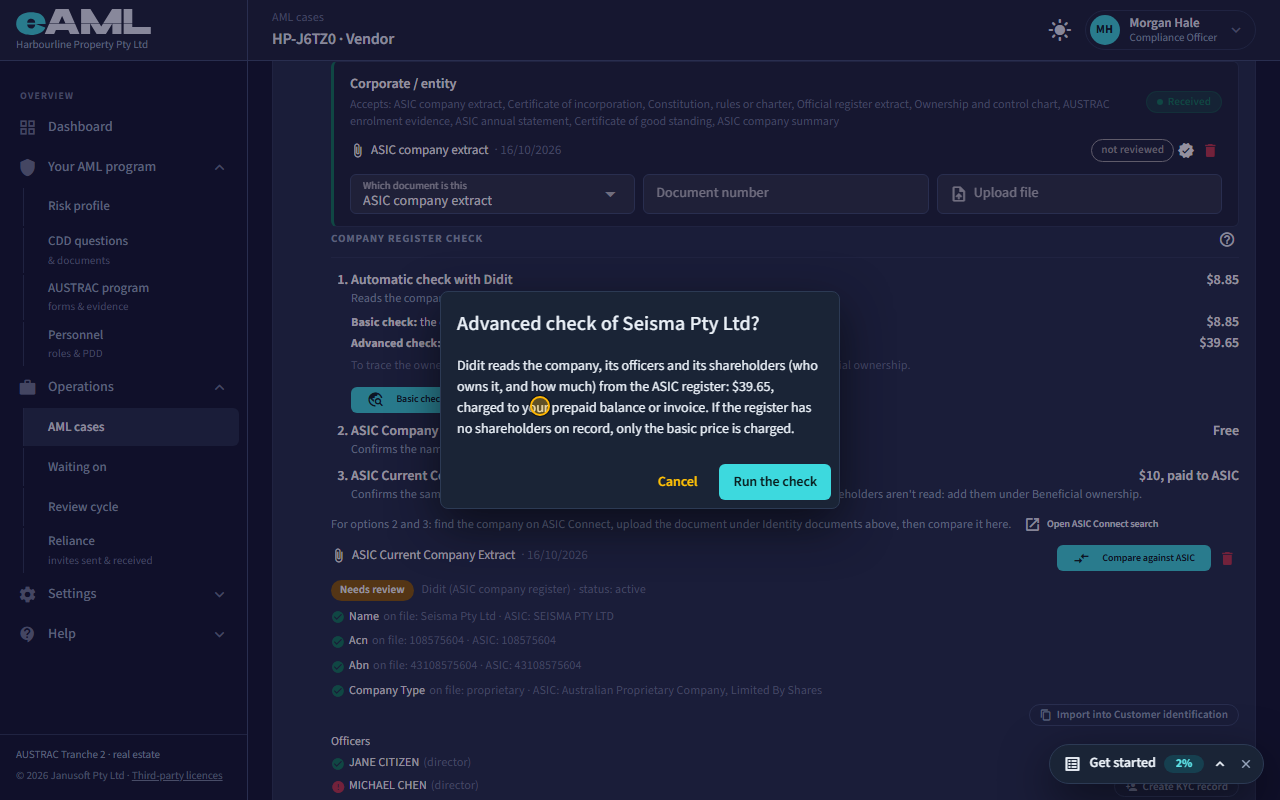
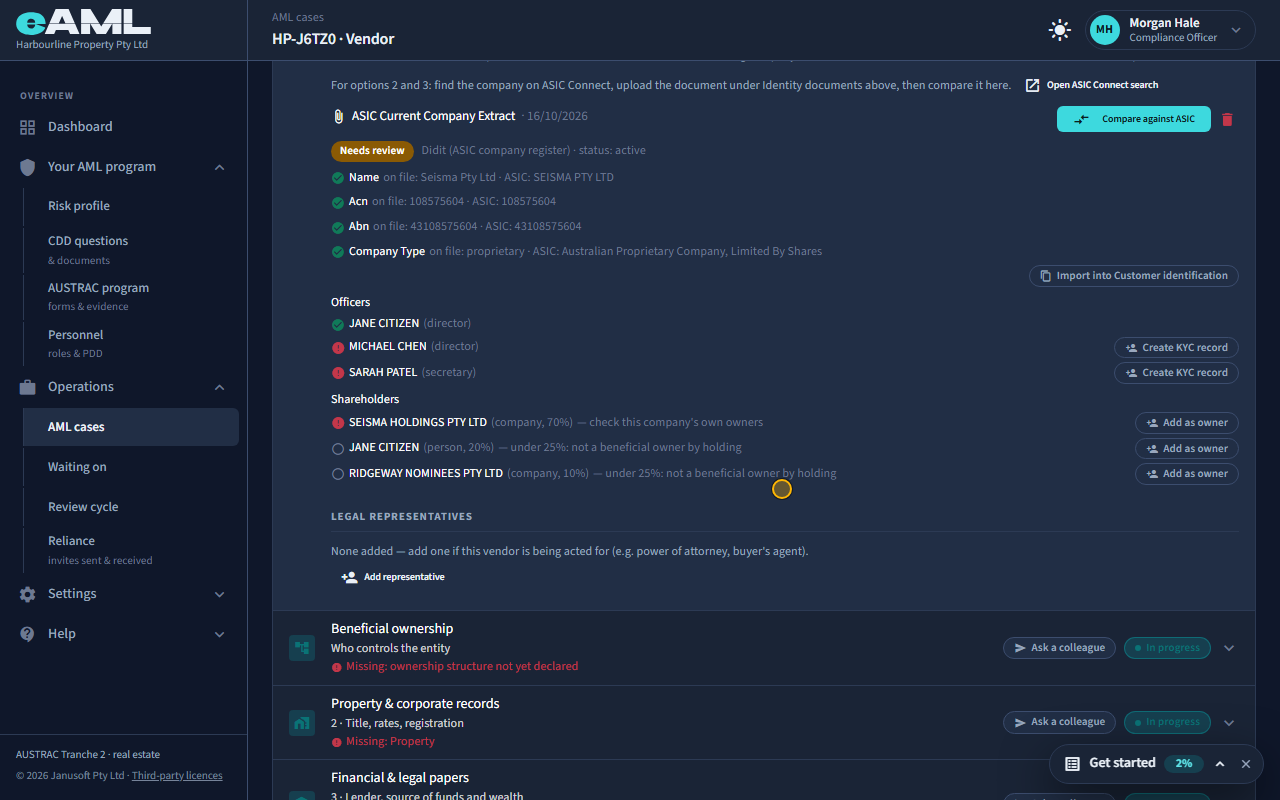
Advanced does everything Basic does and adds who owns the company: its direct shareholders and how much each holds. Anyone with 25% or more who is not yet on file is flagged and can be added as an owner in one click. If the register has no shareholders on record, only the Basic price is charged. When another company owns 25% or more, the Ultimate owners check under Beneficial ownership traces it to the people at the top (T24).
Every screen in this guide was captured from the live application in the same run as the video, so the two always match. If a screen here no longer matches what you see, tell us: the guide is regenerated after each release.