Guide · T42
Accounting practice: a client and an engagement
Before you start
- An accounting practice with its AUSTRAC program started and a compliance officer
-
The client register
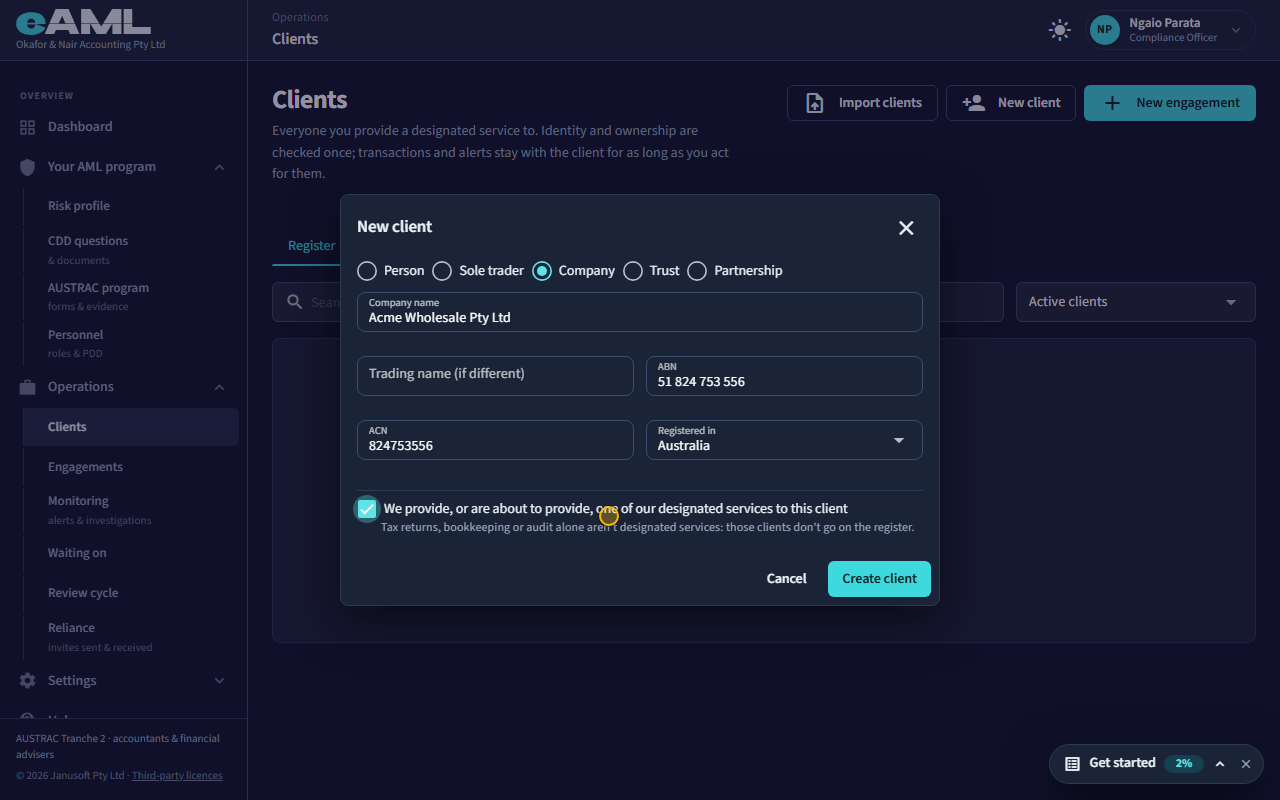
Open Clients, select New client, fill in the client’s details, tick the designated service box, and select Create client.
Open Clients in the menu. This is the practice’s register: everyone you provide a designated service to, with one record per client. Identity and ownership are checked once; transactions and alerts stay with the client for as long as you act for them. Select New client, choose Person, Sole trader, Company, Trust or Partnership, and fill in who they are. Tick that you provide, or are about to provide, a designated service: tax returns, bookkeeping and audit alone are not designated services, and those clients do not go on the register. Select Create client.
-
The client file: business profile and risk
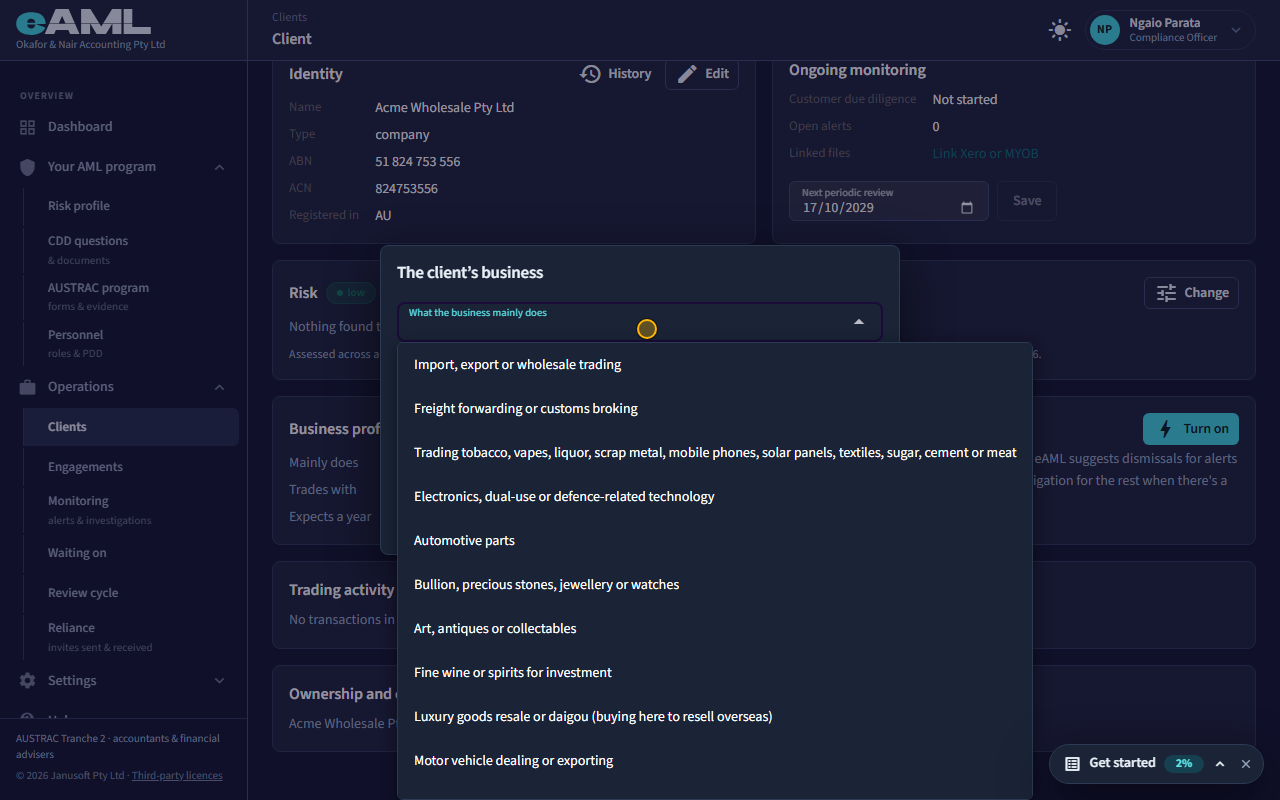
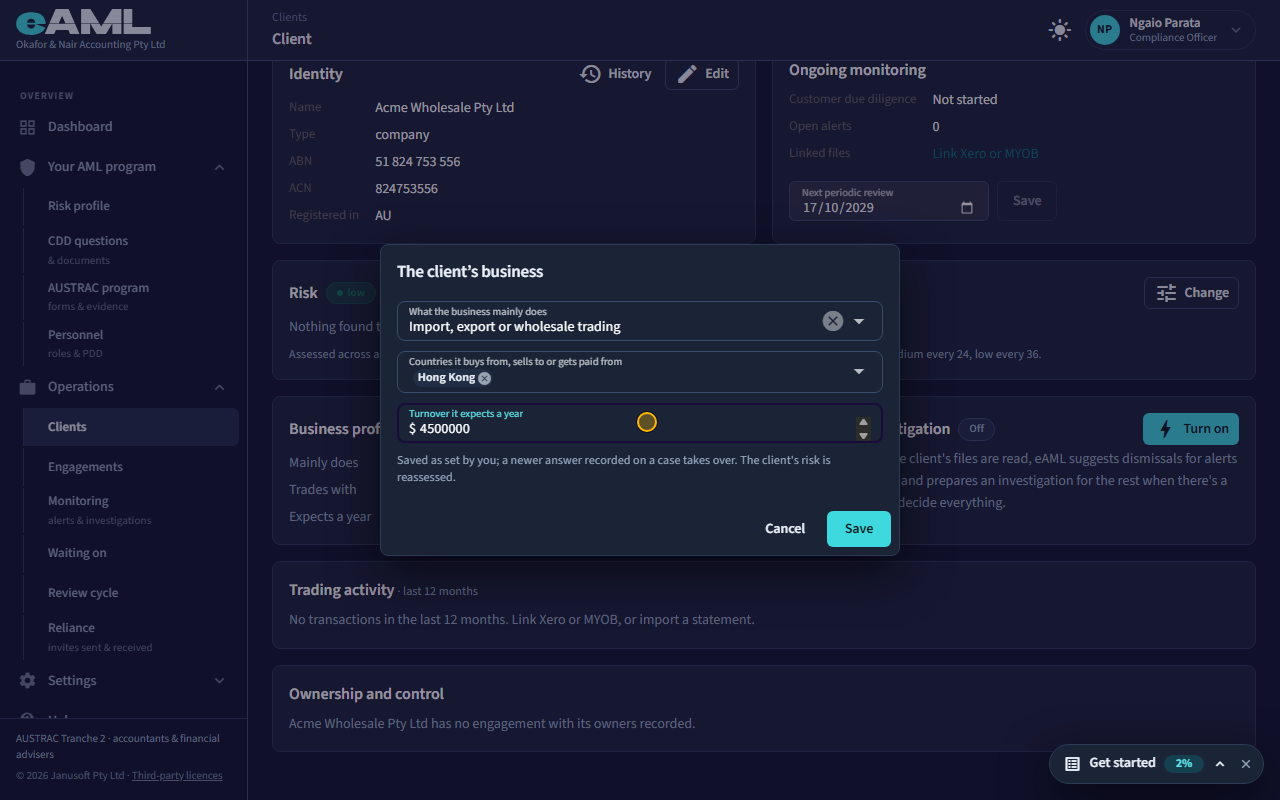
Select Edit beside Business profile, choose the industry and the countries, enter the expected turnover, and Save.
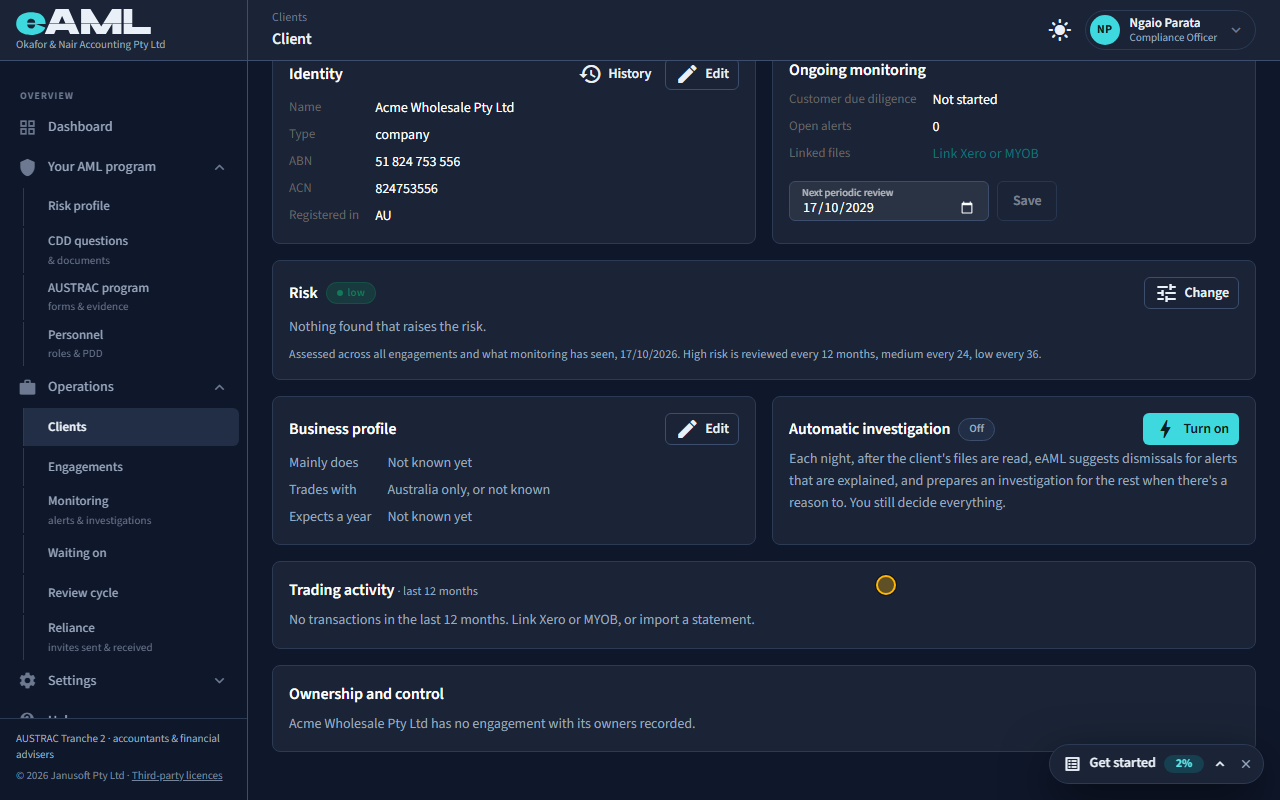
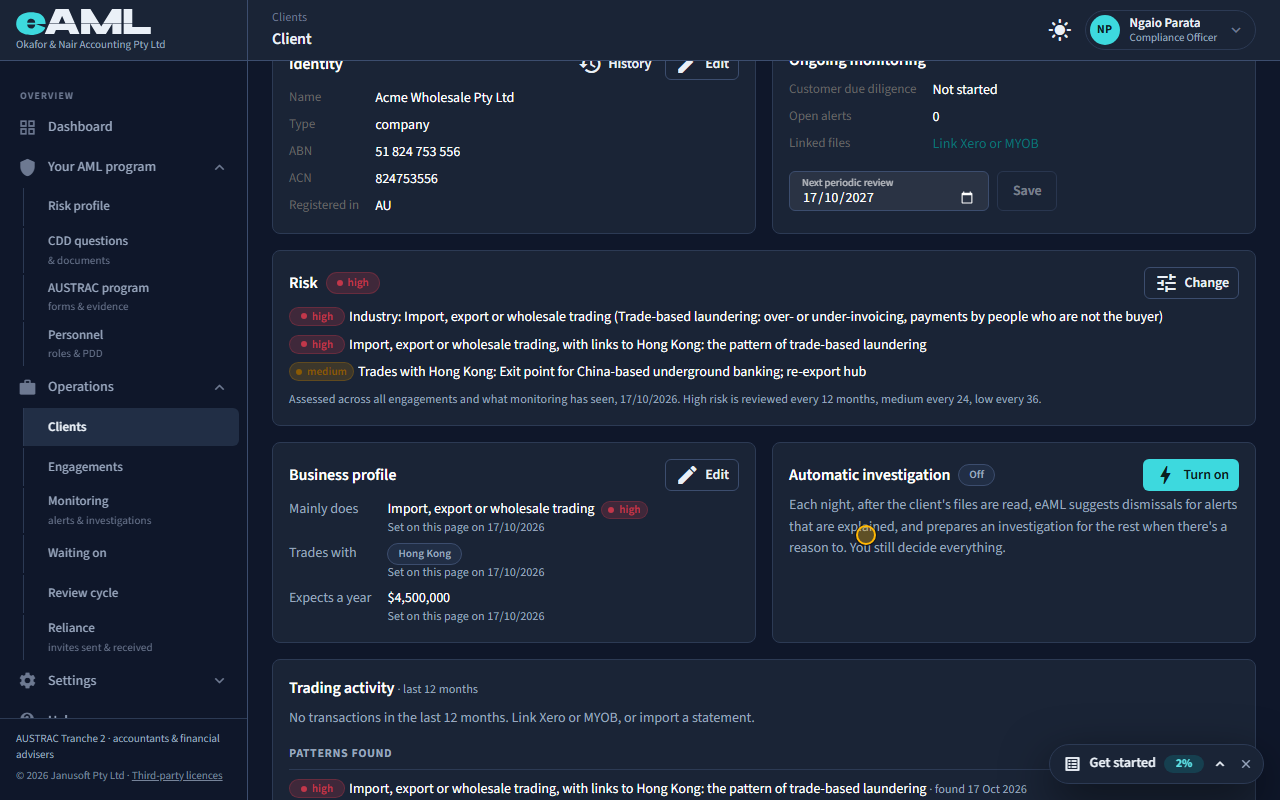
The client’s page has its own risk rating and a Business profile: what the business mainly does, the countries it buys from, sells to or gets paid from, and the turnover it expects in a year. Select Edit beside the profile and fill it in. These are what the register rates the client on: an industry that is cash-heavy or high-risk, trading with a high-risk country, and later the real trading patterns, alongside everything found on its engagements and its monitoring. The Risk card shows the tier and the reasons for it. High risk is reviewed every 12 months, medium every 24, low every 36.
-
Start an engagement
On the client’s page, select New engagement, choose the designated service, and select Start engagement.
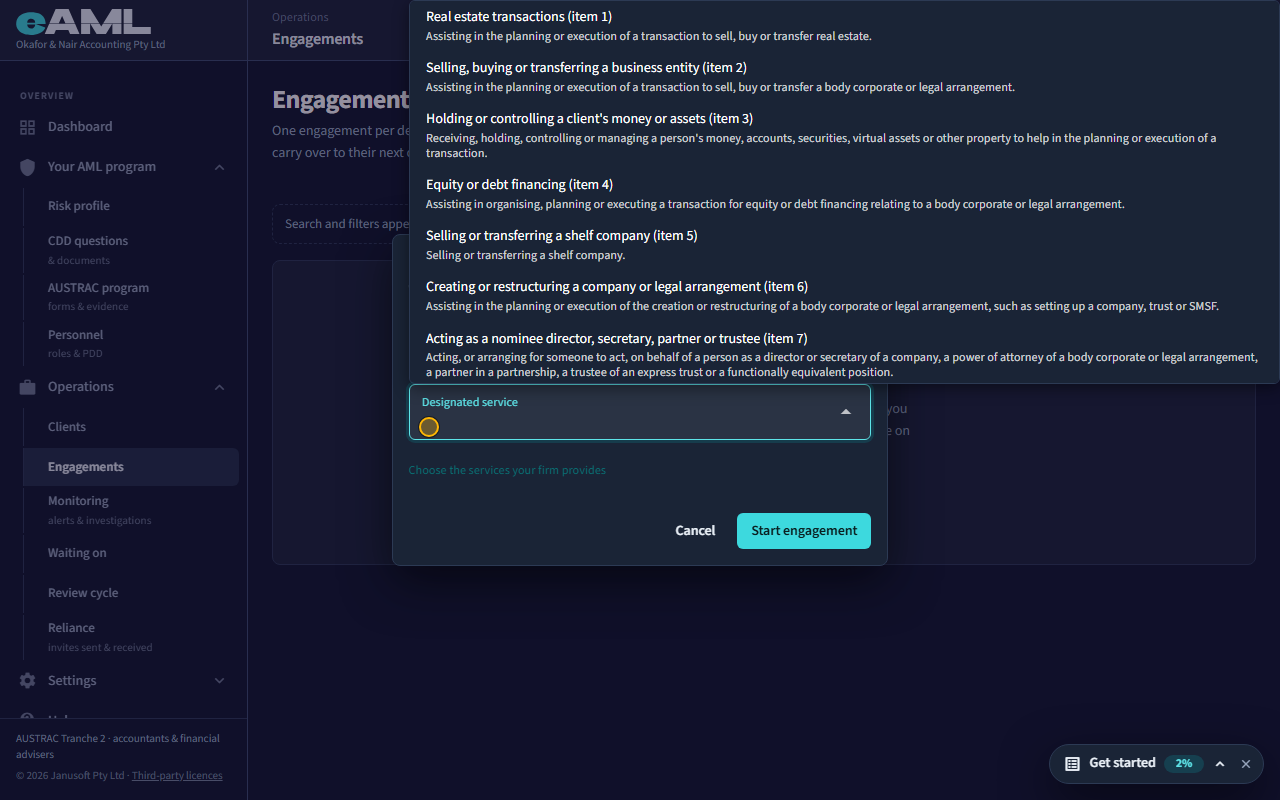
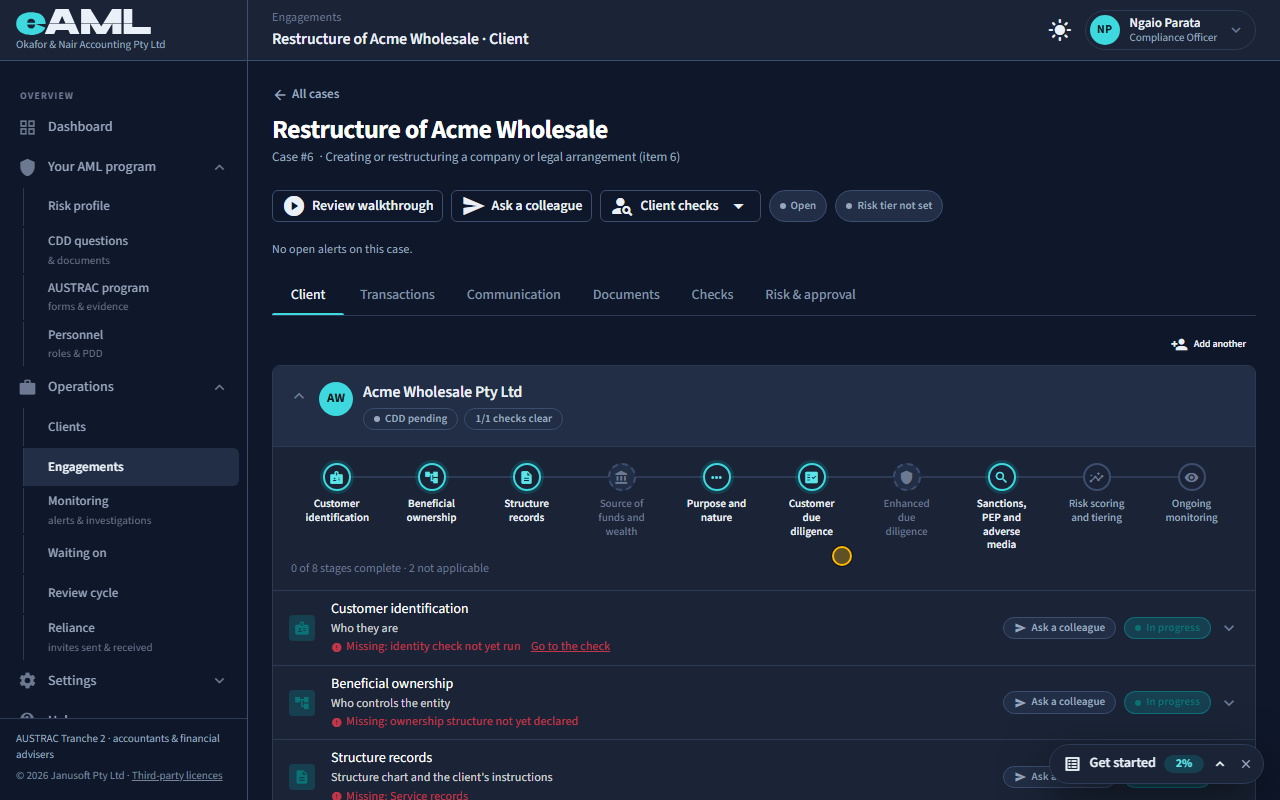
An engagement is the work you do for a client under one designated service; the client is the record that lasts. Select New engagement on the client’s page, choose the designated service this engagement is for, give it a reference, and select Start engagement. The client is added to it already, with what has been checked. A second engagement for the same client later reuses the identity and ownership already checked, and the client’s risk is assessed across all of them. In a case-based firm (a real estate agency, say) a case is the sale and its parties; here the engagement hangs off the client.
-
Who owns the company
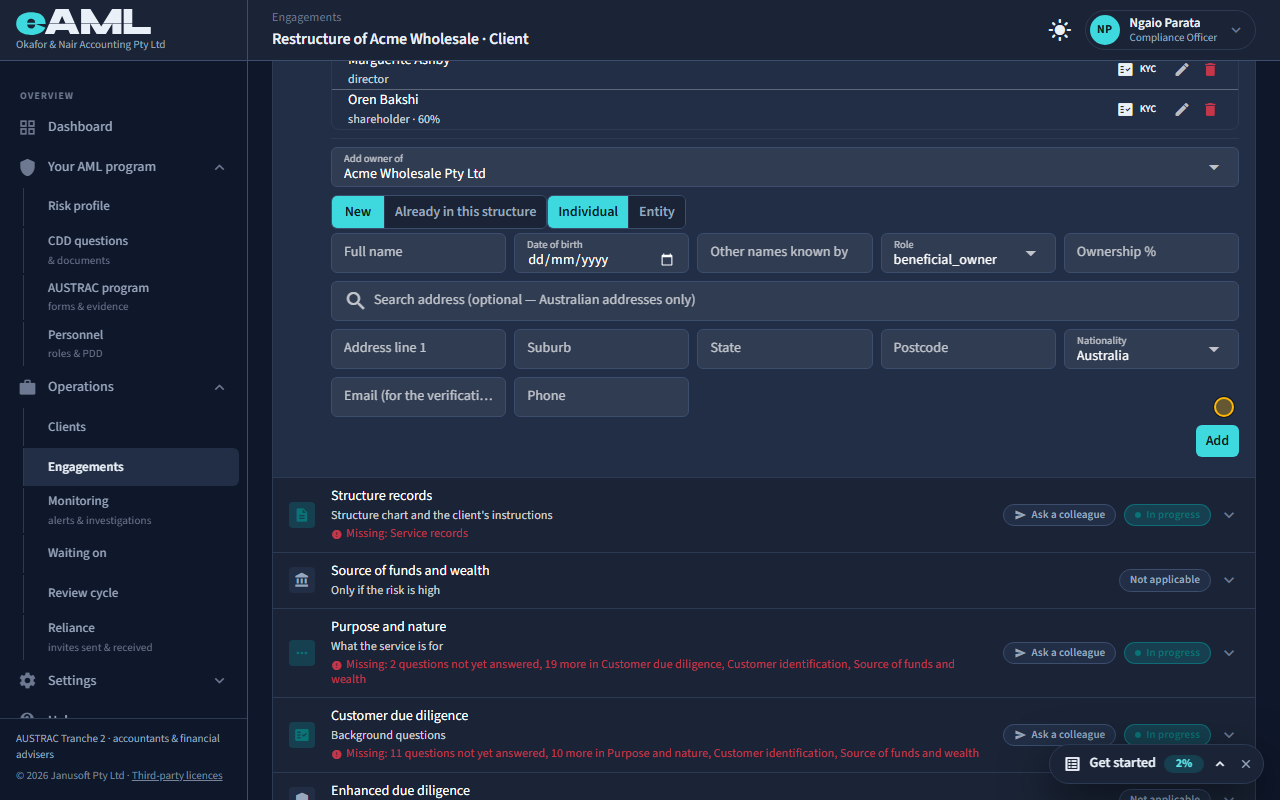
On the Client tab, open Beneficial ownership and add the owners and officers.
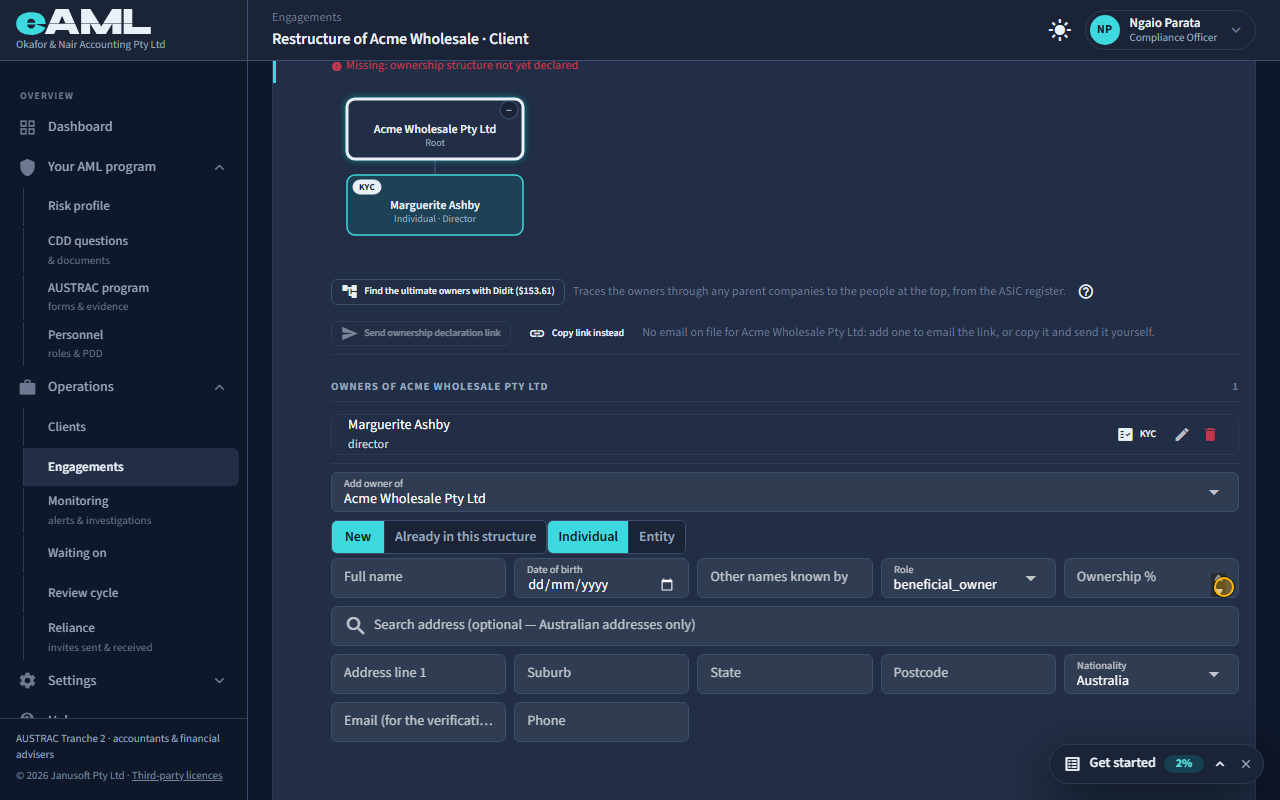
A company client is checked through the people behind it. On the engagement’s Client tab open Beneficial ownership and add each owner and officer: a person who holds 25% or more, or who controls the company, is enrolled for their own checks (T25). The ownership is recorded per engagement and carried forward to the client, so the next engagement starts from it.
-
Client checks between firms
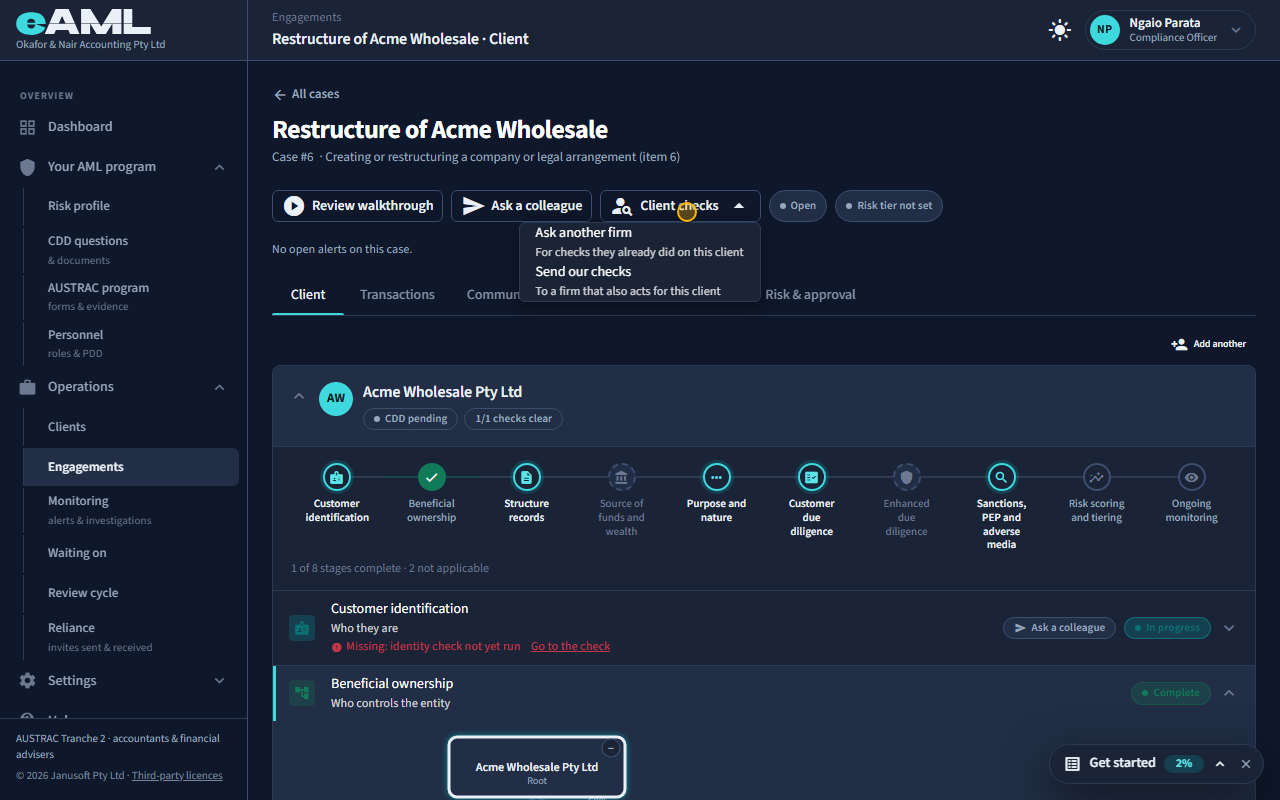
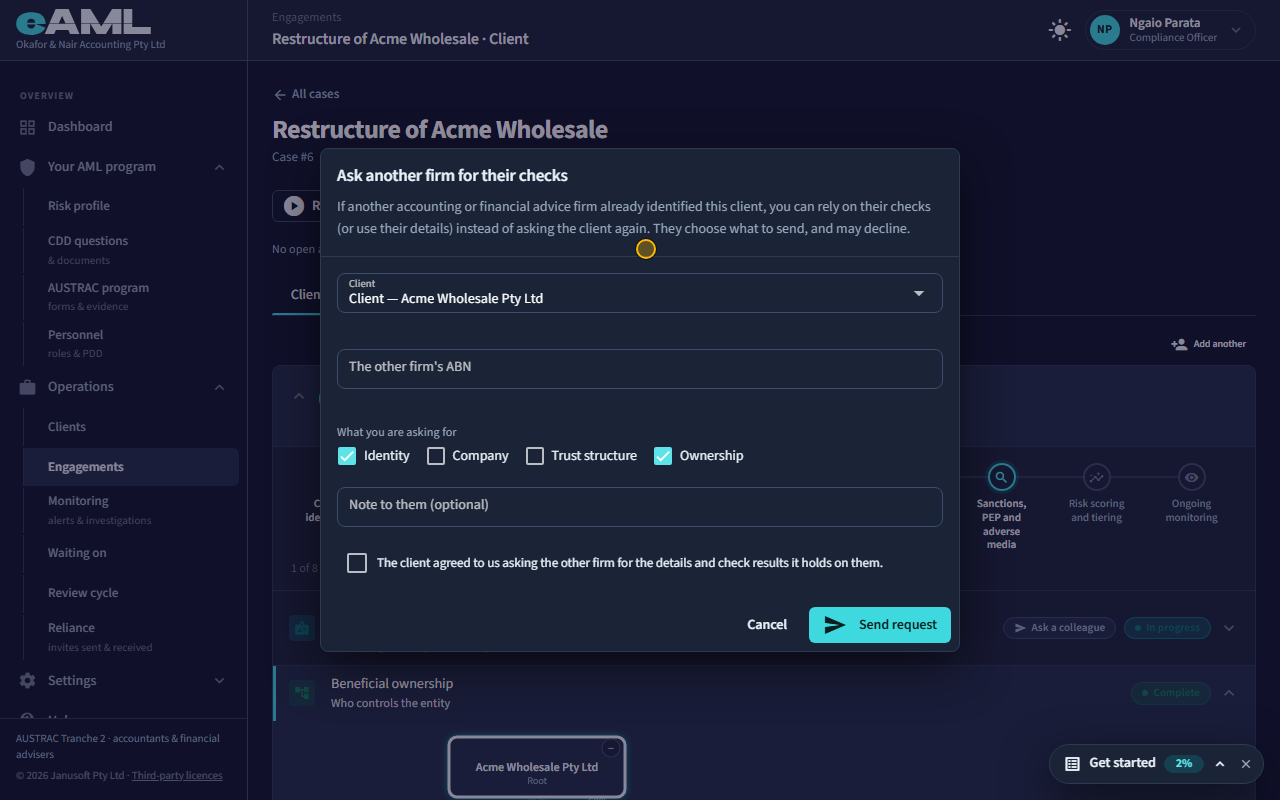
On the engagement, open Client checks and select Ask another firm.
Another firm may already have checked this client. On the engagement, Client checks has two choices. Ask another firm: choose the client, enter the other firm’s ABN (eAML looks the firm up and shows its name), tick what you are asking for (identity, company, trust structure, ownership), add a note if you like, confirm that the client agreed to you asking, and select Send request. The other firm sees the request under Reliance → Results, picks which of its clients it is, sees exactly what would go, confirms its own client’s consent and sends it, or declines: you are only ever told it cannot help, never why. Send our checks does the reverse: it sends what you hold on this client to a firm that also acts for them, either as something they can rely on or as information only. Either way, what arrives is reviewed and accepted on its own page, and it counts as relied on only once that firm is a reliance partner of yours (T33). It saves repeating checks, and nothing moves without the other firm agreeing.
-
What the client’s rating counts
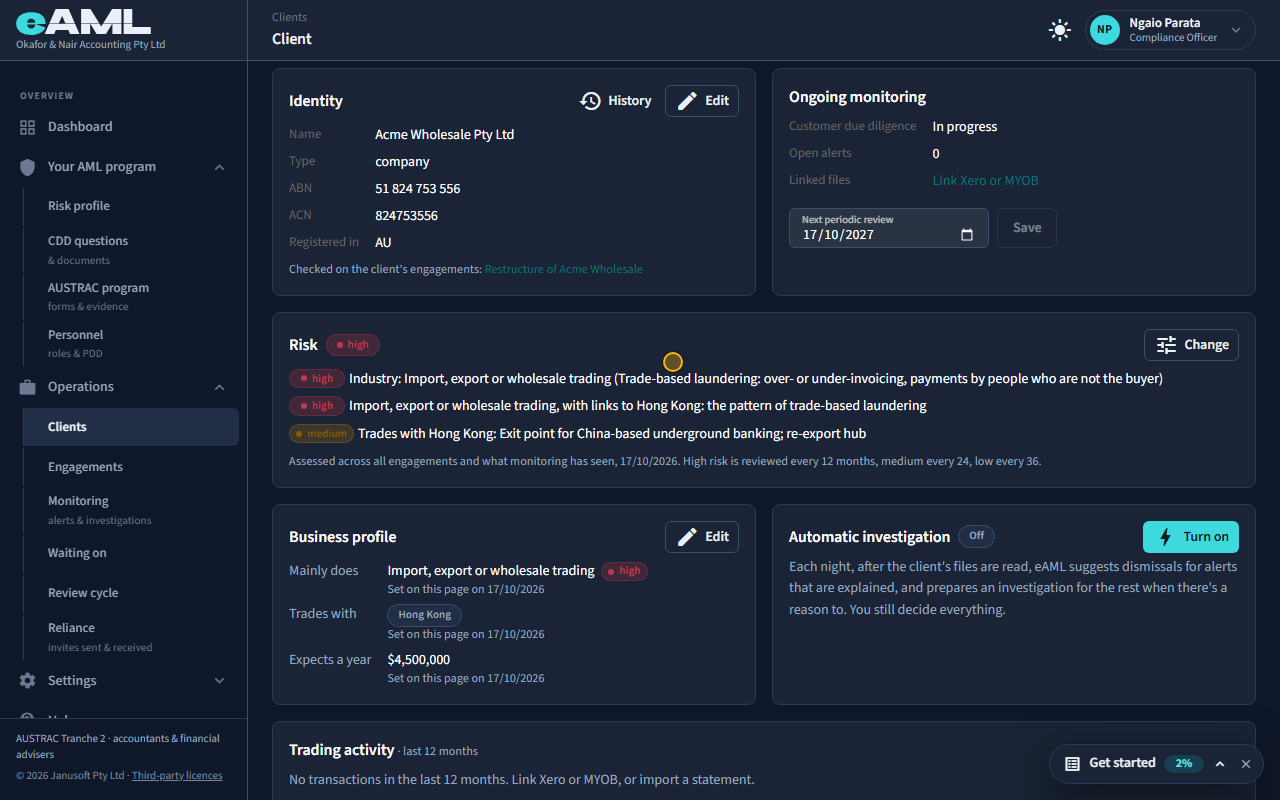
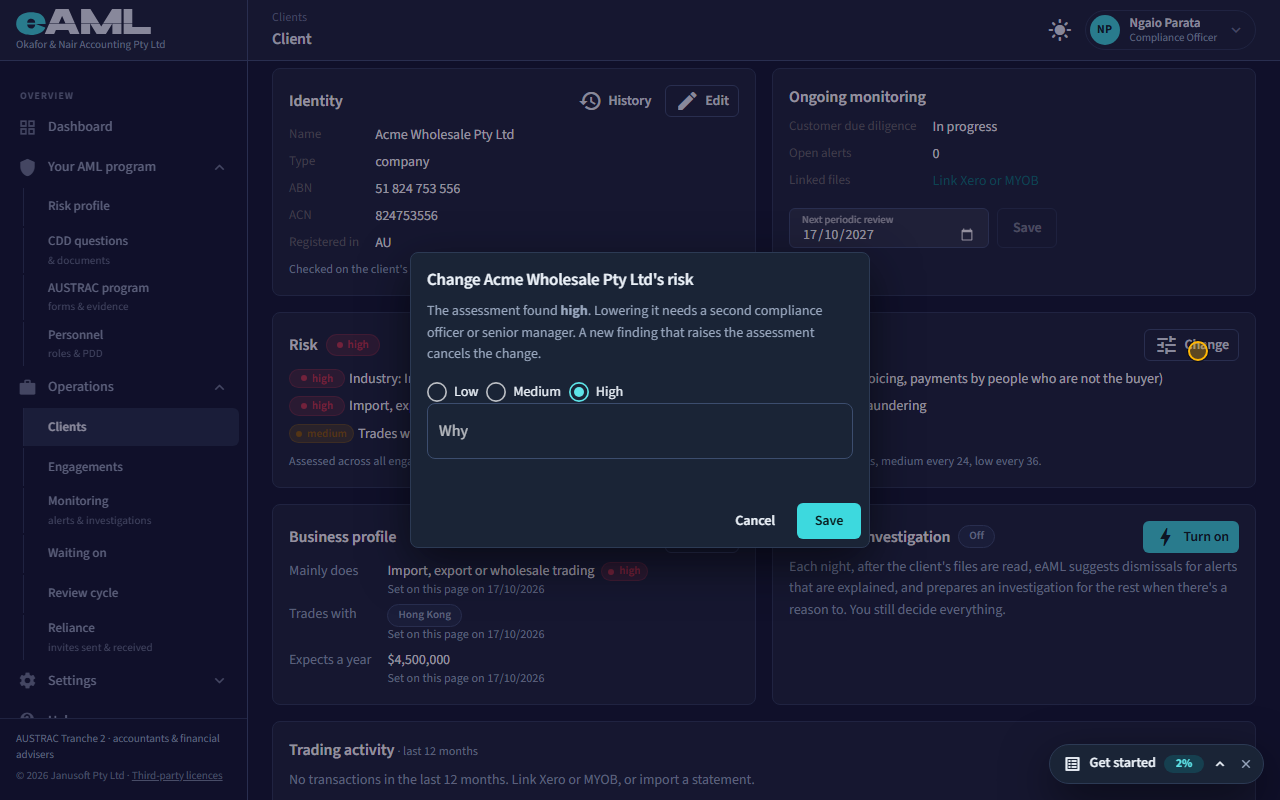
On the client’s page, read the Risk card, and select Change to see how a tier is set by hand.
Back on the client’s page, the Risk card carries the client’s rating across every engagement, closed ones included, and what monitoring has seen since: its investigations and alerts, its ownership structure, its trading, how new it is, and its countries. Raising the rating takes effect at once; lowering it below the assessment is a request that waits for a second compliance officer or senior manager to approve (in a one-person firm it does not). A new finding that raises the assessment cancels a pending lowering. Select Change to see the choices.
Every screen in this guide was captured from the live application in the same run as the video, so the two always match. If a screen here no longer matches what you see, tell us: the guide is regenerated after each release.