Guide · T20
The case page: a guided tour
Before you start
- A firm that is set up to open cases (T01 to T04)
- A case with its property recorded and a vendor and buyer added
-
Find your case
In the menu, under Operations, select AML cases, then select the case.
AML cases lists every case your firm has opened, with its status and risk tier. A case is one transaction: here, one sale of one property, with a vendor and a buyer and their due diligence side by side. Selecting a case opens it.
-
The header
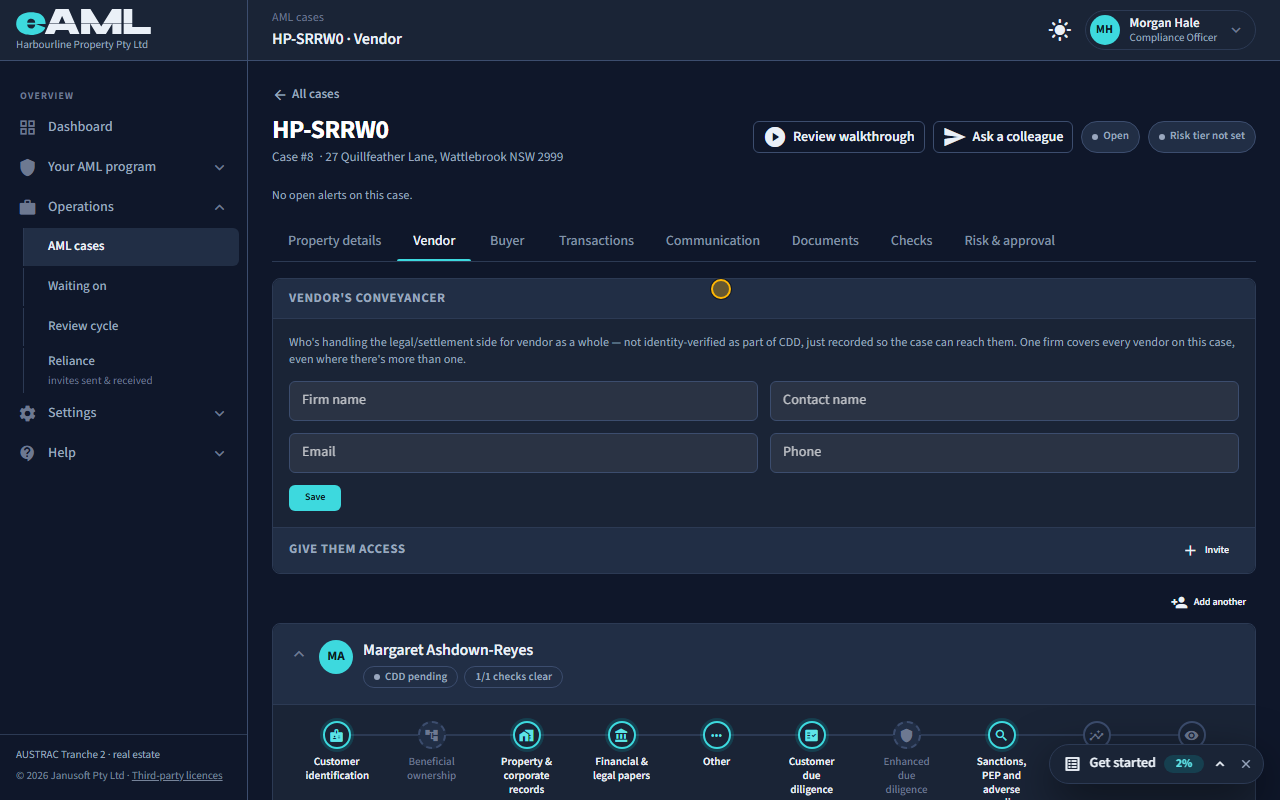
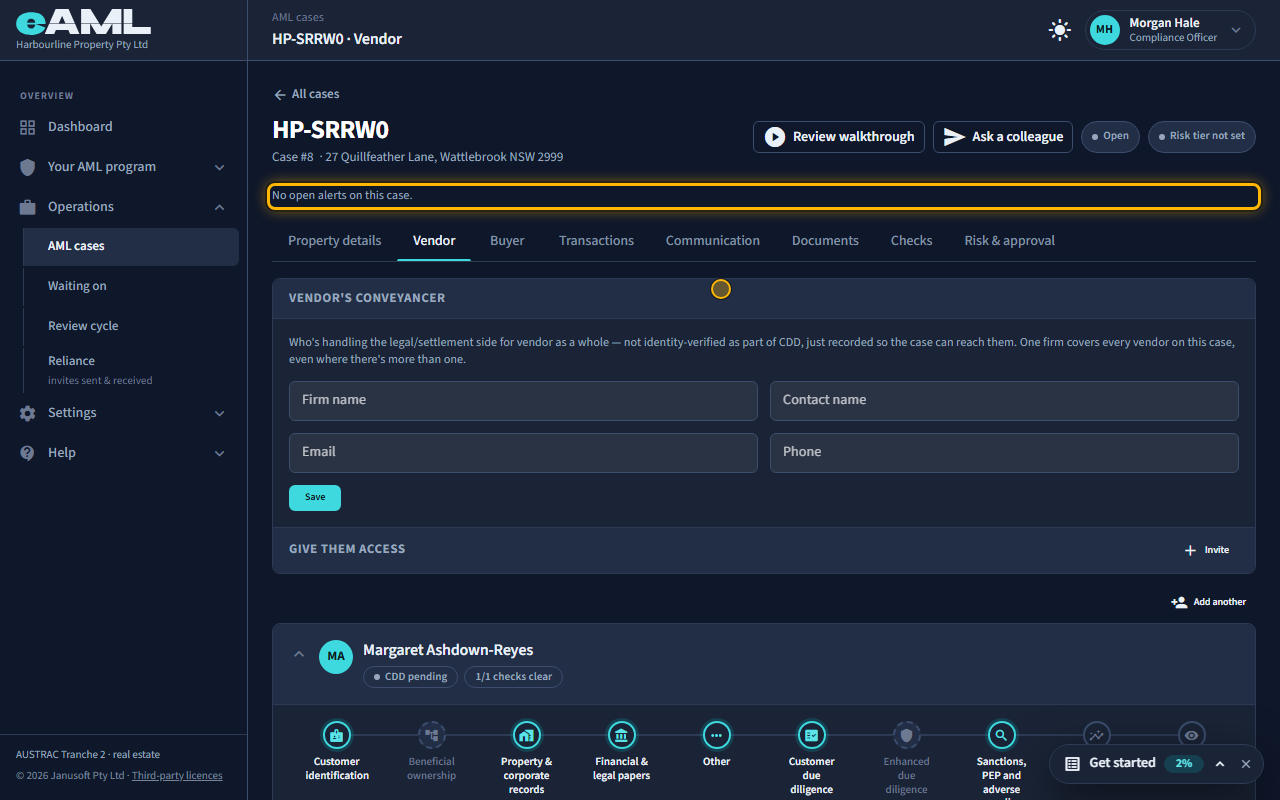
Read the pills and the alerts line under the case reference.
The top of the page names the case: its reference, its number, and the property. The pills say whether the case is open and what its risk tier is (Risk tier not set until it is rated). Below them, open alerts are listed, or it says there are none. Review walkthrough opens a panel that goes through the case section by section with each step’s status (select a step to open it, and Read aloud reads it to you). Ask a colleague hands the whole case, or one step, to a colleague, who then sees it under Waiting for your action.
-
Property details and milestones
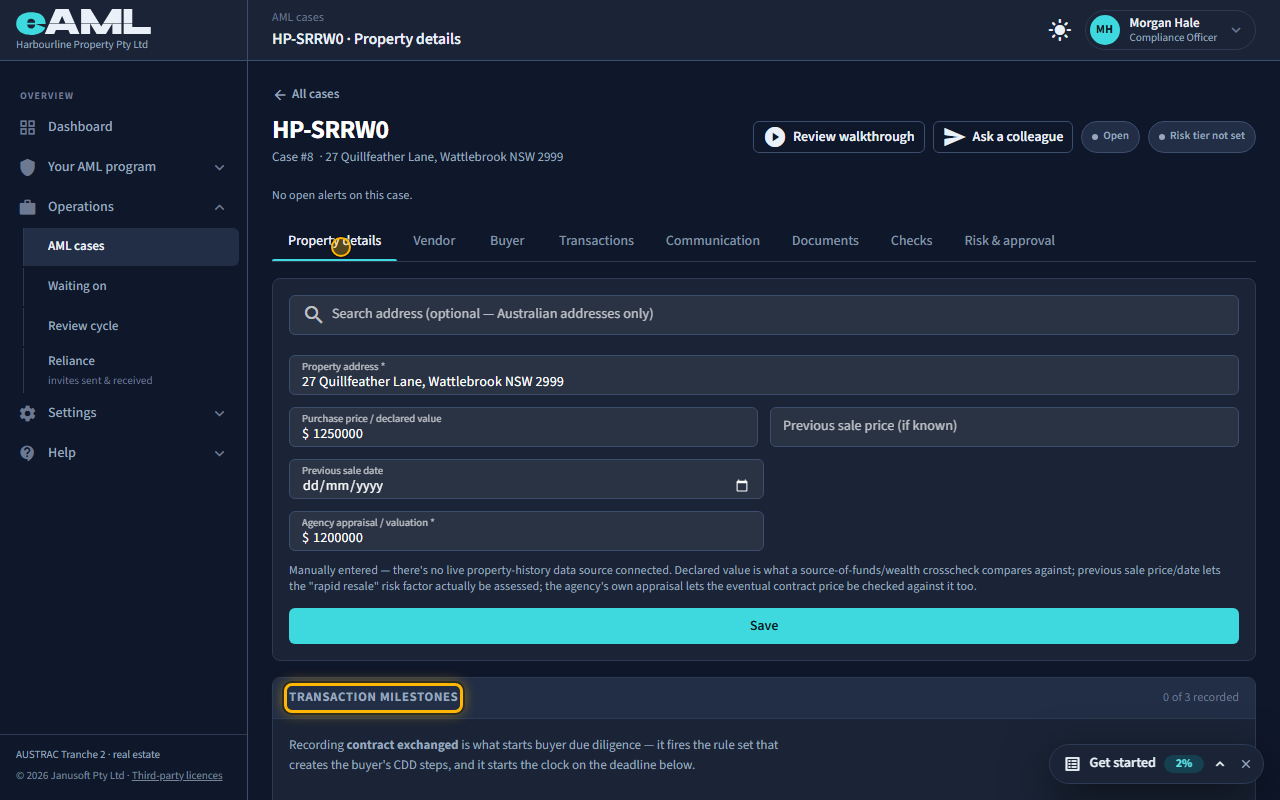
Open Property details. Read the milestones under the form.
The property: its address, the price, the previous sale if known, and the agency’s own appraisal. Under it, the transaction milestones. Recording that contracts were exchanged is what starts the buyer’s due diligence and the clock on its deadline; the agreed settlement date sets the day buyer due diligence must be done by, three days before it.
-
The vendor tab, and a party’s stages
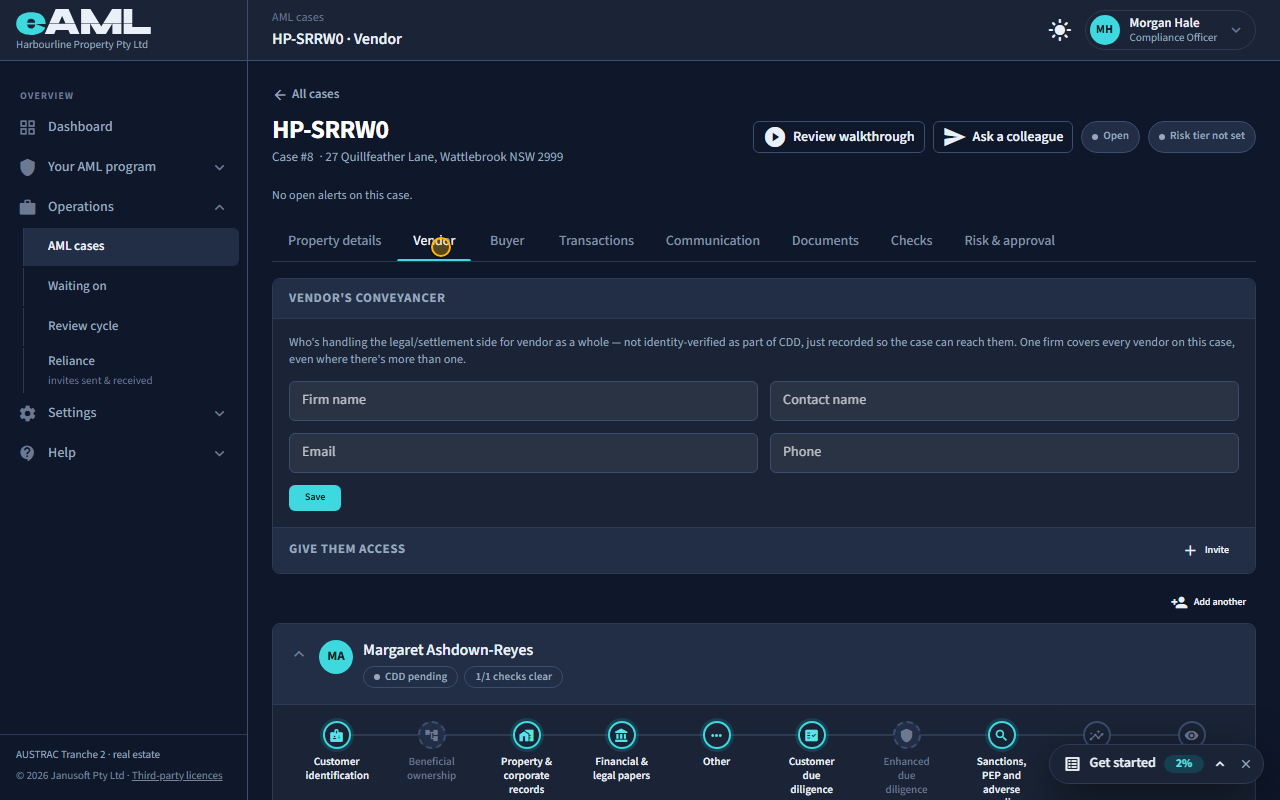
Open the Vendor tab and read the party’s stages.
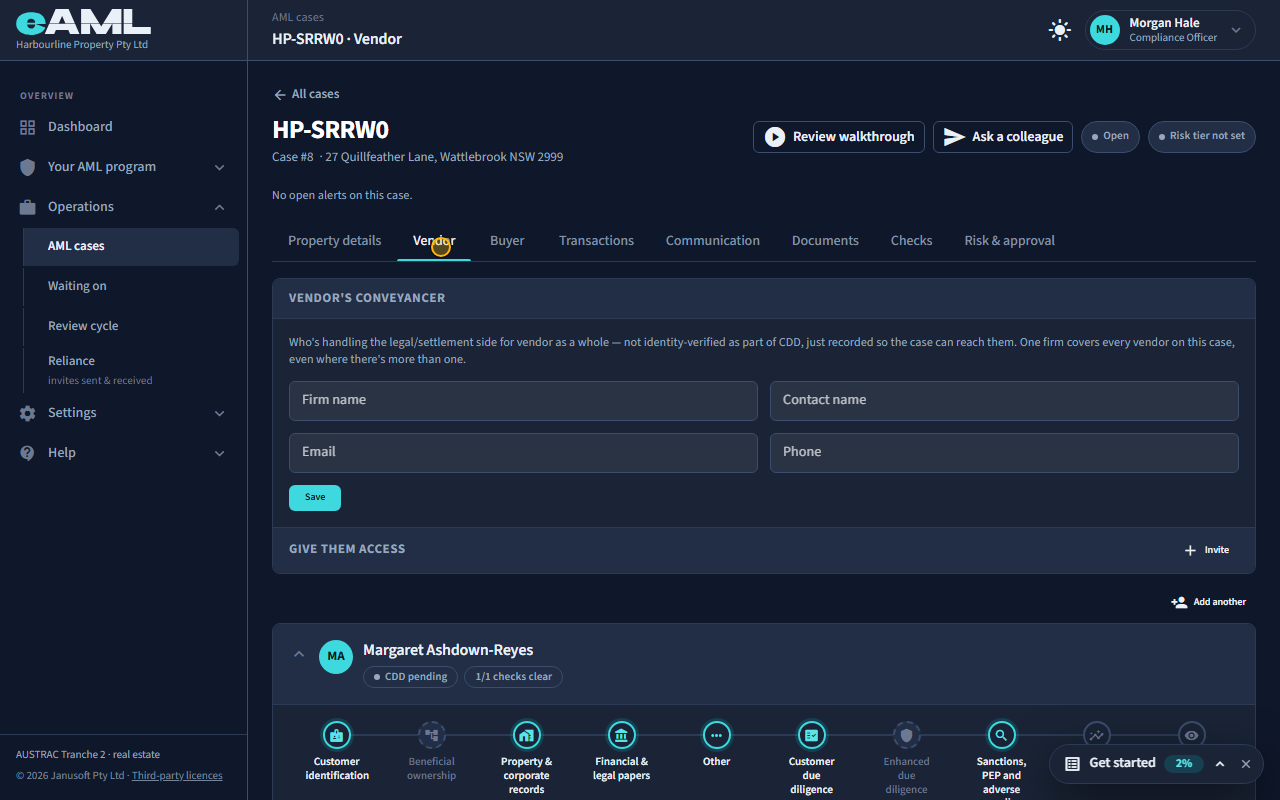
A case opens on the vendor when there is one. Each party has a card. Its header shows who they are, whether due diligence is pending or done, and how many checks are clear. Across it runs a tracker of the party’s stages, in order: customer identification, beneficial ownership, property and corporate records, financial and legal papers, other questions, customer due diligence, enhanced due diligence, sanctions PEP and adverse media, risk scoring and tiering, and ongoing monitoring. A stage that does not apply to this kind of party is greyed and says Not applicable, and the card counts how many are complete.
-
Reading a stage: what is missing
Read the line under a stage’s name, and open the stage to work on it.
Each stage shows its status (In progress, Complete, Not applicable) and, when something is outstanding, a line that begins “Missing:” and names exactly what: an identity check not yet run, a document, questions not yet answered. Where there is something to do, a link takes you straight to it, and Ask a colleague sends that one stage to a colleague.
-
The buyer tab
Open the Buyer tab.
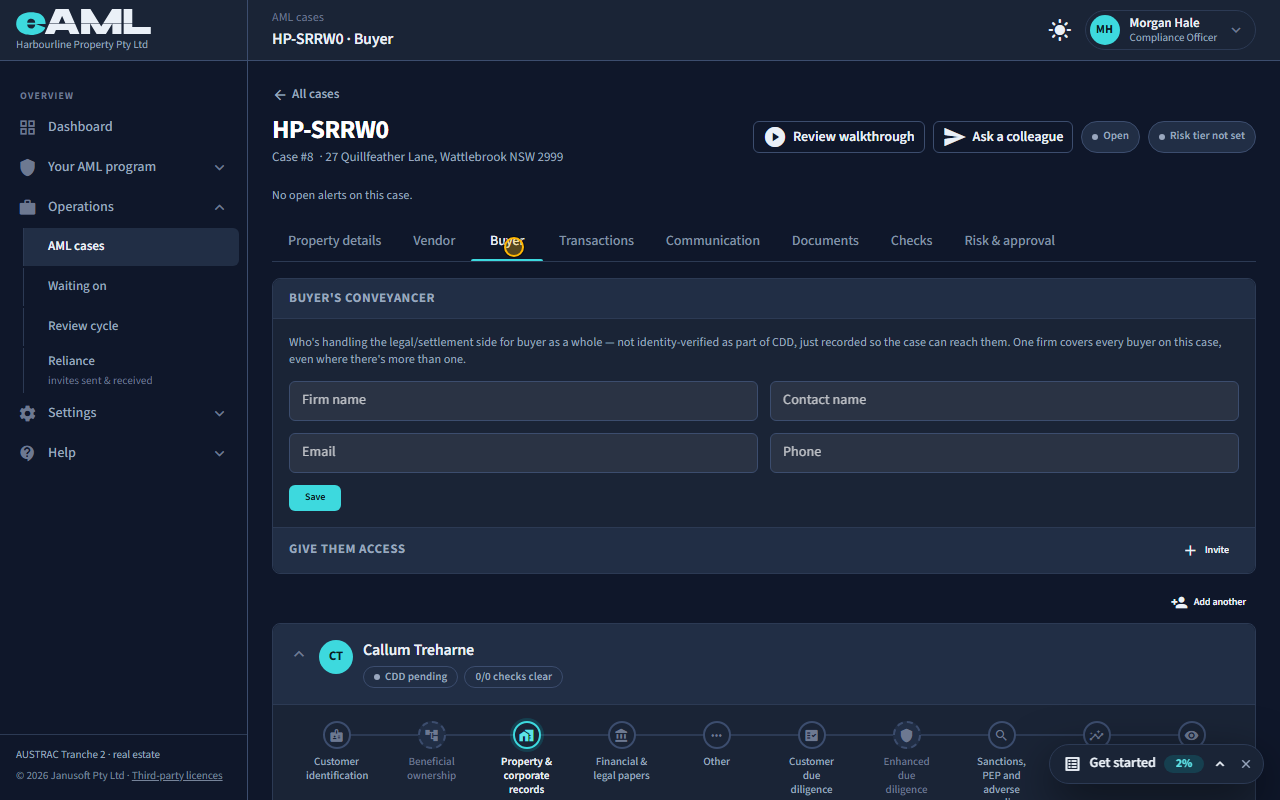
The buyer’s card has the same stages. The buyer’s due diligence is created when contracts are exchanged, so until that milestone is recorded the buyer’s checks read 0 of 0. Each side’s conveyancer is recorded at the top of its tab (not identity-verified as part of CDD, only recorded so the case can reach them) and can be invited to see the case.
-
Transactions
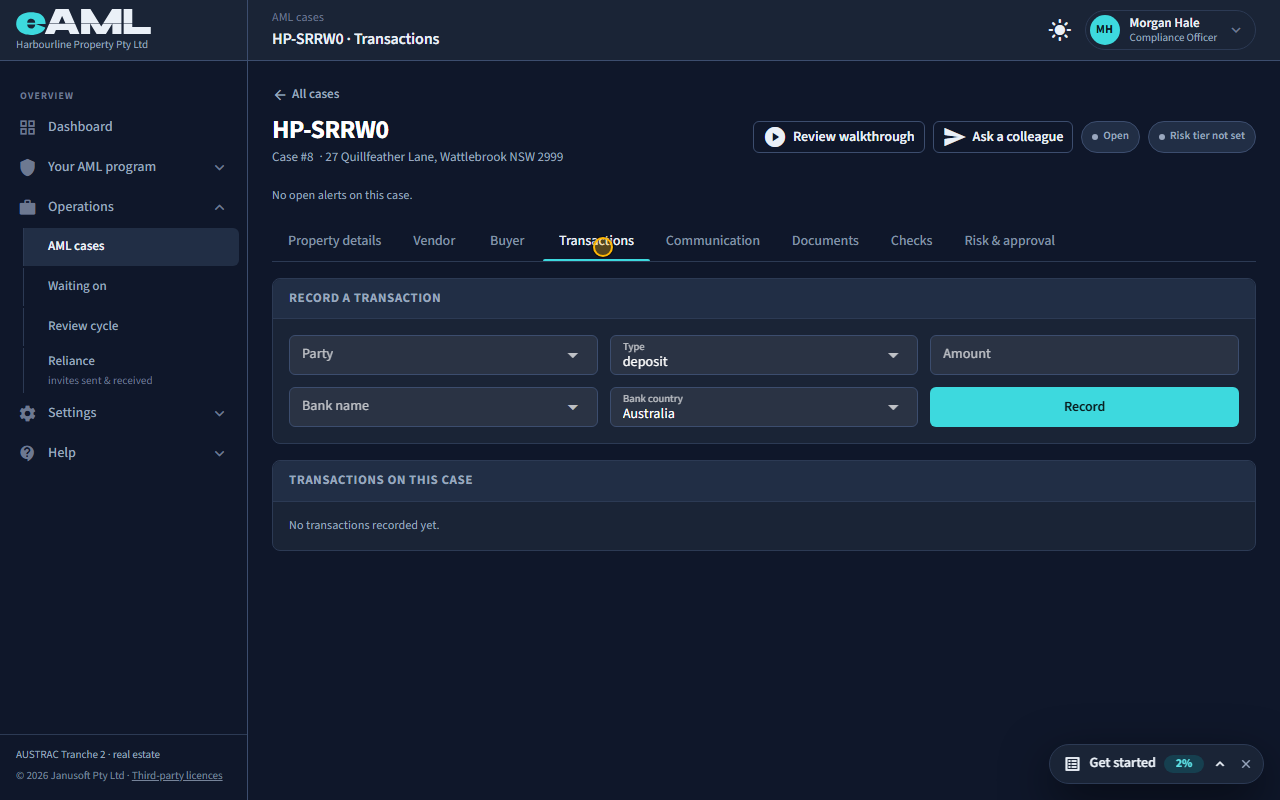
Open Transactions, choose the party and the type, enter the amount and the bank, and select Record.
Deposits and settlement payments are recorded here against a party: the type, the amount, and the bank and its country. They feed the checks on the source of funds and the threshold reports, and the list below keeps them in order.
-
Communication
Open Communication.
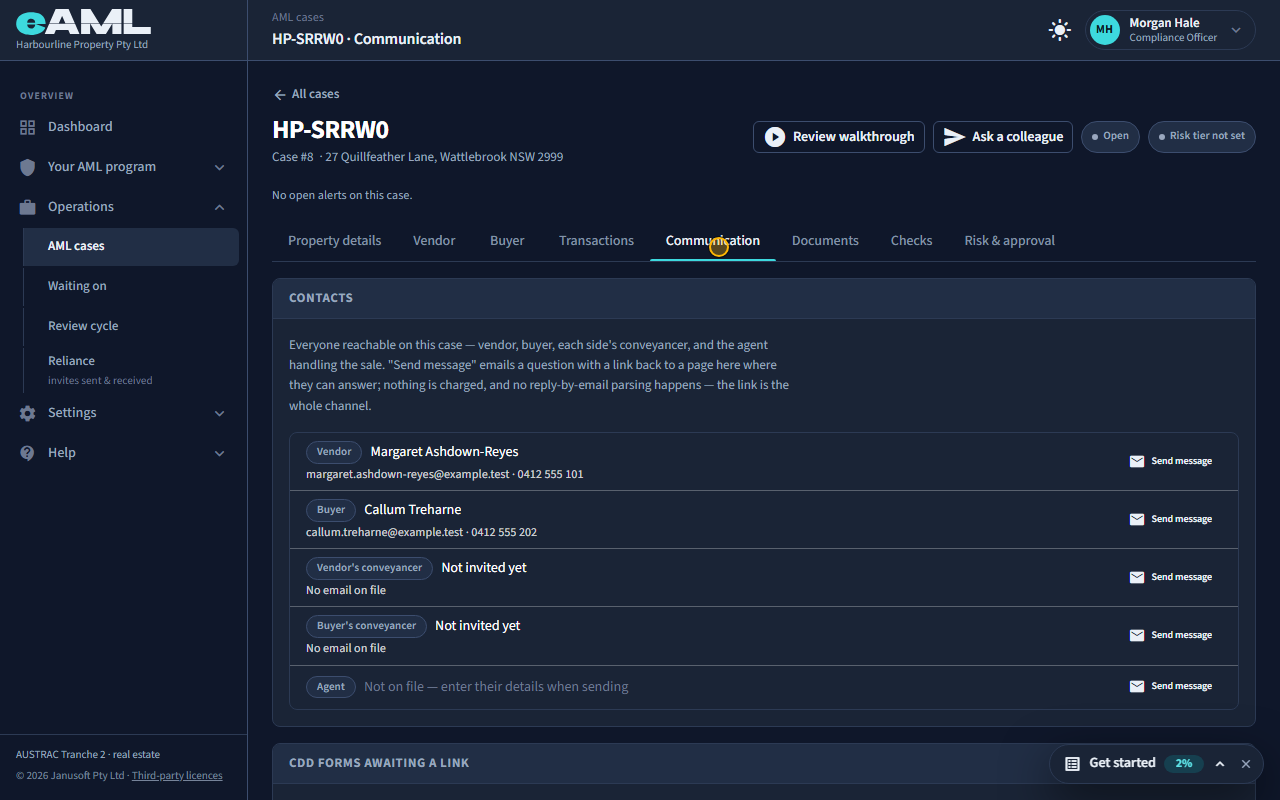
Everyone reachable on the case is here: the vendor, the buyer, each side’s conveyancer, and the agent. Send message emails a question with a link to a page where they can answer. The forms that are waiting for a link, created the moment a party was added, are listed under Forms awaiting a link, and the message log keeps every message. T21 takes this tab in detail.
-
Documents
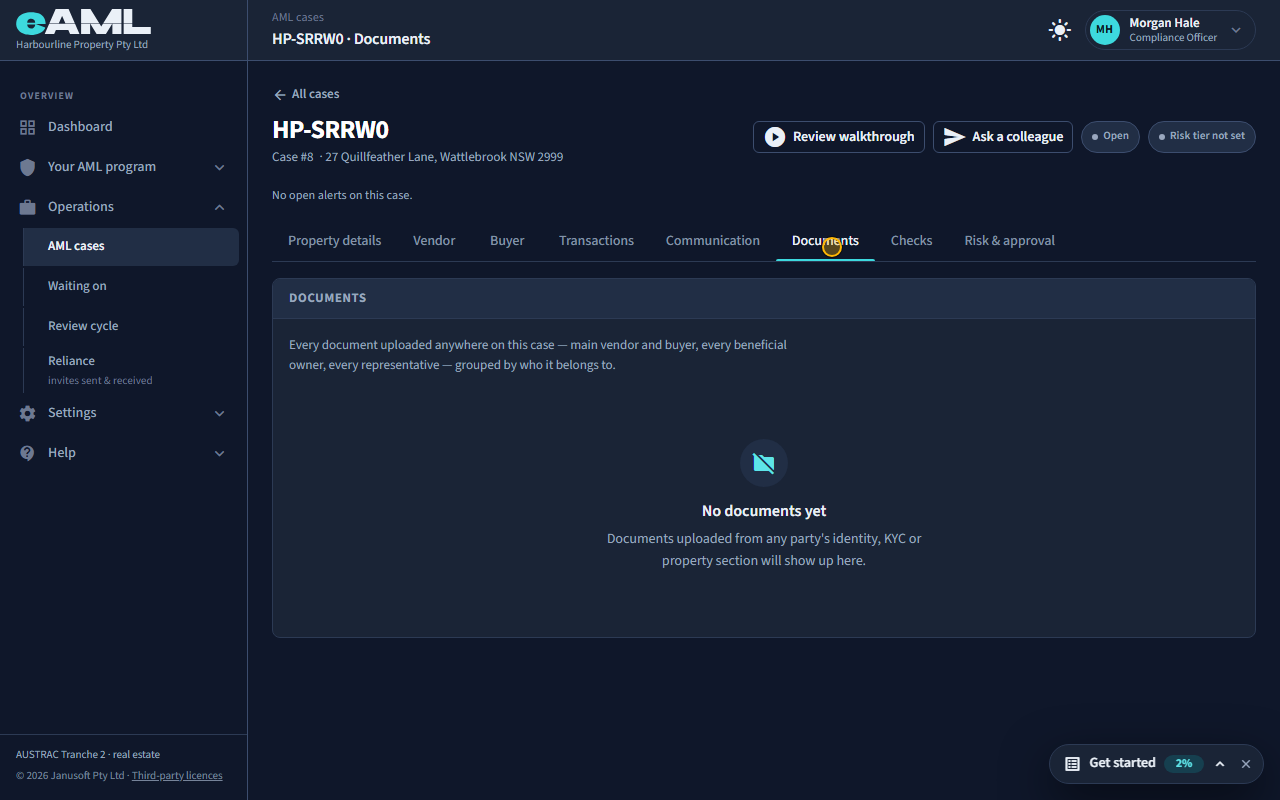
Open Documents.
Every document uploaded anywhere on the case, grouped by who it belongs to: the vendor and buyer, each owner and each representative. Documents are uploaded from a party’s own stages; this tab is where you see them all together.
-
Checks
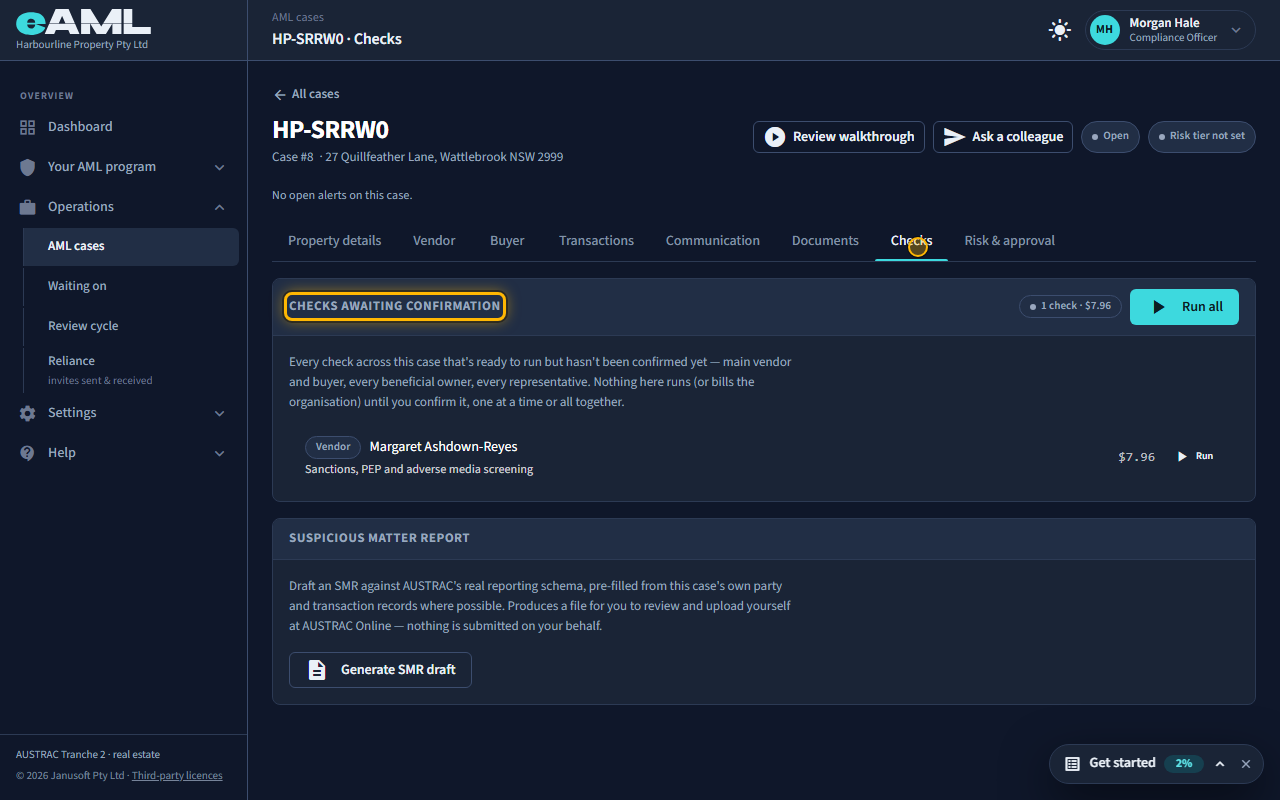
Open Checks.
Checks that are ready to run but have not been confirmed are listed here with their price. Nothing runs, and nothing is billed, until you confirm it: one at a time with Run, or all together with Run all. A suspicious matter report can be drafted from the same tab.
-
Risk and approval
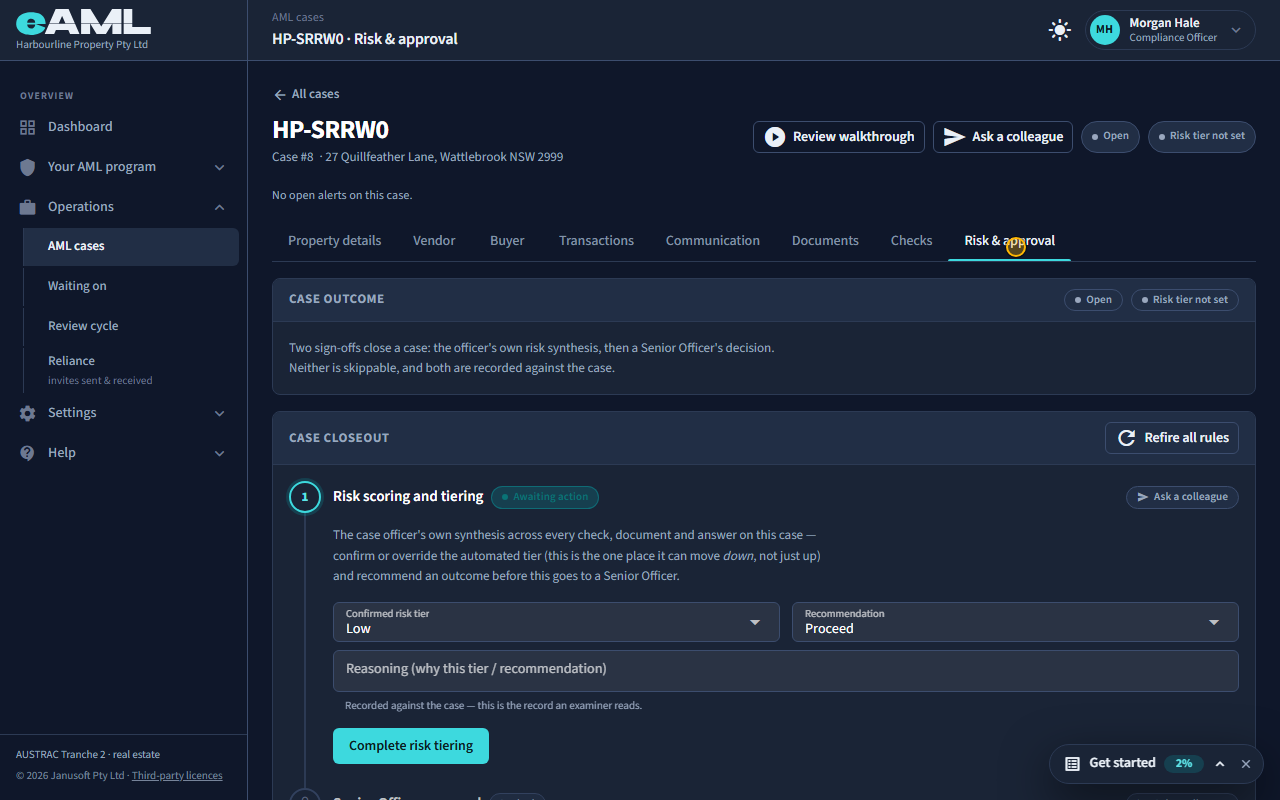
Open Risk & approval.
Two sign-offs close a case. First the officer’s own risk synthesis: confirm or override the automated tier and recommend an outcome, with reasoning that is recorded against the case. Then a Senior Manager’s decision. Neither can be skipped, and the second stays locked until the first is complete. Risk notes record anything that does not fit elsewhere.
Every screen in this guide was captured from the live application in the same run as the video, so the two always match. If a screen here no longer matches what you see, tell us: the guide is regenerated after each release.