Guide · T02
Your team: personnel, invitations and roles
Before you start
- A firm that has finished onboarding (plan paid), signed in as its Compliance Officer or Senior Manager
-
Open Personnel
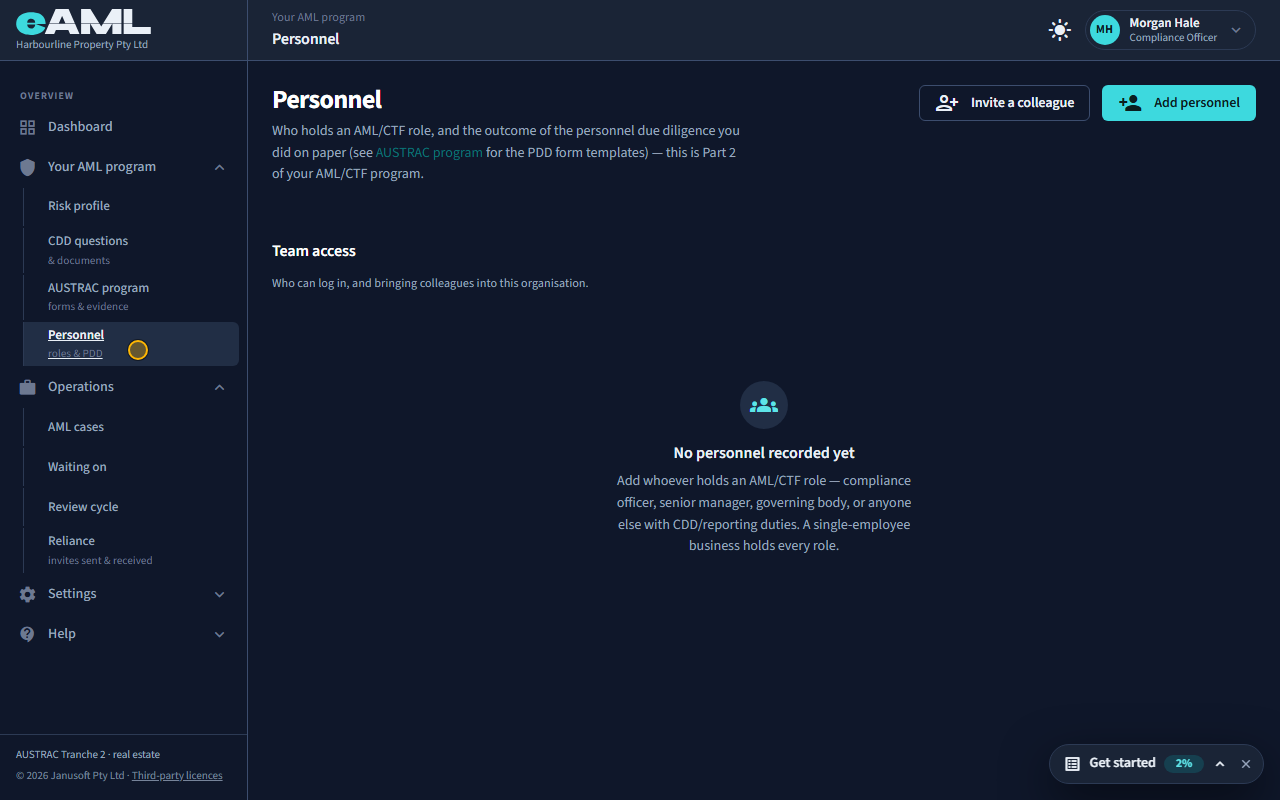
In the menu, under Your AML program, select Personnel.
Personnel is where you record who holds an AML/CTF role in your firm, and who can sign in to eAML and with what access. These are two different lists on one page: a person can hold a role without a login, and a login does not by itself make someone a role holder.
-
Record who holds an AML/CTF role
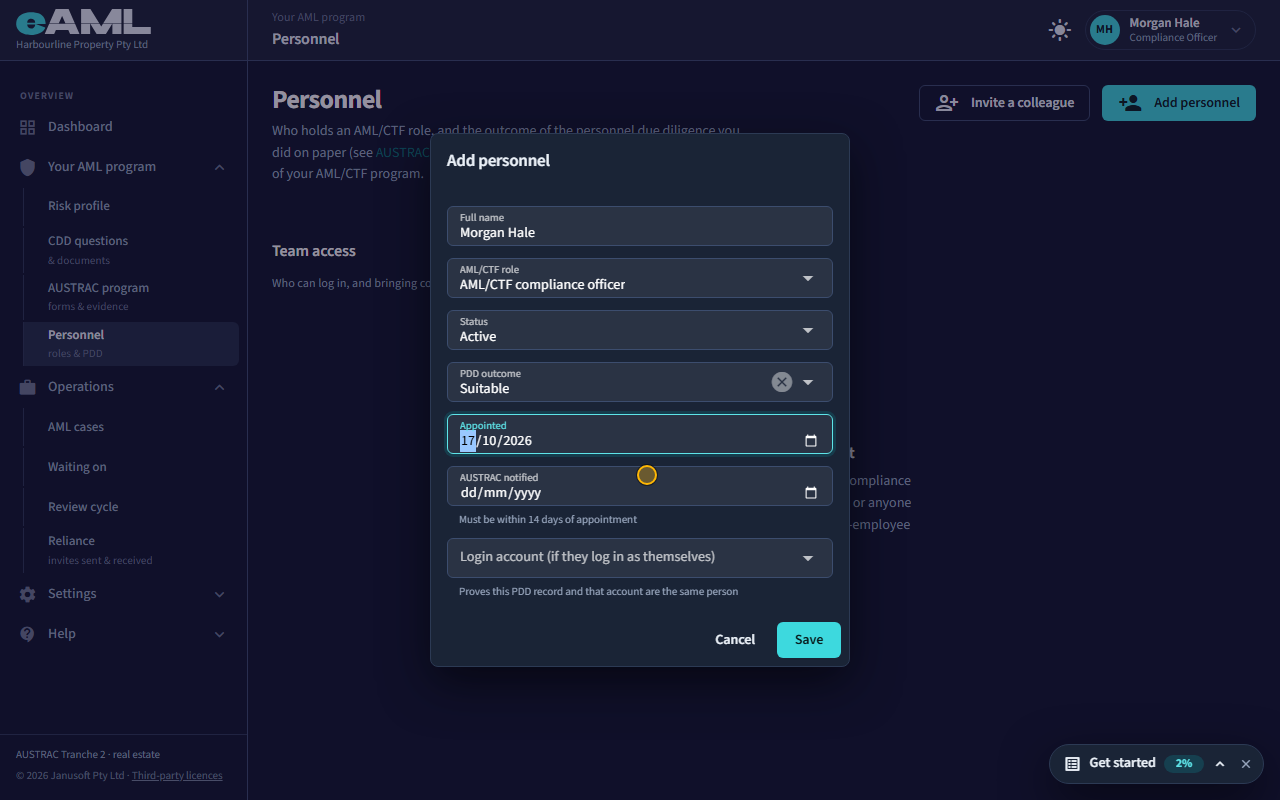
Select Add personnel. Enter the full name, choose the AML/CTF role, the PDD outcome and the date they were appointed, then Save.
Add each person who holds a role in your AML/CTF program: the compliance officer, senior managers, the governing body, and anyone else with customer due diligence or reporting duties. A one-person firm holds every role itself, so you record yourself once. PDD outcome is the conclusion of the due diligence you did on the person (Pending, Suitable or Not suitable). For a compliance officer, the date you notified AUSTRAC of the appointment is tracked, because it must be within 14 days.
-
Link the role to the person’s sign-in
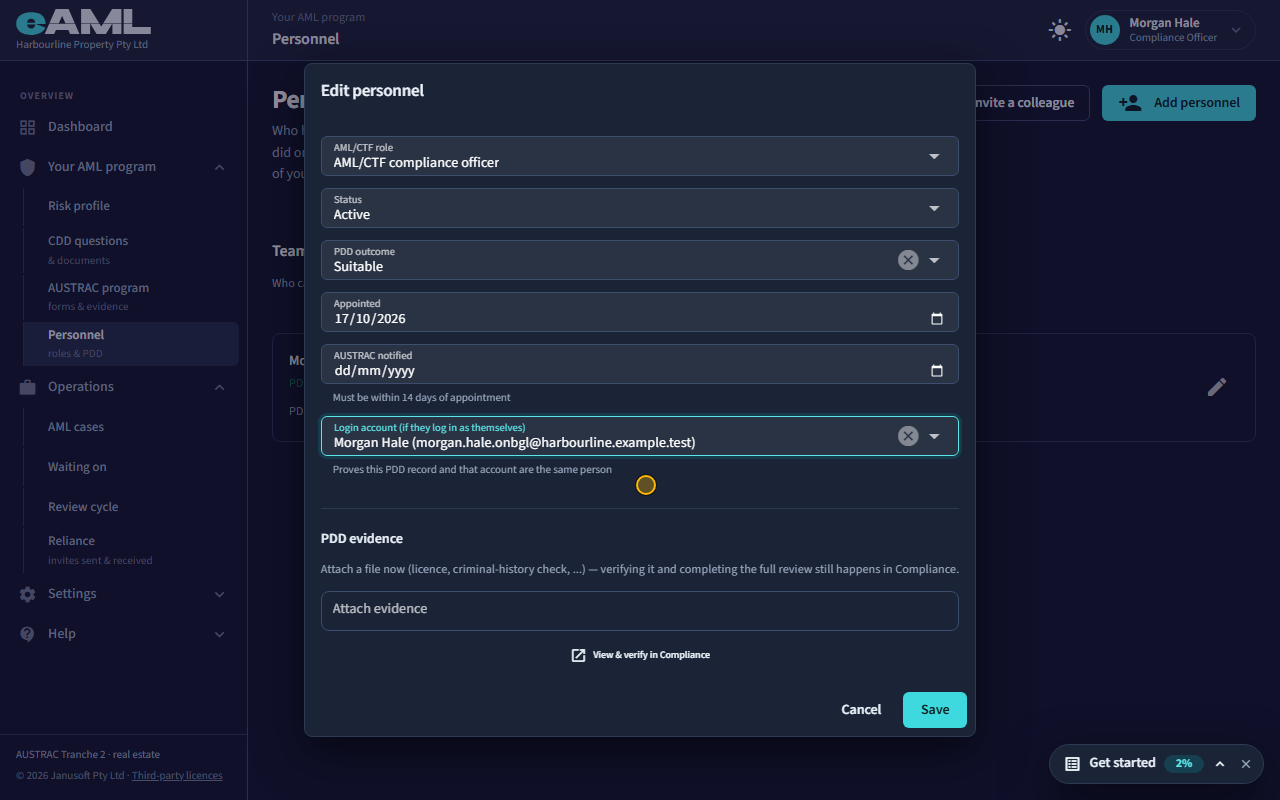
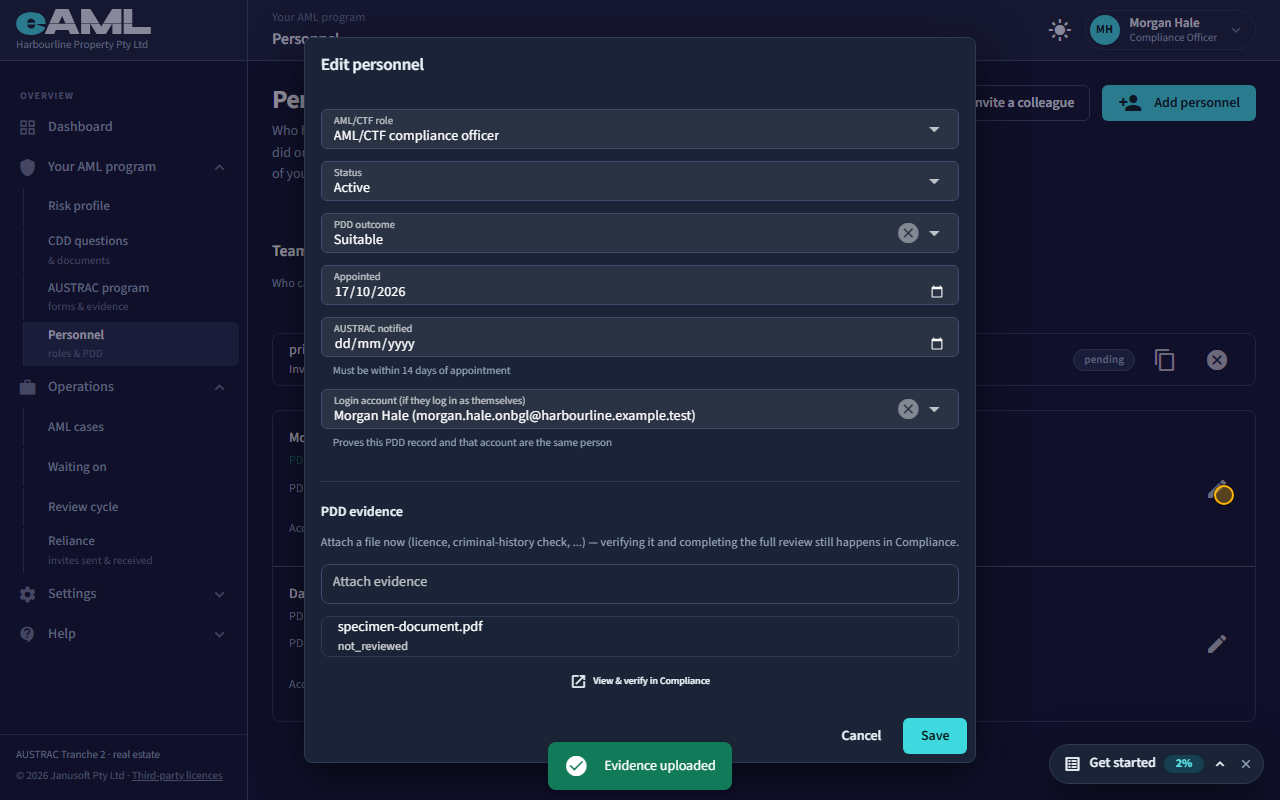
Select the pencil on their row, choose their login under Login account, then Save.
If the person signs in to eAML as themselves, link their login to their record. That proves the personnel record and the account are the same person, and it is what lets you manage their access from this row.
-
Invite a colleague
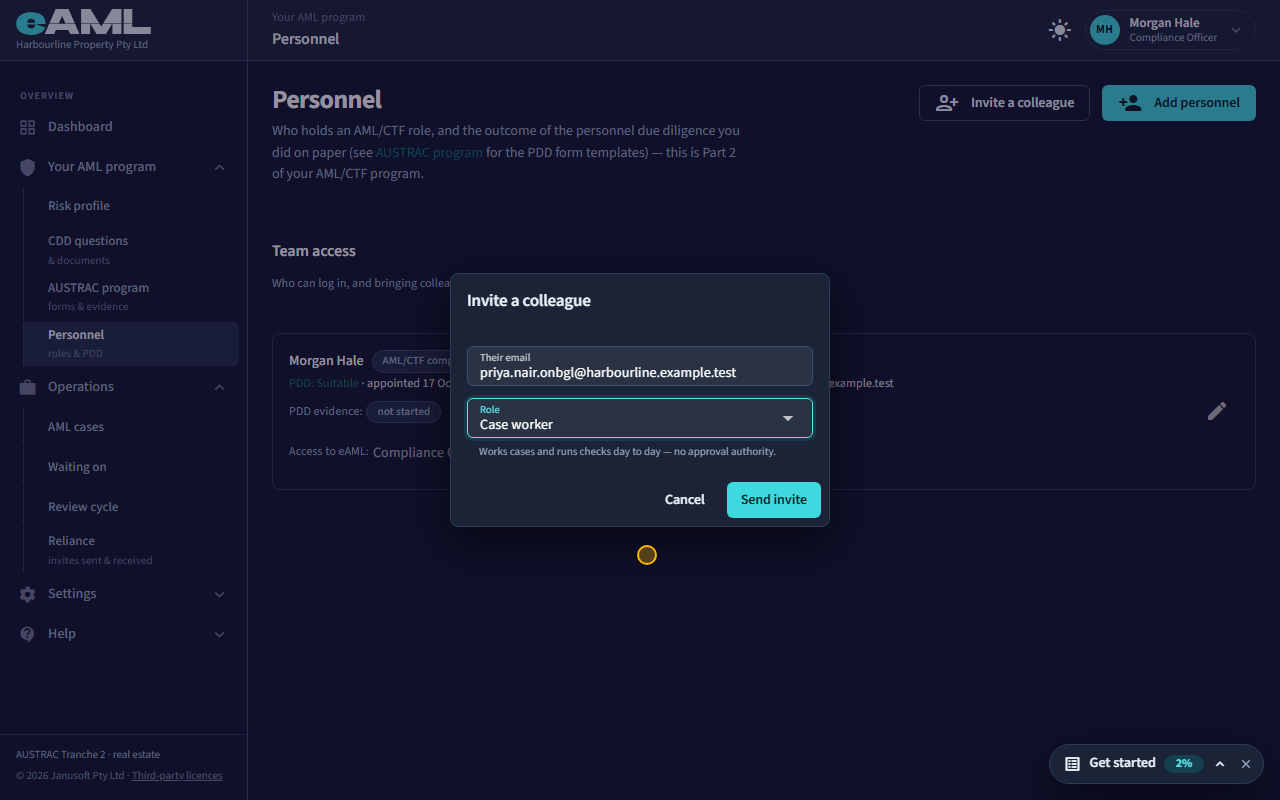
Select Invite a colleague. Enter their email, choose their access, and select Send invite.
Inviting someone gives them a login, with the access you choose. You are vouching for them, so there is no approval step. The three access levels are different from the AML/CTF roles above: Compliance Officer has full access and runs the program day to day; Senior Manager also has approval authority (case approvals, SMR review); Case worker works cases and runs checks day to day, with no approval authority.
-
The invitation is emailed, and you can copy the link too
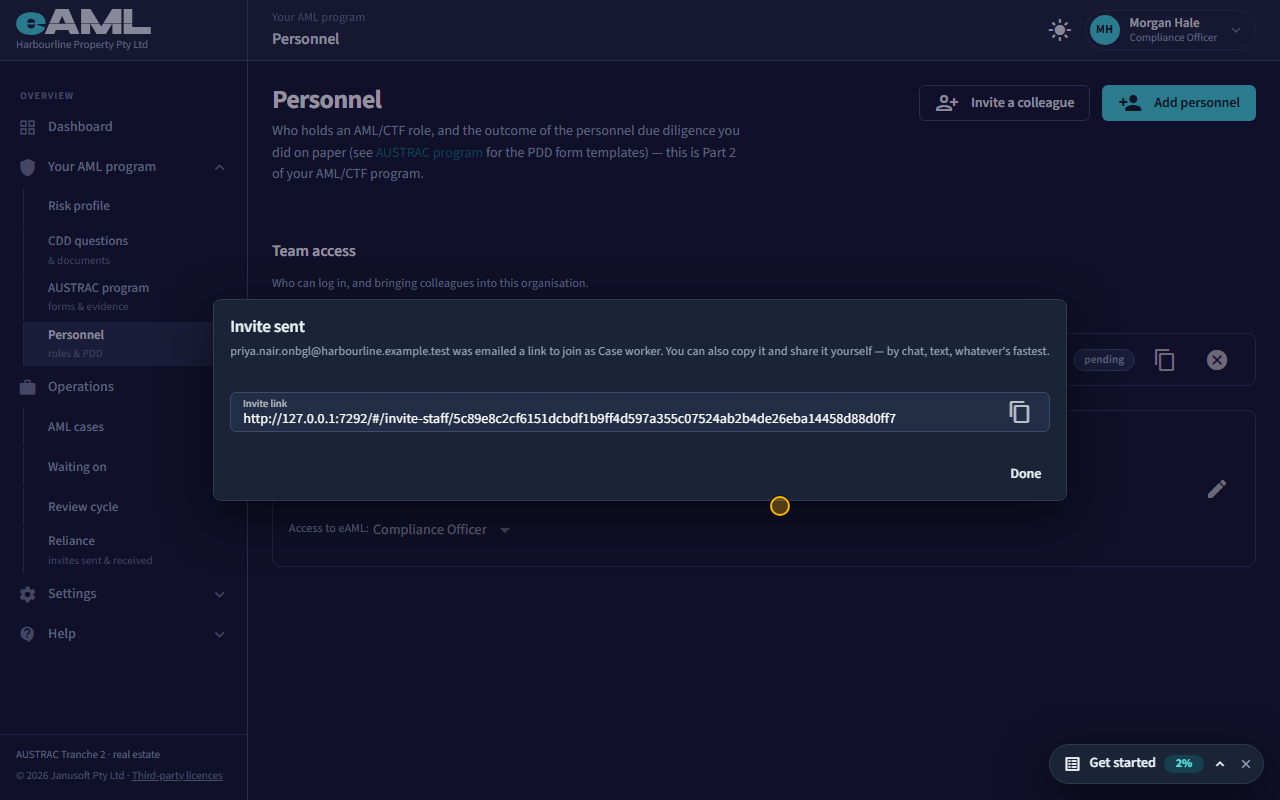
Select Done. The invitation appears in Team access as pending, with buttons to copy the link or revoke it.
The colleague is emailed a link to join. You can also copy the link and send it yourself, by chat or text, whichever is fastest. The invitation stays pending until they use it, and you can revoke it from the list while it is pending.
-
Approve a colleague who registered with your ABN
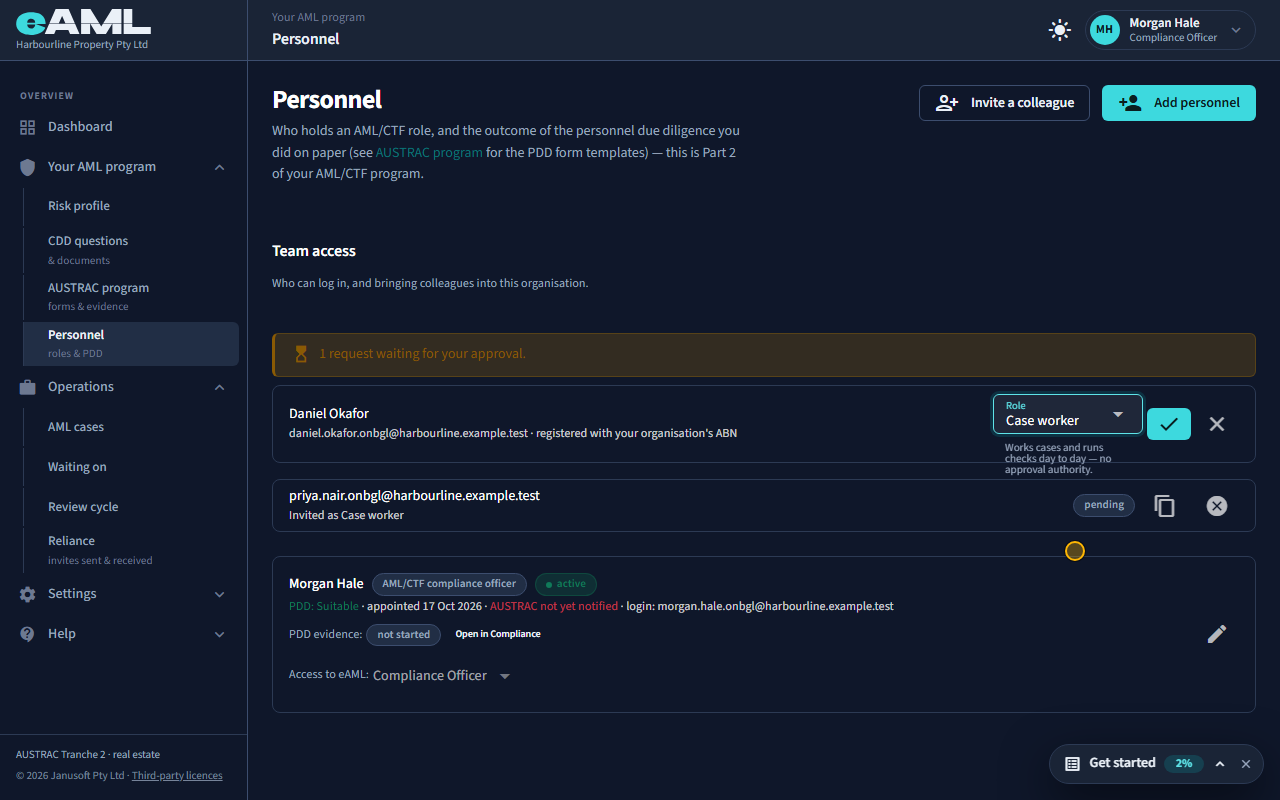
Under the orange banner, choose a Role for the person, then select the tick to approve.
A person who registers with your firm’s ABN does not create a second firm. Their request waits here until a Compliance Officer or Senior Manager of your firm approves it. Choose the access they should have, then approve it, or decline it if you do not know them.
-
Record the new colleague’s role and link their login
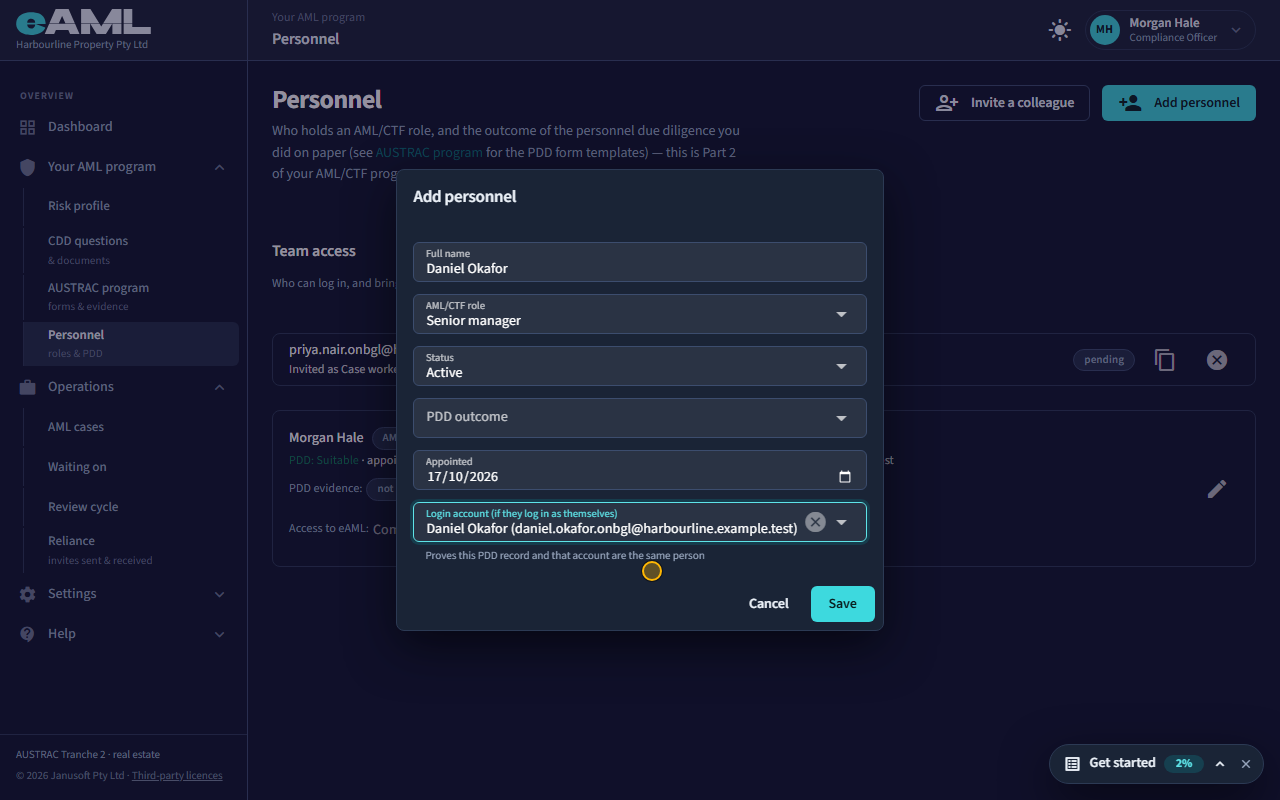
Select Add personnel, enter their name and role, choose their login under Login account, then Save.
An approved colleague can sign in, but they are not on the role-holder list until you add them. Add them with the AML/CTF role they hold, and link their login. From then on their row shows what access their login has.
-
Change someone’s access later
On the person’s row, open Access to eAML and choose the new level.
A person whose login is linked to their personnel record has an Access to eAML control on their row. Changing it changes what that login can do straight away; it does not change their AML/CTF role, which is a separate record. Only a Compliance Officer or Senior Manager can change access, and nobody can change their own: ask a colleague.
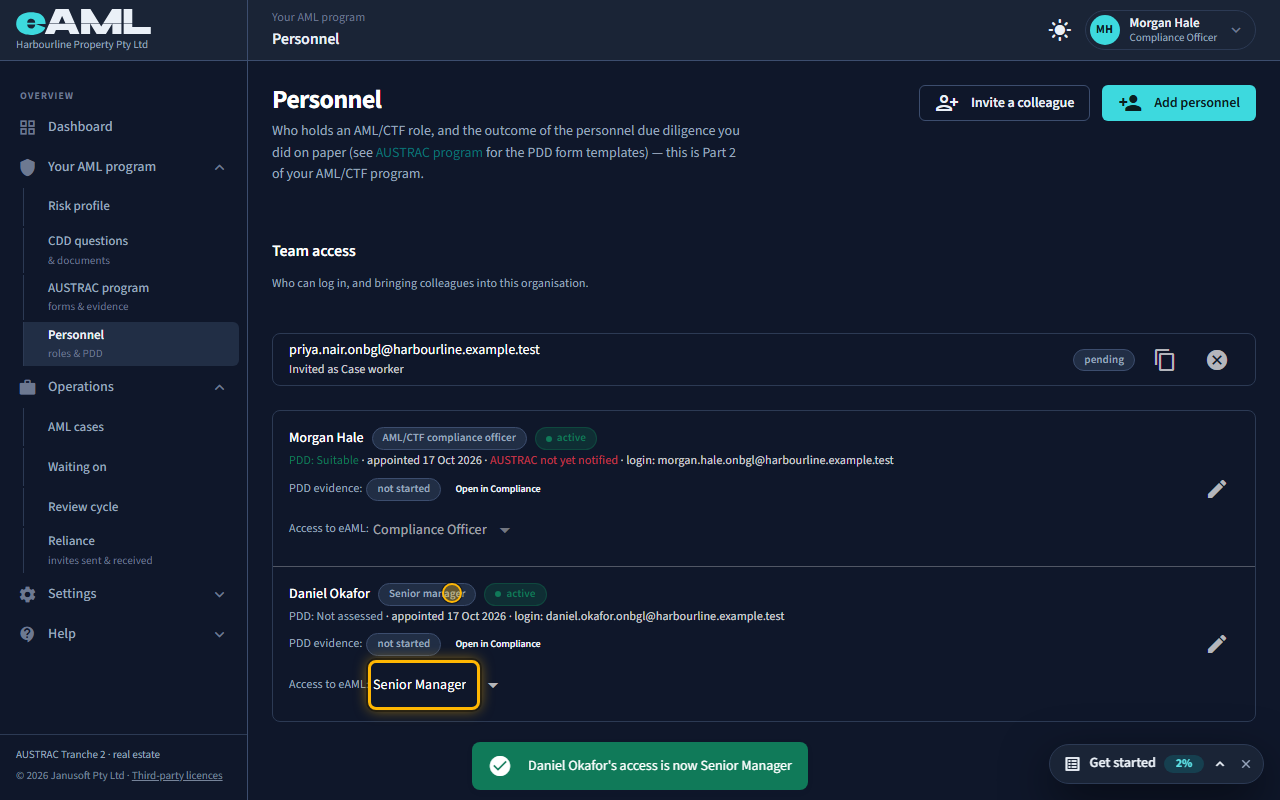
Good to know. The same two lists stay separate on purpose: the role on paper (who is appointed to what) and the access of the login (what that person can do in eAML).
-
Attach the personnel due diligence evidence
Select the pencil on the person’s row, then under PDD evidence select Attach evidence and choose the file.
Before someone is appointed to a role, you assess whether they are suitable, and keep the evidence: a licence, a criminal history check or similar. You can attach the file straight from the person’s record. Verifying it and completing the review happens on the AUSTRAC program page, which the link on the row takes you to.
-
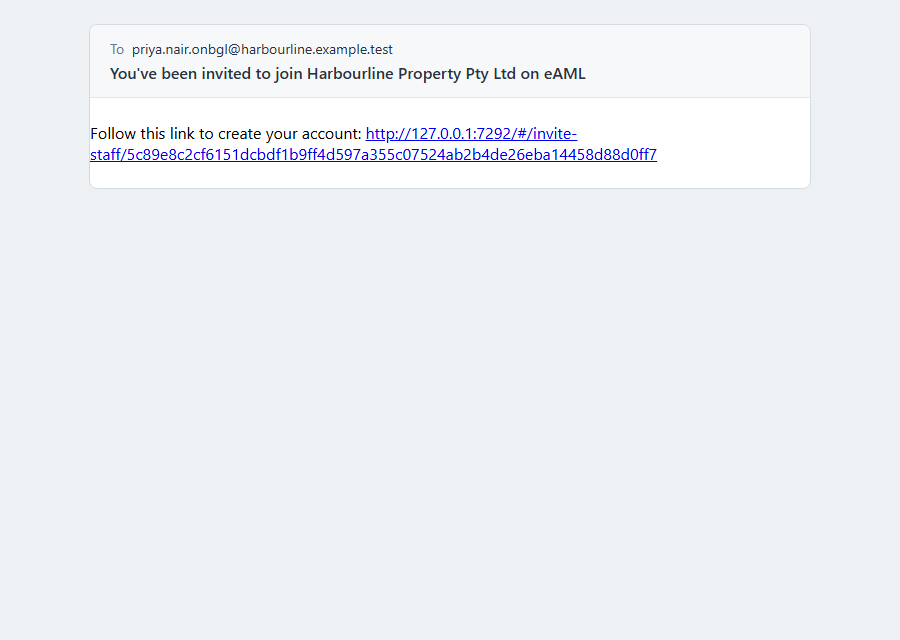
What your colleague receives Your colleague
This is the email your colleague receives. The subject names your firm, and the message carries the link that opens the invitation page. The link has no time limit: it works until the invitation is used, declined or revoked, so a person who says it has expired is usually looking at an invitation that was already used.
-
Your colleague opens the link and joins Your colleague
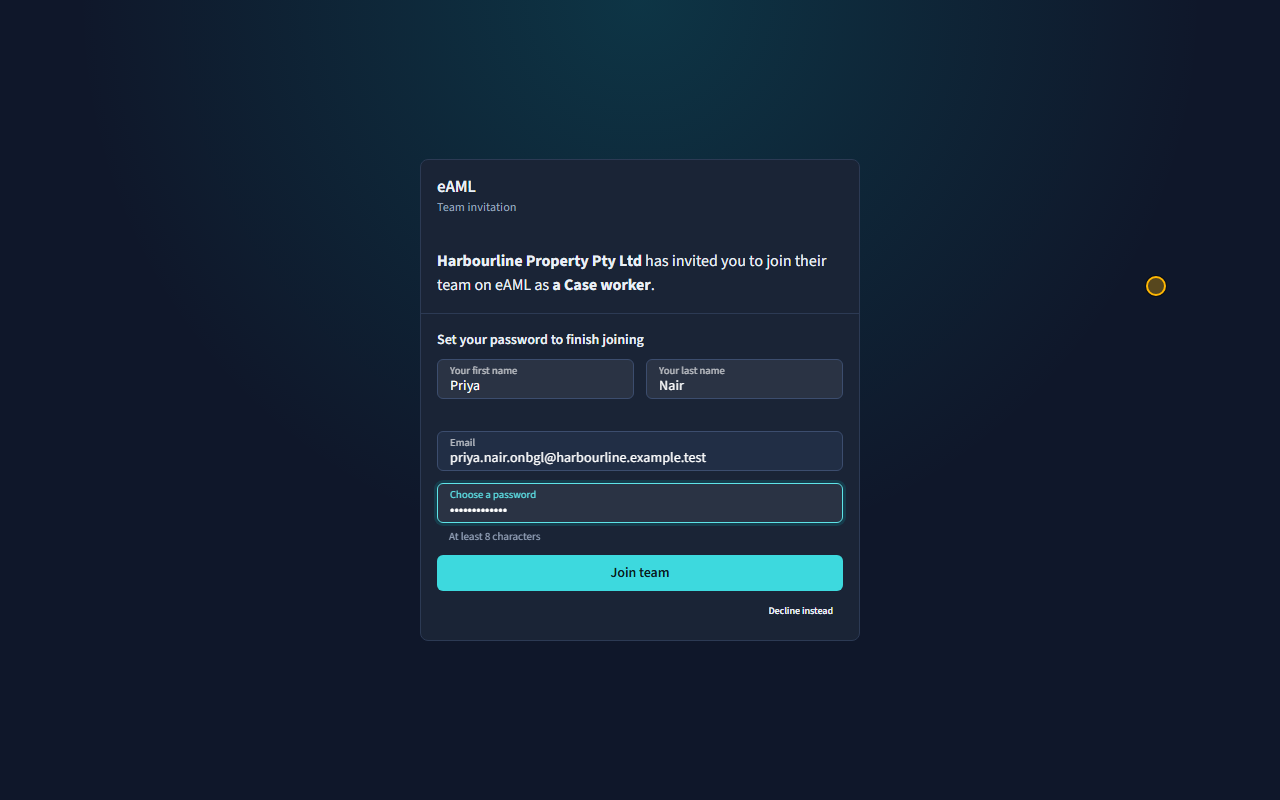
Open the link from the email, enter your name, choose a password, and select Join team.
The invitation page names your firm and the access they have been offered. They enter their name and choose a password; there is nothing else to set up, and they land on their dashboard signed in. If the invitation has already been used, declined or revoked, the page says so instead.
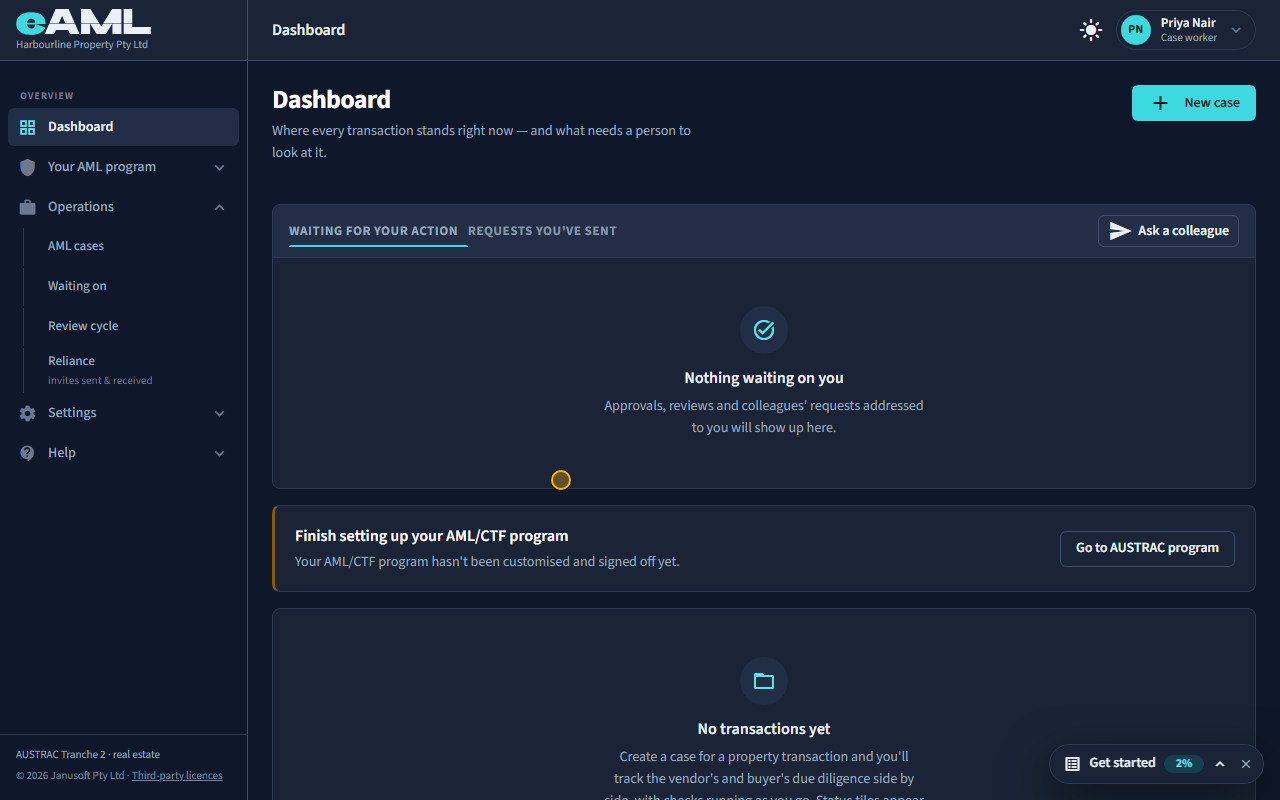
Every screen in this guide was captured from the live application in the same run as the video, so the two always match. If a screen here no longer matches what you see, tell us: the guide is regenerated after each release.