Guide · T21
Sending forms and links to a client
Before you start
- A case with a vendor and/or buyer added
- An email address for the person you are sending to (or copy the link)
-
Open the Communication tab
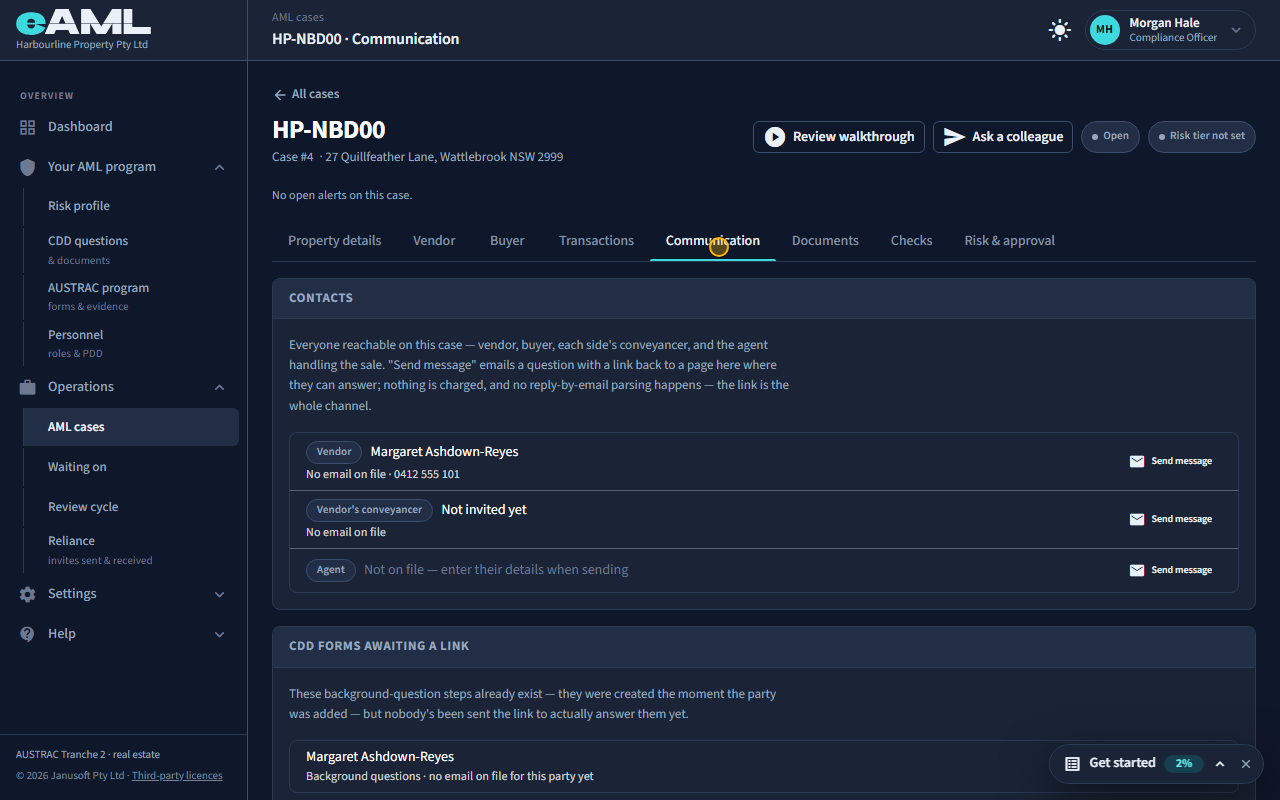
Open the case and select the Communication tab.
This is where everything that goes out to people on the case is sent from. The forms for each party were created the moment the party was added, so they already exist: they are listed under CDD forms awaiting a link until someone sends the link. Contacts lists everyone on the case who can be messaged.
-
No email address yet?
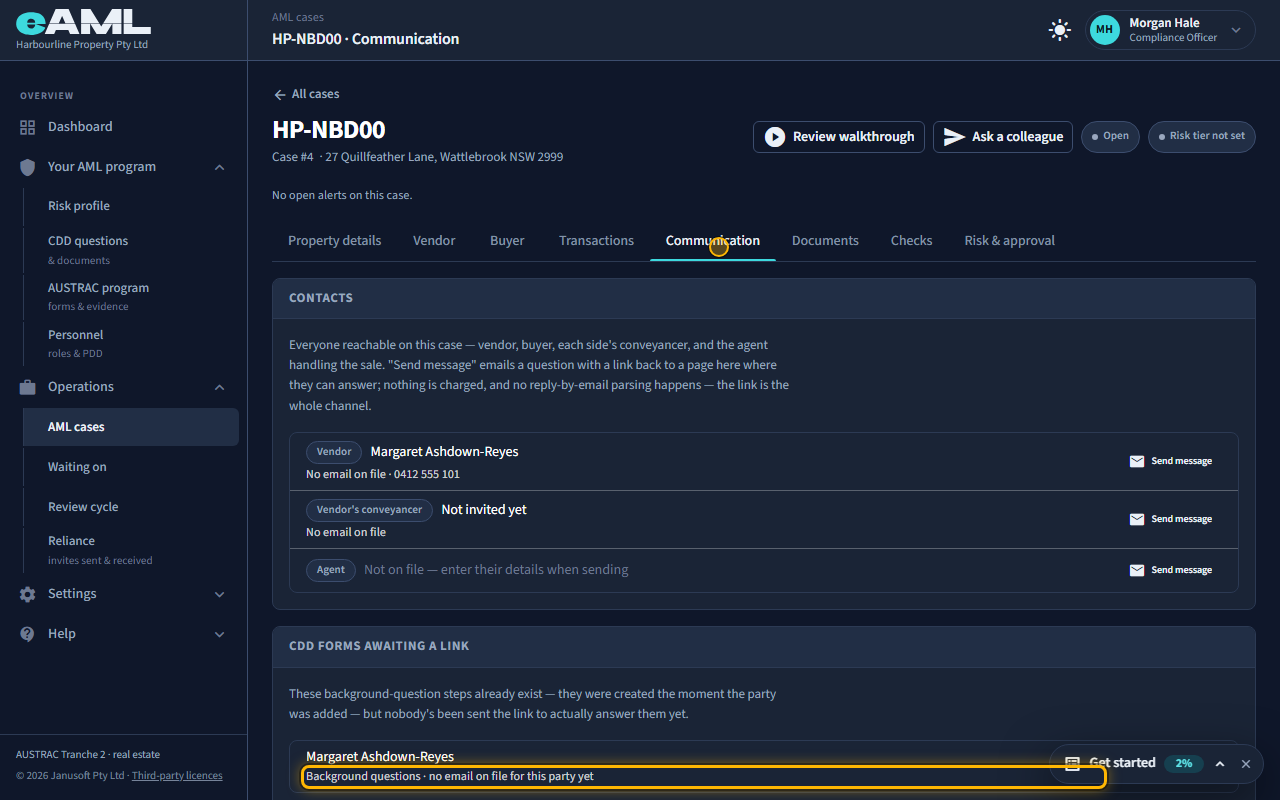
Add an email to the person on their card, or open their stage and select Copy link.
A form can only be emailed to an address on file. For a person who has not given one, Review & send is disabled and the row says there is no email on file yet. Add the address on the party’s own card and the button becomes available. Or copy the link and give it to them yourself: it is the same link the email would have carried.
-
Review the form, then send it
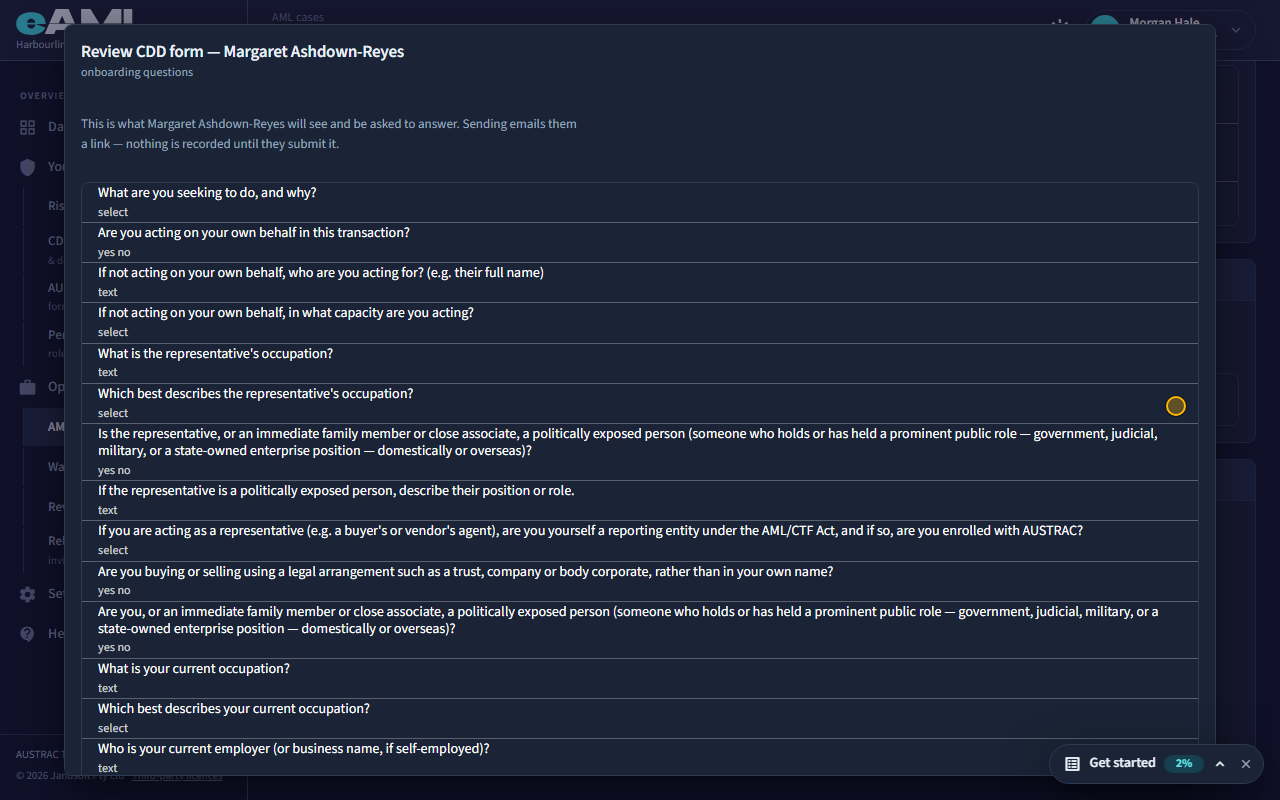
Beside the form, select Review & send, read the questions, and select Send.
Review & send shows exactly what the person will be asked: the questions, and the type of answer each takes. Nothing is recorded until they submit it. Sending emails them a link from your firm’s address, back to a page in eAML where they answer; there is no reply-by-email. If you send again, the new link replaces the old one.
-
Ask a question by message
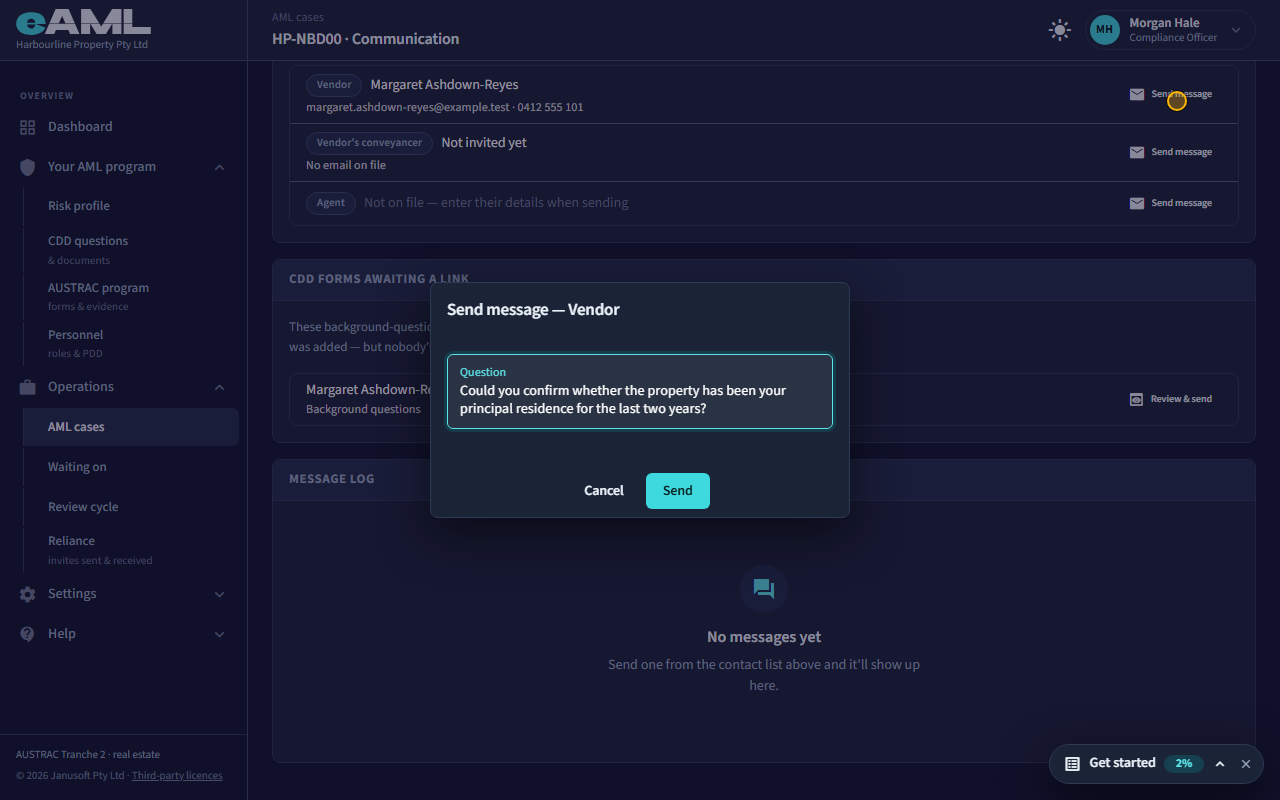
Beside the contact, select Send message, type the question, and select Send.
To ask one thing rather than send a whole form, use Send message beside the person. You type the question; they receive an email with a link to a page where they answer. The answer appears in the message log with its status. For a conveyancer who has not been invited to the case, the message is a one-off and does not invite them.
-
What your client sees Your client
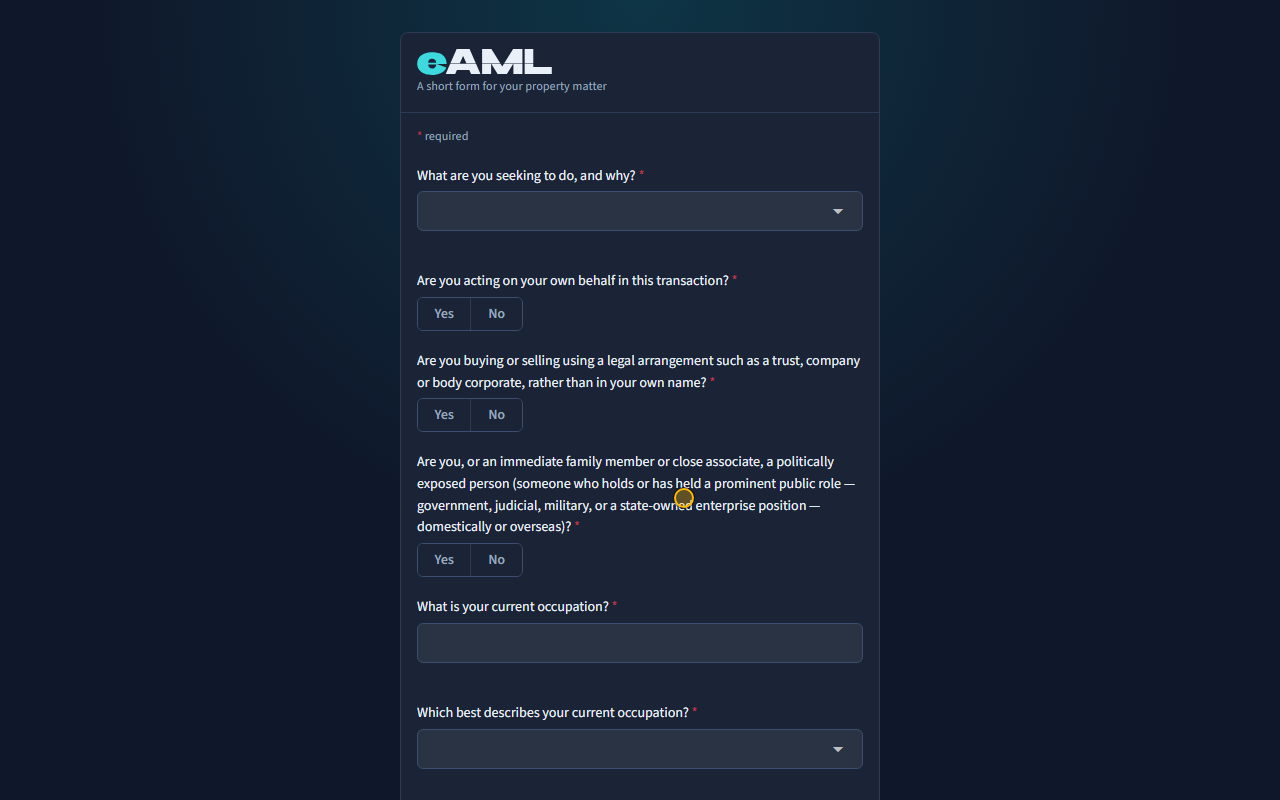
The client opens the link in the email and answers the form.
The client opens the link on any device, with no account and no password. They see a short form with only the questions you reviewed, answer them and submit. Their answers come back to you for confirmation: each question shows Client answered with their answer and a Copy button, and stays marked as needing your answer until a member of staff copies it across and saves it (T27). A link normally works for 14 days; after that the page tells them it has expired and to ask your firm to resend it.
-
Back on the case
Back in eAML, a form that has been sent stays listed under Waiting on until it comes back, and you can resend it from there. T30 covers it.
Every screen in this guide was captured from the live application in the same run as the video, so the two always match. If a screen here no longer matches what you see, tell us: the guide is regenerated after each release.