Guide · T03
Your AUSTRAC AML/CTF program
Before you start
- The compliance officer recorded on Personnel with their personnel due diligence marked Suitable (T02)
- A Senior Manager in the firm, for the approval at the end
-
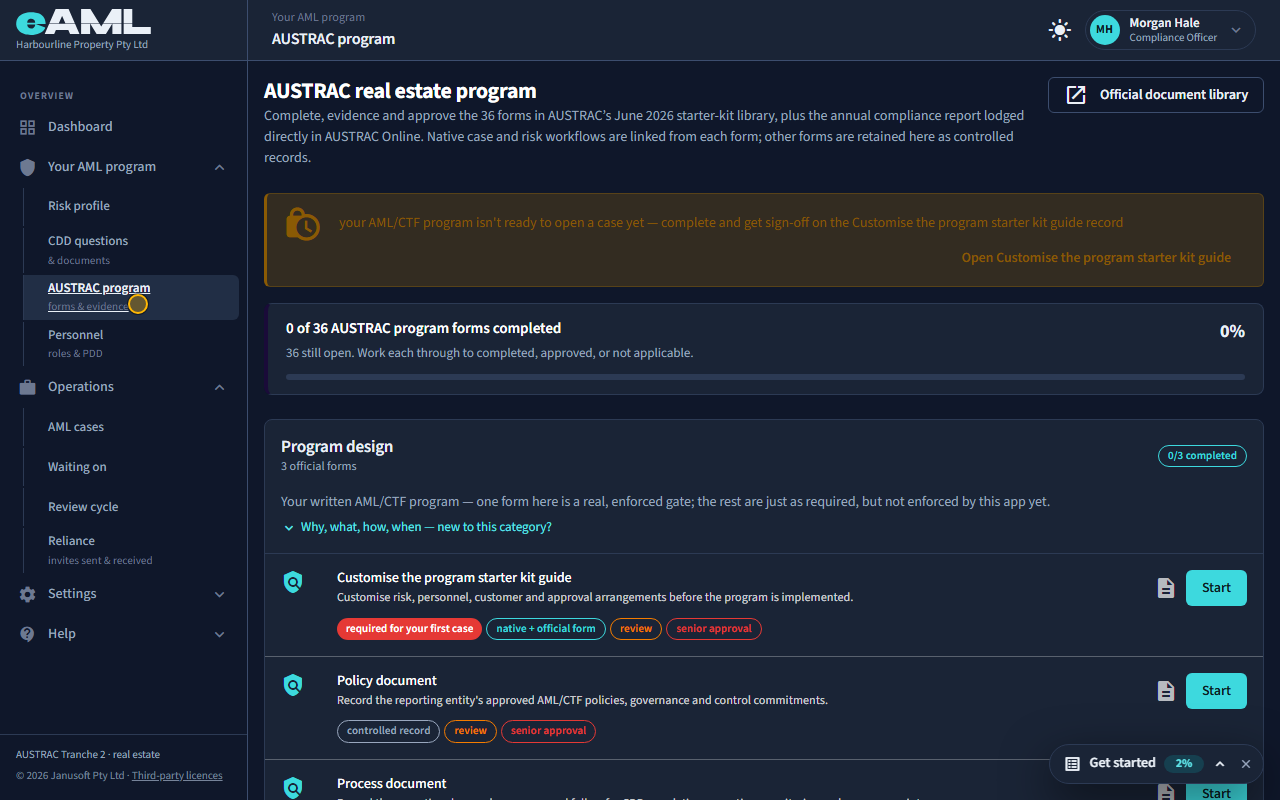
Open the AUSTRAC program page
In the menu, under Your AML program, select AUSTRAC program.
This page holds the forms from AUSTRAC’s starter kit for your business type: your written program, risk assessment, personnel due diligence, customer due diligence, escalations, ongoing monitoring and assurance. Each form is a record you complete, evidence, and where required have reviewed and approved. The orange banner at the top says what still stands between you and your first case.
-
Categories, and what the badges mean
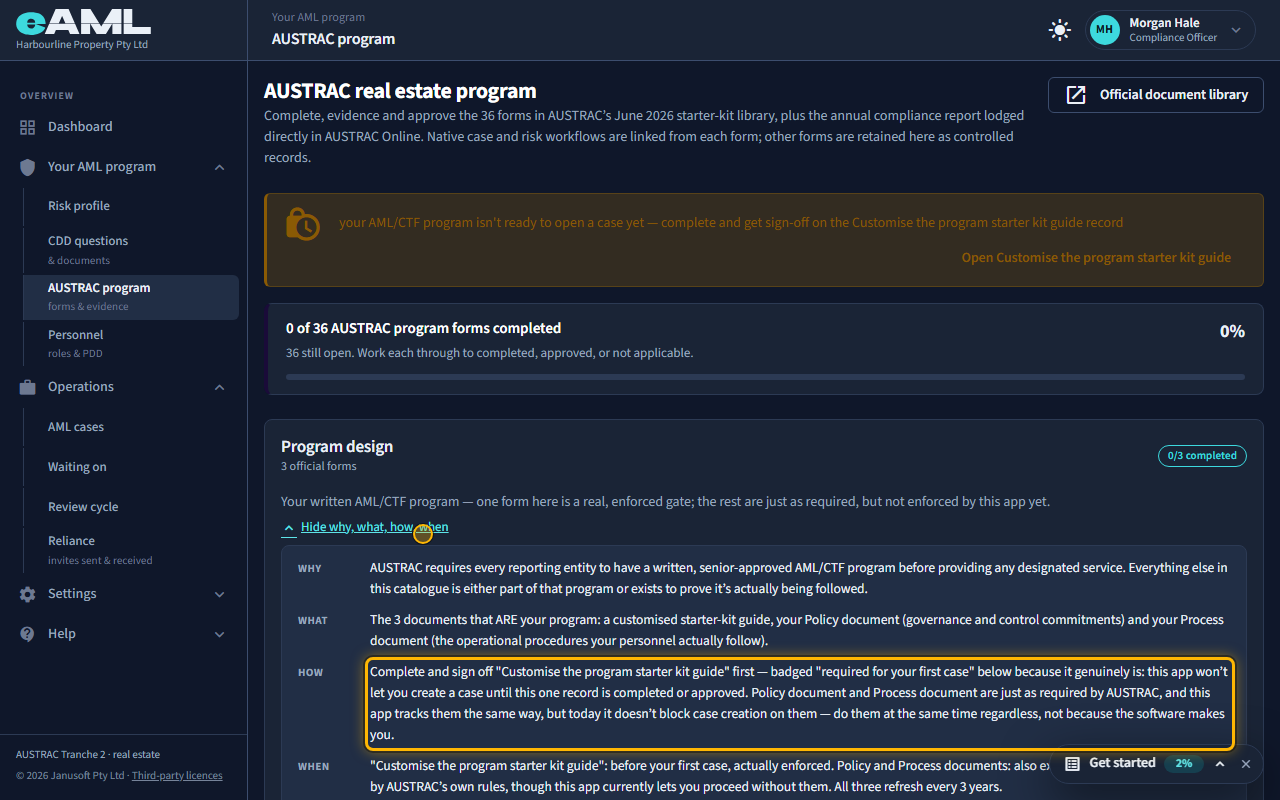
Scroll through the categories and read the badges on each form.
The forms are grouped by category, each with a count of how many are completed. “Why, what, how, when” under a category explains what it is for. On each form, the handling badge says whether it is a native workflow in eAML, a native workflow plus an official form, or a controlled record. “Review” and “senior approval” describe what the form requires, and turn green once a record has actually reached that stage. “Required for your first case” marks the one form eAML will not let you skip.
-
Start a form
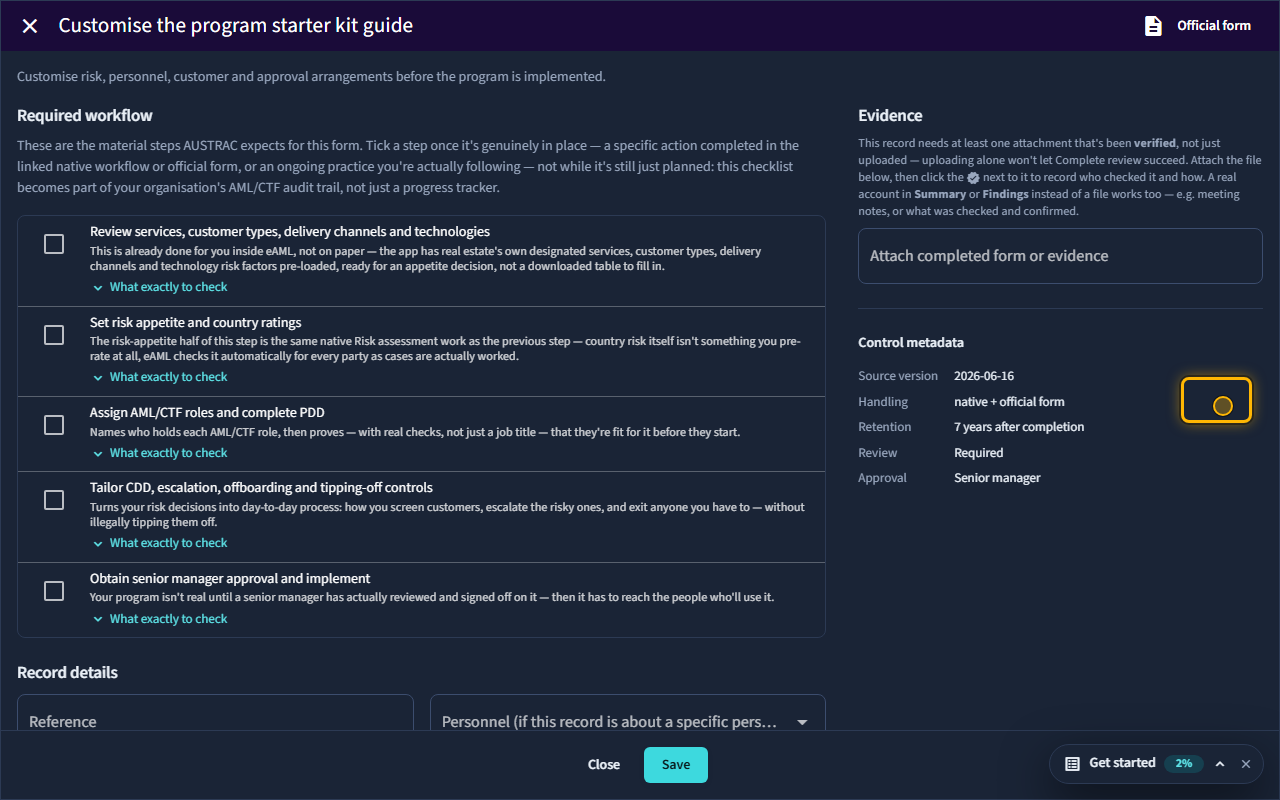
Find “Customise the program starter kit guide” and select Start.
Starting a form opens its workspace. On the left is AUSTRAC’s own list of steps for it; the record details are below, and the evidence panel is further down. Each form shows the official AUSTRAC document it comes from.
-
Tick each step once it is genuinely done
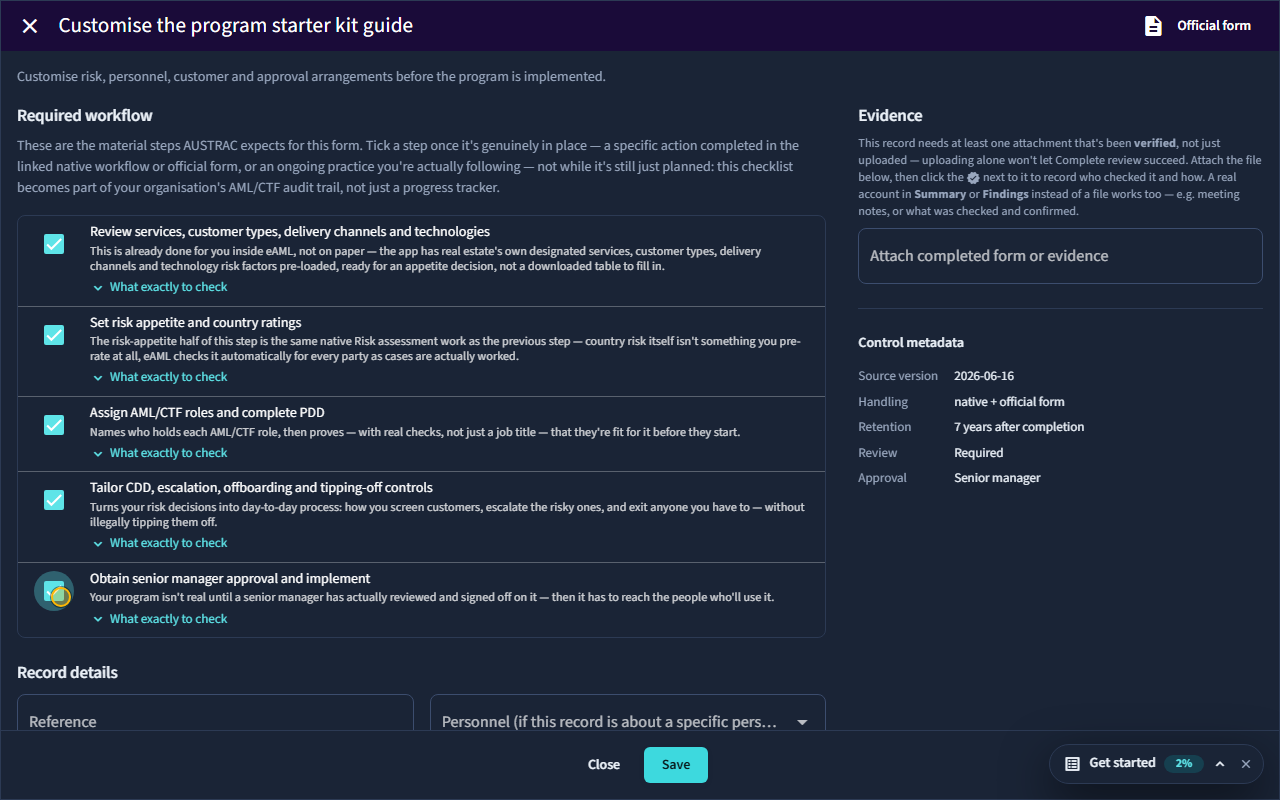
Tick each of the required workflow steps.
These are not a progress bar: ticking a step is you attesting that the work behind it has been done, or is an ongoing practice you are following. It becomes part of your audit trail. Every step must be ticked before the form can be completed.
-
Record what was decided
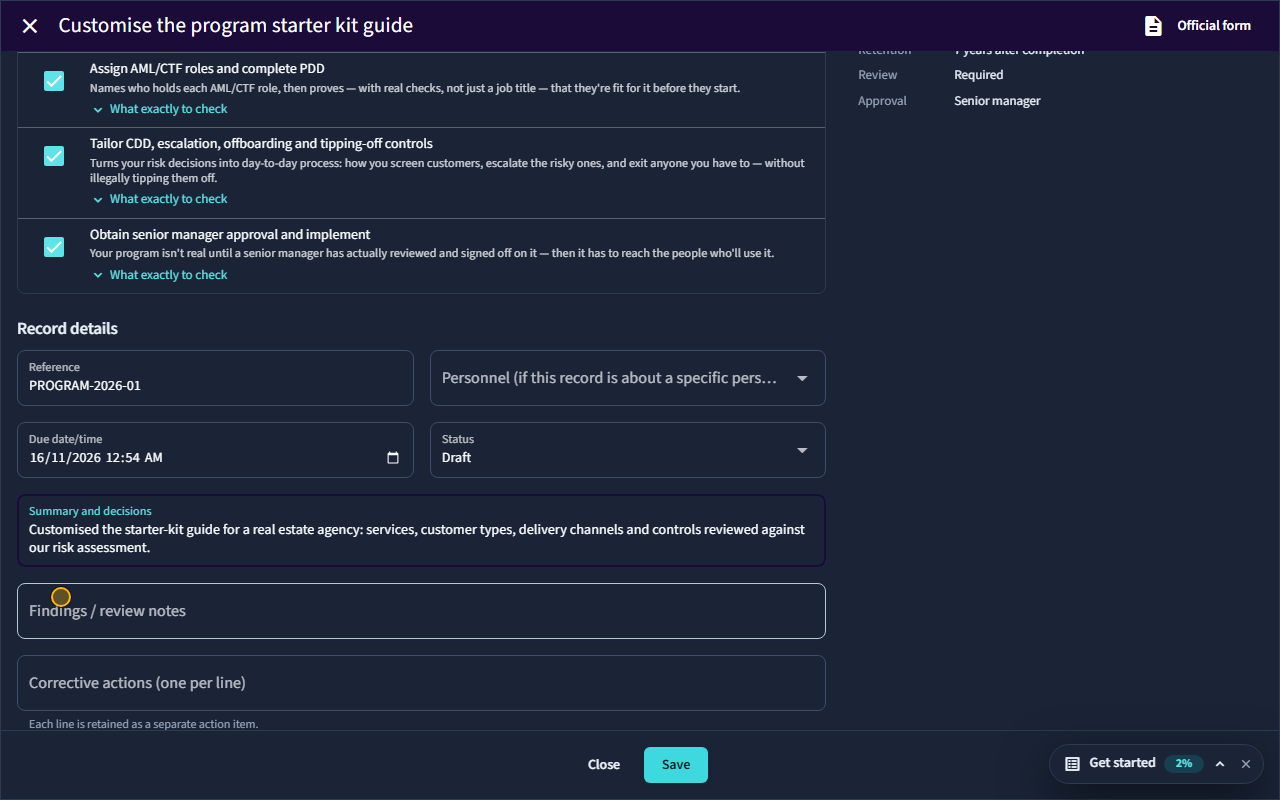
Enter a reference and a summary of what was decided.
A reference and a short summary. This is what a reviewer, or an AUSTRAC auditor, reads to understand what actually happened, rather than just seeing that a box was ticked.
-
Attach the evidence
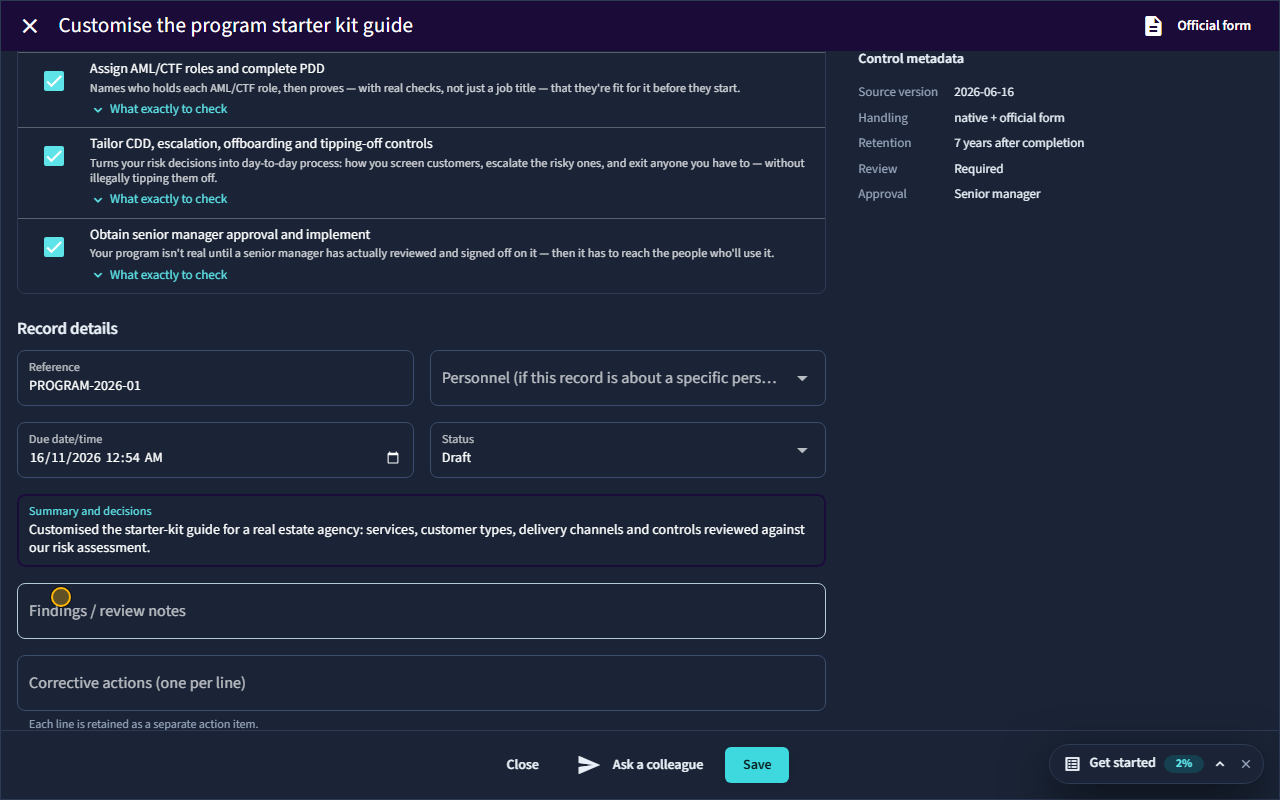
Under Attach completed form or evidence, choose the file.
A form needs evidence before it can be completed: a verified attachment, or a real written account of what was checked in Summary or Findings. A file is the stronger record, and on a high-risk case a verified document is always required. Attaching a file saves the record if it had not been saved yet.
-
Confirm the evidence is what it says it is
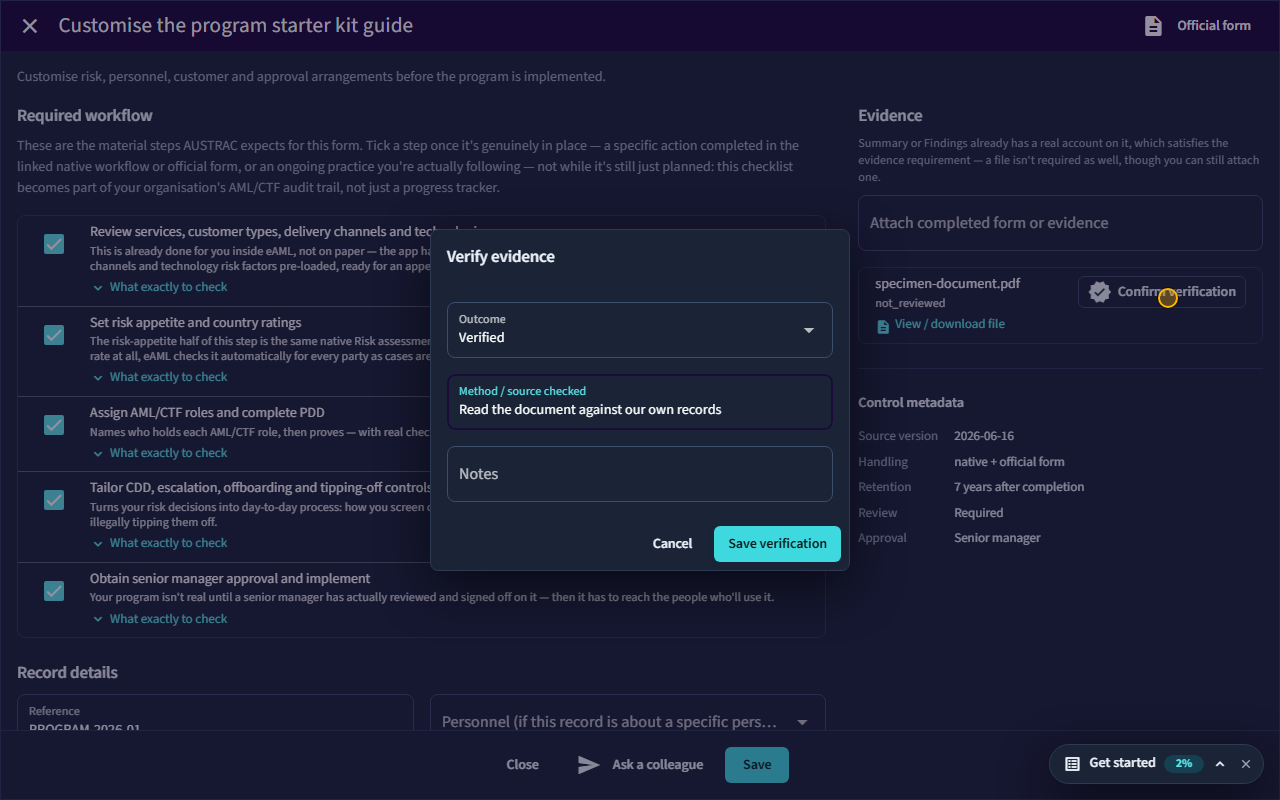
Select Confirm verification, choose the outcome, say how you checked it, and Save verification.
Uploading is not enough: someone has to confirm the evidence is genuine and complete, and record who checked it and how. The outcome can be Verified, Discrepancy, Suspected fraud or Not applicable. Only an attachment marked Verified counts as evidence.
-
Submit it for review
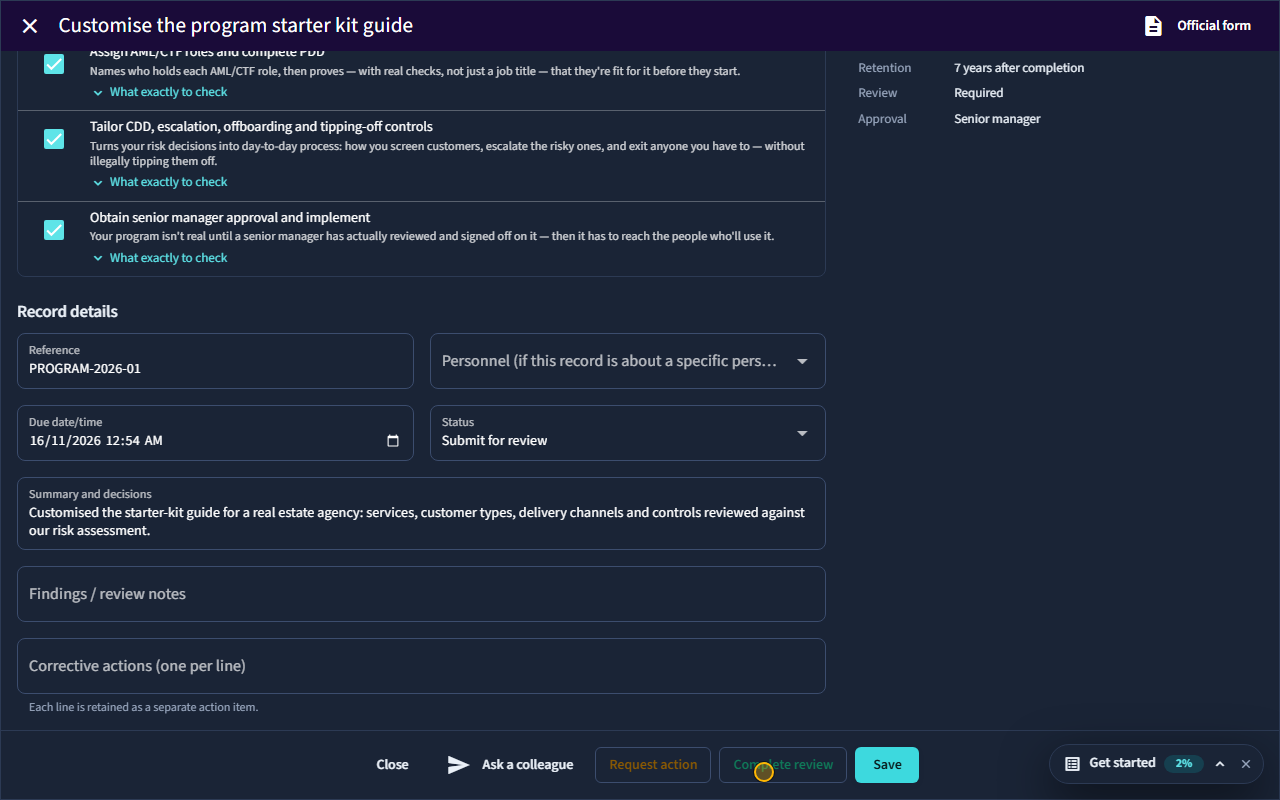
Set Status to Submit for review, then Save.
A form that needs review is submitted rather than completed straight away: the person who prepared it asks for a second look. Changing Status to Submit for review and saving records that you have prepared it.
-
Complete the review
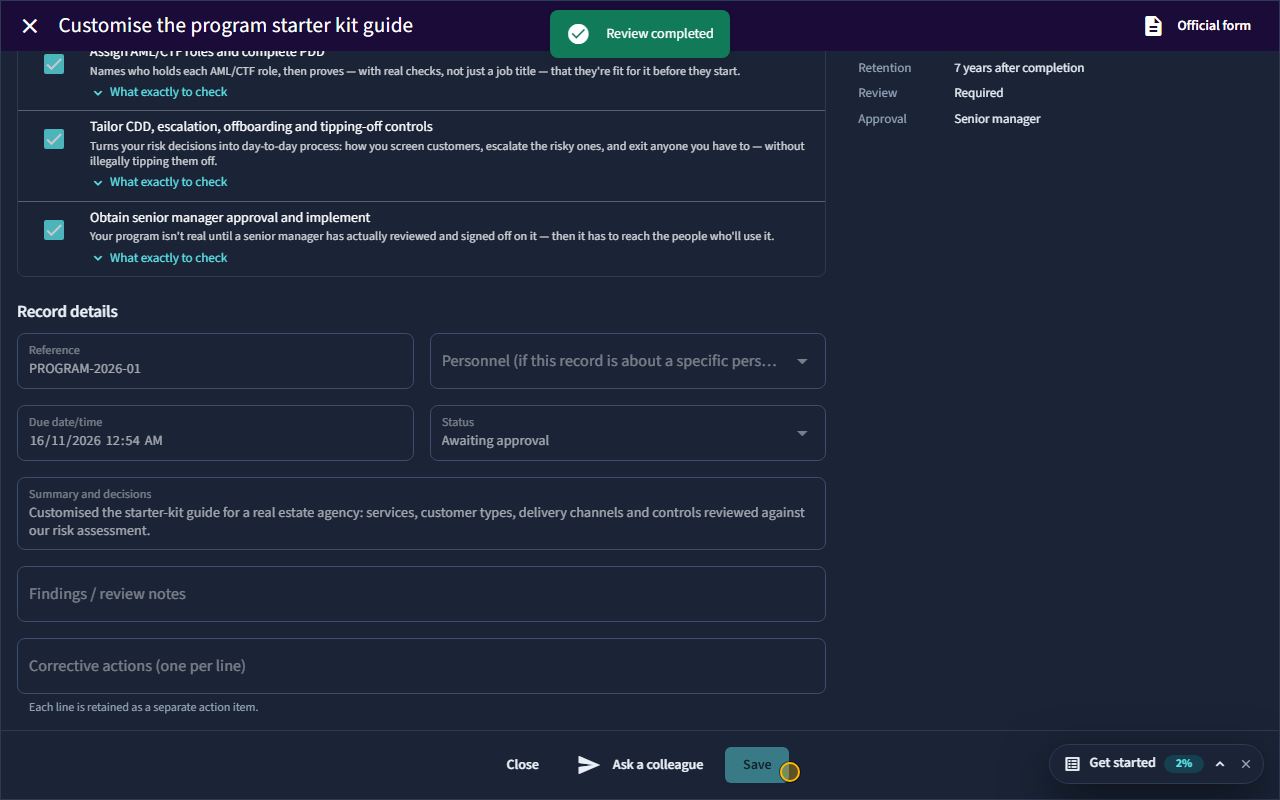
Select Complete review.
Once the record is submitted, a Compliance Officer or Senior Manager completes the review. Complete review is blocked, with the reason shown on the button, until every workflow step is ticked and the evidence requirement is met. When it is done the form shows as Awaiting approval, because this form also needs a senior manager’s sign-off.
-
What “program ready” unlocks
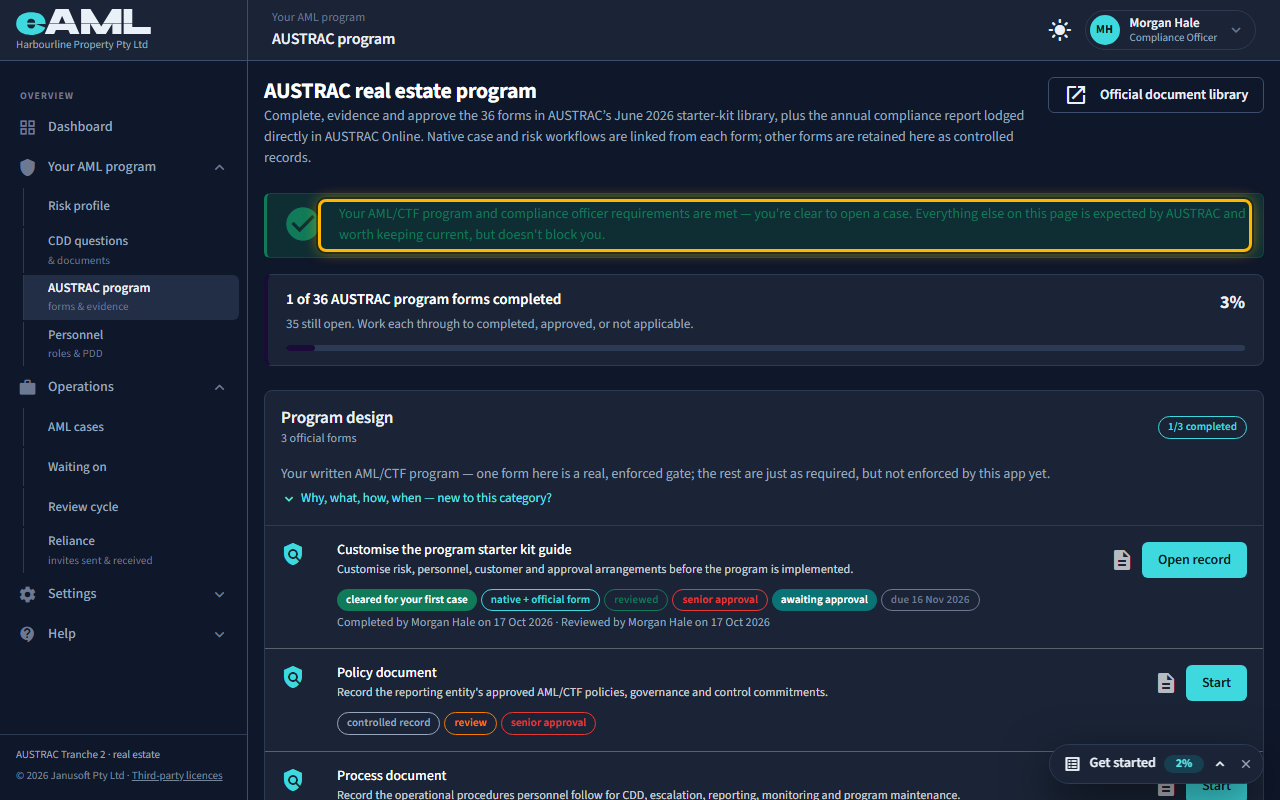
Look at the banner at the top of the page.
This form is the one that unlocks case creation: once it is completed (or approved), the orange banner at the top of the page turns green, “New case” on the dashboard works, and you can open cases. Everything else on this page is expected by AUSTRAC and worth keeping current, but does not block you.
-
A senior manager approves it (four eyes) Senior Manager
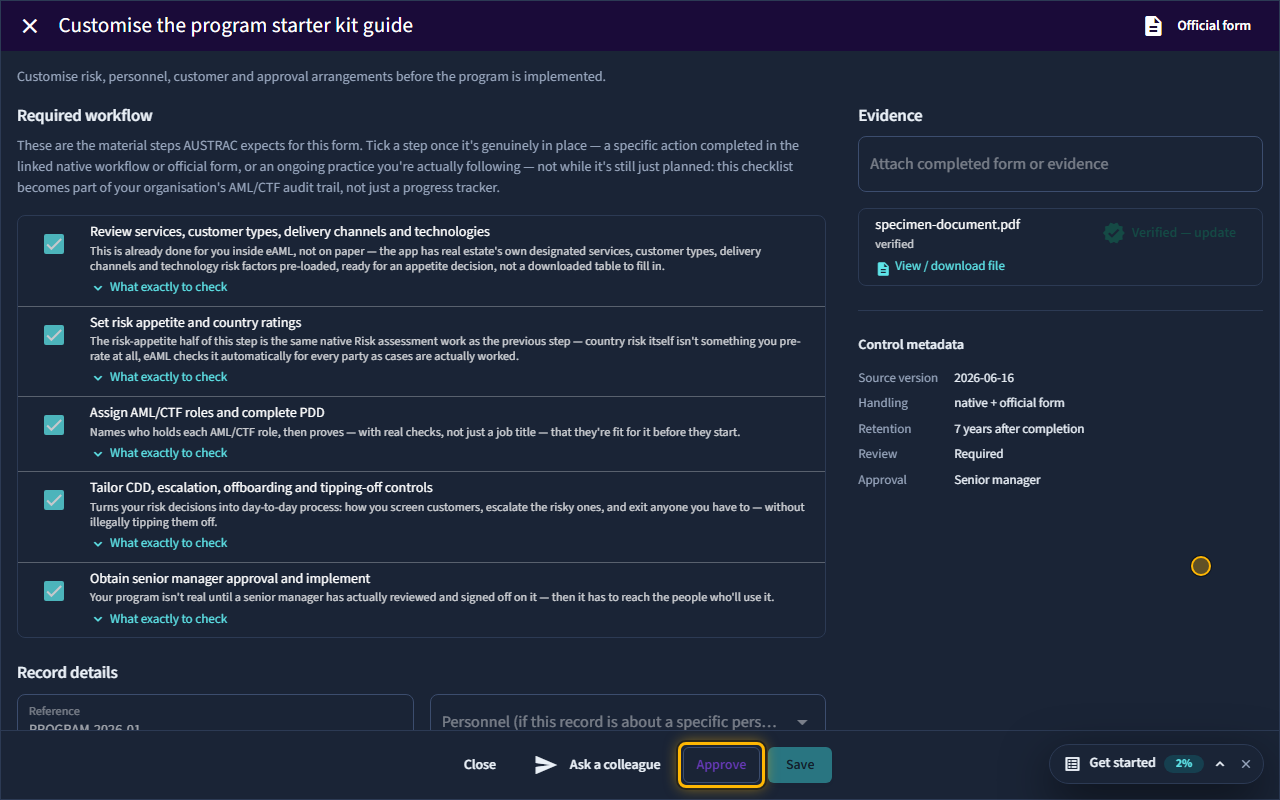
Open the record and select Approve.
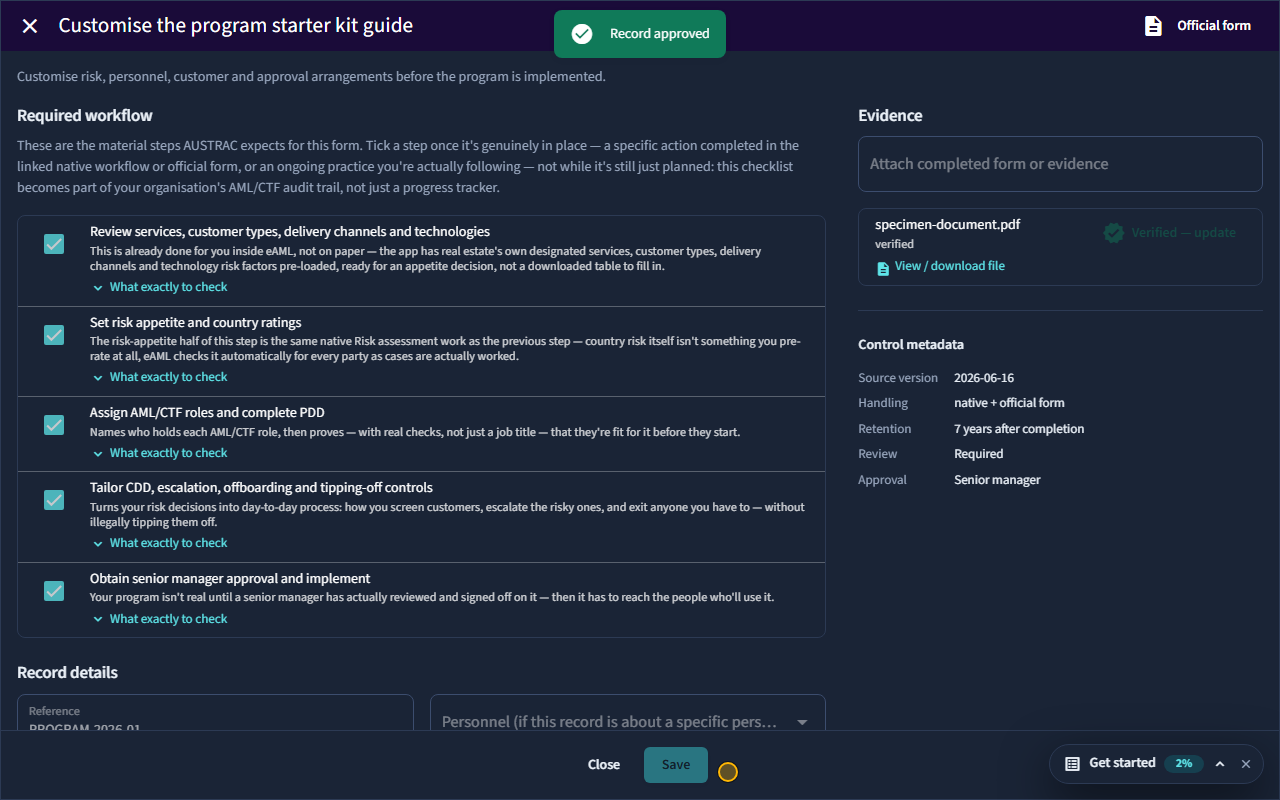
A form marked “senior approval” is approved by a Senior Manager who did not prepare, complete or review it: that second pair of eyes is the point. The approver opens the record and selects Approve. The record then reads Approved, with who approved it and when.
-
If your firm is one person
A one-person firm has nobody else to approve. If you are the only person who could approve something, eAML asks you to accept, once and in writing, that your work is not checked by a second person; you do this on the Organisation page, under Settings: tick the statement in the One-person firm section and select This is a one-person firm. From then on you approve your own work without being asked each time, and every self-approval is still recorded in the audit trail. The setting stops applying by itself as soon as another Compliance Officer or Senior Manager joins, and your independent evaluation must still be done by someone independent of the business.
Every screen in this guide was captured from the live application in the same run as the video, so the two always match. If a screen here no longer matches what you see, tell us: the guide is regenerated after each release.