Guide · T13
Connect Xero or MYOB
Before you start
- An accounting or financial advice practice, with the client on its client register
- A login for the client’s Xero organisation (or an administrator’s for a MYOB company file)
-
What eAML reads, and what it never does
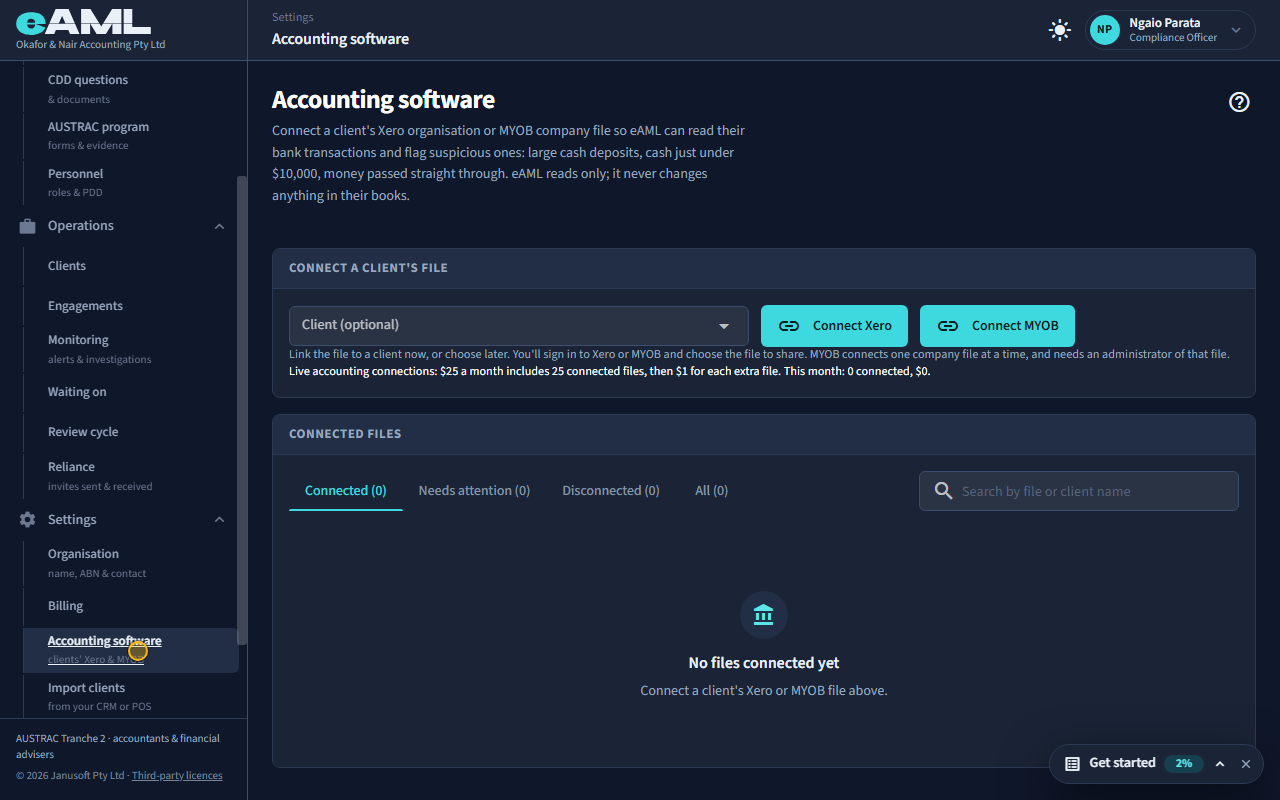
In the menu, under Settings, select Accounting software.
Connecting a client’s Xero organisation or MYOB company file lets eAML read their bank transactions, and their invoices and bills, so it can flag the patterns AML/CTF cares about: cash, round amounts, money passed through. It only reads: it never changes the client’s books. Each connected file is billed for every month it was connected, as an add-on to your plan.
-
Connect the client’s file
Select Connect Xero, sign in, choose the organisation, and select Allow access.
Select Connect Xero (or Connect MYOB). You are sent to the software’s own sign-in and consent page: you sign in as the client, or as someone with access to their file, and choose the organisation to share. MYOB connects one company file at a time and needs an administrator of that file. eAML never sees the password, only the access the software hands back.
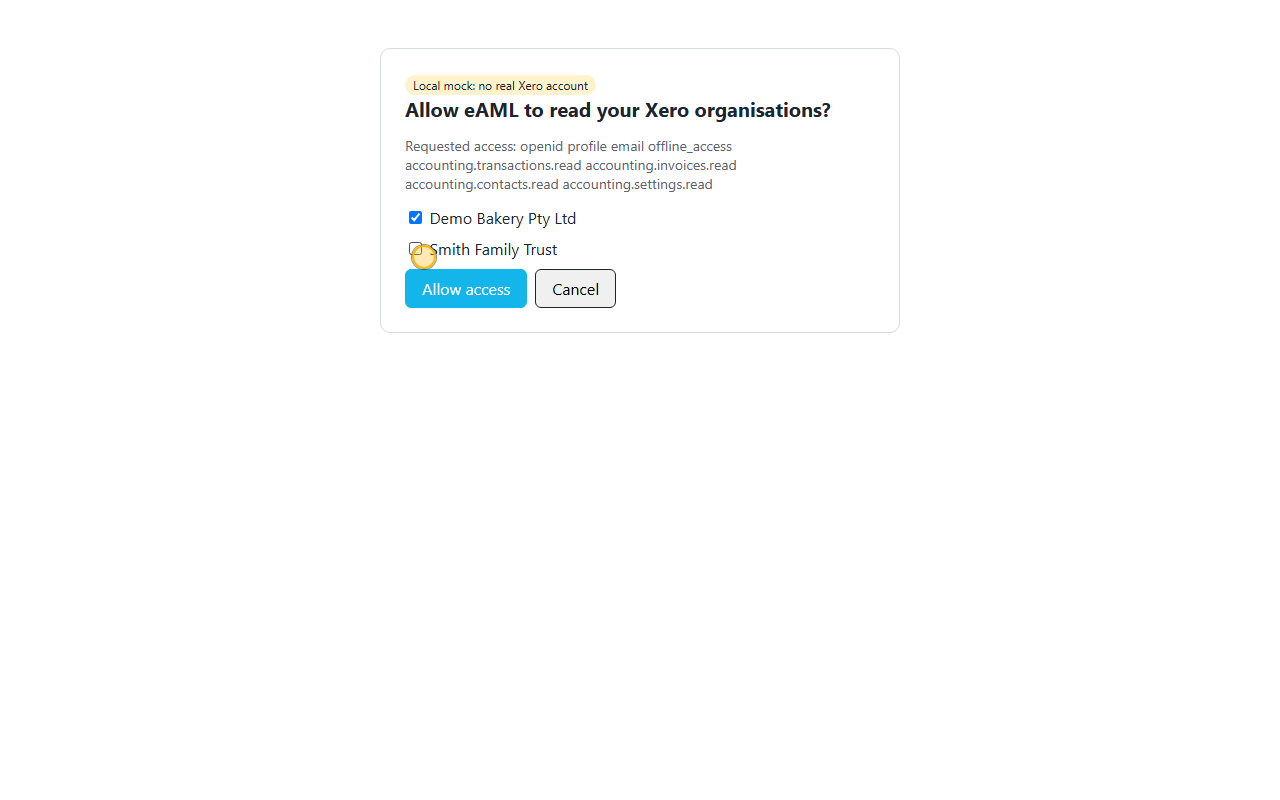
Good to know. In this recording the sign-in and consent page is a practice stand-in (it says so at the top). With a real connection it is Xero’s own page, or MYOB’s.
-
Make sure the file is the client’s
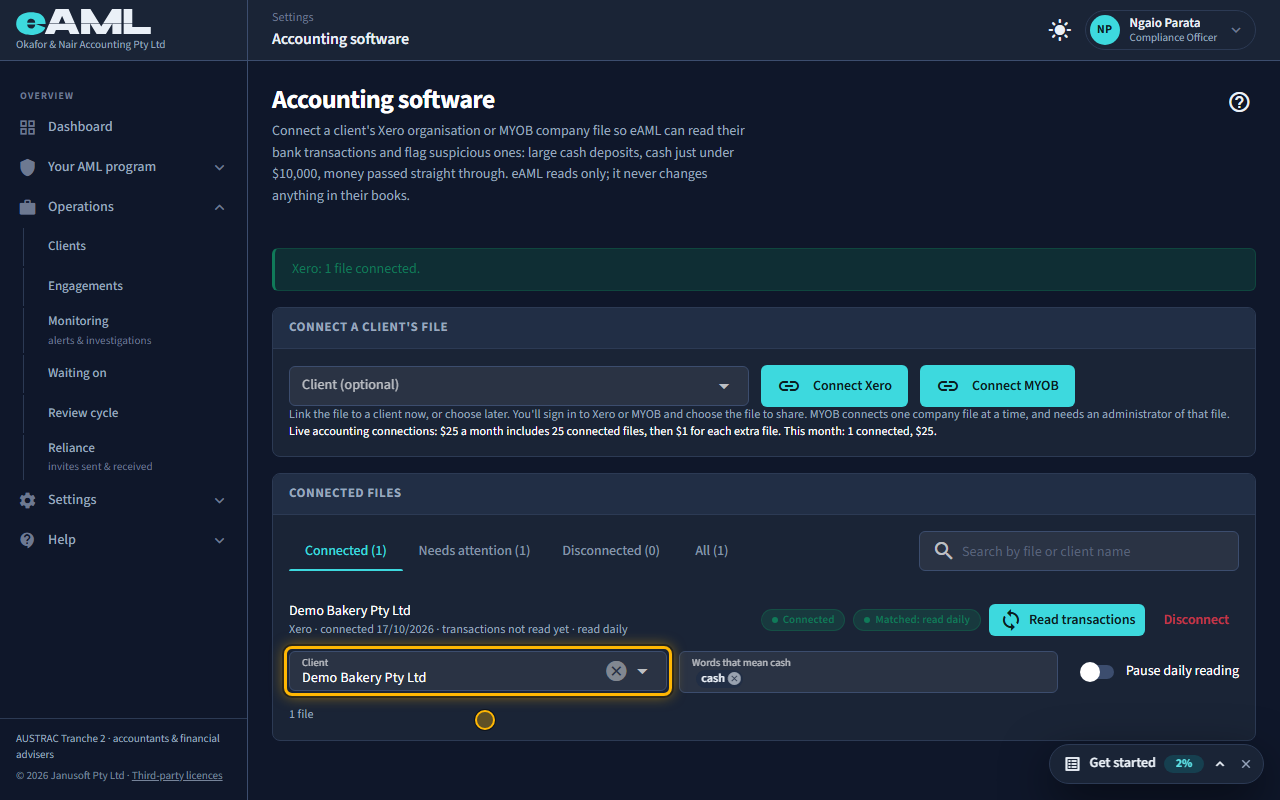
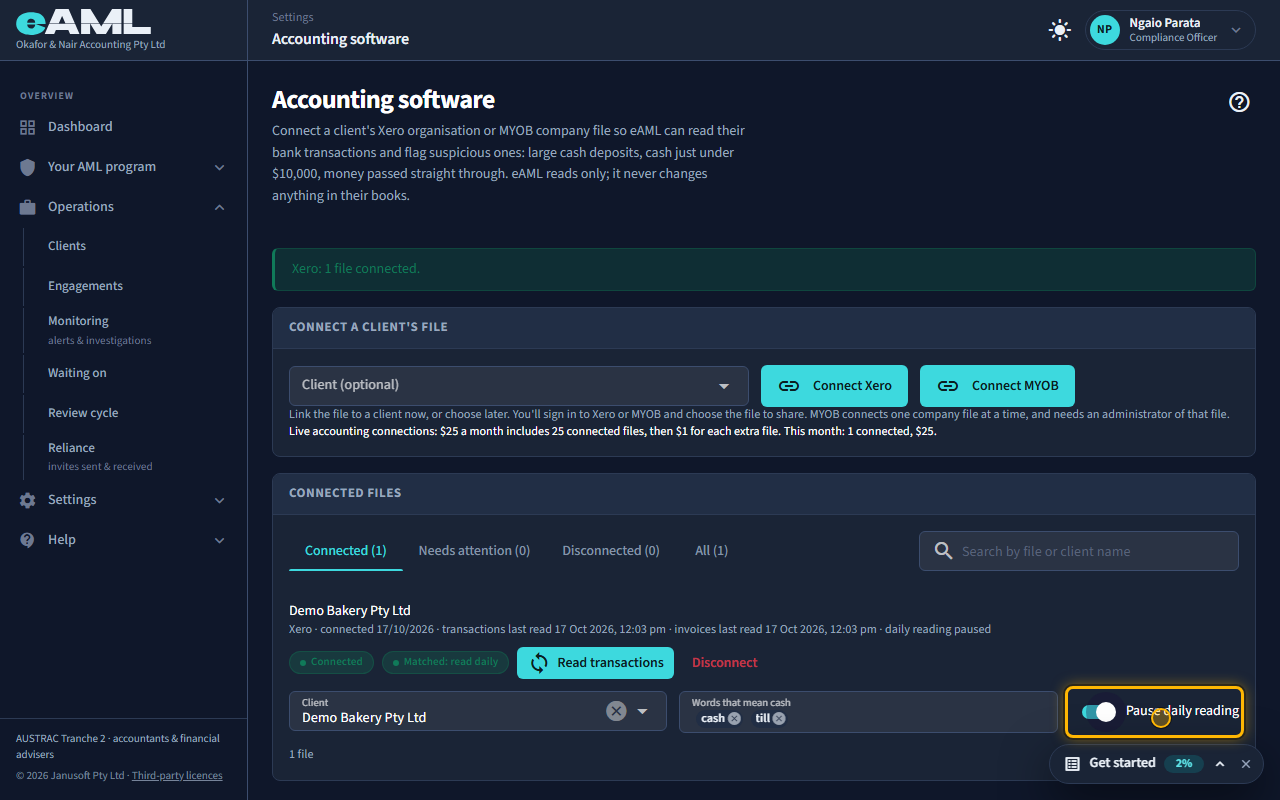
In the file’s row, choose the client under Client.
A file is read only once it is known to be the client’s: link it to the client on your register. eAML compares the file’s ABN or ACN with the client’s, and its name: a match on a number links it at once. If only the name matches, the file shows Not read until confirmed, and you confirm on the client’s page that it is theirs. Until then the file is connected but nothing is read from it.
-
Read the transactions
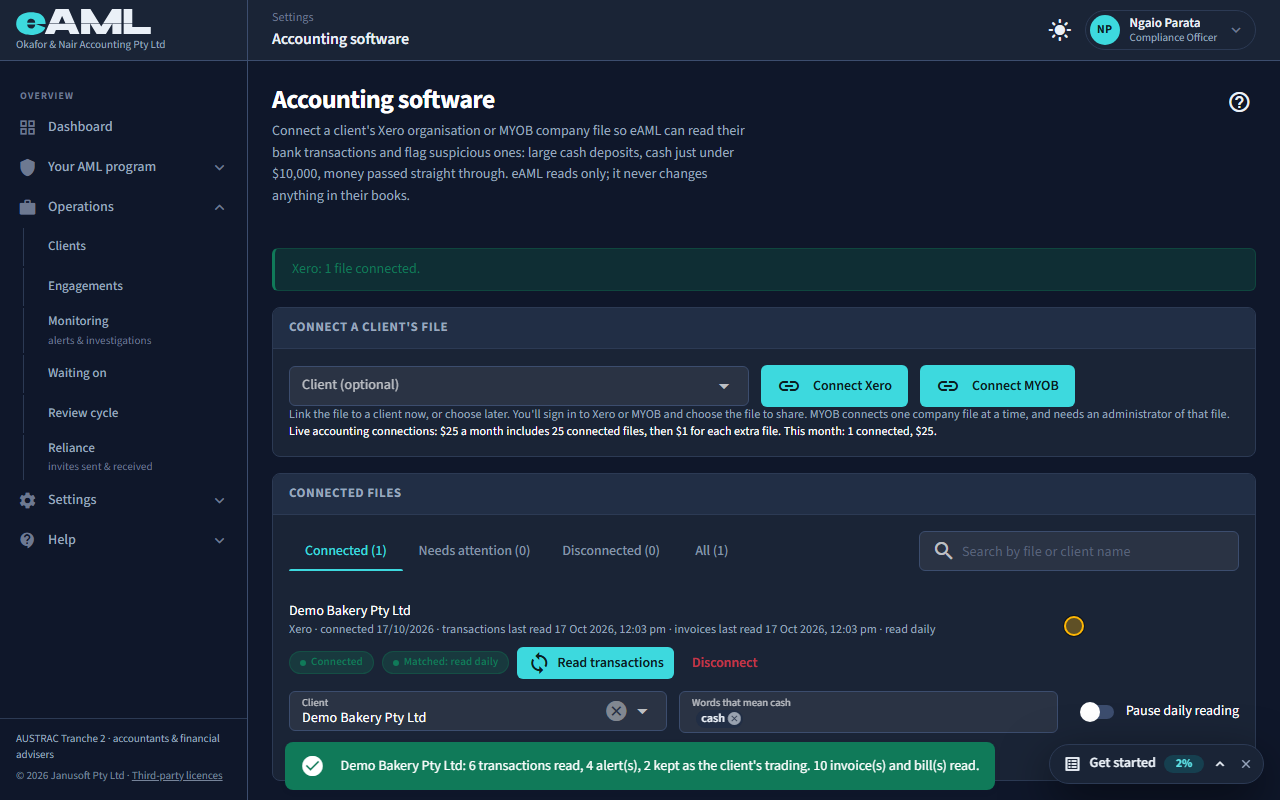
Select Read transactions.
Read transactions fetches the file’s recent bank transactions, and its invoices and bills where the connection allows it. The message tells you how many transactions were read, how many raised alerts, how many were kept as the client’s trading, and how many invoices and bills were read. Alerts appear on the client’s engagement. Once a file is linked, eAML also reads it by itself every day.
-
Cash words, and pausing the reading
Under the file, add words that mean cash, or switch Pause daily reading on.
Xero has no payment method, so eAML treats a transaction as physical cash when one of these words is in its reference, description or bank account name: “cash” by default, and you can add the way your client writes it. (MYOB’s own Cash payment method counts too.) Pause daily reading stops eAML’s daily read of this file; Read transactions still works. Disconnect ends the connection.
Every screen in this guide was captured from the live application in the same run as the video, so the two always match. If a screen here no longer matches what you see, tell us: the guide is regenerated after each release.