Guide · T30
What is waiting on you: dashboard, Waiting on, colleagues
Before you start
- A team of at least two, with work out with clients (forms and identity links sent)
-
What is waiting for you Senior manager
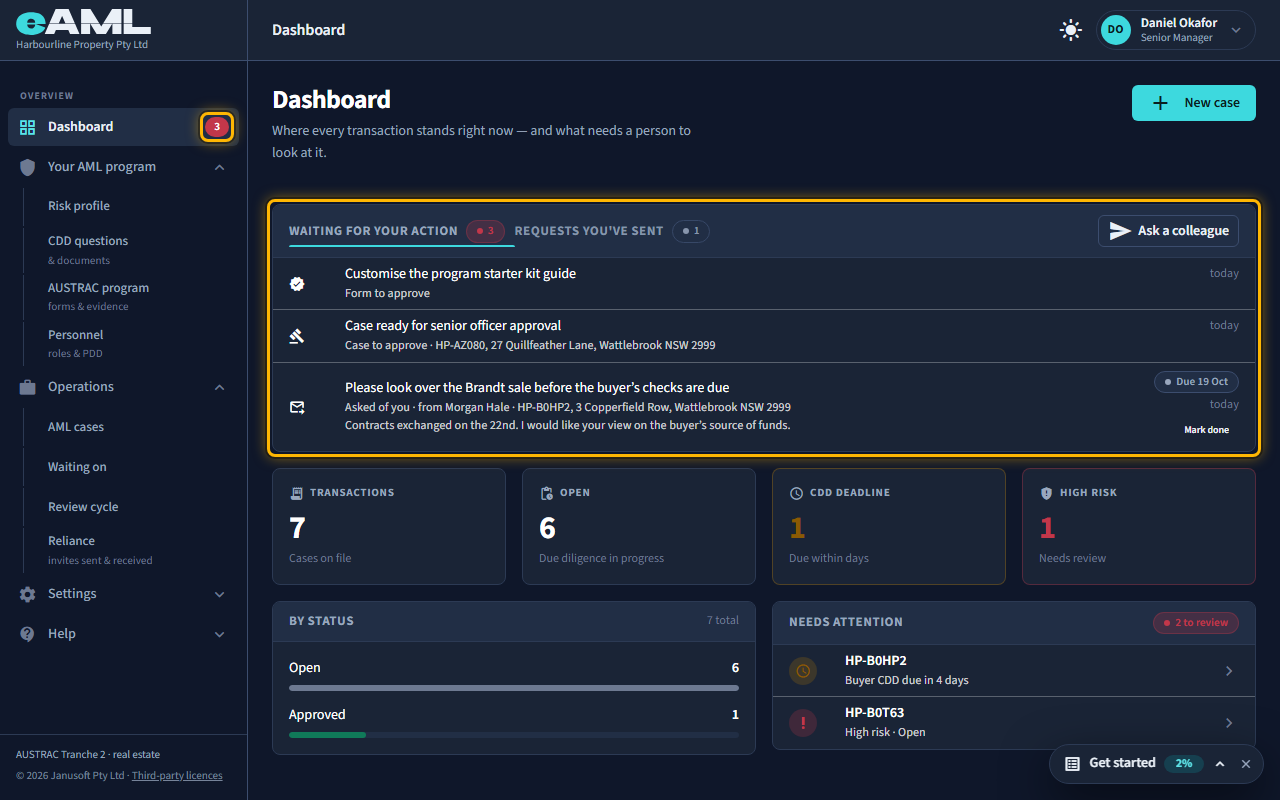
Open the Dashboard, read Waiting for your action, and select a row.
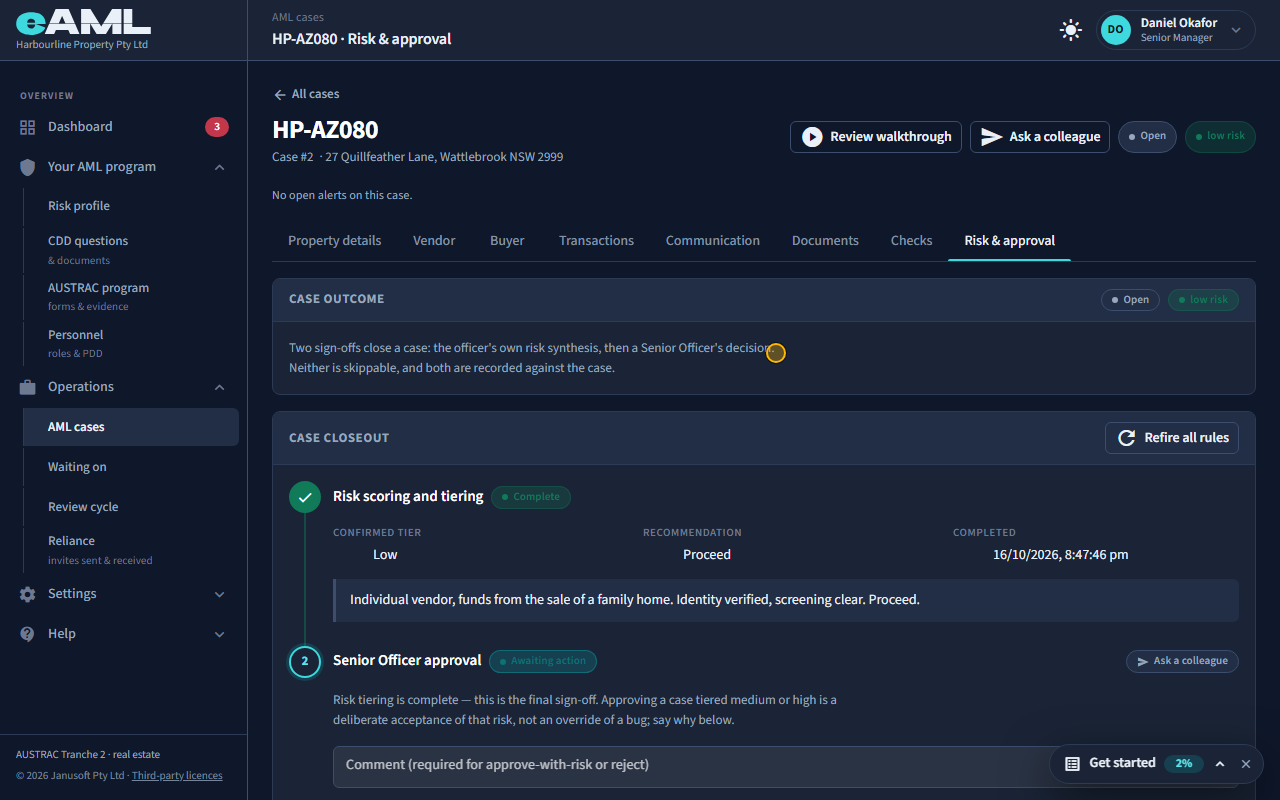
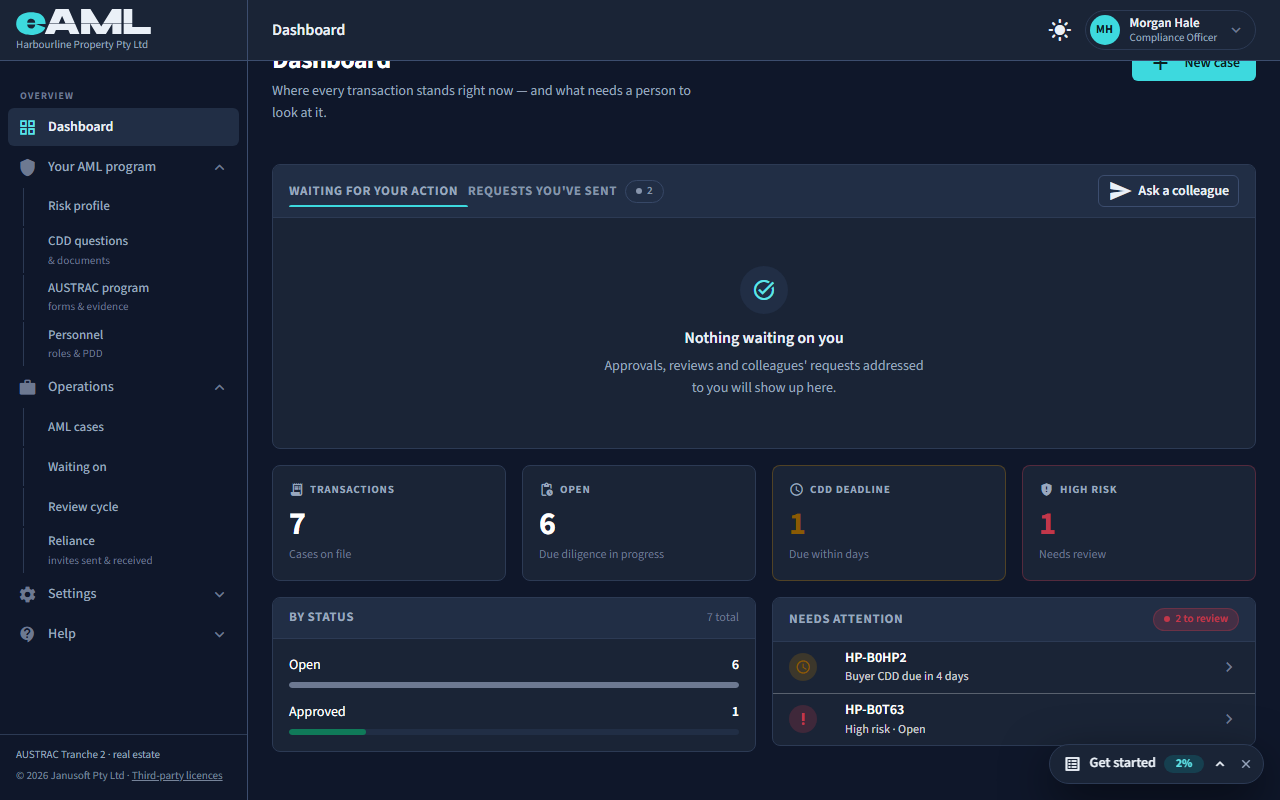
The Dashboard opens on Waiting for your action: everything that is yours to do. An approval your role is the one to give (a case ready for sign-off, a form to approve or review, a suspicious matter report), a form sent back to you, and anything a colleague has asked of you. Each row says what kind of thing it is, who it is from, which case, and how long it has waited; a due date shows as Overdue once it has passed. The red number beside Dashboard in the menu is the same count, on every page. Select a row and you land on exactly that step or form.
-
Ask a colleague Compliance officer
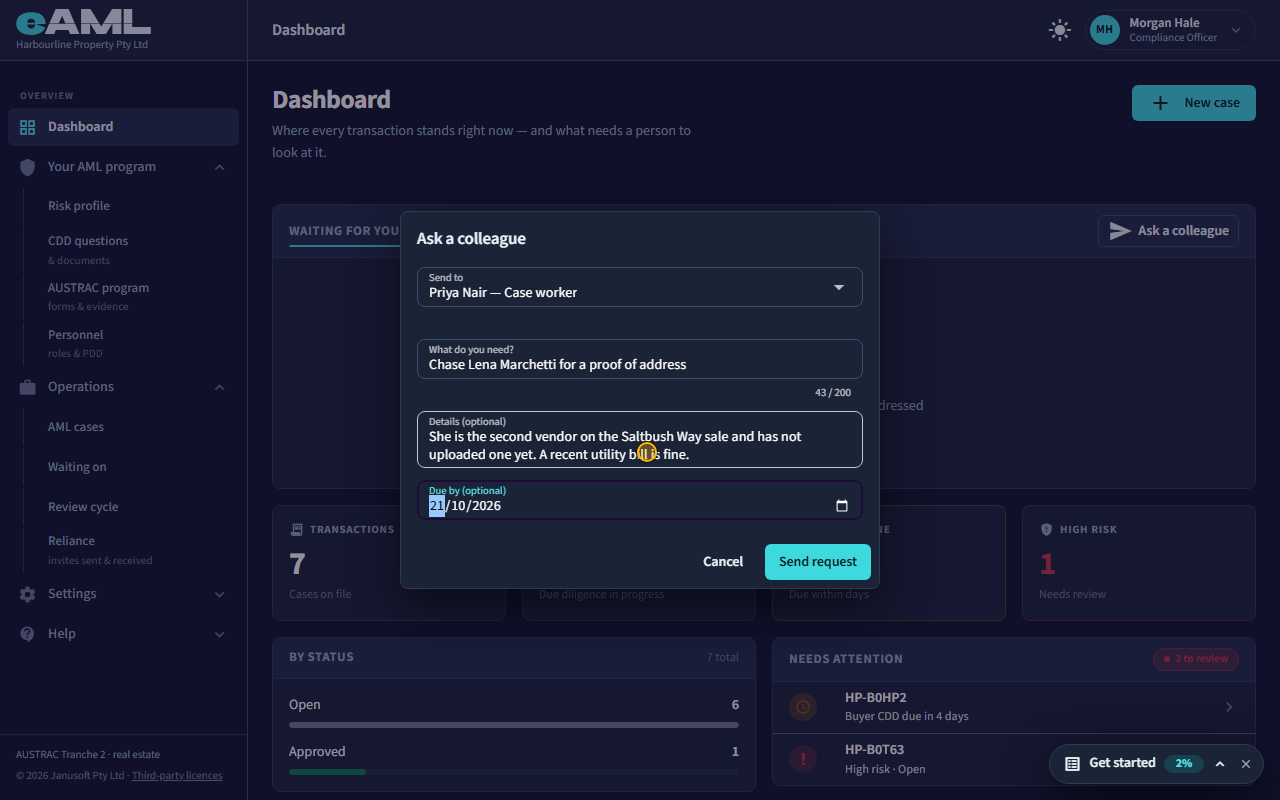
Select Ask a colleague, choose who, say what you need, and select Send request.
To hand someone a piece of work, select Ask a colleague at the top of Waiting for your action (on a case the same button is at the top of the page, and on each closing step it is already pointed at that step). Choose who it is for, say what you need, add details and a date if it matters, and select Send request. They get an email, and the request goes to the top of their own Waiting for your action list. Anyone in the firm can ask anyone; who can then do the underlying work is still decided by their role.
-
Follow up on what you have asked
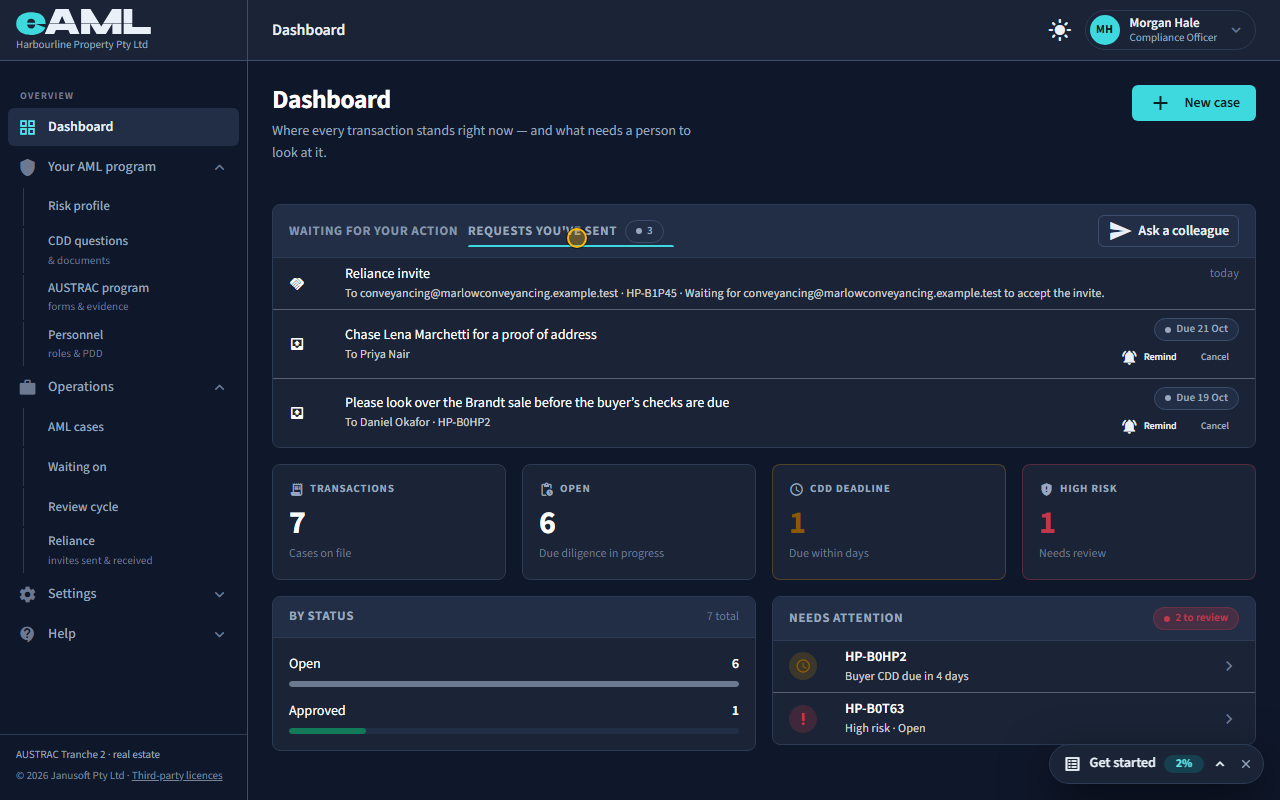
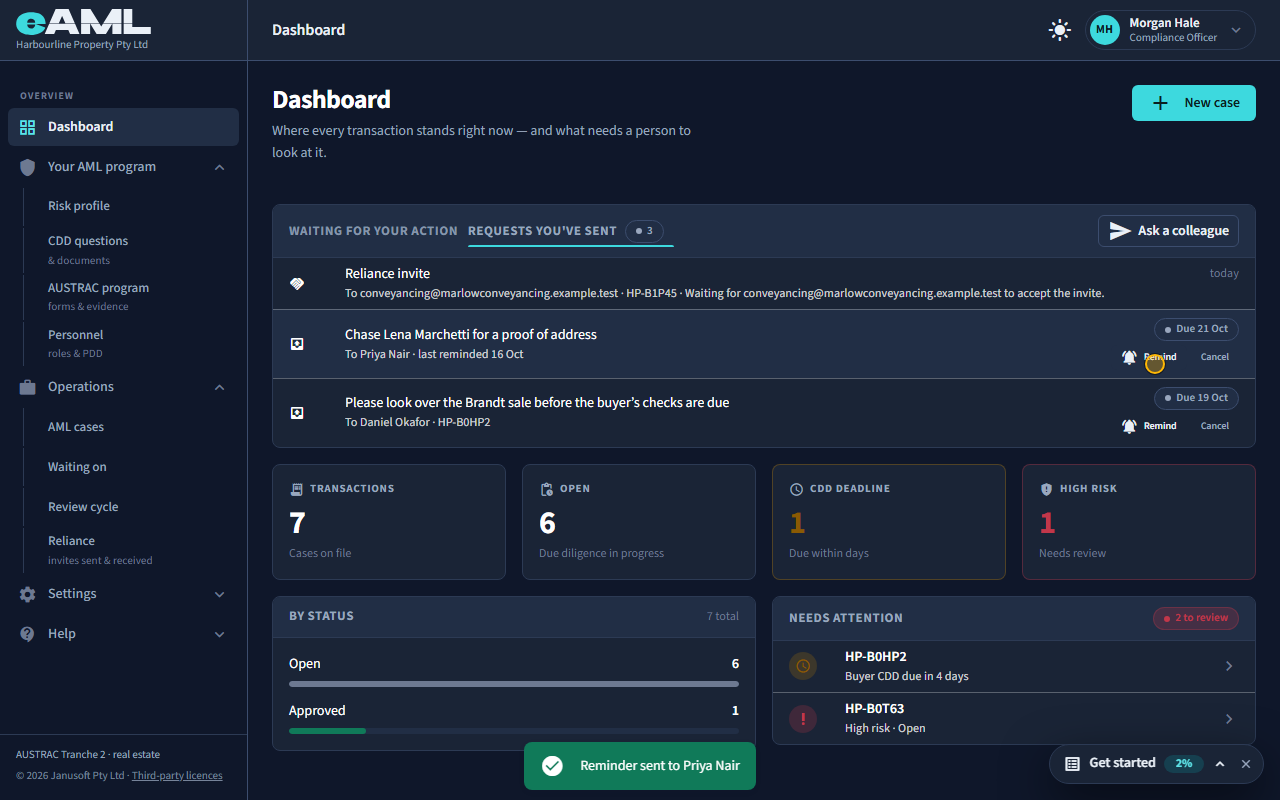
Select the Requests you’ve sent tab, then Remind beside the request.
The second tab, Requests you’ve sent, lists everything you have asked for that is still open, who it went to, and when it is due. Select Remind to email them again: the person then sees how many times they have been reminded, and a reminder can be sent once an hour. Select Cancel if you no longer need it. Reliance invites you have sent to other firms, and requests for another firm’s details that are still waiting, are listed here too.
-
When you are the one asked Case worker
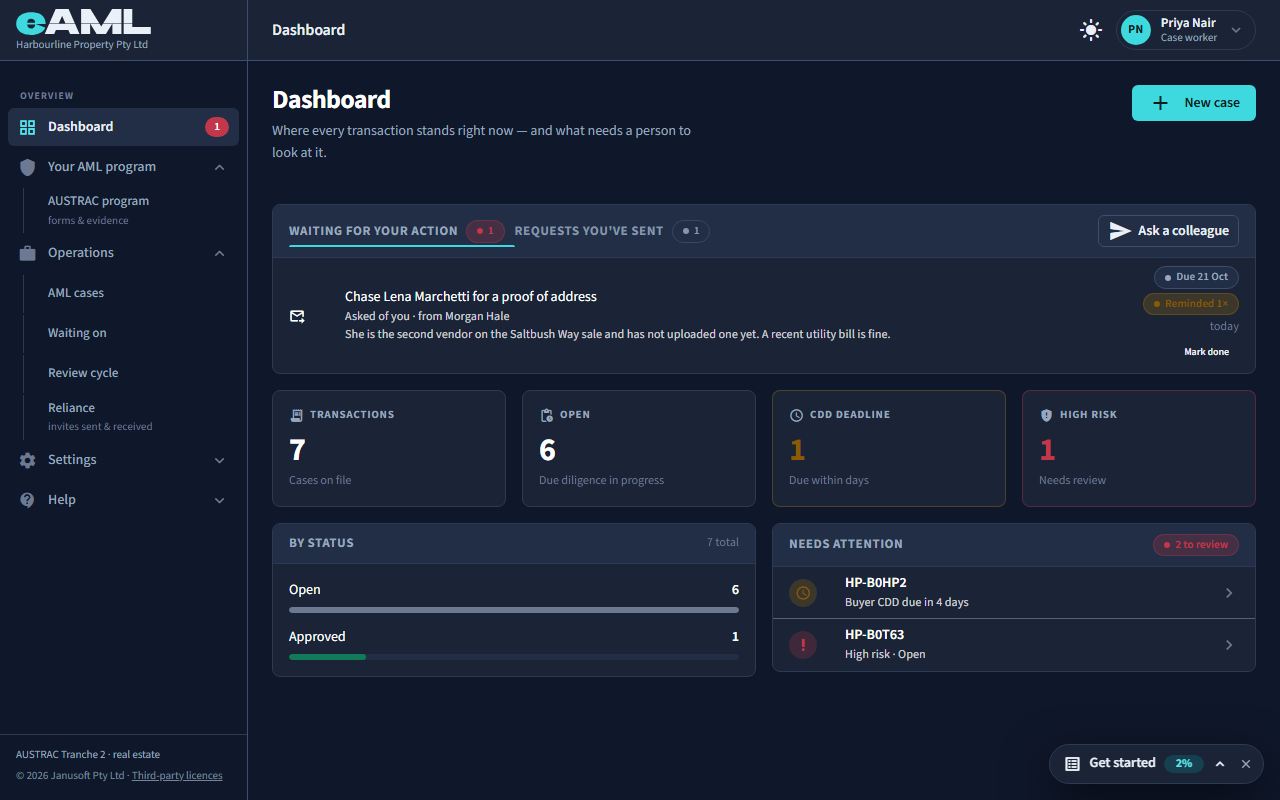
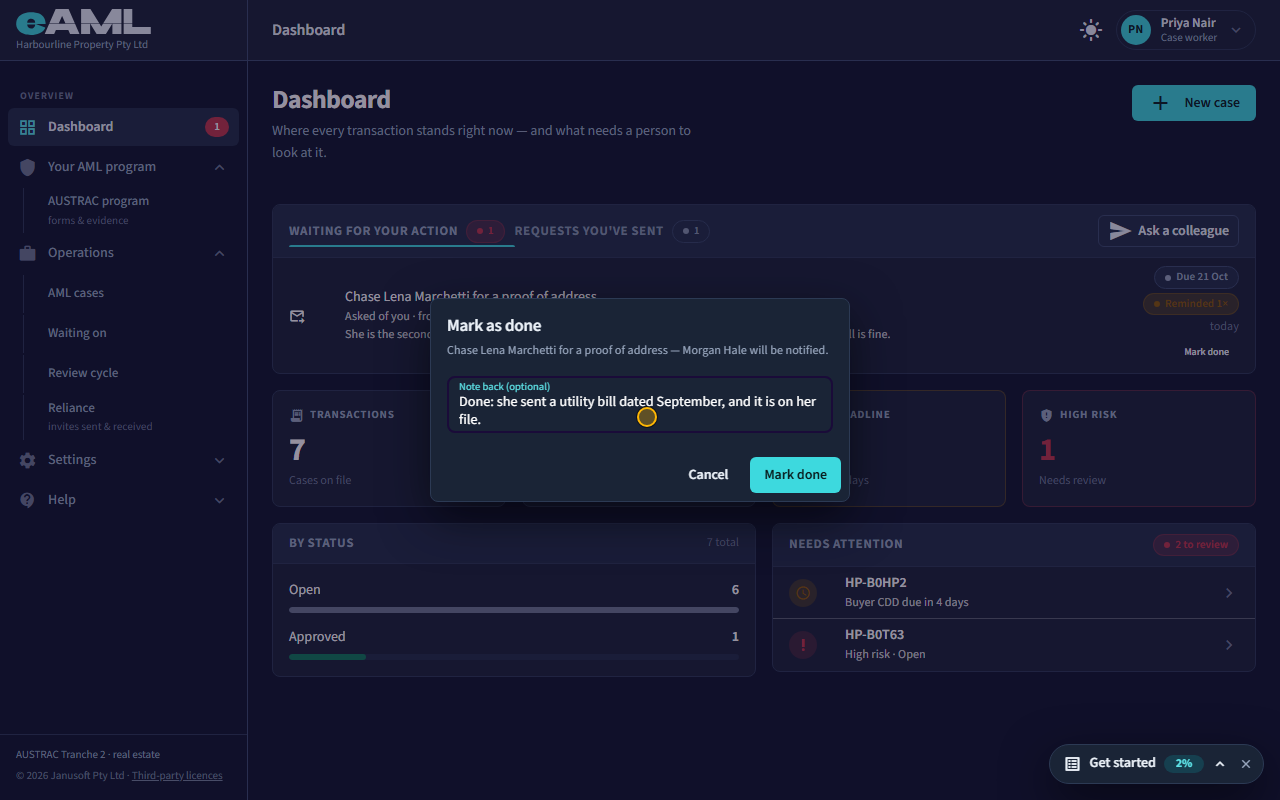
Select Mark done beside the request, add a note, and confirm.
The person asked sees the request at the top of their own list, marked Asked of you, with who it is from, the details, and the date it is due (red and Overdue once it has passed). Do the work, then select Mark done, add a note back if you like, and select Mark done again: the person who asked is told. A request tied to a case or a step opens exactly there when you select its row.
-
The state of your cases Compliance officer
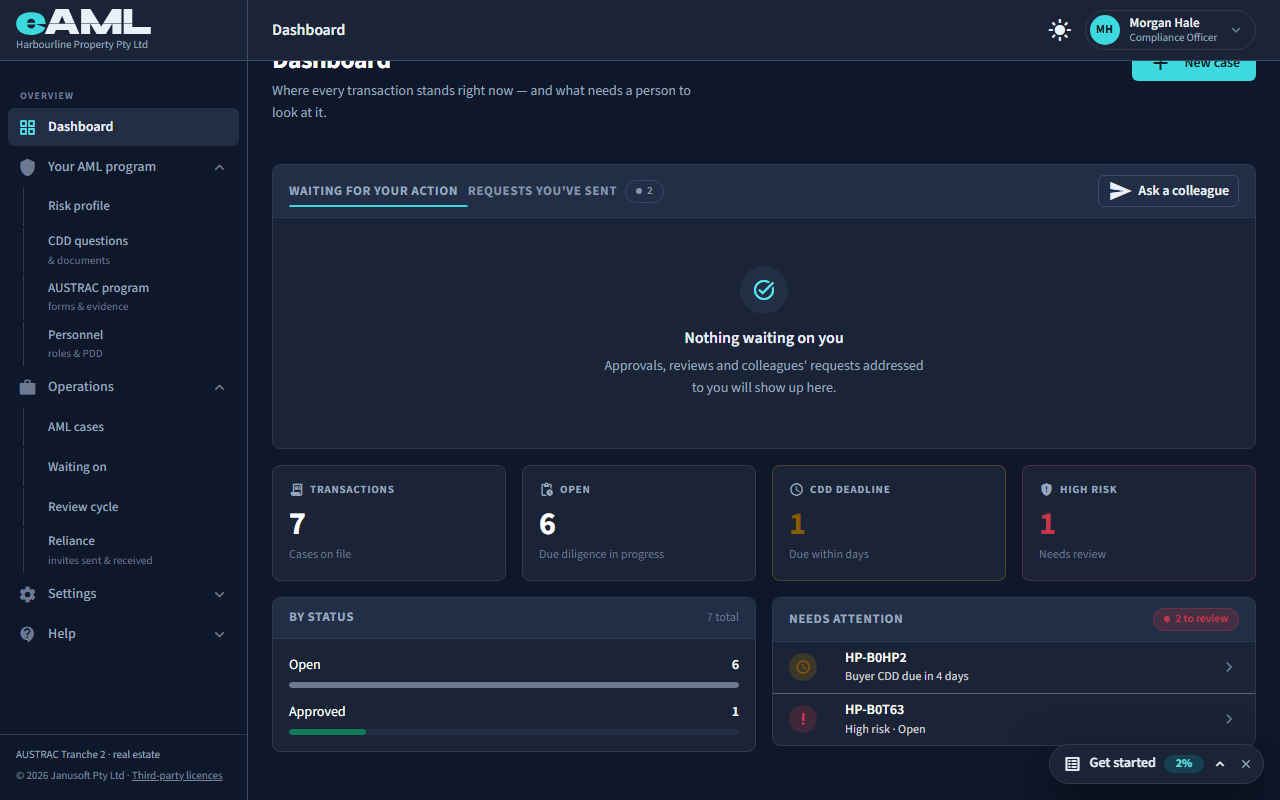
Read the four tiles, By status and Needs attention, and select a case in Needs attention.
Below your own list the Dashboard shows where the firm’s cases stand. Four tiles count them: all cases on file, those still open, those against a CDD deadline, and those rated high risk; each opens the case list. By status shows how the cases are spread, and Needs attention lists the open cases that want a person now: a case against its AUSTRAC deadline for the buyer’s checks (28 days after contracts exchange, or three days before settlement if that is sooner), shown first, and any open case rated high risk. Select a row to open the case.
-
Waiting on: what is out with people outside the firm
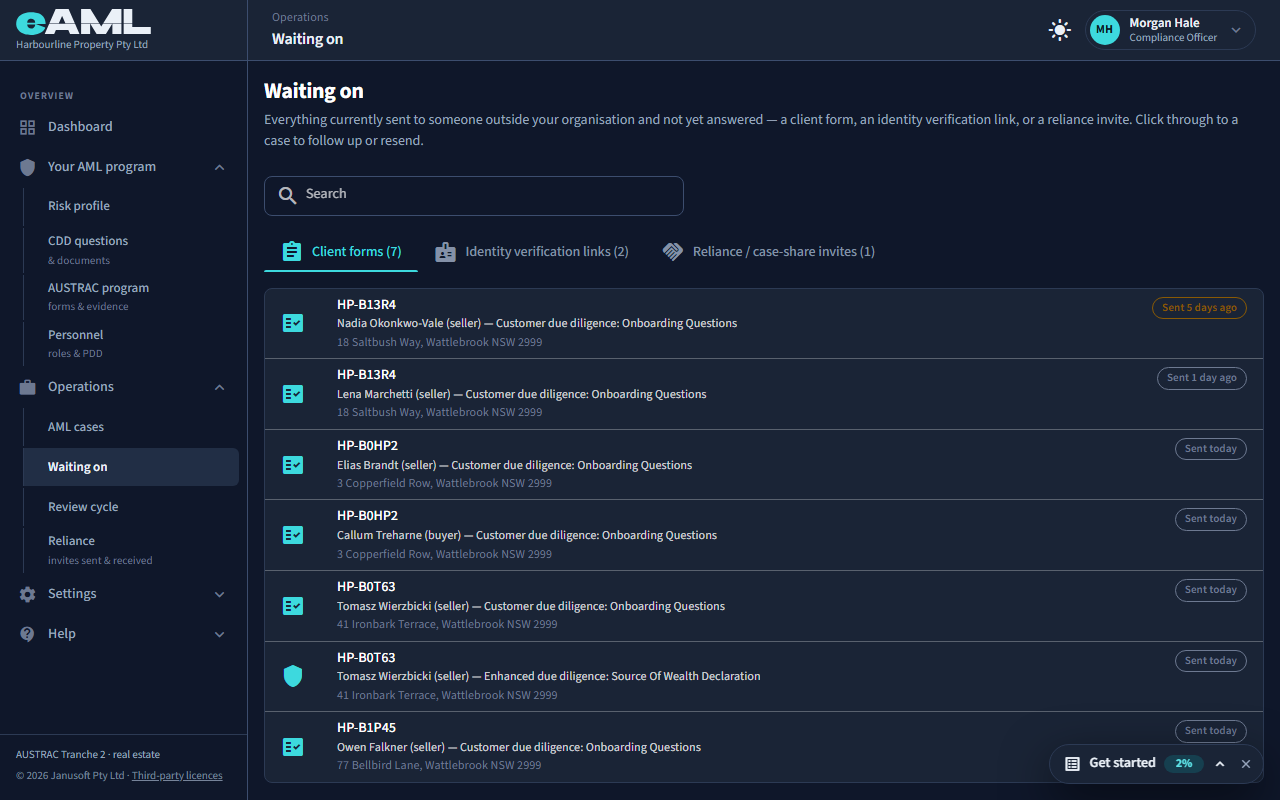
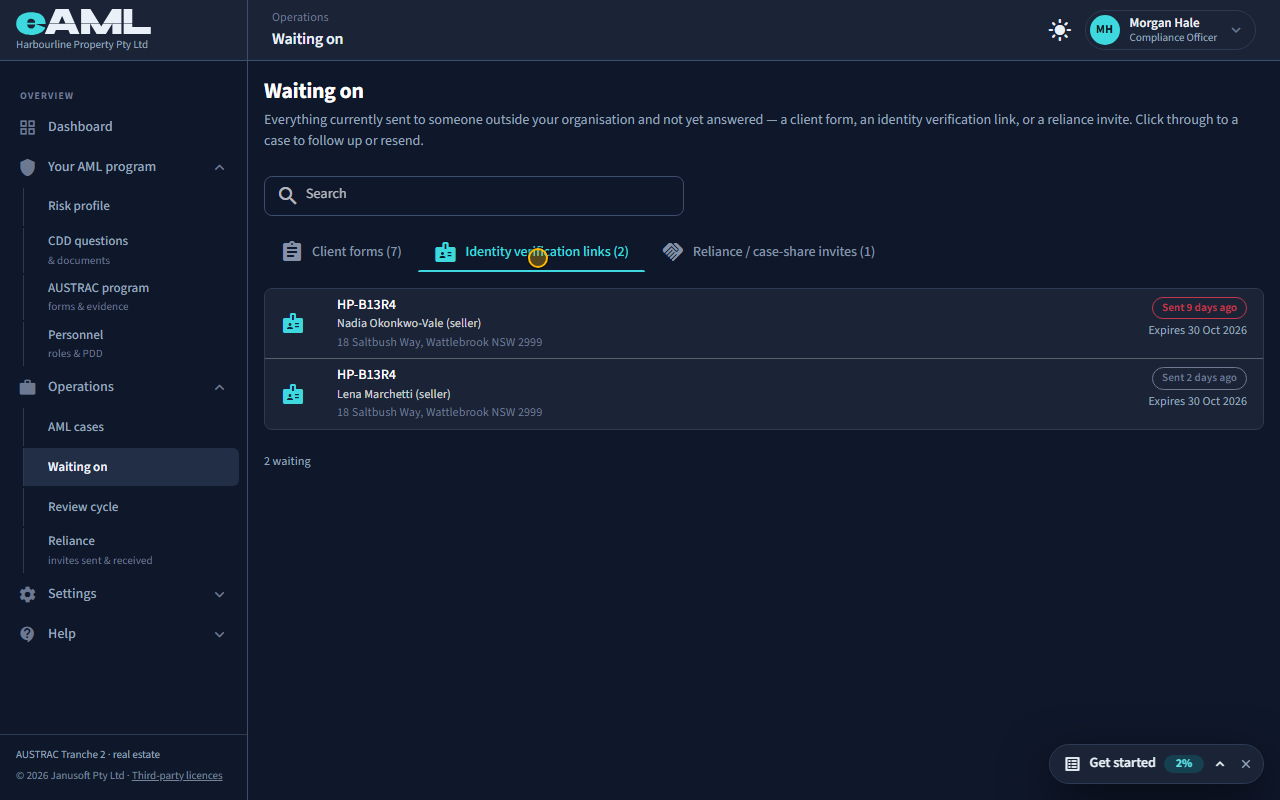
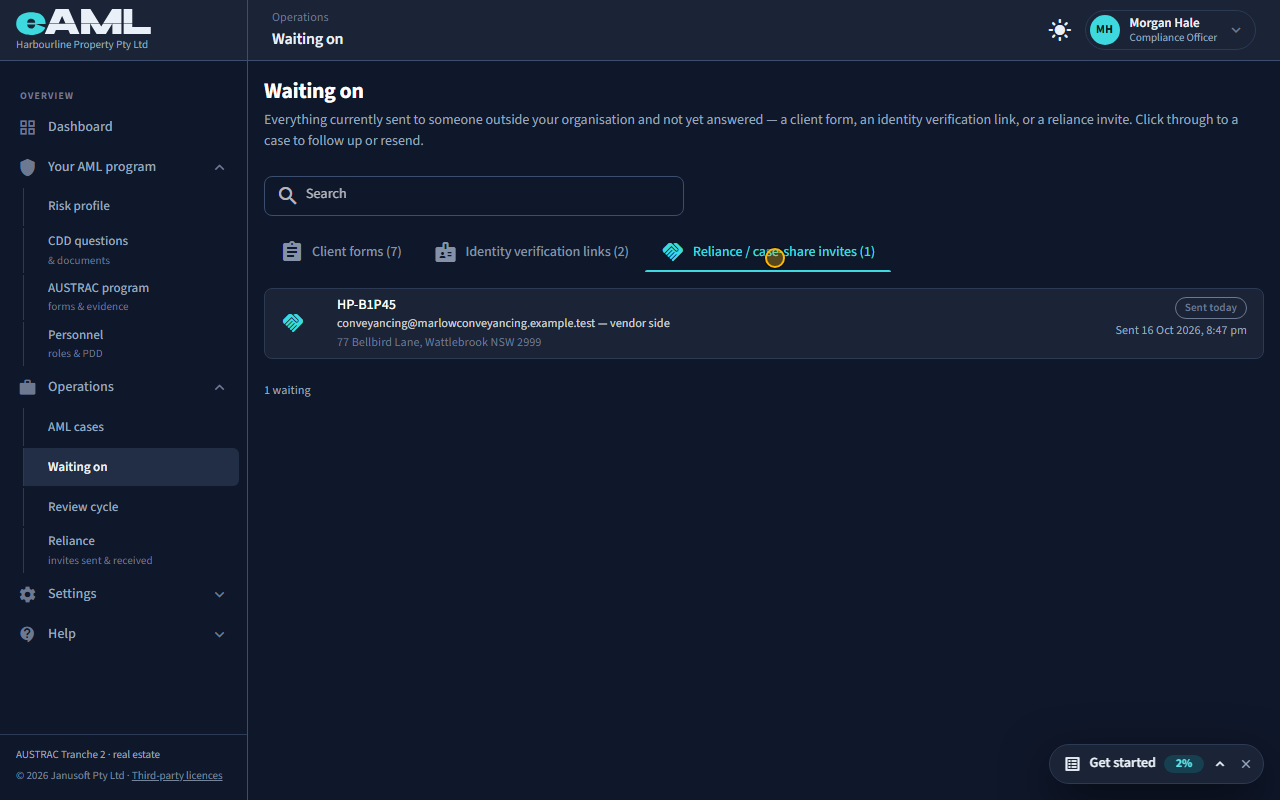
Open Waiting on in the menu, look through the three tabs, and select a row.
Waiting on lists the client forms and identity verification links that exist for people outside your firm and have not come back, and the reliance (case-share) invites you have sent. One kind at a time, the one waiting longest first, each with how long it has been waiting: grey for a day or two, amber from three days, red from seven. The clock starts when the form or link was created for the person (when they were added to the case), not when you last emailed it, and resending does not restart it. An identity link also shows when it expires (14 days after it was created), and turns red and says Expired once it has. It is an index, not a place to act: select a row to open the case and follow up there.
-
Resend a form or a link
Open the case from Waiting on, then Review & send on the Communication tab, or Resend link in Customer identification.
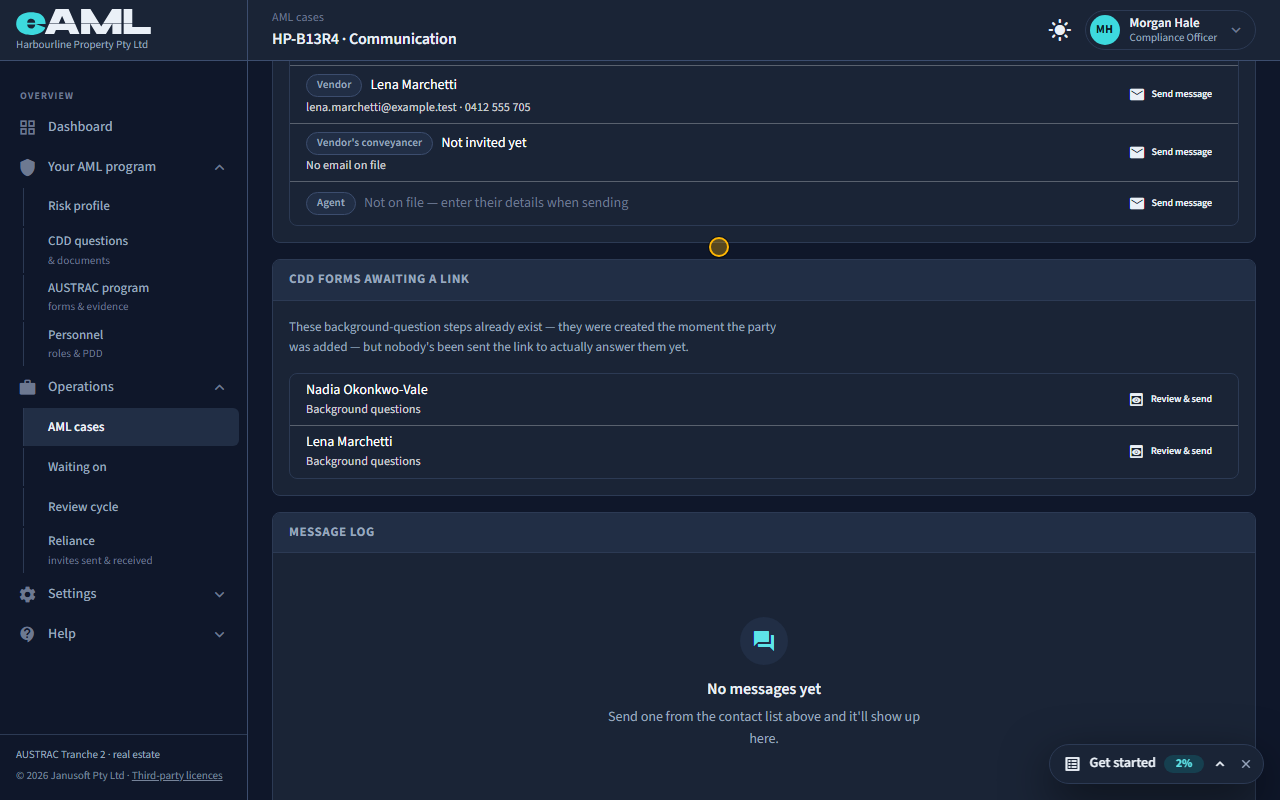
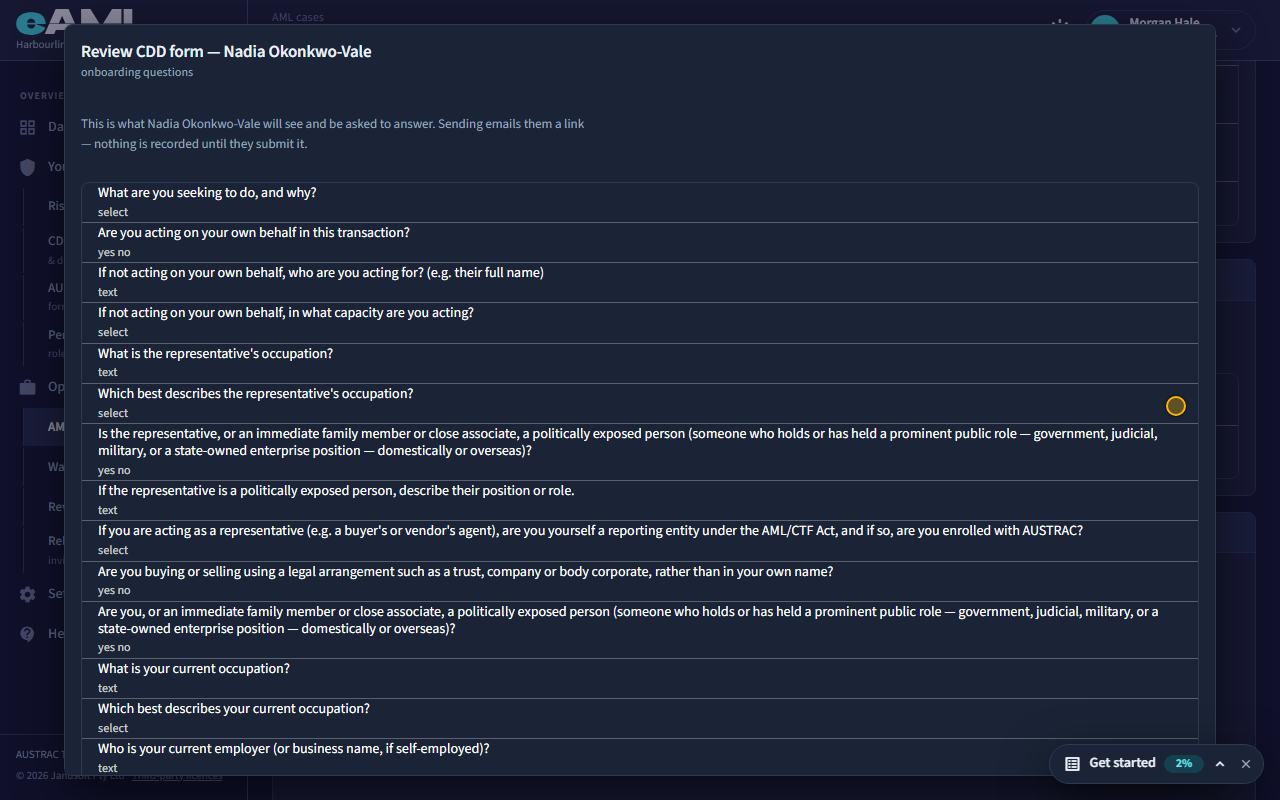
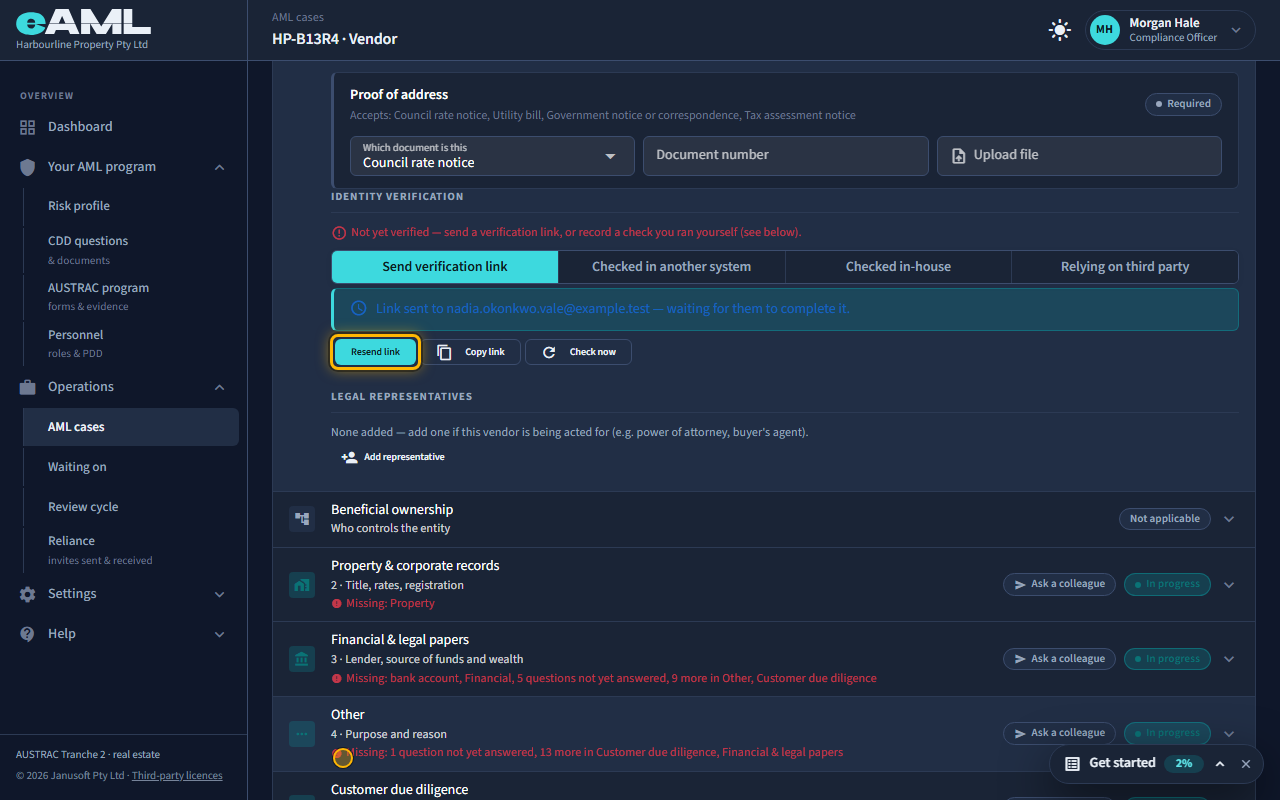
To follow up, open the case. A client form that has not been answered is still listed on the Communication tab under CDD forms awaiting a link: select Review & send beside it, check what goes, and select Send, and the same link is emailed again. For an identity check, open the person’s Customer identification stage and select Resend link: the person gets the same link again. Both kinds of link last 14 days from when the step was created, and resending does not extend that: if a link has expired, finish the check another way (record it as checked in-house or in another system, or rely on another firm), or take the person through the questions yourself. Nobody is chased automatically, so following up is yours to do.
-
Alerts on a case Compliance officer
Open the case, read the alert banner, and select Resolve.
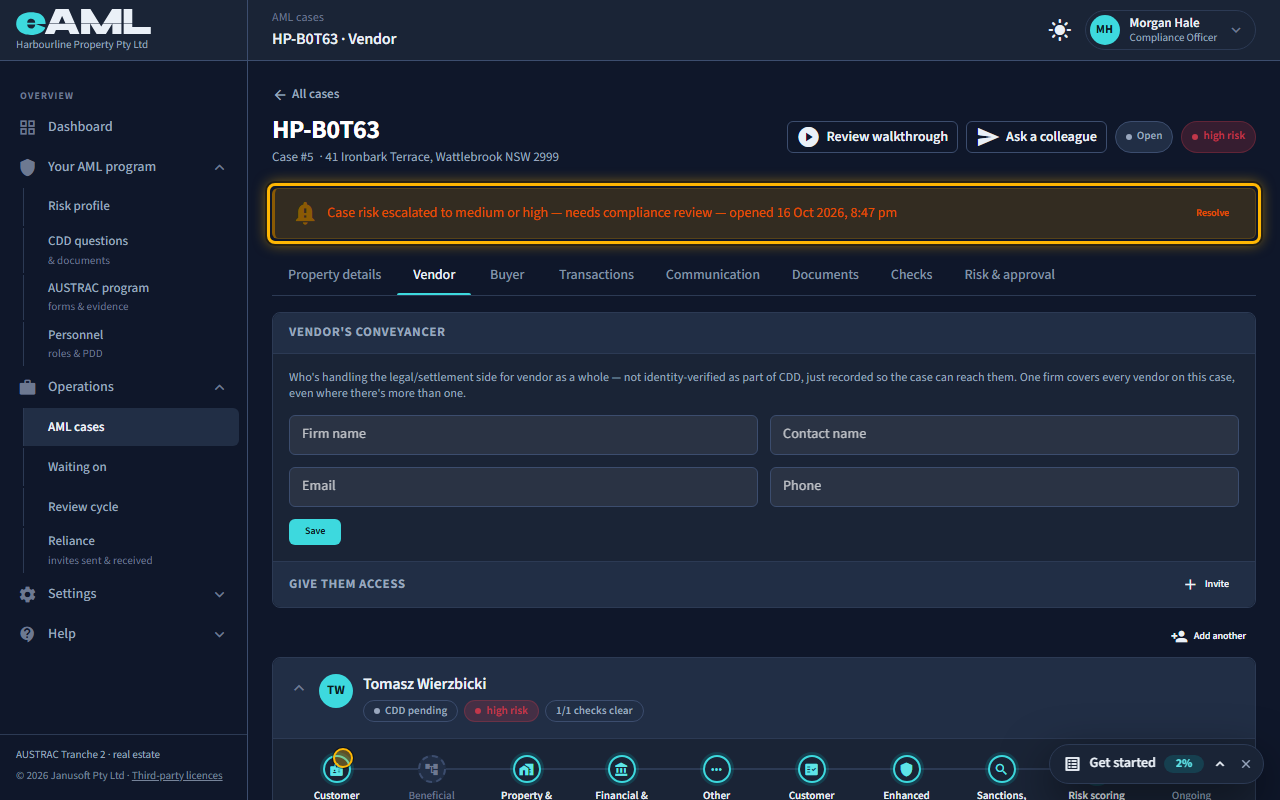
When a case’s rating rises to medium or high, eAML opens an alert on it and a banner appears at the top of the case: Case risk escalated to medium or high — needs compliance review, with when it opened. It is there so that the rise is looked at by a person, not only shown as a badge. Look at what raised the rating, decide what it needs, and select Resolve to close the alert. Resolving closes the alert only: it does not change the rating, which only completing risk tiering can lower. A compliance officer or senior manager resolves alerts.
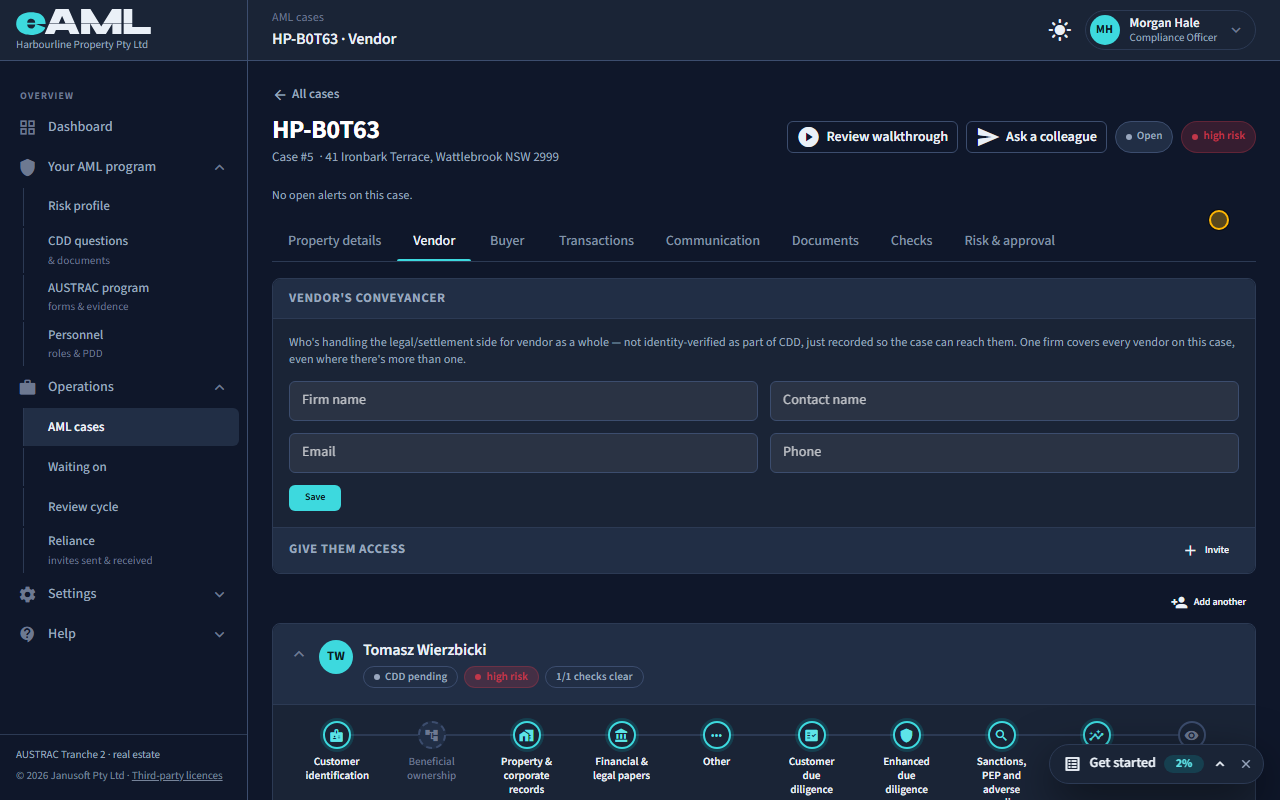
Every screen in this guide was captured from the live application in the same run as the video, so the two always match. If a screen here no longer matches what you see, tell us: the guide is regenerated after each release.