Guide · T12
Connect your CRM
Before you start
- A real estate agency with a CRM that has a REST (or GraphQL, or SOAP-style) API, and a sample record id from it
- A Compliance Officer or Senior Manager (they can connect it); an eAML administrator then tests and approves it
-
What the connection does, and does not do
In the menu, under Settings, select CRM integration.
The connection lets a case pull one listing or deal from your CRM by its property address: the vendor, the buyer and the property fill in, and you review exactly what will change before anything is written. It does not copy your CRM’s data, it does not write anything back to your CRM, and it only fetches when someone on a case asks it to. Your CRM’s secrets are encrypted and are never sent back to your browser.
-
The connection
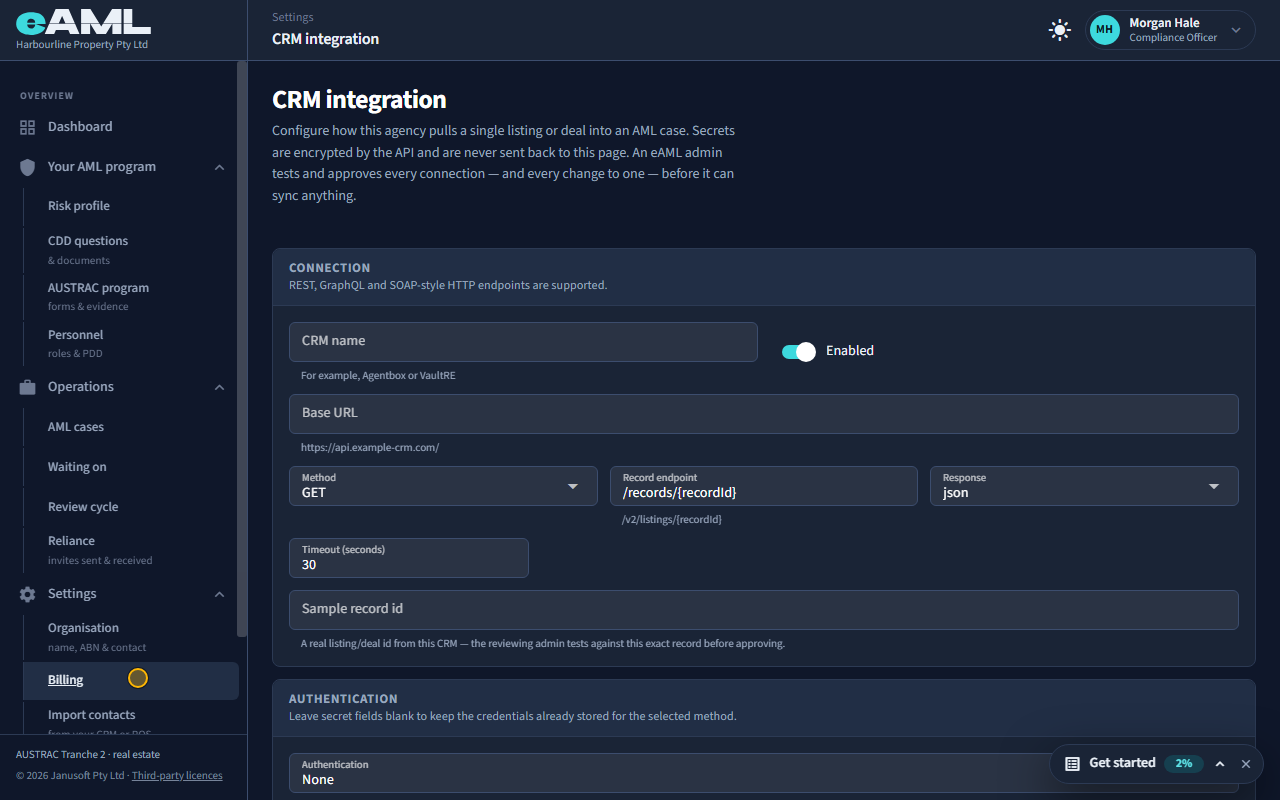
Enter the CRM name, base URL, record endpoint and a sample record id.
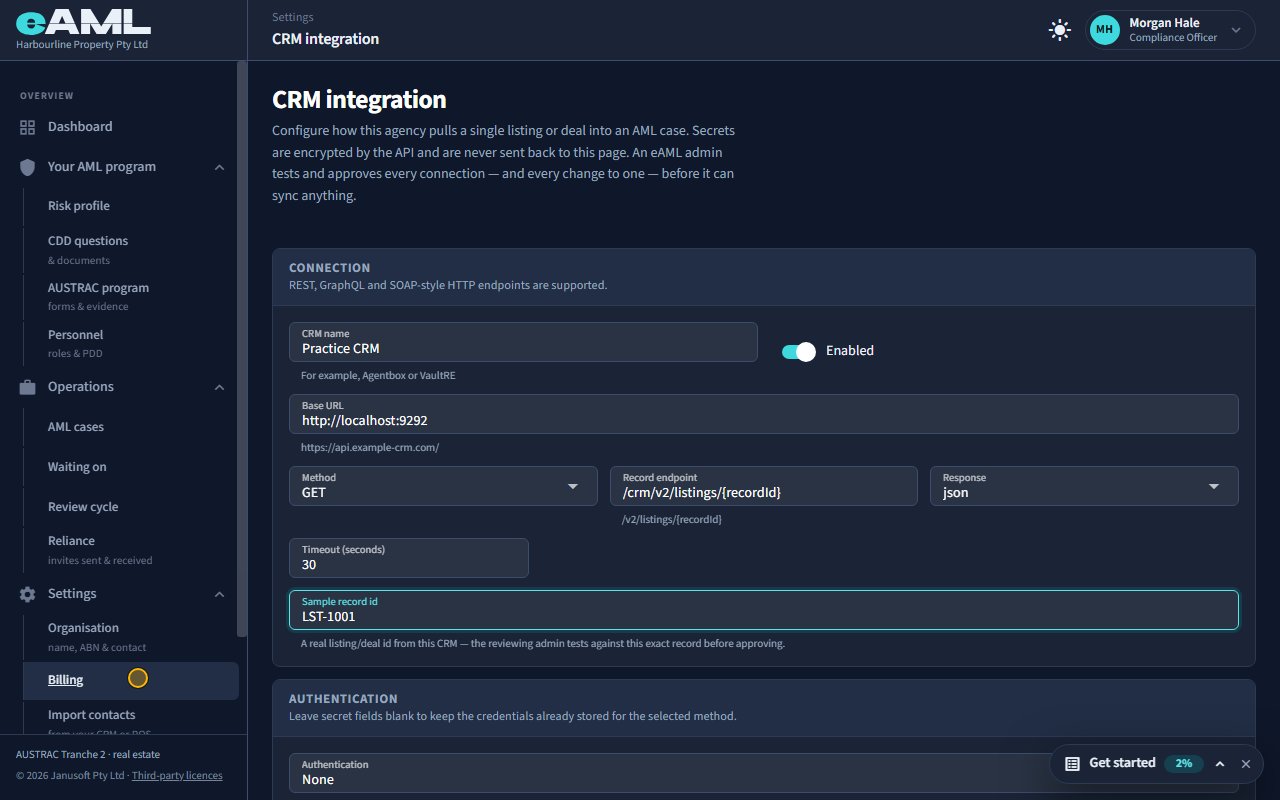
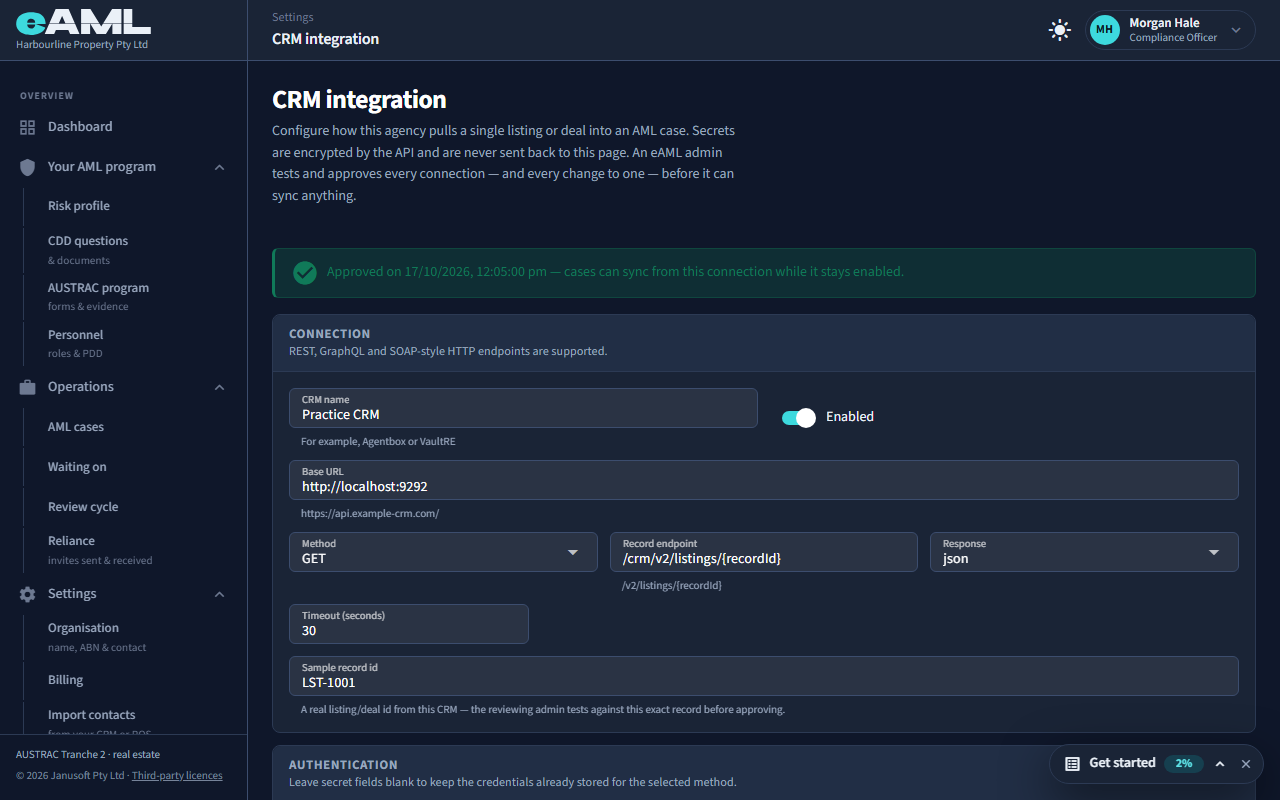
Give the connection a name, and enter the CRM’s base URL and the endpoint that returns one record, with {recordId} where the record’s id goes. Set the method and whether it answers in JSON or XML. The sample record id is a real listing id from your CRM: the administrator who reviews the connection tests against that exact record.
-
Authentication
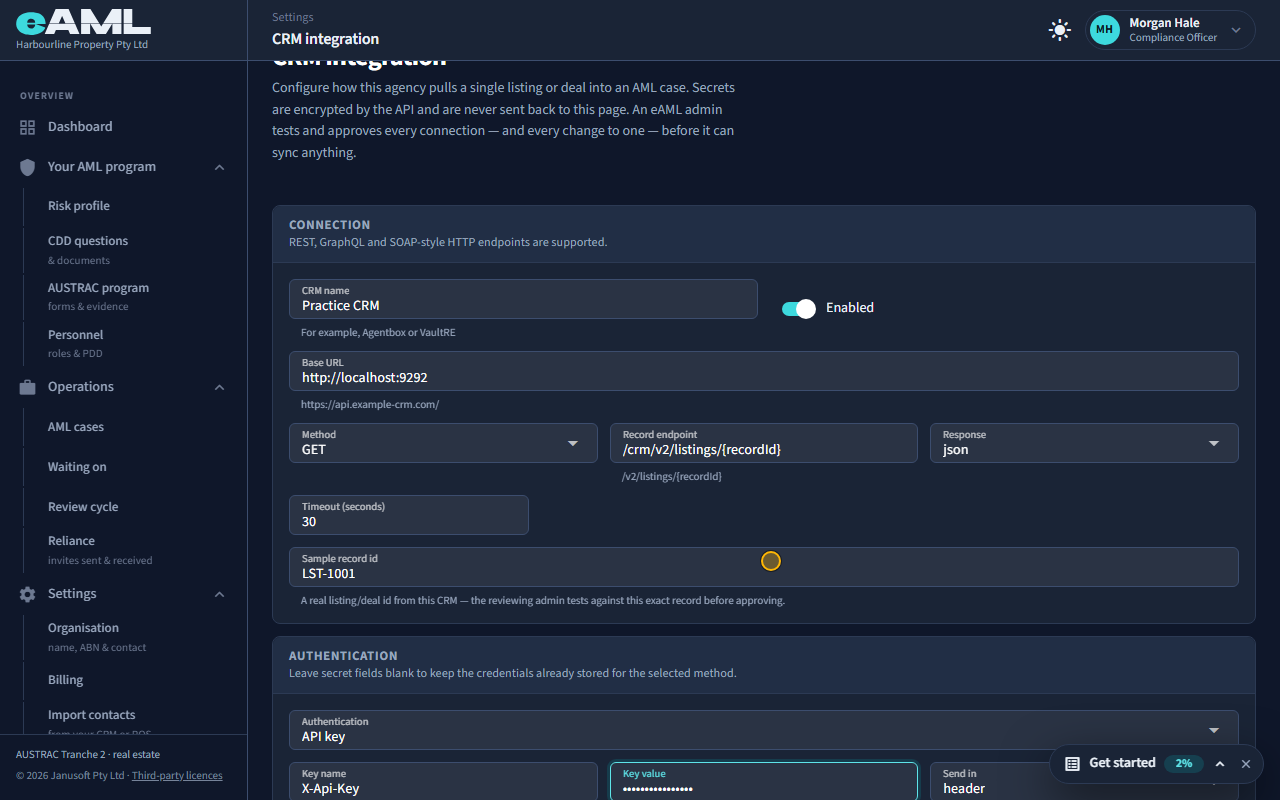
Choose the authentication your CRM uses and enter its credentials.
Choose how your CRM expects to be called: no authentication, a bearer token, an API key, basic authentication, OAuth 2 client credentials, a custom secret header, or OAuth where your CRM’s own login page connects the account. Secrets are encrypted by the API; leave a secret field blank on a later edit to keep what is stored.
-
Map the fields
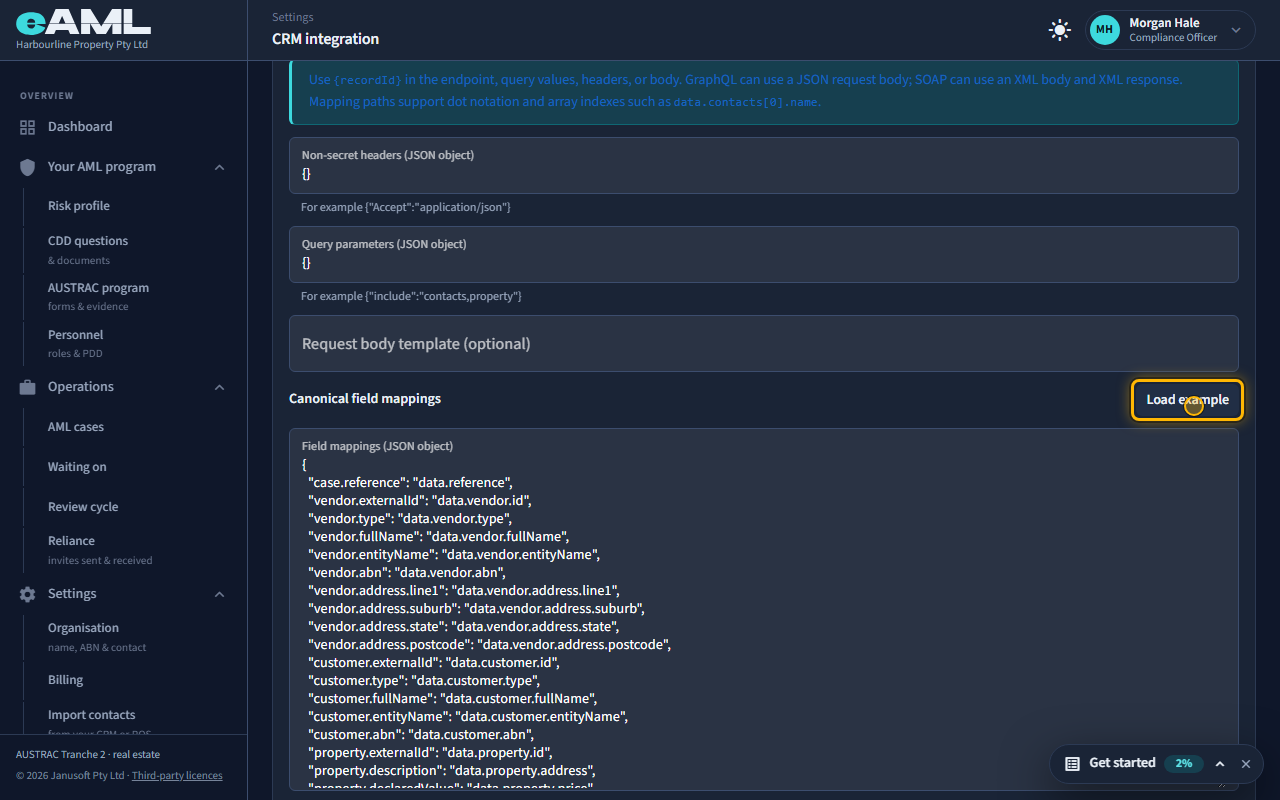
Select Load example, then adjust the paths to match your CRM’s response.
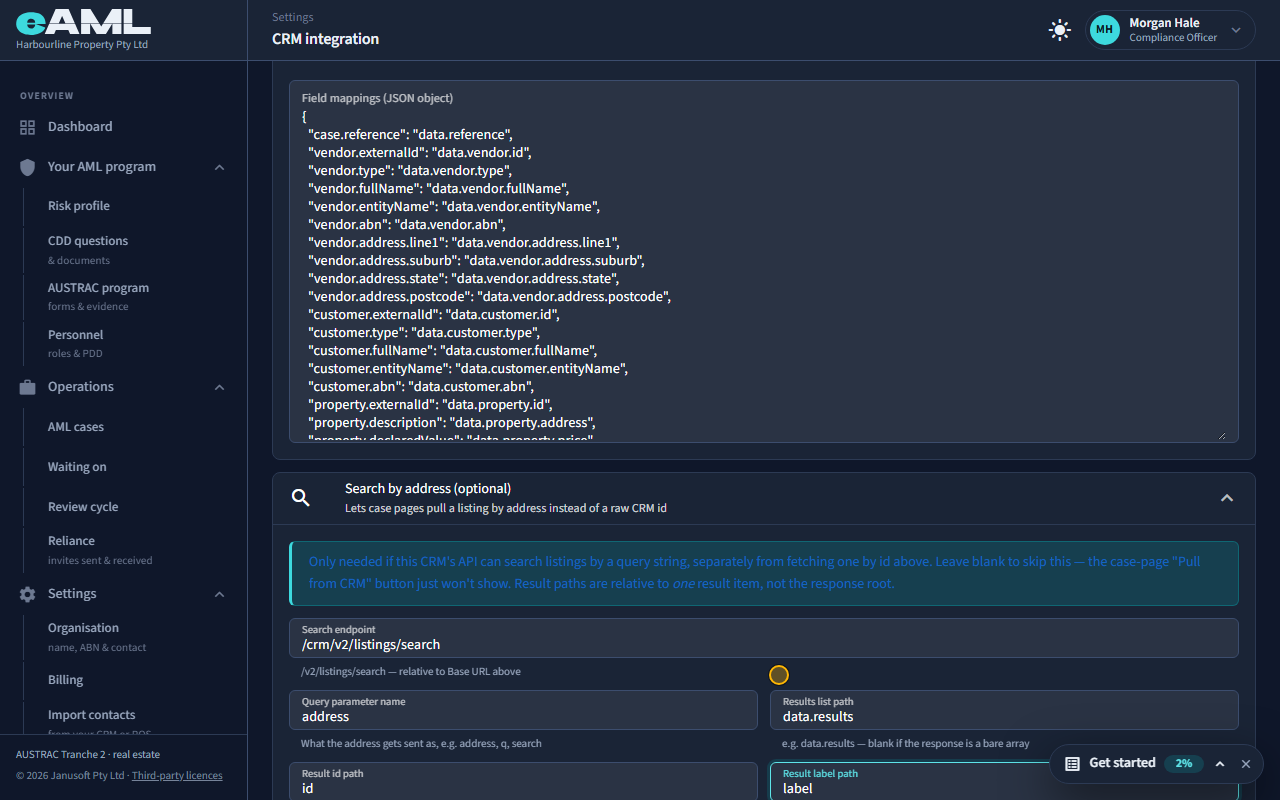
Mapping tells eAML where in your CRM’s answer each fact is: the vendor’s name and address, the buyer, the property address and price. Paths use dots and array positions, such as data.vendor.fullName. Load example fills in a typical set that you then adjust to your CRM’s shape. Non-secret headers and query parameters can be added above it.
-
Search by address (optional)
Open Search by address and fill in the search endpoint, parameter and result paths.
If your CRM can search listings by a text query, fill in the search endpoint, the query parameter name, and where in the answer the results list, each result’s id and each result’s label are. That adds a Pull from CRM button on a case, which searches by the case’s own property address. Leave it blank to fetch only by record id.
-
Save: it goes for review
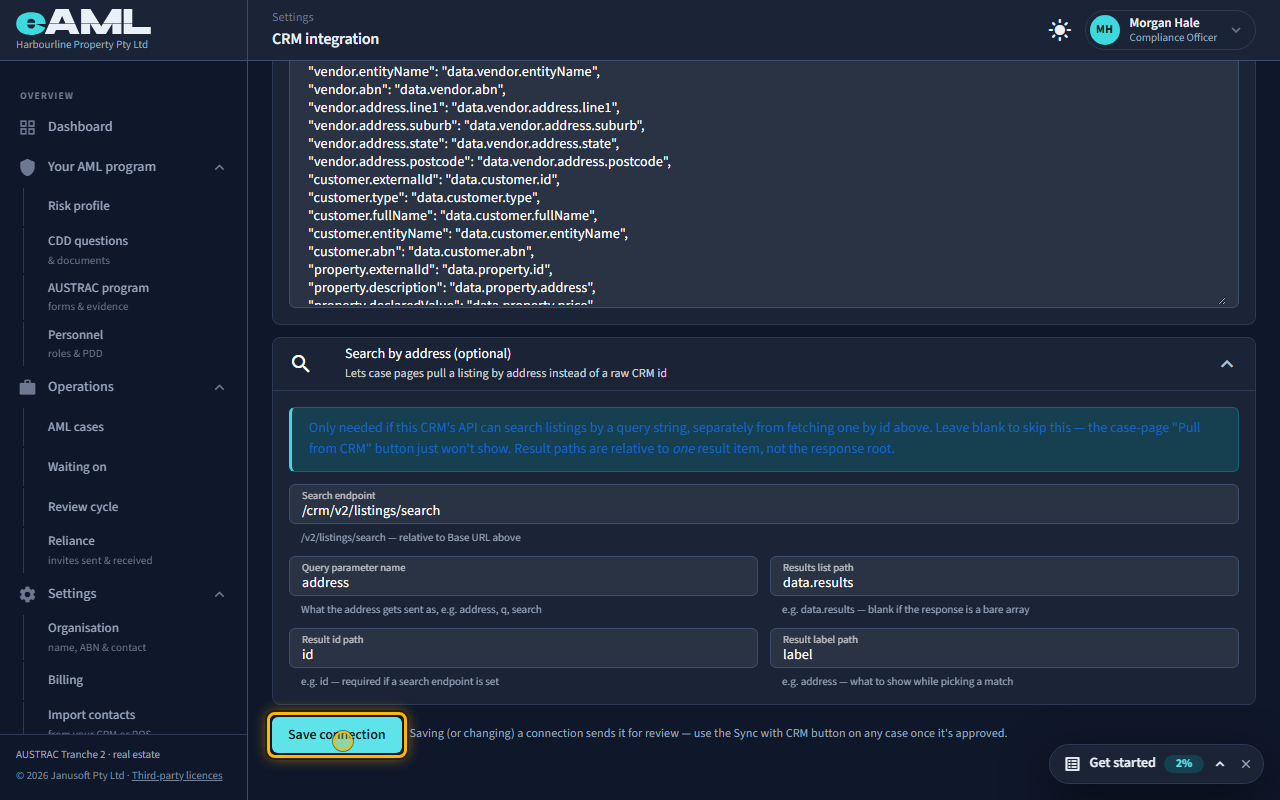
Select Save connection.
Saving sends the connection to an eAML administrator. Every connection, and every later change to one, is tested and approved by an administrator before anything can sync from it. The banner at the top says where it is: awaiting review, approved, or rejected with the reason. If it is rejected, fix what the reason names and save again.
-
The administrator approves it eAML administrator
Reopen CRM integration. The banner now says Approved.
The administrator tests the connection with your sample record, checks it answers as mapped, and approves it. You do not need to do anything: when you open this page again the banner says Approved, with the date, and cases can sync from the connection while it stays enabled.
-
Pull a listing into a case by its address
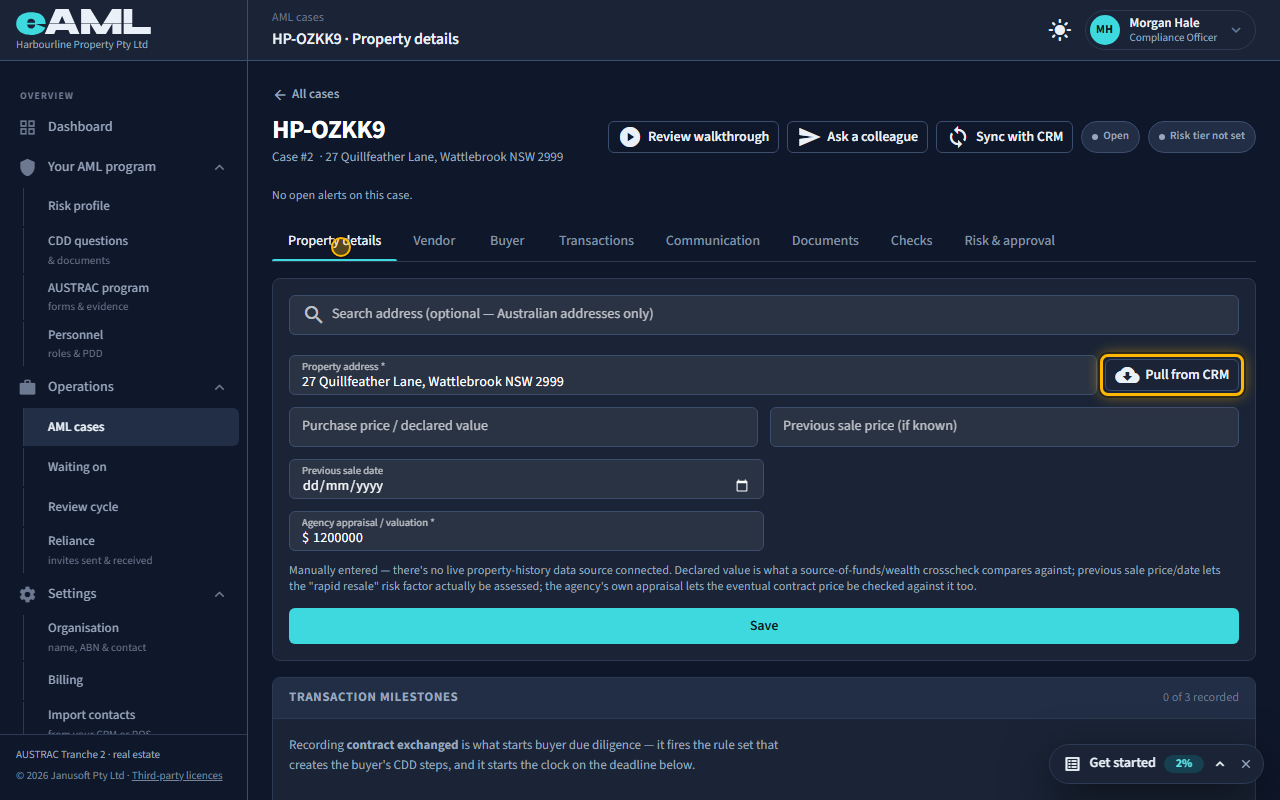
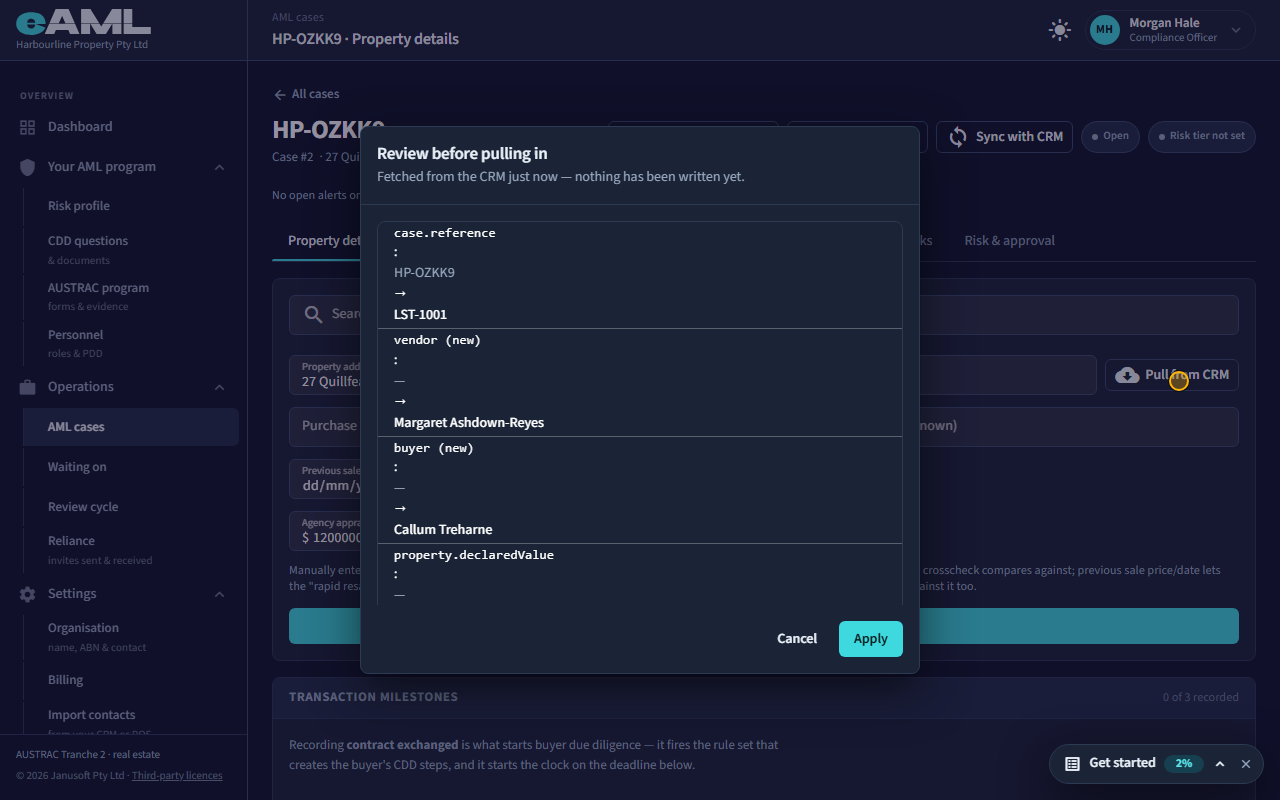
On the case’s Property details tab, select Pull from CRM, choose the listing, review, and select Apply.
On a case’s Property details tab, with the property address filled in, Pull from CRM searches your CRM for that address. If more than one listing matches, you choose which; the review then shows every field that would change, from what is there now to what the CRM says. Nothing is written until you select Apply.
Every screen in this guide was captured from the live application in the same run as the video, so the two always match. If a screen here no longer matches what you see, tell us: the guide is regenerated after each release.