Guide · T41
Conveyancer: acting for the seller or the buyer
Before you start
- A conveyancing practice with its AUSTRAC program started and a compliance officer
-
Choose the side you act for
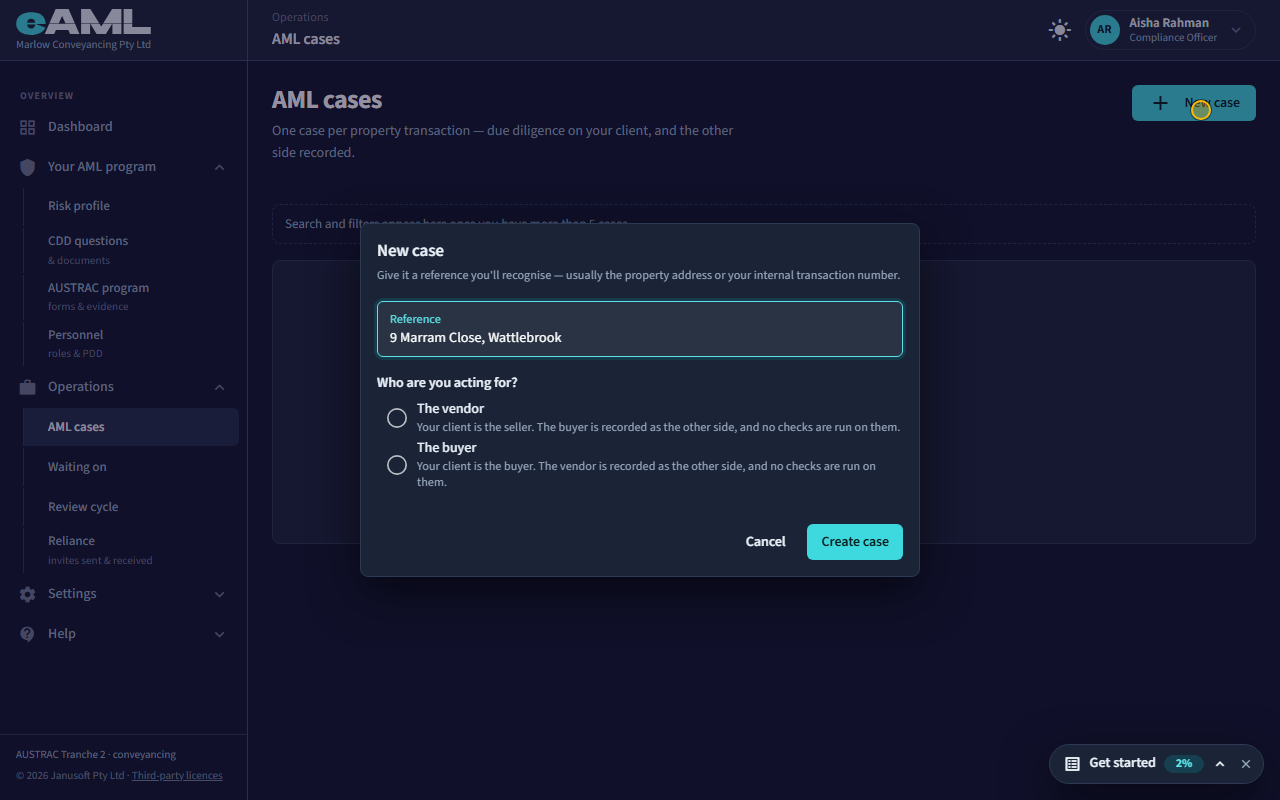
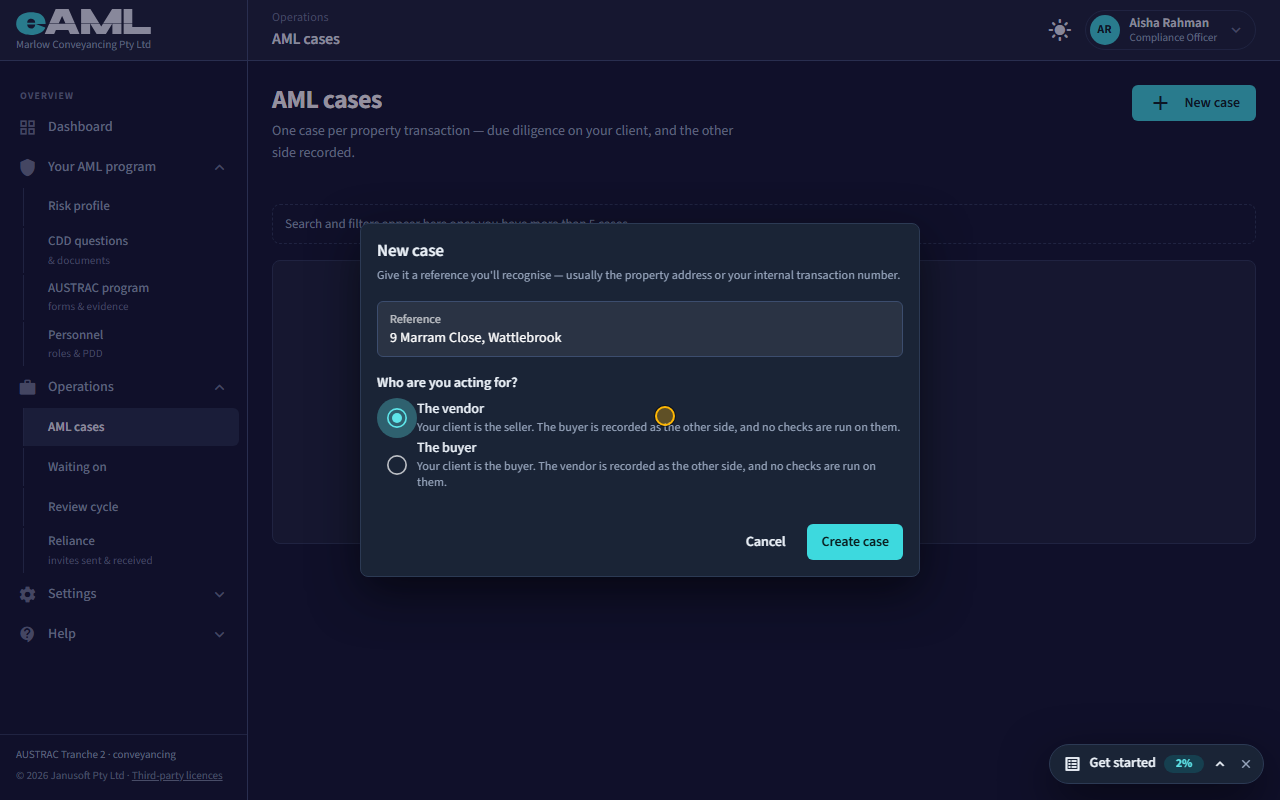
Open Matters, select New matter, enter a reference, choose The vendor or The buyer, and select Create case.
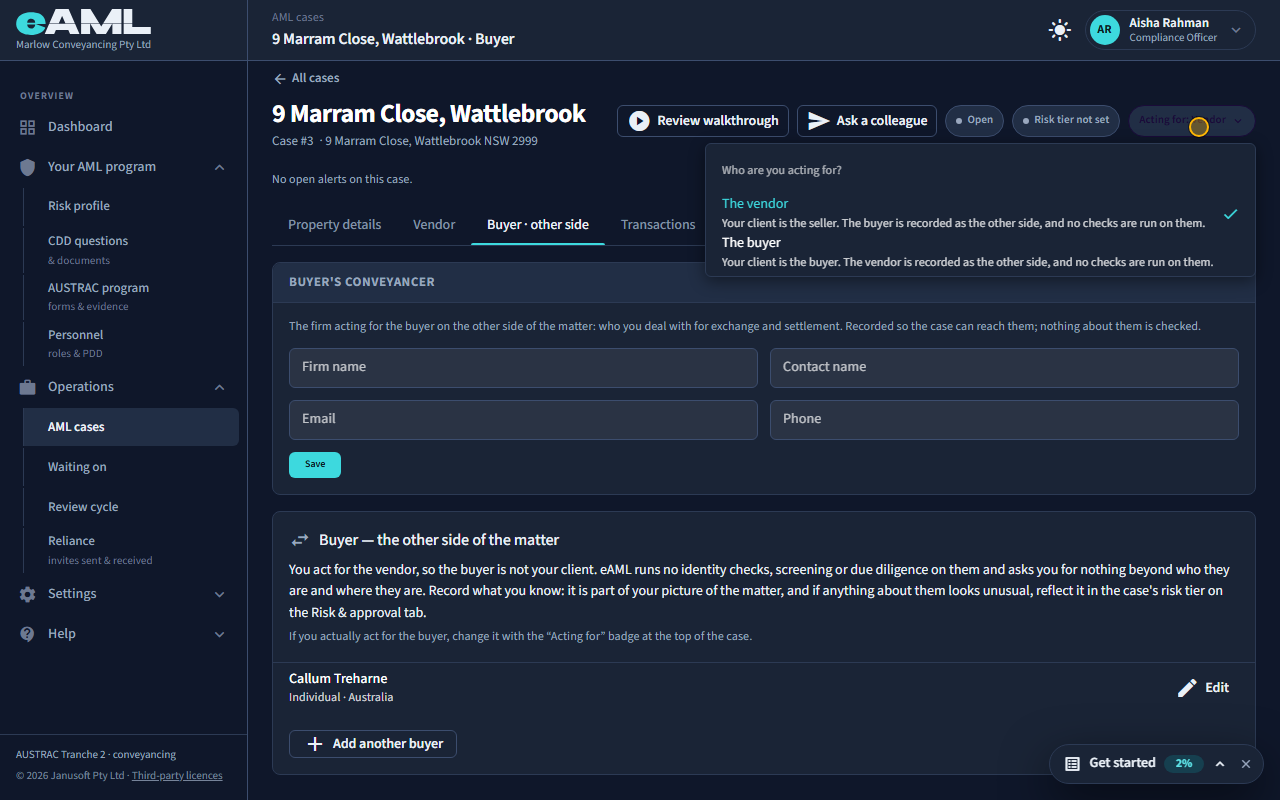
Open Matters and select New matter. A conveyancing matter asks the one question that decides everything after it: who are you acting for, the vendor or the buyer? Your client is that person. The other side is recorded as the other side of the matter, and no checks are run on them: they are not your customer, and AUSTRAC’s customer due diligence is about your customers. You can change the side later with the Acting for badge at the top of the matter, until it closes.
-
The property and the selling agency
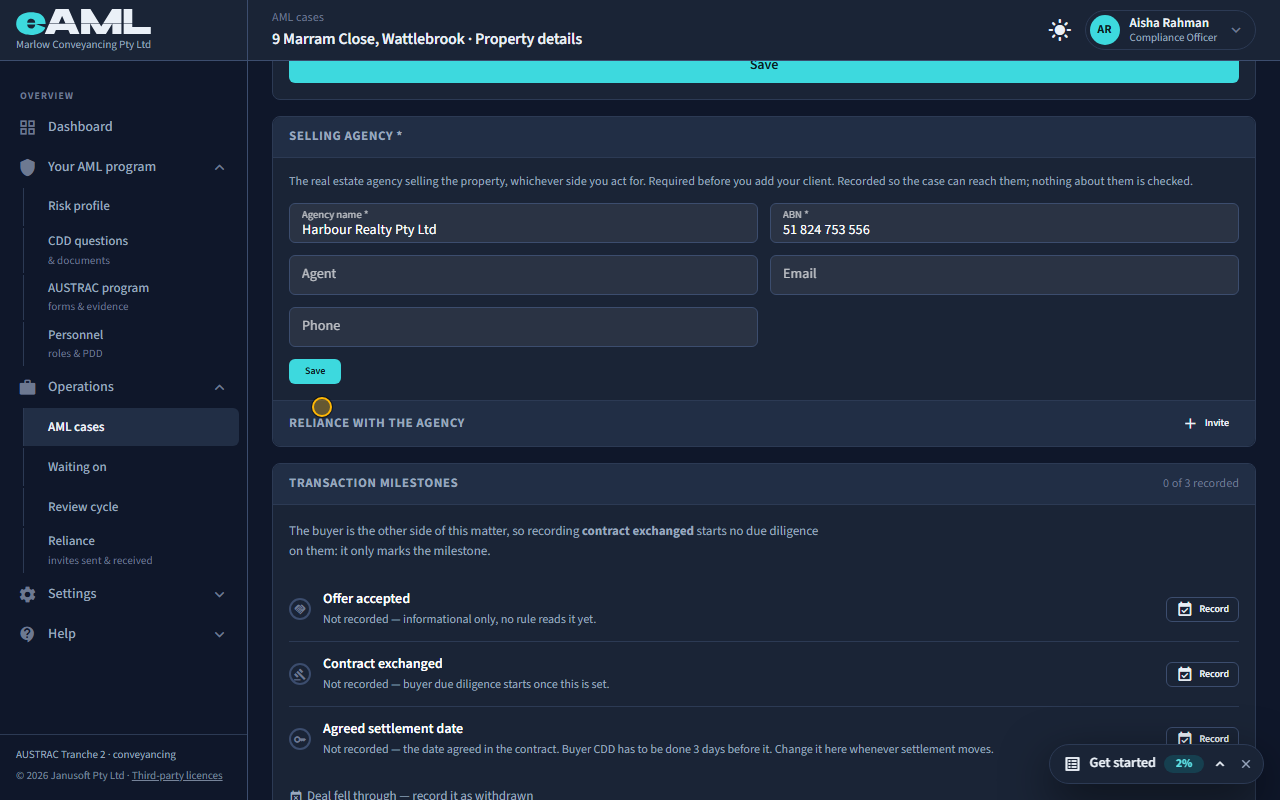
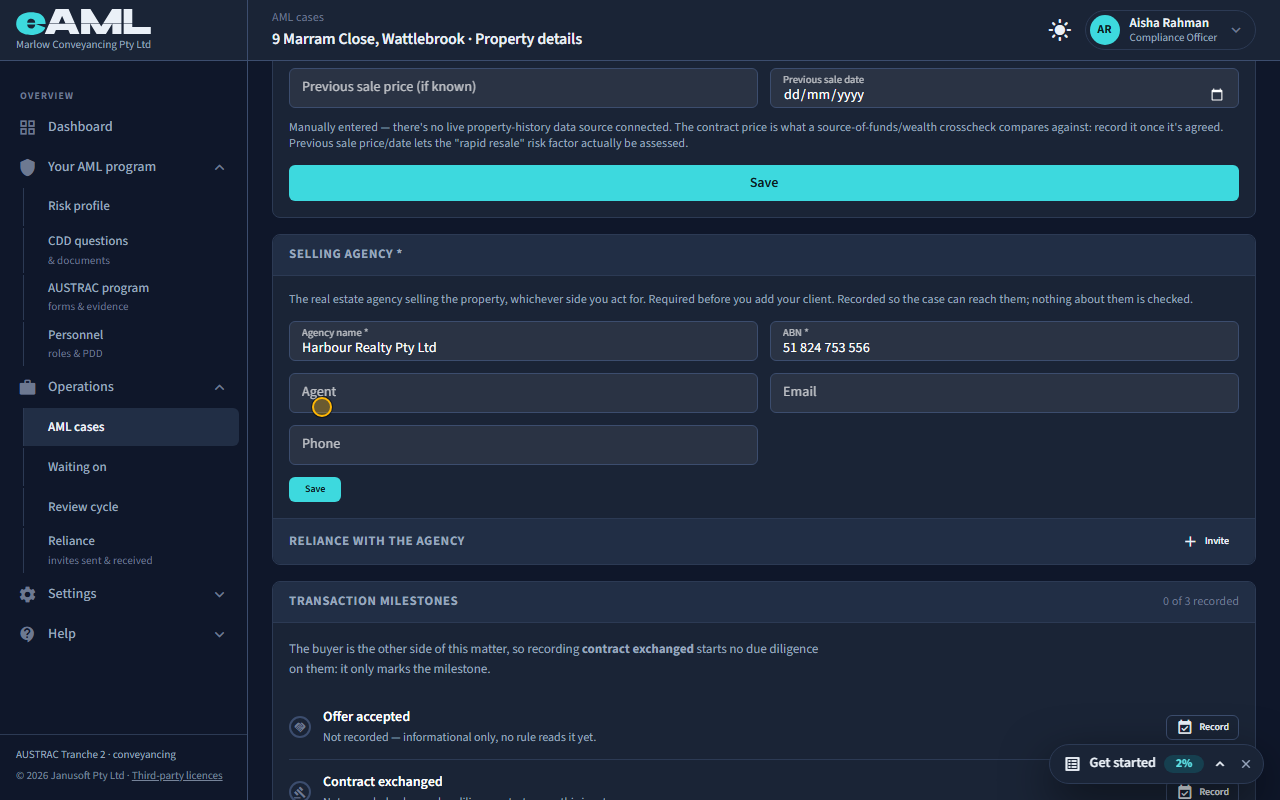
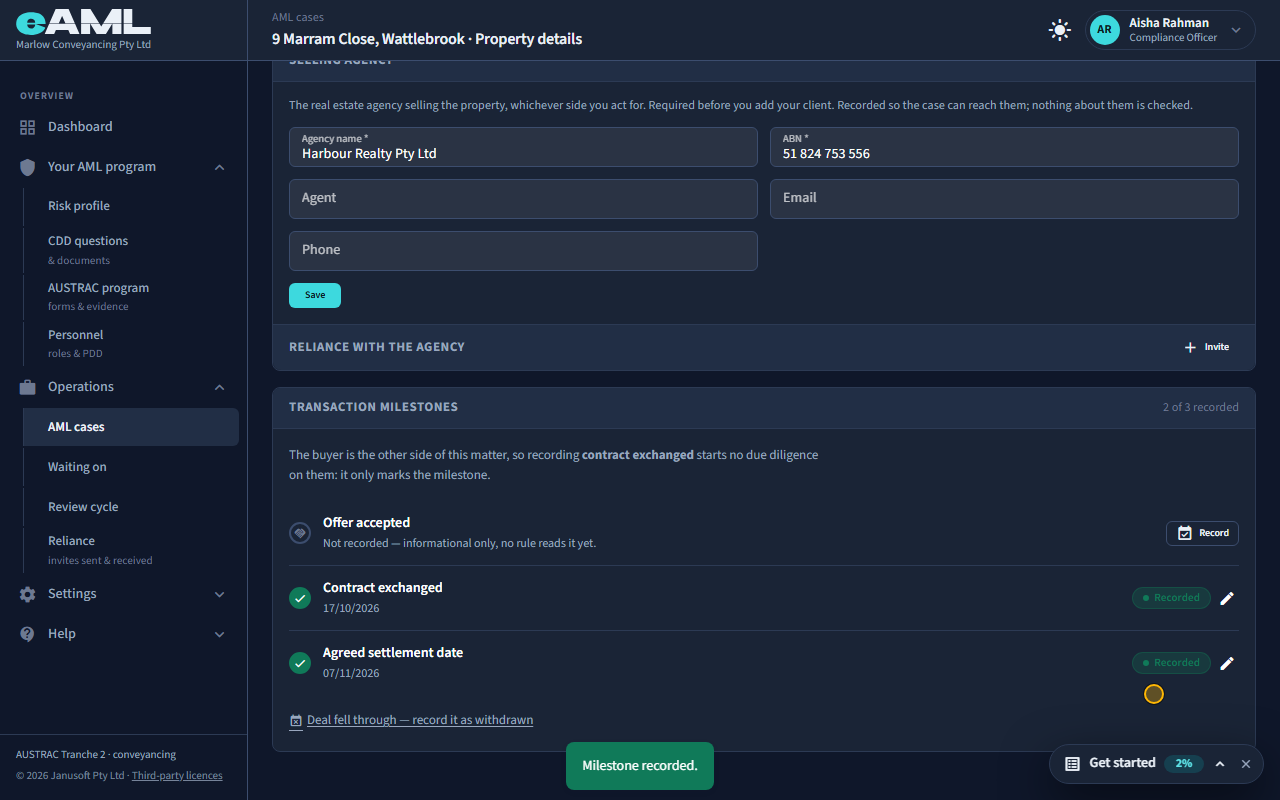
On Property details, enter the address and price and Save, then the agency’s name and ABN and Save.
Record the property’s address and the contract price once it is agreed. The selling agency is required before you can add your client: its name and ABN, with the agent’s details if you have them. Nothing about the agency is checked; it is recorded so the matter can reach them. Whichever side you act for, the agency selling the property is on the case.
-
Add your client
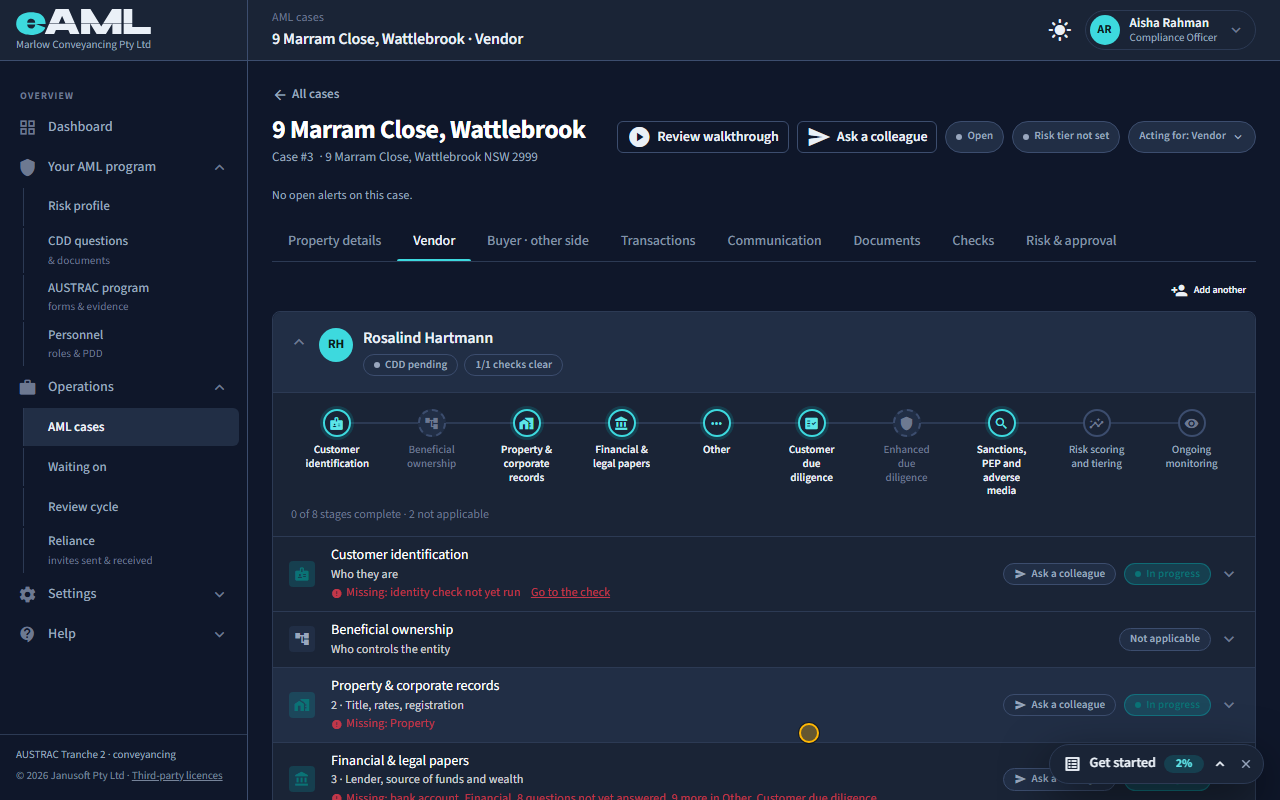
On the Vendor tab, select Add vendor, fill in the client’s details, and select Add.
Now add the client: here the vendor. Select Add vendor on the Vendor tab and fill in who they are. Your client is checked like any other customer: identity, screening, and the questions about the matter and where the money comes from, on a card that follows them through nine stages (T20). Your firm can add more than one client on the same side with Add another, and a client can be a person, a company, a trust or another structure.
-
The other side of the matter
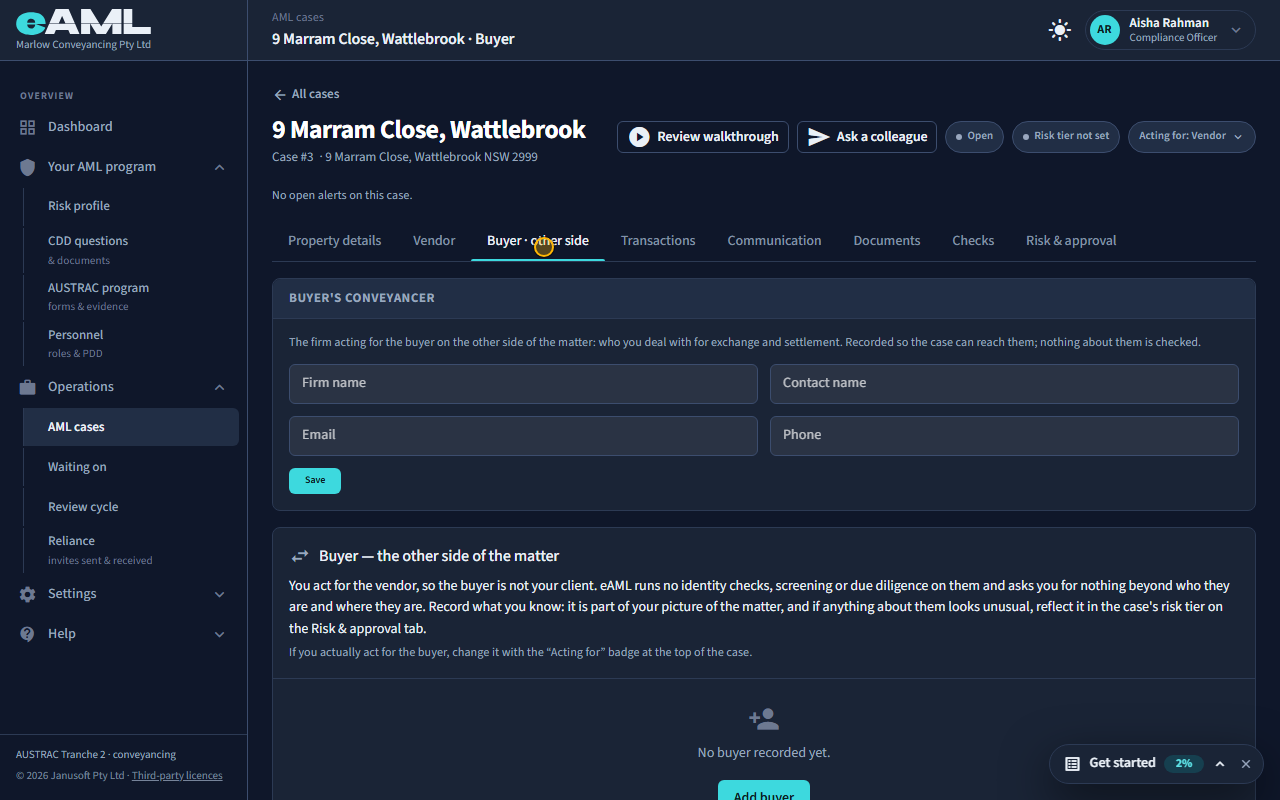
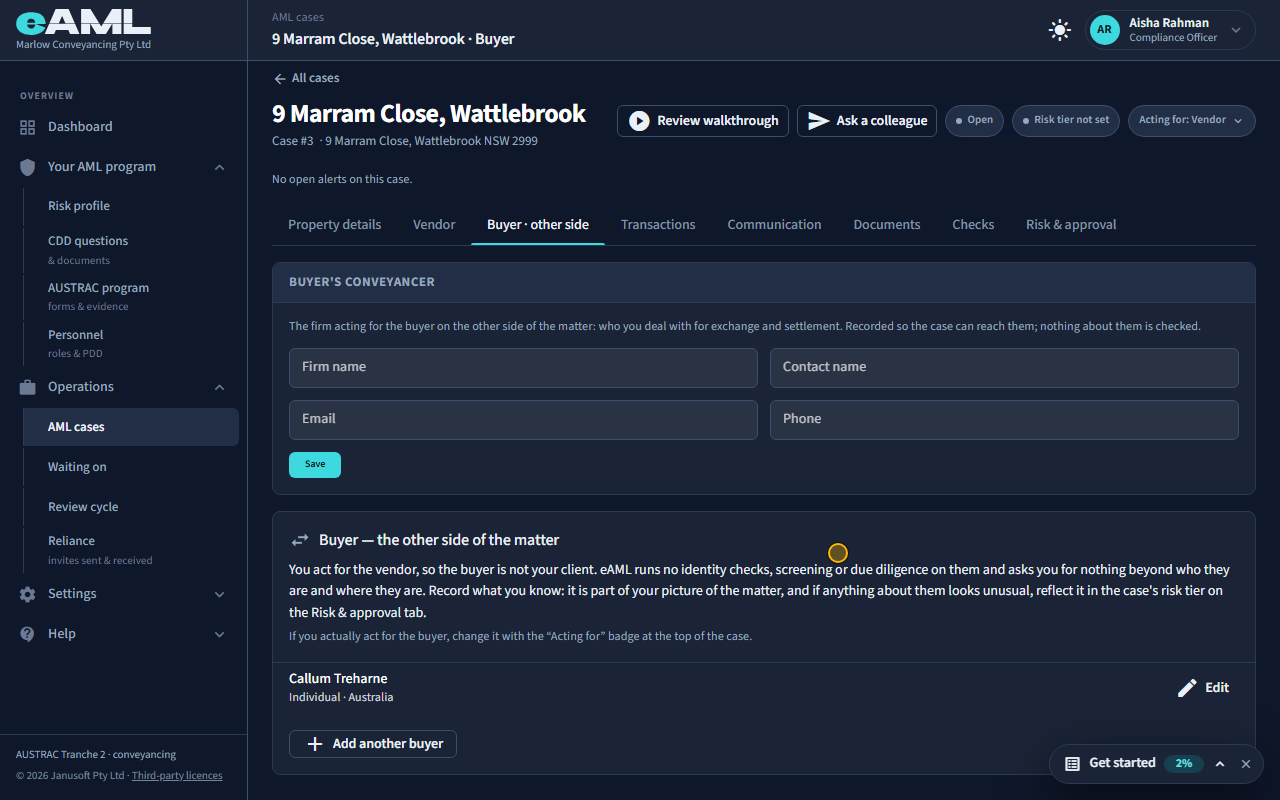
Open the Buyer · other side tab, select Add buyer, and record their name.
The Buyer tab is headed Buyer · other side. It says what that means: the buyer is not your client, so eAML runs no identity checks, screening or due diligence on them and asks for nothing beyond who they are and where. Select Add buyer and record their name (and their country, if it is not Australia). Record what you know: it is part of your picture of the matter. If anything about them looks unusual, reflect it in the matter’s risk tier. The firm acting for them is recorded in the Buyer’s conveyancer card above. If you really act for the buyer, change the Acting for badge, and the sides swap.
-
Reliance with the agency
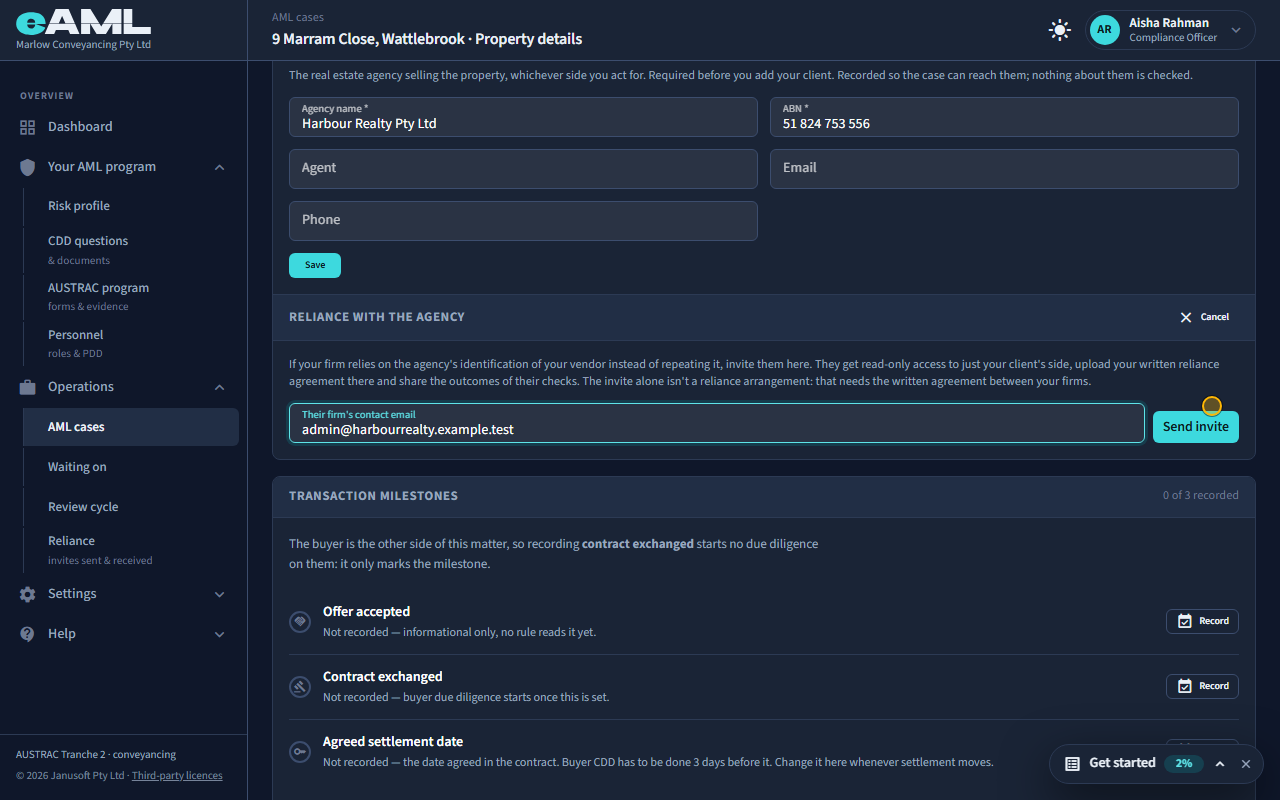
On Property details, open Reliance with the agency, select Invite, and enter the agency’s email.
On the Property details tab, Reliance with the agency lets the selling agency share what it has already checked about the same people, so you are not asking the same questions twice. Select Invite, enter the agency’s contact email and Send invite: they get read-only access to their side and can send you their results, which you can rely on once the agency is set up as a reliance partner (T33). Nothing is shared until they accept, and you stay responsible for your own customer due diligence on your client.
-
Your client’s checks
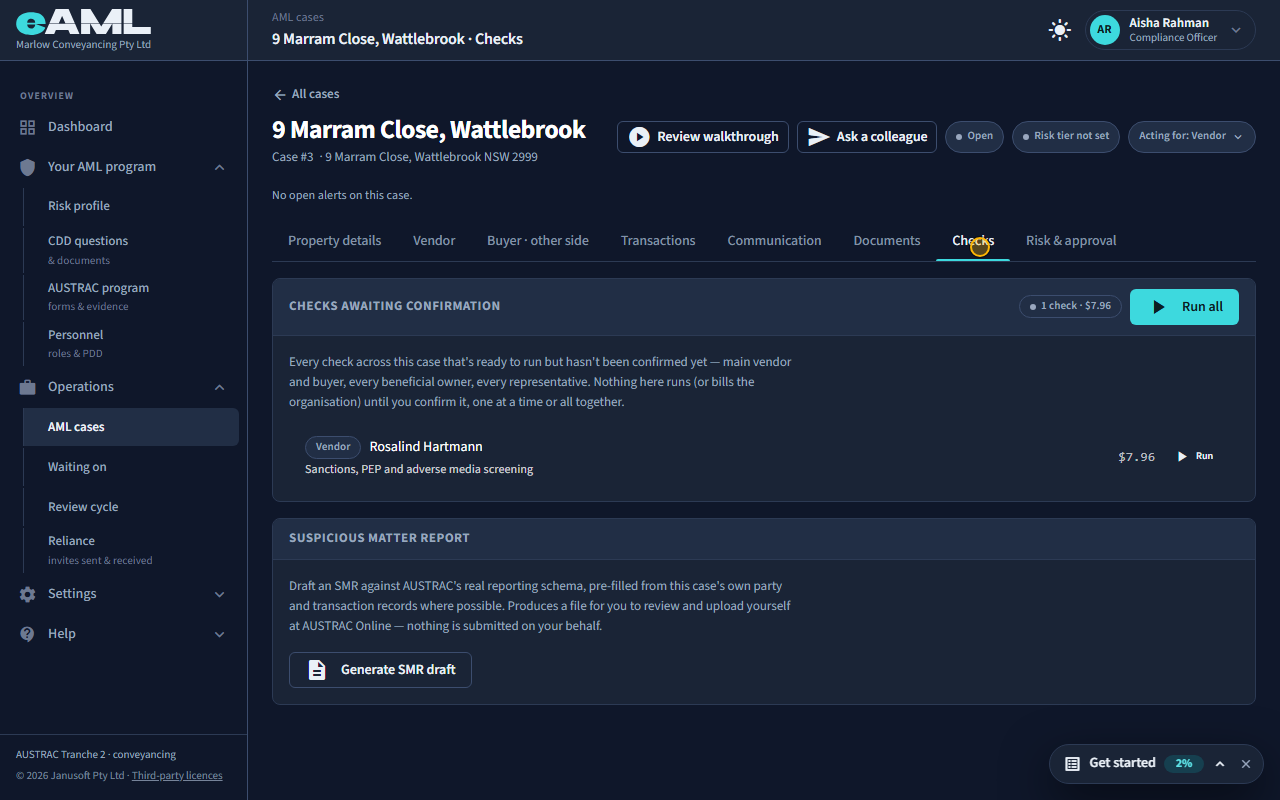
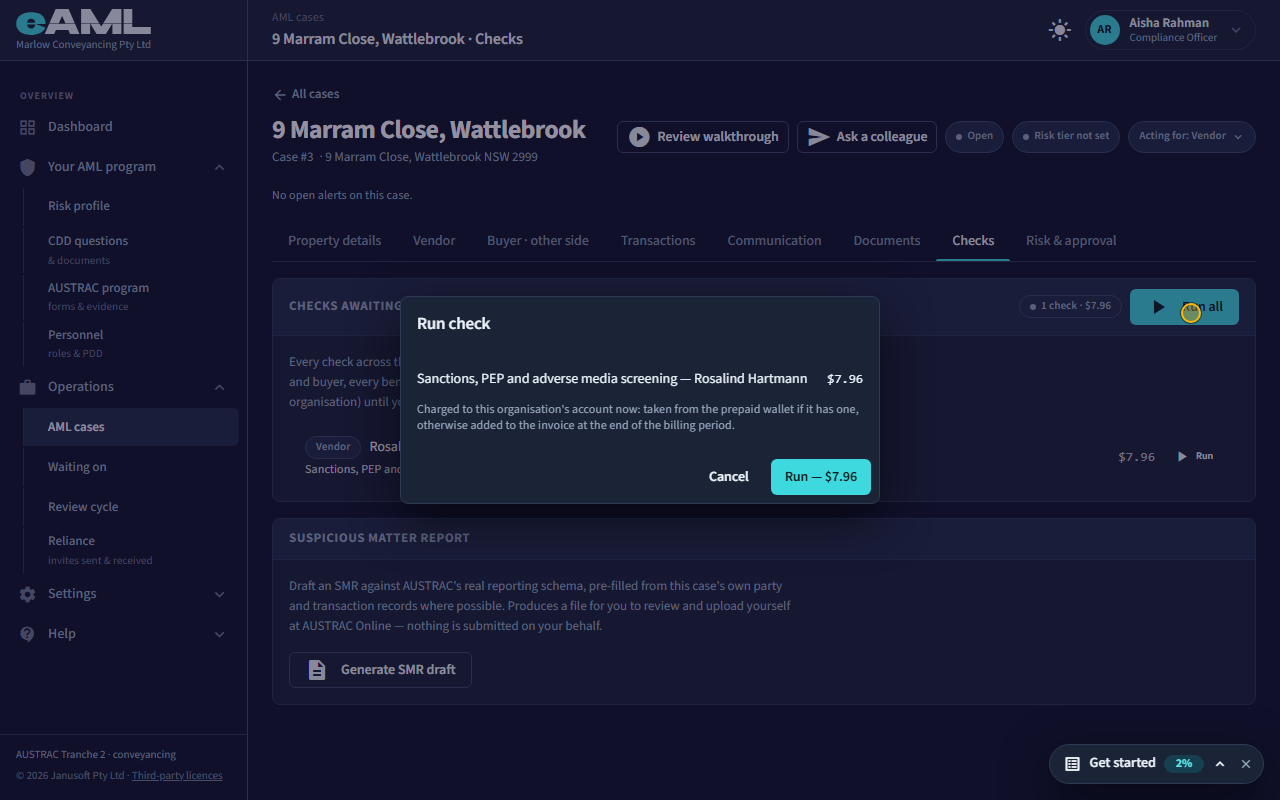
Open the Checks tab, select Run all, and confirm the total.
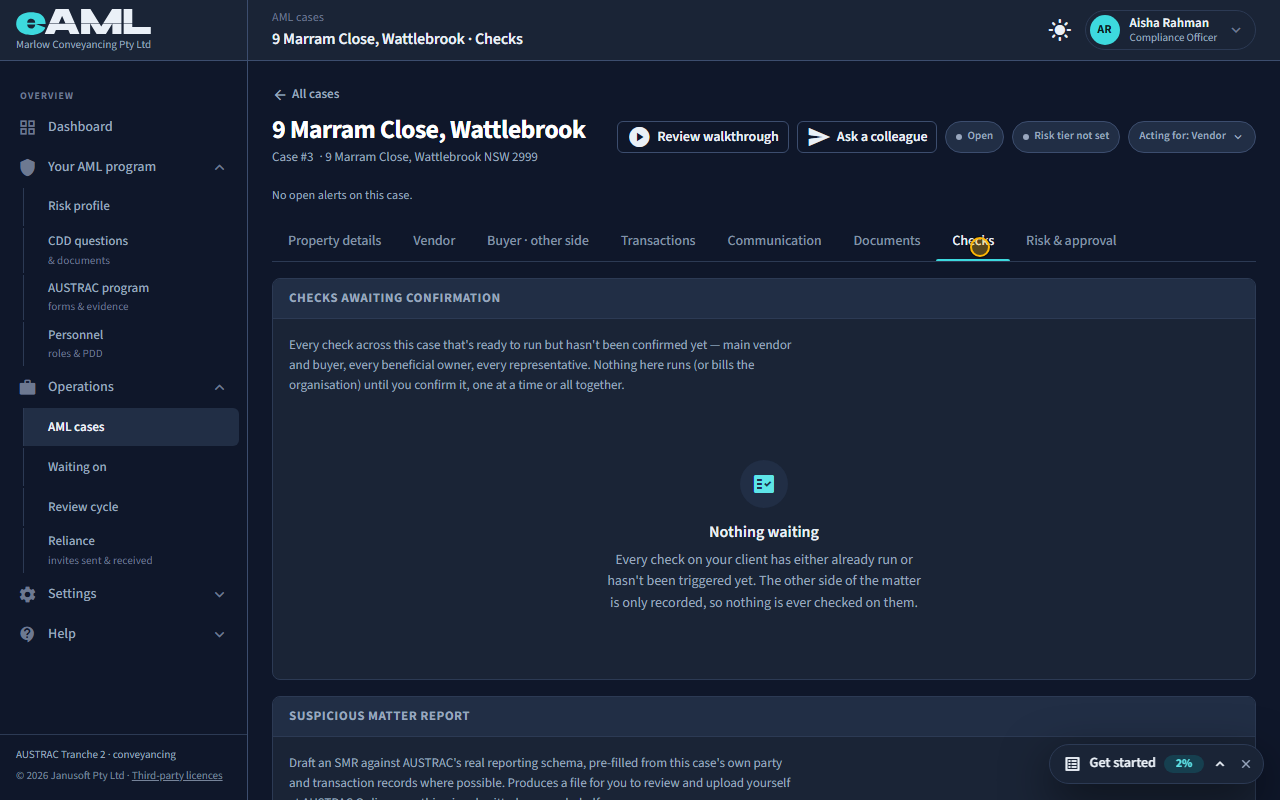
The Checks tab lists every check that is ready: here the client’s screening. Nothing runs, or is billed, until you confirm. Select Run all, read the total, and confirm. The client’s identity is done as in T22 (a link to their phone, a check you ran yourself, or reliance on another firm), and the questions about the matter and where the money comes from as in T21. A hit on screening is read and decided as in T23.
-
Exchange, settlement, risk and approval
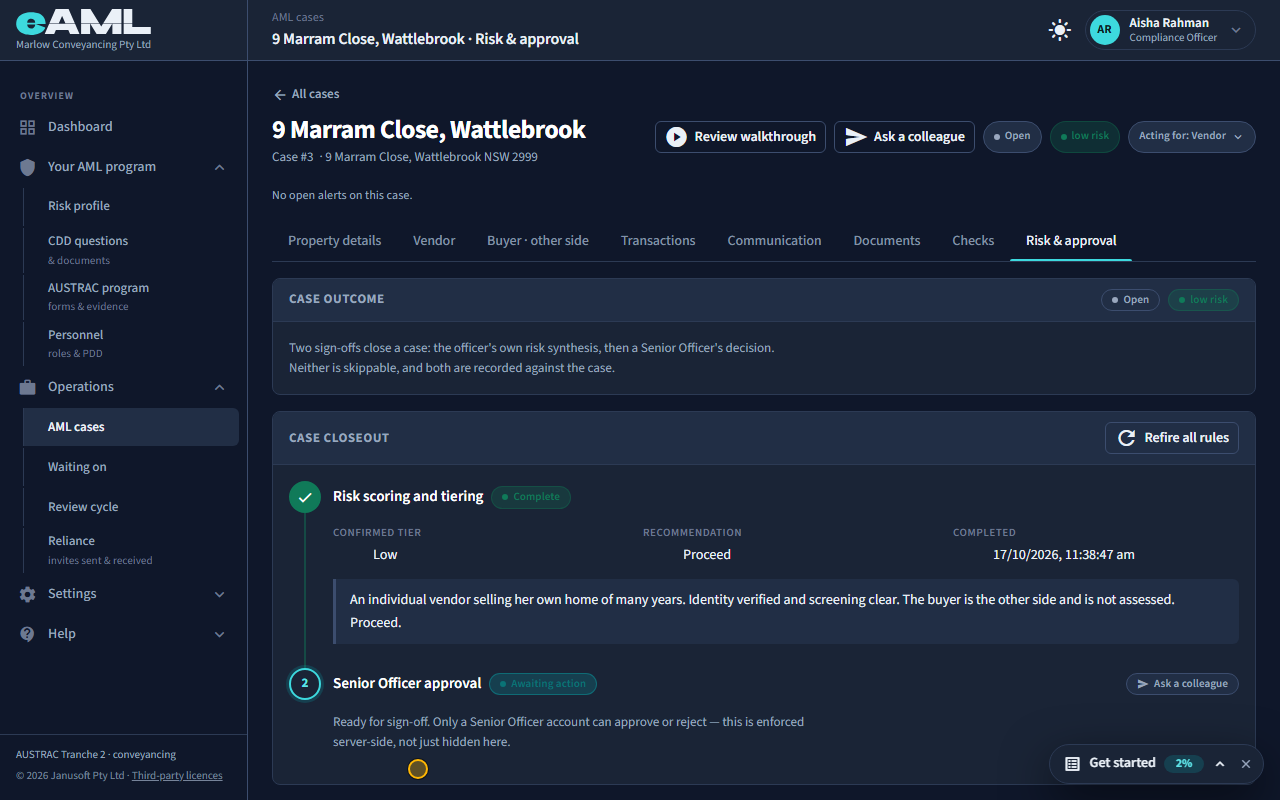
Record Contract exchanged and the agreed settlement date, then open Risk & approval.
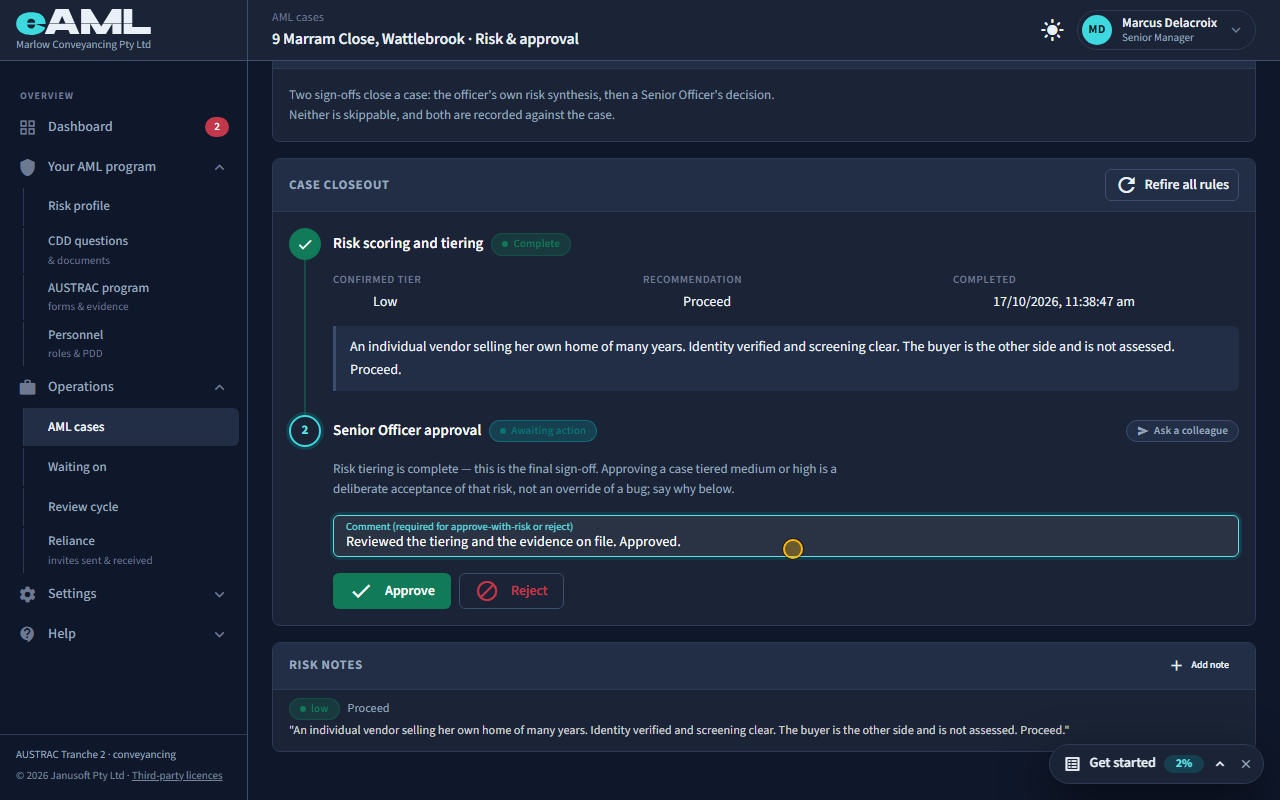
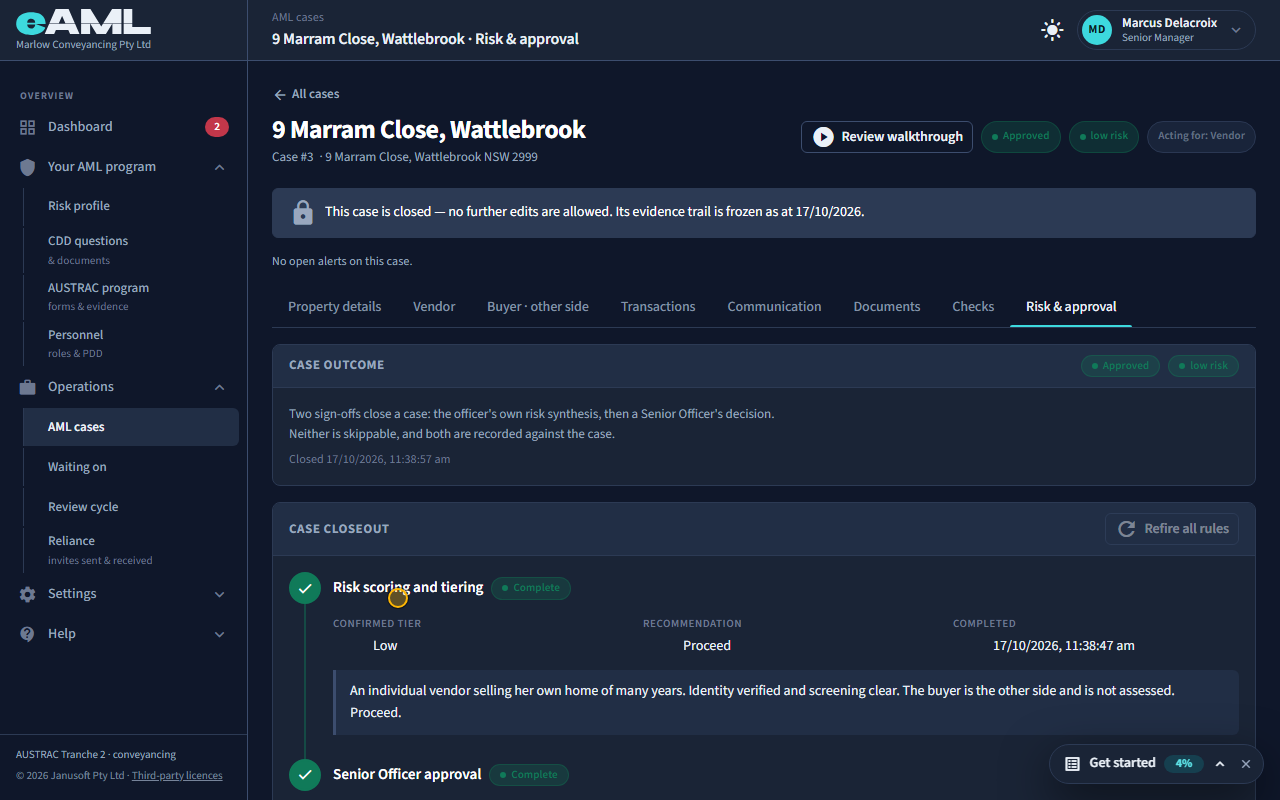
Record the milestones as they happen on Property details: contract exchanged, and the agreed settlement date. Because the buyer is the other side, recording contract exchanged starts no due diligence on them: it only marks the milestone. The rest of the matter is the same as any other: when every step on your client is finished, the Risk & approval tab is where the rating is confirmed and a senior manager approves (T29).
Every screen in this guide was captured from the live application in the same run as the video, so the two always match. If a screen here no longer matches what you see, tell us: the guide is regenerated after each release.