Guide · T40
Real estate agency: a sale from start to finish
Before you start
- A firm with its AUSTRAC program started and a compliance officer
- The firm’s CRM connected (T12), if you want to pull the sale in from it
-
Open the case
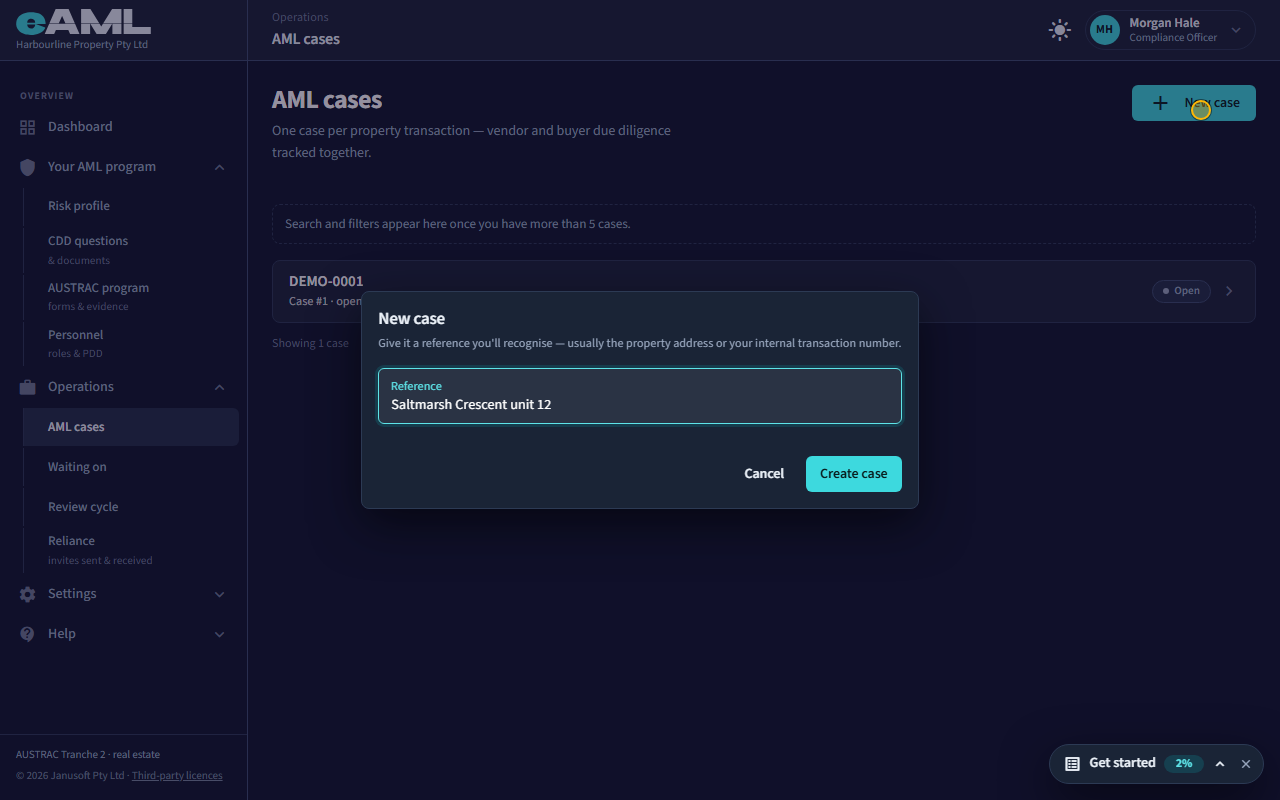
Open AML cases, select New case, enter a reference, and select Create case.
Every sale starts as a case. Open AML cases and select New case, give it a reference your team will recognise (the property’s address, or the listing’s number), and select Create case. The case opens on its tabs: Property details, Vendor, Buyer, Transactions, Communication, Documents, Checks, and Risk & approval. Nobody is checked yet; that starts as people are added.
-
The property and the offer
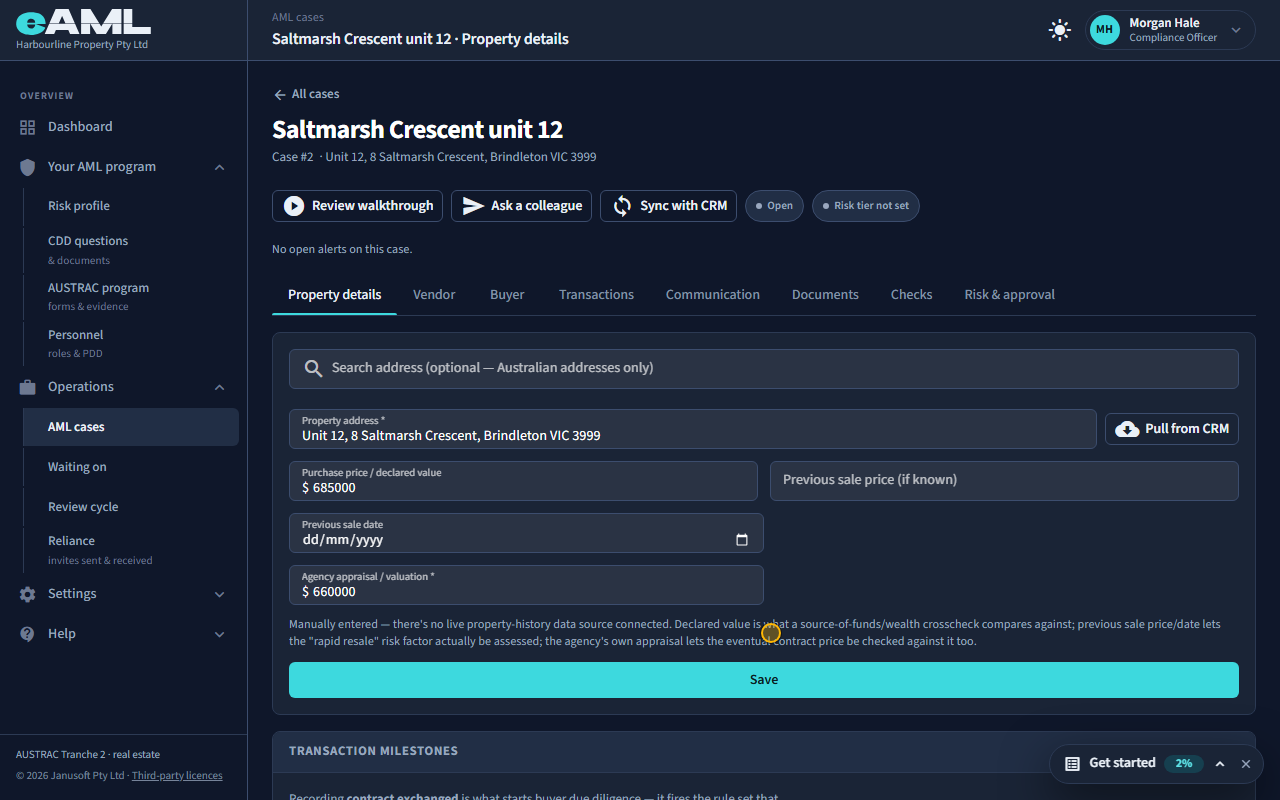
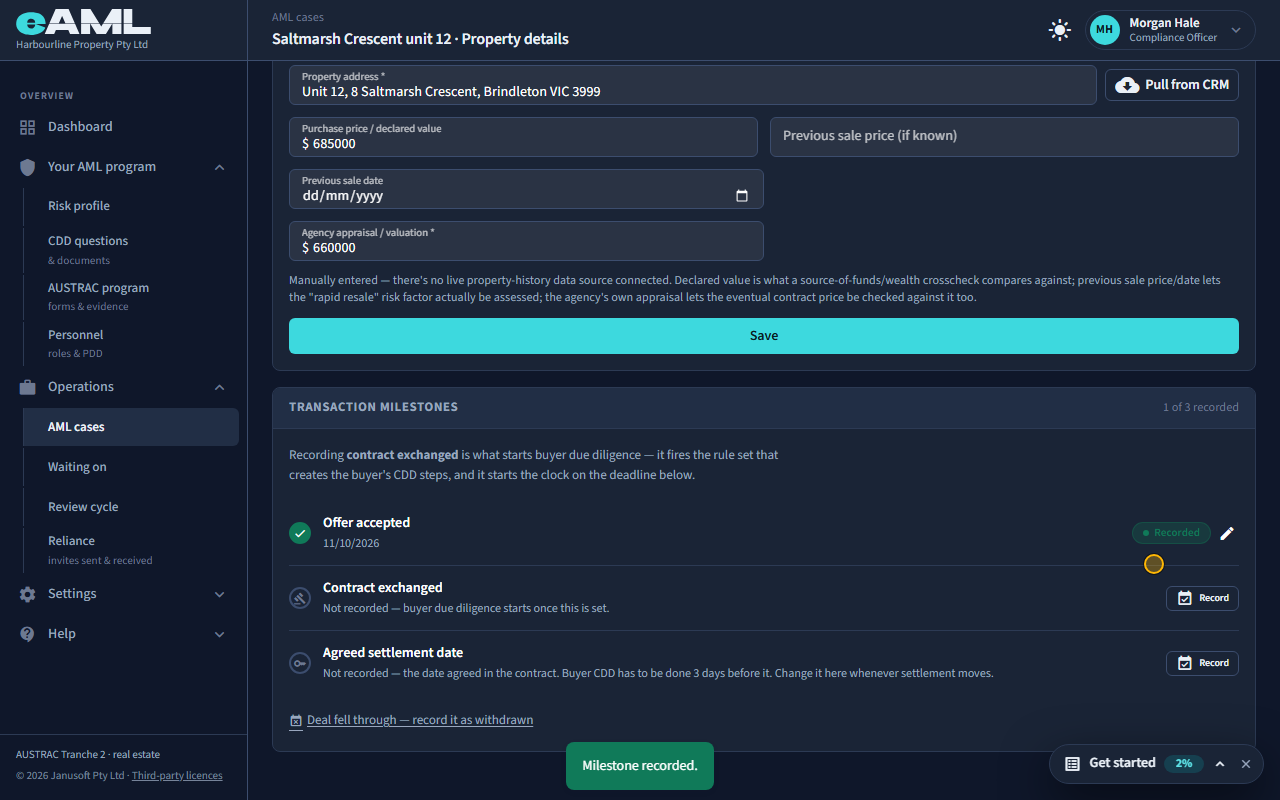
Enter the address, price and appraisal, select Save, then Record beside Offer accepted.
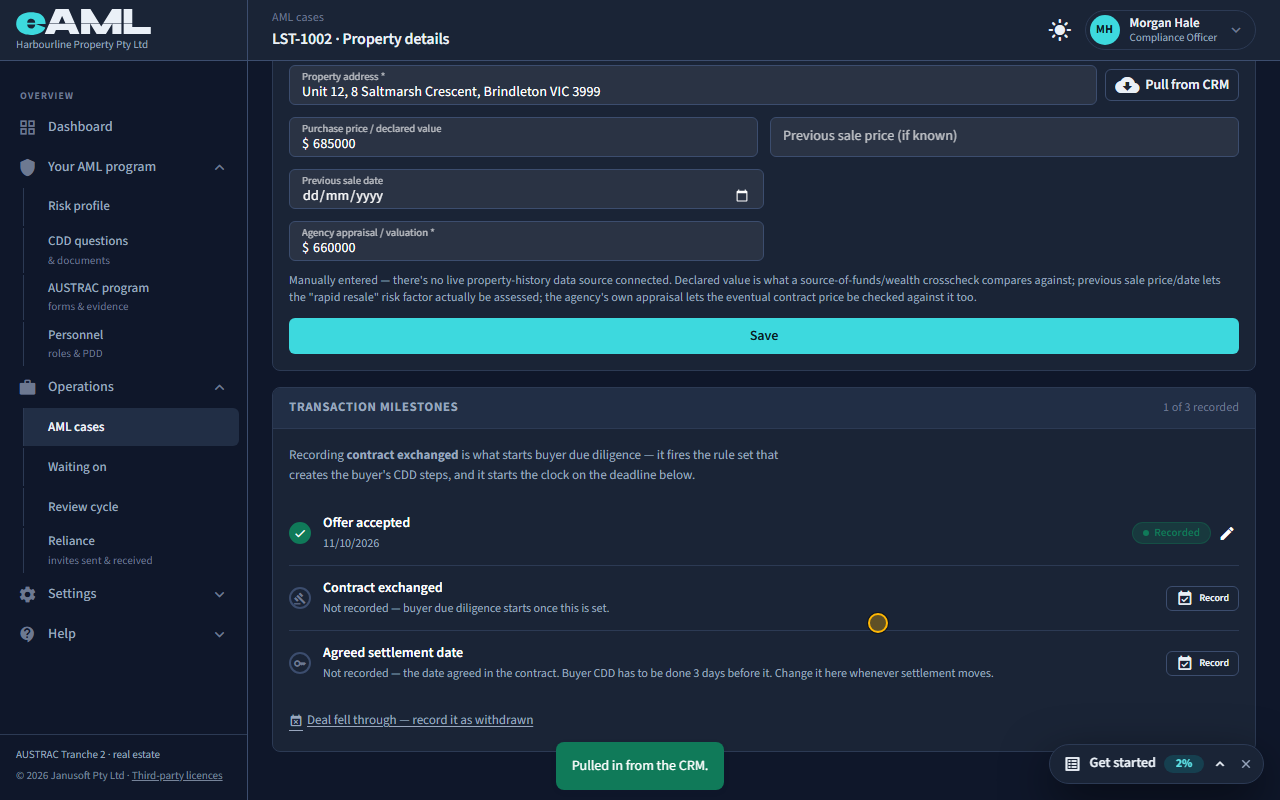
On the Property details tab record the address, the price agreed (or declared value), and the agency’s own appraisal: a vendor cannot be added until the appraisal is there, and a buyer needs the price. A previous sale price and date, when you know them, let eAML check for a rapid resale. Below, the transaction milestones: record Offer accepted with its date. Contract exchanged and the agreed settlement date follow as they happen; contract exchanged is what starts the buyer’s checks.
-
Pull the people in from the CRM
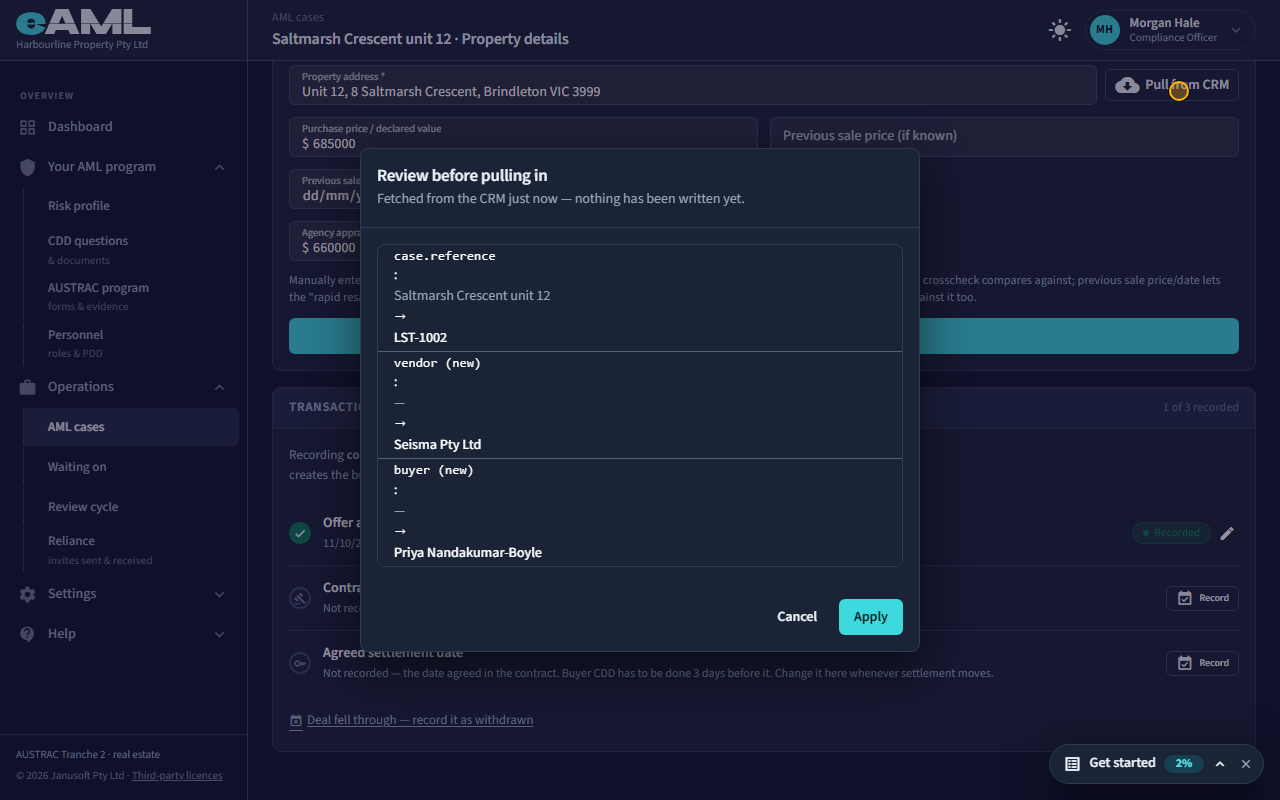
On Property details, select Pull from CRM, check what will change, and select Apply.
If the firm’s CRM is connected, select Pull from CRM on the Property details tab: eAML searches your CRM for the property’s address and, when it finds the listing, shows exactly what would change: the reference, the vendor and the buyer. Here the vendor is a company and the buyer a person. Nothing is written until you select Apply; when you do, the vendor and the buyer are on the case with their details. You can use Sync with CRM at the top of the case to bring in later changes. No CRM? Add the vendor and the buyer yourself with Add vendor and Add buyer.
-
The vendor: a company
Open Beneficial ownership and add the director; open Customer identification and select Add representative.
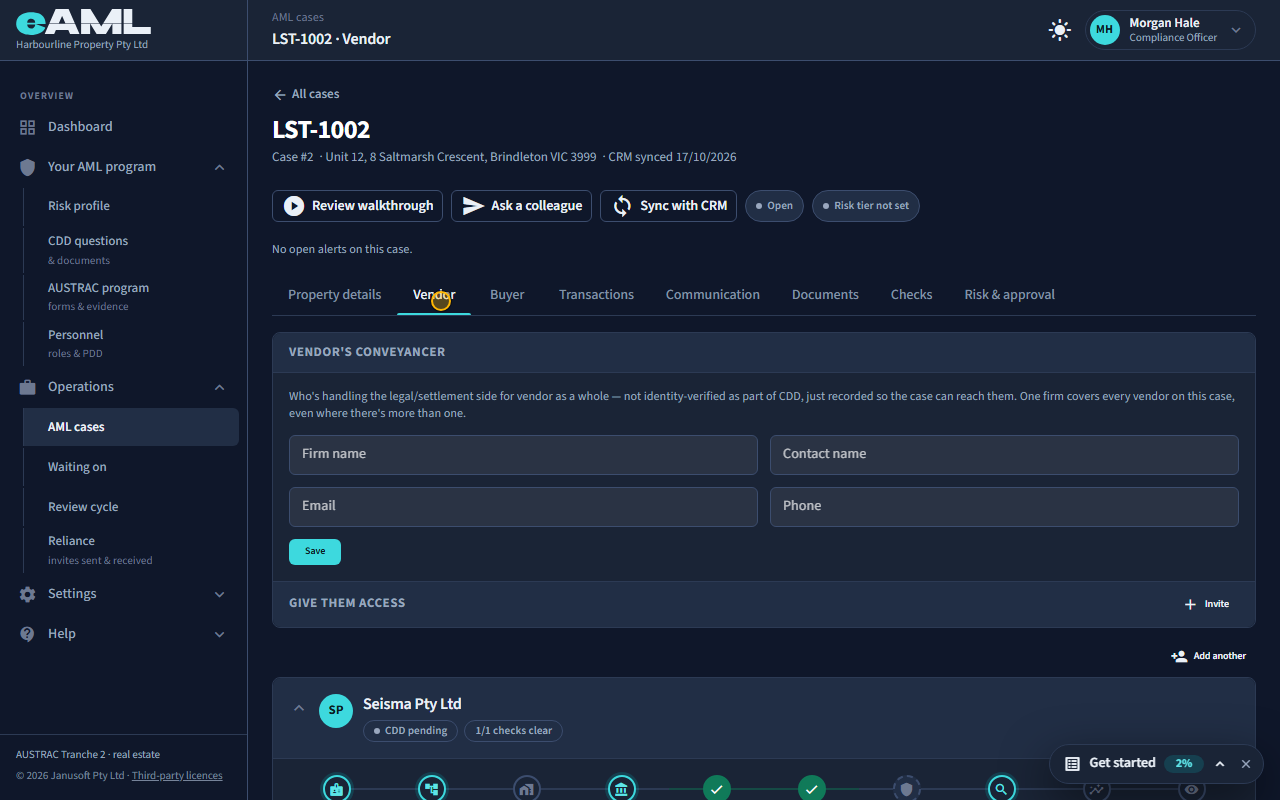
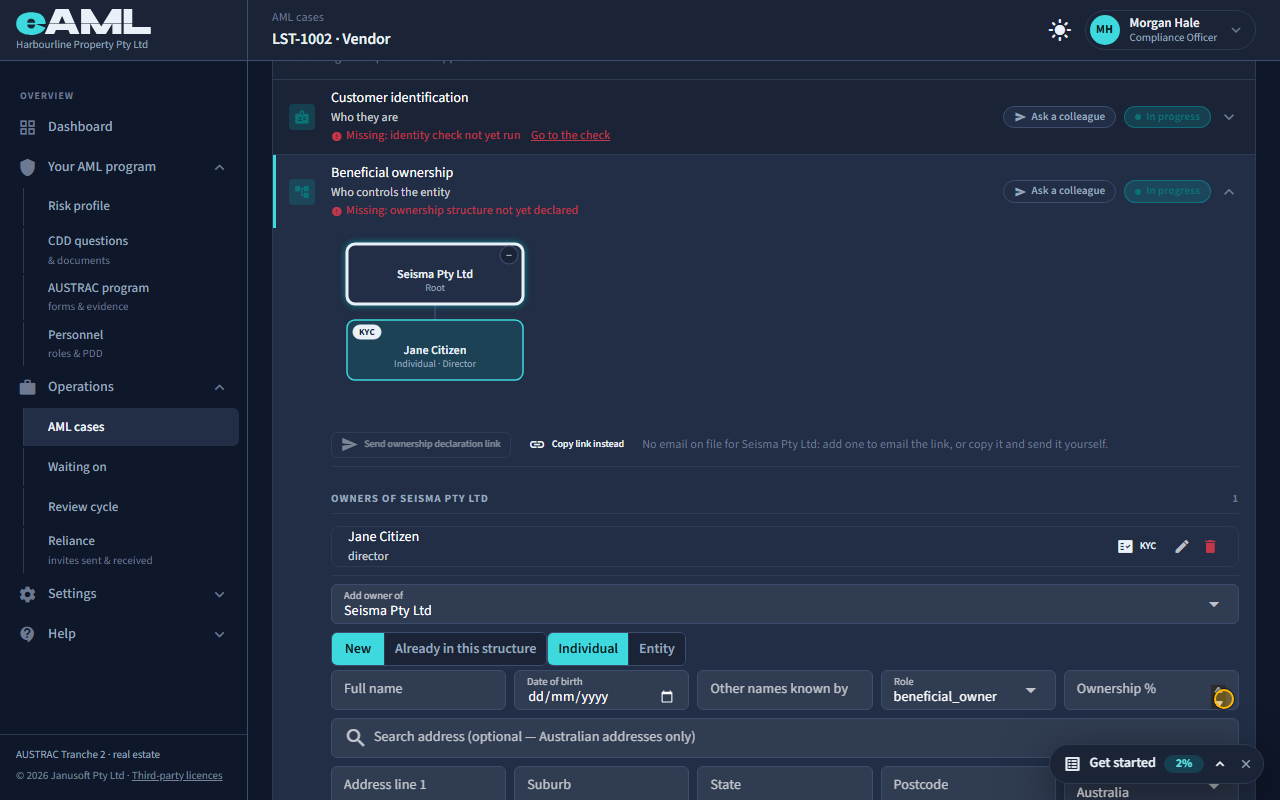
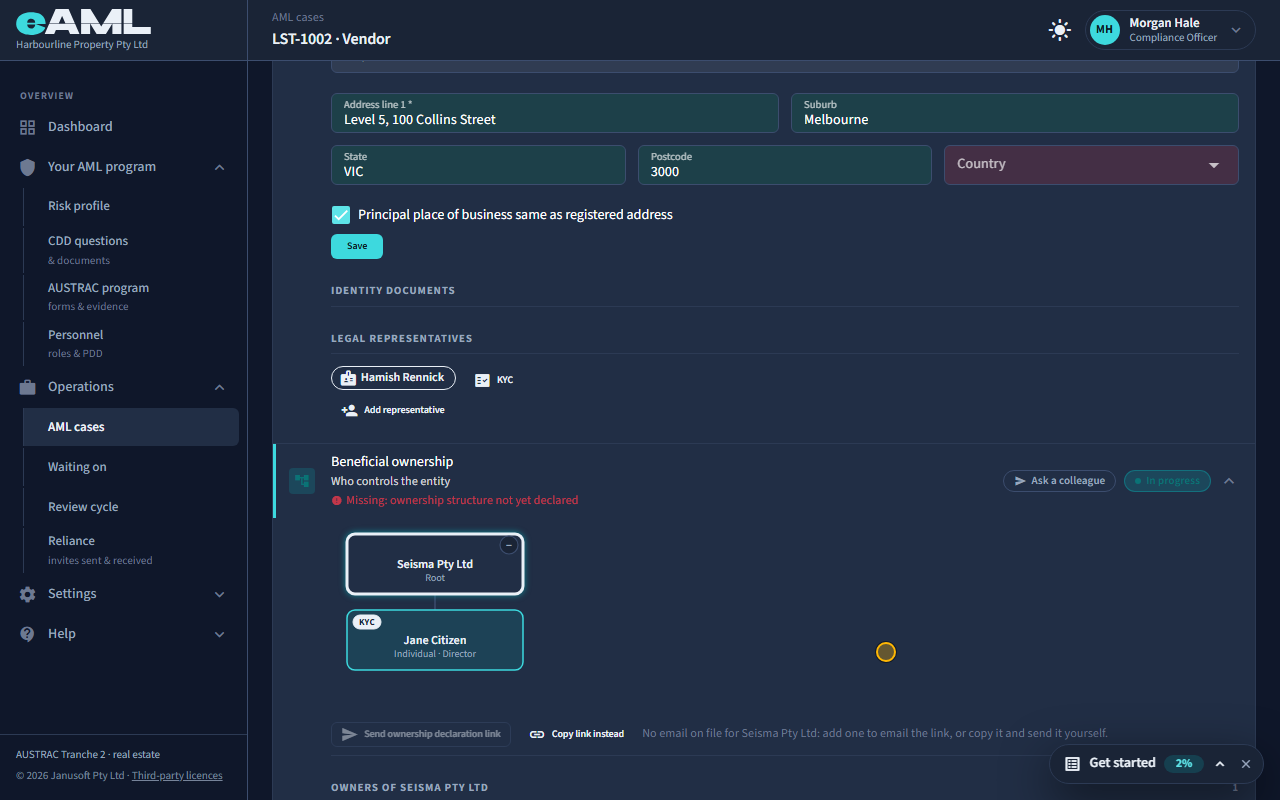
The Vendor tab now has the company on a card that follows the person or company through nine stages, from Customer identification to Ongoing monitoring. A company is identified through its register entry, and the people behind it (T24, T26). Add the director under Beneficial ownership: a director is checked in their own right, whatever they hold. Add anyone acting for the vendor, such as an attorney or an agent, with Add representative on the Customer identification stage: they are checked too. A second vendor is Add another, above the card.
-
Contracts exchange: the buyer’s checks begin
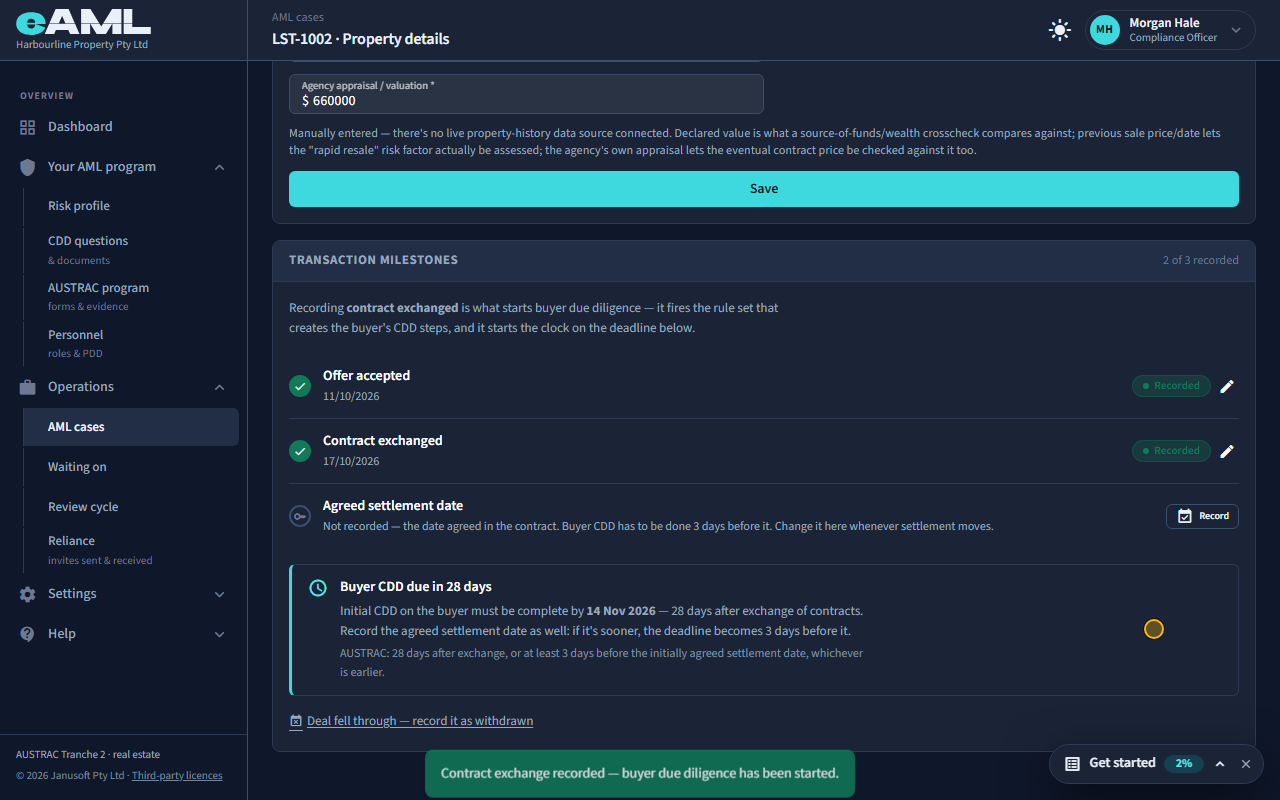
On Property details, select Record beside Contract exchanged, enter the date, and Save.
Back on Property details, record Contract exchanged with its date. That is the moment the buyer’s due diligence starts, and a deadline with it: AUSTRAC allows 28 days after exchange, or until three days before the agreed settlement date if that is sooner. The case says when, counts it down, and the Dashboard lists it under Needs attention as it nears. Record the agreed settlement date too, and change it whenever settlement moves. Until contracts exchange the Buyer tab can be filled in but the buyer’s checks do not start.
-
The buyer’s identity
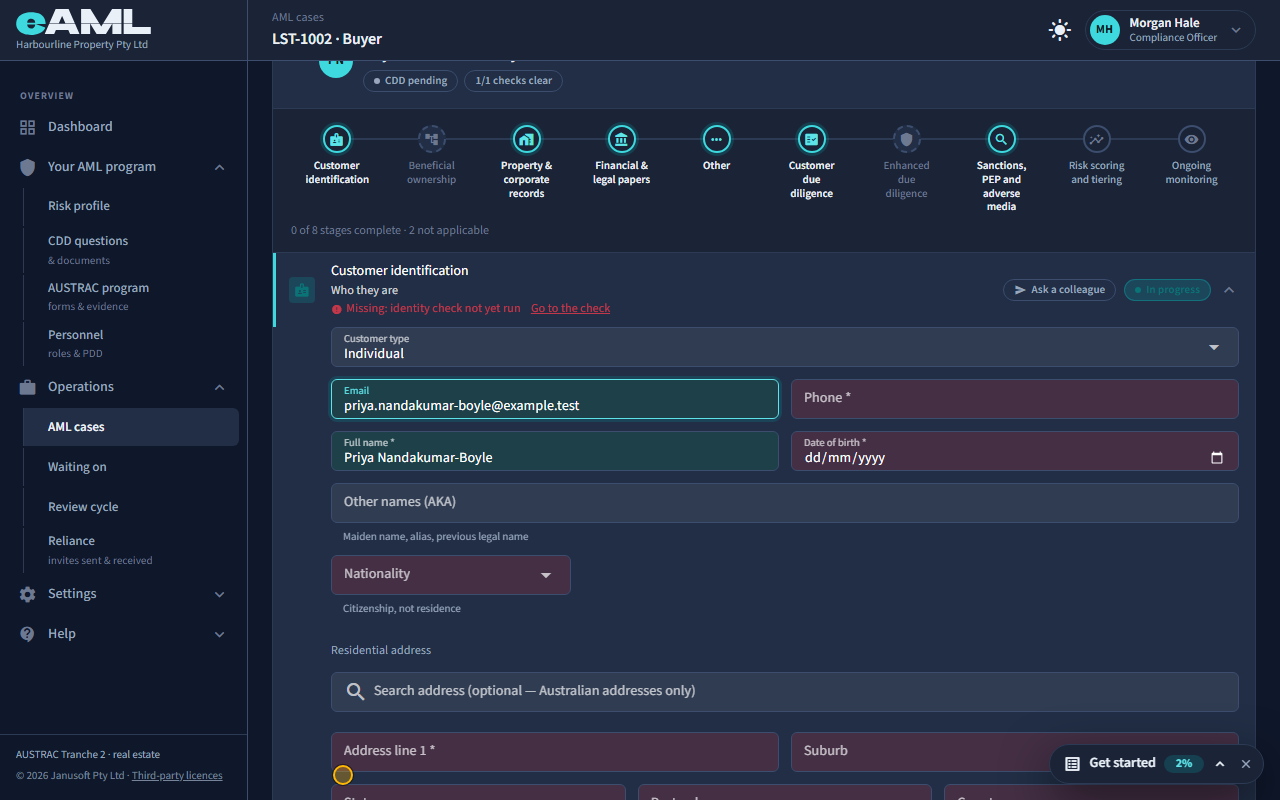
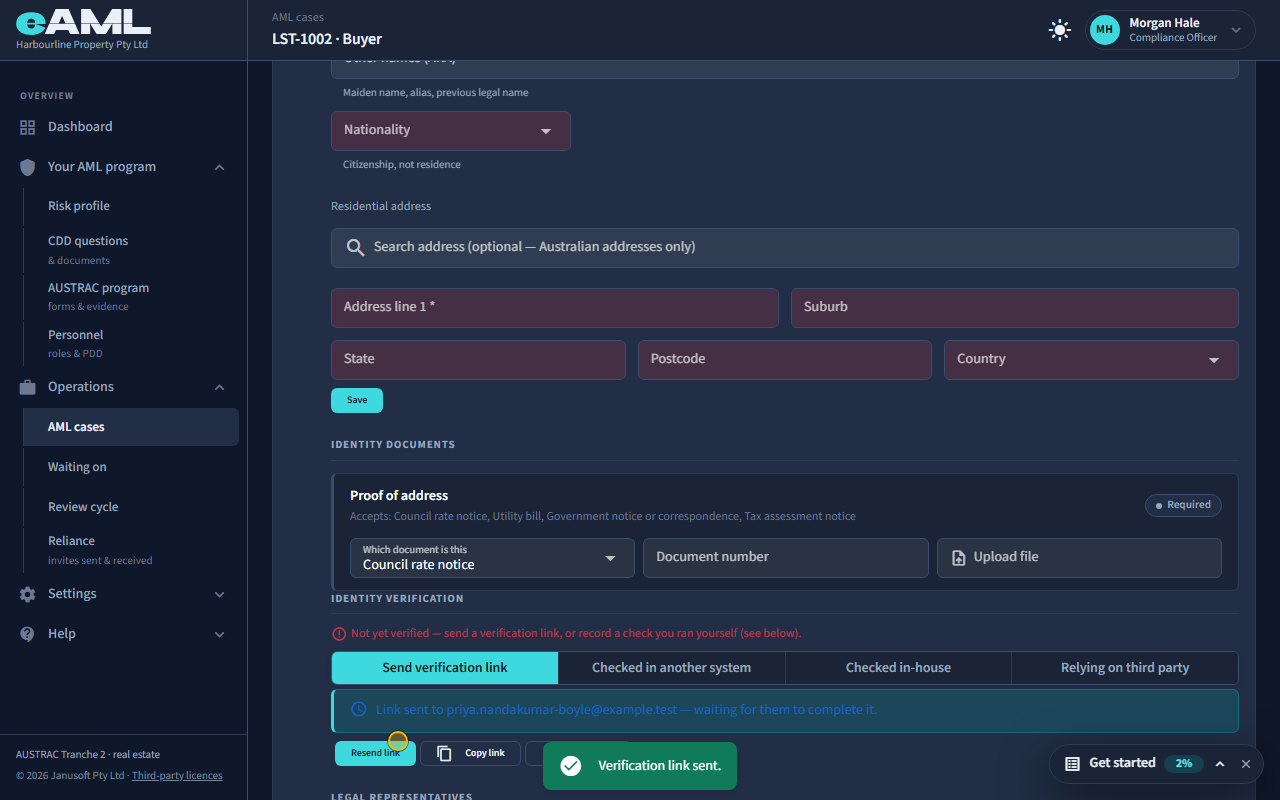
On the Buyer tab, open Customer identification and select Send verification link.
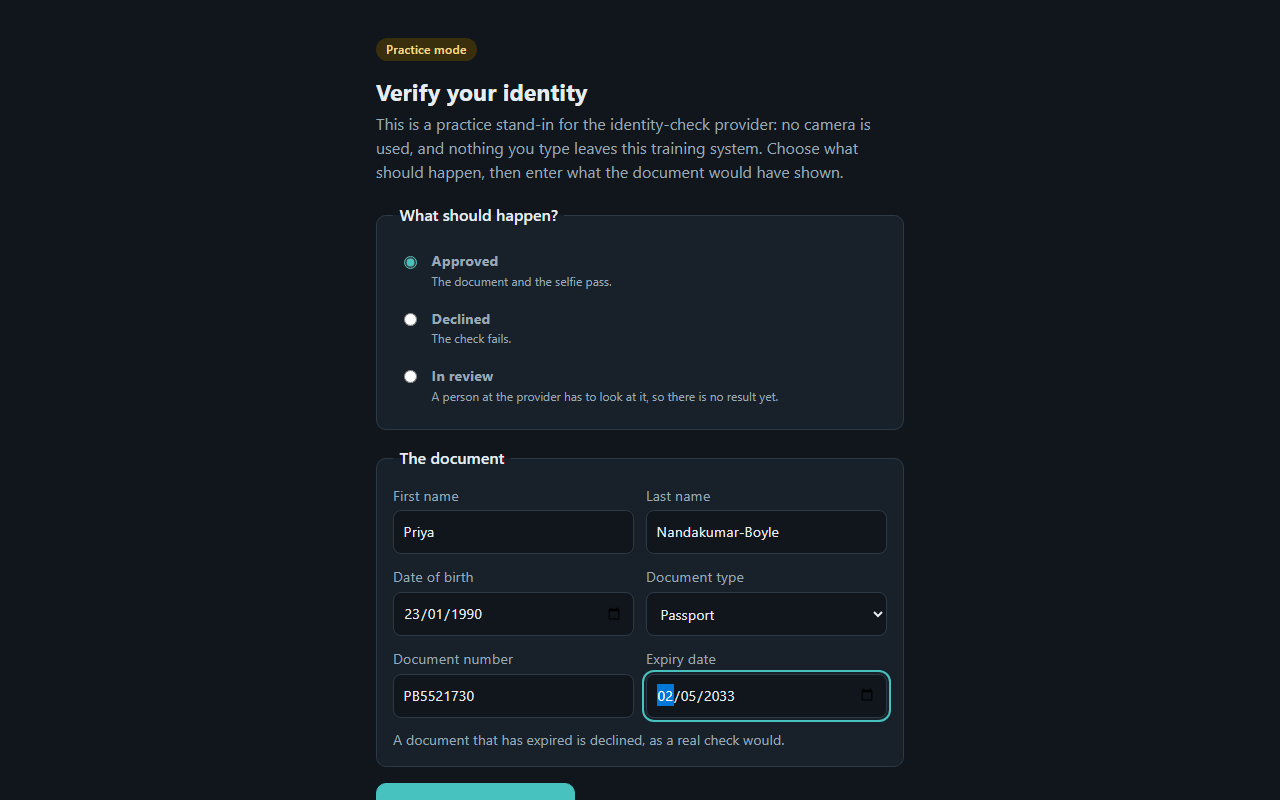
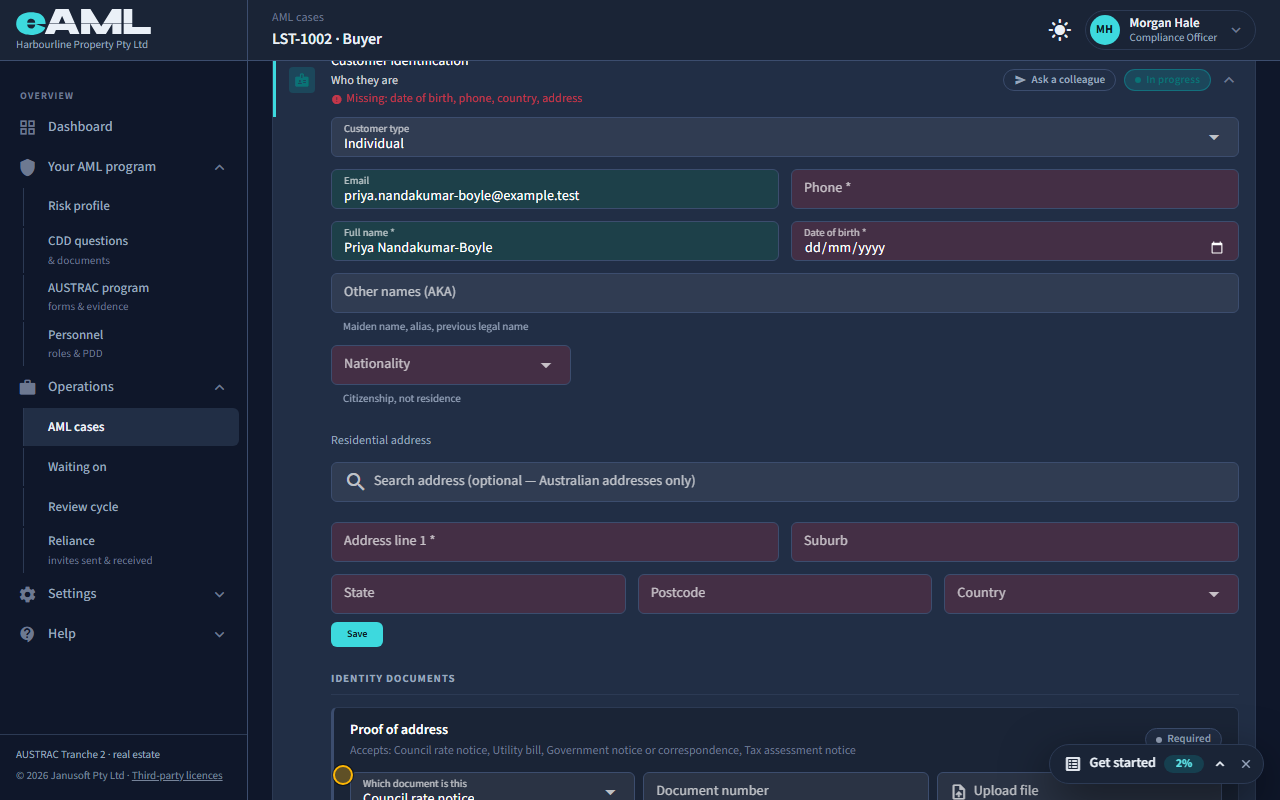
The buyer came across from the CRM with their name, date of birth and address, but the listing had no email address for them, and a link can only be sent to one on file. On the Buyer tab, open Customer identification, type the email under Email and select Save. Then select Send verification link: the buyer gets an email, does the document scan and selfie on their phone, and the result comes back to the case by itself (T22). Here the person opens the link in the practice stand-in. A buyer who is a company, a trust or an overseas person works the same way as a vendor does, with their owners checked as well.
-
Screen everyone at once
Open the Checks tab, select Run all, and confirm the total.
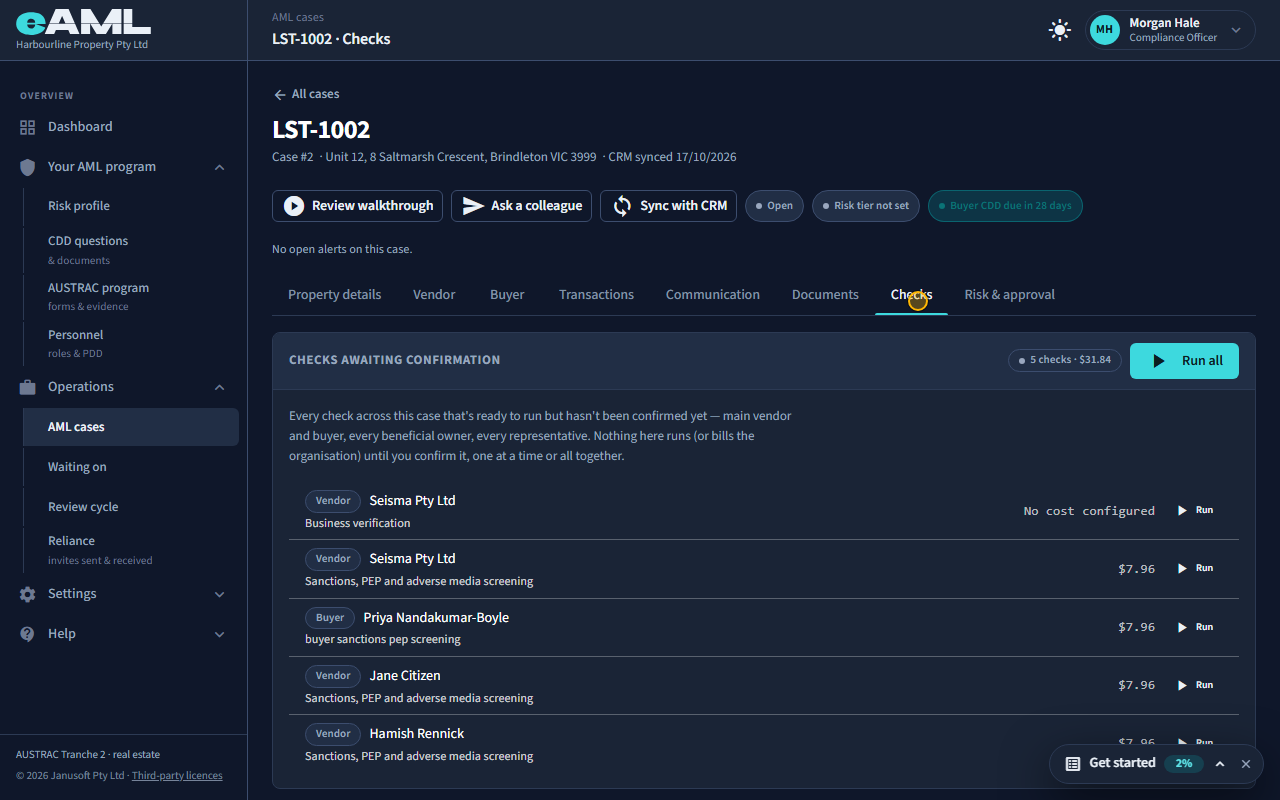
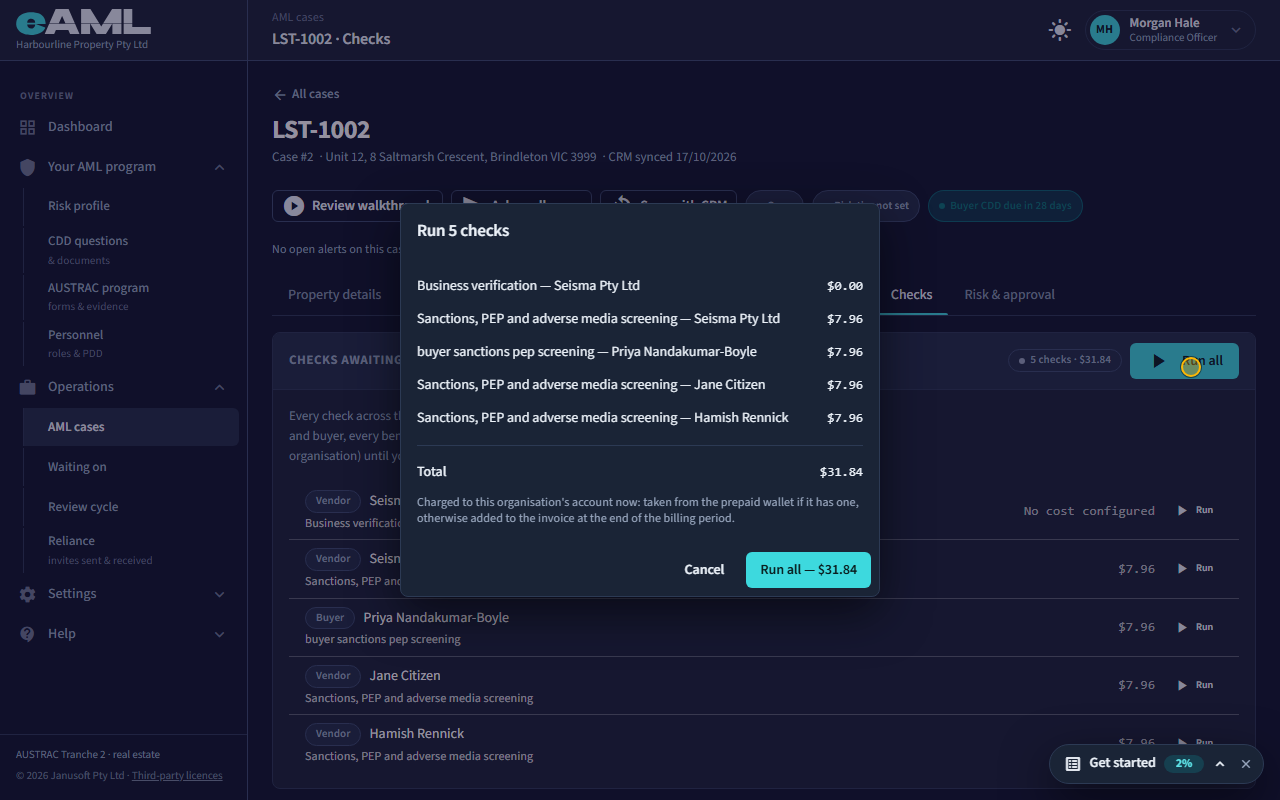
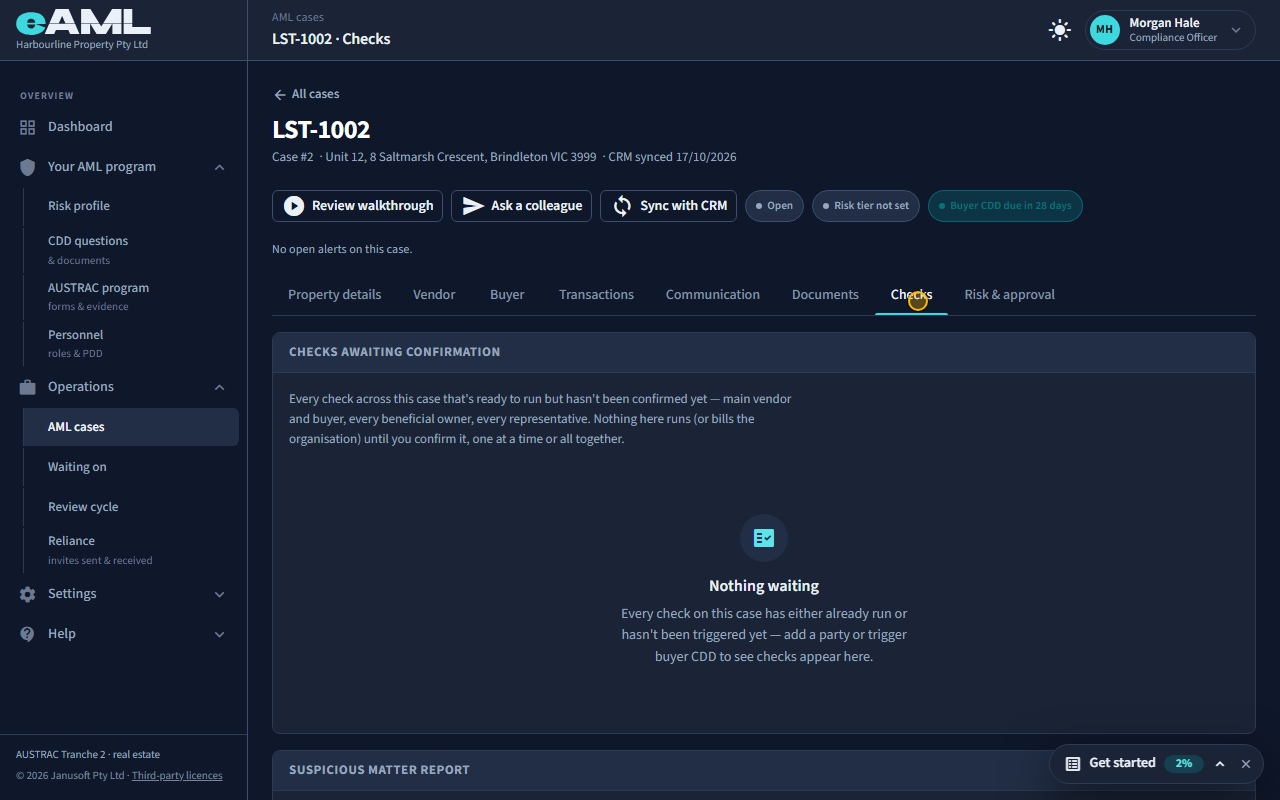
On the Checks tab, Checks awaiting confirmation lists every check that is ready: the vendor, the director, the representative and the buyer, each with its price. Nothing runs, or is billed, until you confirm. Select Run all, read the total, and confirm. One run for a person covers sanctions, politically exposed person and adverse media. A clear result needs no more; a hit is read and decided on the person’s Sanctions, PEP and adverse media stage (T23).
-
Deposits and settlement payments
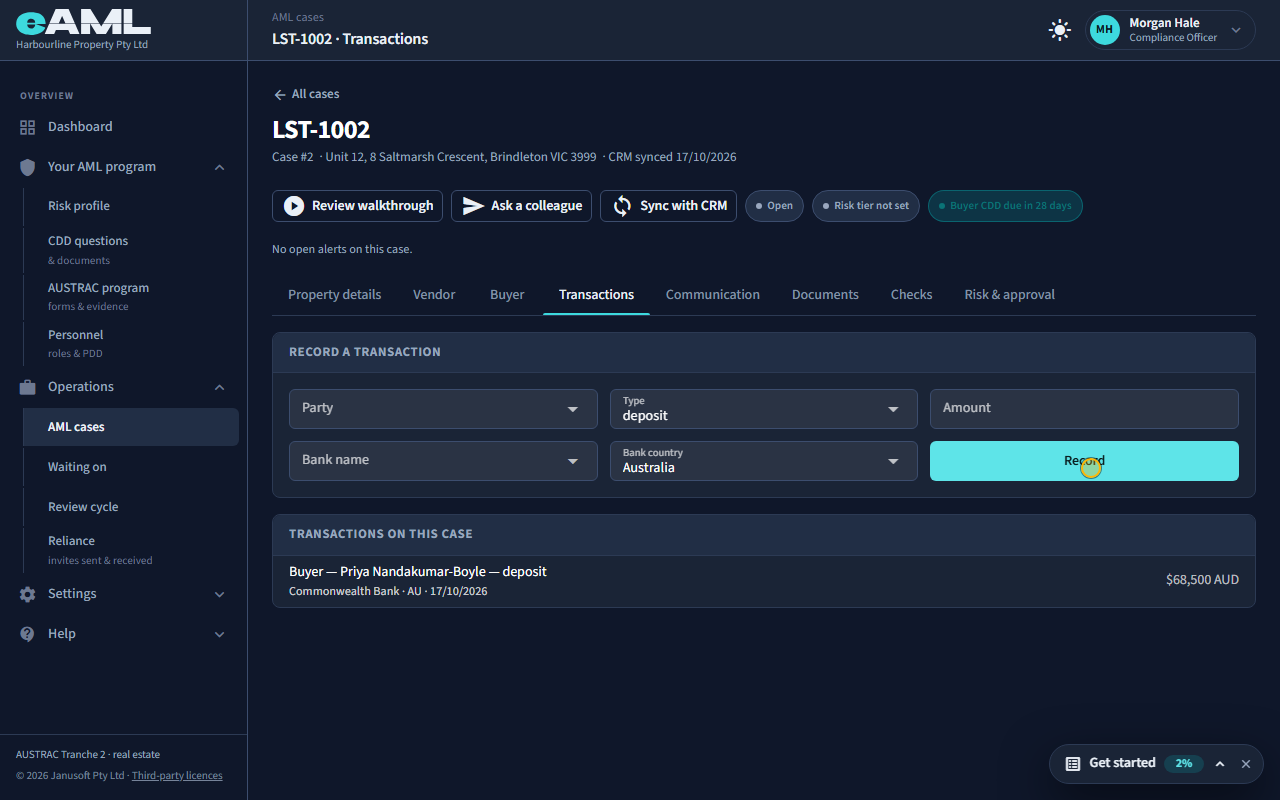
Open Transactions, choose the party, the type, the amount and the bank, and select Record.
Record each payment on the Transactions tab: who paid (the vendor or the buyer), the type (deposit, settlement, cash payment, virtual asset or other), the amount, and the bank and its country, then select Record. A bank in a high-risk country is flagged on the payment. Recording a payment also runs the rules that watch money: a buyer’s payment of $50,000 or more asks for a source-of-funds declaration if there is not one yet (the deposit here does), and a cash payment of $50,000 or more raises the person’s rating to high. Record the deposit as it is paid and the settlement later.
-
The risk rating
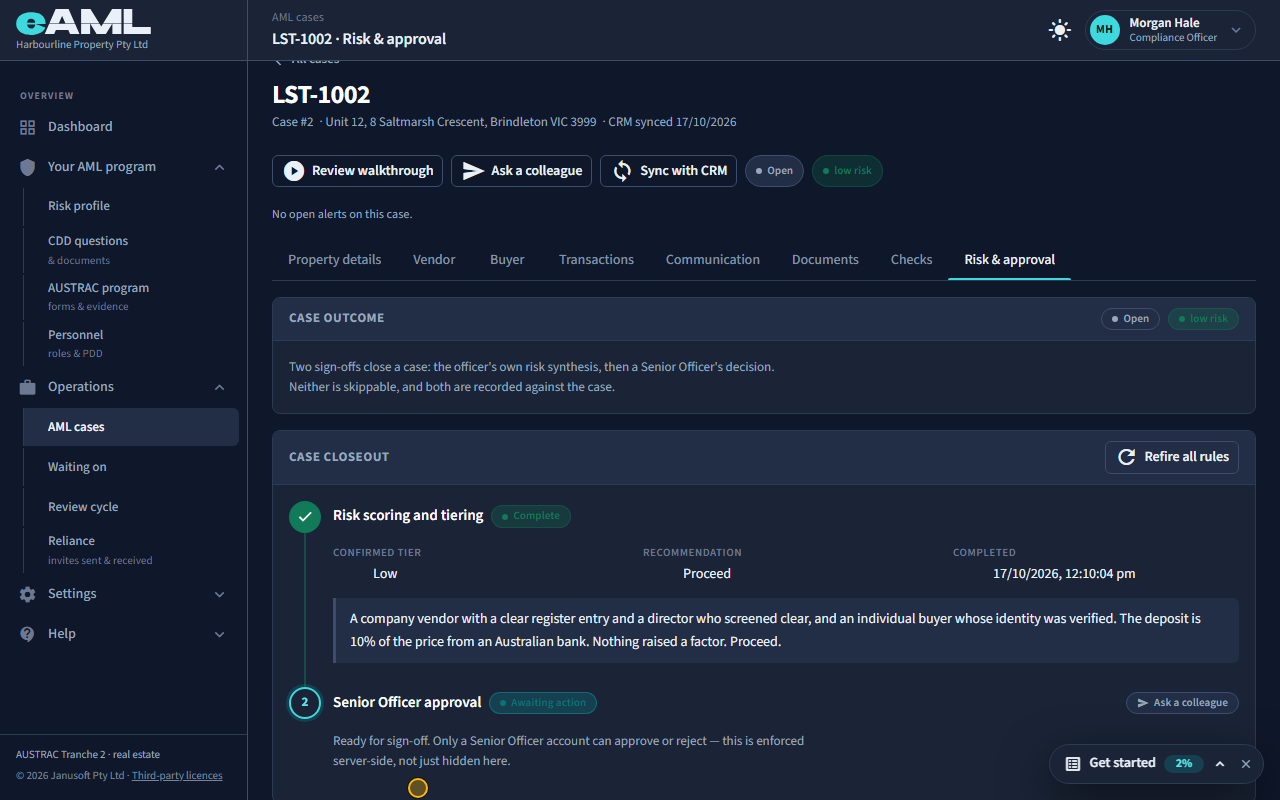
Open Risk & approval, check the tier and the recommendation, write your reasoning, and select Complete risk tiering.
When every step is finished, the Risk & approval tab is where you confirm the case’s rating. The automated rating is already filled in. Confirm it or change it, choose a recommendation, write your reasoning, and select Complete risk tiering (T29). If anything is unfinished, eAML lists exactly what it refused on.
-
The senior manager’s decision Senior manager
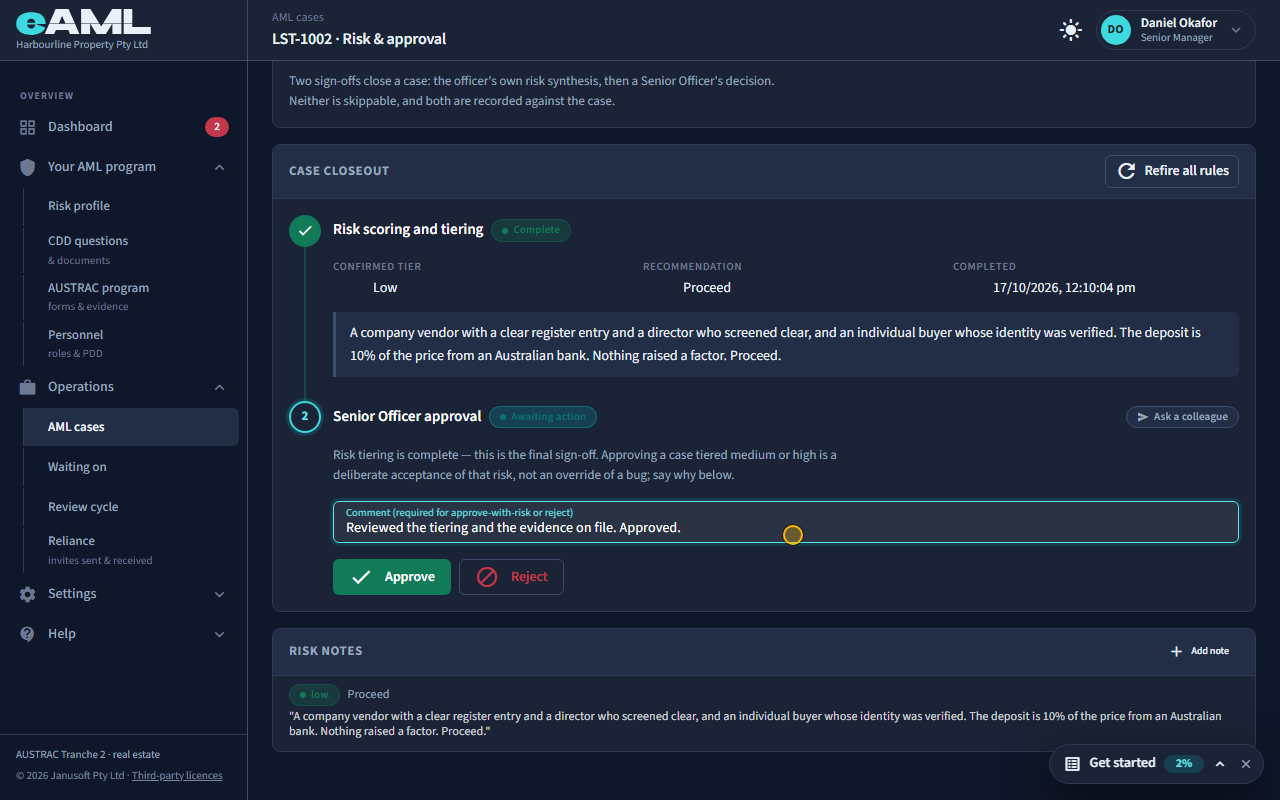
Open the case’s Risk & approval tab, write a comment, and select Approve.
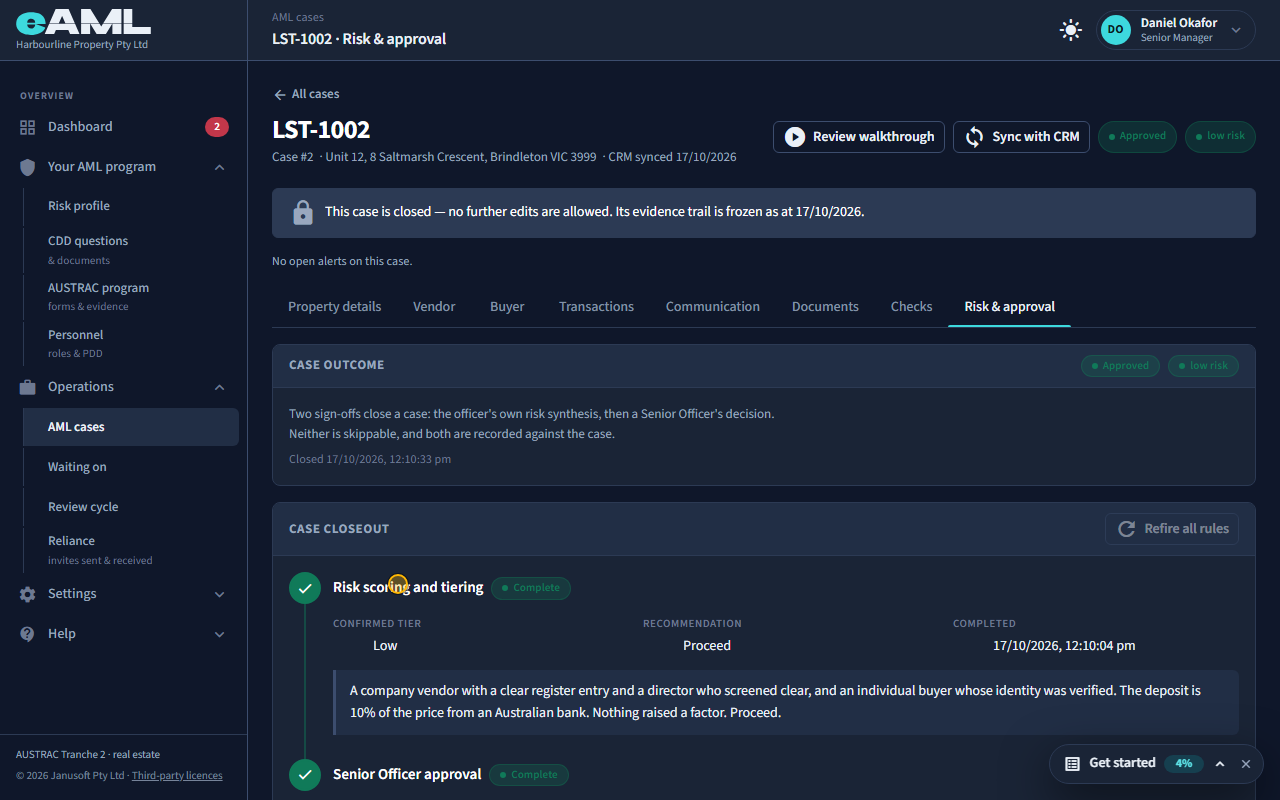
The second sign-off is a senior manager’s. They open the case’s Risk & approval tab, read the tiering, write a comment, and select Approve (or Reject, with the reason). The case becomes Approved and closed, and the first periodic review of the vendor and the buyer is scheduled. After settlement the case is a record: the evidence trail is frozen as at the day it closed.
Every screen in this guide was captured from the live application in the same run as the video, so the two always match. If a screen here no longer matches what you see, tell us: the guide is regenerated after each release.