Guide · T25
Owners and officers: their own checks and forms
Before you start
- A company customer on a case, with its owners and officers recorded under Beneficial ownership (T24)
-
Who gets their own checks
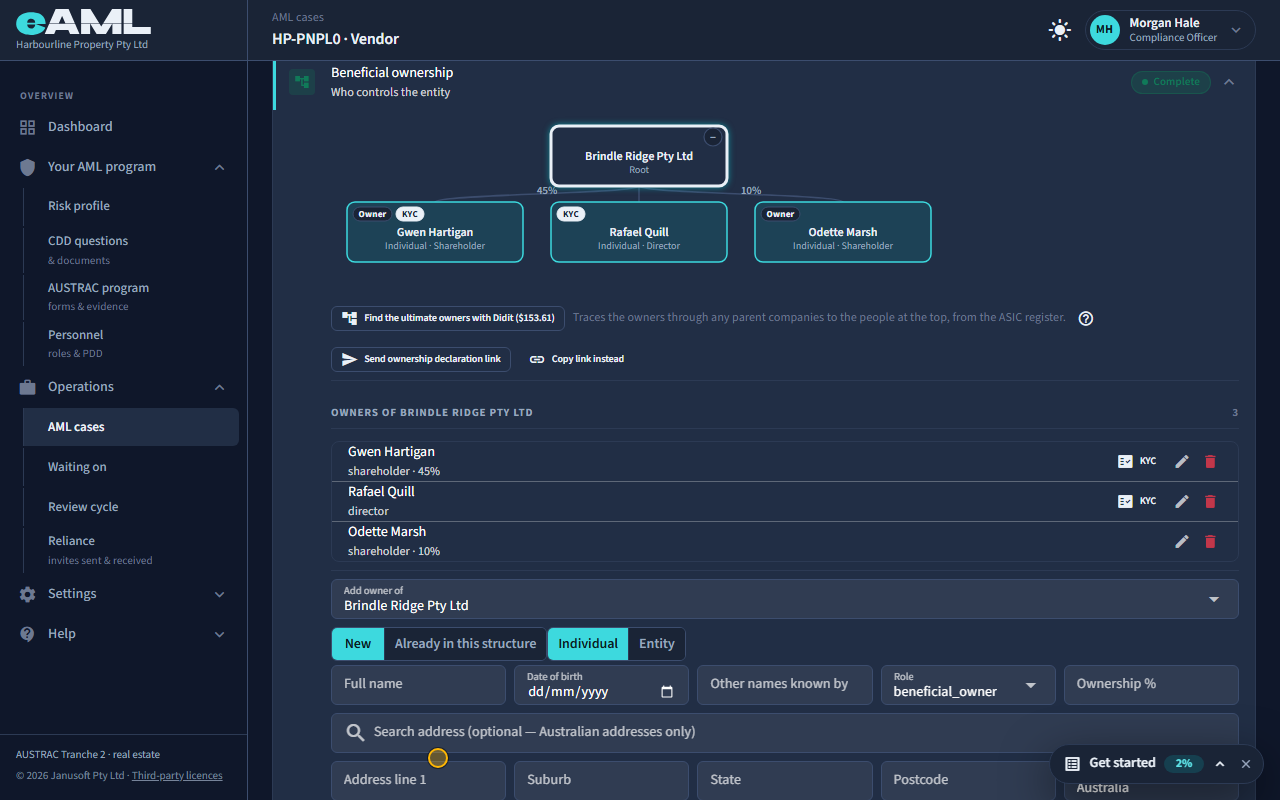
Open the company’s Beneficial ownership stage and look at which owners carry a KYC badge.
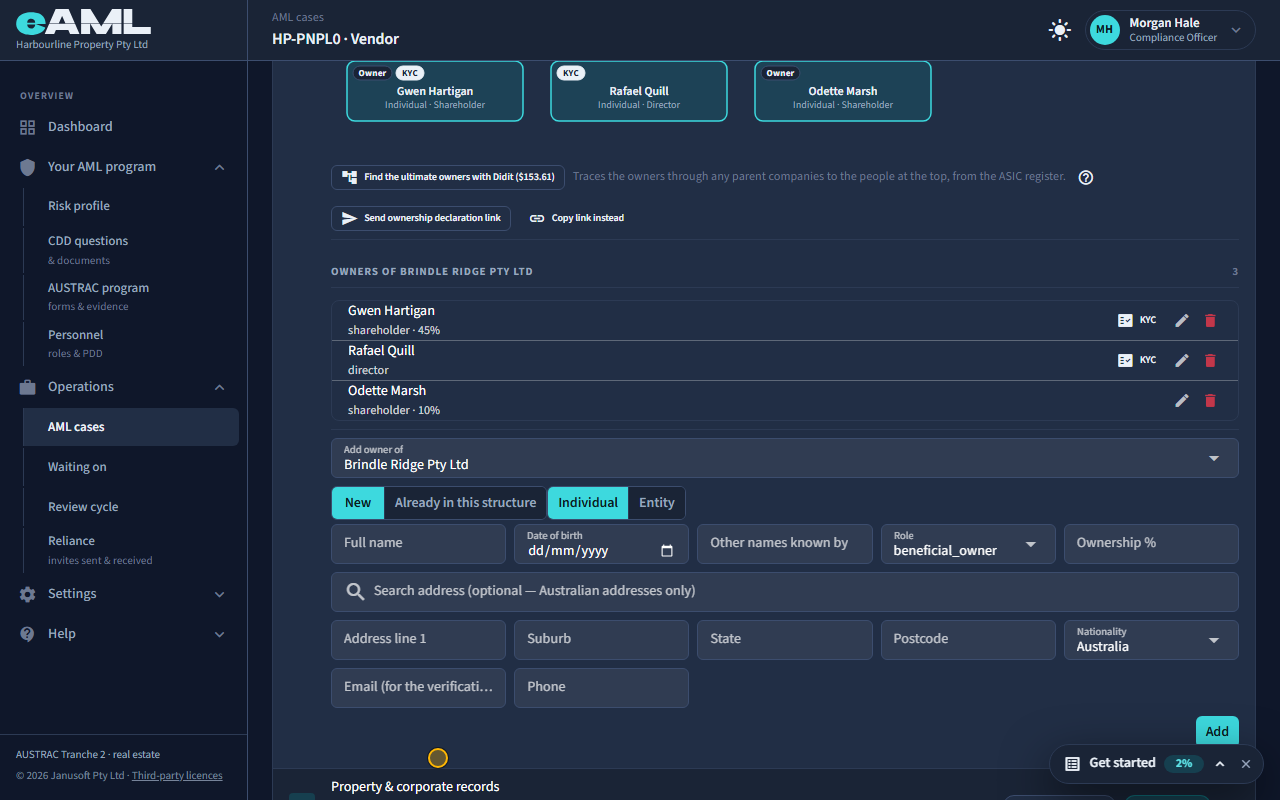
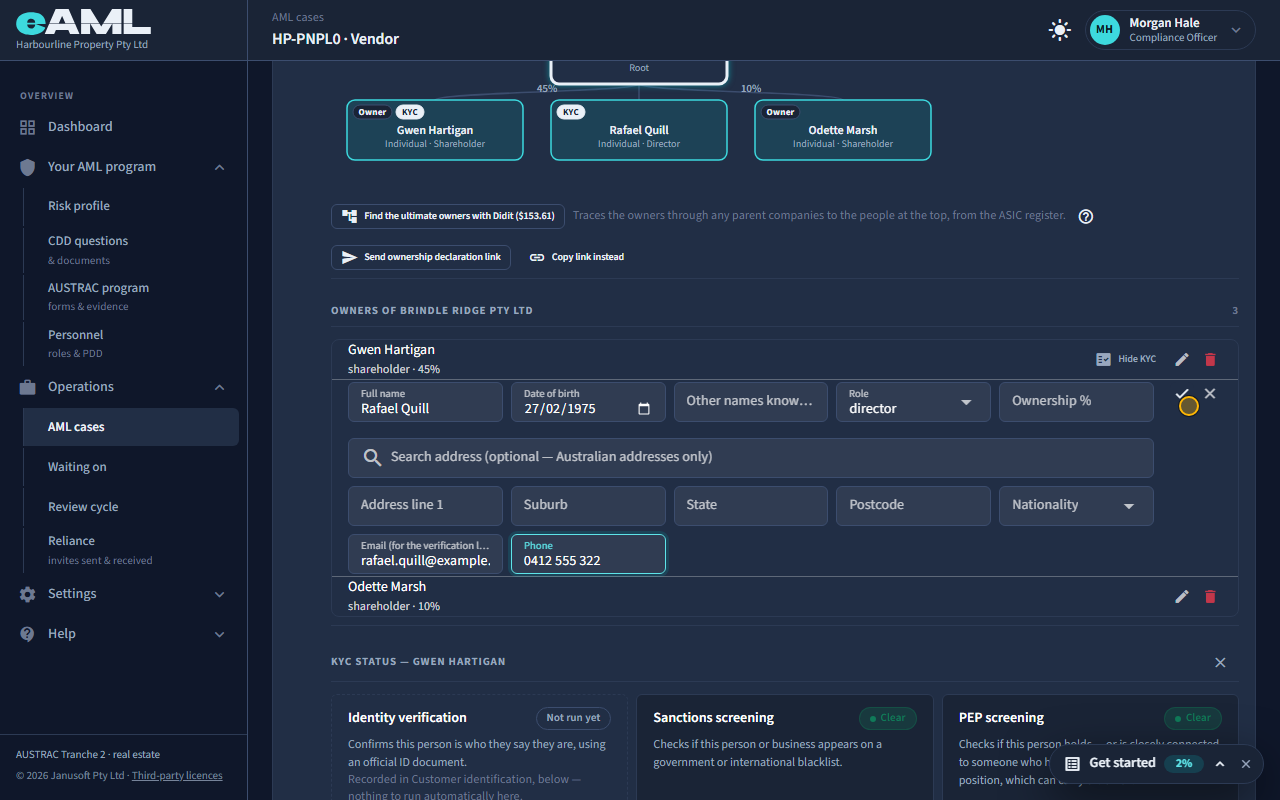
On a company’s Beneficial ownership stage, an owner or officer is enrolled for their own checks when they hold 25% or more, or hold a control role: a director, secretary, trustee, senior managing official, partner, appointor, settlor, protector, guardian or beneficiary, or are recorded as a beneficial owner. The diagram marks them KYC (a person) or KYB (a company), and the Owners list has a KYC button beside them. Gwen holds 45% and Rafael is a director, so both are enrolled. Odette holds 10% as a shareholder: she is recorded, but there is nothing to check for her.
-
An owner’s KYC panel
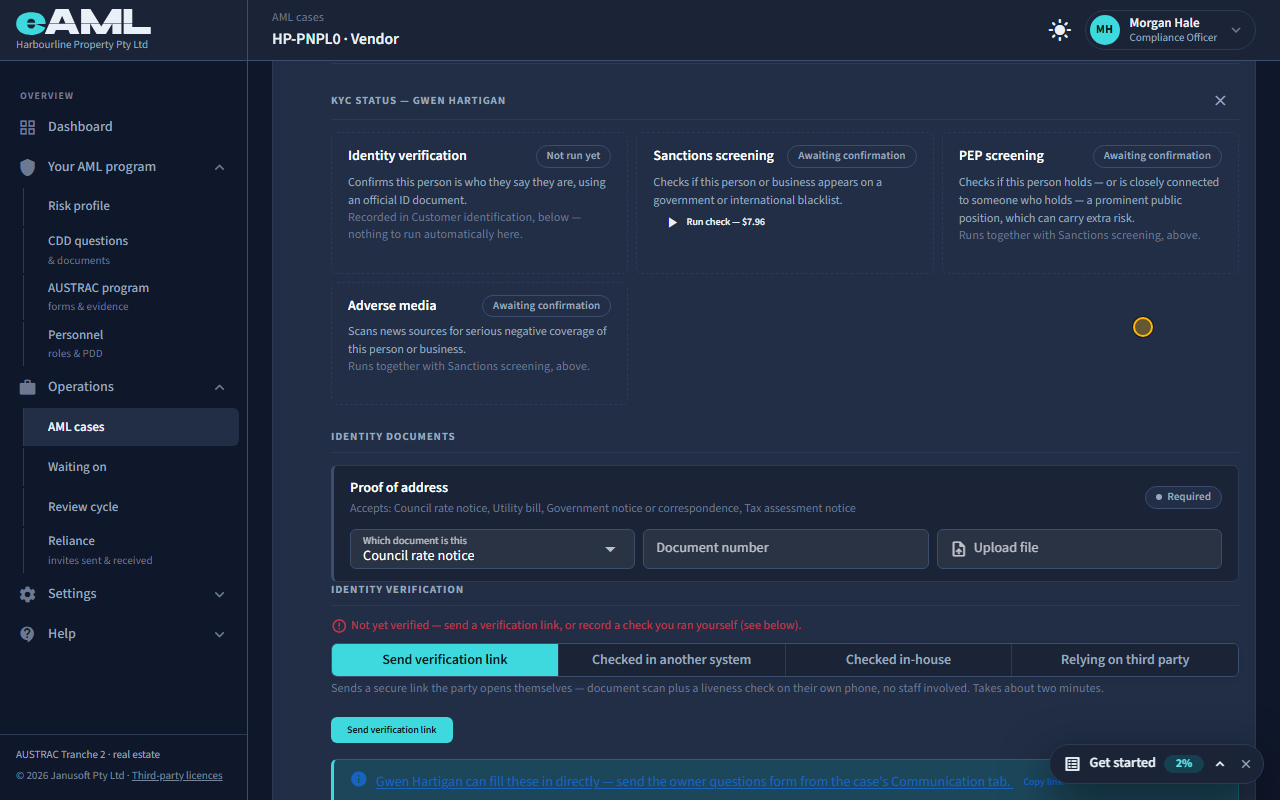
Select KYC beside the owner, and read the checks that open.
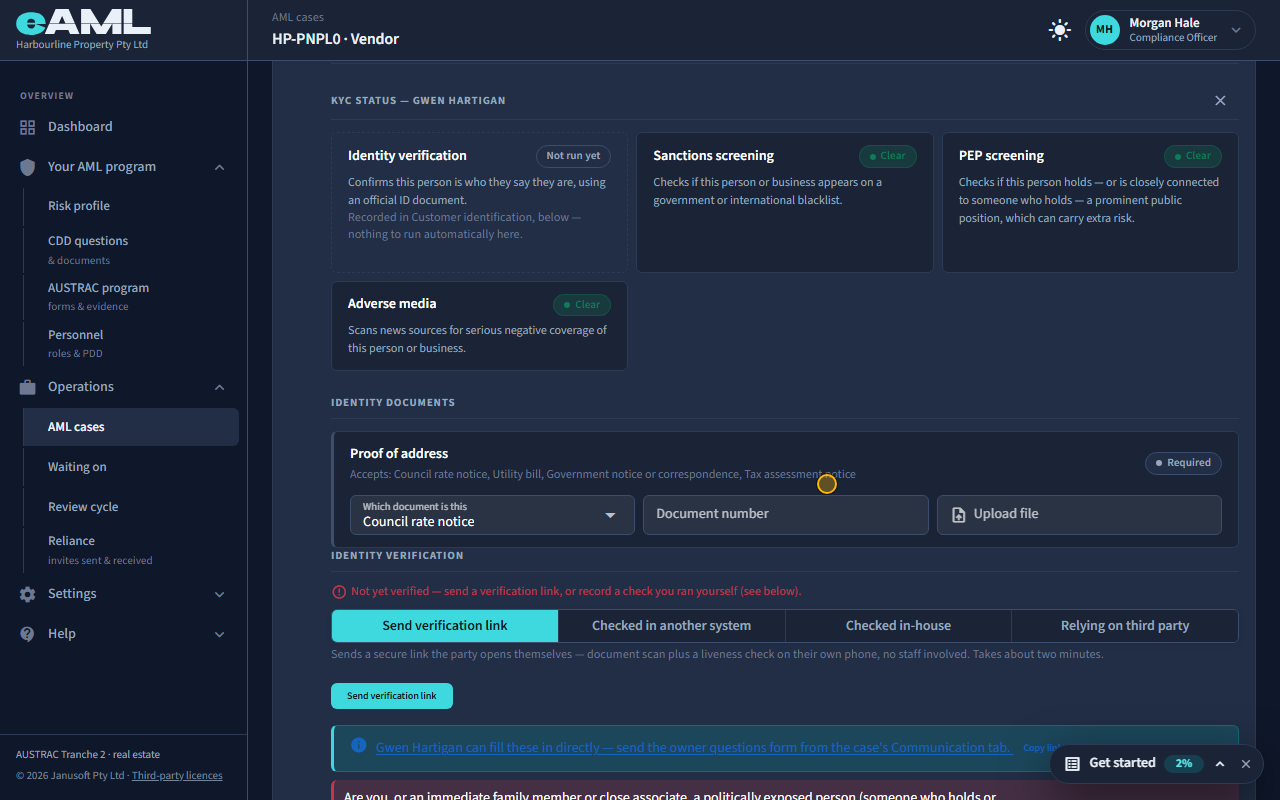
Select KYC beside an owner and their KYC status opens under the list: the same checks a customer gets. Identity verification is recorded the same four ways (T22). Sanctions, PEP and adverse media are run together with Run check, which shows its price (T23). Below them are the owner’s identity documents and their own questions form. A person’s screening hit is reviewed from this panel in the same way as the customer’s.
-
The owner questions form
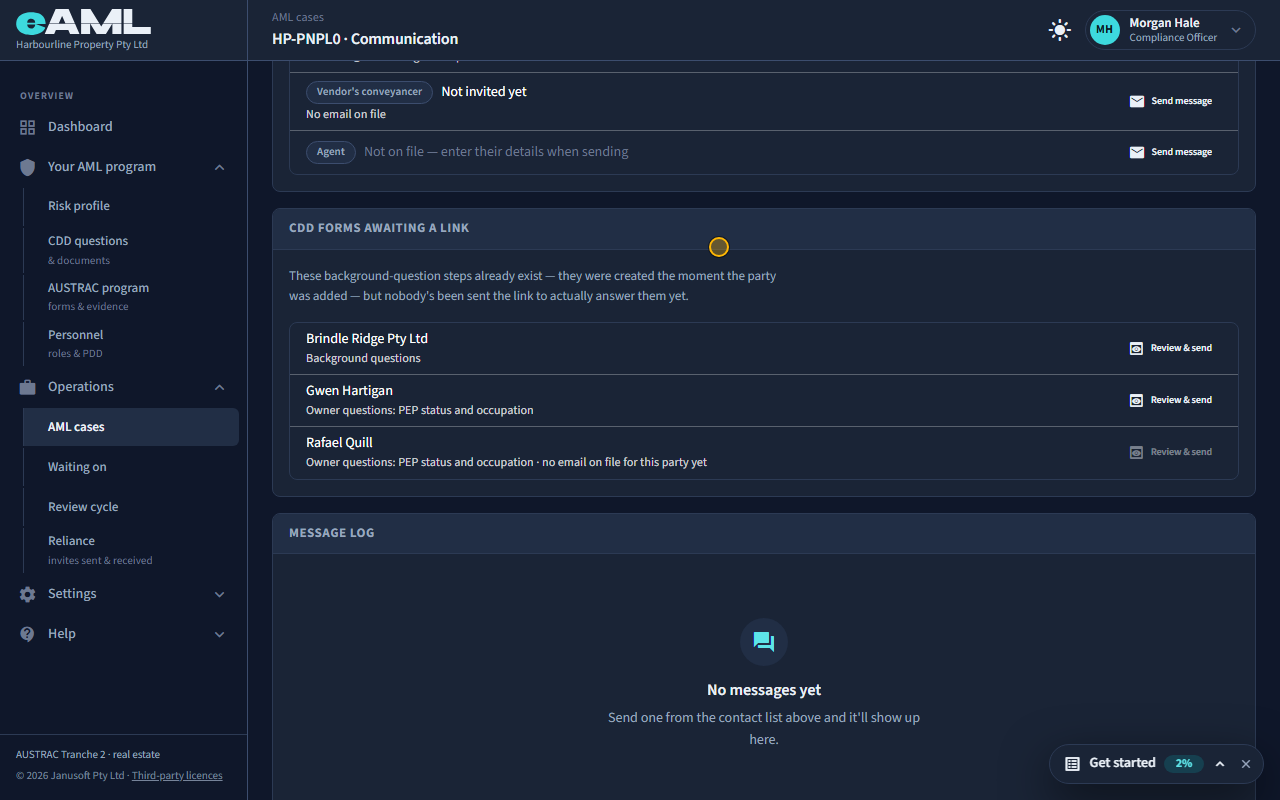
Select the banner (or open the Communication tab), then Review & send beside the owner, and Send.
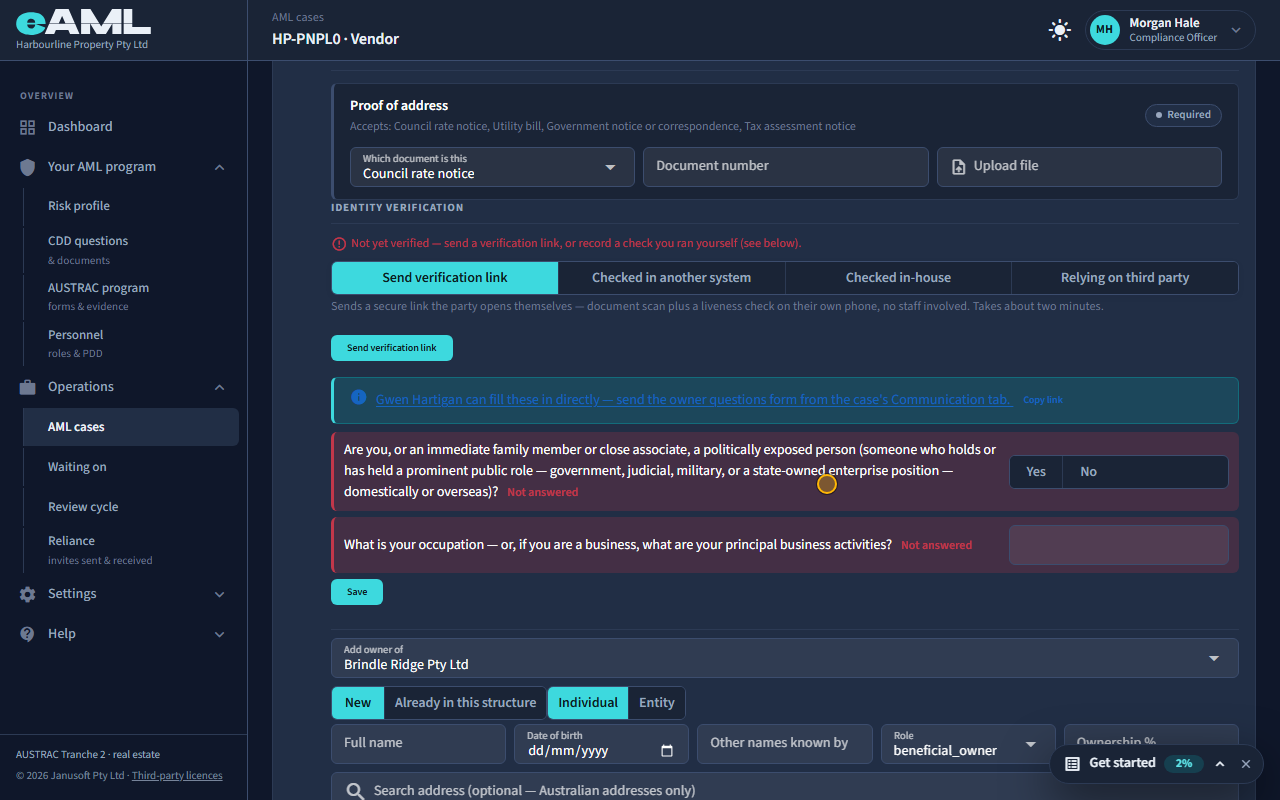
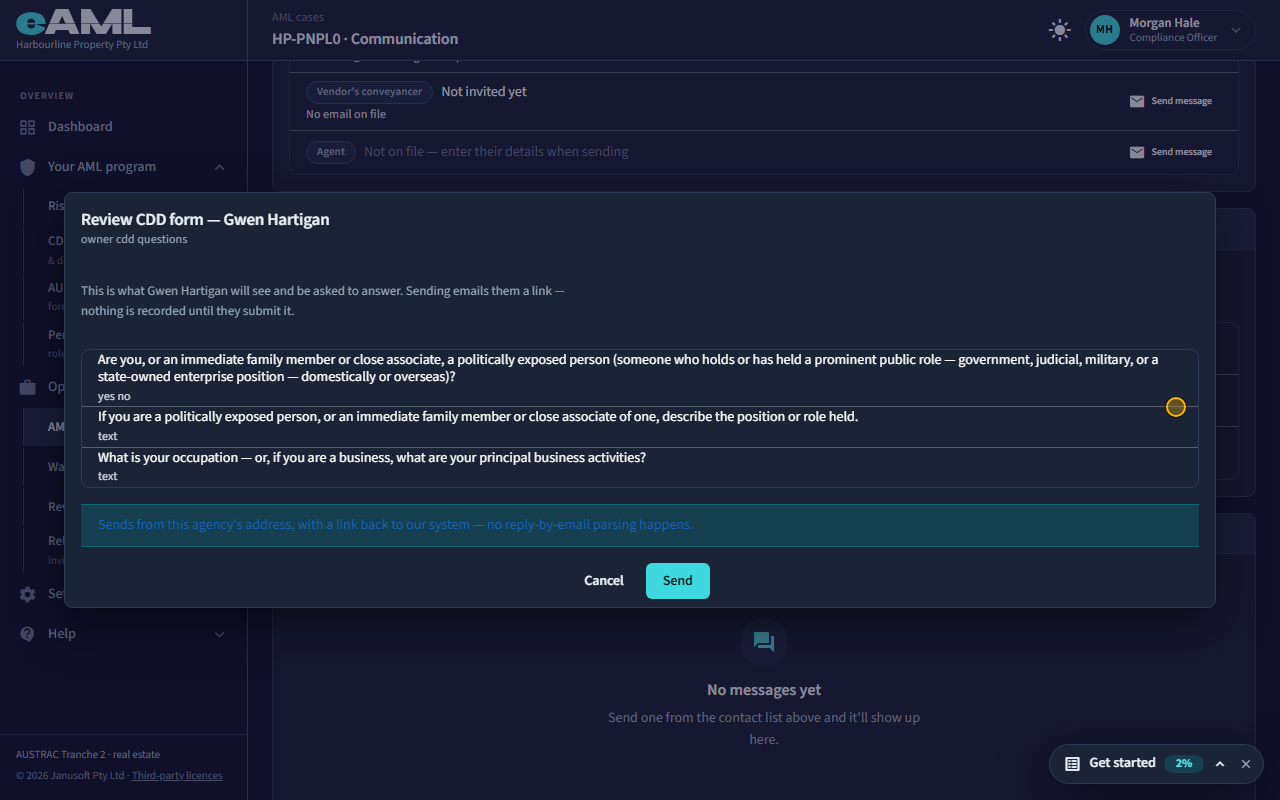
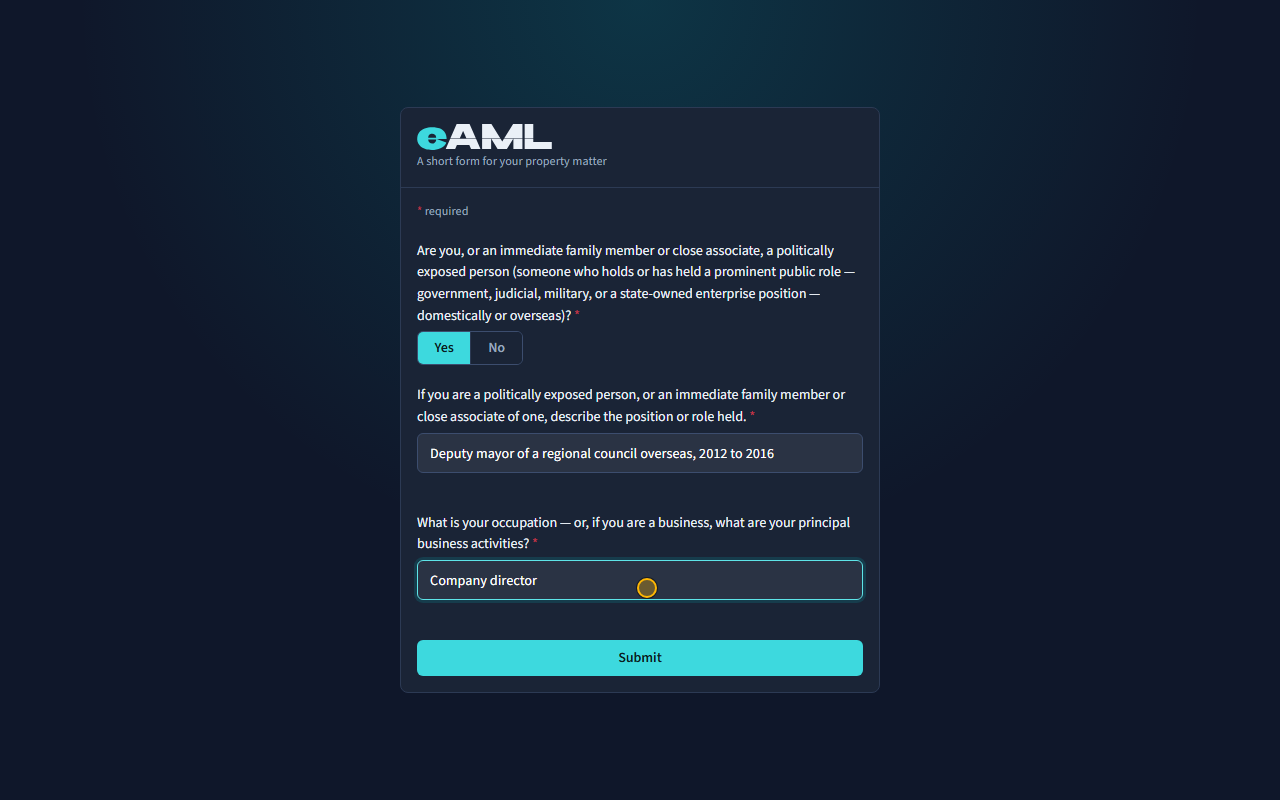
Each enrolled owner has a short form of their own: whether they are, or are related to, a politically exposed person, and their occupation. They can answer it themselves. A banner under the panel says so, and where: the form is sent from the case’s Communication tab, where it is listed under CDD forms awaiting a link as Owner questions: PEP status and occupation. Select Review & send, check the questions, and select Send.
-
An officer with no email address
Under Beneficial ownership, select the pencil beside the officer, add an email, and select the tick.
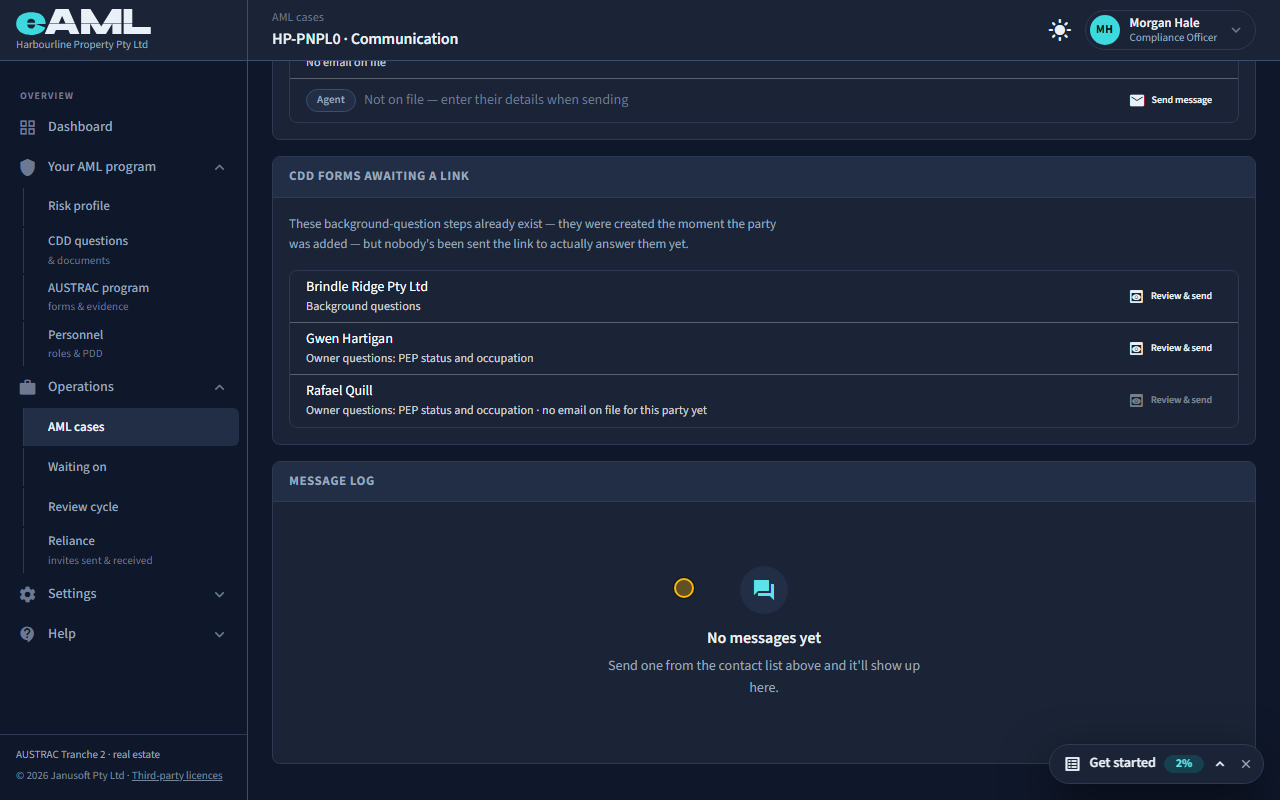
A form can only be emailed to an address on file, and the register lists officers by name and role only, so an officer you added from a company check or by name has none. Rafael’s row says so and Review & send is disabled. Add his email where he is listed: under Beneficial ownership, select the pencil beside him, fill in Email and Phone, and save. Or copy the link from his card and send it yourself.
-
What the owner sees The owner
The owner opens the link and answers the form.
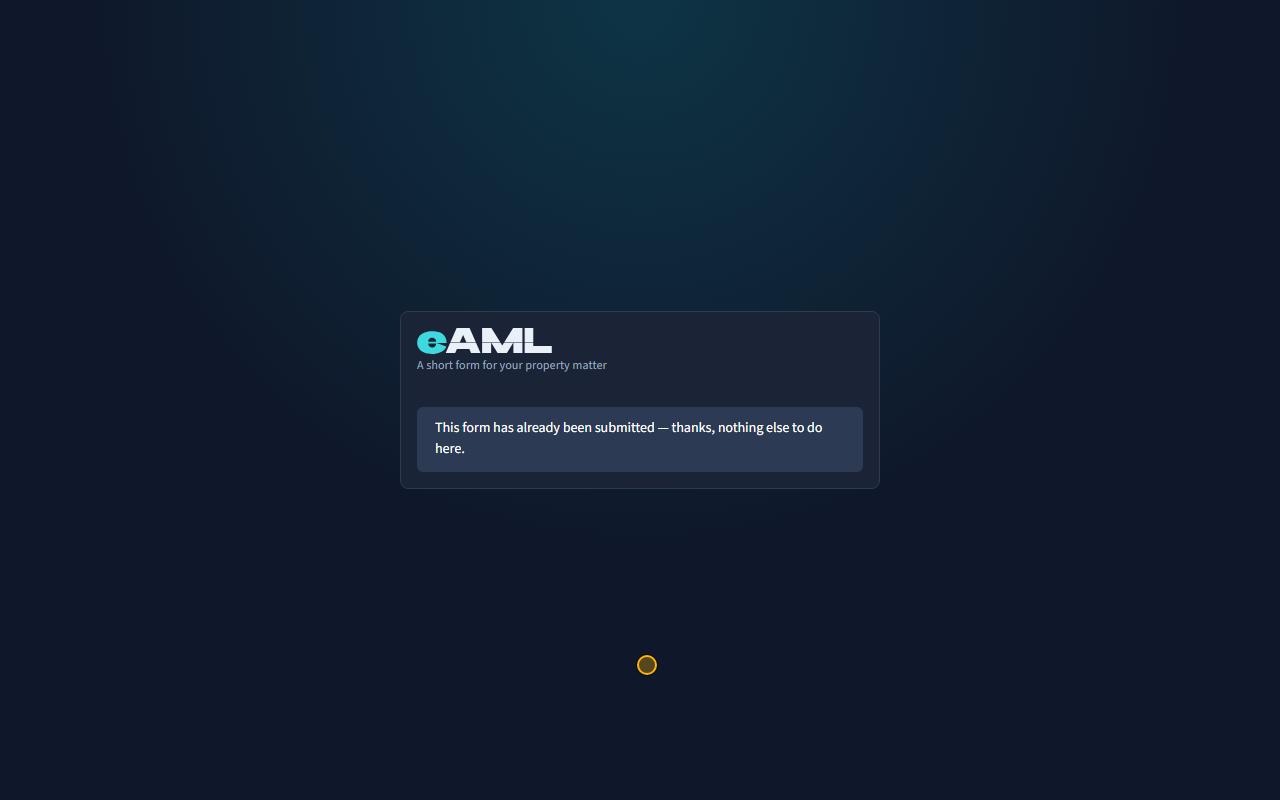
The owner receives an email with a link and opens it on any device, with no account and no password. They see only their own short form: the questions, a Yes and No for the PEP question, and a Submit button. Their answers come back to you for confirmation. Some count toward a rating as soon as they arrive, but they are your record only once a member of staff adopts them. If you also want their identity checked, send the identity link from their panel: they scan their document and take a selfie on their phone (T22).
-
What an owner’s answer does to the case
Open the case’s Risk & approval tab, then Gwen’s KYC panel under Beneficial ownership.
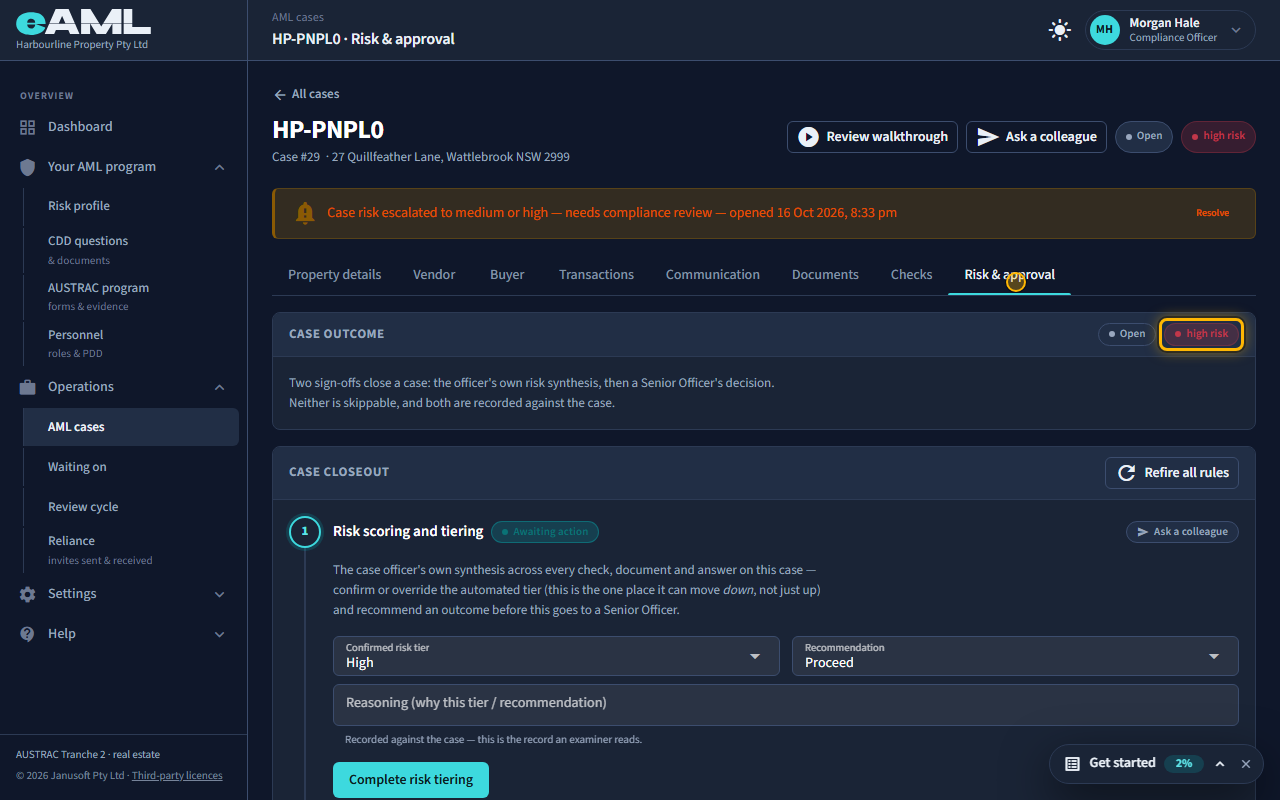
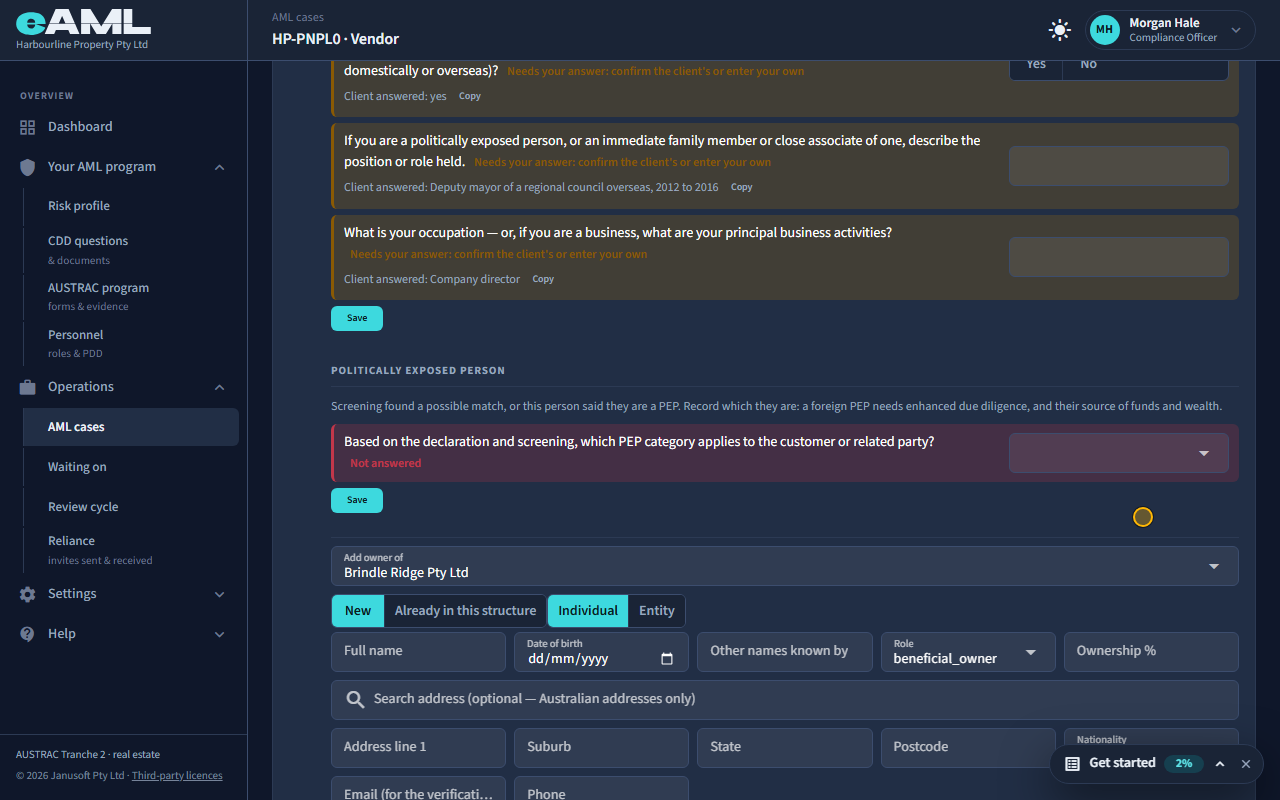
An owner or officer is judged like the customer. Gwen said she is a politically exposed person, and a rule read that as soon as the form arrived: it raised Gwen’s own rating to high, and a case takes the highest rating of anyone on it, so the Risk & approval tab now shows the whole case as high risk. Her KYC panel also asks you to record which kind of PEP she is, because a foreign PEP among the owners needs enhanced due diligence (T23).
-
Make the owner’s answers your own
In the owner’s KYC panel, select Copy beside each answer and select Save.
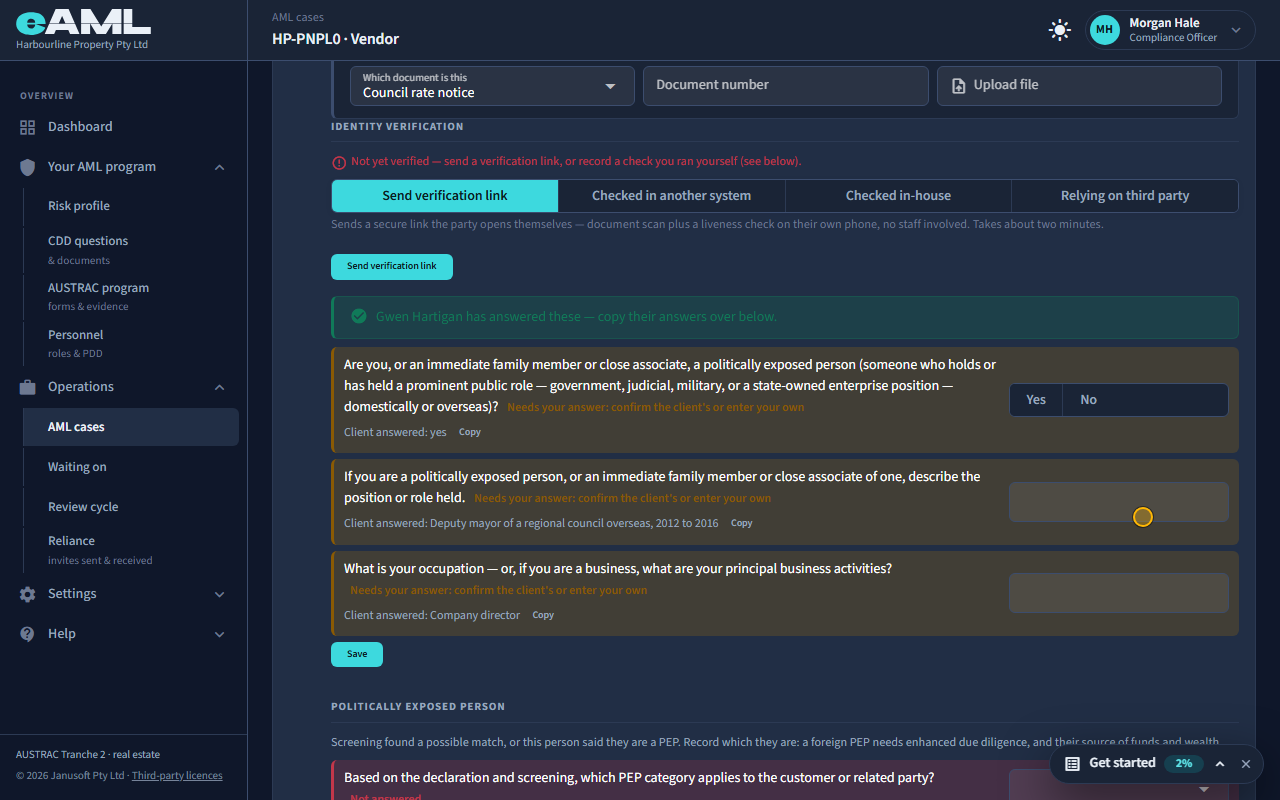
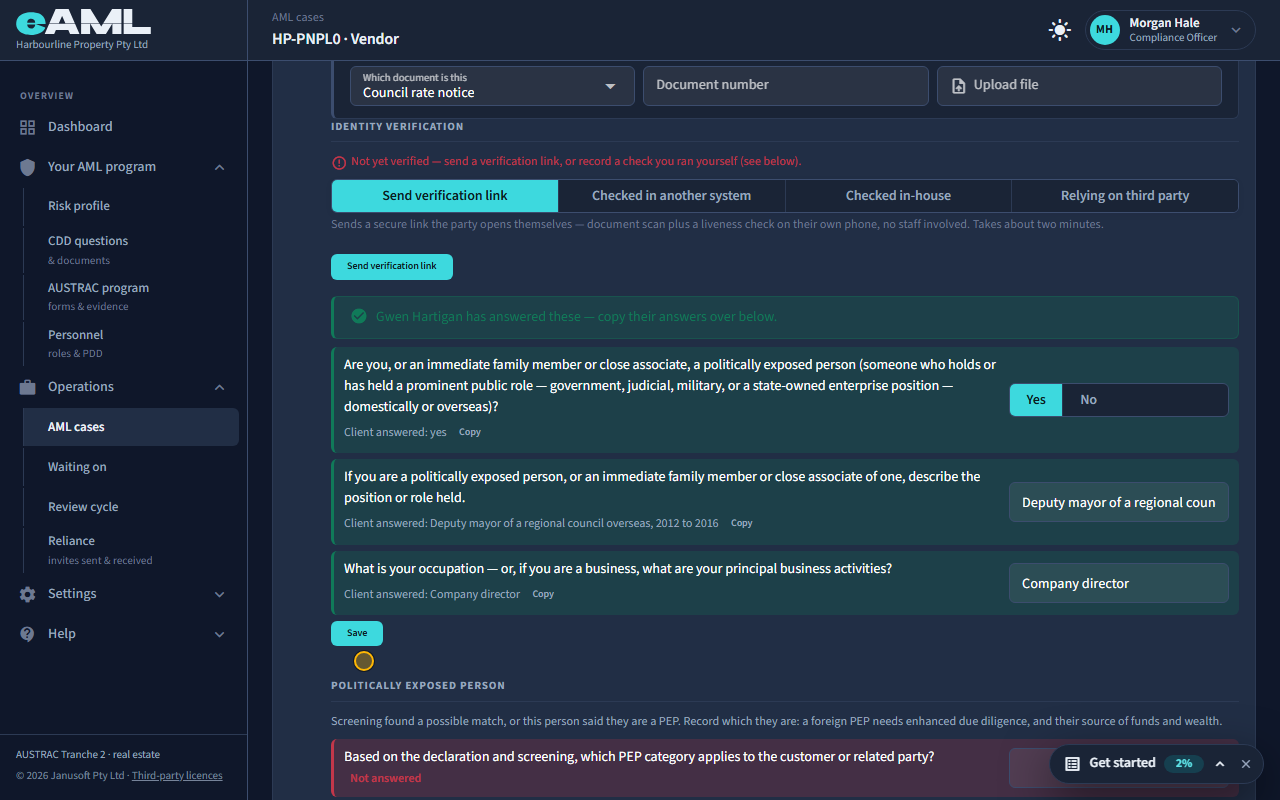
Gwen’s answers are still hers, not your record. Under her KYC panel each question shows Client answered, with a Copy button, and says it needs your answer. Select Copy beside each answer, check them, and select Save: they become your firm’s answers and the questions turn green. Then record her PEP category in the Politically exposed person question.
Every screen in this guide was captured from the live application in the same run as the video, so the two always match. If a screen here no longer matches what you see, tell us: the guide is regenerated after each release.