Guide · T33
Sharing a case with another firm (reliance)
Before you start
- Two firms on eAML: a real estate agency with a sale, and a conveyancer acting for the buyer
- A compliance officer at each, and a senior manager at the agency
-
Invite the buyer’s conveyancer Compliance officer at the agency
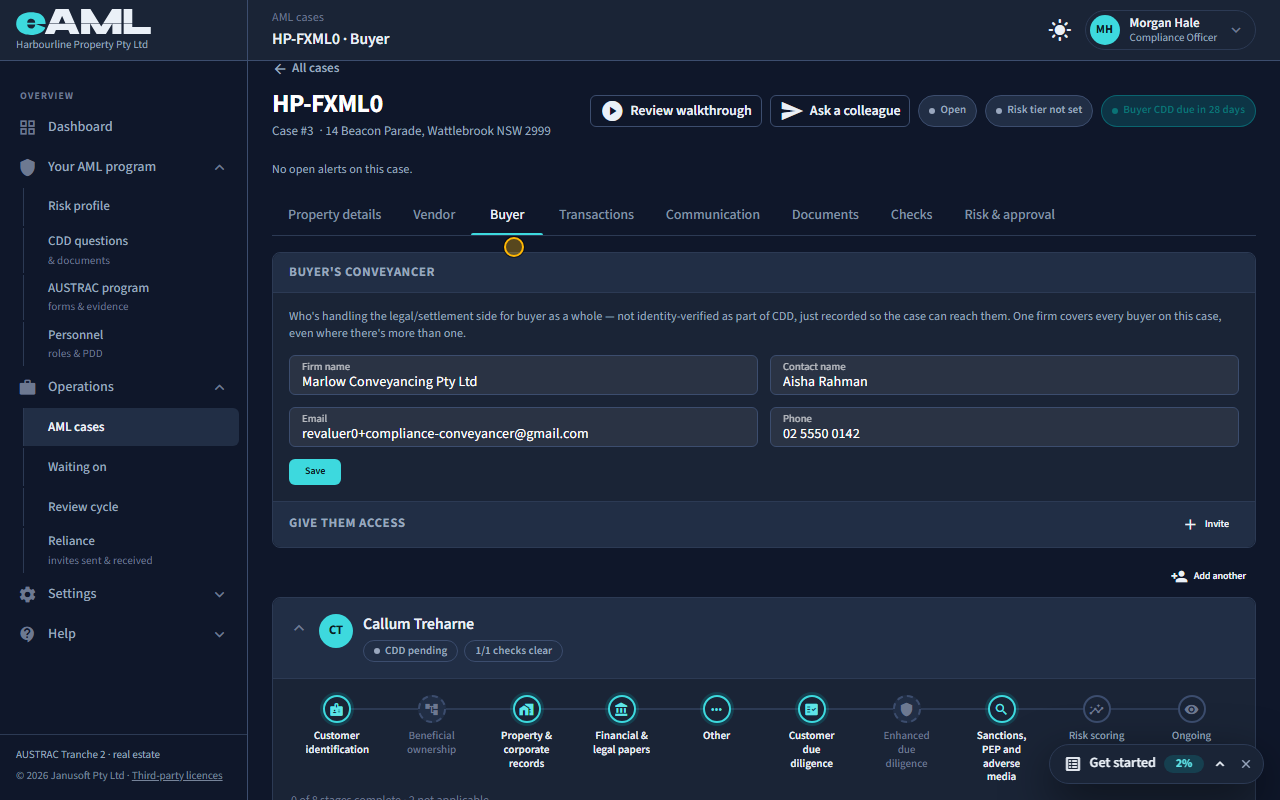
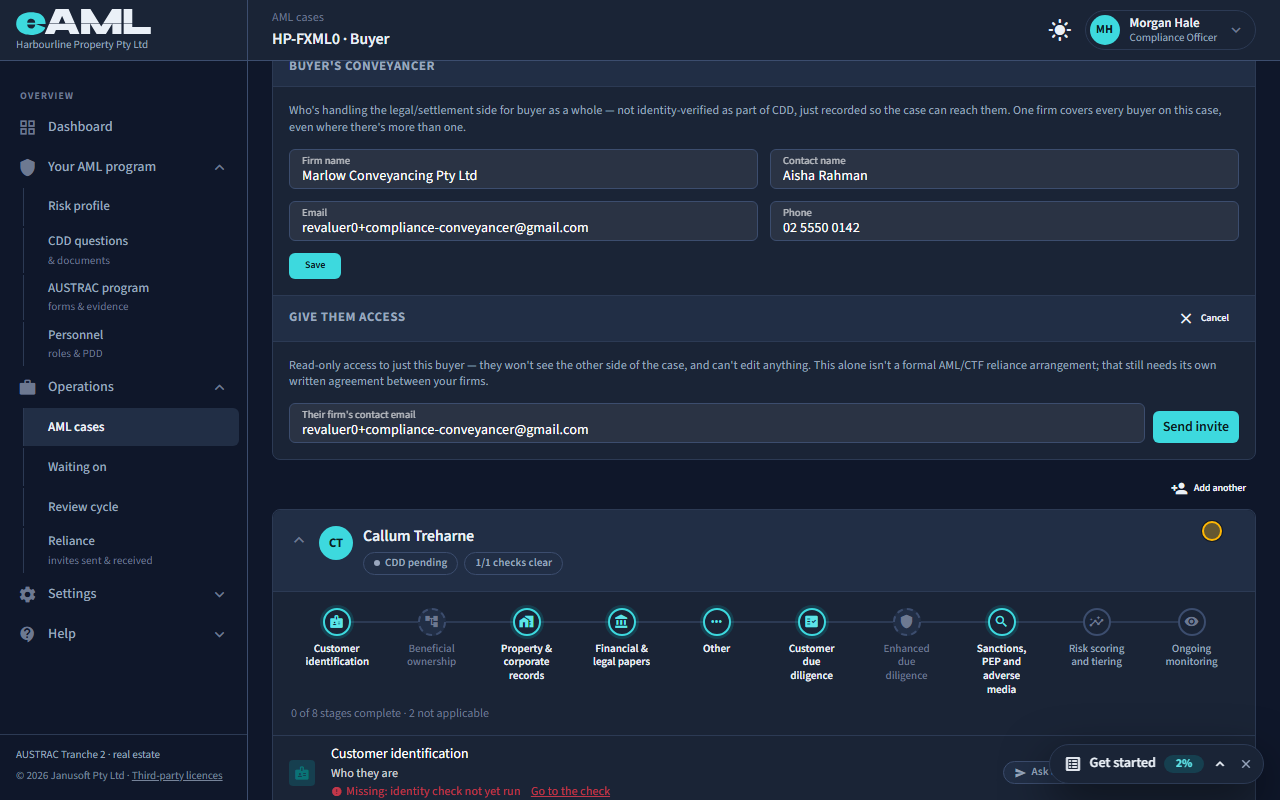
On the case, open the Buyer tab, select Invite under Buyer’s conveyancer, check the email, and select Send invite.
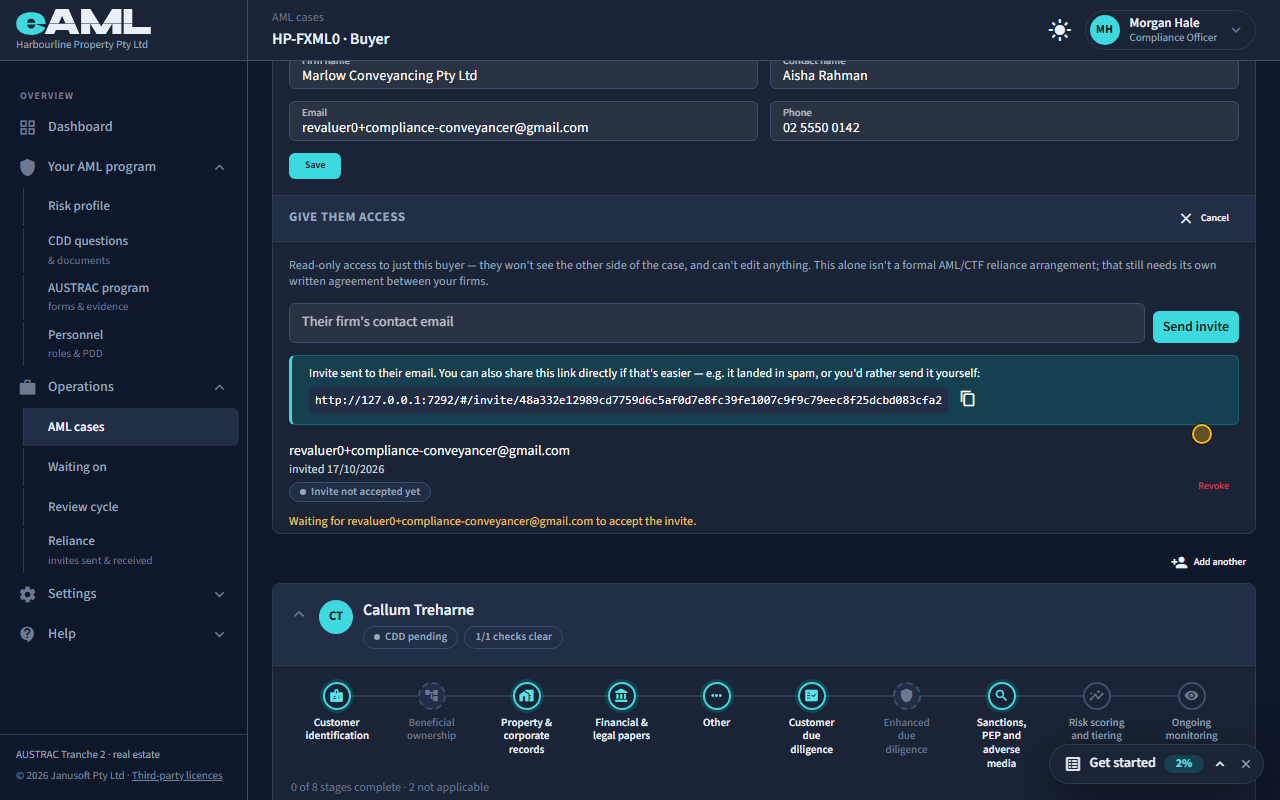
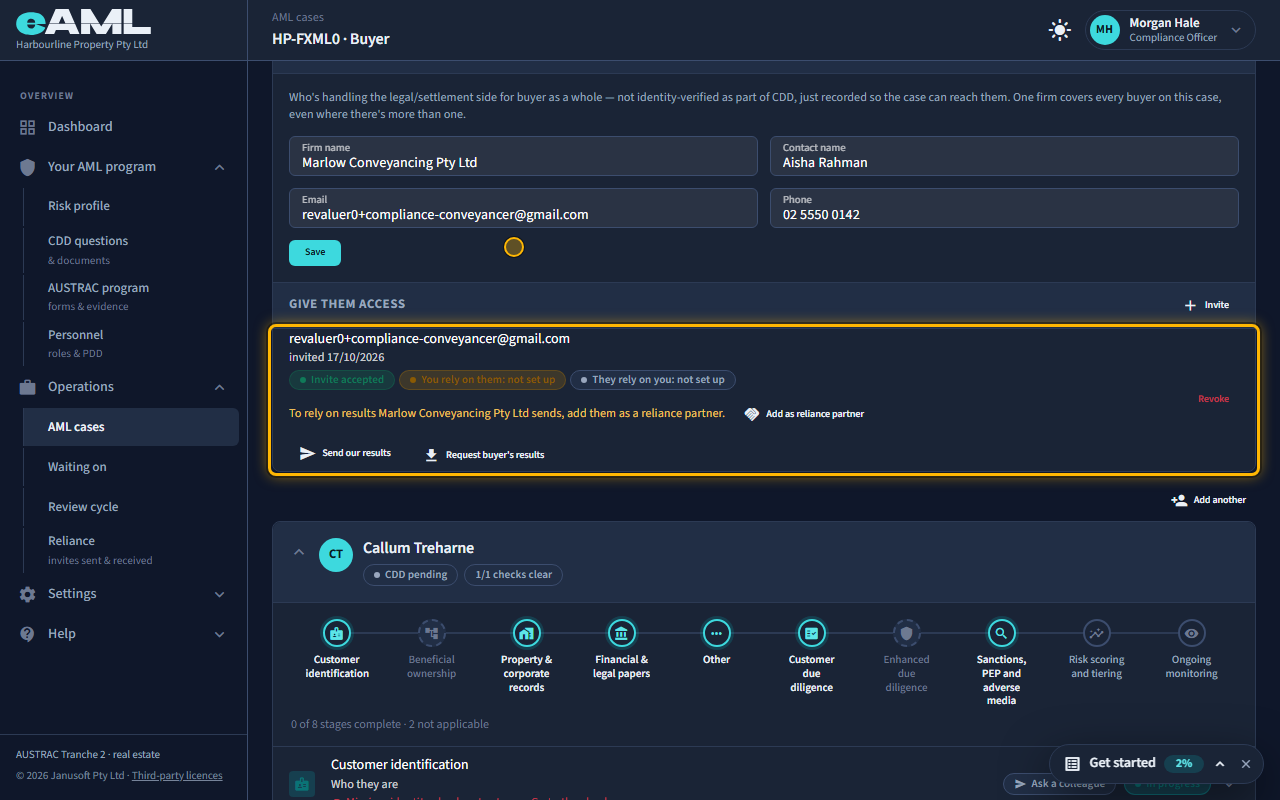
The agency and the buyer’s conveyancer are two separate AUSTRAC reporting entities on the same sale, each responsible for its own customer due diligence. To work from the same facts, the agency can share the buyer’s side of its case. On the case, open the Buyer tab: the Buyer’s conveyancer card records who is handling the buyer’s side, so the case can reach them (nothing about them is checked), and Give them access under it invites that firm. Select Invite, check the contact email (it starts as the email on the card above), and select Send invite. They are emailed a link, and the same link is shown on screen if you would rather send it yourself. What the invited firm can open is a read-only view of the buyer’s own record only, identity, documents and progress: not the vendor’s side, and nothing it can edit. Sharing a case is not, by itself, relying on their checks: that comes later, in its own step. You can revoke an invite at any time.
-
What the other firm receives The buyer’s conveyancer
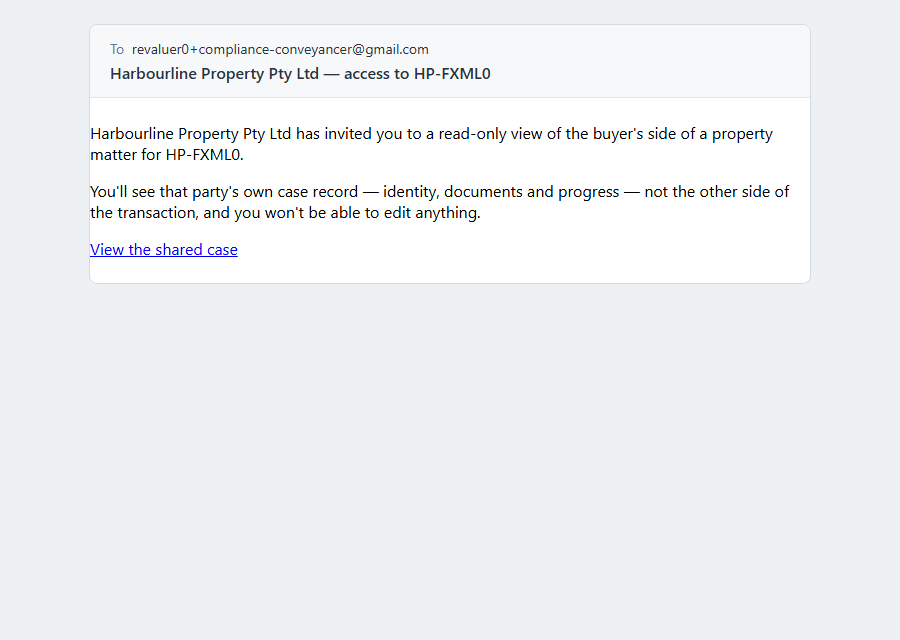
The email comes from your firm’s name, with the case reference in the subject, and replies go to the person who sent the invite. It says which side of the matter is shared, what the firm will and will not see, and carries the link that opens the invitation. The link has no time limit: it works until the invitation is accepted, declined or revoked.
-
Accept the invitation Compliance officer at the buyer’s conveyancer
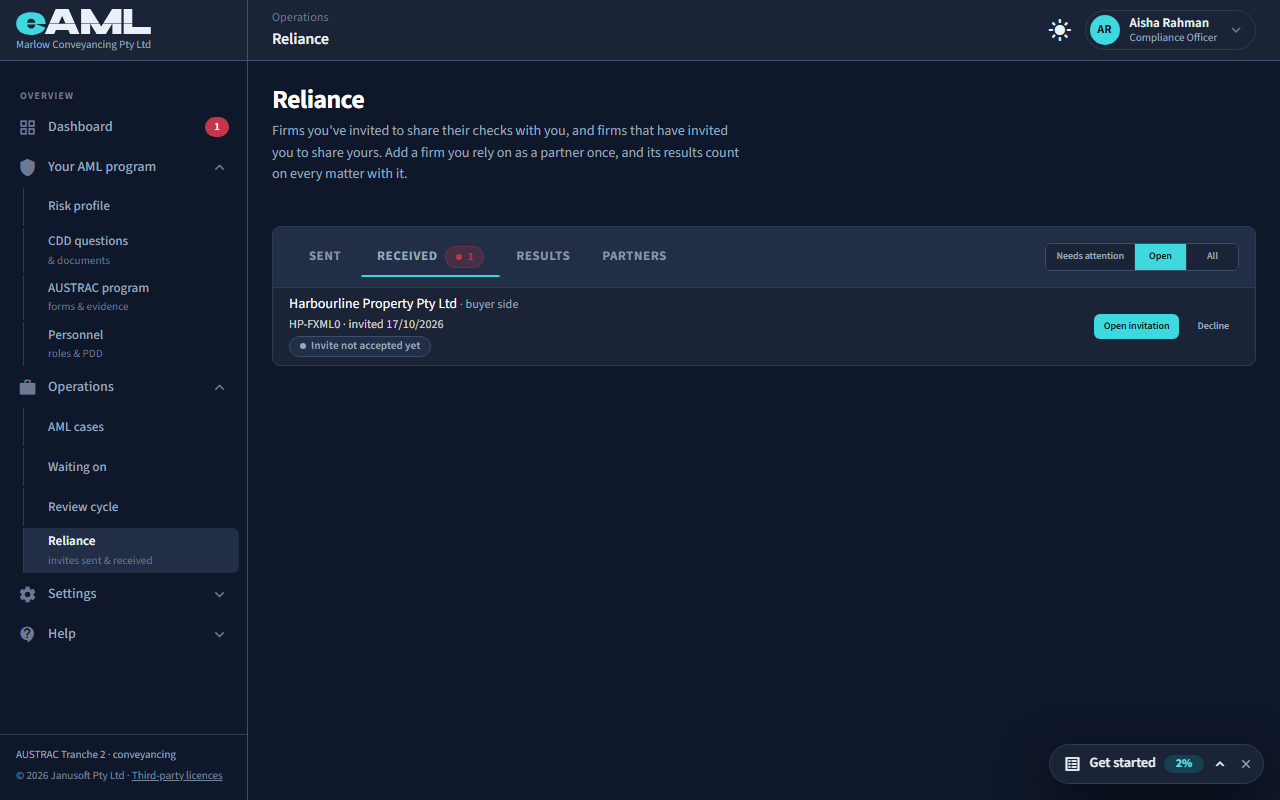
Open Reliance → Received, select Open invitation, then select Accept.
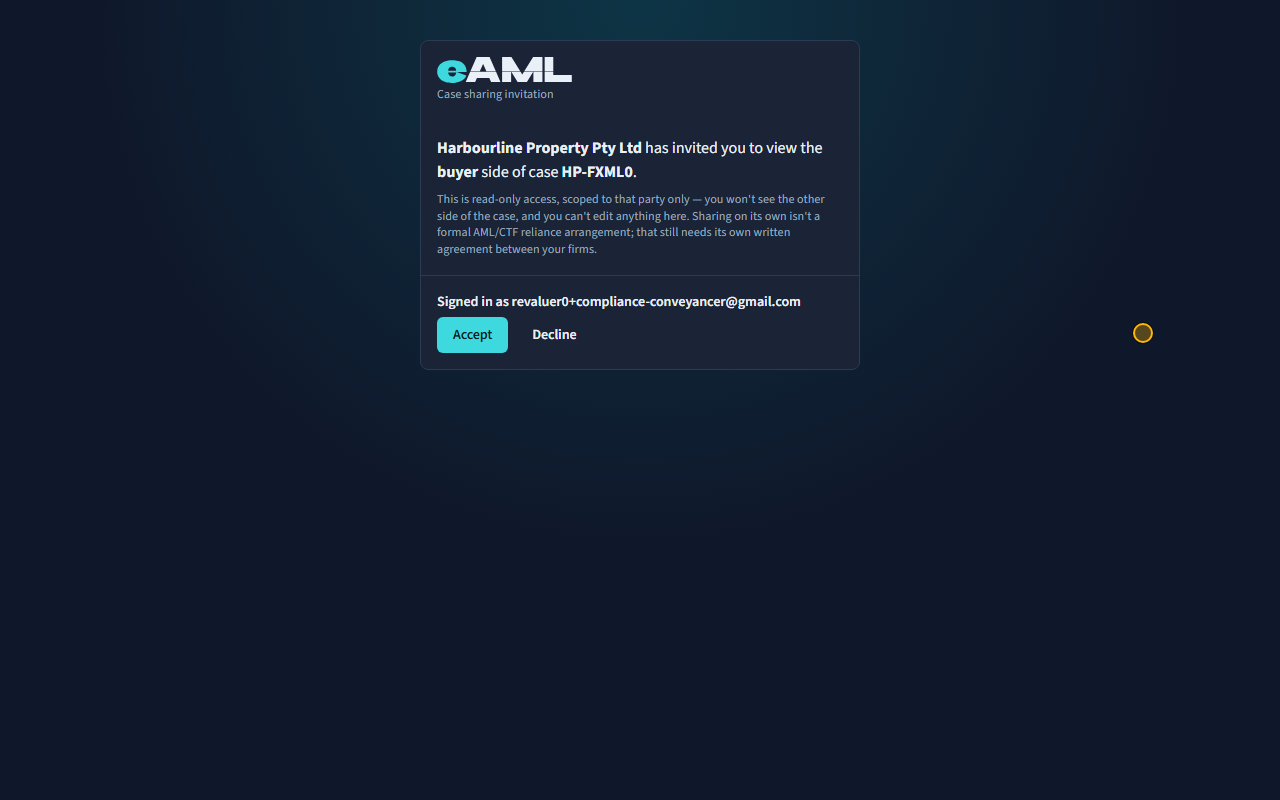
The invited firm finds its invitation in three places: the link in the email, Waiting for your action on the dashboard (Shared case invite), and Reliance → Received. Open it: the page names the firm that invited you, the side and the case, and says the access is read-only and limited to that side. When you are signed in as the address the invitation was sent to, select Accept. If you are signed in as someone else, eAML first emails a six-digit code to the invited address, so a forwarded link is no use to anyone else; a firm that is not on eAML yet can register from the same page. Only a compliance officer or a senior manager can accept for the firm. Select Decline if it is not for you. The firm that invited you is emailed when you accept.
-
What the invited firm sees Compliance officer at the buyer’s conveyancer
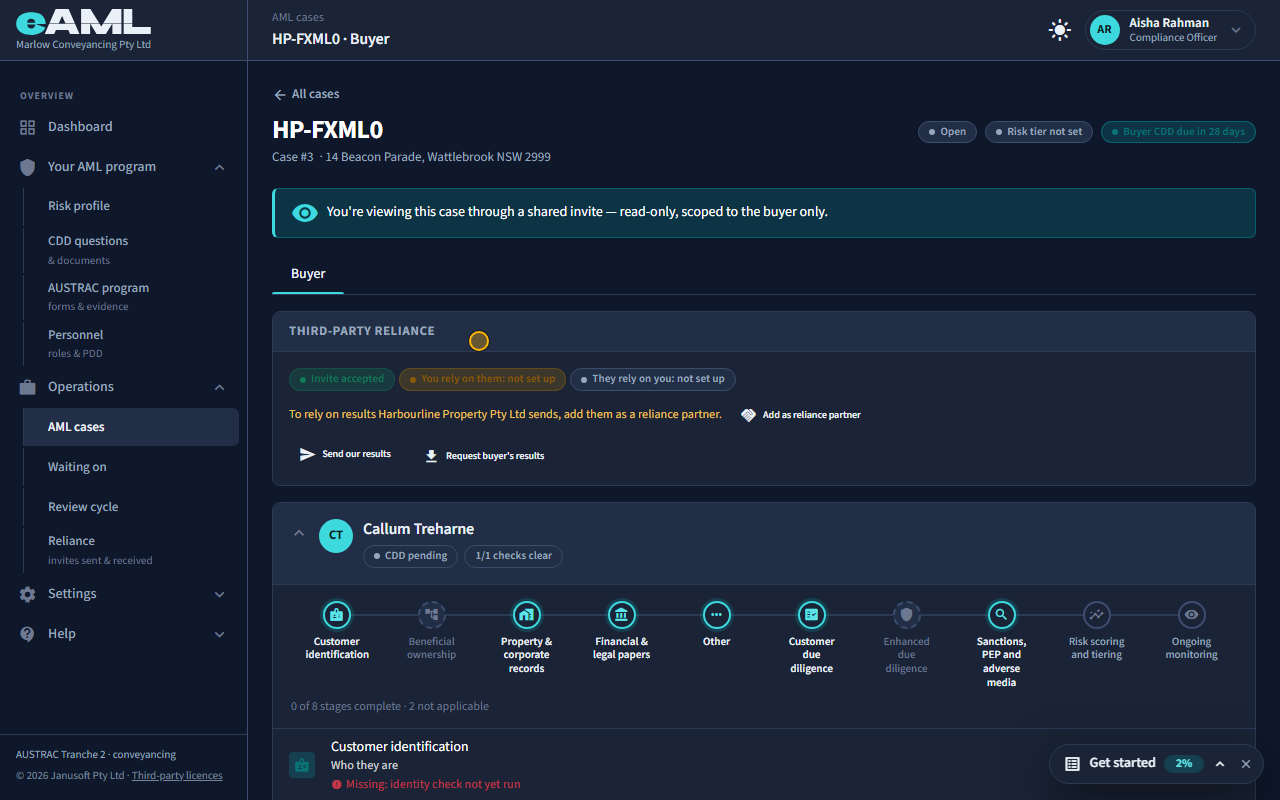
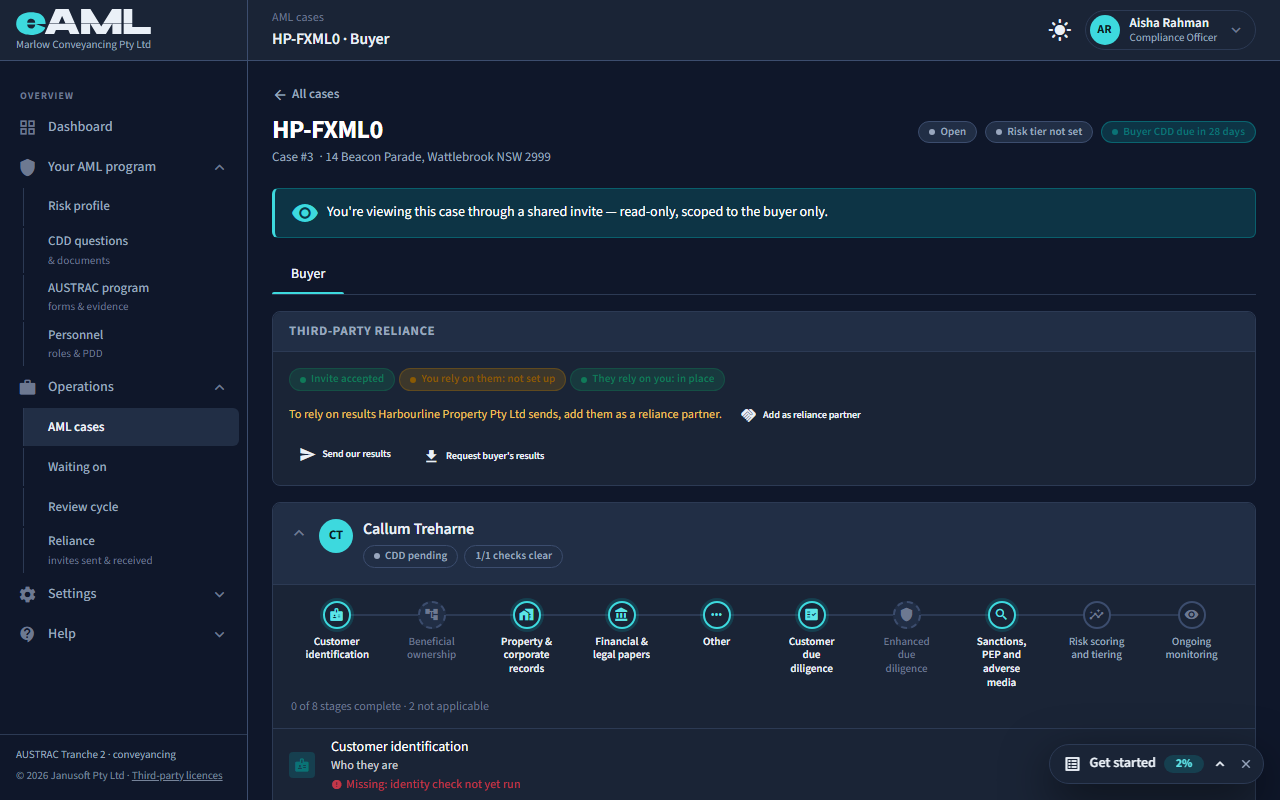
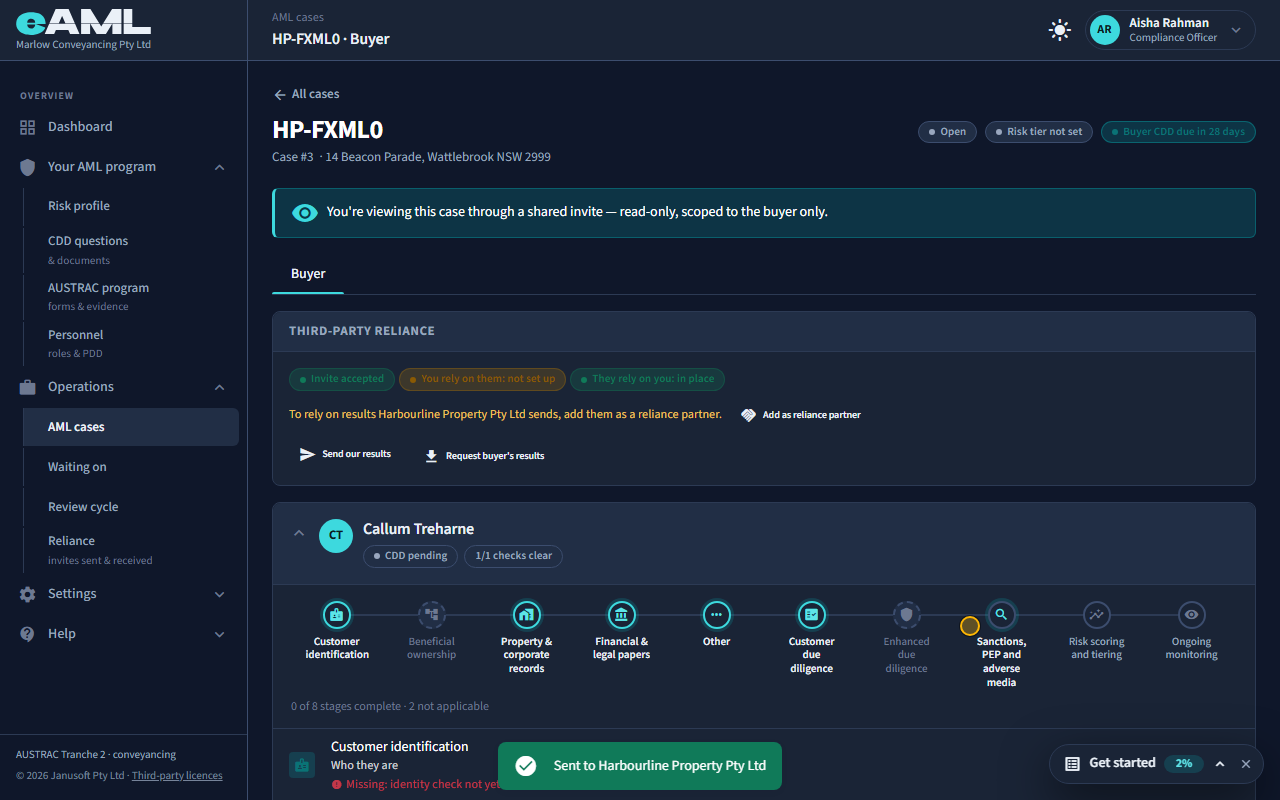
Read the banner, then the Third-party reliance card on the Buyer tab.
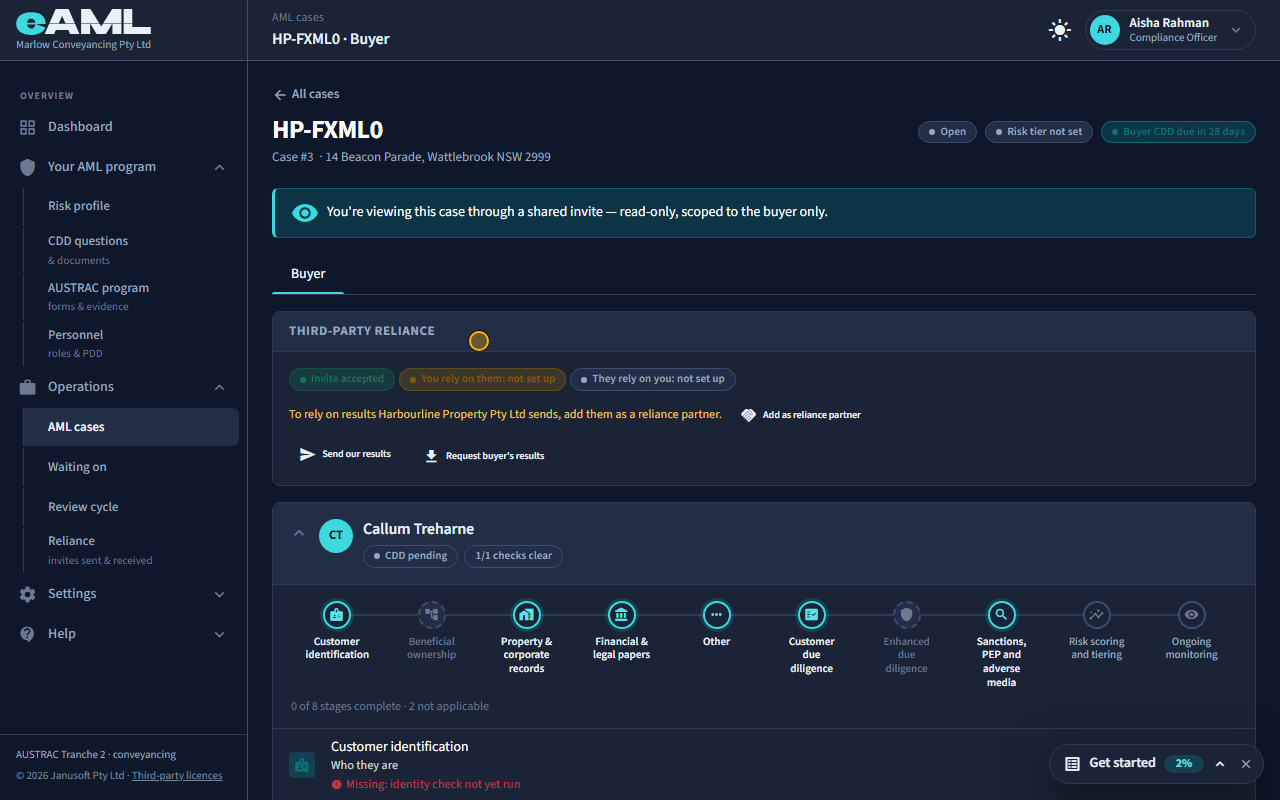
The invited firm lands on the case, and the banner says what this is: read-only, scoped to the buyer only. It has the Buyer tab and nothing else: no Property details, no vendor, no Risk & approval, and nothing it can change. On the buyer’s card it sees the buyer’s own record: identity, documents and progress. Under Third-party reliance it sees where reliance stands between the two firms (both directions start as not set up) and two buttons: Send our results, and a request for the other firm’s.
-
Assess the firm once, as a reliance partner Compliance officer at the agency
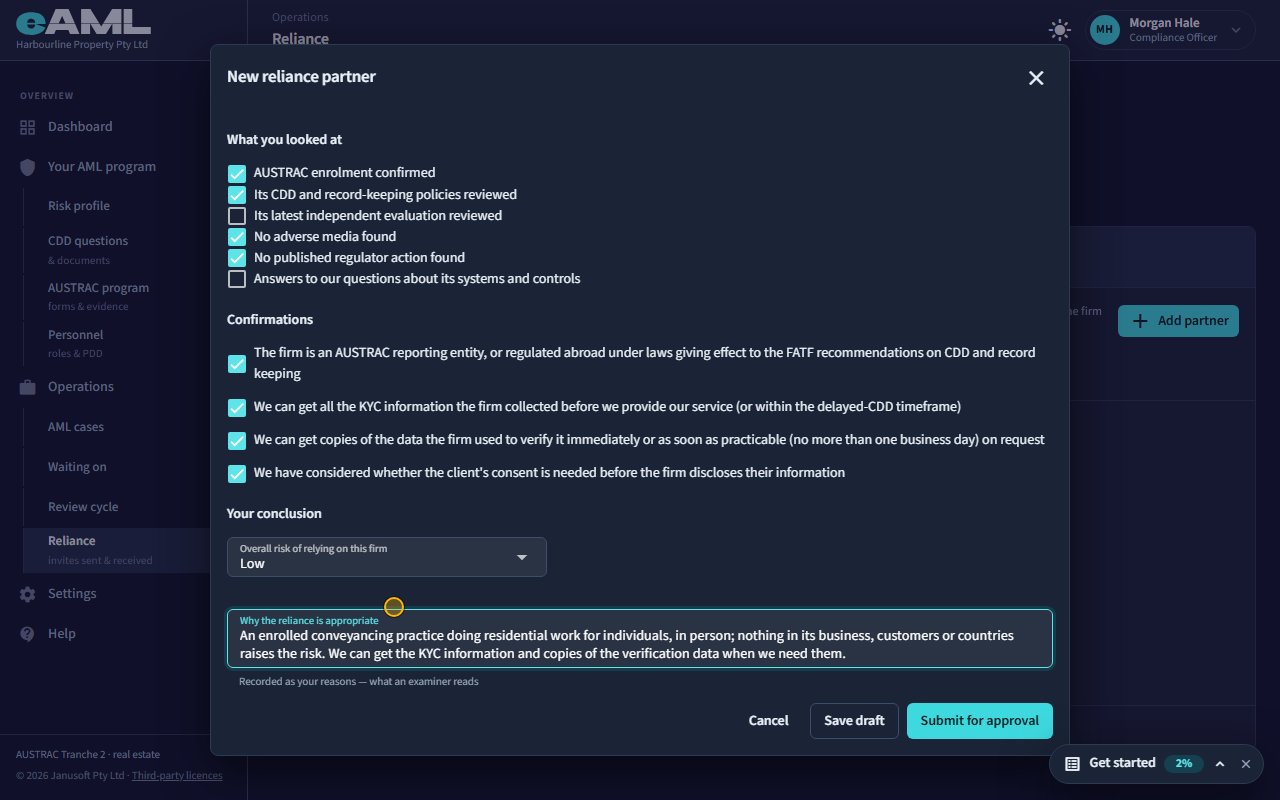
On the invite, select Add as reliance partner, complete the assessment, and select Submit for approval.
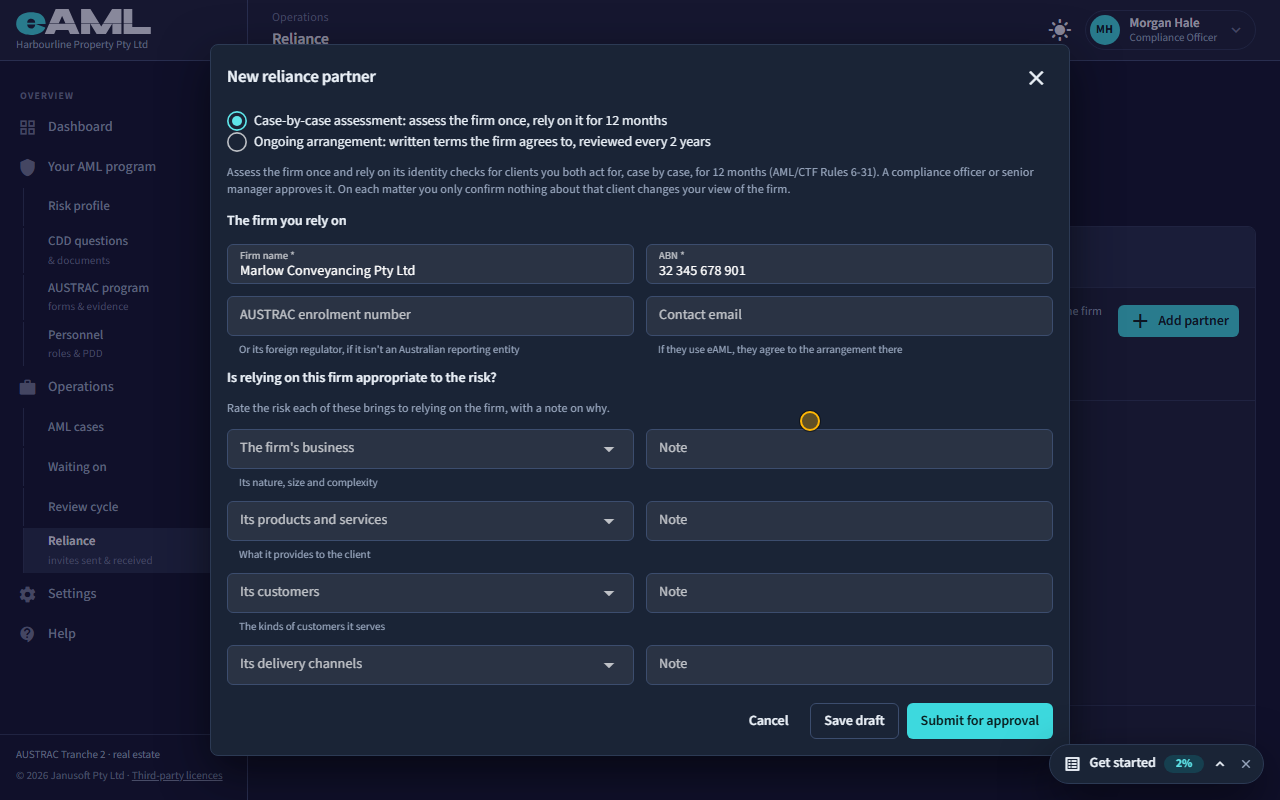
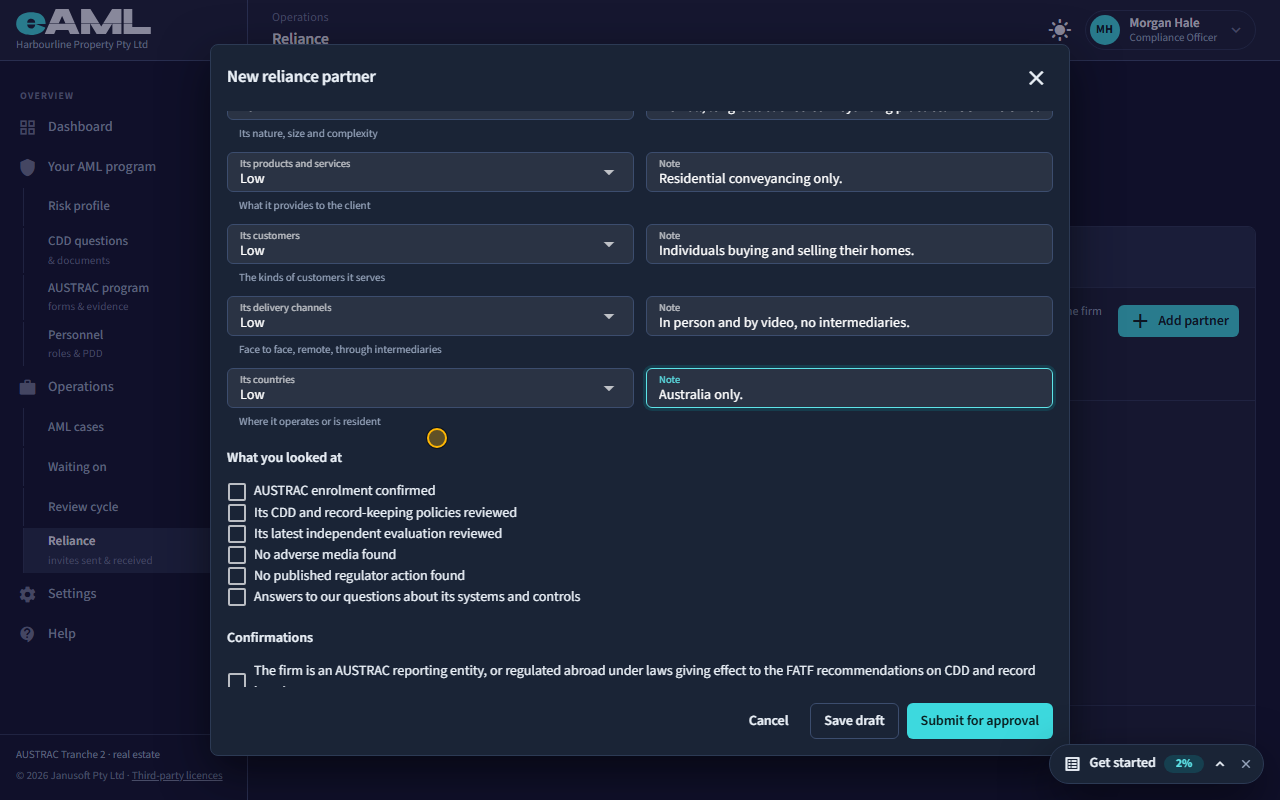
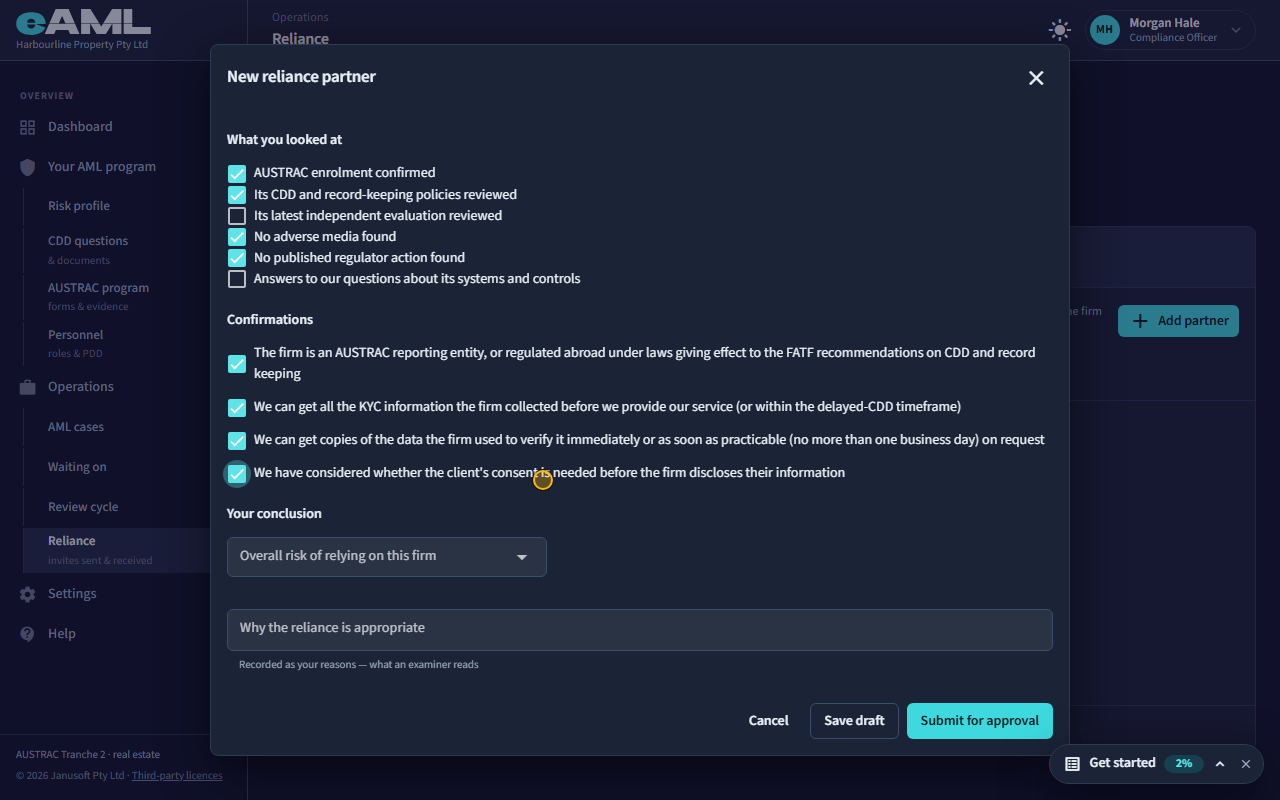
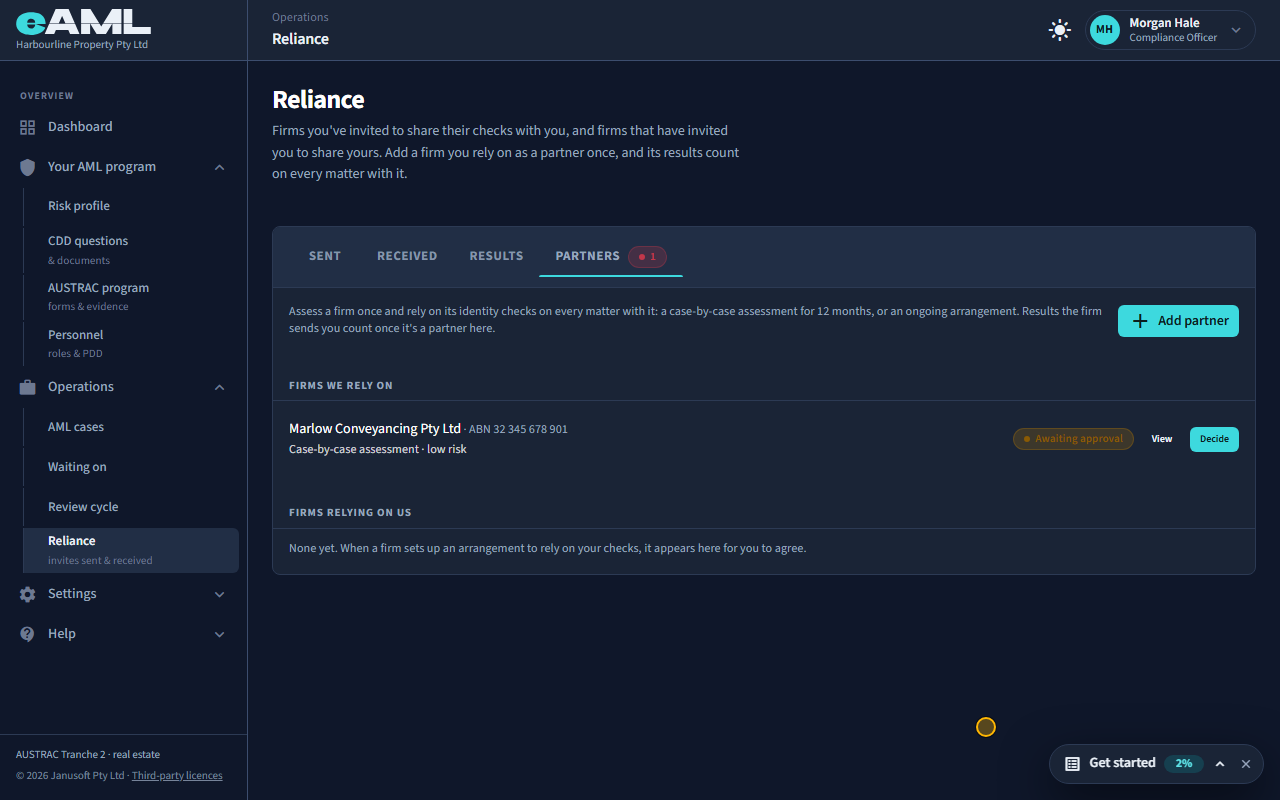
Back at the agency, the invite shows where reliance stands, and what to do next: To rely on results the firm sends, add them as a reliance partner. Sharing only gives a view; relying on another firm’s checks needs its own assessment, made once and used on every matter with that firm. Select Add as reliance partner. A case-by-case assessment is relied on for 12 months; an ongoing arrangement has written terms the firm agrees to and is reviewed at least every two years. The assessment follows AUSTRAC’s five factors: rate the risk of relying on the firm’s business, its products and services, its customers, its delivery channels and its countries, with a note on each; tick what you looked at; confirm that the firm is an AUSTRAC reporting entity, that you can get the KYC information before you provide your service and copies of the verification data within one business day, and that you have considered the client’s consent; then give your overall rating and the reasons, which is what an examiner reads. Select Submit for approval.
-
A second person approves it Senior manager at the agency
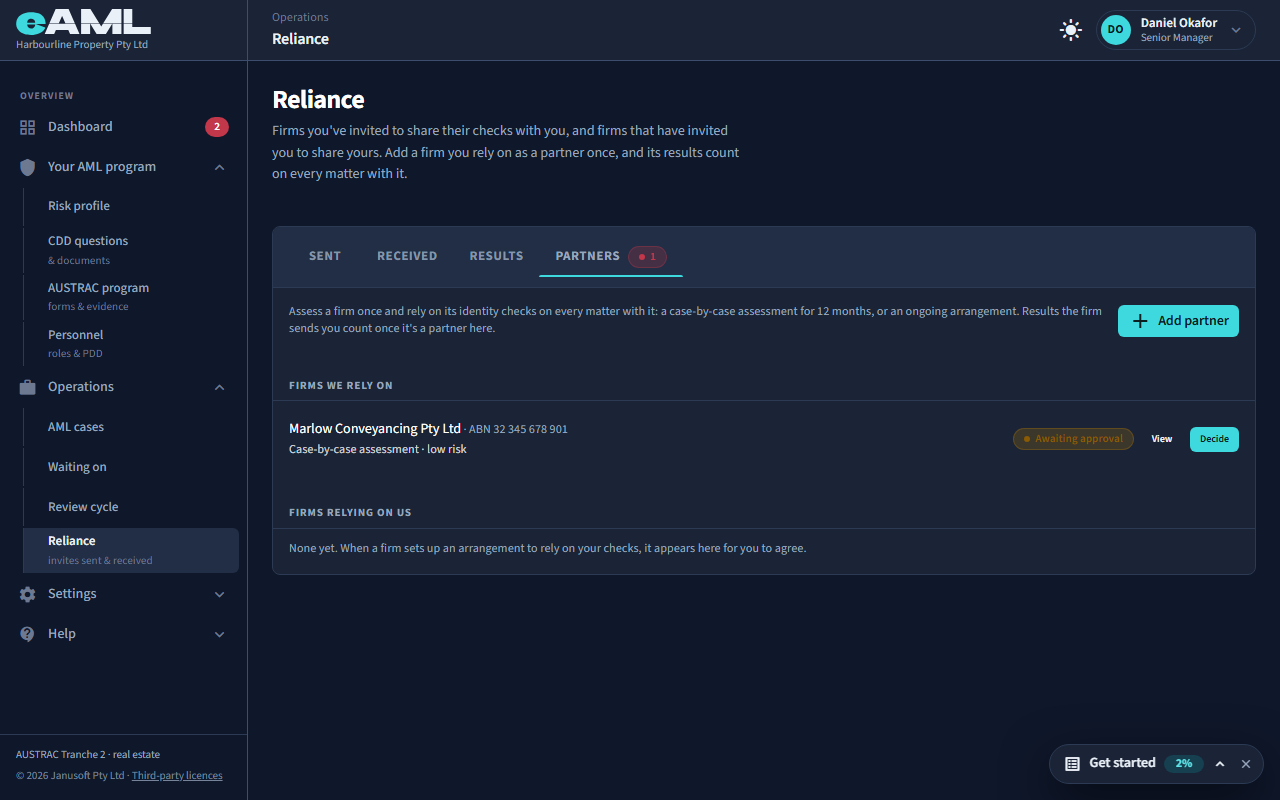
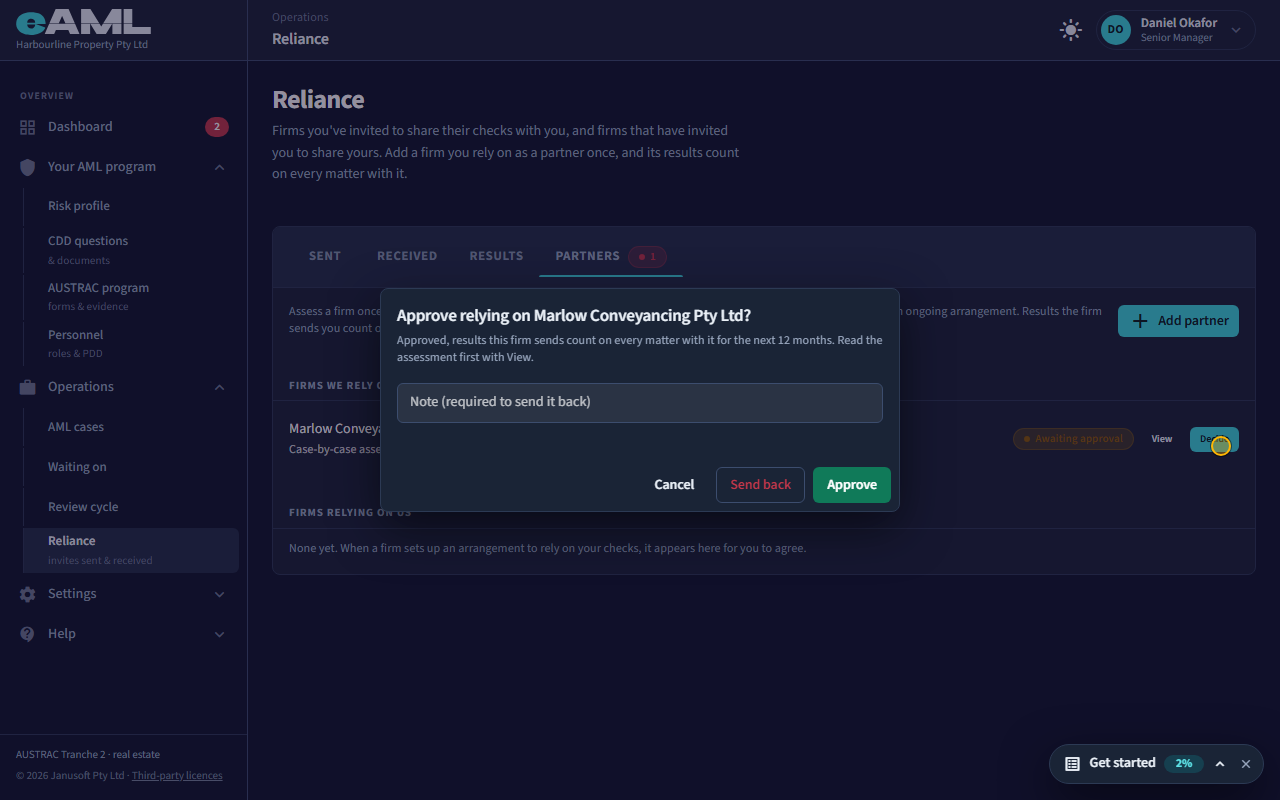
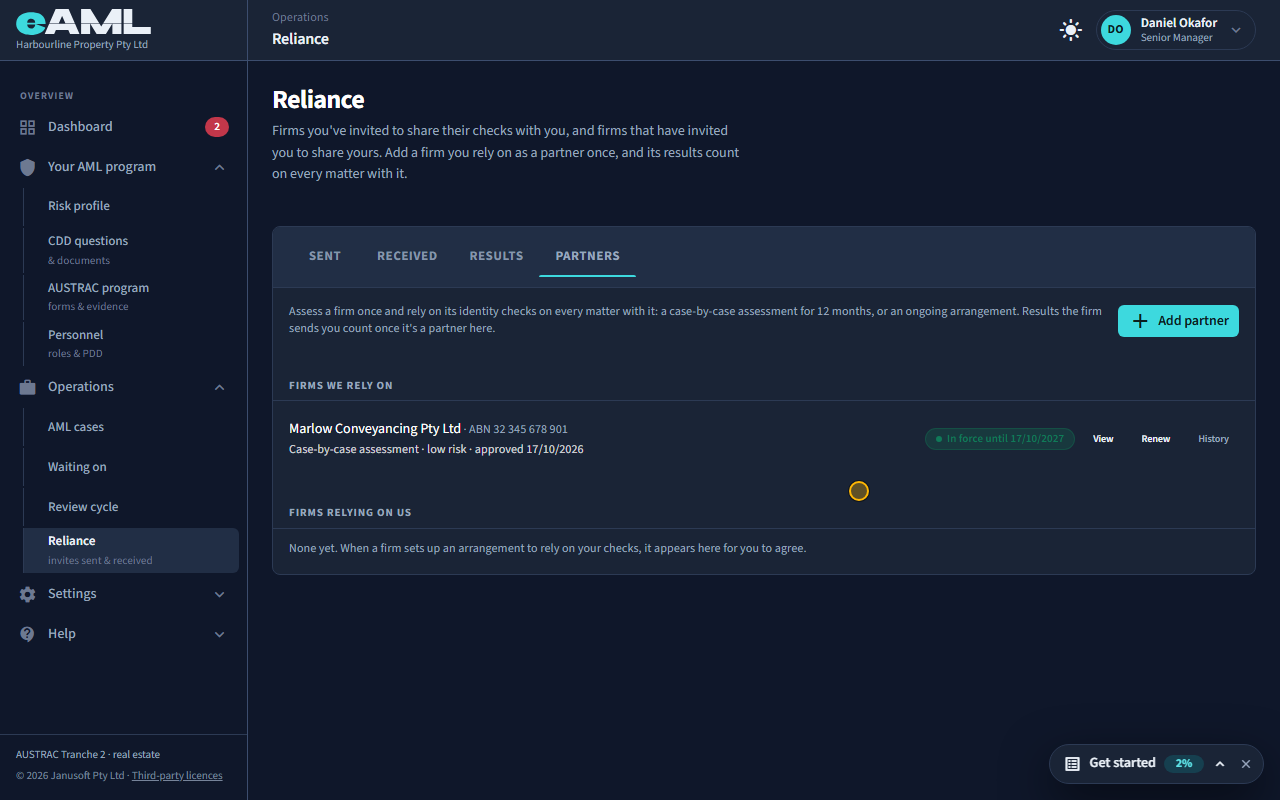
Open Reliance → Partners, select Decide on the assessment, and select Approve.
The assessment waits on the Partners tab for approval, with a count on the tab. A compliance officer or a senior manager can decide a case-by-case assessment. Approving one you wrote yourself is allowed only after you accept the risk of it and say why, so the cleaner way is for a second person to read it with View, then select Decide. Approve starts the 12 months; Send back needs a note saying why. Approved, the partner reads In force until its date, with Renew for when the time comes, and the invite on the case now says that results the firm sends count. An ongoing arrangement is different: only a senior manager can approve it, the other firm then reads its terms and agrees to them, and it is reviewed at least every two years.
-
Send the results of your checks Compliance officer at the buyer’s conveyancer
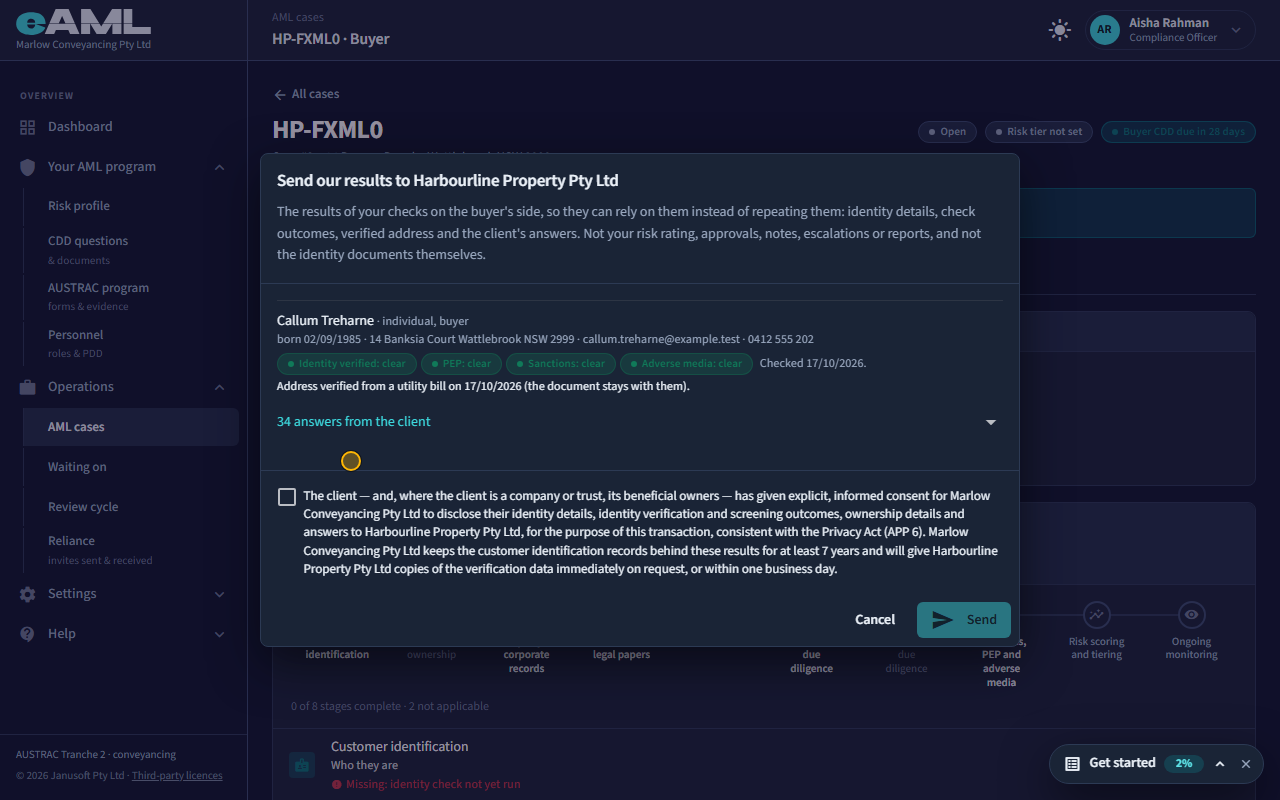
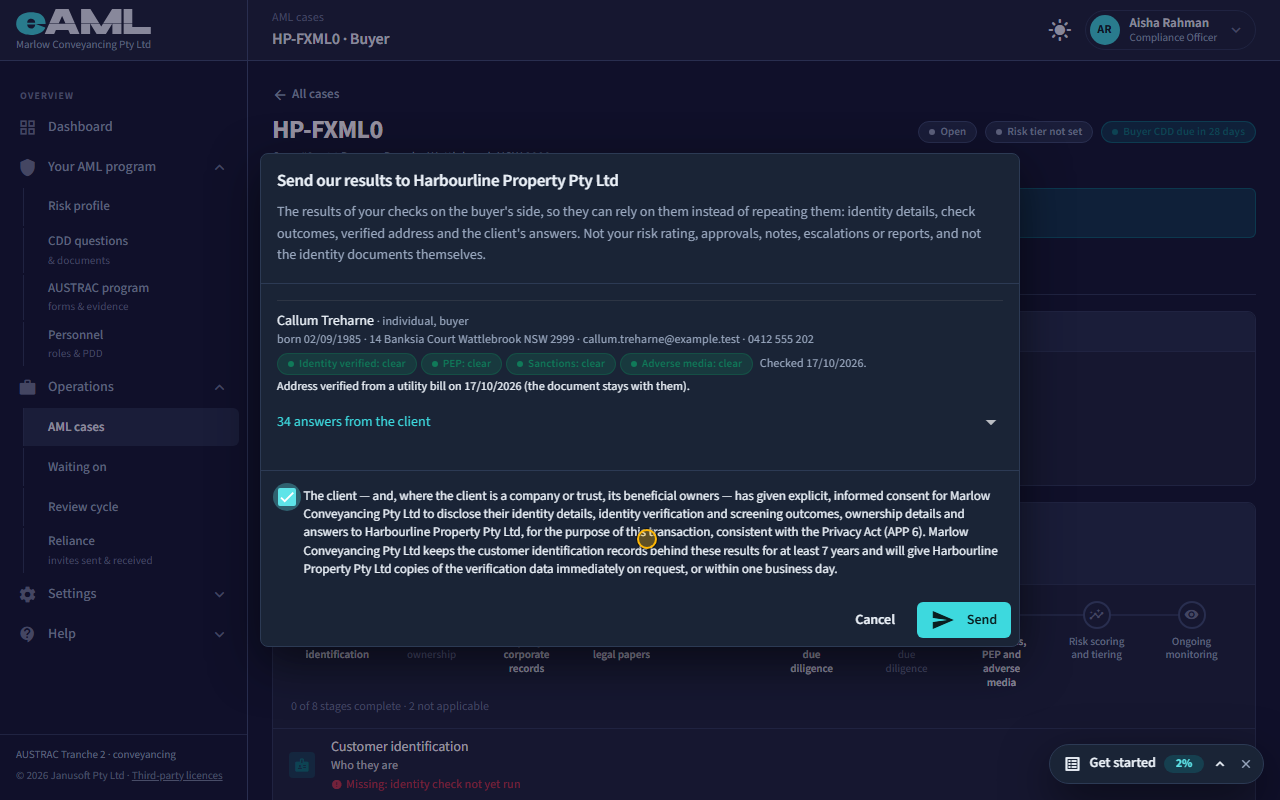
On the shared case, select Send our results, read what goes, confirm, and select Send.
Now the conveyancer sends what it found. On the shared case, under Third-party reliance, select Send our results. The dialog shows exactly what goes: the identity details, the outcomes of the checks, the verified address and the client’s answers, built from the conveyancer’s own matter for the same property and the same person. Not its risk rating, approvals, notes, escalations or reports, and not the identity documents themselves. Only a compliance officer or a senior manager can send. Tick the confirmation that the client consented and that your firm holds the records and will provide copies on request, then select Send. The other way round works too: either firm can ask for the other’s results with Request results, and the firm asked can review and send, or decline with a reason.
-
Review and accept the results Compliance officer at the agency
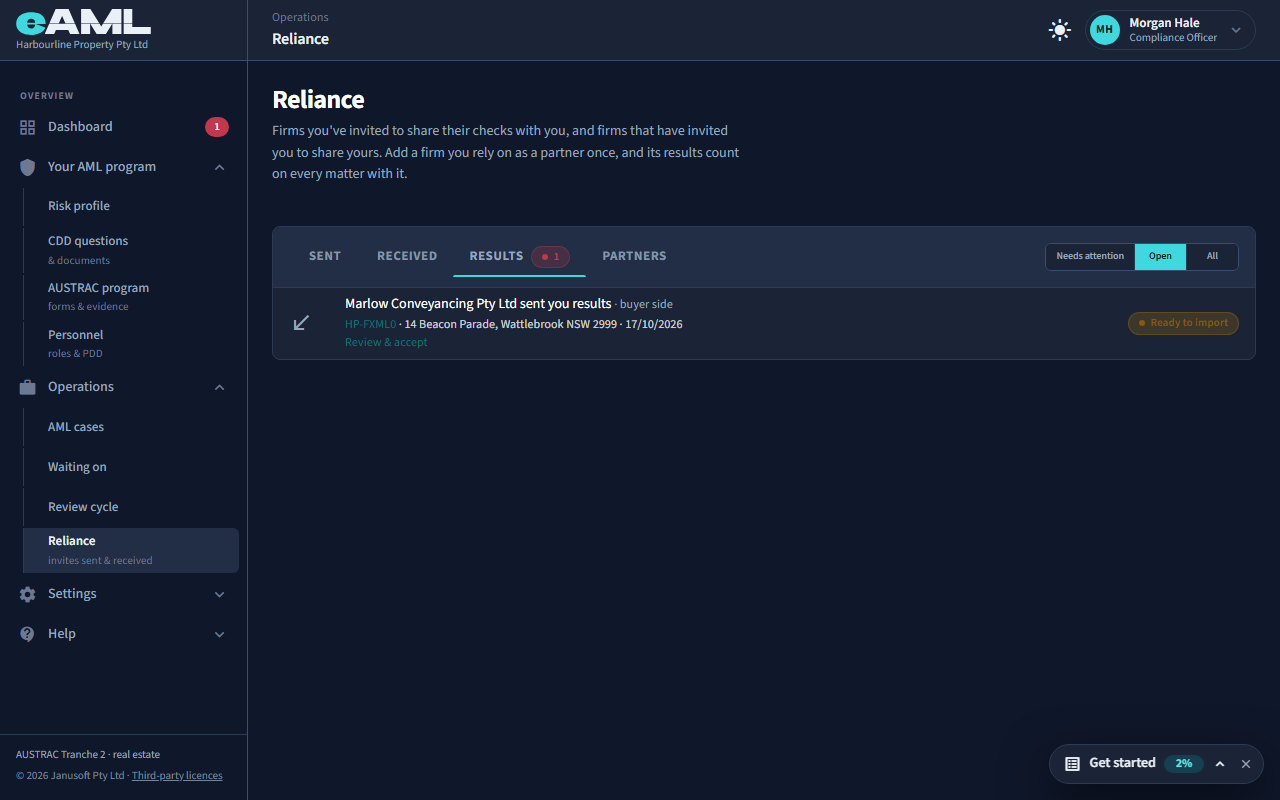
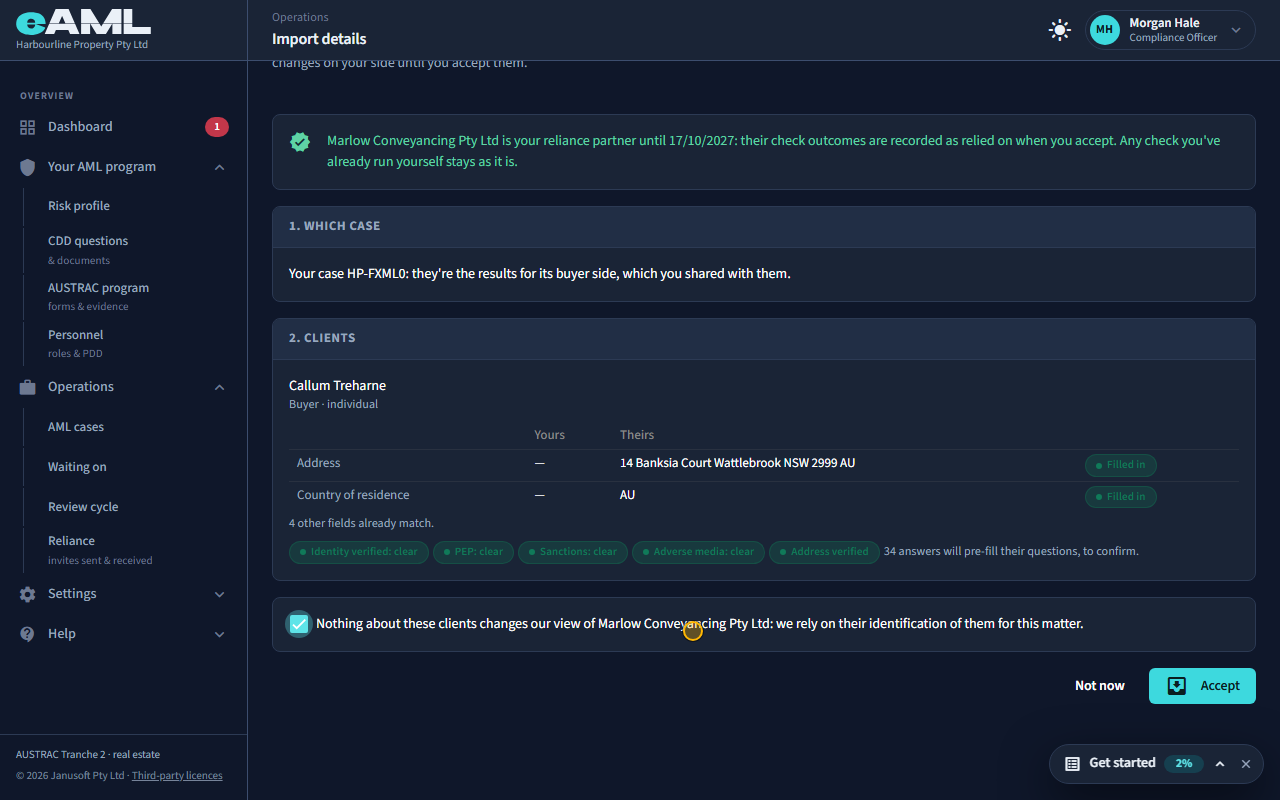
Open Reliance → Results, select Review & accept, tick the confirmation, and select Accept.
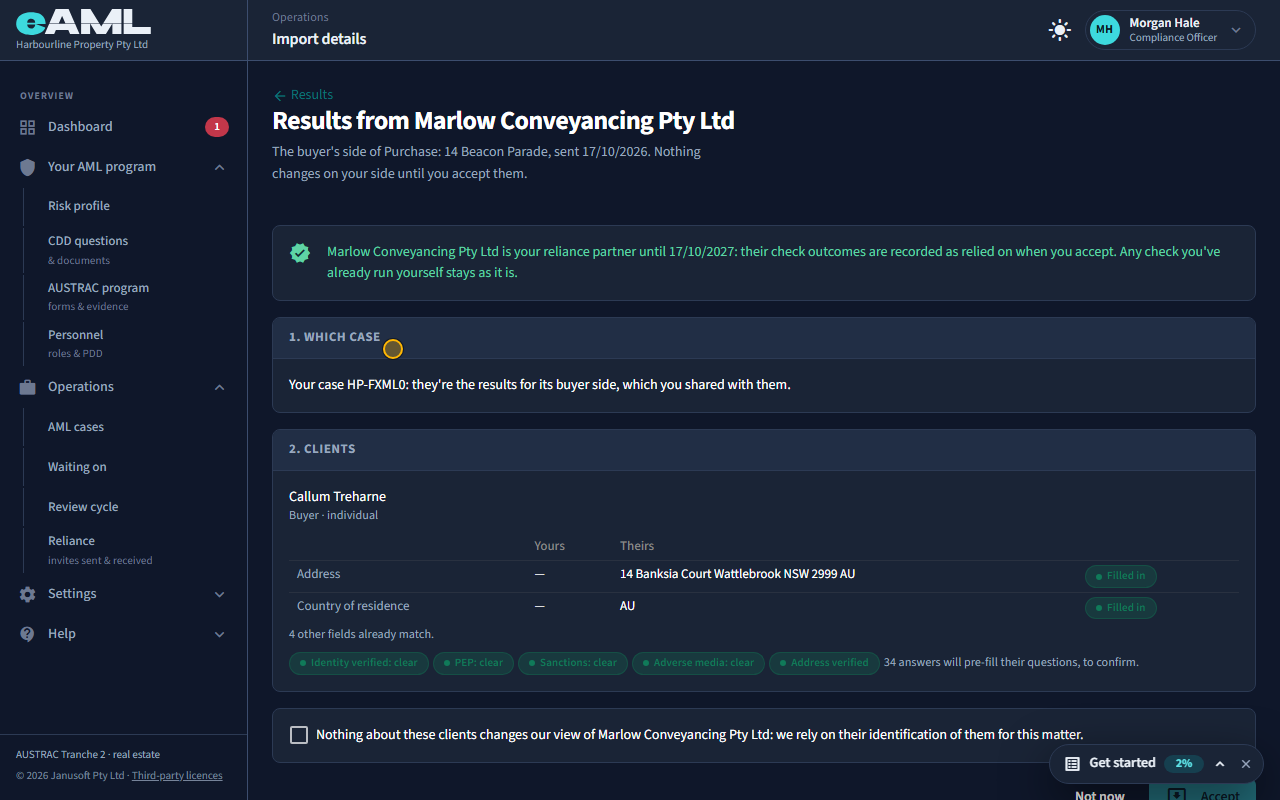
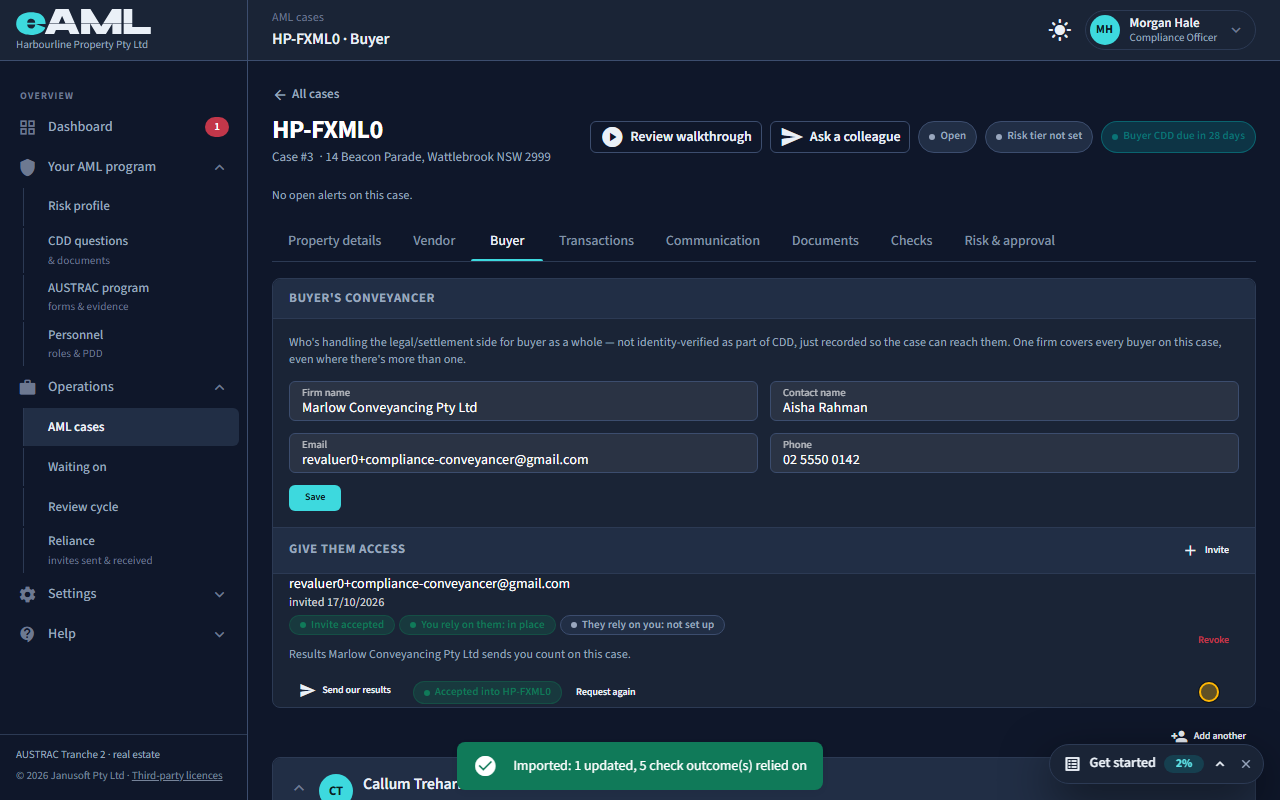
The agency is told, and the results wait under Reliance → Results. Nothing changes on your side until you accept them. Select Review & accept: the page shows which case they go onto (here the case you shared, the buyer’s side), the details they would fill in field by field (where you already have a value yours stays unless you pick theirs), and the outcomes of the checks. The page also says whether the outcomes count: the firm is your reliance partner until the date, so they are recorded as relied on when you accept, and a check you ran yourself is never replaced. The client’s answers do not become your answers: they only pre-fill your questions, for you or the client to confirm. Tick that nothing about these clients changes your view of the firm, and select Accept.
-
Relied on, and still yours Compliance officer at the agency
Open the case’s Buyer tab to see what is relied on, then Reliance → Sent for where reliance stands.
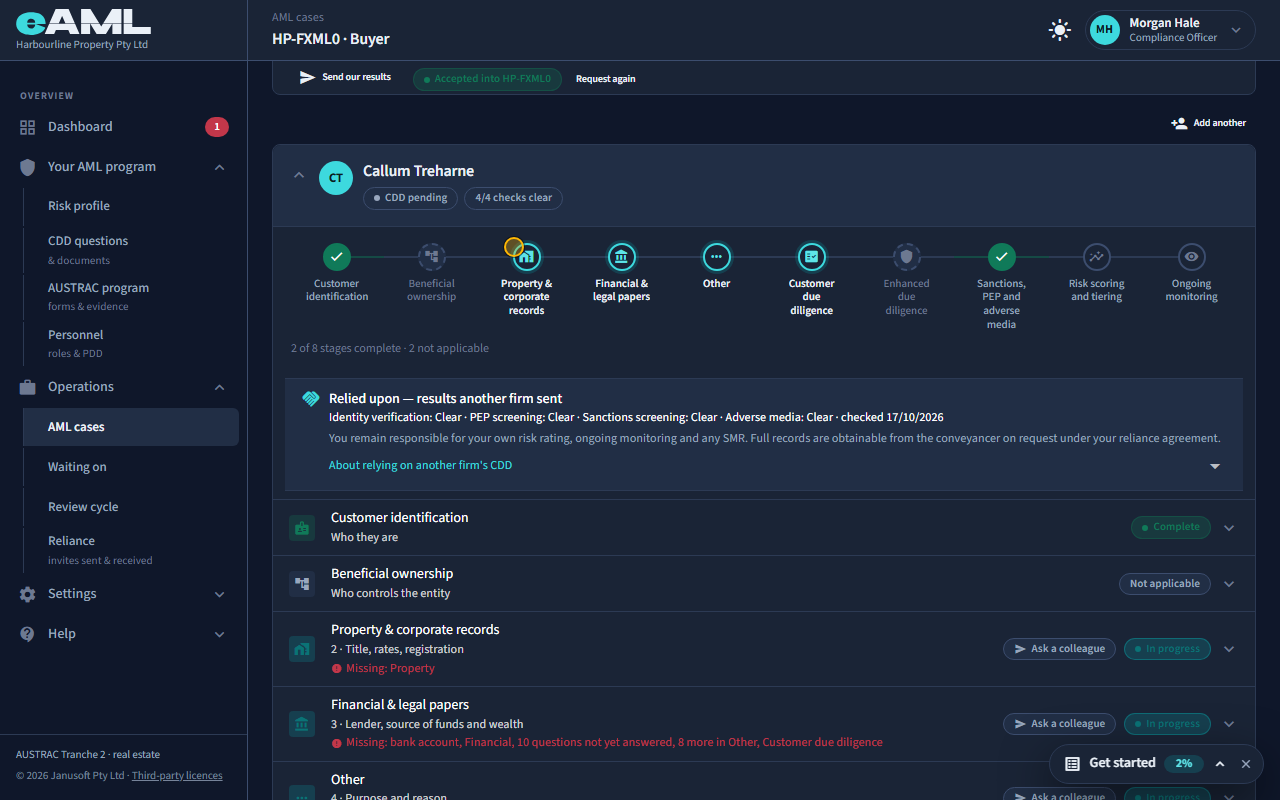
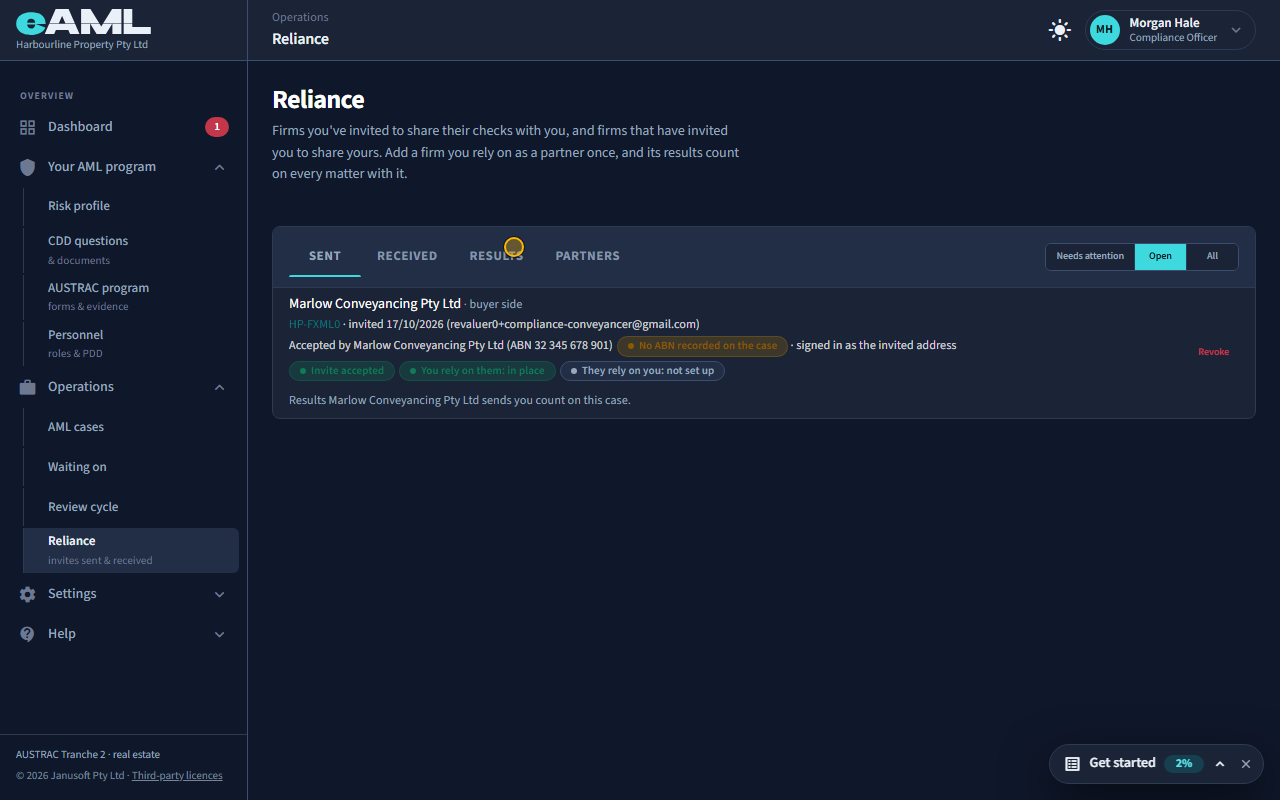
On the case, the buyer’s identity and screening now read as relied on, provided by the buyer’s conveyancer, with the date they were checked. The agency still owns everything that is its own: the risk rating, ongoing monitoring, the decision whether to provide the service, and any suspicious matter report. If the other firm’s identification turns out to be inadequate, the failure is yours, which is why the assessment comes first. On Reliance → Sent, every invite shows where reliance stands in both directions, and Revoke ends the other firm’s access to your case. It does not undo results that were already accepted into a case: those stay where they are. To stop relying on a firm, review the partner under Reliance → Partners and suspend or end it.
Every screen in this guide was captured from the live application in the same run as the video, so the two always match. If a screen here no longer matches what you see, tell us: the guide is regenerated after each release.