Guide · T29
Finishing a case: tiering and approval
Before you start
- A case with the due diligence on every person finished
- A compliance officer to complete risk tiering, and a senior manager to decide
-
What stops a case being closed
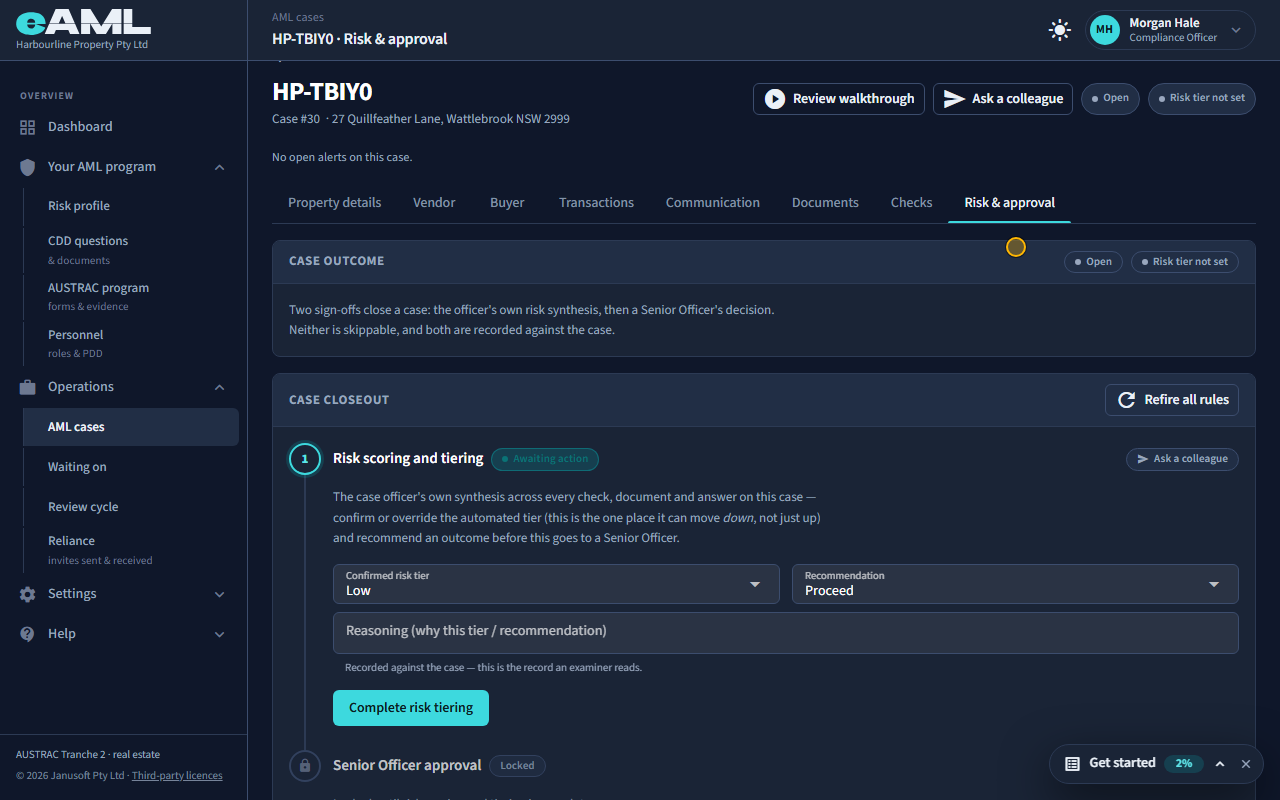
Open the case’s Risk & approval tab and select Complete risk tiering.
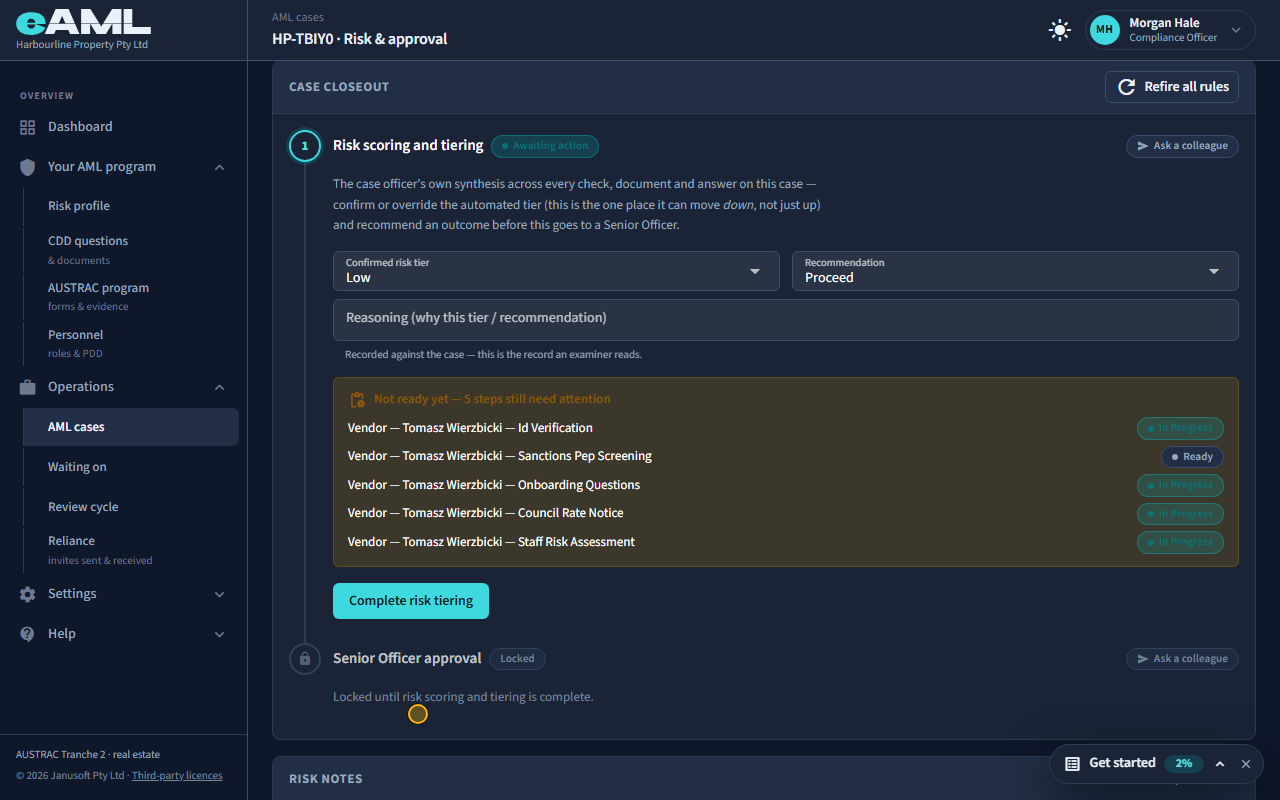
Two sign-offs close a case. First the risk rating: someone on your team confirms or overrides the automated rating, recommends an outcome, and gives their reasons. Then the decision: a senior manager approves or rejects. Both are on the case’s Risk & approval tab. Risk tiering will not complete while anything is unfinished. Select Complete risk tiering on a case with work outstanding and eAML lists exactly what it refused on: each step still needing attention, and each fact a person on the case is still missing (a date of birth, a phone number, an address, a proof of address). On a property case it also needs the property’s address and contract price, from the Property details tab.
-
Complete risk tiering
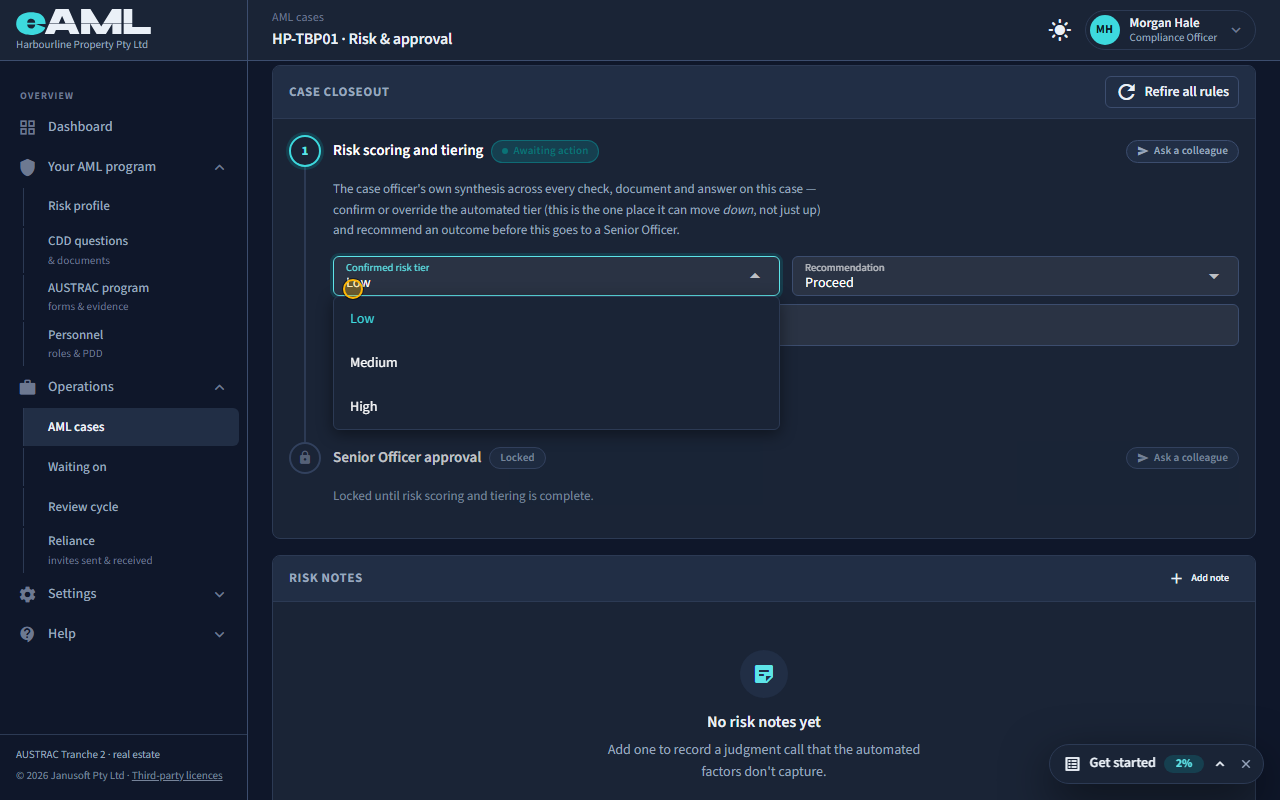
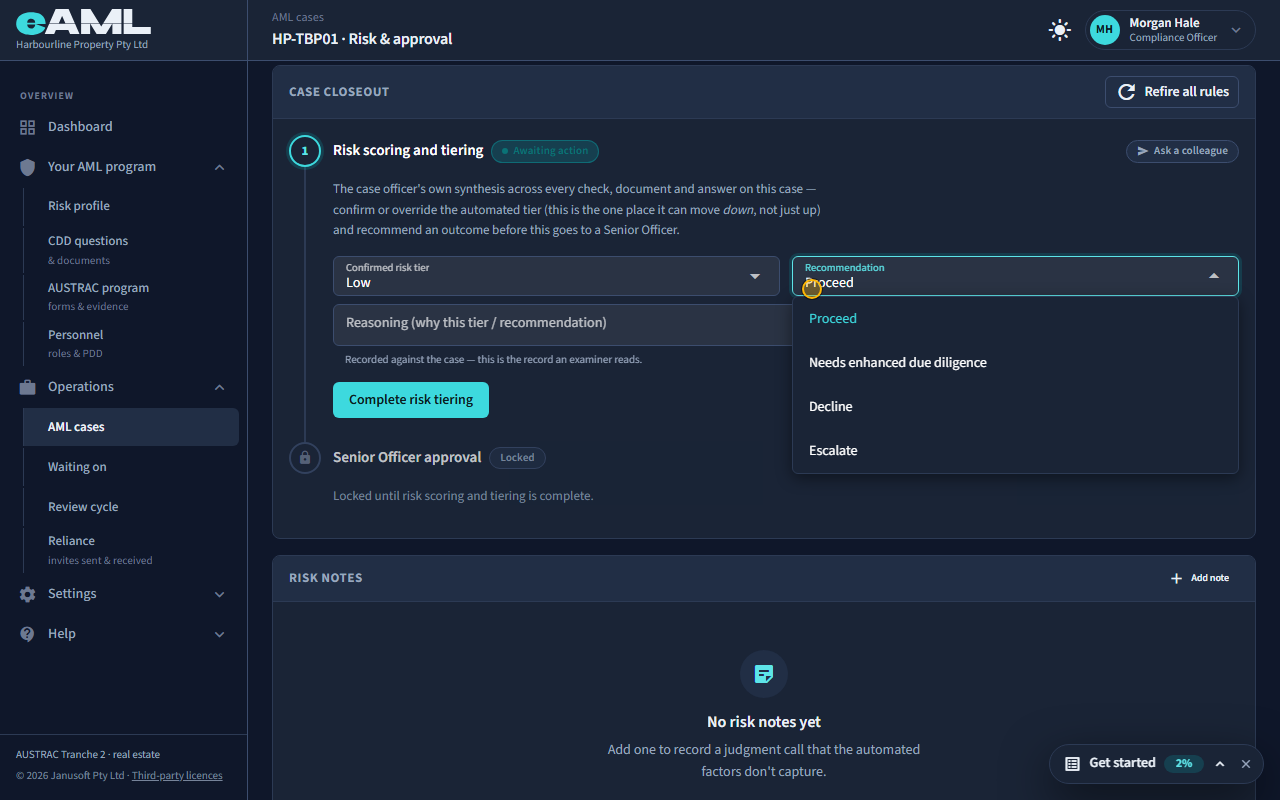
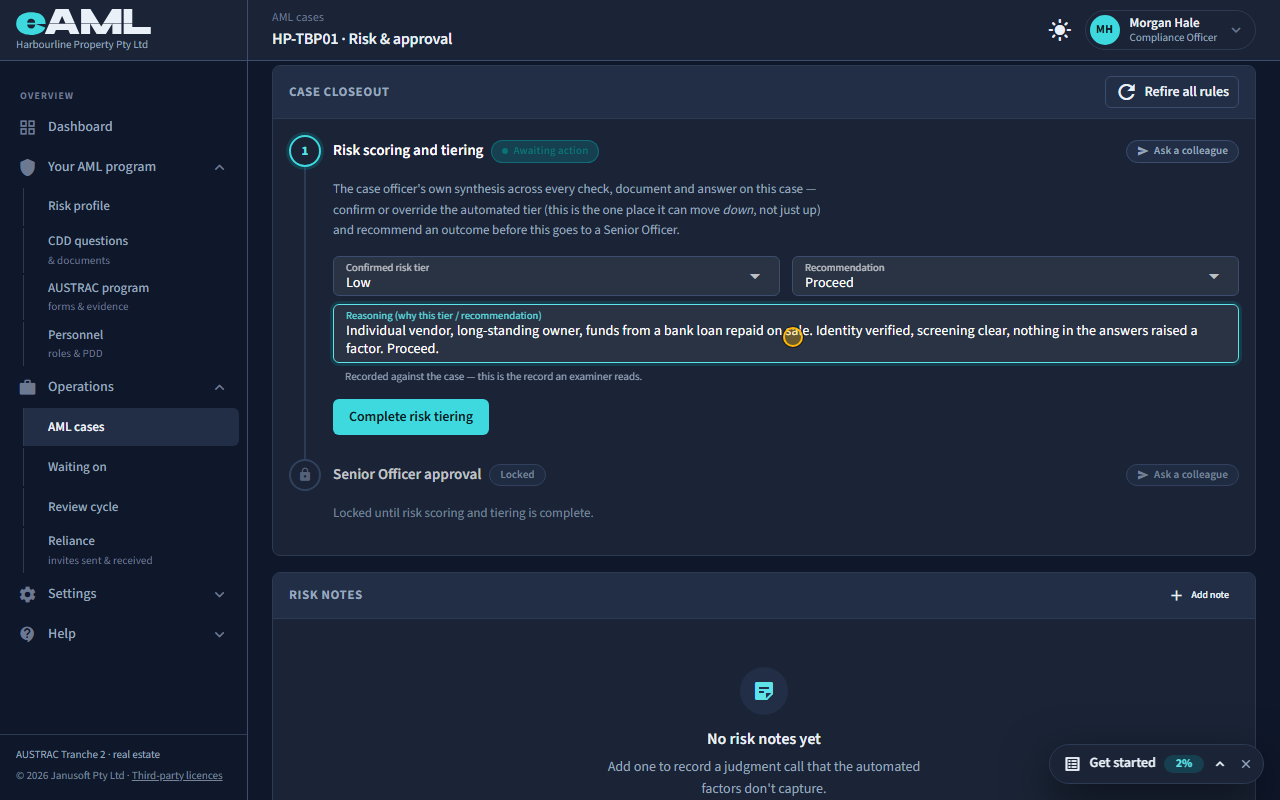
Check the confirmed rating and the recommendation, write your reasoning, and select Complete risk tiering.
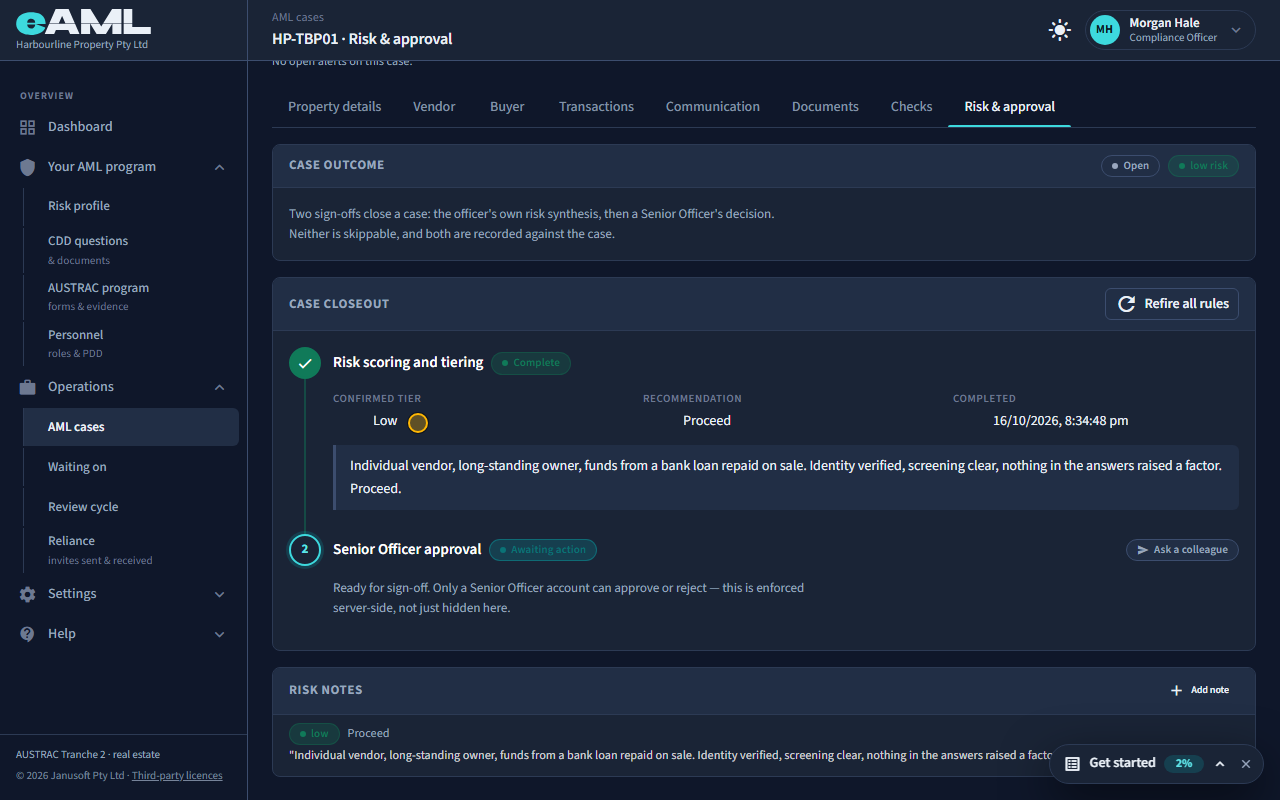
On a case where the work is done, the first sign-off is yours. The case’s automated rating is already filled in, and the recommendation starts at Proceed. Confirm the rating or change it: this is the one place a rating can move down, not just up. Choose the recommendation (Proceed, Needs enhanced due diligence, Decline or Escalate) and write your reasoning: it is recorded against the case and is the record an examiner reads. Select Complete risk tiering. The step beneath it, Senior Officer approval, stops being Locked and says Ready for sign-off.
-
The decision: approve Senior manager
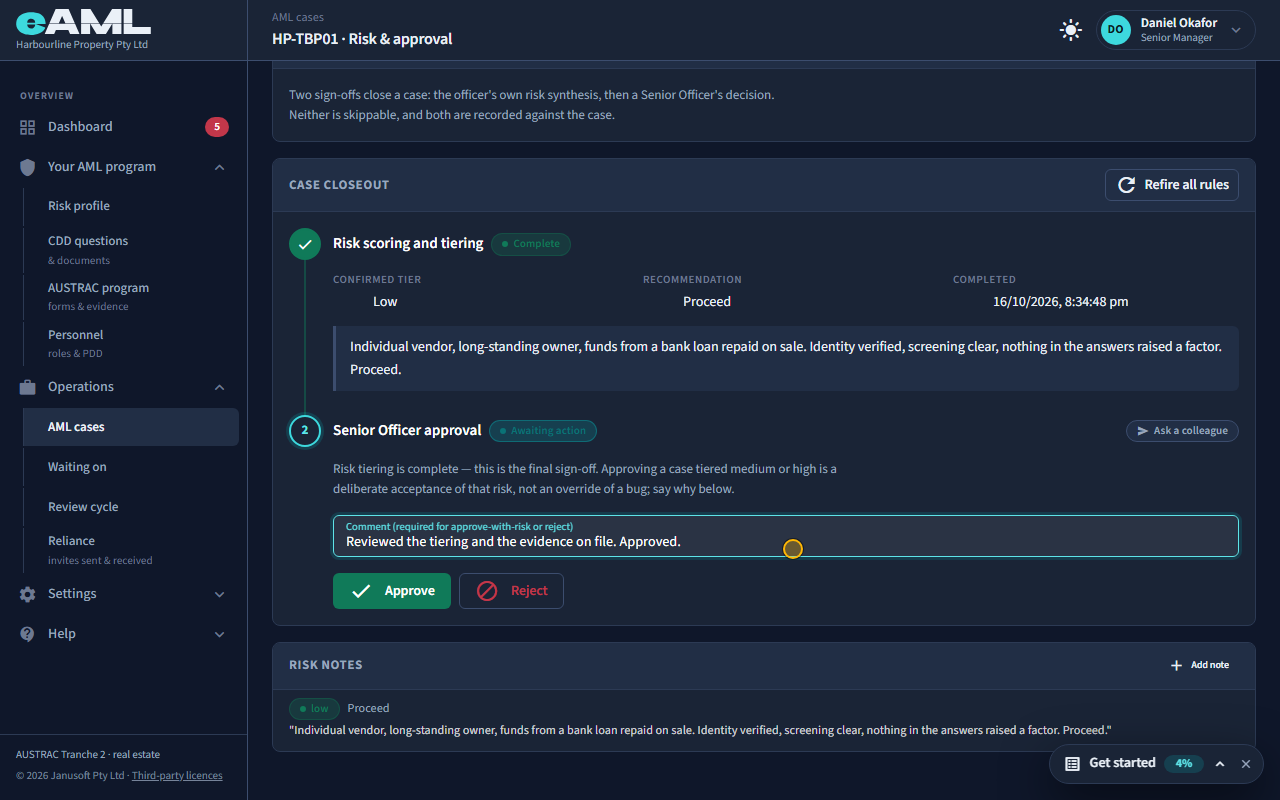
As the senior manager, open Risk & approval, write a comment, and select Approve.
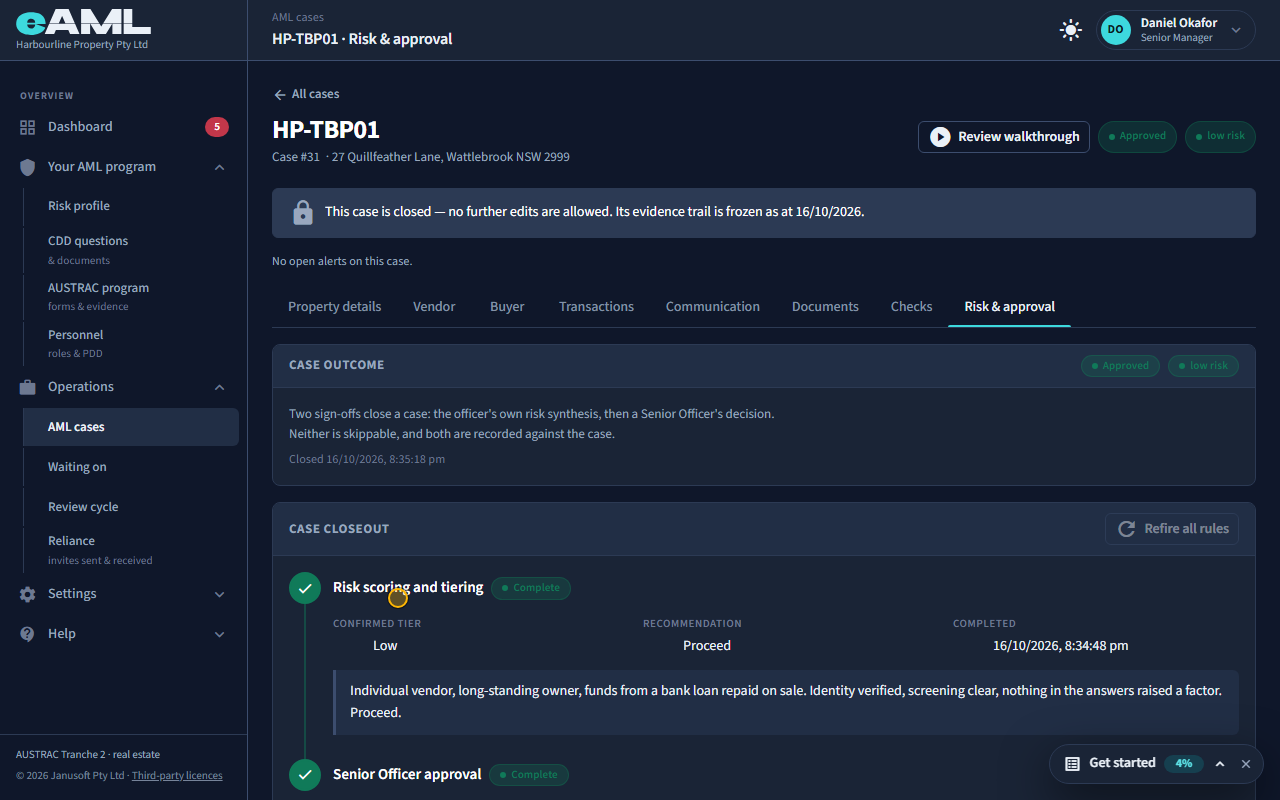
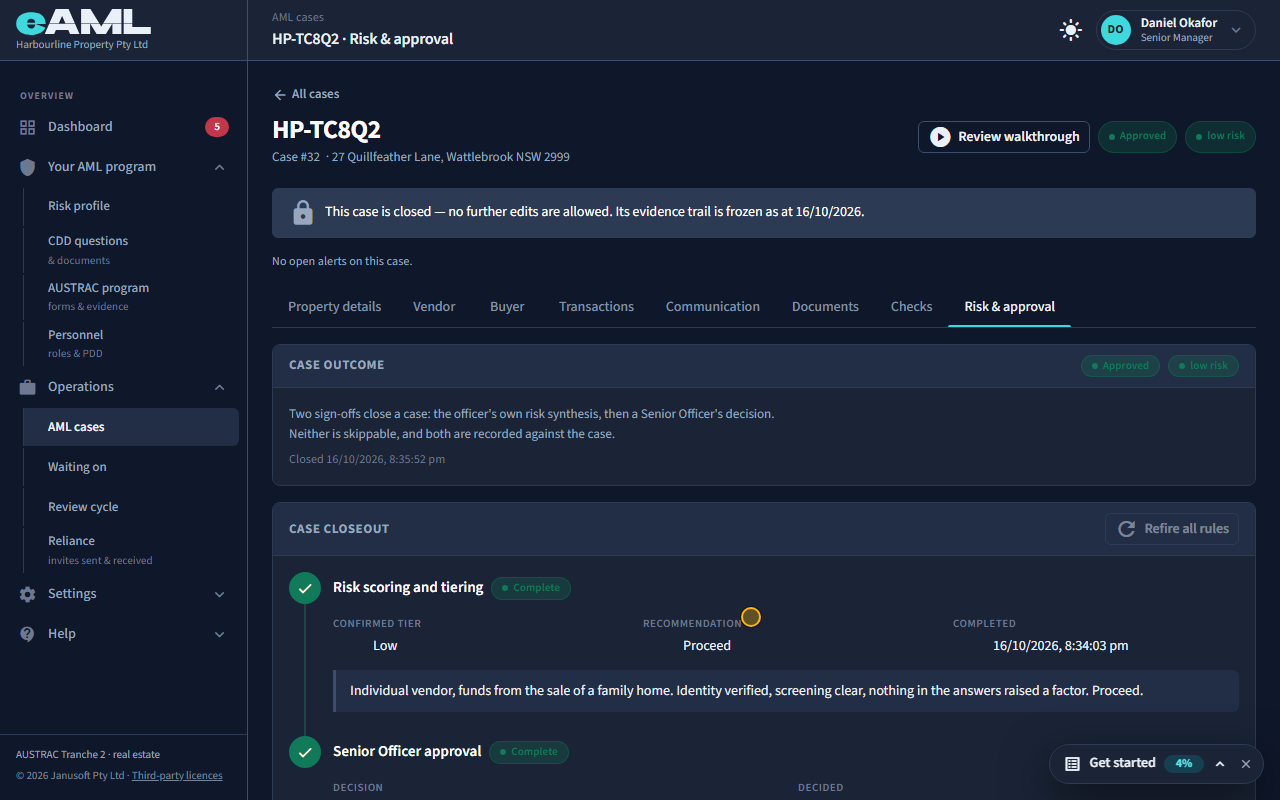
The second sign-off, headed Senior Officer approval, is a senior manager’s, and it has to be a second pair of eyes: whoever completed the risk tiering cannot also approve it. Sign in as the senior manager and open the case’s Risk & approval tab, where the tiering above shows the confirmed rating, the recommendation and the reasoning. Write a comment: the box asks for one when you approve a case that is medium or high risk, and when you reject. Select Approve. eAML refuses, and says what is outstanding, if a person on the case still has a mandatory fact missing or a compliance form still needs its own senior approval. Once it goes through the case is Approved and closed, and the first periodic review of each seller and buyer is scheduled.
-
When the approver did the work Senior manager
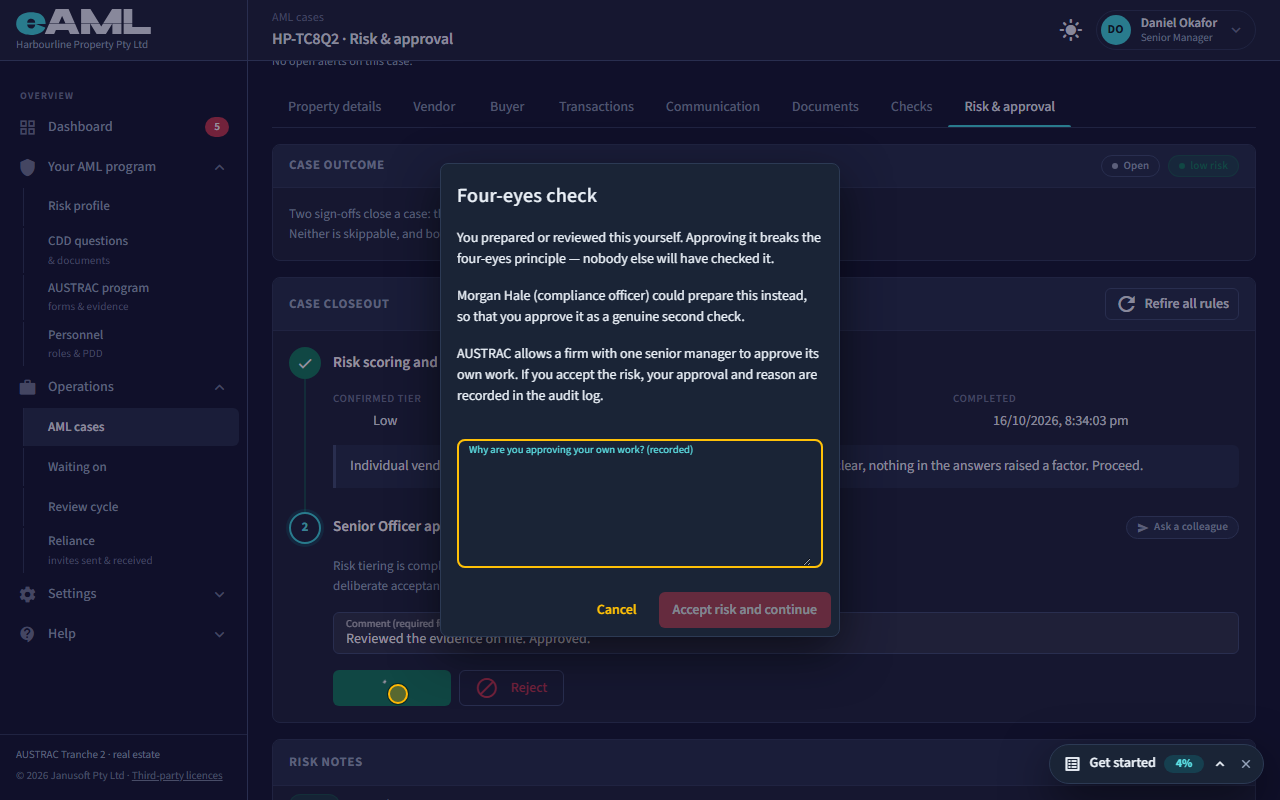
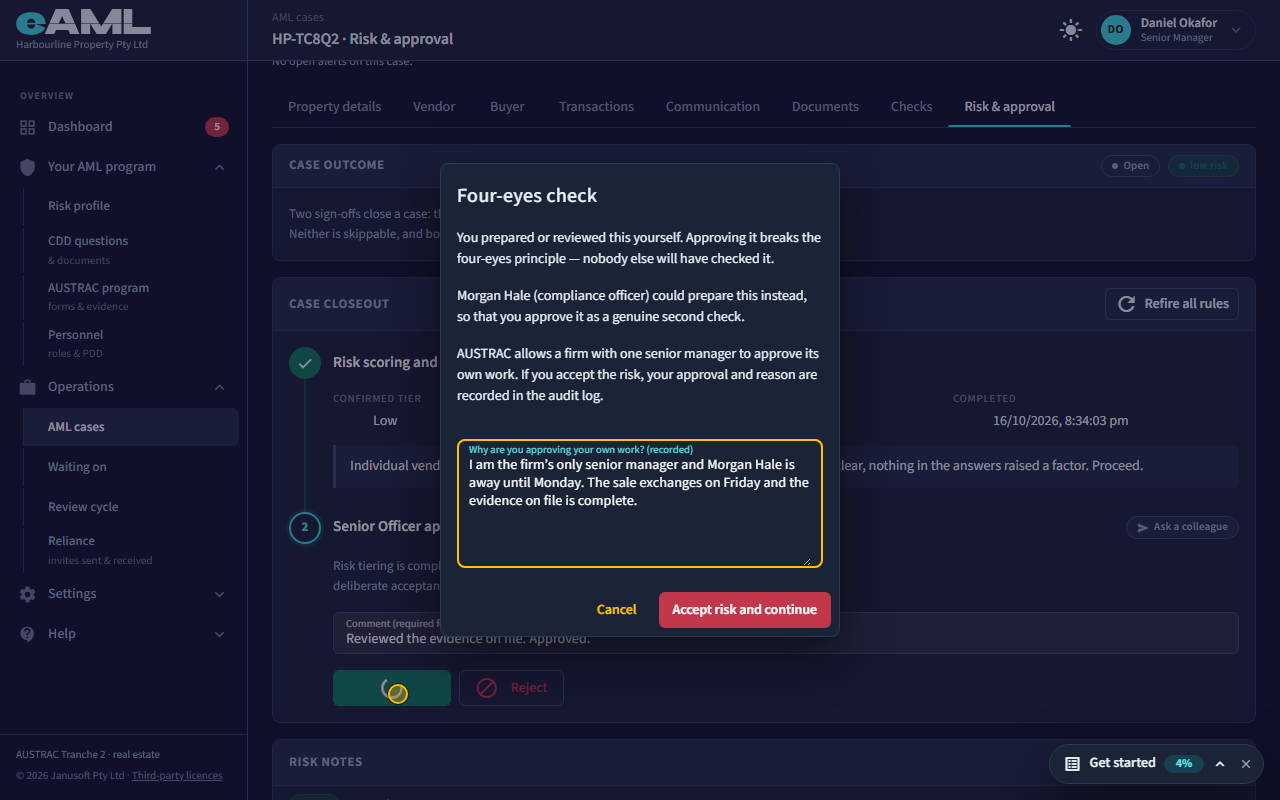
Select Approve on a case you completed the tiering for yourself, write your reason, and select Accept risk and continue.
Sometimes the person who completed the tiering is also the only one who can approve it, because they are the firm’s only senior manager. eAML allows that, but makes it a deliberate choice. Select Approve and a Four-eyes check opens: it says you prepared or reviewed this yourself, names the colleague who could have prepared it instead, and asks why you are approving your own work. Write the reason and select Accept risk and continue. The approval and your reason go into the audit log, which is what an evaluator or AUSTRAC will ask to see. If another senior manager is active in the firm, eAML will not allow it at all: that person has to approve.
-
The decision: reject Senior manager
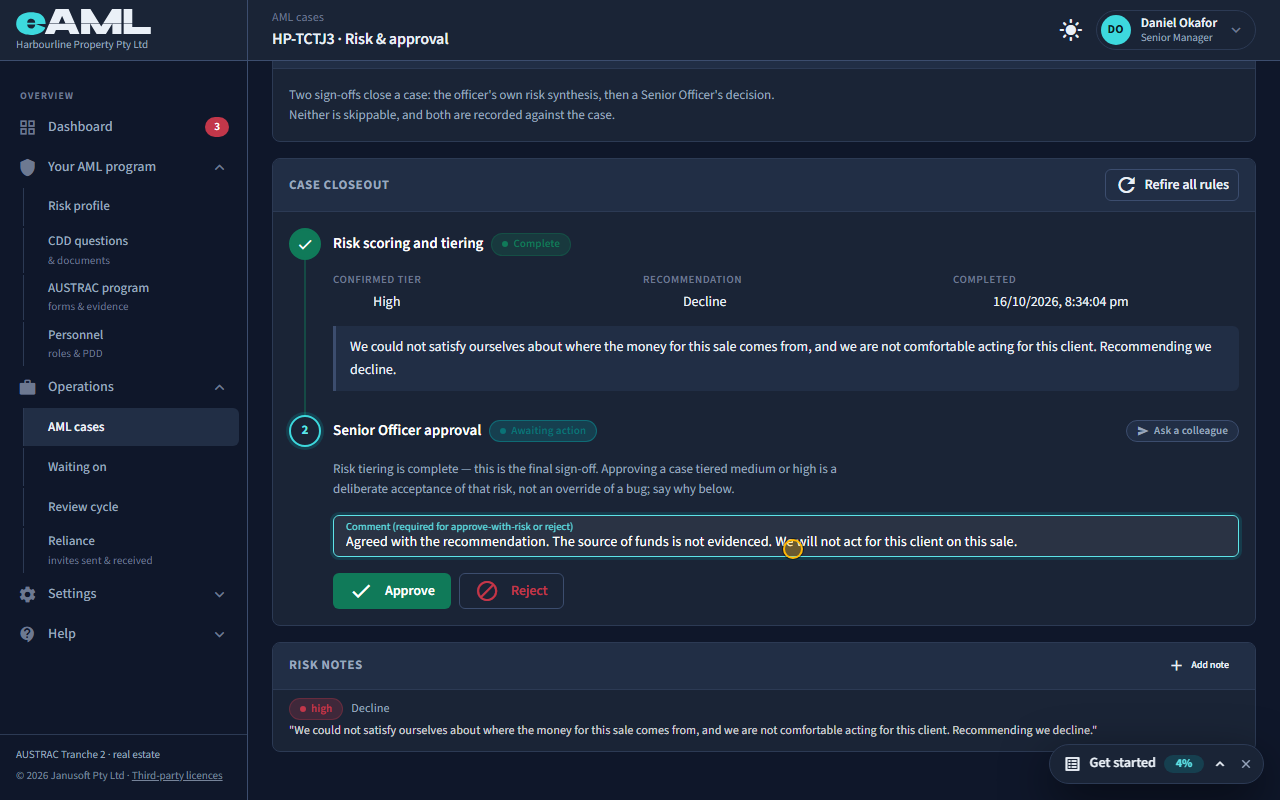
Open the case’s Risk & approval tab, write a comment, and select Reject.
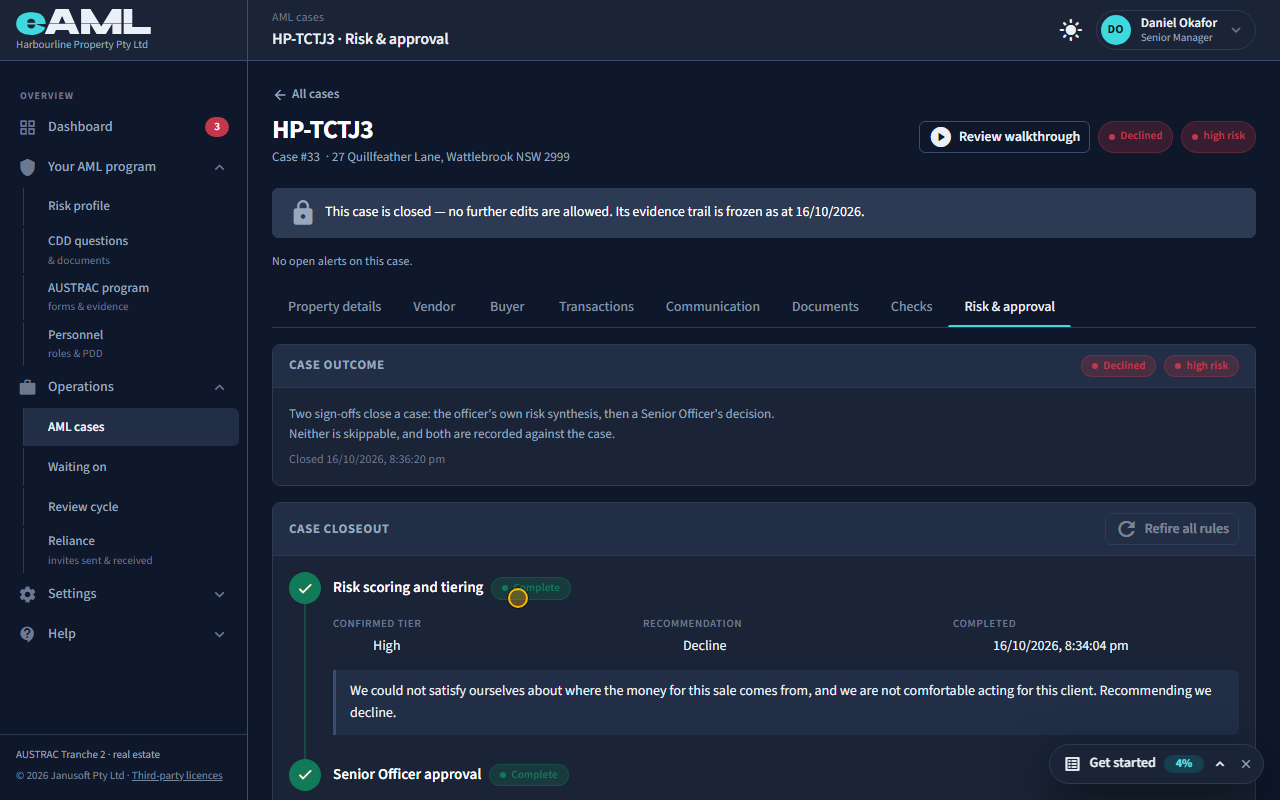
The same step can say no. Here the compliance officer recommended declining: the source of the funds could not be evidenced. The senior manager selects Reject, with a comment giving the reason. The case becomes Declined and is closed. Declined is an AML decision about the customer and the service, taken by a senior person, and it is recorded with the reasons. A declined case never becomes an ongoing relationship, so no periodic review is scheduled for it. Rejecting is not held up by missing fields the way approving is: you can decline a case at any point after the tiering.
-
When the deal falls through: withdrawn
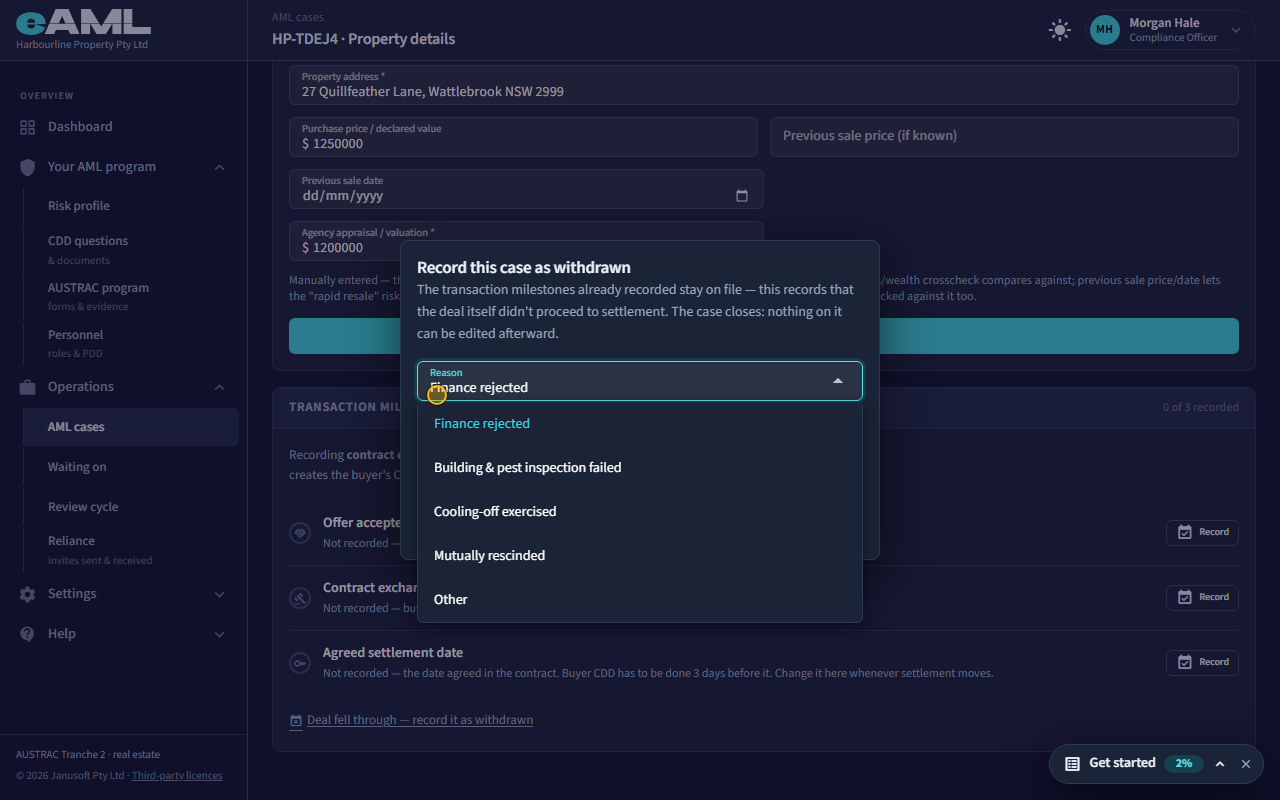
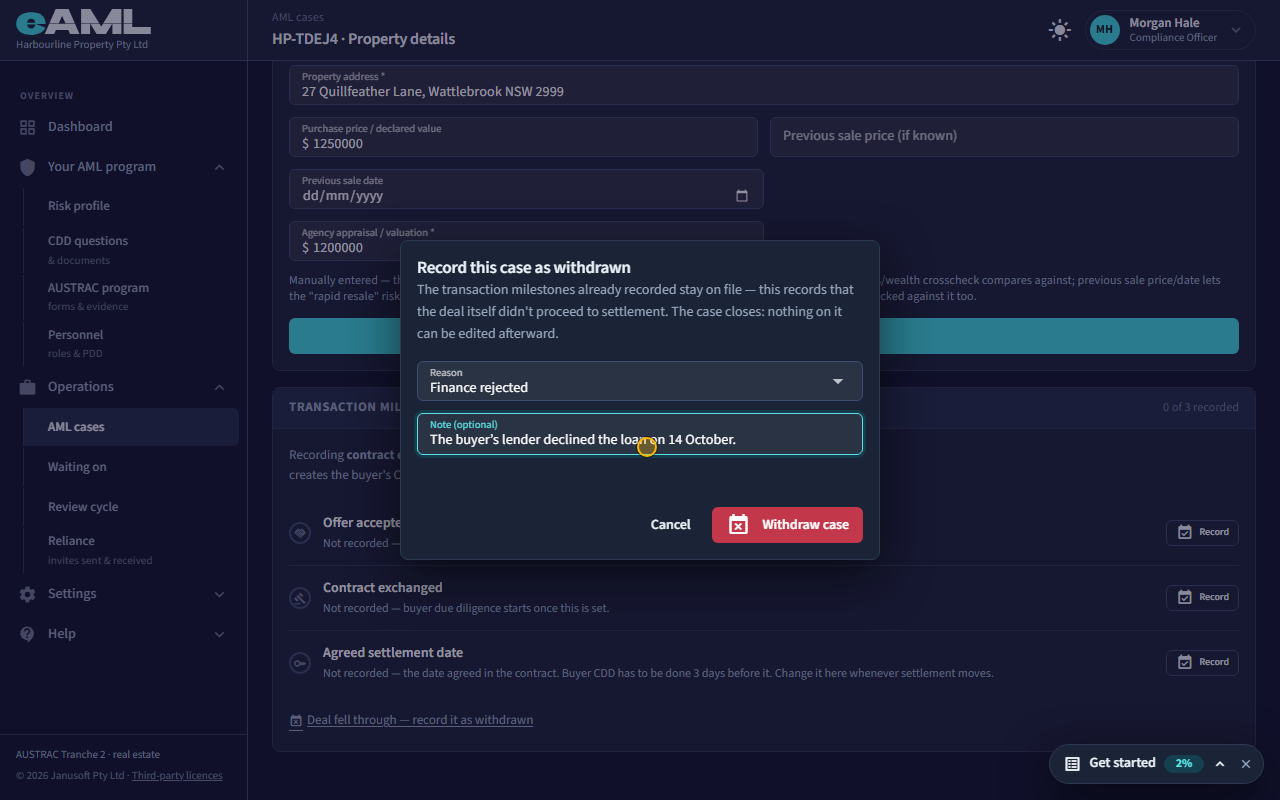
Open the case’s Property details tab, select Deal fell through, choose the reason, and select Withdraw case.
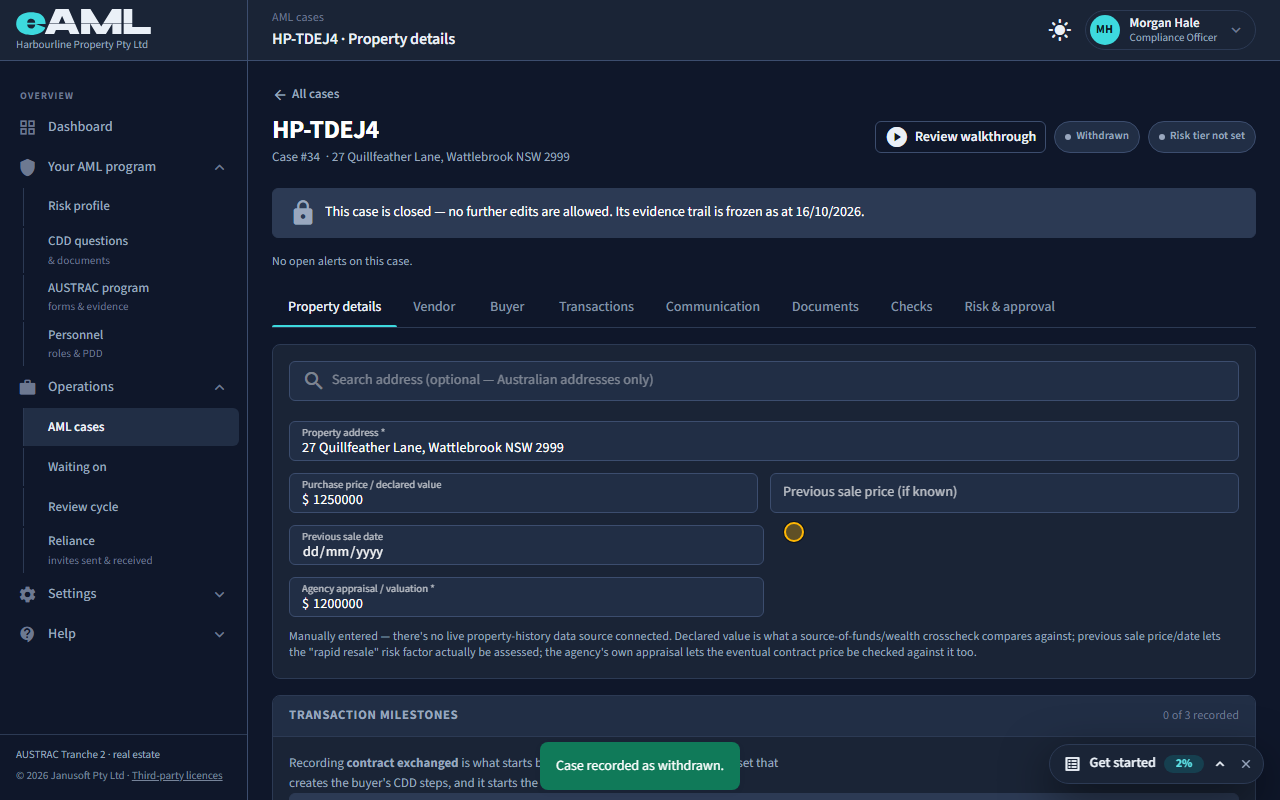
Not every case ends in a decision. If the sale simply does not go ahead, record it as withdrawn: on the Property details tab select Deal fell through, choose why (finance rejected, the building and pest inspection failed, cooling-off exercised, mutually rescinded, or another reason, which needs a note), and select Withdraw case. It is a fact about the deal, not an AML judgement, so anyone who works cases can record it, at any stage, and it needs no rating or approval. The case is closed as Withdrawn, with the reason shown. Declined and Withdrawn are different: a declined case was refused by us; a withdrawn one never went ahead.
-
A closed case, and the Review walkthrough
Open a closed case, then select Review walkthrough and move through its sections.
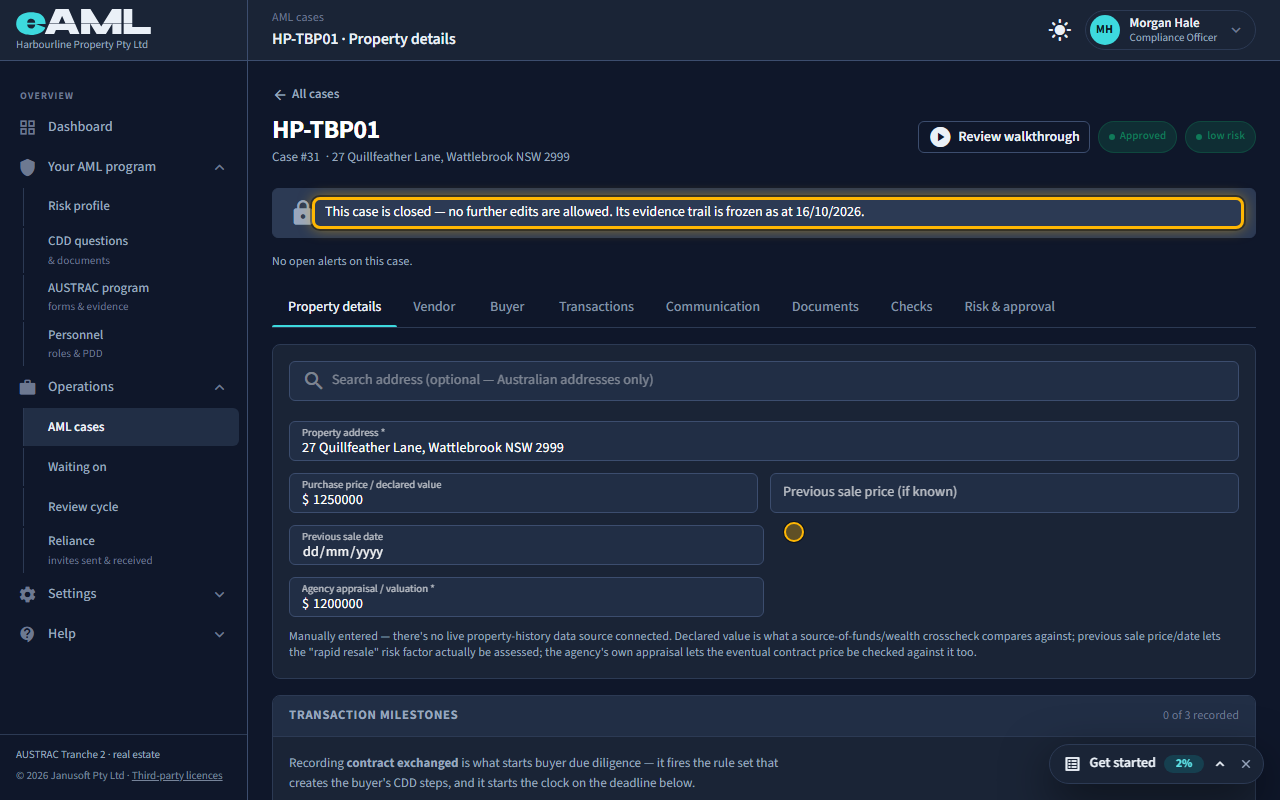
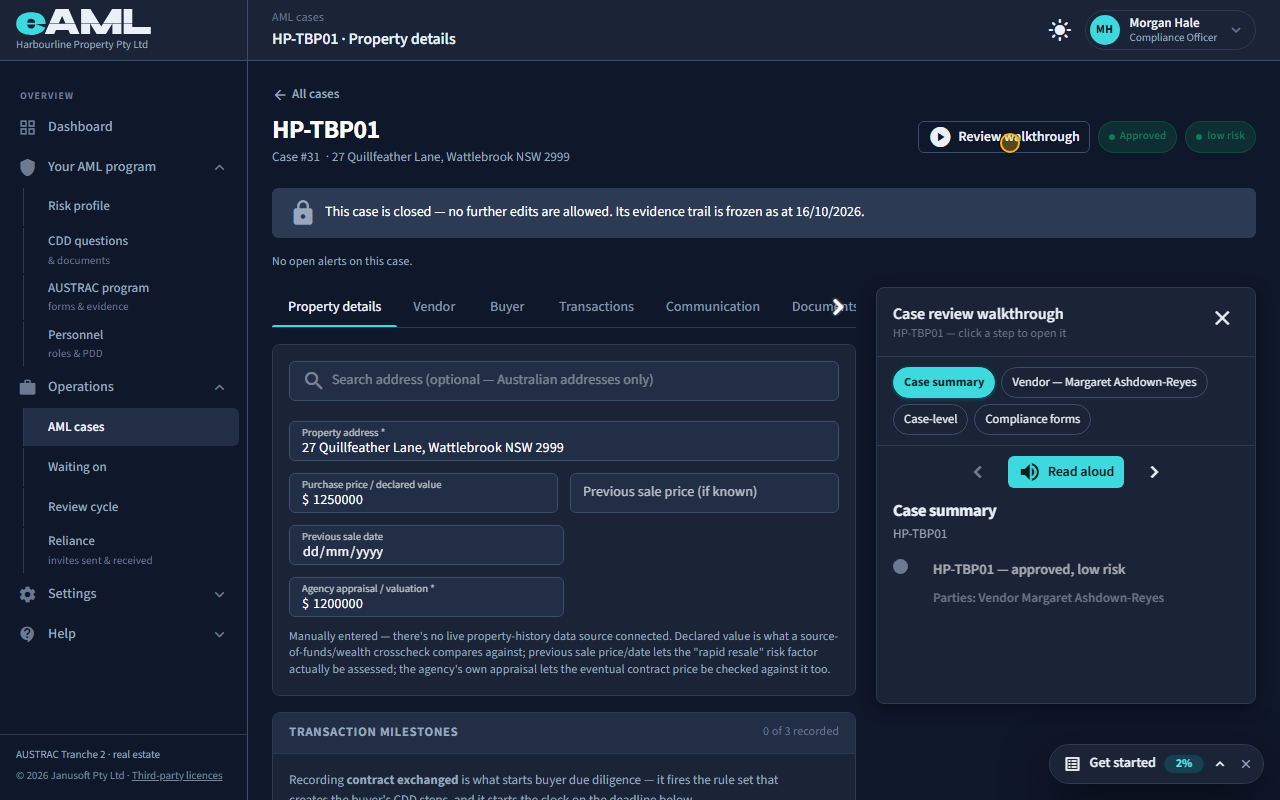
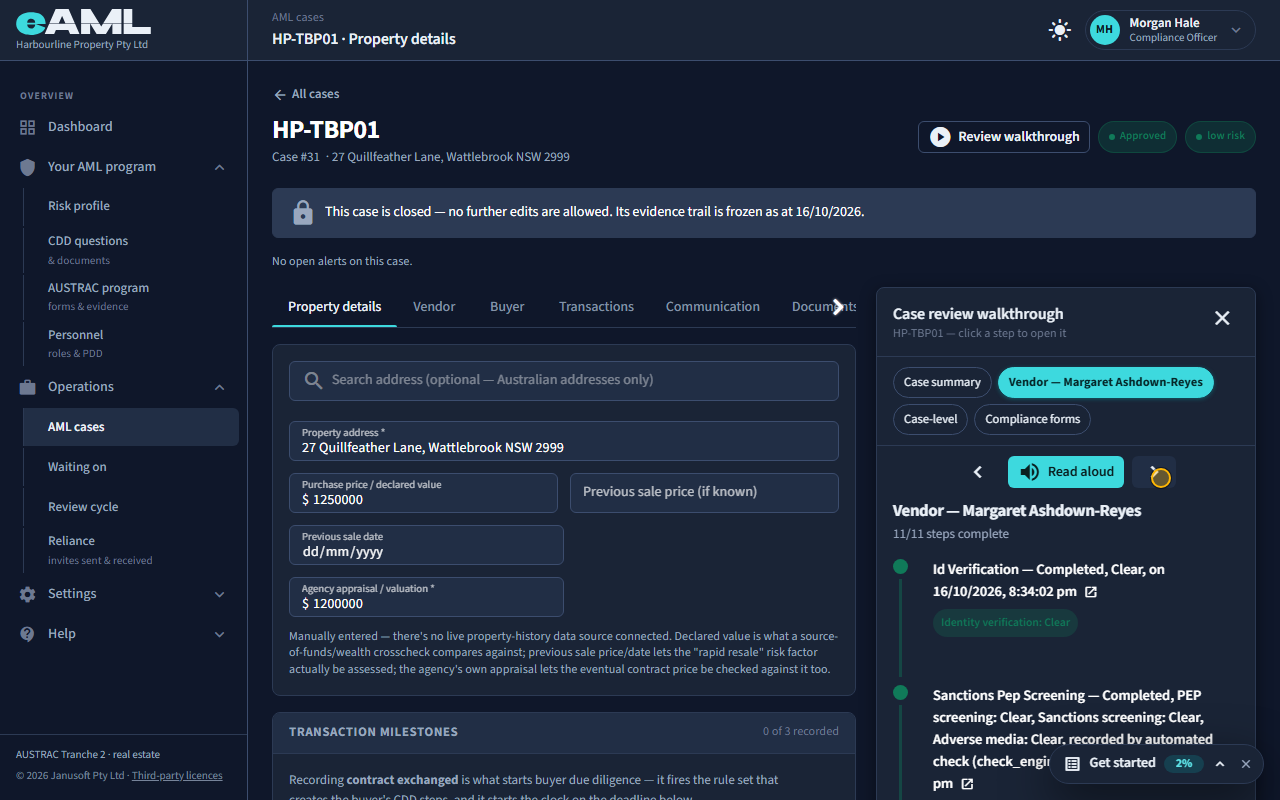
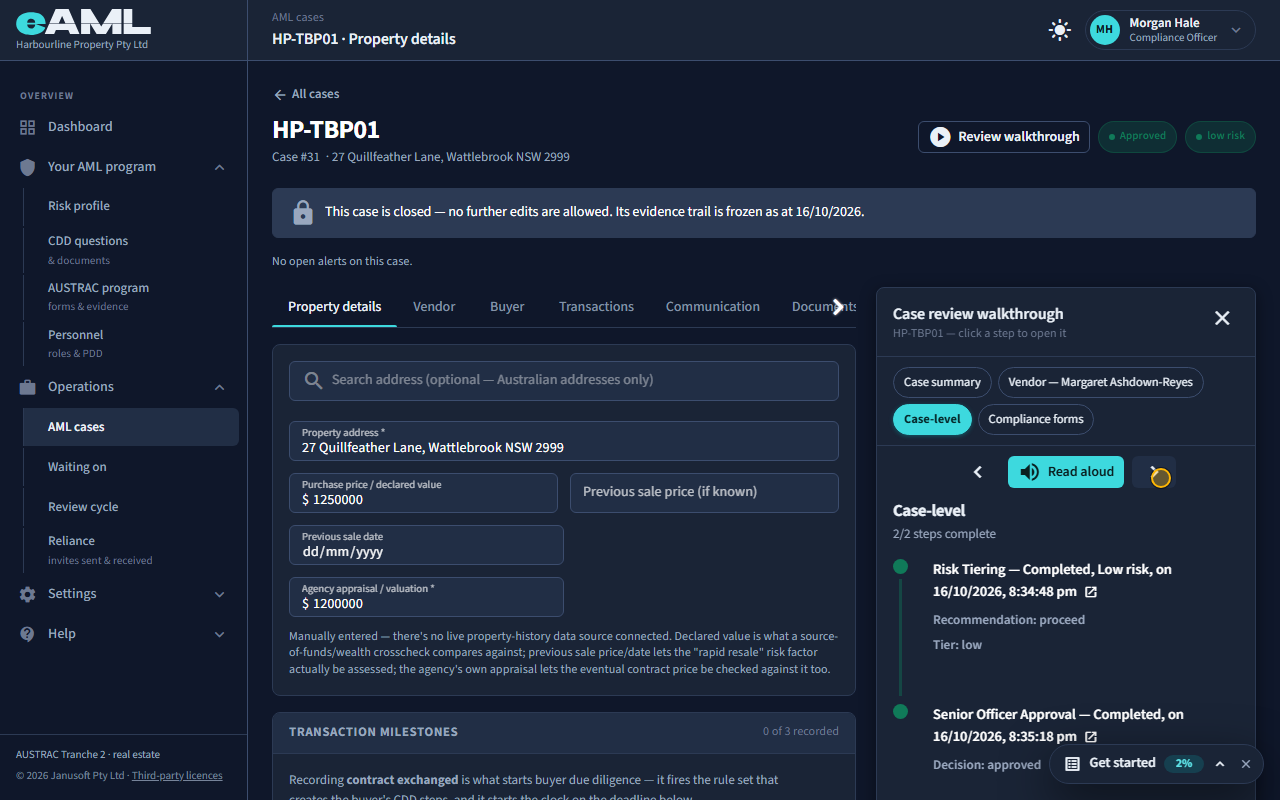
Once a case is Approved, Declined or Withdrawn it is closed. A banner says so: no further edits are allowed, and the evidence trail is frozen as at the closing date. Everything stays readable and downloadable; only changes are refused. For your evaluator, or for AUSTRAC, eAML has no separate login: open the case yourself and use Review walkthrough, at the top of every case. It narrates every step on the case, done or not, in order: who did it, when, and what was found. Select a section to read it, select a step to jump to where it was done, or select Read aloud to have the browser read it out.
-
If you are the only one
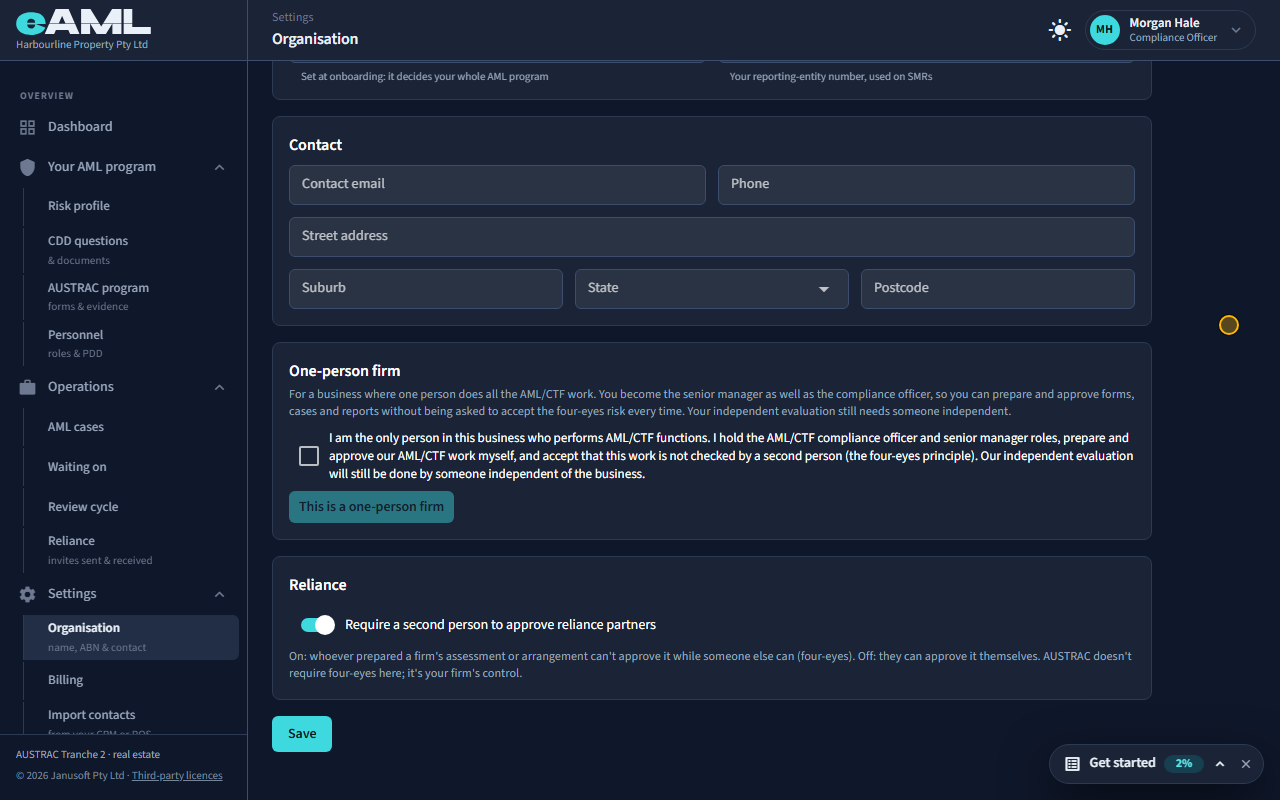
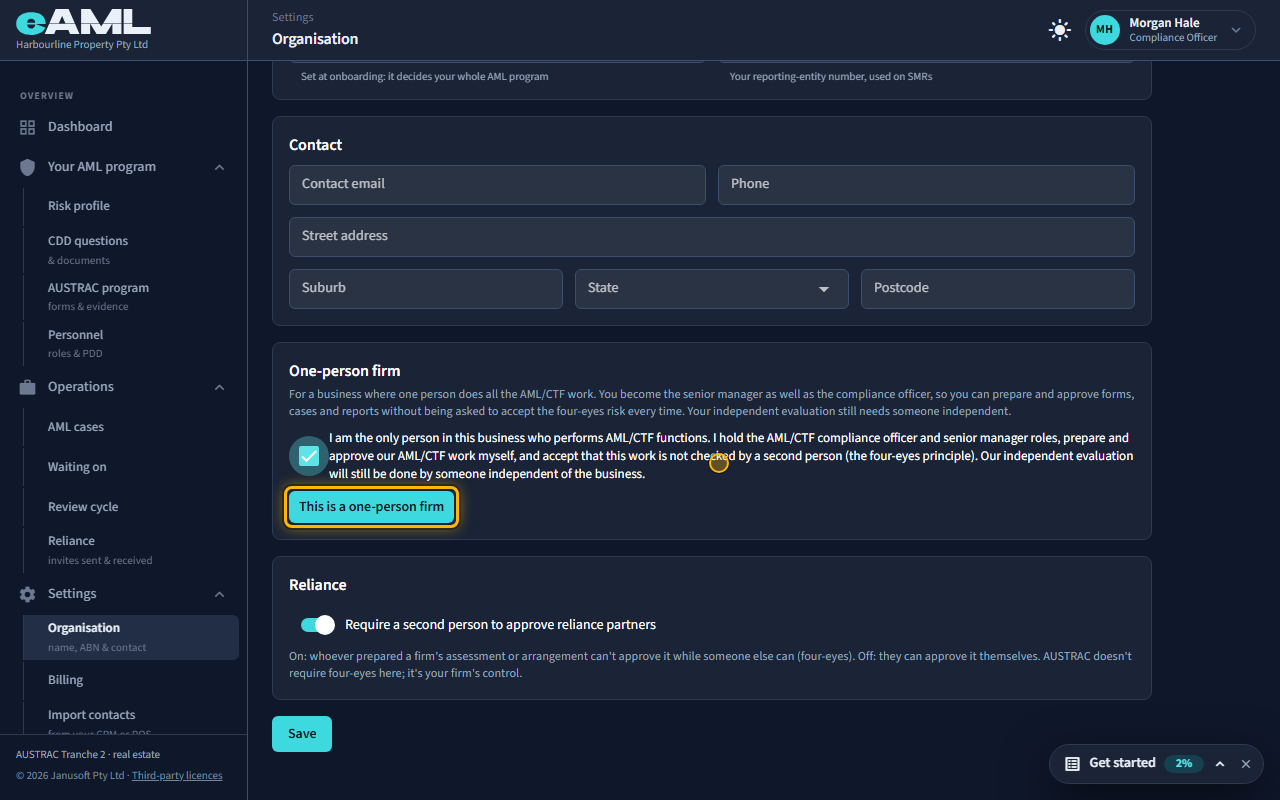
Open Organisation, find One-person firm, tick the statement, and select This is a one-person firm.
In a firm of one, being asked the four-eyes question on every approval is just noise. The firm can accept the risk once instead. Open Organisation under Settings and find One-person firm. It is offered only while nobody else in the firm could approve (a compliance officer or a senior manager); if someone could, the page names them. Tick the statement, which says you are the only person who performs AML/CTF functions here, that you prepare and approve your own work, and that your independent evaluation will still be done by someone independent. Then select This is a one-person firm. You become a senior manager as well as the compliance officer, and your own approvals go through without the question, each still written to the audit log. If a colleague who can approve joins the firm, the setting stops applying by itself and the page suggests switching it off.
Every screen in this guide was captured from the live application in the same run as the video, so the two always match. If a screen here no longer matches what you see, tell us: the guide is regenerated after each release.